bluetooth Hyundai Genesis Coupe 2013 User Guide
[x] Cancel search | Manufacturer: HYUNDAI, Model Year: 2013, Model line: Genesis Coupe, Model: Hyundai Genesis Coupe 2013Pages: 414, PDF Size: 38.89 MB
Page 226 of 414
Features of your vehicle
160
4
Bluetooth ®Wireless Technology
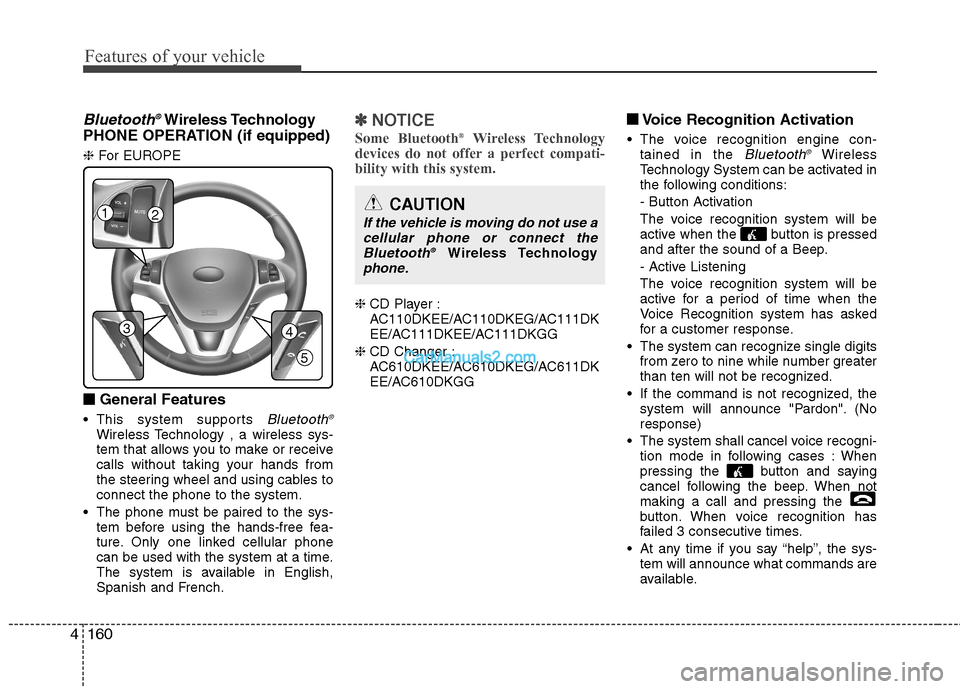
PHONE OPERATION (if equipped) ❈ For EUROPE
■
■ General Features
This system supports
Bluetooth ®Wireless Technology , a wireless sys-
tem that allows you to make or receive
calls without taking your hands from
the steering wheel and using cables toconnect the phone to the system.
The phone must be paired to the sys- tem before using the hands-free fea-
ture. Only one linked cellular phone
can be used with the system at a time.
The system is available in English,
Spanish and French.
✽✽ NOTICE
Some Bluetooth ®
Wireless Technology
devices do not offer a perfect compati- bility with this system.
❈ CD Player :
AC110DKEE/AC110DKEG/AC111DK
EE/AC111DKEE/AC111DKGG
❈ CD Changer :
AC610DKEE/AC610DKEG/AC611DK
EE/AC610DKGG ■
■
Voice Recognition Activation
The voice recognition engine con- tained in the
Bluetooth ®Wireless
Technology System can be activated in
the following conditions:
- Button Activation
The voice recognition system will be
active when the button is pressed
and after the sound of a Beep.
- Active Listening
The voice recognition system will be
active for a period of time when the
Voice Recognition system has asked
for a customer response.
The system can recognize single digits from zero to nine while number greater
than ten will not be recognized.
If the command is not recognized, the system will announce "Pardon". (Noresponse)
The system shall cancel voice recogni- tion mode in following cases : When
pressing the button and saying
cancel following the beep. When notmaking a call and pressing the
button. When voice recognition has
failed 3 consecutive times.
At any time if you say “help”, the sys- tem will announce what commands are
available.
12
34
5
CAUTION
If the vehicle is moving do not use a
cellular phone or connect theBluetooth ®
Wireless Technologyphone.
Page 227 of 414
4161
Features of your vehicle
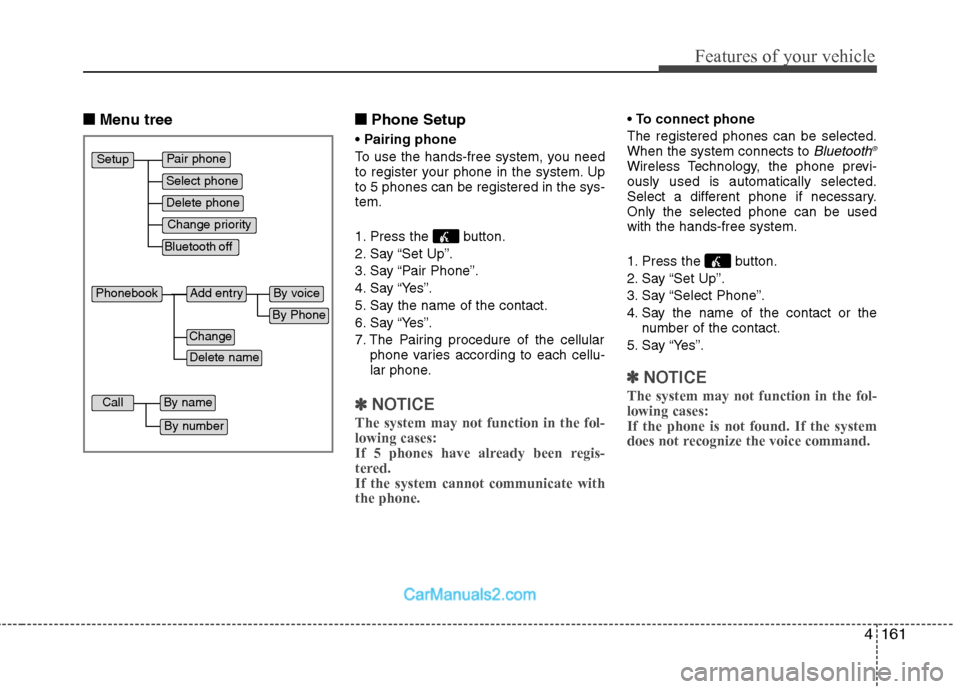
■■Menu tree ■■
Phone Setup
Pairing phone
To use the hands-free system, you need
to register your phone in the system. Upto 5 phones can be registered in the sys-tem.
1. Press the button.
2. Say “Set Up”.
3. Say “Pair Phone”.
4. Say “Yes”.
5. Say the name of the contact.
6. Say “Yes”.
7. The Pairing procedure of the cellular phone varies according to each cellu-
lar phone.
✽✽ NOTICE
The system may not function in the fol- lowing cases:
If 5 phones have already been regis-
tered. If the system cannot communicate withthe phone.
To connect phone
The registered phones can be selected. When the system connects to
Bluetooth ®Wireless Technology, the phone previ-ously used is automatically selected.
Select a different phone if necessary.Only the selected phone can be usedwith the hands-free system.
1. Press the button.
2. Say “Set Up”.
3. Say “Select Phone”.
4. Say the name of the contact or the
number of the contact.
5. Say “Yes”.
✽✽ NOTICE
The system may not function in the fol- lowing cases: If the phone is not found. If the system
does not recognize the voice command.
Pair phone
Select phone
Change priority
Delete phone
Bluetooth off
Setup
Add entryPhonebook
Change
Delete name
By Phone
By voice
CallBy name
By number
Page 228 of 414
Features of your vehicle
162
4
• Deleting phone
The registered phones can be deleted.
1. Press the button.
2. Say “Set Up”.
3. Say “Delete Phone”.
4. Say name or number from list or “Delete all”.
5. Say “Yes”. Changing Priority
The connection priority for registered phones can be changed.
1. Press the button.
2. Say “Set Up”.
3. Say “Change Priority”.
4. Say the name of the contact or the number of the contact.
5. Say “Yes”. • Turning Bluetooth
®Wireless
Technology on/off
Bluetooth ®Wireless Technology function
can be switched ON/ OFF. initial status :
Bluetooth ®Wireless Technology ON
1. Press the button.
2. Say “Set Up”.
3. Say “
Bluetooth ®Wireless Technology
off ”.
4. Say “Yes”.
Bluetooth ®Wireless
Technology on
1. Press the send or button.
2. Say “yes”.
3. The
Bluetooth ®Wireless Technology
will be turned on ■
Phone Book
Adding Entry
Phone numbers and voice tags can be
registered. Entries registered in the
phone can also be transferred. Adding Entry by Voice
1. Press the button.
2. Say “phonebook”.
3. Say “add entry”.
4. Say “by voice”.
5. Say the name of the contact.
6. Say “yes”.
7. Say the phone number.
8. Say “store”.
9. Say “Home”, “Office”, “Mobile”, “Other”or “default".
10. Say “Yes” to store an additional loca- tion for this contact.
Page 230 of 414
Features of your vehicle
164
4
Dialing by Number
The system will make a phone call by
dialing the spoken numbers.
The system can recognize single digits
from zero to nine.
1. Press the button.
2. Say “Call”.
3. Say “Number”.
4. Say “
5. Say “
6. Say “Dial”.
✽✽ Tip
A shortcut to each of the following func- tions is available.1. Say “Dial number”.2. Say “Dial
■ Receiving a phone call
When receiving a phone call, a ring tone is heard and the system changes to tele-
phone mode. When receiving a phone
call, the phone number and the message
“Incoming” will be displayed.
Press the send switch to take the call.
or “- ” on the steering volume controls.
Volume adjustment cannot be made using the audio system.
The received call can be transferredfrom the hands-free system to the cel-lular phone that is connected to
Bluetooth®Wireless Technology.
For details, please refer to you user's
manual for the cellular phone or go to
the Key matrix in this manual (nextpage). ■
Talking on the phone
When talking on the phone, the display
will differ depending on whether or not
the vehicle is in motion.
Number and "active call" is displayed.When the call is finished, press the end
switch.
✽✽ NOTICE
In the following situations, your voice
may not reach the other party:
1. When talking alternately with the other party on the phone. If you talkat the same time, the voice may not
reach the other parties. (This is not amalfunction.)
2. When keeping the volume of incom-
ing voice to a low level. Otherwise,
high volumes may result in an echo.When you talk on the phone, speak
clearly towards the microphone.
3. When driving on a rough road.
4. When driving at high speeds.
5. When the window is open.
6. When the air conditioning vents are facing the microphone.
7. When the sound of the air condition-
ing fan is loud.
Page 233 of 414
4167
Features of your vehicle
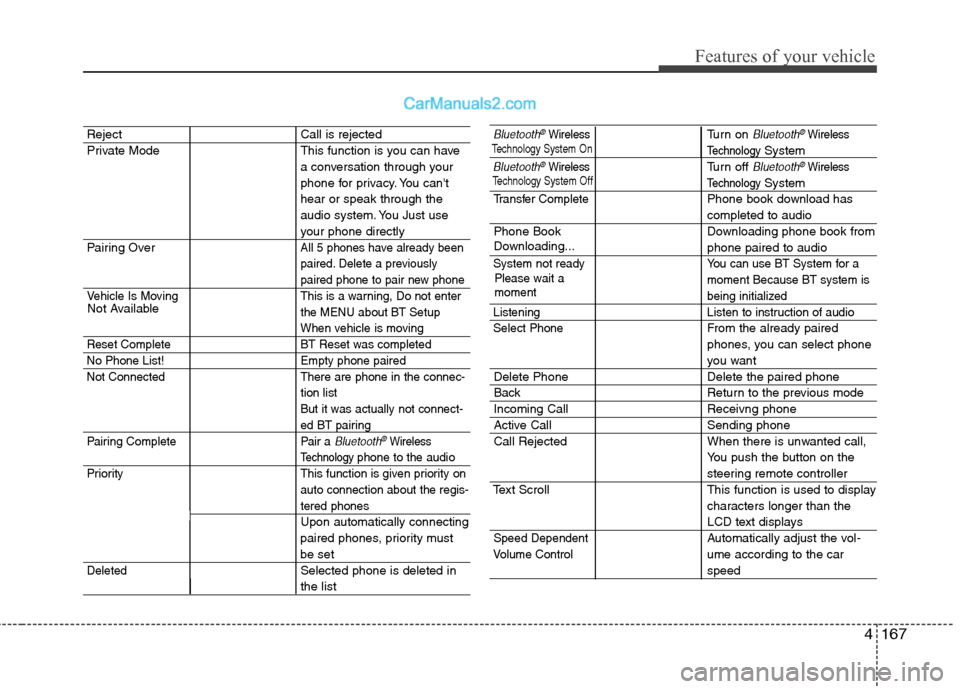
Reject Call is rejected
Private Mode This function is you can havea conversation through your
phone for privacy. You can'thear or speak through the
audio system. You Just use
your phone directly
Pairing Over
All 5 phones have already been
paired. Delete a previously
paired phone to pair new phone
Vehicle Is Moving This is a warning, Do not enter the MENU about BT Setup
When vehicle is moving
Reset Complete BT Reset was completed
No Phone List! Empty phone paired
Not Connected There are phone in the connec- tion list
But it was actually not connect-
ed BT pairing
Pairing Complete Pair a
Bluetooth®Wireless
Technology phone to the audio
Priority This function is given priority on auto connection about the regis-
tered phones
Upon automatically connecting
paired phones, priority must
be set
DeletedSelected phone is deleted in
the list
Bluetooth®WirelessTurn on Bluetooth®Wireless
TechnologySystem
Bluetooth®WirelessTurn off Bluetooth®Wireless
TechnologySystem
Transfer CompletePhone book download has
completed to audio
Phone Book Downloading phone book from
phone paired to audio
System not ready You can use BT System for a moment Because BT system is
being initialized
Listening Listen to instruction of audio Select Phone
From the already paired
phones, you can select phone
you want
Delete Phone Delete the paired phone
Back Return to the previous mode
Incoming Call Receivng phone
Active Call Sending phone
Call Rejected When there is unwanted call,You push the button on the
steering remote controller
Text Scroll This function is used to display characters longer than the
LCD text displays
Speed DependentAutomatically adjust the vol- ume according to the car
speed
Not Available
Please wait a moment
Volume Control
Downloading...
Technology System Off
Technology
System On
Page 234 of 414
Features of your vehicle
168
4
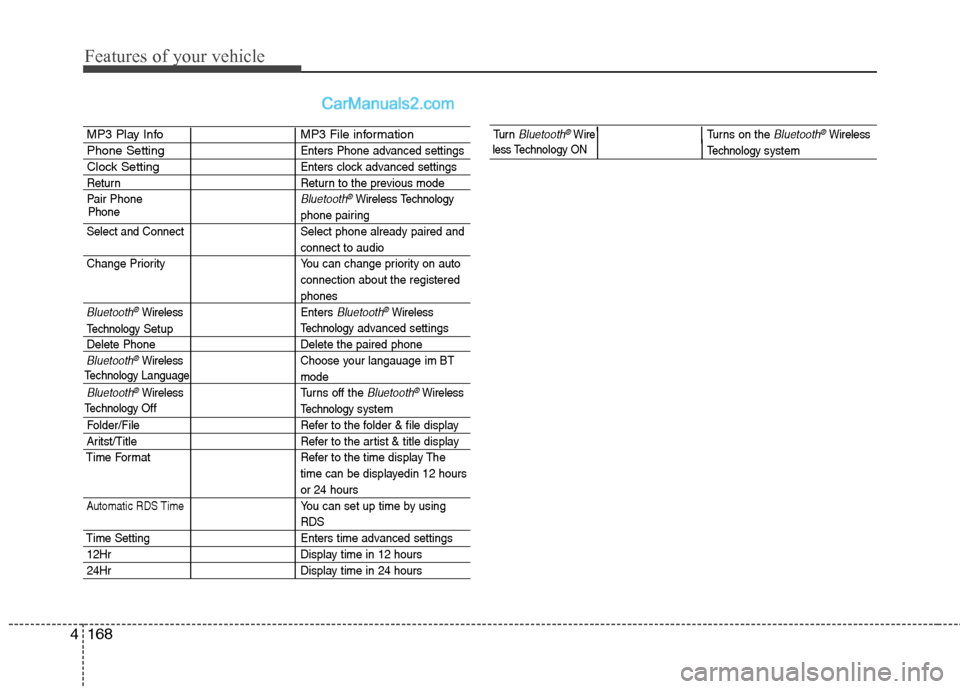
MP3 Play Info MP3 File information
Phone SettingEnters Phone advanced settings
Clock SettingEnters clock advanced settings
Return Return to the previous mode
Pair Phone
Bluetooth®WirelessTechnology
phone pairing
Select and Connect Select phone already paired and
connect to audio
Change Priority You can change priority on auto connection about the registered
phones
Bluetooth®WirelessEnters Bluetooth®Wireless
Technologyadvanced settings
Delete Phone Delete the paired phone
Bluetooth®Wireless Choose your langauage im BT
mode
Bluetooth®WirelessTurns off the Bluetooth®Wireless
Technology system
Folder/File Refer to the folder & file display
Aritst/Title Refer to the artist & title display
Time Format Refer to the time display The time can be displayedin 12 hours
or 24 hours
Automatic RDS TimeYou can set up time by using
RDS
Time Setting Enters time advanced settings
12HrDisplay time in 12 hours
24HrDisplay time in 24 hours
Phone
TechnologyLanguage
Technology
Setup
TechnologyOff
Tu r n Bluetooth®WireTurns on the Bluetooth®Wireless
Technologysystem less Technology ON
Page 235 of 414
4169
Features of your vehicle
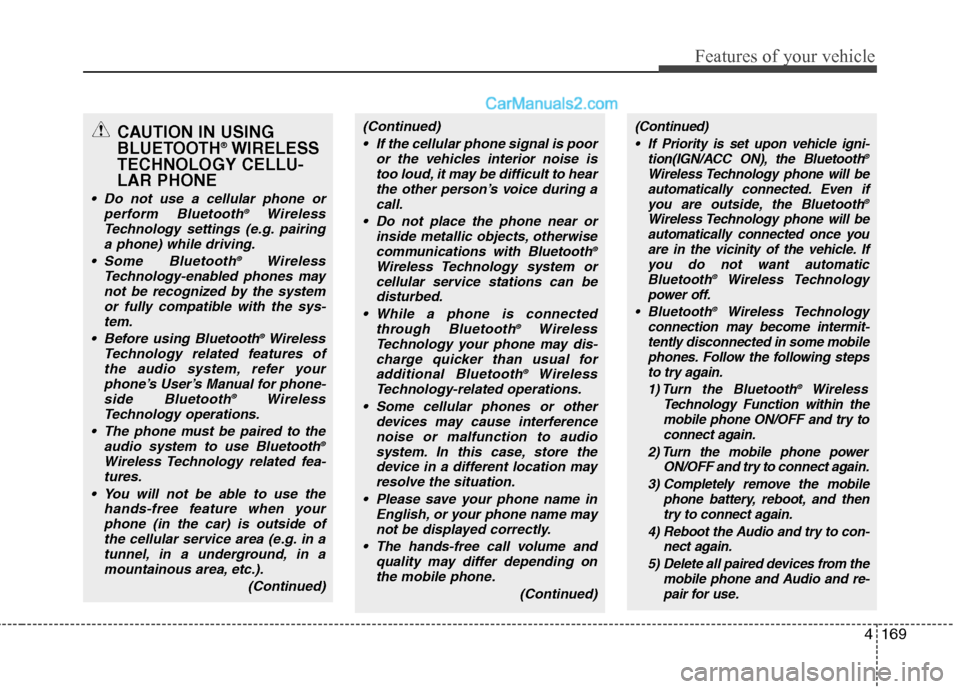
CAUTION IN USING
BLUETOOTH®
WIRELESS
TECHNOLOGY CELLU-LAR PHONE
Do not use a cellular phone or perform Bluetooth ®
Wireless
Technology settings (e.g. pairing
a phone) while driving.
Some Bluetooth ®
Wireless
Technology-enabled phones may not be recognized by the system or fully compatible with the sys-tem.
Before using Bluetooth ®
Wireless
Technology related features of the audio system, refer yourphone’s User’s Manual for phone-side Bluetooth ®
Wireless
Technology operations.
The phone must be paired to the audio system to use Bluetooth ®
Wireless Technology related fea- tures.
You will not be able to use the hands-free feature when yourphone (in the car) is outside of
the cellular service area (e.g. in atunnel, in a underground, in amountainous area, etc.).
(Continued)
(Continued) If the cellular phone signal is poor or the vehicles interior noise istoo loud, it may be difficult to hearthe other person’s voice during a
call.
Do not place the phone near or inside metallic objects, otherwisecommunications with Bluetooth ®
Wireless Technology system or cellular service stations can be
disturbed.
While a phone is connected through Bluetooth ®
Wireless
Technology your phone may dis-
charge quicker than usual foradditional Bluetooth ®
Wireless
Technology-related operations.
Some cellular phones or other devices may cause interferencenoise or malfunction to audio system. In this case, store the
device in a different location mayresolve the situation.
Please save your phone name in English, or your phone name maynot be displayed correctly.
The hands-free call volume and quality may differ depending onthe mobile phone.
(Continued)(Continued) If Priority is set upon vehicle igni- tion(IGN/ACC ON), the Bluetooth ®
Wireless Technology phone will be automatically connected. Even if you are outside, the Bluetooth ®
Wireless Technology phone will be automatically connected once you
are in the vicinity of the vehicle. If you do not want automatic Bluetooth ®
Wireless Technology
power off.
Bluetooth ®
Wireless Technology
connection may become intermit- tently disconnected in some mobile
phones. Follow the following stepsto try again.
1) Turn the Bluetooth ®
Wireless
Technology Function within the mobile phone ON/OFF and try toconnect again.
2) Turn the mobile phone power ON/OFF and try to connect again.
3) Completely remove the mobile phone battery, reboot, and thentry to connect again.
4) Reboot the Audio and try to con- nect again.
5) Delete all paired devices from the mobile phone and Audio and re-pair for use.