Start Hyundai Grand i10 2015 Owner's Guide
[x] Cancel search | Manufacturer: HYUNDAI, Model Year: 2015, Model line: Grand i10, Model: Hyundai Grand i10 2015Pages: 343, PDF Size: 29.47 MB
Page 128 of 343
Features of your vehicle
72
4
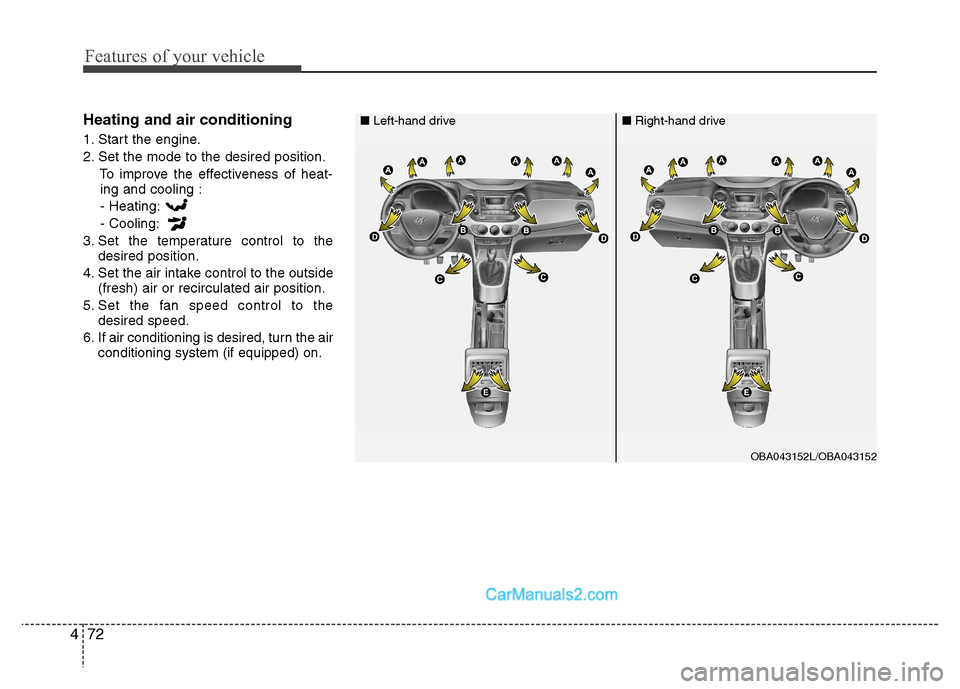
Heating and air conditioning
1. Start the engine.
2. Set the mode to the desired position.
To improve the effectiveness of heat-ing and cooling :
- Heating:- Cooling:
3. Set the temperature control to the desired position.
4. Set the air intake control to the outside (fresh) air or recirculated air position.
5. Set the fan speed control to the desired speed.
6. If air conditioning is desired, turn the air conditioning system (if equipped) on.
OBA043152L/OBA043152
■
Right-hand drive
■ Left-hand drive
Page 133 of 343
477
Features of your vehicle
Air conditioning (if equipped)
All HYUNDAI Air Conditioning Systems
are filled with environmentally friendly
R-134a refrigerant.
1. Start the engine. Push the air condi-tioning button.
2. Set the mode to the position.
3. Set the air intake control to the recircu- lated air position. However, prolonged
operation of the recirculated air posi-
tion will excessively dry the air. In this
case, change the air position.
4. Adjust the fan speed control and tem- perature control to maintain maximum
comfort.
When maximum cooling is desired, set
the temperature control to the extreme
left, set the air intake control to therecirculated air position, then set the
fan speed control to the highest speed.✽✽ NOTICE
While using the air conditioning sys- tem, monitor the temperature gauge
closely while driving up hills or in
heavy traffic when outside tempera-
tures are high. Air conditioning sys-
tem operation may cause engine over-
heating. Continue to use the blower
fan but turn the air conditioning sys-
tem off if the temperature gauge indi-
cates engine overheating.
While opening the windows in humid weather air conditioning may create
water droplets inside the vehicle.
Since excessive water droplets may
cause damage to electrical equipment,
air conditioning should only be used
with the windows closed.Air conditioning system operation tips
If the vehicle has been parked in direct
sunlight during hot weather, open the
windows for a short time to let the hot
air inside the vehicle escape.
To help reduce moisture inside of the windows on rainy or humid days,
decrease the humidity inside the vehicle
by operating the air conditioning system.
During air conditioning system opera- tion, you may occasionally notice a slightchange in engine speed as the air con-
ditioning compressor cycles. This is a
normal system operation characteristic.
Use the air conditioning system every month only for a few minutes to ensure
maximum system performance.
When using the air conditioning system, you may notice clear water dripping (or
even puddling) on the ground under the
passenger side of the vehicle. This is a
normal system operation characteristic.
Operating the air conditioning system in the recirculated air position provides
maximum cooling, however, continual
operation in this mode may cause the
air inside the vehicle to become stale.
During cooling operation, you may occasionally notice a misty air flow
because of rapid cooling and humid air
intake. This is a normal system opera-
tion characteristics.
Page 153 of 343
497
Features of your vehicle
✽✽NOTICE - USING THE USB
DEVICE
To use an external USB device, make sure the device is not connected when
starting up the vehicle. Connect the
device after starting up.
If you start the engine when the USB
device is connected, it may damage
the USB device. (USB flashdrives are
very sensitive to electric shock.)
If the engine is started up or turned
off while the external USB device is
connected, the external USB device
may not work.
The System may not play inauthentic
MP3 or WMA files.
1) It can only play MP3 files with the compression rate between 8Kbps ~
320Kbps.
2) It can only play WMA music files with the compression rate between
8Kbps ~ 320Kbps.
Take precautions for static electricity
when connecting or disconnecting the
external USB device.
An encrypted MP3 PLAYER is not recognizable.
(Continued)(Continued)
Depending on the condition of the
external USB device, the connected
external USB device can be unrecog-
nizable.
When the formatted byte/sector set-
ting of External USB device is not
either 512BYTE or 2048BYTE, then
the device will not be recognized.
Use only a USB device formatted to FAT 12/16/32.
USB devices without USB I/F authen- tication may not be recognizable.
Make sure the USB connection termi- nal does not come in contact with the
human body or other objects.
If you repeatedly connect or discon-
nect the USB device in a short period
of time, it may break the device.
You may hear a strange noise when connecting or disconnecting a USB
device. (Continued)(Continued)
If you disconnect the external USB
device during playback in USB mode,
the external USB device can be dam-
aged or may malfunction. Therefore,
disconnect the external USB device
when the audio is turned off or in
another mode. (e.g, Radio, CD)
Depending on the type and capacity of
the external USB device or the type of
the files stored in the device, there is a
difference in the time taken for recog-
nition of the device.
Do not use the USB device for purpos- es other than playing music files.
Playing videos through the USB is not supported.
Use of USB accessories such as rechargers or heaters using USB I/F
may lower performance or cause trou-
ble. (Continued)
Page 169 of 343
![Hyundai Grand i10 2015 Owners Guide 4113
Features of your vehicle
(Priority)
This is used to change the order (pri-
ority) of automatic connection for the
paired mobile phones.
Select [Phone List] Select [Priority]
through TUNE knob](/img/35/14790/w960_14790-168.png "Hyundai Grand i10 2015 Owners Guide 4113
Features of your vehicle
(Priority)
This is used to change the order (pri-
ority) of automatic connection for the
paired mobile phones.
Select [Phone List] Select [Priority]
through TUNE knob")
4113
Features of your vehicle
(Priority)
This is used to change the order (pri-
ority) of automatic connection for the
paired mobile phones.
Select [Phone List] Select [Priority]
through TUNE knob Select No. 1
Priority mobile phone ➀ Select [Priority].
➁ From the paired phones, select
the phone desired for No.1 priority.
➂ The changed priority sequence is
displayed.
❈ Once the connection sequence
(priority) is changed, the new no. 1
priority mobile phone will be con-nected.
- when the no. 1 priority cannot be connected: Automaticallyattempts to connect the most
recently connected phone.
- Cases when the most recently connected phone cannot be con-
nected: Attempts to connect inthe order in which paired phonesare listed. - The connected phone will auto-
matically be changed to No. 1
priority.
Select [Phone List] Select mobile
phone through TUNE knobSelect [Delete] ➀ Select the desired mobile phone.
➁ Delete the selected mobile phone.
➂ Deletion completion is displayed.
❈ When attempting to delete a cur-
rently connected phone, the phone is first disconnected. Contacts Download
This feature is used to download
contacts and call histories into theaudio system.
Select [Contacts Download] Select
through TUNE knob
CAUTION
When you delete a mobile
phone, the mobile phone con-tacts will also be erased.
For stable Bluetooth ®
Wireless
Technology communication, delete the mobile phone fromthe audio and also delete theaudio from your mobile phone.
CAUTION
The download feature may not be supported in some mobilephones.
If a different operation is per- formed while Contacts arebeing downloaded, download-ing will be discontinued.Contacts already downloaded will be saved.
When downloading new Contacts, delete all previouslysaved Contacts before start-ing download.
Page 174 of 343
Features of your vehicle
118
4
Random
While song (file) is playing
(RDM) key
Audio CD, My Music mode: RDM on screen
Random (Shortly pressing the key ):
Plays all songs in random order.
MP3 CD, USB mode: FLD.RDM on screen
Folder Random (Shortly pressing the key): Plays all files within the current
folder in random order.
MP3 CD, USB mode: RDM on screen
Random (pressing twice): Plays all files in random order.
iPod ®
mode: RDM on screen
Random (press the key) : Plays all files in random order.
❈ Press the key again to turn off
random. Changing Song/File
While song (file) is playing key
Shortly pressing the key: Plays the cur-
rent song from the beginning.
❈ If the key is pressed again
within 1 second, the previous song is
played.
Pressing and holding the key (over 0.8 seconds): Rewinds the song.
While song (file) is playing key
Plays the next song.
Pressing and holding the key (over 0.8 seconds): Fast forwards the song. Scan
While song (file) is playing key
Pressing and holding the key (over 0.8
seconds) : Scans all songs for 10 sec-
onds starting from the next song.
❈ Pressing and holding the key
again to turn off.
SCAN
SCAN
SEEK
TRACK
SEEK
TRACK
SEEK
TRACK
2 RDM
2 RDM
Page 182 of 343
Features of your vehicle
126
4
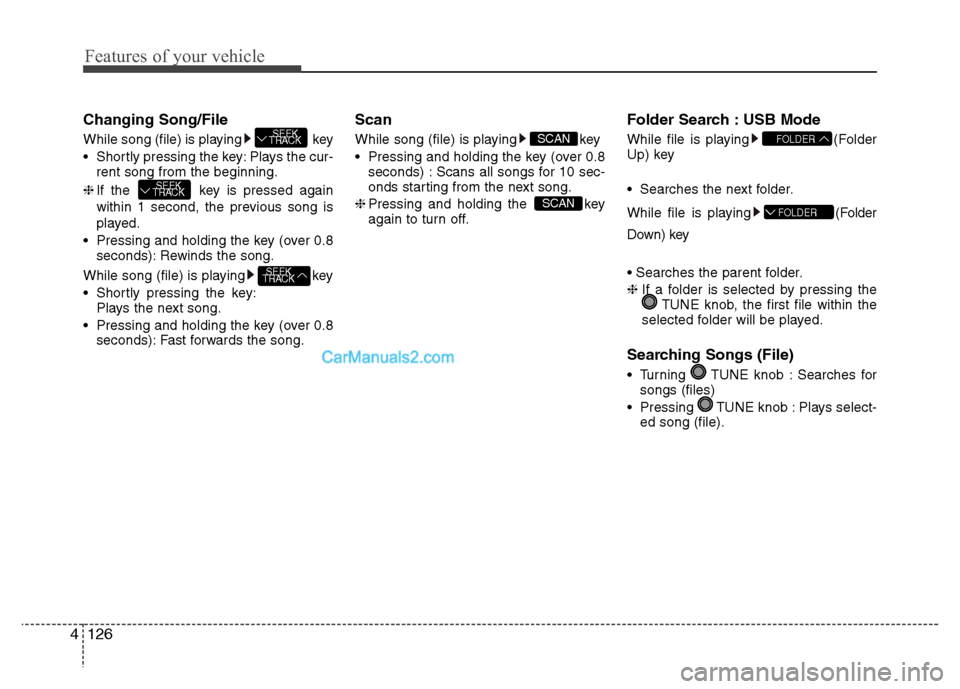
Changing Song/File
While song (file) is playing key
Shortly pressing the key: Plays the cur-
rent song from the beginning.
❈ If the key is pressed again
within 1 second, the previous song is
played.
Pressing and holding the key (over 0.8 seconds): Rewinds the song.
While song (file) is playing key
Shortly pressing the key: Plays the next song.
Pressing and holding the key (over 0.8 seconds): Fast forwards the song. Scan
While song (file) is playing key
Pressing and holding the key (over 0.8
seconds) : Scans all songs for 10 sec-
onds starting from the next song.
❈ Pressing and holding the key
again to turn off. Folder Search : USB Mode
While file is playing (Folder
Up) key
Searches the next folder.
While file is playing (F
older
Down) key
❈ If a folder is selected by pressing the
TUNE knob, the first file within the
selected folder will be played.
Searching Songs (File)
Turning TUNE knob : Searches for songs (files)
Pressing TUNE knob : Plays select- ed song (file).
FOLDER
FOLDER
SCAN
SCAN
SEEK
TRACK
SEEK
TRACK
SEEK
TRACK
Page 183 of 343
![Hyundai Grand i10 2015 Owners Guide 4127
Features of your vehicle
MENU : USB
Press the USB mode key to set
the Repeat, Folder Random, Folder
Repeat, All Random, Information, and
features. Repeat
Press the key Set [ RPT]
through th](/img/35/14790/w960_14790-182.png "Hyundai Grand i10 2015 Owners Guide 4127
Features of your vehicle
MENU : USB
Press the USB mode key to set
the Repeat, Folder Random, Folder
Repeat, All Random, Information, and
features. Repeat
Press the key Set [ RPT]
through th")
4127
Features of your vehicle
MENU : USB
Press the USB mode key to set
the Repeat, Folder Random, Folder
Repeat, All Random, Information, and
features. Repeat
Press the key Set [ RPT]
through the TUNE knob or
key to repeat the current song. ❈Press RPT again to turn off.
Folder Random
Press the key Set [ F.RDM]
through the TUNE knob or
key to randomly play songs within the
current folder. ❈ Press F.RDM again to turn off. Folder Repeat
Press the key Set [ F.RPT]
through the TUNE knob or key
to repeat songs within the current folder. ❈
Press F.RPT again to turn off.
All Random
Press the key Set [ A.RDM]
through the TUNE knob or key
to randomly play all songs within the
USB. ❈ Press A.RDM again to turn off.
Information
Press the key Set [ Info]
through the TUNE knob or key
to display information of the current song. ❈ Press the key to turn off info
display. AUX
AUX is used to play external MEDIA cur-
rently connected with the AUX terminal.
AUX mode will automatically start when
an external device is connected with the
AUX terminal.
If an external device is connected, you
can also press the key to change
to AUX mode. ❈
AUX mode cannot be started unless
there is an external device connected
to the AUX terminal.
✽✽ NOTICE - USING THE AUX
Fully insert the AUX cable into the AUX
terminal for use.
MEDIA
MENU
5
MENU
4
MENU
3
MENU
2 RDM
MENU
1 RPTMENU
MENU
Page 184 of 343
Bluetooth®Wireless
Technology AUDIO (if equipped)
What is
Bluetooth®Wireless
Technology?
Bluetooth®Wireless Technology allows
devices to be connected in a short dis-
tance, including hands-free devices,
stereo headsets, wireless remote con-
trollers, etc. For more information, visitthe
Bluetooth®Wireless Technology
website at www.Bluetooth.com
Before using Bluetooth®Wireless
Technology audio features
Bluetooth®Wireless Technology audio
may not be supported depending on
the compatibility of your
Bluetooth®
Wireless Technology mobile phone.
Bluetooth®Wireless
Technology audio, you must first pairand connect the
Bluetooth®Wireless
Technology mobile phone. The
Bluetooth®word mark and logos
are registered trademarks owned by
Bluetooth®SIG, Inc. and any use of
such marks is under license. Other
trademarks and trade names are those
of their respective owners. A
Bluetooth®
enabled cell phone is required to useBluetooth®Wireless Technology
Bluetooth®Wireless Technology audio
can be used only when the [Audio
Streaming] of Phone is turned On.
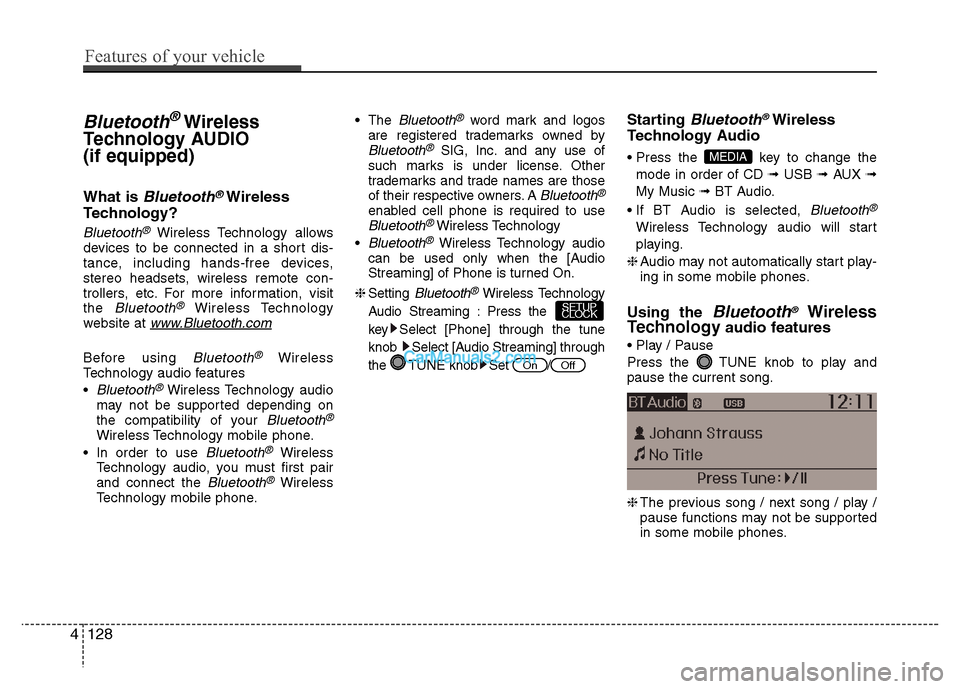
❈ Setting
Bluetooth®Wireless Technology
Audio Streaming : Press the
key Select [Phone] through the tune
knob Select [Audio Streaming] through
the TUNE knob Set / Starting
Bluetooth®Wireless
Technology Audio
key to change the
mode in order of CD ➟ USB ➟ AUX ➟
My Music ➟ BT Audio.
Bluetooth®
Wireless Technology audio will start
playing.
❈ Audio may not automatically start play-
ing in some mobile phones.
Using the
Bluetooth®Wireless
Technology audio features
Press the TUNE knob to play and pause the current song. ❈ The previous song / next song / play /
pause functions may not be supported
in some mobile phones.
MEDIA
OffOn
SETUP
CLOCK
4128
Features of your vehicle
Page 188 of 343
(Continued)
When a Bluetooth®
Wireless
Technology mobile phone is connected,
a ( ) icon will appear at the top of the
screen. If a ( ) icon is not displayed,
this indicates that a Bluetooth®
Wireless Technology enabled device has
not been connected. You must connect
the device before use. For more infor-
mation on Bluetooth®
Wireless
Technology mobile phones, refer to the
“Phone Setup” section.
Pairing and connecting a Bluetooth®
Wireless Technology enabled mobile
phone will work only when the
Bluetooth ®
Wireless Technology option
within your mobile phone has been
turned on. (Methods of turning on the
Bluetooth ®
Wireless Technology
enabled feature may differ depending
on the mobile phone.) (Continued)(Continued)
In some mobile phones, starting the
ignition while talking through
Bluetooth ®
Wireless Technology
enabled handsfree call will result in the
call becoming disconnected. (Switch the
call back to your mobile phone when
starting the ignition.)
Some features may not be supported in
some Bluetooth ®
Wireless Technology
mobile phone and devices.
Bluetooth ®
Wireless Technology
enabled operation may be unstable
depending on the communication state.
Placing the audio system within an elec-
tromagnetic environment may result in
noise interference.
4132
Features of your vehicle
Page 189 of 343
Driving your vehicle
BEFORE DRIVING. . . . . . . . . . . . . . . . . . . . . . . . . 5-3• Before entering vehicle . . . . . . . . . . . . . . . . . . . . . . . . . 5-3
. . . . . . . . . . . . . . . . . . . . . . . . . . . . . . . 5-3
KEY IGNITION SWITCH . . . . . . . . . . . . . . . . . . . 5-4 . . . . . . . . . . . . . . . . . . . . . . . . . 5-4
. . . . . . . . . . . . . . . . . . . . . . . . . . . . 5-5
ENGINE START/STOP BUTTON . . . . . . . . . . . . . 5-6 . . . . . . . . . . . . . . 5-6
. . . . . . . . . . . . . . . . . . . . . . . . . . . . 5-9
MANUAL TRANSAXLE . . . . . . . . . . . . . . . . . . . 5-11 . . . . . . . . . . . . . . . . . . . 5-11
AUTOMATIC TRANSAXLE . . . . . . . . . . . . . . . 5-14 Automatic transaxle operation . . . . . . . . . . . . . . . . . 5-15
Parking . . . . . . . . . . . . . . . . . . . . . . . . . . . . . . . . . . . . 5-18
Good driving practices . . . . . . . . . . . . . . . . . . . . . . . . 5-18
BRAKING SYSTEM . . . . . . . . . . . . . . . . . . . . . . 5-20 . . . . . . . . . . . . . . . . . . . . . . . . . . . . . . . 5-20
. . . . . . . . . . . . . . . . . . . . 5-21
. . . . . . . . . . . . . . . . . . . . . . . . . . . . 5-21
. . . . . . . . . . . . . . . . . . . . . . . . . . . . . . . 5-21
. . . . . . . . . . . . . . 5-26
. . . . . . . . . . . . 5-29 . . . . . . . . . . . . . . . . 5-30
. . . . . . . . . . . . . . . . . . 5-31
. . . . . . . . . . . . . . . . . . . . . . . 5-31
REAR PARKING ASSIST SYSTEM. . . . . . . . . . 5-32
SPECIAL DRIVING CONDITIONS . . . . . . . . . . 5-34 . . . . . . . . . . . . . . . . . 5-34
. . . . . . . . . . . . . . . . . . . . . . . . . . . 5-34
. . . . . . . . . . . . . . . . . . . . . . . . . . . . 5-35
. . . . . . . . . . . . . . . . . . . . . . . . . . . . . . 5-35
. . . . . . . . . . . . . . . . . . . . . . . . . . . . 5-35
. . . . . . . . . . . . . . . . . . . . . . . 5-36
WINTER DRIVING . . . . . . . . . . . . . . . . . . . . . . . 5-37 Snow or icy conditions . . . . . . . . . . . . . . . . . . . . . . . . 5-37
VEHICLE WEIGHT . . . . . . . . . . . . . . . . . . . . . . 5-40 Overloading . . . . . . . . . . . . . . . . . . . . . . . . . . . . . . . . . 5-40
5