Remote Hyundai H350 2016 User Guide
[x] Cancel search | Manufacturer: HYUNDAI, Model Year: 2016, Model line: H350, Model: Hyundai H350 2016Pages: 473, PDF Size: 26.4 MB
Page 233 of 473
4-41
Multimedia System
4
BBlluu eettoo ootthh®®WW iirr ee llee ssss
T
T eecchh nnoo lloo ggyy AAUU DDIIOO
(
( iiff ee qq uu iipp ppeedd ))
What is Bluetooth®Wireless
Technology?
Bluetooth®Wireless Technology
allows devices to be connected in a
short distance, including hands-free
devices, stereo headsets, wireless
remote controllers, etc. For more
information, visit the
Bluetooth®
Wireless Technology website at
www.Bluetooth.com
Before using Bluetooth®Wireless
Technology audio features
Bluetooth® Wireless Technology
audio may not be supported depending on the compatibility of
your
Bluetooth®Wireless
Technology mobile phone.
In order to use
Bluetooth®Wireless
Technology audio, you must firstpair and connect the
Bluetooth®
Wireless Technology mobile
phone. The
Bluetooth®word mark and
logos are registered trademarks
owned by
Bluetooth®SIG, Inc. and
any use of such marks is under
license. Other trademarks and trade
names are those of their respective
owners. A
Bluetooth®enabled cell
phone is required to use
Bluetooth®
Wireless Technology
Bluetooth®Wireless Technology
audio can be used only when the
[Audio Streaming] of Phone is
turned On.
❈ Setting
Bluetooth®Wireless
Technology Audio Streaming :
Press the key Select[Phone] through the tune knob
Select [Audio Streaming] through
the TUNE knob Set /
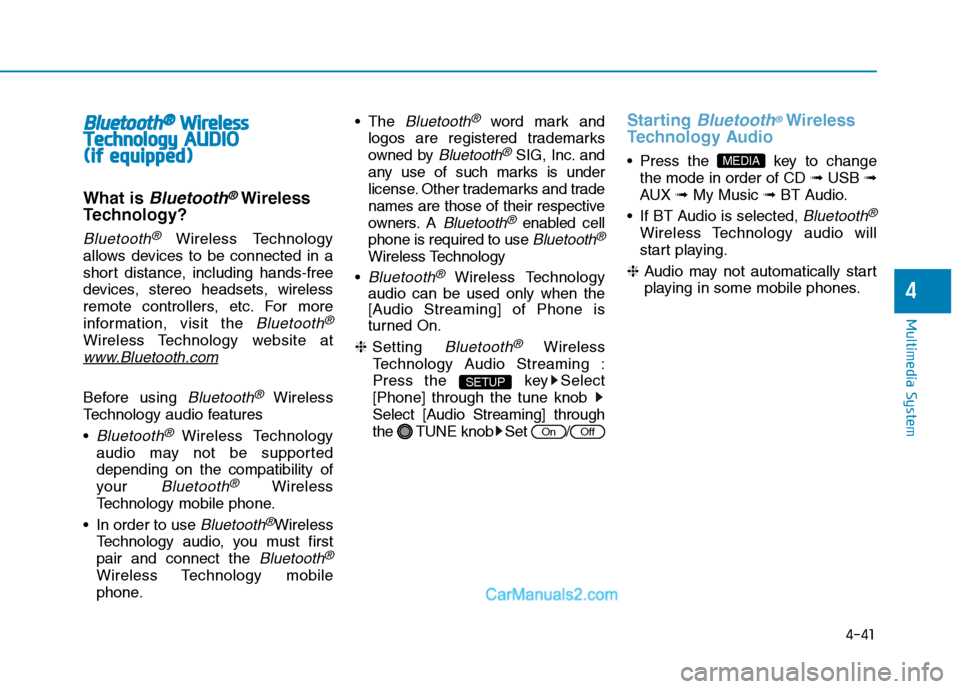
Starting Bluetooth®Wireless
Technology Audio
key to change the mode in order of CD ➟USB ➟
AUX ➟My Music ➟BT Audio.
If BT Audio is selected,
Bluetooth®
Wireless Technology audio will
start playing.
❈ Audio may not automatically start
playing in some mobile phones.
MEDIA
OffOn
SETUP
Page 234 of 473
4-42
Multimedia System
Using the Bluetooth®Wireless
Technology audio features
Press the TUNE knob to play and pause the current song. ❈ The title / artist info may not be
supported in some mobile phone.
When it is not supported, no title /
no artist will be displayed.
Press of to play previous or
next song. ❈ The previous song / next song /
play / pause functions may not be
supported in some mobile
phones.
PP HH OO NNEE ((iiff ee qq uu iipp pp eedd ))
Before using the Bluetooth®Wireless
Technology
phone features
Bluetooth®Wireless
Technology
phone, you must first
pair and connect the
Bluetooth®
Wireless Technologymobile phone.
connected, it is not possible to
enter Phone mode. Once a phoneis paired or connected, the guid-
ance screen will be displayed.
tion (IGN/ACC ON), the
Bluetooth®
Wireless Technologyphone will be
automatically connected. Even if
you are outside, the
Bluetooth®
Wireless Technologyphone will be
automatically connected once you
are in the vicinity of the vehicle. If you
do not want automatic
Bluetooth®
Wireless Technologyphone connec-
tion, set the
Bluetooth®Wireless
Technology
power to OFF.
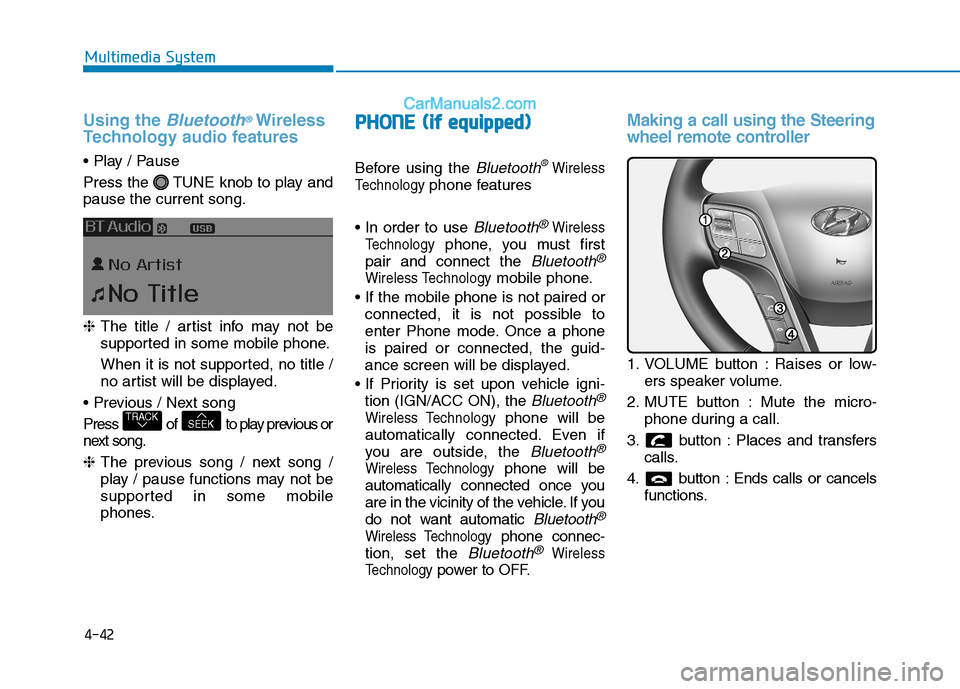
Making a call using the Steering
wheel remote controller
1. VOLUME button : Raises or low- ers speaker volume.
2. MUTE button : Mute the micro- phone during a call.
3. button : Places and transfers calls.
4. button : Ends calls or cancels functions.
SEEKTRACK
Page 235 of 473
4-43
Multimedia System
4
➀Shortly press (under 0.8 seconds)
the key on the steering
remote controller.
➁ The call history list will be dis-
played on the screen.
➂ Press the key again to con-
nect a call to the selected number.
number
➀ Press and hold (over 0.8 seconds)
the key on the steering
remote controller.
➁ The most recently called numberis redialed.Phone MENU (for RDS model)
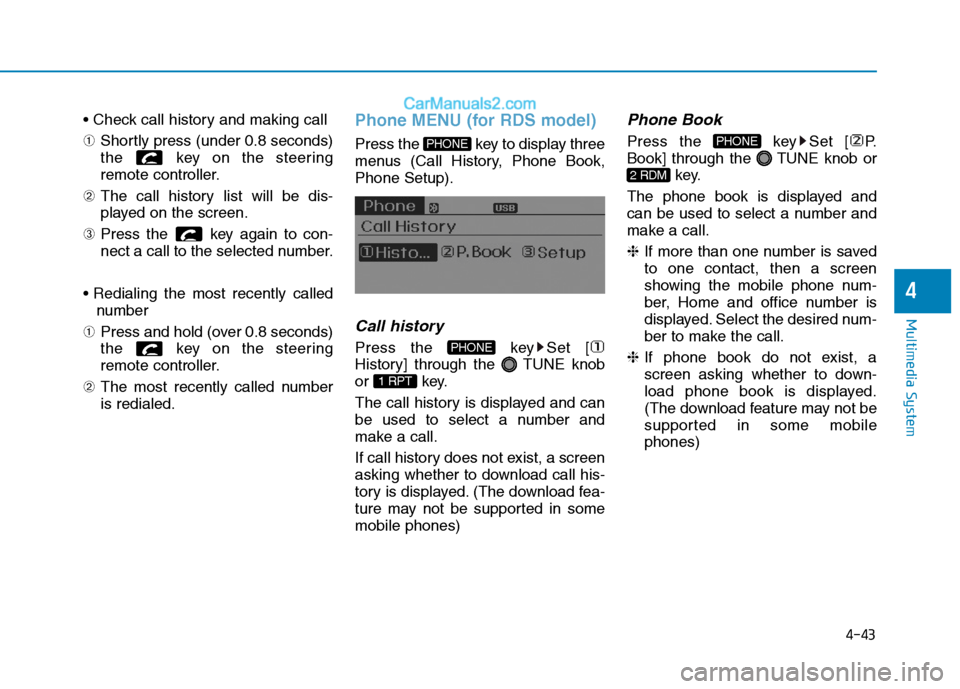
Press the key to display three
menus (Call History, Phone Book,Phone Setup).
Call history
Press the key Set [
History] through the TUNE knob
or key.
The call history is displayed and can
be used to select a number and
make a call.
If call history does not exist, a screen
asking whether to download call his-
tory is displayed. (The download fea-
ture may not be supported in somemobile phones)
Phone Book
Press the key Set [ P.
Book] through the TUNE knob or
key.
The phone book is displayed and
can be used to select a number and
make a call. ❈ If more than one number is saved
to one contact, then a screen
showing the mobile phone num-
ber, Home and office number is
displayed. Select the desired num-
ber to make the call.
❈ If phone book do not exist, a
screen asking whether to down-
load phone book is displayed.
(The download feature may not be
supported in some mobilephones)
2 RDM
PHONE
1 RPT
PHONE
PHONE
Page 267 of 473
4-75
Multimedia System
4
BBlluu eettoo ootthh®®WW iirr ee llee ssss
T
T eecchh nnoo lloo ggyy AAUU DDIIOO MM OODDEE
(
( IIff ee qq uu iipp pp eedd ))
What is Bluetooth®Wireless
Technology?
Bluetooth®Wireless Technology
allows devices to be connected in a
short distance, including hands-free
devices, stereo headsets, wireless
remote controllers, etc. For more
information, visit the
Bluetooth®
Wireless Technology website at
www.Bluetooth.com
Before using Bluetooth®Wireless
Technology audio features
Bluetooth®Wireless Technology
audio may not be supported depending on the compatibility of
your
Bluetooth®Wireless
Technology mobile phone.
In order to use
Bluetooth® Wireless
Technology audio, you must firstpair and connect the
Bluetooth®
Wireless Technology mobile
phone. The
Bluetooth®word mark and
logos are registered trademarks
owned by
Bluetooth®SIG, Inc. and
any use of such marks is under
license. Other trademarks and trade
names are those of their respective
owners. A
Bluetooth®enabled cell
phone is required to use
Bluetooth®
Wireless Technology
Bluetooth®Wireless Technology
audio can be used only when the
[Audio Streaming] of Phone is
turned On.
❈ Setting
Bluetooth®Wireless
Technology Audio Streaming :
Press the key Select[Phone] through the tune knob
Select [Audio Streaming] through
the TUNE knob Set /
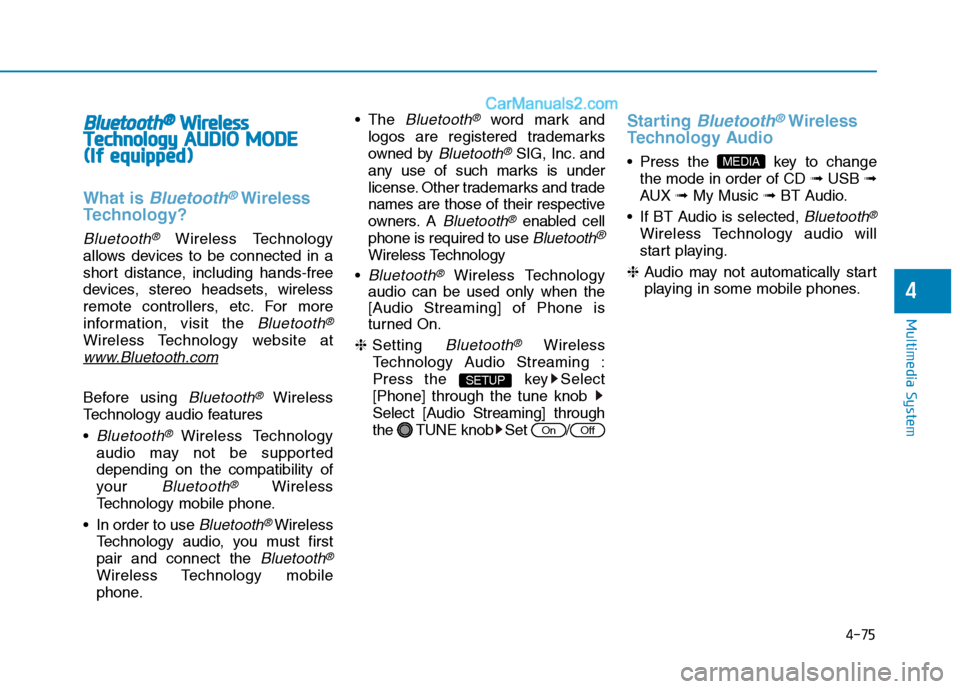
Starting Bluetooth®Wireless
Technology Audio
key to change the mode in order of CD ➟USB ➟
AUX ➟My Music ➟BT Audio.
If BT Audio is selected,
Bluetooth®
Wireless Technology audio will
start playing.
❈ Audio may not automatically start
playing in some mobile phones.
MEDIA
OffOn
SETUP
Page 268 of 473
4-76
Multimedia System
Using the Bluetooth®Wireless
Technology audio features
Press the TUNE knob to play and pause the current song. ❈ The title / artist info may not be
supported in some mobile phone.
When it is not supported, no title /
no artist will be displayed.
Press of to play previous or
next song. ❈ The previous song / next song /
play / pause functions may not be
supported in some mobile
phones.
PP HH OO NNEE ((iiff ee qq uu iipp pp eedd ))
Before using the Bluetooth®Wireless
Technology
phone features
Bluetooth®Wireless
Technology
phone, you must first
pair and connect the
Bluetooth®
Wireless Technologymobile phone.
connected, it is not possible to
enter Phone mode. Once a phoneis paired or connected, the guid-
ance screen will be displayed.
tion (IGN/ACC ON), the
Bluetooth®
Wireless Technologyphone will be
automatically connected. Even if
you are outside, the
Bluetooth®
Wireless Technologyphone will be
automatically connected once you
are in the vicinity of the vehicle. If you
do not want automatic
Bluetooth®
Wireless Technologyphone connec-
tion, set the
Bluetooth®Wireless
Technology
power to OFF.
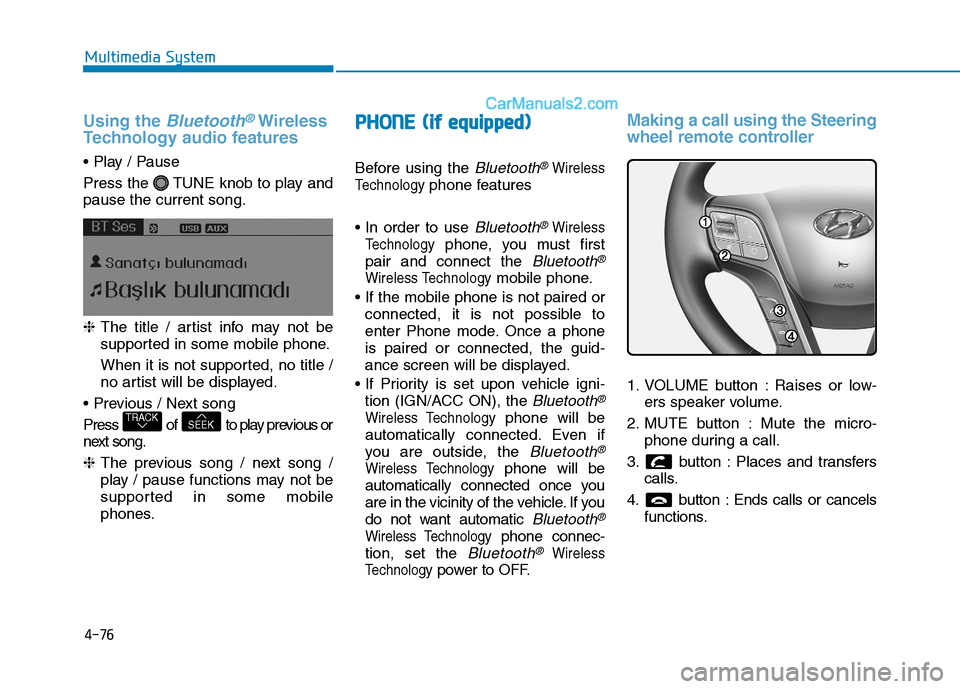
Making a call using the Steering
wheel remote controller
1. VOLUME button : Raises or low- ers speaker volume.
2. MUTE button : Mute the micro- phone during a call.
3. button : Places and transfers calls.
4. button : Ends calls or cancels functions.
SEEKTRACK
Page 269 of 473
4-77
Multimedia System
4
➀Shortly press (under 0.8 seconds)
the key on the steering
remote controller.
➁ The call history list will be dis-
played on the screen.
➂ Press the key again to con-
nect a call to the selected number.
number
➀ Press and hold (over 0.8 seconds)
the key on the steering
remote controller.
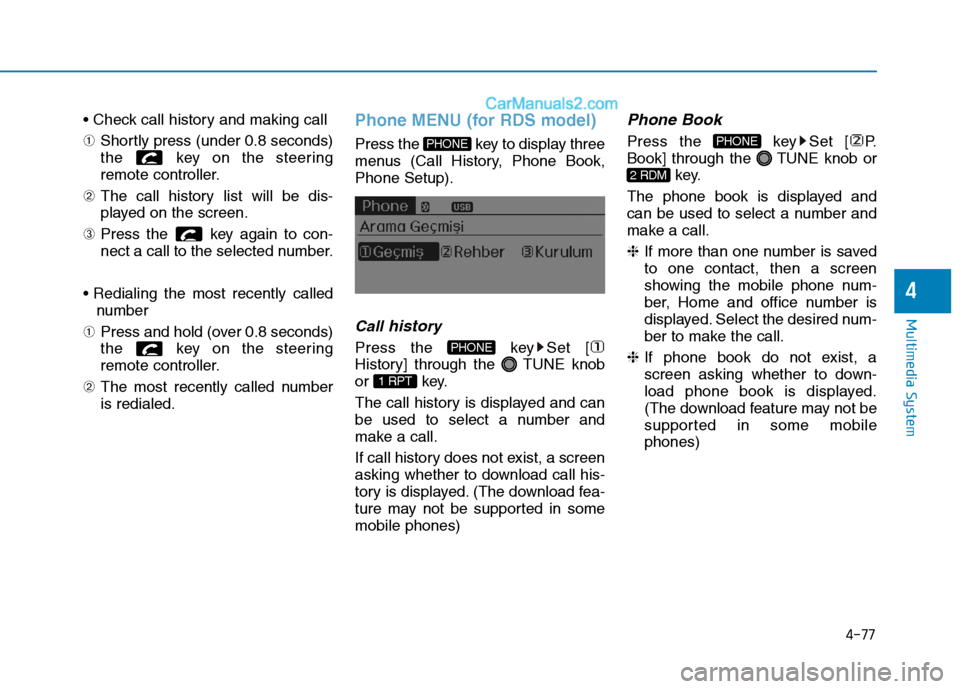
➁ The most recently called numberis redialed.Phone MENU (for RDS model)
Press the key to display three
menus (Call History, Phone Book,Phone Setup).
Callhistory
Press the key Set [
History] through the TUNE knob
or key.
The call history is displayed and can
be used to select a number and
make a call.
If call history does not exist, a screen
asking whether to download call his-
tory is displayed. (The download fea-
ture may not be supported in somemobile phones)
Phone Book
Press the key Set [ P.
Book] through the TUNE knob or
key.
The phone book is displayed and
can be used to select a number and
make a call. ❈ If more than one number is saved
to one contact, then a screen
showing the mobile phone num-
ber, Home and office number is
displayed. Select the desired num-
ber to make the call.
❈ If phone book do not exist, a
screen asking whether to down-
load phone book is displayed.
(The download feature may not be
supported in some mobilephones)
2 RDM
PHONE
1 RPT
PHONE
PHONE
Page 471 of 473
I-6Multi-display.................................................................3-50
AV information ..........................................................3-53
Drive info. mode ........................................................3-53
Function description ..................................................3-51
Information Mode ......................................................3-54
Main display ..............................................................3-50
Trip computer ............................................................3-53
Turn by turn navigation .............................................3-54
User Settings Mode ...................................................3-55
Warning Messages .....................................................3-57
Multimedia system .........................................................4-2
Owner maintenance ........................................................7-8
Parking assist system ....................................................3-88
Front/rear parking assist system type ........................3-92
Rear parking assist system type.................................3-89
Parking brake ................................................................7-30
Power steering fluid......................................................7-28 Checking the power steering fluid level ....................2-28
Checking the power steering hose .............................2-29
PTO switch ...................................................................5-41 RADIO 1 (RADIO,AUX) ...........................................4-45
RADIO 2 (RADIO,USB,AUX) (Except RDS Model)
..4-49
RADIO 2 (RADIO,USB,AUX) (For RDS Model) ......4-48
Rear door ......................................................................3-22 Child-protector rear door lock ...................................3-25
Closing the rear doors from the outside ....................3-25
Opening the left-hand rear door ................................3-24
Opening the rear doors to an angle of 180° or 270° ..3-24
Opening/closing from the inside ...............................3-23
Opening/closing from the outside .............................3-23
Rearview camera ..........................................................3-94
Recommended lubricants and capacities........................8-7
Remote keyless entry......................................................3-6
Battery replacement .....................................................3-8
Remote keyless entry system operations .....................3-6
Transmitter precautions ...............................................3-7
Removing and storing the spare tire...............................6-9
Jacking instructions .....................................................6-9
A type ...........................................................................6-9
B type .........................................................................6-11
Changing tires ............................................................6-14
Index
R
P
O