phone Hyundai H350 2016 User Guide
[x] Cancel search | Manufacturer: HYUNDAI, Model Year: 2016, Model line: H350, Model: Hyundai H350 2016Pages: 473, PDF Size: 26.4 MB
Page 204 of 473
4-12
Multimedia System
Information -Using the iPod ®
device
Some iPod ®
models may not sup-
port communication protocol and
files may not properly play.
Supported iPod ®
models:
- iPod ®
Mini
- iPod ®
4th (Photo) ~ 6th (Classic)
generation
- iPod ®
Nano 1st~4th generation
- iPod ®
Touch 1st~2nd generation
The order of search or playback of songs in the iPod ®
can be different
from the order searched in the audio
system.
If the iPod ®
disabled due to its own
malfunction, reset the iPod ®
. (Reset:
Refer to iPod ®
manual)
An iPod ®
may not operate normally
on low battery.
If you connect any external device while driving, it may lose the vehicle
control and increase the accident
risk. Park the vehicle before con-
necting any external devices.
Park the vehicle on a safe location before connecting an iPod ®
.
(Continued) (Continued)
Some iPod
®
devices, such as the
iPhone ®
, can be connected through
the Bluetooth ®
Wireless Technology
interface. The device must have
audio Bluetooth®
Wireless
Technology capability (such as for
stereo headphone Bluetooth®
Wireless Technology ). The device
can play, but it will not be controlled
by the audio system.
To use iPod ®
features within the
audio, use the cable provided upon
purchasing an iPod ®
device.
Skipping or improper operation may occur depending on the charac-
teristics of your iPod ®
/iPhone ®
device.
If your iPhone ®
is connected to both
the Bluetooth ®
Wireless Technology
and USB, the sound may not be
properly played. In your iPhone ®
,
select the Dock connector or
Bluetooth ®
Wireless Technology to
change the sound output (source).
(Continued)(Continued)
When connecting iPod
®
with the
iPod ®
Power Cable, insert the con-
nector to the multimedia socket
completely. If not inserted complete-
ly, communications between iPod ®
and audio may be interrupted.
When adjusting the sound effects of the iPod ®
and the audio system, the
sound effects of both devices will
overlap and might reduce or distort
the quality of the sound.
Deactivate (turn off) the equalizer function of an iPod ®
when adjusting
the audio system's volume, and turn
off the equalizer of the audio system
when using the equalizer of an
iPod ®
.
When not using iPod ®
with vehicle
audio, detach the iPod ®
cable from
iPod ®
. Otherwise, iPod ®
may
remain in accessory mode, and may
not work properly.i
Page 207 of 473
4-15
Multimedia System
4
SSYY SSTT EEMM CC OO NNTTRR OO LLLL EE RR SS AA NN DD
F
F UU NNCCTT IIOO NNSS
❈ Display and settings may differ
depending on the selected audio.
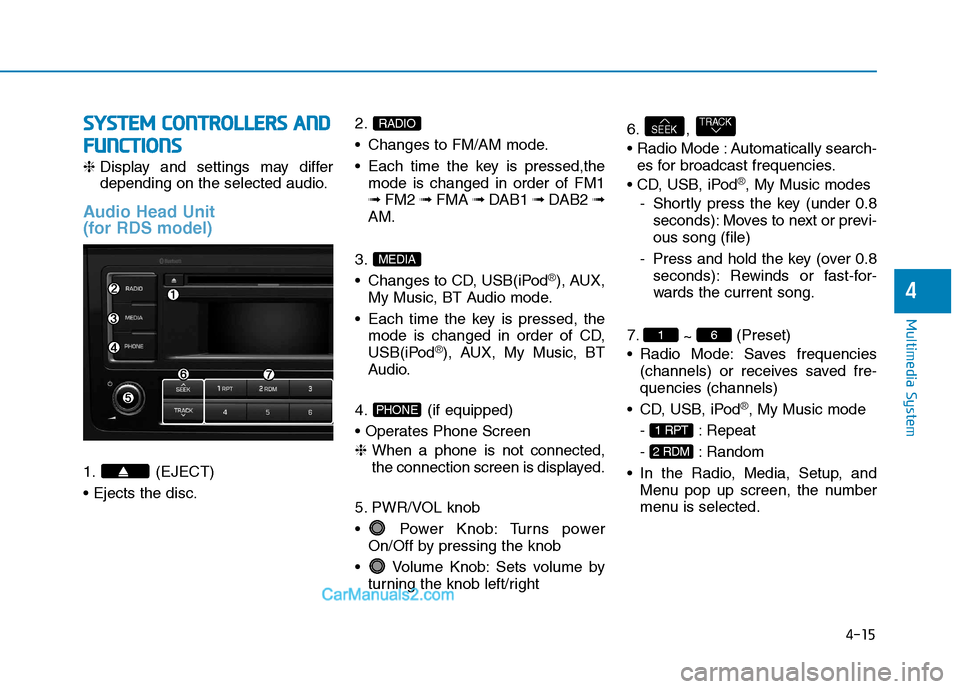
Audio Head Unit
(for RDS model)
1. (EJECT) 2.
Changes to FM/AM mode.
Each time the key is pressed,the
mode is changed in order of FM1 ➟ FM2 ➟ FMA ➟ DAB1 ➟ DAB2 ➟
AM.
3.
Changes to CD, USB(iPod
®), AUX,
My Music, BT Audio mode.
Each time the key is pressed, the mode is changed in order of CD,
USB(iPod
®), AUX, My Music, BT
Audio.
4. (if equipped)
❈ When a phone is not connected,
the connection screen is displayed.
5. PWR/VOL knob
Power Knob: Turns power On/Off by pressing the knob
Volume Knob: Sets volume by turning the knob left/right 6. ,
Automatically search-
es for broadcast frequencies.
®, My Music modes
- Shortly press the key (under 0.8 seconds): Moves to next or previ- ous song (file)
- Press and hold the key (over 0.8 seconds): Rewinds or fast-for-
wards the current song.
7. ~ (Preset)
Radio Mode: Saves frequencies (channels) or receives saved fre-quencies (channels)
®, My Music mode
- : Repeat
- : Random
Menu pop up screen, the number
menu is selected.
2 RDM
1 RPT
61
TRACKSEEK
PHONE
MEDIA
RADIO
Page 208 of 473
4-16
Multimedia System
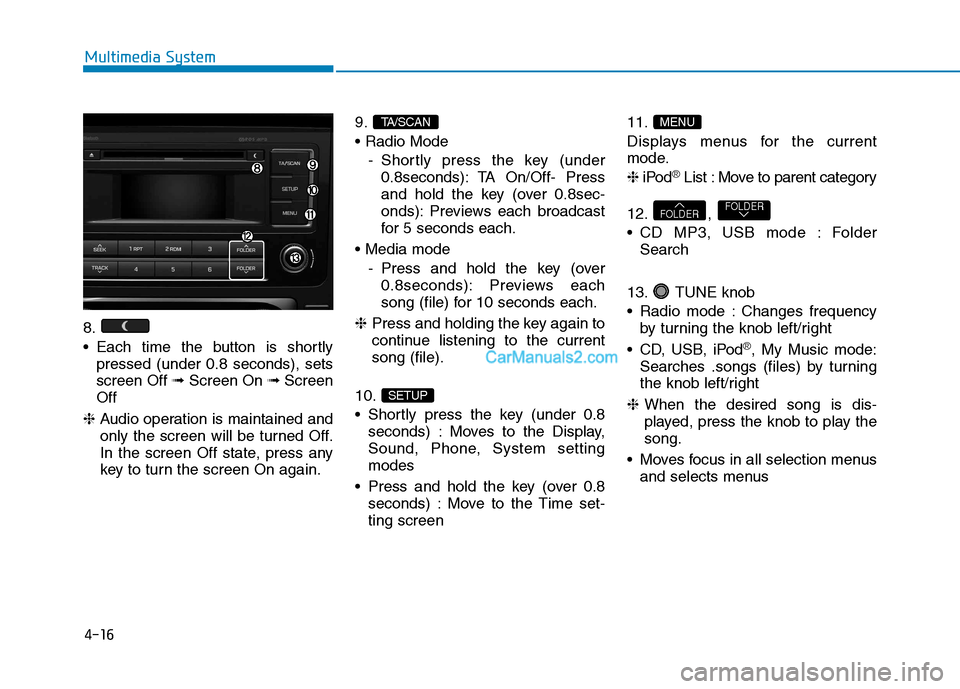
8.
Each time the button is shortlypressed (under 0.8 seconds), sets screen Off ➟Screen On ➟Screen
Off
❈ Audio operation is maintained and
only the screen will be turned Off.
In the screen Off state, press any
key to turn the screen On again. 9.
- Shortly press the key (under0.8seconds): TA On/Off- Press
and hold the key (over 0.8sec-
onds): Previews each broadcast
for 5 seconds each.
- Press and hold the key (over0.8seconds): Previews each
song (file) for 10 seconds each.
❈ Press and holding the key again to
continue listening to the currentsong (file).
10.
Shortly press the key (under 0.8 seconds) : Moves to the Display,
Sound, Phone, System settingmodes
Press and hold the key (over 0.8 seconds) : Move to the Time set-ting screen 11.
Displays menus for the current
mode. ❈
iPod
®List : Move to parent category
12. ,
CD MP3, USB mode : Folder Search
13. TUNE knob
Radio mode : Changes frequency by turning the knob left/right
CD, USB, iPod
®, My Music mode:
Searches .songs (files) by turning
the knob left/right
❈ When the desired song is dis-
played, press the knob to play thesong.
Moves focus in all selection menus and selects menus
FOLDERFOLDER
MENU
SETUP
TA/SCAN
Page 209 of 473
4-17
Multimedia System
4
SSYY SSTT EEMM CC OO NNTTRR OO LLLL EE RR SS AA NN DD
F
F UU NNCCTT IIOO NNSS
❈ Display and settings may differ
depending on the selected audio.
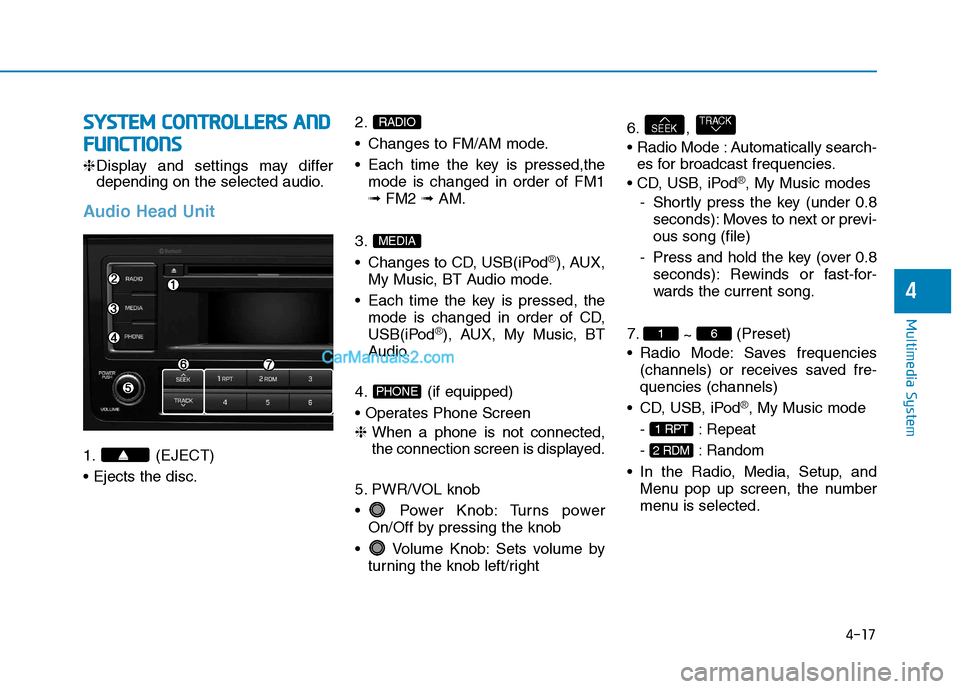
Audio Head Unit
1. (EJECT) 2.
Changes to FM/AM mode.
Each time the key is pressed,the
mode is changed in order of FM1 ➟ FM2 ➟ AM.
3.
Changes to CD, USB(iPod
®), AUX,
My Music, BT Audio mode.
Each time the key is pressed, the mode is changed in order of CD,
USB(iPod
®), AUX, My Music, BT
Audio.
4. (if equipped)
❈ When a phone is not connected,
the connection screen is displayed.
5. PWR/VOL knob
Power Knob: Turns power On/Off by pressing the knob
Volume Knob: Sets volume by turning the knob left/right 6. ,
Automatically search-
es for broadcast frequencies.
®, My Music modes
- Shortly press the key (under 0.8 seconds): Moves to next or previ- ous song (file)
- Press and hold the key (over 0.8 seconds): Rewinds or fast-for-
wards the current song.
7. ~ (Preset)
Radio Mode: Saves frequencies (channels) or receives saved fre-quencies (channels)
®, My Music mode
- : Repeat
- : Random
Menu pop up screen, the number
menu is selected.
2 RDM
1 RPT
61
TRACKSEEK
PHONE
MEDIA
RADIO
Page 210 of 473
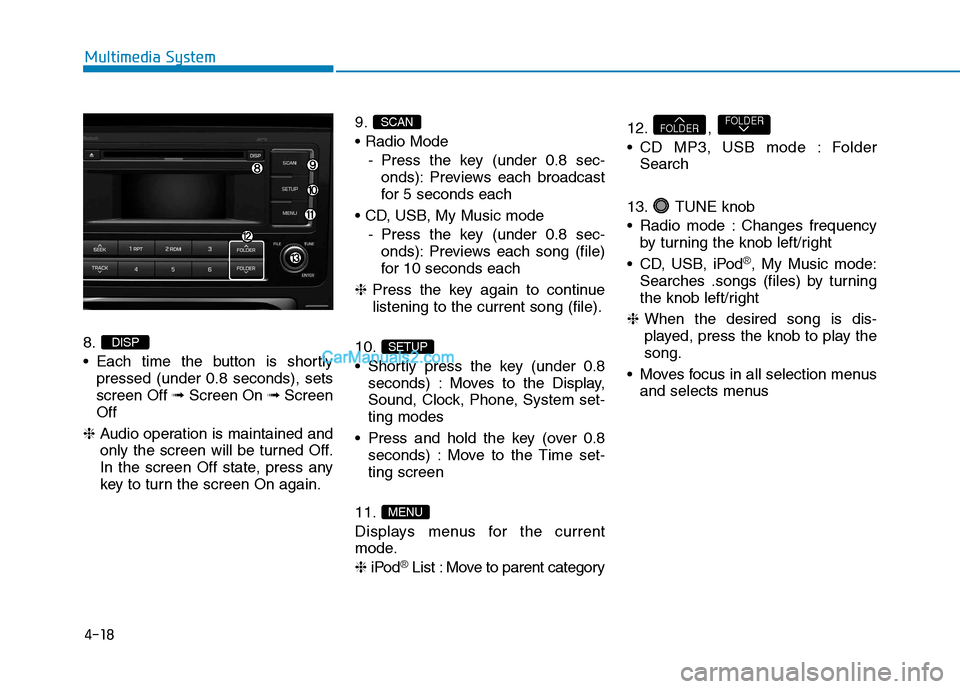
4-18
Multimedia System
8.
Each time the button is shortlypressed (under 0.8 seconds), sets screen Off ➟Screen On ➟Screen
Off
❈ Audio operation is maintained and
only the screen will be turned Off.
In the screen Off state, press any
key to turn the screen On again. 9.
- Press the key (under 0.8 sec-onds): Previews each broadcast
for 5 seconds each
- Press the key (under 0.8 sec-onds): Previews each song (file)
for 10 seconds each
❈ Press the key again to continue
listening to the current song (file).
10.
Shortly press the key (under 0.8 seconds) : Moves to the Display,
Sound, Clock, Phone, System set-ting modes
Press and hold the key (over 0.8 seconds) : Move to the Time set-ting screen
11.
Displays menus for the current
mode. ❈ iPod
®List : Move to parent category 12. ,
CD MP3, USB mode : Folder
Search
13. TUNE knob
Radio mode : Changes frequency by turning the knob left/right
CD, USB, iPod
®, My Music mode:
Searches .songs (files) by turning
the knob left/right
❈ When the desired song is dis-
played, press the knob to play thesong.
Moves focus in all selection menus and selects menus
FOLDERFOLDER
MENU
SETUP
SCAN
DISP
Page 216 of 473
![Hyundai H350 2016 User Guide 4-24
Multimedia System
System Settings
Press the key Select [System]
Memory Information (if equipped)
Displays currently used memory and
total system memory.
Select [Memory Information] OK
The cur](/img/35/14880/w960_14880-215.png "Hyundai H350 2016 User Guide 4-24
Multimedia System
System Settings
Press the key Select [System]
Memory Information (if equipped)
Displays currently used memory and
total system memory.
Select [Memory Information] OK
The cur")
4-24
Multimedia System
System Settings
Press the key Select [System]
Memory Information (if equipped)
Displays currently used memory and
total system memory.
Select [Memory Information] OK
The currently used memory is dis-
played on the left side while the total
system memory is displayed on the
right side.
Phone Setup (if equipped)
Press the key Select [Phone]
(for RDS model) SETUP
CLOCKSETUP
Page 217 of 473
![Hyundai H350 2016 User Guide 4-25
Multimedia System
4
Press the key Select [Phone]Pair Phone
To pair a Bluetooth®Wireless
Technology enabled mobile
phone, authentication and con-
nection processes are first
required. As a resu](/img/35/14880/w960_14880-216.png "Hyundai H350 2016 User Guide 4-25
Multimedia System
4
Press the key Select [Phone]Pair Phone
To pair a Bluetooth®Wireless
Technology enabled mobile
phone, authentication and con-
nection processes are first
required. As a resu")
4-25
Multimedia System
4
Press the key Select [Phone]Pair Phone
To pair a Bluetooth®Wireless
Technology enabled mobile
phone, authentication and con-
nection processes are first
required. As a result, you cannot
pair your mobile phone while driv-
ing the vehicle. First park your
vehicle before use.
Select [Pair Phone] Set through
TUNE knob
➀ Search for device names as dis-
played on your mobile phone andconnect.
➁ Input the passkey displayed on the
screen. (Passkey : 0000)
❈ The device name and passkey will
be displayed on the screen for up
to 3 minutes. If pairing is not com-
pleted within the 3 minutes, the
mobile phone pairing process willautomatically be canceled. ➂
Pairing completion is displayed.
❈ In some mobile phones, pairing
will automatically be followed byconnection.
❈ It is possible to pair up to five
Bluetooth ®
Wireless Technology
enabled mobile phones.
NOTICE
SETUP
CLOCK
Page 218 of 473
![Hyundai H350 2016 User Guide 4-26
Multimedia System
Phone List
The names of up to 5 paired phones
will be displayed.
A [ ] is displayed in front of the cur-
rently connected phone. Select the desired name to setup the
selecte](/img/35/14880/w960_14880-217.png "Hyundai H350 2016 User Guide 4-26
Multimedia System
Phone List
The names of up to 5 paired phones
will be displayed.
A [ ] is displayed in front of the cur-
rently connected phone. Select the desired name to setup the
selecte")
4-26
Multimedia System
Phone List
The names of up to 5 paired phones
will be displayed.
A [ ] is displayed in front of the cur-
rently connected phone. Select the desired name to setup the
selected phone.
Select [Phone List] Select mobile
phone through TUNE knobSelect [Connect Phone] ➀
Select a mobile phone that is not currently connected.
➁ Connect the selected mobile
phone.
➂ Connection completion is dis-
played.
❈ If a phone is already connected,disconnect the currently connect-
ed phone and select a new phoneto connect.
Select [Phone List] Select mobile
phone through TUNE knobSelect [Disconnect Phone] ➀
Select the currently connected
mobile phone.
➁ Disconnect the selected mobile
phone.
➂ Disconnection completion is dis-
played.
Do not use the cell phone or
other peripherals (i.e. audio
device) while driving. If not, it
may cause an accident.
CAUTION
Page 219 of 473
![Hyundai H350 2016 User Guide 4-27
Multimedia System
4
(Priority)
This is used to change the order (pri-
ority) of automatic connection for the
paired mobile phones.
Select [Phone List] Select [Priority]
through TUNE knob Sele](/img/35/14880/w960_14880-218.png "Hyundai H350 2016 User Guide 4-27
Multimedia System
4
(Priority)
This is used to change the order (pri-
ority) of automatic connection for the
paired mobile phones.
Select [Phone List] Select [Priority]
through TUNE knob Sele")
4-27
Multimedia System
4
(Priority)
This is used to change the order (pri-
ority) of automatic connection for the
paired mobile phones.
Select [Phone List] Select [Priority]
through TUNE knob Select No. 1
Priority mobile phone ➀ Select [Priority].
➁ From the paired phones, select
the phone desired for No.1 priority.
➂ The changed priority sequence is
displayed.
❈ Once the connection sequence
(priority) is changed, the new no. 1
priority mobile phone will be con-nected.
-When the no. 1 priority cannot be connected: Automatically attemptsto connect the most recently con-
nected phone.
-Cases when the most recently connected phone cannot be con-
nected: Attempts to connect in theorder in which paired phones arelisted. -The connected phone will automati-
cally be changed to No. 1 priority.
Select [Phone List] Select mobile
phone through TUNE knobSelect [Delete] ➀ Select the desired mobile phone.
➁ Delete the selected mobile phone.
➂ Deletion completion is displayed.
❈ When attempting to delete a cur-
rently connected phone, thephone is first disconnected.
When you delete a mobile phone, the mobile phone con- tacts will also be erased.
For stable
Bluetooth®Wireless
Technology communication,
delete the mobile phone fromthe audio and also delete the
audio from your mobile phone.
Phone book Download (for RDS model)
This feature is used to download
phone book and call histories intothe audio system.
Select [Phone book Download]
Select through TUNE knob.
The download feature may not be supported in some mobile phones.
If a different operation is per- formed while phone book is
being downloaded, downloading
will be discontinued. Phone
book already downloaded will
be saved.
When downloading new phone book, delete all previously saved
phone book before starting
download.
NOTICE
NOTICE
Page 220 of 473
![Hyundai H350 2016 User Guide 4-28
Multimedia System
Auto Download
When connecting a mobile phone, it
is possible to automatically download
new Contacts and Call Histories.
Select [Auto Download] Set /through TUNE knob
Contacts](/img/35/14880/w960_14880-219.png "Hyundai H350 2016 User Guide 4-28
Multimedia System
Auto Download
When connecting a mobile phone, it
is possible to automatically download
new Contacts and Call Histories.
Select [Auto Download] Set /through TUNE knob
Contacts")
4-28
Multimedia System
Auto Download
When connecting a mobile phone, it
is possible to automatically download
new Contacts and Call Histories.
Select [Auto Download] Set /through TUNE knob
Contacts Download
This feature is used to download
contacts and call histories into theaudio system.
Select [Contacts Download] Select
through TUNE knob
The download feature may notbe supported in some mobile phones.
If a different operation is per- formed while Contacts are being
downloaded, downloading will
be discontinued. Contacts
already downloaded will be
saved.
When downloading new Contacts, delete all previously
saved Contacts before starting
download.
Audio Streaming
Songs (files) saved in your
Bluetooth®Wireless Technology
enabled mobile phone can be played through the audio system.
Select [Audio Streaming] Set / through TUNE knob
The
Bluetooth®Wireless Technology
audio streaming feature may not be
supported in some mobile phones.
Outgoing Volume
This is used to set the volume of your
voice as heard by the other partywhile on a
Bluetooth®Wireless
Technology enabled handsfree call.
Select [Outgoing Volume] Set vol-
ume through TUNE knob ❈ While on a call, the volume can be
changed by using the key.
SEEK
TRACK
NOTICE
Off
On
NOTICE
Off
On