reset Hyundai H350 2016 User Guide
[x] Cancel search | Manufacturer: HYUNDAI, Model Year: 2016, Model line: H350, Model: Hyundai H350 2016Pages: 473, PDF Size: 26.4 MB
Page 196 of 473
4-4
Multimedia System
RADIO mode
It will function as the PRESET STA-
TION select buttons.
CDP mode
It will function as the TRACK
UP/DOWN button.
CDC mode
It will function as the TRACK
UP/DOWN button.
Detailed information for audio control
buttons is described in the followingpages in this section.
MODE (3)
Press the button to select Radio orCD (compact disc).
MUTE (4)
Press the MUTE button to cancelthe sound.
Press the MUTE button again to activate the sound. Information
Detailed information for audio control
buttons are described in the following
pages in this chapter.
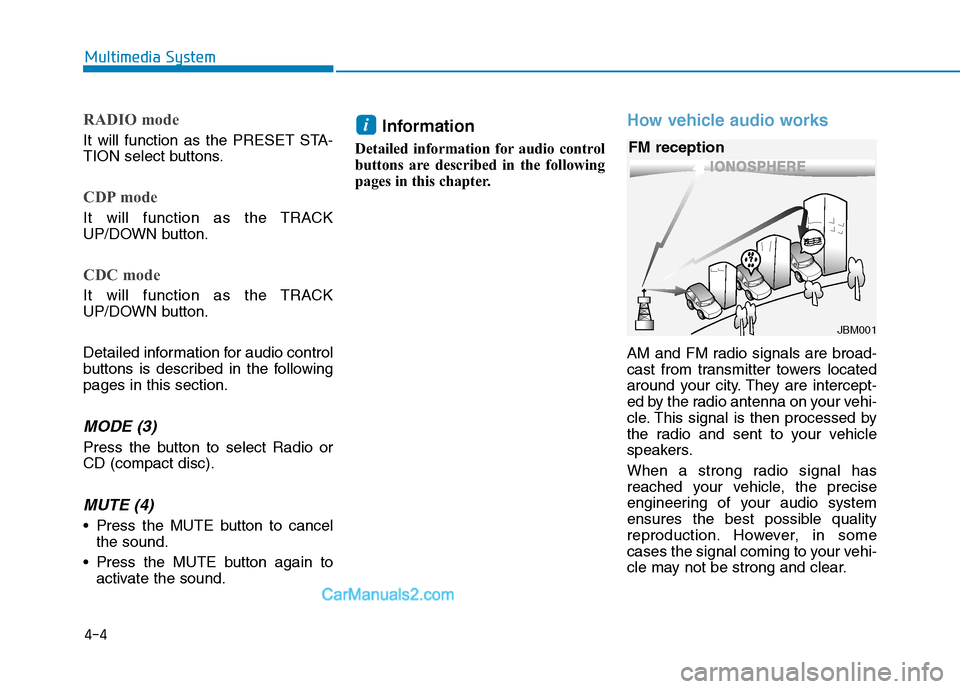
How vehicle audio works
AM and FM radio signals are broad-
cast from transmitter towers located
around your city. They are intercept-
ed by the radio antenna on your vehi-
cle. This signal is then processed by
the radio and sent to your vehicle
speakers.
When a strong radio signal has
reached your vehicle, the precise
engineering of your audio system
ensures the best possible quality
reproduction. However, in some
cases the signal coming to your vehi-
cle may not be strong and clear.
i
JBM001
FM reception
Page 204 of 473
4-12
Multimedia System
Information -Using the iPod ®
device
Some iPod ®
models may not sup-
port communication protocol and
files may not properly play.
Supported iPod ®
models:
- iPod ®
Mini
- iPod ®
4th (Photo) ~ 6th (Classic)
generation
- iPod ®
Nano 1st~4th generation
- iPod ®
Touch 1st~2nd generation
The order of search or playback of songs in the iPod ®
can be different
from the order searched in the audio
system.
If the iPod ®
disabled due to its own
malfunction, reset the iPod ®
. (Reset:
Refer to iPod ®
manual)
An iPod ®
may not operate normally
on low battery.
If you connect any external device while driving, it may lose the vehicle
control and increase the accident
risk. Park the vehicle before con-
necting any external devices.
Park the vehicle on a safe location before connecting an iPod ®
.
(Continued) (Continued)
Some iPod
®
devices, such as the
iPhone ®
, can be connected through
the Bluetooth ®
Wireless Technology
interface. The device must have
audio Bluetooth®
Wireless
Technology capability (such as for
stereo headphone Bluetooth®
Wireless Technology ). The device
can play, but it will not be controlled
by the audio system.
To use iPod ®
features within the
audio, use the cable provided upon
purchasing an iPod ®
device.
Skipping or improper operation may occur depending on the charac-
teristics of your iPod ®
/iPhone ®
device.
If your iPhone ®
is connected to both
the Bluetooth ®
Wireless Technology
and USB, the sound may not be
properly played. In your iPhone ®
,
select the Dock connector or
Bluetooth ®
Wireless Technology to
change the sound output (source).
(Continued)(Continued)
When connecting iPod
®
with the
iPod ®
Power Cable, insert the con-
nector to the multimedia socket
completely. If not inserted complete-
ly, communications between iPod ®
and audio may be interrupted.
When adjusting the sound effects of the iPod ®
and the audio system, the
sound effects of both devices will
overlap and might reduce or distort
the quality of the sound.
Deactivate (turn off) the equalizer function of an iPod ®
when adjusting
the audio system's volume, and turn
off the equalizer of the audio system
when using the equalizer of an
iPod ®
.
When not using iPod ®
with vehicle
audio, detach the iPod ®
cable from
iPod ®
. Otherwise, iPod ®
may
remain in accessory mode, and may
not work properly.i
Page 207 of 473
4-15
Multimedia System
4
SSYY SSTT EEMM CC OO NNTTRR OO LLLL EE RR SS AA NN DD
F
F UU NNCCTT IIOO NNSS
❈ Display and settings may differ
depending on the selected audio.
Audio Head Unit
(for RDS model)
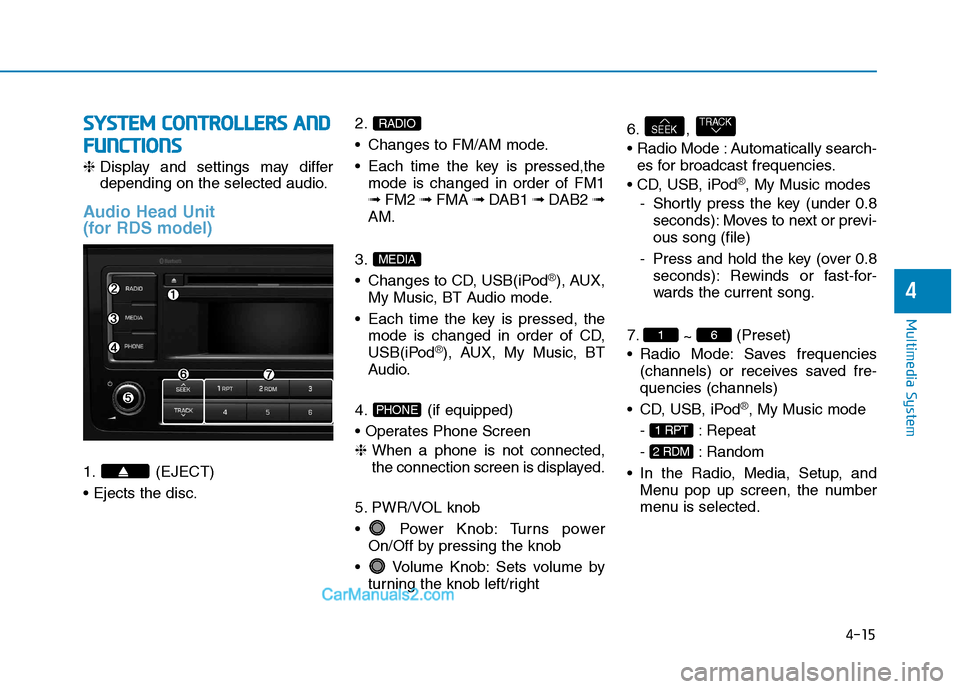
1. (EJECT) 2.
Changes to FM/AM mode.
Each time the key is pressed,the
mode is changed in order of FM1 ➟ FM2 ➟ FMA ➟ DAB1 ➟ DAB2 ➟
AM.
3.
Changes to CD, USB(iPod
®), AUX,
My Music, BT Audio mode.
Each time the key is pressed, the mode is changed in order of CD,
USB(iPod
®), AUX, My Music, BT
Audio.
4. (if equipped)
❈ When a phone is not connected,
the connection screen is displayed.
5. PWR/VOL knob
Power Knob: Turns power On/Off by pressing the knob
Volume Knob: Sets volume by turning the knob left/right 6. ,
Automatically search-
es for broadcast frequencies.
®, My Music modes
- Shortly press the key (under 0.8 seconds): Moves to next or previ- ous song (file)
- Press and hold the key (over 0.8 seconds): Rewinds or fast-for-
wards the current song.
7. ~ (Preset)
Radio Mode: Saves frequencies (channels) or receives saved fre-quencies (channels)
®, My Music mode
- : Repeat
- : Random
Menu pop up screen, the number
menu is selected.
2 RDM
1 RPT
61
TRACKSEEK
PHONE
MEDIA
RADIO
Page 209 of 473
4-17
Multimedia System
4
SSYY SSTT EEMM CC OO NNTTRR OO LLLL EE RR SS AA NN DD
F
F UU NNCCTT IIOO NNSS
❈ Display and settings may differ
depending on the selected audio.
Audio Head Unit
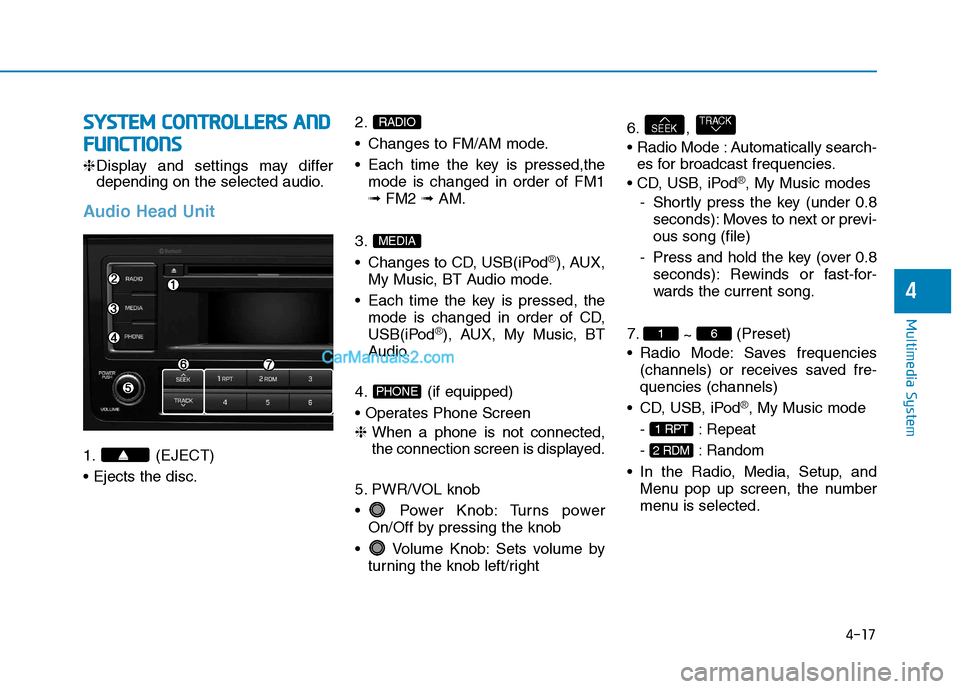
1. (EJECT) 2.
Changes to FM/AM mode.
Each time the key is pressed,the
mode is changed in order of FM1 ➟ FM2 ➟ AM.
3.
Changes to CD, USB(iPod
®), AUX,
My Music, BT Audio mode.
Each time the key is pressed, the mode is changed in order of CD,
USB(iPod
®), AUX, My Music, BT
Audio.
4. (if equipped)
❈ When a phone is not connected,
the connection screen is displayed.
5. PWR/VOL knob
Power Knob: Turns power On/Off by pressing the knob
Volume Knob: Sets volume by turning the knob left/right 6. ,
Automatically search-
es for broadcast frequencies.
®, My Music modes
- Shortly press the key (under 0.8 seconds): Moves to next or previ- ous song (file)
- Press and hold the key (over 0.8 seconds): Rewinds or fast-for-
wards the current song.
7. ~ (Preset)
Radio Mode: Saves frequencies (channels) or receives saved fre-quencies (channels)
®, My Music mode
- : Repeat
- : Random
Menu pop up screen, the number
menu is selected.
2 RDM
1 RPT
61
TRACKSEEK
PHONE
MEDIA
RADIO
Page 222 of 473
4-30
Multimedia System
RRAA DDIIOO (( FF OO RR RR DD SS MM OODDEELL)) ::
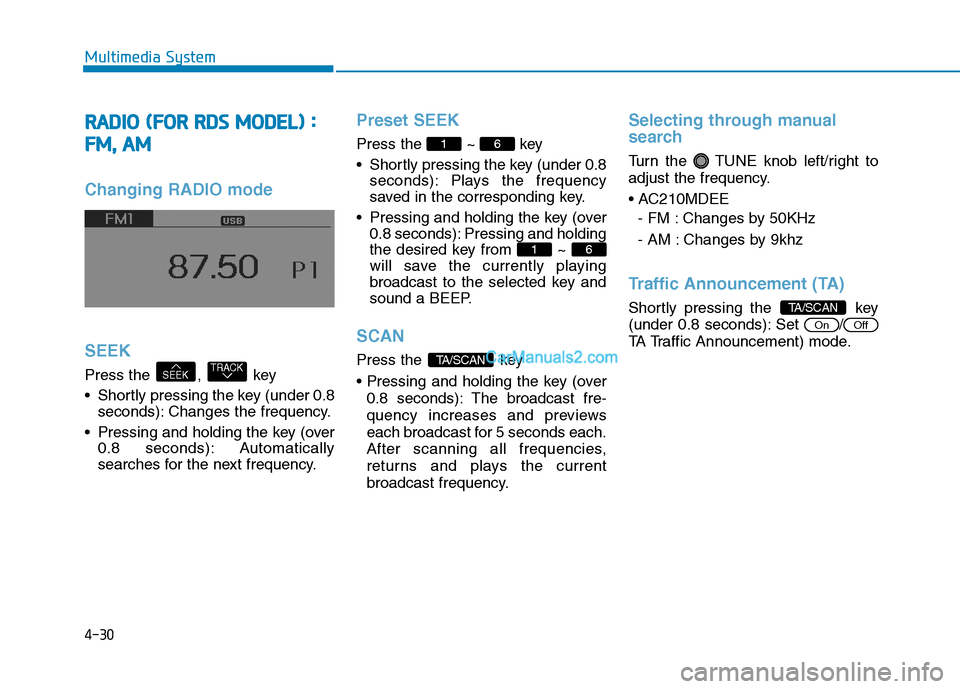
F
F MM ,, AA MM
Changing RADIO mode SEEK
Press the , key
Shortly pressing the key (under 0.8
seconds): Changes the frequency.
Pressing and holding the key (over 0.8 seconds): Automatically
searches for the next frequency.
Preset SEEK
Press the ~ key
Shortly pressing the key (under 0.8 seconds): Plays the frequency
saved in the corresponding key.
Pressing and holding the key (over 0.8 seconds): Pressing and holding
the desired key from ~
will save the currently playing
broadcast to the selected key and
sound a BEEP.
SCAN
Press the key
0.8 seconds): The broadcast fre-
quency increases and previews
each broadcast for 5 seconds each.
After scanning all frequencies,
returns and plays the current
broadcast frequency.
Selecting through manual
search
Turn the TUNE knob left/right to
adjust the frequency.
- FM : Changes by 50KHz
- AM : Changes by 9khz
Traffic Announcement (TA)
Shortly pressing the key
(under 0.8 seconds): Set /
TA Traffic Announcement) mode.
OffOn
TA/SCAN
TA/SCAN
61
61
TRACKSEEK
Page 223 of 473
![Hyundai H350 2016 User Guide 4-31
Multimedia System
4
MENU
Within key are the A.Store
(Auto Store) and Info functions.
AST (Auto Store)
Press the key Set [ AST]
through TUNE knob or key.
Select AST (Auto Store) to save fre-](/img/35/14880/w960_14880-222.png "Hyundai H350 2016 User Guide 4-31
Multimedia System
4
MENU
Within key are the A.Store
(Auto Store) and Info functions.
AST (Auto Store)
Press the key Set [ AST]
through TUNE knob or key.
Select AST (Auto Store) to save fre-")
4-31
Multimedia System
4
MENU
Within key are the A.Store
(Auto Store) and Info functions.
AST (Auto Store)
Press the key Set [ AST]
through TUNE knob or key.
Select AST (Auto Store) to save fre-
quencies with superior reception topresets ~ . If no frequen-
cies are received, then the most
recently received frequency will bebroadcast. ❈ Saves only to the Preset memory
~ of FMA or AMA
mode.
AF (Alternative Frequency)
Press the key Set [ AF]
through TUNE knob or key.
The Alternative Frequency option
can be turned On/Off.
Region
Press the key Set [
Region] through TUNE knob or key.
The Region option can be turned
On/Off.
News
Press the key Set [ News]
through TUNE knob or key.
The News option can be turned
On/Off.
Info Volume
Info Volume refers to the sound vol-
ume upon receiving News or Traffic
information.
The info volume can be controlled by
turning the VOL knob left/right while
a news or traffic broadcast is playing. ❈ AF, Region, and News are RDS
Radio menus.
4
MENU
3
MENU
2 RDM
MENU
61
61
1 RPT
MENU
MENU
Page 224 of 473
4-32
Multimedia System
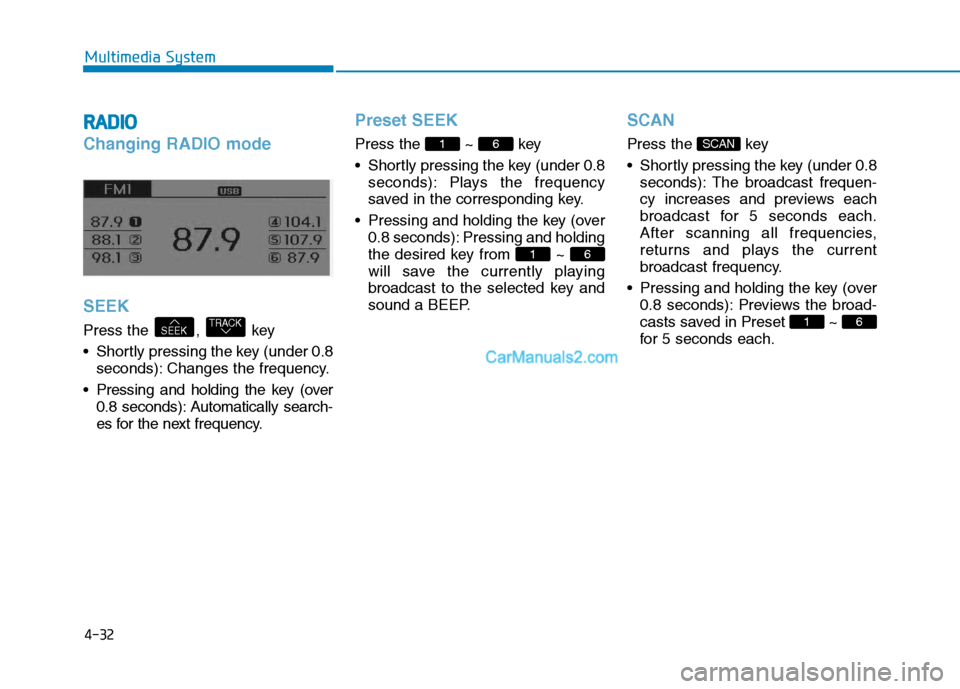
RRAA DDIIOO
Changing RADIO mode SEEK
Press the , key
Shortly pressing the key (under 0.8
seconds): Changes the frequency.
Pressing and holding the key (over 0.8 seconds): Automatically search-
es for the next frequency.
Preset SEEK
Press the ~ key
Shortly pressing the key (under 0.8 seconds): Plays the frequency
saved in the corresponding key.
Pressing and holding the key (over 0.8 seconds): Pressing and holding
the desired key from ~
will save the currently playing
broadcast to the selected key and
sound a BEEP.
SCAN
Press the key
Shortly pressing the key (under 0.8seconds): The broadcast frequen-
cy increases and previews each
broadcast for 5 seconds each.
After scanning all frequencies,
returns and plays the current
broadcast frequency.
Pressing and holding the key (over 0.8 seconds): Previews the broad-
casts saved in Preset ~
for 5 seconds each.
61
SCAN
61
61
TRACKSEEK
Page 225 of 473
4-33
Multimedia System
4
Selecting through manual
search
Turn the TUNE knob left/right to
adjust the frequency.
- FM : Changes by 100KHz
- AM : Changes by 9KHz
- FM : Changes by 200KHz
- AM : Changes by 10KHz
- FM : Changes by 100KHz
- AM : Changes by 9KHz
MENU
Within key are the A.Store
(Auto Store) and Info functions.
AST (Auto Store)
Press the key Set [ AST]
through TUNE knob or key.
Select AST (Auto Store) to save fre-
quencies with superior reception topresets ~ . If no frequen-
cies are received, then the most
recently received frequency will bebroadcast.
61
1
RPTMENU
MENU
Page 240 of 473
4-48
Multimedia System
RRAA DDIIOO ,, SS EE TT UU PP,, VV OO LLUU MM EE
C
C OO NNTTRR OO LL
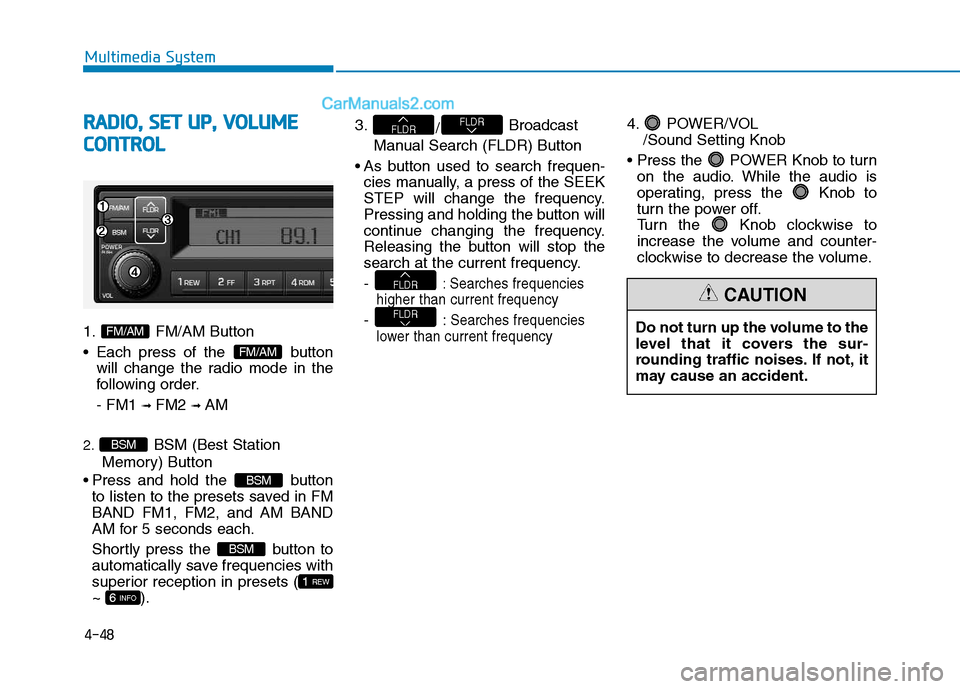
1. FM/AM Button
Each press of the button
will change the radio mode in the
following order. - FM1 ➟
FM2 ➟ AM
2. BSM (Best Station
Memory) Button
Press and hold the button to listen to the presets saved in FM BAND FM1, FM2, and AM BAND
AM for 5 seconds each.
Shortly press the button to
automatically save frequencies with
superior reception in presets (~ ). 3.
/Broadcast
Manual Search (FLDR) Button
As button used to search frequen- cies manually, a press of the SEEK
STEP will change the frequency.
Pressing and holding the button will
continue changing the frequency.
Releasing the button will stop the
search at the current frequency. -
: Searches frequencies
higher than current frequency
- :Searches frequencies
lower than current frequency
4. POWER/VOL /Sound Setting Knob
POWER Knob to turn on the audio. While the audio is
operating, press the Knob to
turn the power off.
Turn the Knob clockwise to
increase the volume and counter-
clockwise to decrease the volume.
FLDR
FLDR
FLDRFLDR
6 INFO
1 REW
BSM
BSM
BSM
FM/AM
FM/AMDo not turn up the volume to the
level that it covers the sur-
rounding traffic noises. If not, it
may cause an accident.
CAUTION
Page 242 of 473
4-50
Multimedia System
BEEP Control
VOLUME Knob clock-wise/counter-clockwise to the
BEEP sound ON/OFF.
LANGUAGE (Only AM210MDEE)
VOLUME Knob clock- wise/counter-clockwise to the select the desired Language
Language setting are as shown
below - English ➟➟
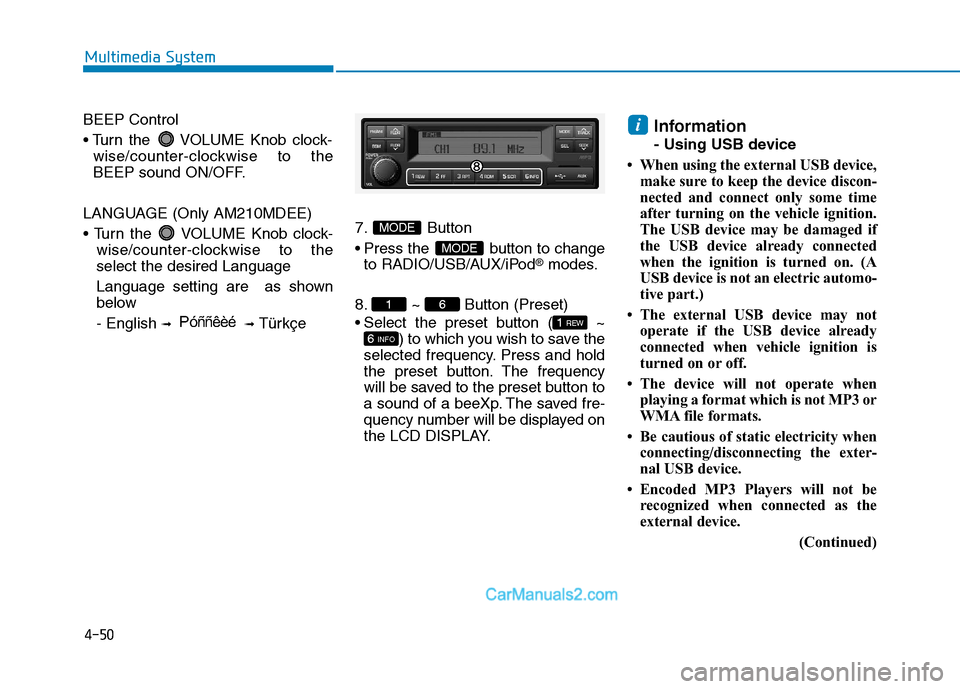
Türkçe7. Button
Press the button to change
to RADIO/USB/AUX/iPod
®modes.
8. ~ Button (Preset)
Select the preset button ( ~ ) to which you wish to save the
selected frequency. Press and hold
the preset button. The frequency
will be saved to the preset button to
a sound of a beeXp. The saved fre-
quency number will be displayed on
the LCD DISPLAY. Information
- Using USB device
When using the external USB device, make sure to keep the device discon-
nected and connect only some time
after turning on the vehicle ignition.
The USB device may be damaged if
the USB device already connected
when the ignition is turned on. (A
USB device is not an electric automo-
tive part.)
The external USB device may not operate if the USB device already
connected when vehicle ignition is
turned on or off.
The device will not operate when playing a format which is not MP3 or
WMA file formats.
Be cautious of static electricity when connecting/disconnecting the exter-
nal USB device.
Encoded MP3 Players will not be recognized when connected as the
external device.
(Continued)
i
6 INFO
1 REW
61
MODE
MODE
P óññêèé