Key Hyundai H350 2016 Repair Manual
[x] Cancel search | Manufacturer: HYUNDAI, Model Year: 2016, Model line: H350, Model: Hyundai H350 2016Pages: 473, PDF Size: 26.4 MB
Page 249 of 473
4-57
Multimedia System
4
SSYY SSTT EEMM CC OO NNTTRR OO LLLL EE RR SS AA NN DD
F
F UU NNCCTT IIOO NNSS
❈ Display and settings may differ
depending on the selected audio.
Audio Head Unit
(for RDS model)
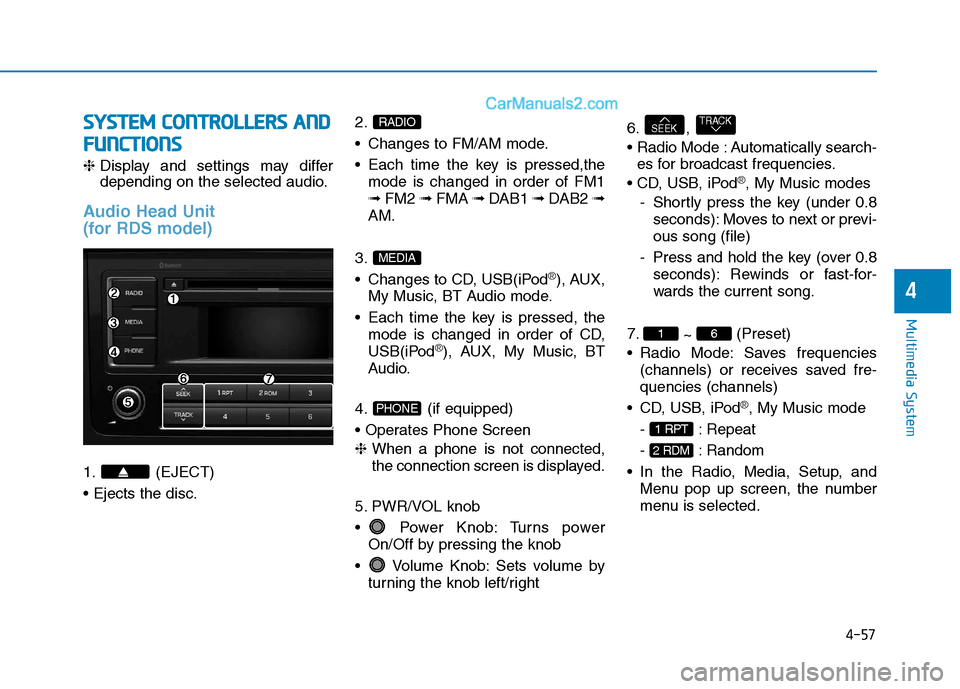
1. (EJECT) 2.
Changes to FM/AM mode.
Each time the key is pressed,the
mode is changed in order of FM1 ➟ FM2 ➟ FMA ➟ DAB1 ➟ DAB2 ➟
AM.
3.
Changes to CD, USB(iPod
®), AUX,
My Music, BT Audio mode.
Each time the key is pressed, the mode is changed in order of CD,
USB(iPod
®), AUX, My Music, BT
Audio.
4. (if equipped)
❈ When a phone is not connected,
the connection screen is displayed.
5. PWR/VOL knob
Power Knob: Turns power On/Off by pressing the knob
Volume Knob: Sets volume by turning the knob left/right 6. ,
Automatically search-
es for broadcast frequencies.
®, My Music modes
- Shortly press the key (under 0.8 seconds): Moves to next or previ- ous song (file)
- Press and hold the key (over 0.8 seconds): Rewinds or fast-for-
wards the current song.
7. ~ (Preset)
Radio Mode: Saves frequencies (channels) or receives saved fre-quencies (channels)
®, My Music mode
- : Repeat
- : Random
Menu pop up screen, the number
menu is selected.
2 RDM
1 RPT
61
TRACKSEEK
PHONE
MEDIA
RADIO
Page 250 of 473
4-58
Multimedia System
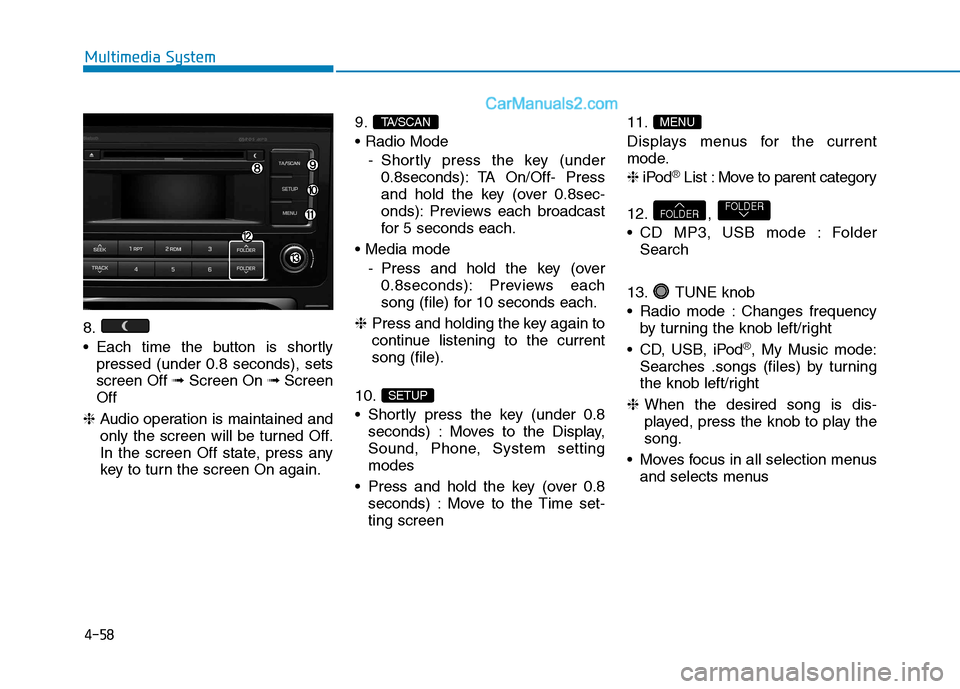
8.
Each time the button is shortlypressed (under 0.8 seconds), sets screen Off ➟Screen On ➟Screen
Off
❈ Audio operation is maintained and
only the screen will be turned Off.
In the screen Off state, press any
key to turn the screen On again. 9.
- Shortly press the key (under0.8seconds): TA On/Off- Press
and hold the key (over 0.8sec-
onds): Previews each broadcast
for 5 seconds each.
- Press and hold the key (over0.8seconds): Previews each
song (file) for 10 seconds each.
❈ Press and holding the key again to
continue listening to the currentsong (file).
10.
Shortly press the key (under 0.8 seconds) : Moves to the Display,
Sound, Phone, System settingmodes
Press and hold the key (over 0.8 seconds) : Move to the Time set-ting screen 11.
Displays menus for the current
mode. ❈
iPod
®List : Move to parent category
12. ,
CD MP3, USB mode : Folder Search
13. TUNE knob
Radio mode : Changes frequency by turning the knob left/right
CD, USB, iPod
®, My Music mode:
Searches .songs (files) by turning
the knob left/right
❈ When the desired song is dis-
played, press the knob to play thesong.
Moves focus in all selection menus and selects menus
FOLDERFOLDER
MENU
SETUP
TA/SCAN
Page 251 of 473
![Hyundai H350 2016 Repair Manual 4-59
Multimedia System
4
SSEE TT UU PP (( ff oo rr RR DD SS mm ooddeell))
- AC210MDEE
Display Settings
Press the key Select
[Display] through TUNE knob or
key Select menu through
Mode Pop up
[M](/img/35/14880/w960_14880-250.png "Hyundai H350 2016 Repair Manual 4-59
Multimedia System
4
SSEE TT UU PP (( ff oo rr RR DD SS mm ooddeell))
- AC210MDEE
Display Settings
Press the key Select
[Display] through TUNE knob or
key Select menu through
Mode Pop up
[M")
4-59
Multimedia System
4
SSEE TT UU PP (( ff oo rr RR DD SS mm ooddeell))
- AC210MDEE
Display Settings
Press the key Select
[Display] through TUNE knob or
key Select menu through
Mode Pop up
[Mode Pop up] Changes . selection mode
During On state, press the or key to display the mode change pop up screen.
When the pop up screen is dis- played, use the TUNE knob or
keys ~ to select the
desired mode.
Scroll text
[Scroll text] Set /
Maintains scroll
: Scrolls only one (1) time.
Song Info
When playing an MP3 file, select the
desired display info from ‘Folder/File’
or ‘Album/Artist/Song’.
Off
On
OffOn
61
MEDIA
RADIO
On
1 RPT
SETUP
Page 252 of 473
![Hyundai H350 2016 Repair Manual 4-60
Multimedia System
Sound Settings
Press the key Select
[Sound] through TUNE knob orkey Select menu through
TUNE knob
Audio Settings
This menu allows you to set the
‘Bass, Middle](/img/35/14880/w960_14880-251.png "Hyundai H350 2016 Repair Manual 4-60
Multimedia System
Sound Settings
Press the key Select
[Sound] through TUNE knob orkey Select menu through
TUNE knob
Audio Settings
This menu allows you to set the
‘Bass, Middle")
4-60
Multimedia System
Sound Settings
Press the key Select
[Sound] through TUNE knob orkey Select menu through
TUNE knob
Audio Settings
This menu allows you to set the
‘Bass, Middle, Treble’ and the Sound
Fader and Balance.
Select [Audio Settings] Select
menu through TUNE knob Turn TUNE knob left/right to set
Bass, Middle, Treble : Selects the sound tone.
Fader, Balance : Moves the sound fader and balance.
Default : Restores default settings. ❈ Return : While adjusting values,
re-pressing the TUNE knob will
restore the parent menu.
Speed Dependent Volume Control
This feature is used to automatically
control the volume level according to
the speed of the vehicle.
Select [Speed Dependent Vol.] Set in [On/Off] of
TUNEknob
2 RDM
SETUP
Page 253 of 473
![Hyundai H350 2016 Repair Manual 4-61
Multimedia System
4
System Settings
Press the key Select [System] through tune knob or
key Select menu through TUNEknob
Memory Information (if equipped)
Displays currently used memory and
to](/img/35/14880/w960_14880-252.png "Hyundai H350 2016 Repair Manual 4-61
Multimedia System
4
System Settings
Press the key Select [System] through tune knob or
key Select menu through TUNEknob
Memory Information (if equipped)
Displays currently used memory and
to")
4-61
Multimedia System
4
System Settings
Press the key Select [System] through tune knob or
key Select menu through TUNEknob
Memory Information (if equipped)
Displays currently used memory and
total system memory.
Select [Memory Information] OK
The currently used memory is dis-
played on the left side while the total
system memory is displayed on the
right side.
Language
This menu is used to set the display
and voice recognition language.
Select [Language] Set throughTUNE knob
❈ The system will reboot after the
language is changed.
❈ Language support by region
-
5
SETUP
Page 254 of 473
![Hyundai H350 2016 Repair Manual 4-62
Multimedia System
Phone Setup (if equipped)
Press the key Select [Phone]
(for RDS model)
Pair Phone
Information
To pair a Bluetooth®
Wireless
Technology enabled mobile phone,
authenticatio](/img/35/14880/w960_14880-253.png "Hyundai H350 2016 Repair Manual 4-62
Multimedia System
Phone Setup (if equipped)
Press the key Select [Phone]
(for RDS model)
Pair Phone
Information
To pair a Bluetooth®
Wireless
Technology enabled mobile phone,
authenticatio")
4-62
Multimedia System
Phone Setup (if equipped)
Press the key Select [Phone]
(for RDS model)
Pair Phone
Information
To pair a Bluetooth®
Wireless
Technology enabled mobile phone,
authentication and connection
processes are first required. As a
result, you cannot pair your mobile
phone while driving the vehicle. First
park your vehicle before use.
Select [Pair Phone] Set through
TUNE knob
➀ Search for device names as dis-
played on your mobile phone andconnect.
➁ Input the passkey displayed on the
screen. (Passkey : 0000)
❈ The device name and passkey will
be displayed on the screen for up
to 3 minutes. If pairing is not com-
pleted within the 3 minutes, the
mobile phone pairing process willautomatically be canceled. ➂
Pairing completion is displayed.
❈ In some mobile phones, pairing
will automatically be followed byconnection.
❈ It is possible to pair up to five
Bluetooth ®Wireless Technology
enabled mobile phones.
iSETUP
CLOCK
Page 257 of 473
![Hyundai H350 2016 Repair Manual 4-65
Multimedia System
4
Audio Streaming
Songs (files) saved in your
Bluetooth®Wireless Technology
enabled mobile phone can be played through the audio system.
Select [Audio Streaming] Set / throug](/img/35/14880/w960_14880-256.png "Hyundai H350 2016 Repair Manual 4-65
Multimedia System
4
Audio Streaming
Songs (files) saved in your
Bluetooth®Wireless Technology
enabled mobile phone can be played through the audio system.
Select [Audio Streaming] Set / throug")
4-65
Multimedia System
4
Audio Streaming
Songs (files) saved in your
Bluetooth®Wireless Technology
enabled mobile phone can be played through the audio system.
Select [Audio Streaming] Set / through TUNE knob
Information
The Bluetooth ®
Wireless Technology
audio streaming feature may not be
supported in some mobile phones.
Outgoing Volume
This is used to set the volume of your
voice as heard by the other partywhile on a
Bluetooth ®Wireless
Technology enabled handsfree call.
Select [Outgoing Volume] Set vol-
ume through TUNE knob ❈ While on a call, the volume can be
changed by using the key.
Bluetooth®Wireless
Technology System Off
This feature is used when you do not wish to use the
Bluetooth ®Wireless
Technology system.
Select [Bluetooth System Off] Set
through TUNE knob ❈ If a phone is already connected, disconnect the currently connect-
ed phone and turn the
Bluetooth ®
Wireless Technology system off.
Using the Bluetooth®Wireless
Technology System
To use Bluetooth ®Wireless
Technology when the system is cur-
rently off, follow these next steps.
Turning On
Bluetooth ®Wireless
Technology through the
Key
Press the key ScreenGuidance ❈ Moves to the screen where
Bluetooth ®Wireless Technology
functions can be used and dis-
plays guidance. Turning On
Bluetooth
®Wireless
Technology through the
Key
Press the key Select[Phone] ➀ A screen asking whether to turn on
Bluetooth ®Wireless Technology will
be displayed.
➁ On the screen, select to turn on
Bluetooth ®Wireless Technology
and display guidance.
❈ If the
Bluetooth ®Wireless
Technology system is turned on,
the system will automatically try toconnect the most recently con-nected
Bluetooth ®Wireless
Technology mobile phone. YES
SETUP
CLOCK
SETUP
CLOCK
PHONE
PHONE
SEEK
TRACK
i
Off
On
Page 258 of 473
4-66
Multimedia System
Information
Bluetooth ®
Wireless Technology con-
nection may become intermittently
disconnected in some mobile phones.
Follow these next steps to try again.
1)Turn the Bluetooth®
Wireless
Technology function within the
mobile phone ON/OFF and try to
connect again.
2)Turn the mobile phone power ON/OFF and try to connect again.
3)Completely remove the mobile phone battery, reboot, and then try
to connect again.
4)Reboot the audio system and try to connect again
5)Delete all paired devices in your mobile phone and the audio system
and pair again for use.RRAA DDIIOO (( ff oo rr RR DD SS mm ooddeell))
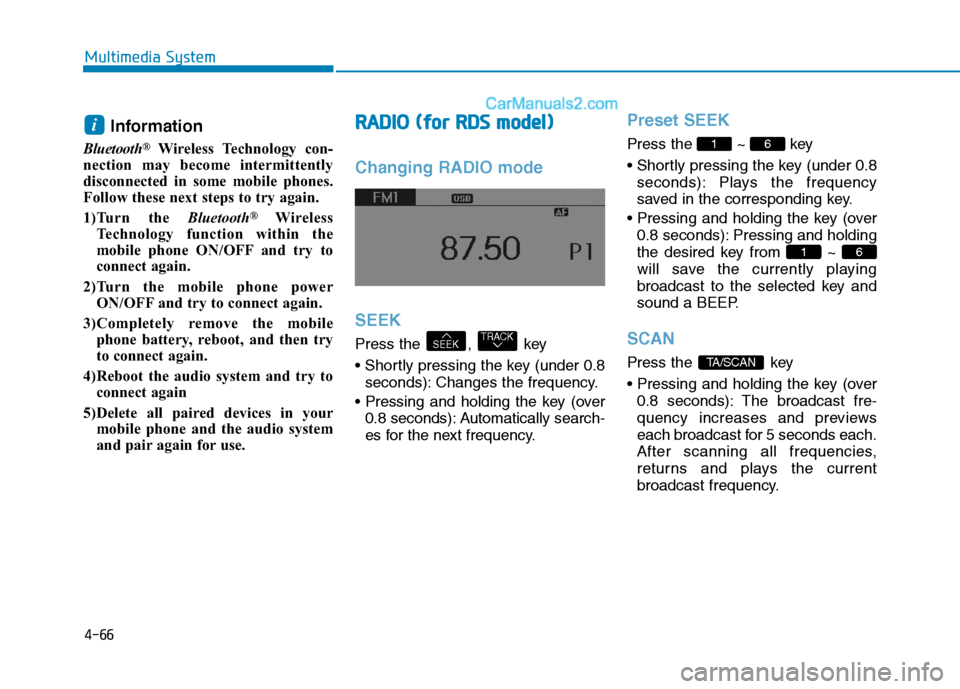
Changing RADIO mode SEEK
Press the , key
seconds): Changes the frequency.
0.8 seconds): Automatically search-
es for the next frequency.
Preset SEEK
Press the ~ key
seconds): Plays the frequency
saved in the corresponding key.
0.8 seconds): Pressing and holding
the desired key from ~
will save the currently playing
broadcast to the selected key and
sound a BEEP.
SCAN
Press the key
0.8 seconds): The broadcast fre-
quency increases and previews
each broadcast for 5 seconds each.
After scanning all frequencies,
returns and plays the current
broadcast frequency.TA/SCAN
61
61
TRACKSEEK
i
Page 259 of 473
4-67
Multimedia System
4
Selecting through manual
search
Turn the TUNE knob left/right to
adjust the frequency.
- FM : Changes by 50KHz
- AM : Changes by 9khz
Traffic Announcement (TA)
Shortly pressing the key
(under 0.8 seconds): Set /
TA Traffic Announcement) mode.
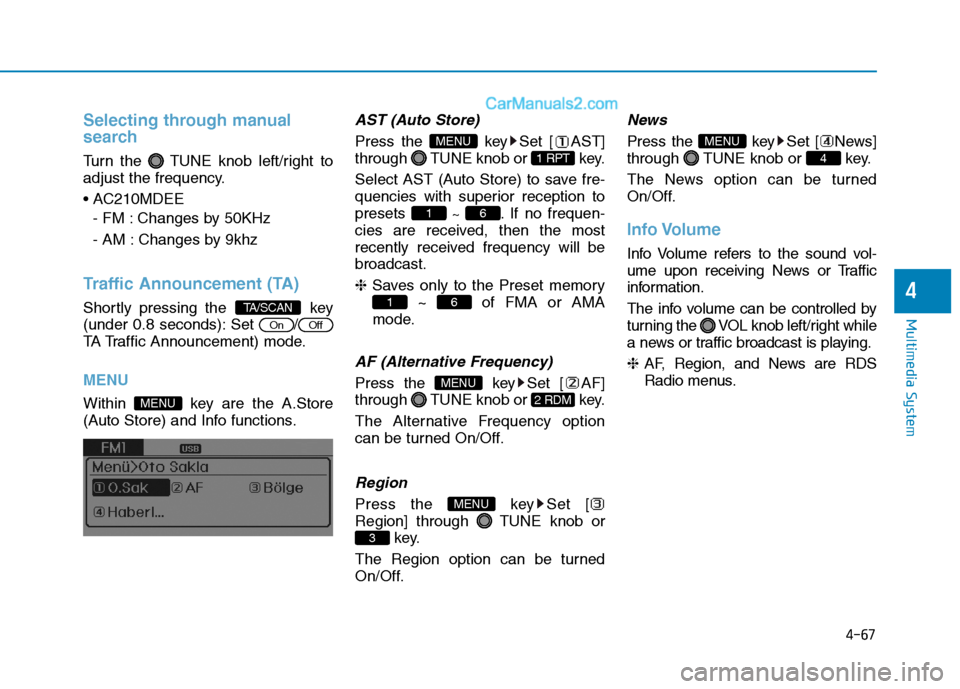
MENU
Within key are the A.Store
(Auto Store) and Info functions.
AST (Auto Store)
Press the key Set [ AST]
through TUNE knob or key.
Select AST (Auto Store) to save fre-
quencies with superior reception topresets ~ . If no frequen-
cies are received, then the most
recently received frequency will bebroadcast. ❈ Saves only to the Preset memory
~ of FMA or AMA
mode.
AF (Alternative Frequency)
Press the key Set [ AF]
through TUNE knob or key.
The Alternative Frequency option
can be turned On/Off.
Region
Press the key Set [
Region] through TUNE knob or key.
The Region option can be turned
On/Off.
News
Press the key Set [ News]
through TUNE knob or key.
The News option can be turned
On/Off.
Info Volume
Info Volume refers to the sound vol-
ume upon receiving News or Traffic
information.
The info volume can be controlled by
turning the VOL knob left/right while
a news or traffic broadcast is playing. ❈ AF, Region, and News are RDS
Radio menus.
4
MENU
3
MENU
2 RDM
MENU
61
61
1 RPT
MENU
MENU
OffOn
TA/SCAN
Page 260 of 473
4-68
Multimedia System
BBAA SSIICC MM EETT HH OO DD OO FF UU SSEE ::
A
A uuddiioo CC DD // MM PP33 CC DD // UU SSBB //
i
i PP oodd®®// MM yy MM uussiicc
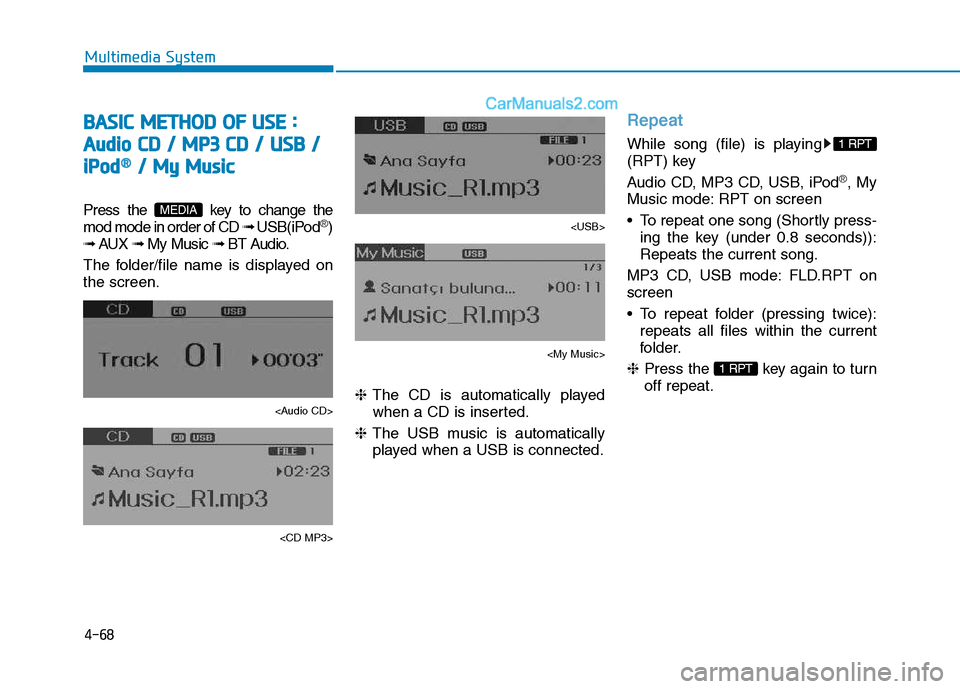
Press the key to change the mod mode in order of CD ➟ USB(iPod®)
➟ AUX ➟ My Music ➟ BT Audio.
The folder/file name is displayed on the screen.