type B HYUNDAI I30 2019 Workshop Manual
[x] Cancel search | Manufacturer: HYUNDAI, Model Year: 2019, Model line: I30, Model: HYUNDAI I30 2019Pages: 659, PDF Size: 17.14 MB
Page 265 of 659
4-33
Multimedia System
4
Precautions when connecting
Bluetooth®devices
The vehicle supports the followingBluetooth®functions. Some
Bluetooth®devices may not sup-
port some functions.
1) Bluetooth
®Handsfree phone
calls
2) Operations during a call (Private, Switch, Mic Vol. con-
trols)
3) Download call history saved to the Bluetooth
®device
4) Download contacts saved to the Bluetooth
®device
5) Automatic contacts/call history download when Bluetooth
®is
connected
6) Automatic Bluetooth
®device
connection when the vehicle is
started
7) Bluetooth
®audio streaming
playback
Before connecting the audio sys- tem to your device, make sure your
device supports Bluetooth
®. Even if your device supports
Bluetooth
®, a Bluetooth®connec-
tion cannot be established if the
device’s Bluetooth
®function is
switched off. Search and connect
with the Bluetooth
®function
enabled.
Pair or connect Bluetooth
®devices
to the audio system with the vehi-
cle at a standstill.
If a Bluetooth
®connection is lost
due to abnormal conditions while a
Bluetooth
®device is connected
(communication range exceeded,
device power OFF, communication
errors, etc.), the disconnected
Bluetooth
®device is searched for
and automatically reconnected.
If you want to disable the Bluetooth
®device auto-connect
function, turn the Bluetooth®func-
tion OFF on your device. Consult
the user manuals for individual
devices to see whether Bluetooth
®
is supported.
Handsfree call quality and volume may vary depending on the type of
Bluetooth
®device. Some Bluetooth
®devices are sub-
ject to intermittent Bluetooth®con-
nection failures. In this case, use
the following method.
1) Turn the Bluetooth
®function off
on your Bluetooth®device ➟
Turn it on and try again.
2) Delete the paired device from both the audio system and
Bluetooth
®device, then pair
again.
3) Power down your Bluetooth
®
device ➟Turn it on and try
again.
4) Completely remove the battery from your Bluetooth
®device;
reinsert it, reboot, and attempt
connection.
5) Restart the vehicle and reat- tempt connection.
Page 269 of 659
![HYUNDAI I30 2019 Workshop Manual 4-37
Multimedia System
4
Operation during calls
Incoming call with Bluetooth®con-
nected ➟Select [Accept].
(1) Call duration: Call duration display.
(2) Caller name: If the caller number is in yo](/img/35/56148/w960_56148-268.png "HYUNDAI I30 2019 Workshop Manual 4-37
Multimedia System
4
Operation during calls
Incoming call with Bluetooth®con-
nected ➟Select [Accept].
(1) Call duration: Call duration display.
(2) Caller name: If the caller number is in yo")
4-37
Multimedia System
4
Operation during calls
Incoming call with Bluetooth®con-
nected ➟Select [Accept].
(1) Call duration: Call duration display.
(2) Caller name: If the caller number is in your contacts, the corresponding
name is displayed.
(3) Incoming phone number: Incoming phone number is displayed.
(4) Private: Call is transferred to a cell phone.
(5) End: End call.
(6) Mute: Block outgoing voice.
Menu
Press the [MENU]button and select
the desired function.
Switch: Switch between calls if connected to two or more calls.
Microphone Volume: Adjust outgo- ing voice volume.
Information
• Some Bluetooth®devices may not
support the Private function.
• The outgoing voice volume may vary depending on the type of
Bluetooth
®device. If the outgoing
voice volume is too high or low,
adjust the Microphone Volume.
• The Switch menu will only be dis- played if connected to two or more
calls.
Favourites
Press the [PHONE]button on the
audio system ➟Select [Favourites] ➟
Favourites list displayed.
(1) Add to favourites: Add a down- loaded phone number to
favorites.
(2) Favourites list: A list of paired favorites is displayed
Connect a call when selected.
Menu
Press the [MENU]button, and select
the desired function.
Delete: Delete a saved favorites.
i
Page 274 of 659
4-42
Multimedia System
■Type B-1■Type B-2
A
A U
U D
D I
I O
O
(
( W
W i
i t
t h
h
T
T o
o u
u c
c h
h
S
S c
c r
r e
e e
e n
n )
)
G4H4G0000EE/G4H4G0001EE
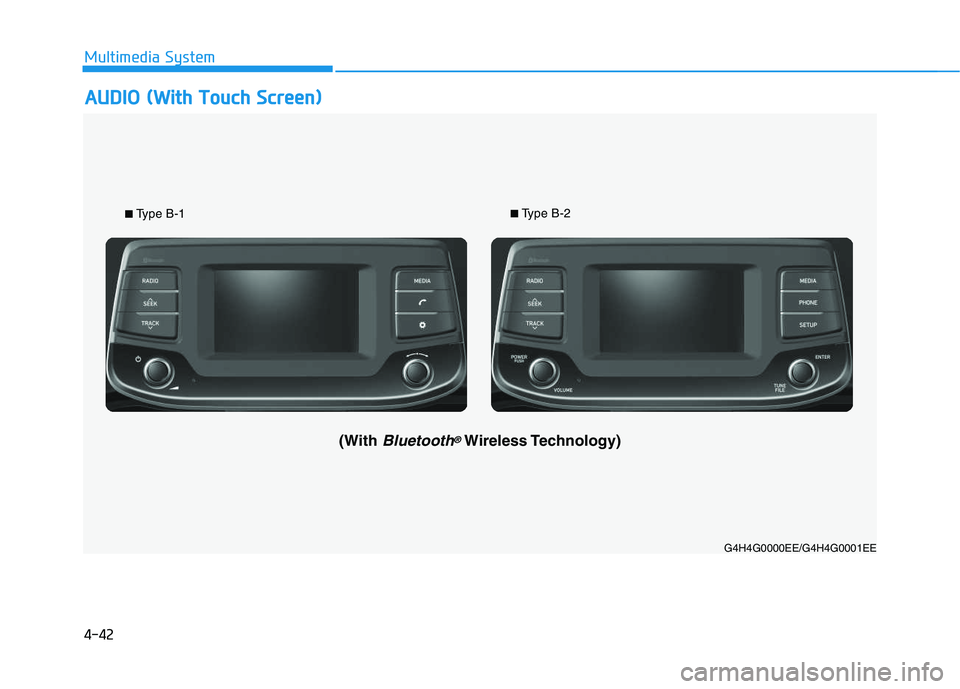
(With Bluetooth®Wireless Technology)
Page 275 of 659
4-43
Multimedia System
4
Feature of Your Audio
Head unit
❈The actual features in the vehicle
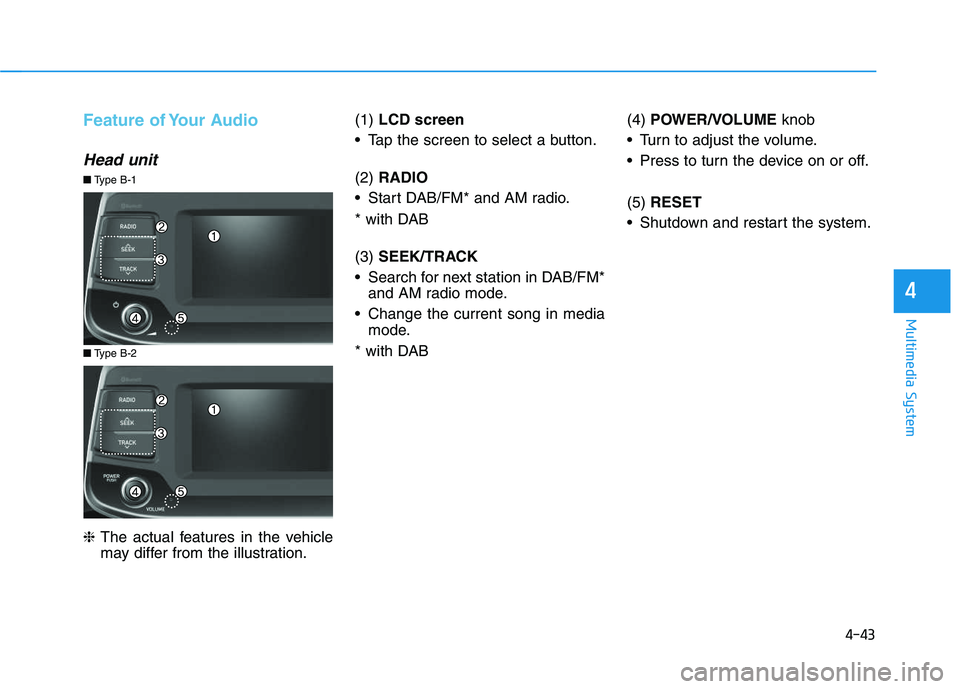
may differ from the illustration. (1)
LCD screen
Tap the screen to select a button.
(2) RADIO
Start DAB/FM* and AM radio.
* with DAB
(3) SEEK/TRACK
Search for next station in DAB/FM* and AM radio mode.
Change the current song in media mode.
* with DAB (4)
POWER/VOLUME knob
Turn to adjust the volume.
Press to turn the device on or off.
(5) RESET
Shutdown and restart the system.
■ Type B-2
■Type B-1
Page 276 of 659
![HYUNDAI I30 2019 Workshop Manual 4-44
Multimedia System(6)MEDIA
Select USB(iPod
®), Bluetooth®(BT)
Audio, AUX or My Music.
Display the media menu when two or more media are connected or
when the [MEDIA]button is
pressed in media](/img/35/56148/w960_56148-275.png "HYUNDAI I30 2019 Workshop Manual 4-44
Multimedia System(6)MEDIA
Select USB(iPod
®), Bluetooth®(BT)
Audio, AUX or My Music.
Display the media menu when two or more media are connected or
when the [MEDIA]button is
pressed in media")
4-44
Multimedia System(6)MEDIA
Select USB(iPod
®), Bluetooth®(BT)
Audio, AUX or My Music.
Display the media menu when two or more media are connected or
when the [MEDIA]button is
pressed in media mode.
(7) PHONE
Start Bluetooth
®Phone mode. (8)
SETUP
Access Display, Sound, Date/Time, Bluetooth, System, Screensaver
and Display Off settings.
(9) TUNE knob
Turn to navigate through the sta- tions/songs list.
Press to select an item.■ Type B-2
■Type B-1
Page 283 of 659
4-51
Multimedia System
4
Presets
Save up to 40 frequently used stations.
To listen to a preset, Select the
desired station list.
Press and hold the desired slot from
1 through 40. This saves the current
station in the selected slot.
If the slot is empty, simply selecting
saves the station to the slot.
Menu
Select [Menu], and select the desired
function.
Scan: All available stations areplayed for five seconds each.
Sound Settings: Audio sound set- tings can be changed.
Media
Information
- Using MP3
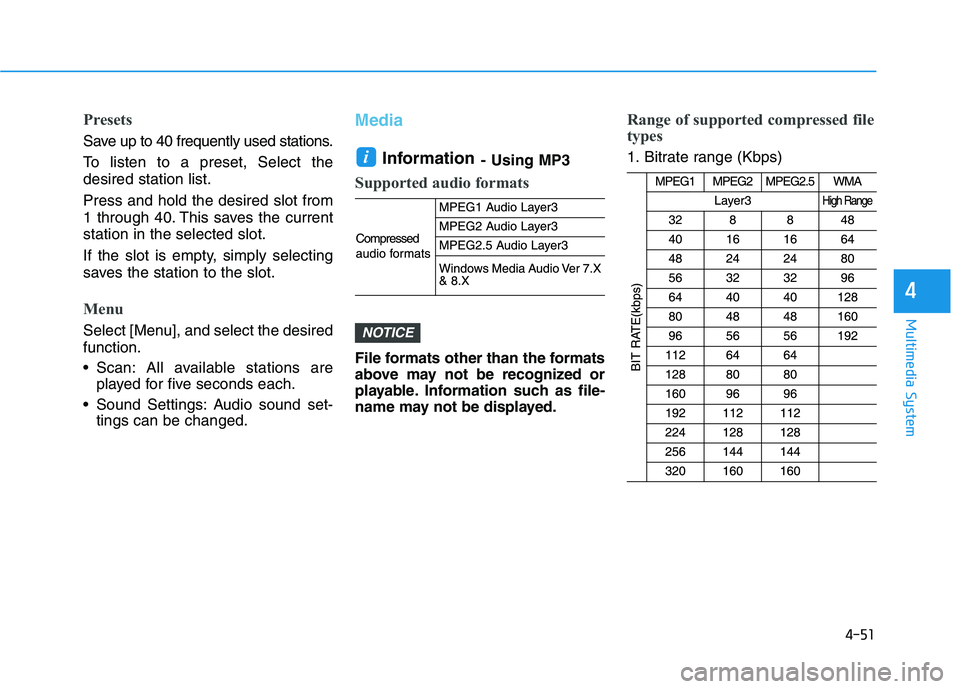
Supported audio formats
File formats other than the formats
above may not be recognized or
playable. Information such as file-
name may not be displayed.
Range of supported compressed file
types
1. Bitrate range (Kbps)
NOTICE
i
Page 285 of 659
4-53
Multimedia System
4
(Continued)
• Some USB devices are not recog-nized due to compatibility issues.
• Do not touch the USB connections.
• Connecting and disconnecting USB devices rapidly over a short period
of time can cause equipment failure.
• Abnormal sounds may be audible when the USB device is disconnected.
• Turn the audio off before connecting or disconnecting external USB
devices.
• Recognition may take longer depending on the type, capacity or
file format of the external USB
device. This is not a product mal-
function.
• Use of USB devices for purposes other than playing music files is pro-
hibited.
• Image display and video playback are not supported.
(Continued)(Continued)
• Use of USB accessories, including
charge and heat though the USB I/F,
can lead to reduced product per-
formance or malfunctions. Do not
use USB devices or accessories for
these purposes.
• Use of aftermarket USB hubs and extension cables can result in the
vehicle’s audio system failing to rec-
ognize your USB device. Connect
the USB device directly to the multi-
media port of your vehicle.
• When using high-capacity USB devices with logical drive divisions,
only files saved on the highest level
logical drive can be played.
If applications are loaded on a USB
drive, file playback may fail.
• Some MP3 players, cell phones, dig- ital cameras, etc. (USB devices that
are not recognized as mobile stor-
age) may not operate normally
when connected.
• USB charging may not be supported by some mobile devices.
(Continued)(Continued)
• Operation is guaranteed only for
standard (Metal Cover Type) USB
Memory drives.
• Operation of HDD, CF, SD and mem- ory stick devices is not guaranteed.
• DRM (Digital Rights Management) files cannot be played.
• SD-type USB memory, CF-type USB memory, and other USB mem-
ory devices that require adapters
for connection are not supported.
• Proper operation of USB HDDs or USB drives with connectors that
loosen due to vehicle vibrations is
not guaranteed. (iStick, etc.)
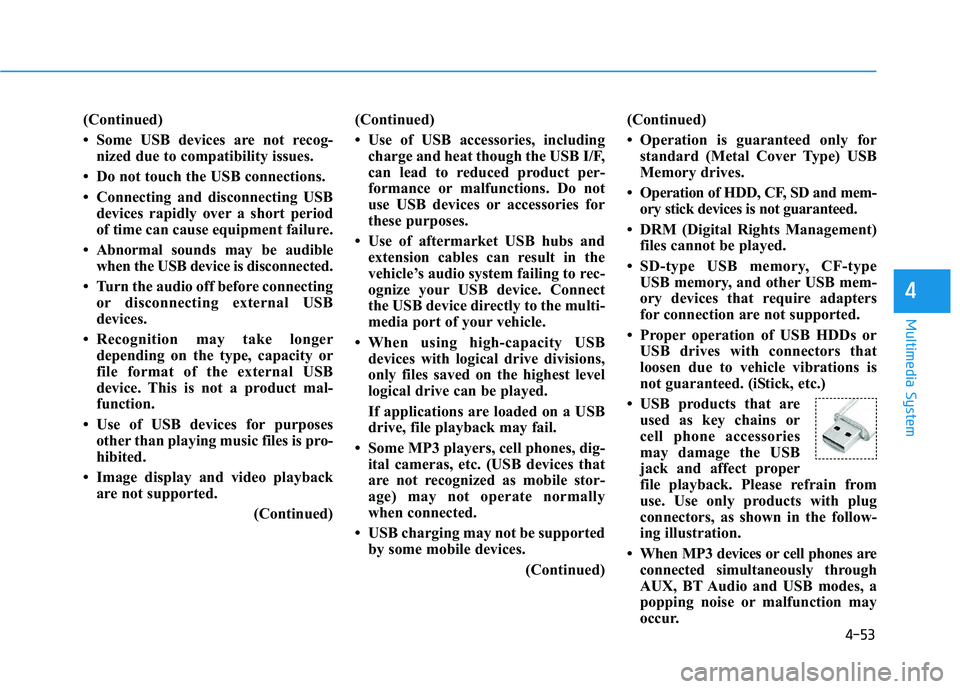
• USB products that are used as key chains or
cell phone accessories
may damage the USB
jack and affect proper
file playback. Please refrain from
use. Use only products with plug
connectors, as shown in the follow-
ing illustration.
• When MP3 devices or cell phones are connected simultaneously through
AUX, BT Audio and USB modes, a
popping noise or malfunction may
occur.
Page 295 of 659
4-63
Multimedia System
4
Safety precautions
The Bluetooth®Handsfree function
helps drivers to drive safely. By
connecting a Bluetooth
®-enabled
phone to the vehicle’s audio sys-
tem, phone calls can be made and
received through the audio system
and contacts can be managed.
Consult the user manual before
use.
Excessive manipulation of controls while driving, making it difficult to
pay attention to the road ahead,
can lead to accidents. Do not oper-
ate the device excessively while
driving.
Looking at the screen for a pro- longed time increases the risk of
accidents. Keep time spent looking
at the screen to a minimum.
Precautions when connecting
Bluetooth®devices
The vehicle supports the followingBluetooth®functions. Some
Bluetooth®devices may not sup-
port some functions.
1) Bluetooth
®Handsfree phone calls
2) Operations during a call (Private, Switch, Mic Vol. con-
trols)
3) Download call history saved to the Bluetooth
®device
4) Download contacts saved to the Bluetooth
®device
5) Automatic contacts/call history download when Bluetooth
®is
connected
6) Automatic Bluetooth
®device
connection when the vehicle is
started
7) Bluetooth
®audio streaming play-
back
Before connecting the audio sys- tem to your device, make sure your
device supports Bluetooth
®. Even if your device supports
Bluetooth
®, a Bluetooth®connec-
tion cannot be established if the
device’s Bluetooth
®function is
switched off. Search and connect
with the Bluetooth
®function
enabled.
Pair or connect Bluetooth
®devices
to the audio system with the vehi-
cle at a standstill.
If a Bluetooth
®connection is lost
due to abnormal conditions while a
Bluetooth
®device is connected
(communication range exceeded,
device power OFF, communication
errors, etc.), the disconnected
Bluetooth
®device is searched for
and automatically reconnected.
If you want to disable the Bluetooth
®device auto-connect
function, turn the Bluetooth®func-
tion OFF on your device. Consult
the user manuals for individual
devices to see whether Bluetooth
®
is supported.
Handsfree call quality and volume may vary depending on the type of
Bluetooth
®device.
Page 299 of 659
4-67
Multimedia System
4
Information
• When the incoming call screen isdisplayed, audio mode and the set-
tings screen cannot be shown. Only
call volume control is supported.
• Some Bluetooth
®devices may not
support the call reject function.
• Some Bluetooth
®devices may not
support the phone number display
function.
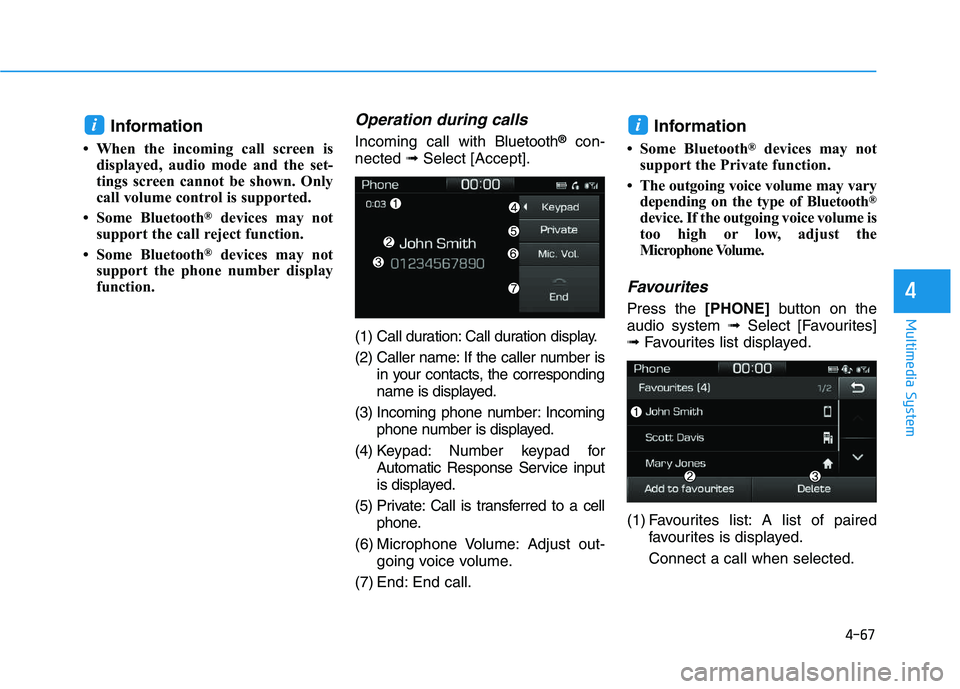
Operation during calls
Incoming call with Bluetooth®con-
nected ➟Select [Accept].
(1) Call duration: Call duration display.
(2) Caller name: If the caller number is in your contacts, the corresponding
name is displayed.
(3) Incoming phone number: Incoming phone number is displayed.
(4) Keypad: Number keypad for Automatic Response Service input
is displayed.
(5) Private: Call is transferred to a cell phone.
(6) Microphone Volume: Adjust out- going voice volume.
(7) End: End call.Information
• Some Bluetooth®devices may not
support the Private function.
• The outgoing voice volume may vary depending on the type of Bluetooth
®
device. If the outgoing voice volume is
too high or low, adjust the
Microphone Volume.
Favourites
Press the [PHONE]button on the
audio system ➟Select [Favourites]
➟ Favourites list displayed.
(1) Favourites list: A list of paired favourites is displayed.
Connect a call when selected.
ii
Page 305 of 659
Driving your vehicle
Before driving.........................................................5-5
Before entering the vehicle ...........................................5-5
Before starting...................................................................5-5
Ignition switch ........................................................5-7
Key ignition switch ............................................................5-7
Engine Start/Stop button ..............................................5-11
Manual transmission............................................5-20
Manual transmission operation ...................................5-20
Good driving practices ...................................................5-22
Automatic transmission .......................................5-24
Automatic transmission operation ..............................5-24
Parking ...............................................................................5-29
Good driving practices ...................................................5-29
Dual clutch transmission .....................................5-31
Dual clutch transmission operation ............................5-31
Parking ...............................................................................5-39
Good driving practices ...................................................5-39
Braking system.....................................................5-41
Power brakes ...................................................................5-41
Disc brakes wear indicator ...........................................5-42
Parking brake (Hand type) ...........................................5-42
Electronic Parking Brake (EPB)...................................5-44
AUTO HOLD ......................................................................5-49
Anti-lock Brake System (ABS) ....................................5-53Electronic Stability Control (ESC)................................5-55
Vehicle Stability Management......................................5-58
Hill-Start Assist Control (HAC) ....................................5-60
Emergency Stop Signal (ESS) ......................................5-60
Good braking practices..................................................5-61
ISG (Idle Stop and Go) system ...........................5-62
To activate the ISG system ...........................................5-62
To deactivate the ISG system ......................................5-66
ISG system malfunction .................................................5-66
The battery sensor deactivation .................................5-67
Drive mode integrated control system .............5-68
Blind Spot Detection System (BSD) ..................5-70
BSD (Blind Spot Detection) /
LCA (Lane Change Assist) .............................................5-71
RCTA (Rear Cross Traffic Alert) ..................................5-74
Limitations of the system .............................................5-77
Autonomous Emergency Braking (AEB)
- Sensor fusion type ...........................................5-78
System setting and activation......................................5-78
AEB warning message and system control ..............5-80
AEB sensor .......................................................................5-82
System malfunction ........................................................5-84
Limitations of the system .............................................5-85
5