phone HYUNDAI I30 2023 User Guide
[x] Cancel search | Manufacturer: HYUNDAI, Model Year: 2023, Model line: I30, Model: HYUNDAI I30 2023Pages: 533, PDF Size: 59.13 MB
Page 185 of 533
3-102
Convenient features of your vehicle
Non-operational conditions of
Parking Distance Warning
(Reverse/Forward) system
Parking Distance Warning
(Reverse/Forward) system may not
operate normally when:
Moisture is frozen to the sensor.
Sensor is covered with foreign mat-
ter, such as snow or water, or the
sensor cover is blocked.
There is a possibility of Parking
Distance Warning
(Reverse/Forward) system malfunc-
tion when:
Driving on uneven road surfaces
such as unpaved roads, gravel,
bumps, or gradients.
Objects generating excessive noise
such as vehicle horns, loud motor-
cycle engines, or truck air brakes
can interfere with the sensor.
Heavy rain or water spray is present.
Wireless transmitters or mobile
phones are present near the sensor.
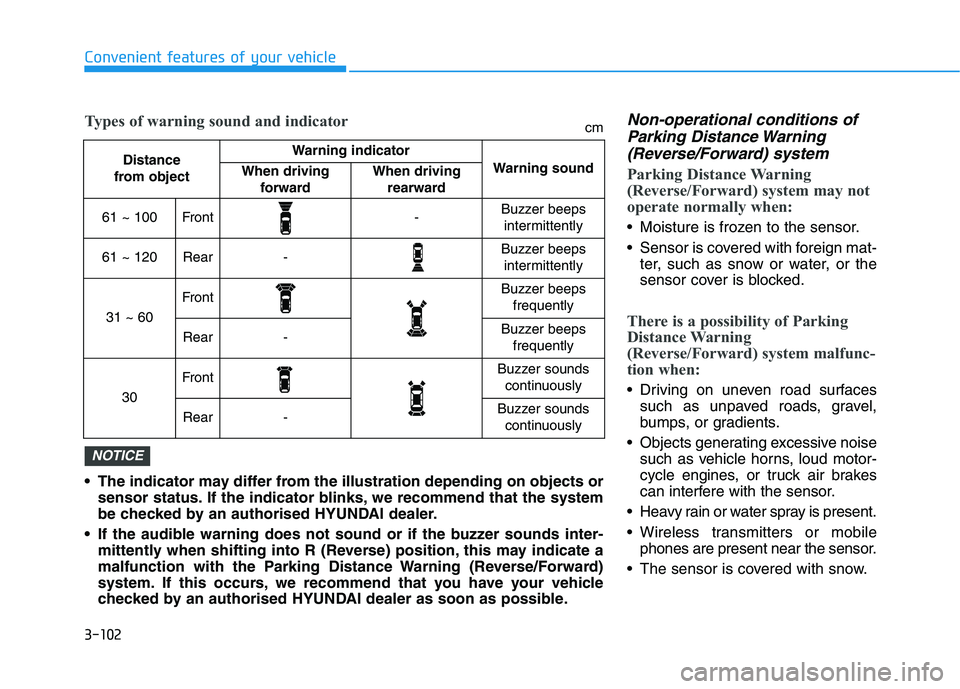
The sensor is covered with snow. The indicator may differ from the illustration depending on objects or
sensor status. If the indicator blinks, we recommend that the system
be checked by an authorised HYUNDAI dealer.
If the audible warning does not sound or if the buzzer sounds inter-
mittently when shifting into R (Reverse) position, this may indicate a
malfunction with the Parking Distance Warning (Reverse/Forward)
system. If this occurs, we recommend that you have your vehicle
checked by an authorised HYUNDAI dealer as soon as possible.
NOTICE
Distance
from object Warning indicator
Warning soundWhen driving
forwardWhen driving
rearward
61 ~ 100Front-Buzzer beeps
intermittently
61 ~ 120Rear-Buzzer beeps
intermittently
31 ~ 60
FrontBuzzer beeps
frequently
Rear-Buzzer beeps
frequently
30
FrontBuzzer sounds
continuously
Rear-Buzzer sounds
continuously
Types of warning sound and indicatorcm
Page 219 of 533
3-136
Convenient features of your vehicle
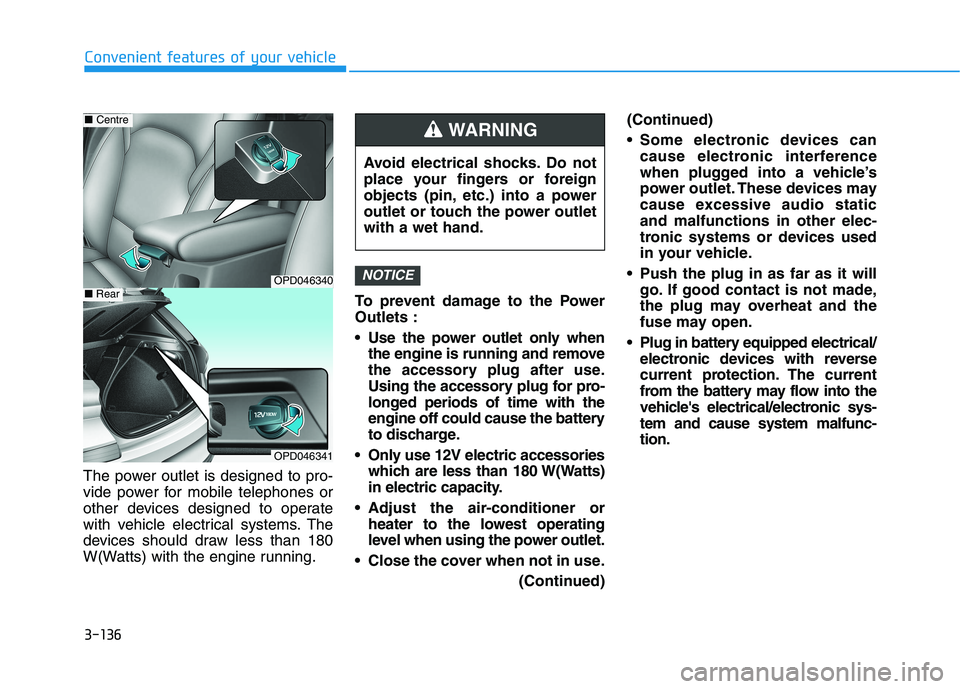
The power outlet is designed to pro-
vide power for mobile telephones or
other devices designed to operate
with vehicle electrical systems. The
devices should draw less than 180
W(Watts) with the engine running.To prevent damage to the Power
Outlets :
Use the power outlet only when
the engine is running and remove
the accessory plug after use.
Using the accessory plug for pro-
longed periods of time with the
engine off could cause the battery
to discharge.
Only use 12V electric accessories
which are less than 180 W(Watts)
in electric capacity.
Adjust the air-conditioner or
heater to the lowest operating
level when using the power outlet.
Close the cover when not in use.
(Continued)(Continued)
Some electronic devices can
cause electronic interference
when plugged into a vehicle’s
power outlet. These devices may
cause excessive audio static
and malfunctions in other elec-
tronic systems or devices used
in your vehicle.
Push the plug in as far as it will
go. If good contact is not made,
the plug may overheat and the
fuse may open.
Plug in battery equipped electrical/
electronic devices with reverse
current protection. The current
from the battery may flow into the
vehicle's electrical/electronic sys-
tem and cause system malfunc-
tion.
NOTICEOPD046340
■Centre
OPD046341
■Rear
Avoid electrical shocks. Do not
place your fingers or foreign
objects (pin, etc.) into a power
outlet or touch the power outlet
with a wet hand.
WARNING
Page 220 of 533
3-137
Convenient features of your vehicle
3
Cigarette lighter (if equipped)
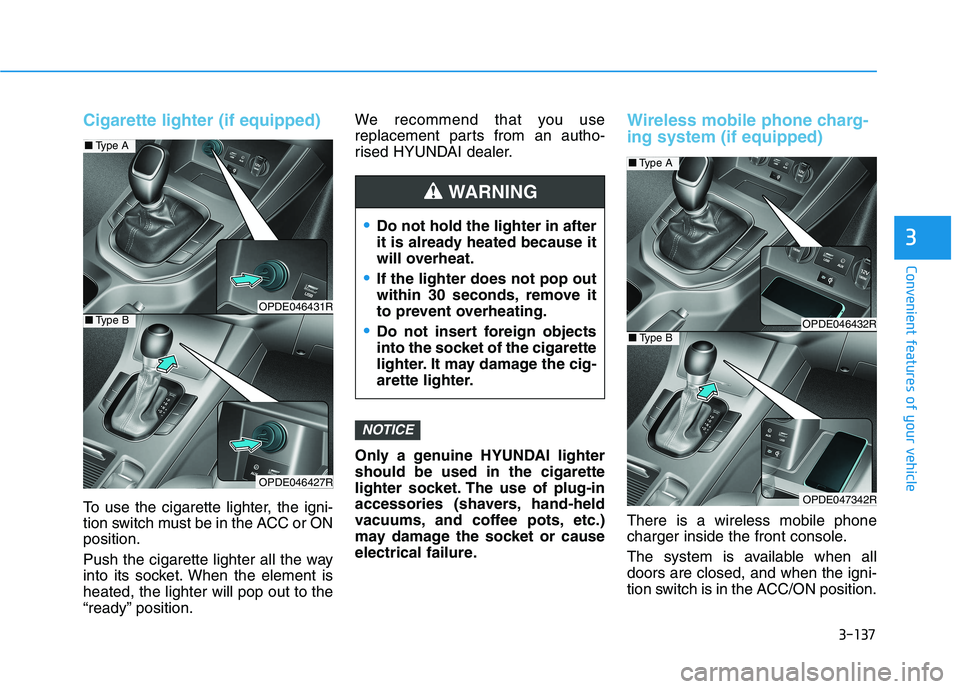
To use the cigarette lighter, the igni-
tion switch must be in the ACC or ON
position.
Push the cigarette lighter all the way
into its socket. When the element is
heated, the lighter will pop out to the
“ready” position.We recommend that you use
replacement parts from an autho-
rised HYUNDAI dealer.
Only a genuine HYUNDAI lighter
should be used in the cigarette
lighter socket. The use of plug-in
accessories (shavers, hand-held
vacuums, and coffee pots, etc.)
may damage the socket or cause
electrical failure.
Wireless mobile phone charg-
ing system (if equipped)
There is a wireless mobile phone
charger inside the front console.
The system is available when all
doors are closed, and when the igni-
tion switch is in the ACC/ON position.
NOTICE
Do not hold the lighter in after
it is already heated because it
will overheat.
If the lighter does not pop out
within 30 seconds, remove it
to prevent overheating.
Do not insert foreign objects
into the socket of the cigarette
lighter. It may damage the cig-
arette lighter.
WARNING
OPDE046431R
OPDE046427R
■Type A
■Type BOPDE046432R
OPDE047342R
■Type A
■Type B
Page 221 of 533
3-138
Convenient features of your vehicle
To charge a mobile phone
The wireless mobile phone charging
system charges only the Qi-enabled
mobile phones ( ). Read the label
on the mobile phone accessory
cover or visit your mobile phone
manufacturer’s website to check
whether your mobile phone supports
the Qi technology.
The wireless charging process starts
when you put a Qi-enabled mobile
phone on the wireless charging unit.
1. Remove other items, including the
smart key, from the wireless charg-
ing unit. If not, the wireless charg-
ing process may be interrupted.
2. The indicator illuminates in orange
during the charging process. The
indicator colour changes to green,
when the charging process is
completed.
3. You can turn ON or OFF the wire-
less charging function in the User
Settings mode on the instrument
cluster. For further information,
refer to “LCD display Modes” in
this chapter.Slightly change the mobile phone
position, when the mobile phone is
not being charged. Make sure that
the indicator illuminates in orange.
The indicator colour may not change
to green depending on the mobile
phone type, even though the charg-
ing process has been completed.
The indicator blinks orange for 10
seconds when there is a malfunction
with the wireless charging system.
In this case, temporarily stop the
charging process, and re-attempt to
wirelessly charge your mobile phone
again.
The system warns you with a mes-
sage on the LCD display if you do not
remove the cellular phone from the
wireless charging unit, when the front
door is open and the ignition switch is
in the OFF position.
The wireless mobile phone
charging system may not sup-
port certain mobile phones,
which are not verified for the Qi
specification ( ).
(Continued)(Continued)
Locate your mobile phone well in
the middle of the wireless mobile
phone charging system. Even
when your mobile phone locates
slightly to one side, the charging
speed may decrease.
The wireless charging process
may temporarily stop, when a
smart key function operates (i.e.
starting the engine, opening the
doors, closing the doors).
For certain mobile phones, the
indicator colour may not change
to green, even when the wireless
charging process is properly
completed.
The wireless charging process may
temporarily stop, when tempera-
ture abnormally increases inside
the wireless mobile phone charg-
ing system. The wireless charging
process restarts, when tempera-
ture falls to a certain level.
The wireless charging process
may temporarily stop when there
is any metallic item, such as a
coin, between the wireless
mobile phone charging system
and a mobile phone.
NOTICE
Page 226 of 533
Multimedia System
Multimedia system .................................................4-2
AUX, USB and iPod®port ................................................4-2
Antenna ...............................................................................4-3
Steering wheel audio controls .......................................4-4
Bluetooth
®Wireless Technology hands-free ...........4-5
Audio / Video / Navigation system (AVN) ..................4-5
How vehicle radio works .................................................4-5
Audio (With Touch Screen) ..................................4-9
Features of Your Audio .................................................4-10
Radio .................................................................................4-18
Media..................................................................................4-20
Phone .................................................................................4-31
Setup ..................................................................................4-39
4
Page 230 of 533
Bluetooth®Wireless Technology
hands-free (if equipped)
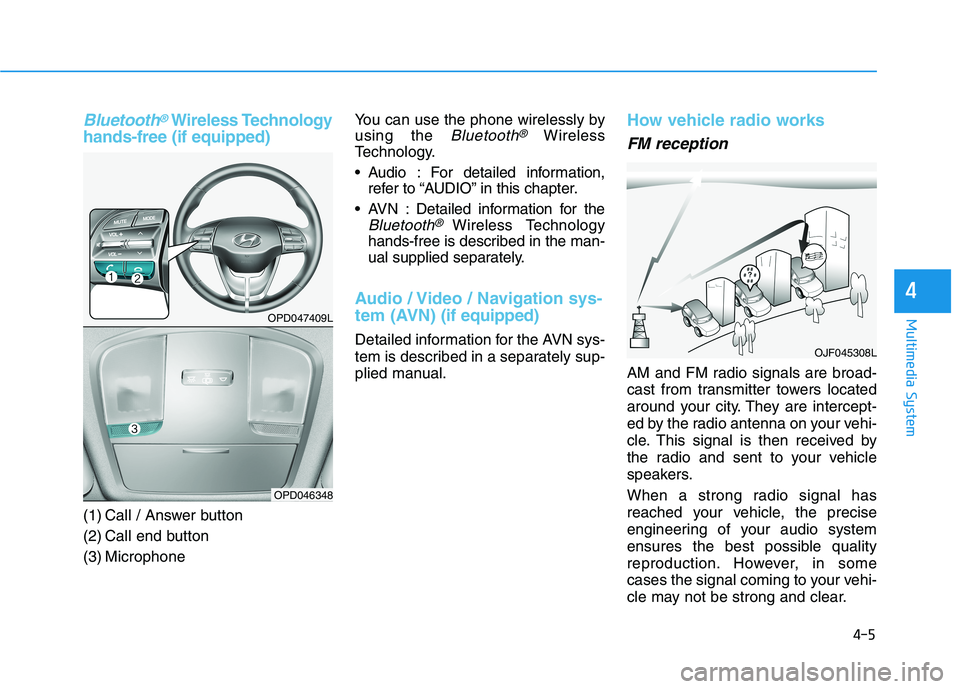
(1) Call / Answer button
(2) Call end button
(3) MicrophoneYou can use the phone wirelessly by
using the
Bluetooth®Wireless
Technology.
Audio : For detailed information,
refer to “AUDIO” in this chapter.
AVN : Detailed information for the
Bluetooth® Wireless Technology
hands-free is described in the man-
ual supplied separately.
Audio / Video / Navigation sys-
tem (AVN)(if equipped)
Detailed information for the AVN sys-
tem is described in a separately sup-
plied manual.
How vehicle radio works
FM reception
AM and FM radio signals are broad-
cast from transmitter towers located
around your city. They are intercept-
ed by the radio antenna on your vehi-
cle. This signal is then received by
the radio and sent to your vehicle
speakers.
When a strong radio signal has
reached your vehicle, the precise
engineering of your audio system
ensures the best possible quality
reproduction. However, in some
cases the signal coming to your vehi-
cle may not be strong and clear.
OJF045308L
4-5
Multimedia System
4
OPD047409L
OPD046348
Page 232 of 533
4-7
Multimedia System
4
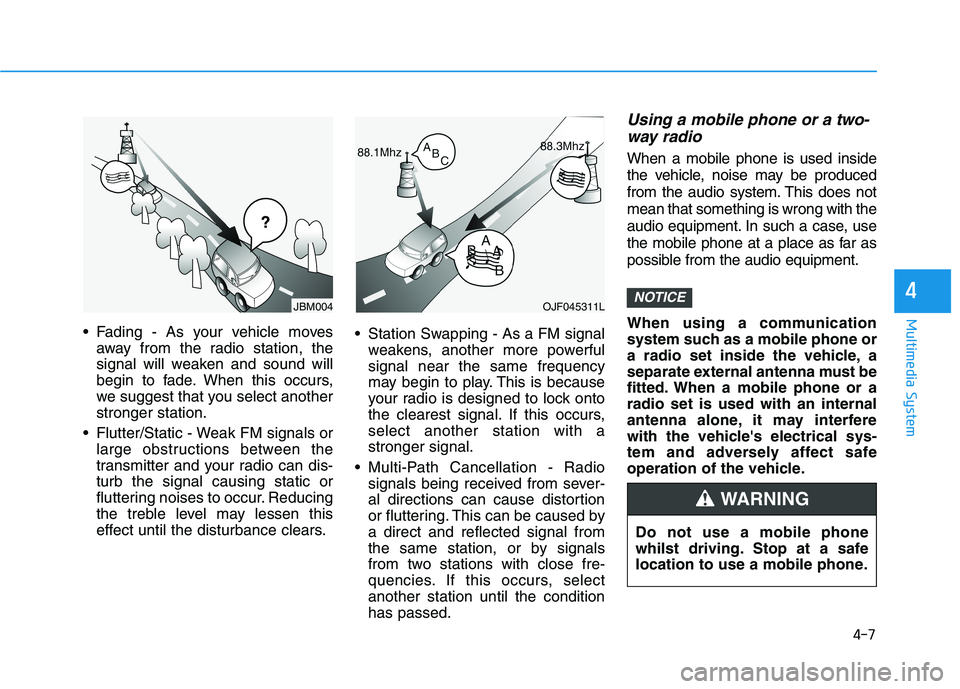
Fading - As your vehicle moves
away from the radio station, the
signal will weaken and sound will
begin to fade. When this occurs,
we suggest that you select another
stronger station.
Flutter/Static - Weak FM signals or
large obstructions between the
transmitter and your radio can dis-
turb the signal causing static or
fluttering noises to occur. Reducing
the treble level may lessen this
effect until the disturbance clears. Station Swapping - As a FM signal
weakens, another more powerful
signal near the same frequency
may begin to play. This is because
your radio is designed to lock onto
the clearest signal. If this occurs,
select another station with a
stronger signal.
Multi-Path Cancellation - Radio
signals being received from sever-
al directions can cause distortion
or fluttering. This can be caused by
a direct and reflected signal from
the same station, or by signals
from two stations with close fre-
quencies. If this occurs, select
another station until the condition
has passed.
Using a mobile phone or a two-
way radio
When a mobile phone is used inside
the vehicle, noise may be produced
from the audio system. This does not
mean that something is wrong with the
audio equipment. In such a case, use
the mobile phone at a place as far as
possible from the audio equipment.
When using a communication
system such as a mobile phone or
a radio set inside the vehicle, a
separate external antenna must be
fitted. When a mobile phone or a
radio set is used with an internal
antenna alone, it may interfere
with the vehicle's electrical sys-
tem and adversely affect safe
operation of the vehicle.
NOTICEOJF045311L
¢¢¢
JBM004
Do not use a mobile phone
whilst driving. Stop at a safe
location to use a mobile phone.
WARNING
Page 239 of 533
![HYUNDAI I30 2023 User Guide 4-14
Multimedia System
(6)MEDIA
Select USB(iPod
®), Bluetooth®(BT)
Audio, AUX or My Music.
Display the media menu when two
or more media are connected or
when the [MEDIA]button is
pressed in media](/img/35/56144/w960_56144-238.png "HYUNDAI I30 2023 User Guide 4-14
Multimedia System
(6)MEDIA
Select USB(iPod
®), Bluetooth®(BT)
Audio, AUX or My Music.
Display the media menu when two
or more media are connected or
when the [MEDIA]button is
pressed in media")
4-14
Multimedia System
(6)MEDIA
Select USB(iPod
®), Bluetooth®(BT)
Audio, AUX or My Music.
Display the media menu when two
or more media are connected or
when the [MEDIA]button is
pressed in media mode.
(7) PHONE
Start Bluetooth
®Phone mode.(8) SETUP
Access Display, Sound, Date/Time,
Bluetooth, System, Screen Saver
and Display Off settings.
(9) TUNE knob
Turn to navigate through the sta-
tions/songs list.
Press to select an item.■Type D
■Type C
Page 240 of 533
4-15
Multimedia System
4
Steering wheel remote control
(Bluetooth equipped model)
❈The actual features in the may dif-
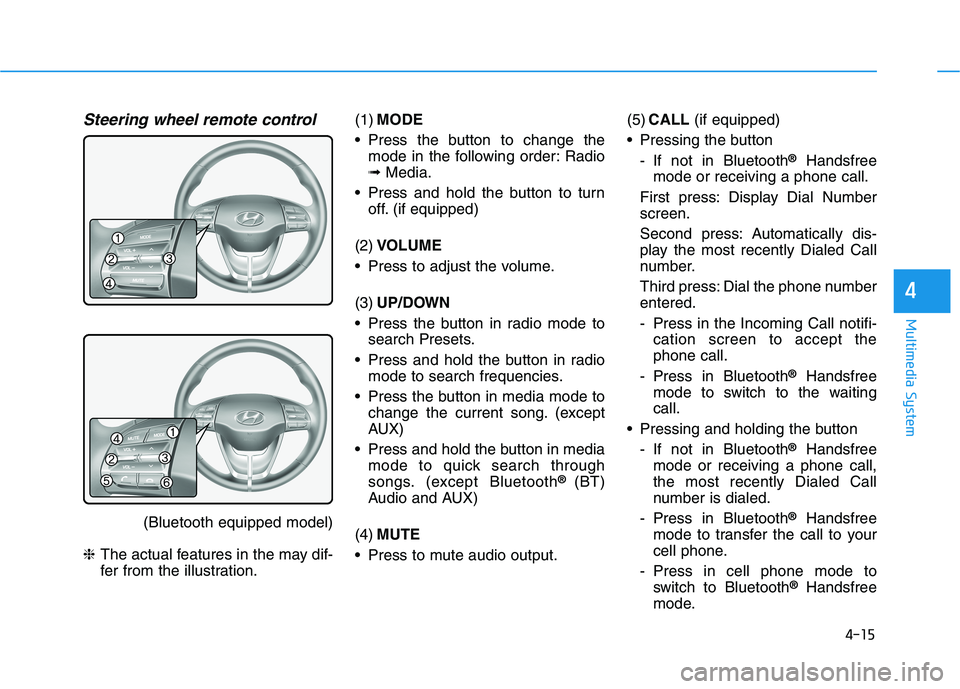
fer from the illustration.(1)MODE
Press the button to change the
mode in the following order: Radio
➟Media.
Press and hold the button to turn
off. (if equipped)
(2)VOLUME
Press to adjust the volume.
(3)UP/DOWN
Press the button in radio mode to
search Presets.
Press and hold the button in radio
mode to search frequencies.
Press the button in media mode to
change the current song. (except
AUX)
Press and hold the button in media
mode to quick search through
songs. (except Bluetooth
® (BT)
Audio and AUX)
(4)MUTE
Press to mute audio output.(5)CALL(if equipped)
Pressing the button
- If not in Bluetooth
®Handsfree
mode or receiving a phone call.
First press: Display Dial Number
screen.
Second press: Automatically dis-
play the most recently Dialed Call
number.
Third press: Dial the phone number
entered.
- Press in the Incoming Call notifi-
cation screen to accept the
phone call.
- Press in Bluetooth
®Handsfree
mode to switch to the waiting
call.
Pressing and holding the button
- If not in Bluetooth
®Handsfree
mode or receiving a phone call,
the most recently Dialed Call
number is dialed.
- Press in Bluetooth
®Handsfree
mode to transfer the call to your
cell phone.
- Press in cell phone mode to
switch to Bluetooth
®Handsfree
mode.
Page 241 of 533
4-16
Multimedia System
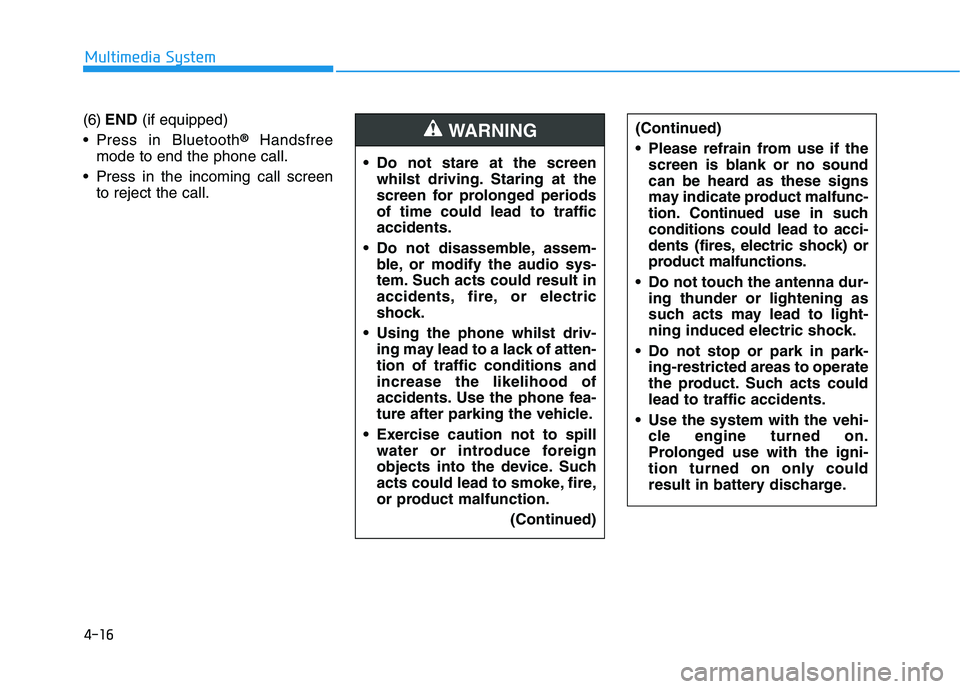
(6)END(if equipped)
Press in Bluetooth
®Handsfree
mode to end the phone call.
Press in the incoming call screen
to reject the call. Do not stare at the screen
whilst driving. Staring at the
screen for prolonged periods
of time could lead to traffic
accidents.
Do not disassemble, assem-
ble, or modify the audio sys-
tem. Such acts could result in
accidents, fire, or electric
shock.
Using the phone whilst driv-
ing may lead to a lack of atten-
tion of traffic conditions and
increase the likelihood of
accidents. Use the phone fea-
ture after parking the vehicle.
Exercise caution not to spill
water or introduce foreign
objects into the device. Such
acts could lead to smoke, fire,
or product malfunction.
(Continued)WARNING(Continued)
Please refrain from use if the
screen is blank or no sound
can be heard as these signs
may indicate product malfunc-
tion. Continued use in such
conditions could lead to acci-
dents (fires, electric shock) or
product malfunctions.
Do not touch the antenna dur-
ing thunder or lightening as
such acts may lead to light-
ning induced electric shock.
Do not stop or park in park-
ing-restricted areas to operate
the product. Such acts could
lead to traffic accidents.
Use the system with the vehi-
cle engine turned on.
Prolonged use with the igni-
tion turned on only could
result in battery discharge.