phone HYUNDAI I30 2023 Owner's Manual
[x] Cancel search | Manufacturer: HYUNDAI, Model Year: 2023, Model line: I30, Model: HYUNDAI I30 2023Pages: 533, PDF Size: 59.13 MB
Page 243 of 533
4-18
Multimedia System
(Continued)
In this case of product malfunc-
tion, please contact your place of
purchase or After Service centre.
Placing the audio system within
an electromagnetic environment
may result in noise interference.
Prevent caustic solutions such
as perfume and cosmetic oil
from contacting the instrument
panel because they may cause
damage or discoloration.
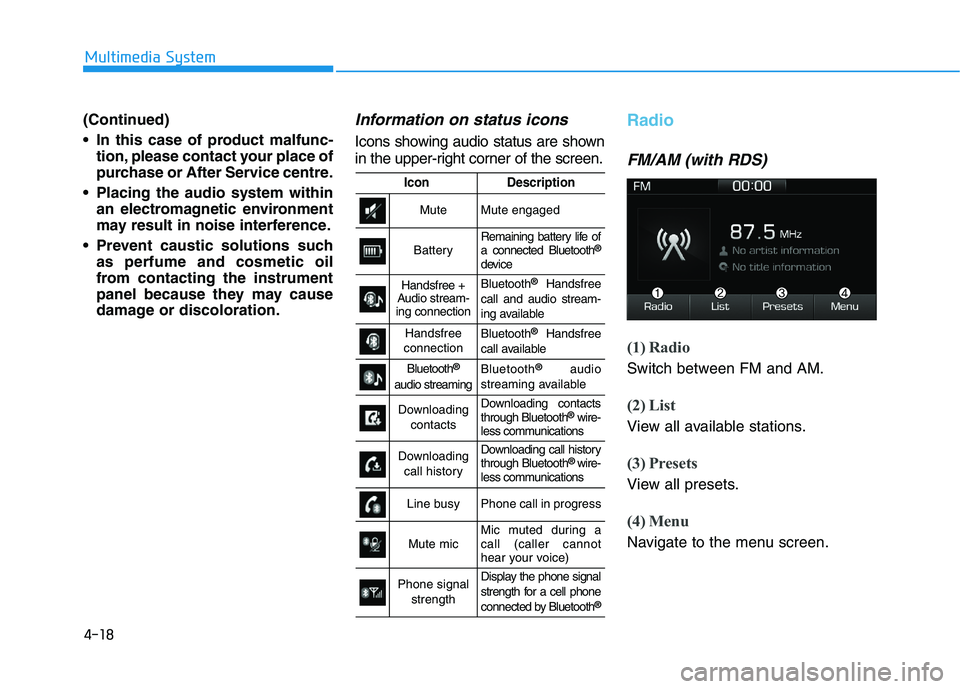
Information on status icons
Icons showing audio status are shown
in the upper-right corner of the screen.
Radio
FM/AM (with RDS)
(1) Radio
Switch between FM and AM.
(2) List
View all available stations.
(3) Presets
View all presets.
(4) Menu
Navigate to the menu screen.
IconDescription
MuteMute engaged
BatteryRemaining battery life of
a connected Bluetooth®
device
Handsfree +
Audio stream-
ing connectionBluetooth®Handsfree
call and audio stream-
ing available
Handsfree
connectionBluetooth®Handsfree
call available
Bluetooth®
audio streaming
Bluetooth®audio
streaming available
Downloading
contactsDownloading contacts
through Bluetooth®wire-
less communications
Downloading
call historyDownloading call history
through Bluetooth® wire-
less communications
Line busyPhone call in progress
Mute micMic muted during a
call (caller cannot
hear your voice)
Phone signal
strengthDisplay the phone signal
strength for a cell phone
connected by Bluetooth
®
Page 247 of 533
4-22
Multimedia System
(Continued)
• Some USB devices are not recog-
nised due to compatibility issues.
• Do not touch the USB connections.
• Connecting and disconnecting USB
devices rapidly over a short period
of time can cause equipment failure.
• Abnormal sounds may be audible
when the USB device is disconnected.
• Turn the audio off before connecting
or disconnecting external USB
devices.
• Recognition may take longer
depending on the type, capacity or
file format of the external USB
device. This is not a product mal-
function.
• Use of USB devices for purposes
other than playing music files is pro-
hibited.
• Image display and video playback
are not supported.
• Use of USB accessories, including
charge and heat though the USB I/F,
can lead to reduced product per-
formance or malfunctions. Do not
use USB devices or accessories for
these purposes.
(Continued)(Continued)
• Use of aftermarket USB hubs and
extension cables can result in the
vehicle’s audio system failing to rec-
ognize your USB device. Connect
the USB device directly to the multi-
media port of your vehicle.
• When using high-capacity USB
devices with logical drive divisions,
only files saved on the highest level
logical drive can be played.
If applications are loaded on a USB
drive, file playback may fail.
• Some MP3 players, mobile phones,
digital cameras, etc. (USB devices
that are not recognised as mobile
storage) may not operate normally
when connected.
• USB charging may not be supported
by some mobile devices.
• Operation is guaranteed only for
standard (Metal Cover Type) USB
Memory drives.
• Operation of HDD, CF, SD and mem-
ory stick devices is not guaranteed.
• DRM (Digital Rights Management)
files cannot be played.
(Continued)(Continued)
• SD-type USB memory, CF-type
USB memory, and other USB mem-
ory devices that require adapters
for connection are not supported.
• Proper operation of USB HDDs or
USB drives with connectors that
loosen due to vehicle vibrations is
not guaranteed. (iStick, etc.)
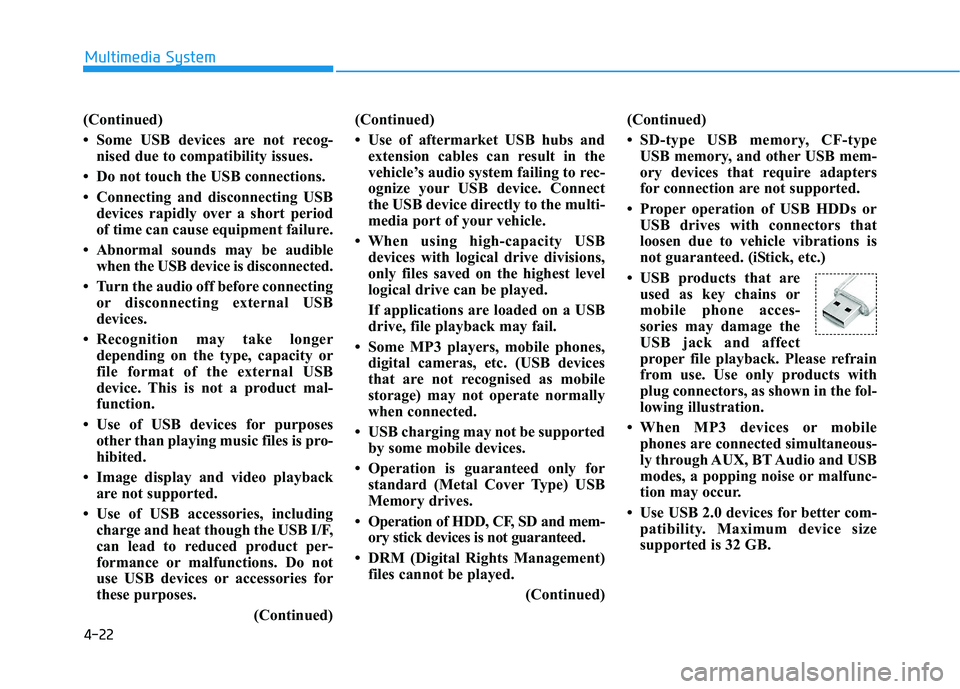
• USB products that are
used as key chains or
mobile phone acces-
sories may damage the
USB jack and affect
proper file playback. Please refrain
from use. Use only products with
plug connectors, as shown in the fol-
lowing illustration.
• When MP3 devices or mobile
phones are connected simultaneous-
ly through AUX, BT Audio and USB
modes, a popping noise or malfunc-
tion may occur.
• Use USB 2.0 devices for better com-
patibility. Maximum device size
supported is 32 GB.
Page 249 of 533
![HYUNDAI I30 2023 Owners Manual 4-24
Multimedia System
Information
The repeat folder function is available
only when songs are playing from the
[File] category under [List].
Shuffle play
Select [Shuffle] to enable or disable
‘Shuf](/img/35/56144/w960_56144-248.png "HYUNDAI I30 2023 Owners Manual 4-24
Multimedia System
Information
The repeat folder function is available
only when songs are playing from the
[File] category under [List].
Shuffle play
Select [Shuffle] to enable or disable
‘Shuf")
4-24
Multimedia System
Information
The repeat folder function is available
only when songs are playing from the
[File] category under [List].
Shuffle play
Select [Shuffle] to enable or disable
‘Shuffle’, ‘Shuffle folder’ or ‘Shuffle
category’ play.
Shuffle: Songs are played in
random order.
Shuffle folder: Songs within
the current folder are played in ran-
dom order.
Shuffle category: Songs within
the current category are played in
random order.
Menu
Select [Menu], and select the desired
function.
Save to My Music: Songs on your
USB device can be saved to My
Music.
(1) File: Select a file to save
.
(2) Mark All: Select all files.
(3) Unmark All: Deselect all files.(4) Save: Save the selected file(s)
.
- Select the files you want to save,
and select [Save]. This saves the
selected files to My Music.
- Saving is cancelled if phone calls
are received or made whilst saving.
- Up to 6,000 files can be saved.
- The currently playing file on the
USB device cannot be changed
whilst saving.
- My Music cannot be used whilst
saving.
- Up to 700 MB can be saved.
Information: Detailed information
on the currently playing song is dis-
played.
Sound Settings: Audio sound set-
tings can be changed.i
Page 250 of 533
4-25
Multimedia System
4
Information
- Using the iPod®Devices
• To use the audio system’s iPod
®con-
trol function, use the dedicated
cable provided with your iPod
®.
• Connecting the iPod
®to the vehicle
during play may result in a loud
noise that lasts about one to two sec-
onds. Connect the iPod
®to the vehi-
cle after stopping or pausing play.
• Connect the iPod
®with the vehicle in
the ACC ON state to begin charging.
• When connecting the iPod
®cable,
be sure to fully push the cable into
the port.
• When EQ effects are enabled simul-
taneously on external devices, such
as iPod
®s and the audio system, the
EQ effects may overlap, causing
sound quality deterioration or dis-
tortion. Deactivate the EQ function
for all external devices, if possible.
• Noise may occur when your iPod
®
or the AUX port is connected.
Disconnect and store separately
when not in use.
(Continued)(Continued)
• There may be noise if the audio sys-
tem is used with an iPod
®or AUX
external device connected to the
power jack. In these cases, discon-
nect the iPod
®or external device
from the power jack.
• Play may be interrupted, or device
malfunctions may occur depending
on the characteristics of your
iPod
®/iPhone®.
• Play may fail if your iPhone
®is con-
nected through both Bluetooth®and
USB. In this case, select Dock con-
nector or Bluetooth
®on your
iPhone®to change the sound output
settings.
• If your software version does not
support the communication proto-
col or your iPod
®is not recognised
due to device failure, anomalies or
defects, iPod
®mode cannot be used.
• iPod
®nano (5th generation) devices
may not be recognised if the battery is
low. Charge sufficiently before use.
(Continued)(Continued)
• The search and song play order in
the iPod
®device may be different
from the search order in the audio
system.
• If the iPod
®has failed due to an
internal defect, please reset the
iPod
®(consult your iPod®manual).
• Depending on the software version,
the iPod
®may fail to sync with the
system. If the media is removed or
disconnected before recognition, the
previous mode may not be restored
(iPad
®cannot be charged).
• Cables other than the 1-meter cable
provided with iPod
®/iPhone®prod-
ucts may not be recognised.
• When other music apps are used on
your iPod
®, the system sync func-
tion may fail due to malfunction of
the iPod
®application.
i
Page 252 of 533
4-27
Multimedia System
4
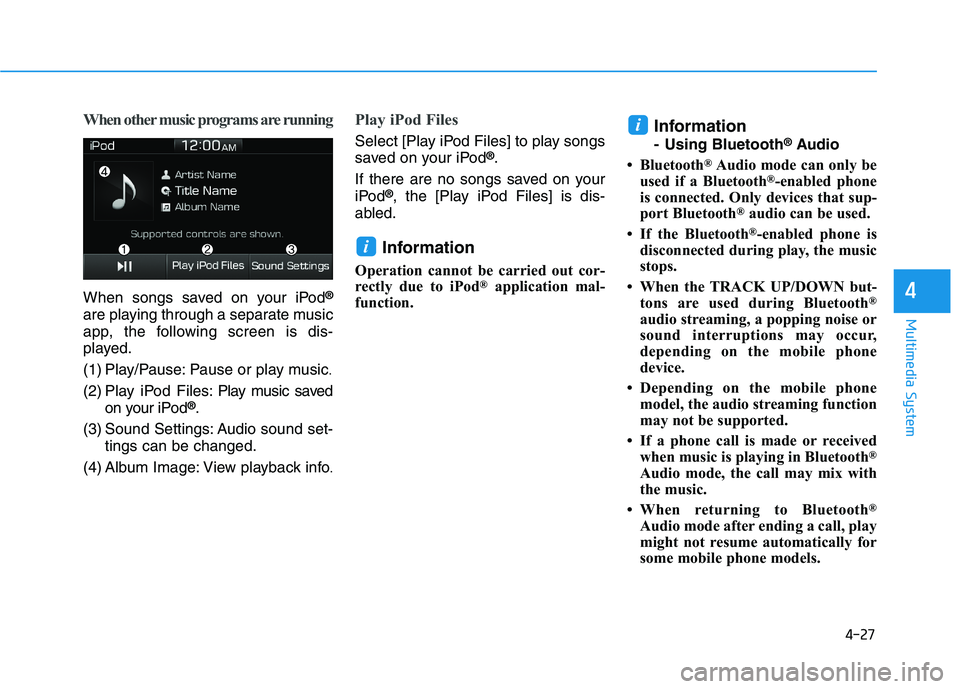
When other music programs are running
When songs saved on your iPod®
are playing through a separate music
app, the following screen is dis-
played.
(1) Play/Pause: Pause or play music
.
(2) Play iPod Files: Play music saved
on your iPod®.
(3) Sound Settings: Audio sound set-
tings can be changed.
(4) Album Image: View playback info
.
Play iPod Files
Select [Play iPod Files] to play songs
saved on your iPod®.
If there are no songs saved on your
iPod
®, the [Play iPod Files] is dis-
abled.
Information
Operation cannot be carried out cor-
rectly due to iPod®application mal-
function.
Information
- Using Bluetooth®Audio
• Bluetooth
®Audio mode can only be
used if a Bluetooth®-enabled phone
is connected. Only devices that sup-
port Bluetooth
®audio can be used.
• If the Bluetooth
®-enabled phone is
disconnected during play, the music
stops.
• When the TRACK UP/DOWN but-
tons are used during Bluetooth
®
audio streaming, a popping noise or
sound interruptions may occur,
depending on the mobile phone
device.
• Depending on the mobile phone
model, the audio streaming function
may not be supported.
• If a phone call is made or received
when music is playing in Bluetooth
®
Audio mode, the call may mix with
the music.
• When returning to Bluetooth
®
Audio mode after ending a call, play
might not resume automatically for
some mobile phone models.
i
i
Page 253 of 533
4-28
Multimedia System
Bluetooth
®Handsfree is a fea-
ture that enables drivers to prac-
tice safe driving. Connecting the
car audio system with a
Bluetooth
®phone allows the
user to conveniently make calls,
receive calls, and manage the
phone book. Before using the
Bluetooth
®, carefully read the
contents of this user’s manual.
Excessive use or operations
whilst driving may lead to negli-
gent driving practices and be
the cause of accidents.
Do not operate the device exces-
sively whilst driving.
Viewing the screen for pro-
longed periods of time is dan-
gerous and may lead to acci-
dents.
When driving, view the screen
only for short periods of time.
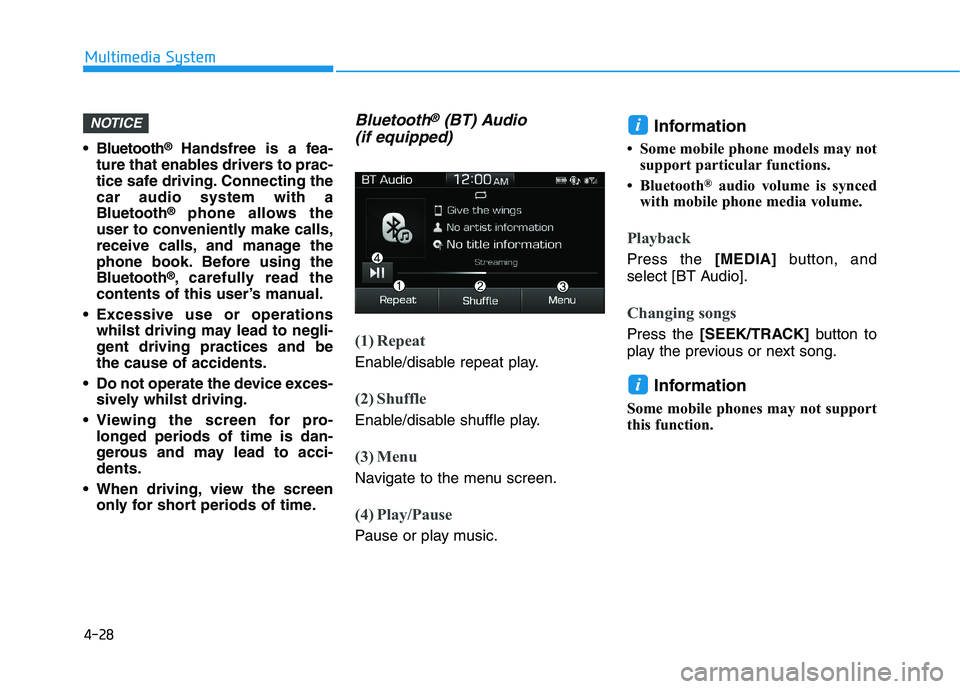
Bluetooth®(BT) Audio
(if equipped)
(1) Repeat
Enable/disable repeat play.
(2) Shuffle
Enable/disable shuffle play.
(3) Menu
Navigate to the menu screen.
(4) Play/Pause
Pause or play music.
Information
• Some mobile phone models may not
support particular functions.
• Bluetooth
®audio volume is synced
with mobile phone media volume.
Playback
Press the [MEDIA]button, and
select [BT Audio].
Changing songs
Press the [SEEK/TRACK]button to
play the previous or next song.
Information
Some mobile phones may not support
this function.
i
iNOTICE
Page 256 of 533
![HYUNDAI I30 2023 Owners Manual 4-31
Multimedia System
4
Shuffle play
Select [Shuffle] to enable or disable
‘Shuffle’, ‘Shuffle category’ play.
Shuffle: Songs are played in
random order.
Shuffle category: Songs within
the](/img/35/56144/w960_56144-255.png "HYUNDAI I30 2023 Owners Manual 4-31
Multimedia System
4
Shuffle play
Select [Shuffle] to enable or disable
‘Shuffle’, ‘Shuffle category’ play.
Shuffle: Songs are played in
random order.
Shuffle category: Songs within
the")
4-31
Multimedia System
4
Shuffle play
Select [Shuffle] to enable or disable
‘Shuffle’, ‘Shuffle category’ play.
Shuffle: Songs are played in
random order.
Shuffle category: Songs within
the current category are played in
random order.
Menu
Select [Menu], and select the desired
function.
Delete Files: You can delete files
from My Music.
(1) File: Select saved file
.
(2) Mark All: Select all files.
(3) Unmark All: Deselect all files.(4) Delete: Delete the selected file(s)
.
- Select the file to delete, then
select [Delete] to delete it.
Add to Playlist: Frequently played
songs can be paired in a [Playlist].
- Songs can be played from the
[Playlist].
Information: Detailed info on the
currently playing song is displayed.
Sound Settings: Audio sound set-
tings can be changed.
Delete from Playlist
When a song in the playlist is play-
ing, select [Menu] and select [Delete
from Playlist].
Select the song to delete, then select
[Delete].
Phone (if equipped)
Information
- Using Bluetooth®(BT) Phone
• Bluetooth
®is a near-field wireless
networking technology that uses the
2.4 GHz frequency to connect vari-
ous devices within a certain distance
wirelessly.
• The technology is used in PCs,
peripherals, Bluetooth
®phones,
tablet PCs, household appliances
and automobiles. Devices support-
ing Bluetooth
®can exchange data at
high speeds without physical cable
connections.
• Bluetooth
®Handsfree devices enable
convenient access to phone functions
through cell phones equipped with
Bluetooth
®.
• Some Bluetooth
®devices may not be
supported by the Bluetooth®
Handsfree function.
(Continued)
i
Page 257 of 533
4-32
Multimedia System
(Continued)
• When Bluetooth
®is connected and
calls are attempted through a con-
nected mobile phone from outside
the vehicle, the call is connected
through the Bluetooth
®Handsfree
function of the vehicle.
• Please be sure to disconnect the
Bluetooth
®Handsfree function
throughyour Bluetooth®device or
the audio screen.
Safety precautions
The Bluetooth®Handsfree function
helps drivers to drive safely. By
connecting a Bluetooth
®-enabled
phone to the vehicle’s audio sys-
tem, phone calls can be made and
received through the audio system
and contacts can be managed.
Consult the user manual before
use.
Excessive manipulation of controls
whilst driving, making it difficult to
pay attention to the road ahead,
can lead to accidents. Do not oper-
ate the device excessively whilst
driving.
Looking at the screen for a pro-
longed time increases the risk of
accidents. Keep time spent looking
at the screen to a minimum.
Precautions when connecting
Bluetooth®devices
The vehicle supports the following
Bluetooth®functions. Some
Bluetooth®devices may not sup-
port some functions.
1) Bluetooth
®Handsfree phone
calls
2) Operations during a call
(Private, Switch, Out Vol. con-
trols)
3) Download call history saved to
the Bluetooth
®device
4) Download contacts saved to the
Bluetooth
®device
5) Automatic contacts/call history
download when Bluetooth
®is
connected
6) Automatic Bluetooth
®device
connection when the vehicle is
started
7) Bluetooth
®audio streaming
playback
Before connecting the audio sys-
tem to your device, make sure your
device supports Bluetooth
®.
Page 258 of 533
4-33
Multimedia System
4
Even if your device supports
Bluetooth®, a Bluetooth®connec-
tion cannot be established if the
device’s Bluetooth
®function is
switched off. Search and connect
with the Bluetooth
®function
enabled.
Pair or connect Bluetooth
®devices
to the audio system with the vehi-
cle at a standstill.
If a Bluetooth
®connection is lost
due to abnormal conditions whilst
a Bluetooth
®device is connected
(communication range exceeded,
device power OFF, communication
errors, etc.), the disconnected
Bluetooth
®device is searched for
and automatically reconnected.
If you want to disable the
Bluetooth
®device auto-connect
function, turn the Bluetooth®func-
tion OFF on your device. Consult
the user manuals for individual
devices to see whether Bluetooth
®
is supported.
Handsfree call quality and volume
may vary depending on the type of
Bluetooth
®device. Some Bluetooth
®devices are sub-
ject to intermittent Bluetooth®con-
nection failures. In this case, use
the following method.
1) Turn the Bluetooth
®function off
on your Bluetooth®device ➟
Turn it on and try again.
2) Delete the paired device from
both the audio system and
Bluetooth
®device, then pair
again.
3) Power down your Bluetooth
®
device ➟Turn it on and try
again.
4) Completely remove the battery
from your Bluetooth
®device;
reinsert it, reboot, and attempt
connection.
5) Restart the vehicle and reat-
tempt connection.
Pairing a Bluetooth®device
Information on pairing Bluetooth®
devices
Pairing refers to the process of
pairing Bluetooth®mobile phones
or devices with the system prior to
connection. This is a necessary
procedure for Bluetooth
®connec-
tion and usage.
Up to five devices can be paired.
Pairing Bluetooth
®device is not
allowed whilst vehicle is moving.
Page 259 of 533
![HYUNDAI I30 2023 Owners Manual 4-34
Multimedia System
Pairing the first Bluetooth®device
Press the [PHONE]button on the
audio system or the [CALL]button
on the steering wheel remote control
➟Search for the vehicle from the
Bluet](/img/35/56144/w960_56144-258.png "HYUNDAI I30 2023 Owners Manual 4-34
Multimedia System
Pairing the first Bluetooth®device
Press the [PHONE]button on the
audio system or the [CALL]button
on the steering wheel remote control
➟Search for the vehicle from the
Bluet")
4-34
Multimedia System
Pairing the first Bluetooth®device
Press the [PHONE]button on the
audio system or the [CALL]button
on the steering wheel remote control
➟Search for the vehicle from the
Bluetooth
®device, and pair ➟Enter
the passkey on the Bluetooth®
device or approve passkey ➟
Bluetooth®pairing completed.
1. When the [PHONE]button on the
audio or the [CALL]button on the
steering wheel remote control is
pressed, the following screen is
displayed. Devices can now be
paired.
(1) Vehicle Name: Searched name in
Bluetooth
®device.
Information
The vehicle name in the image above
is an example. Refer to your device for
the actual name of your device.
2. Search for available Bluetooth
®
devices in the Bluetooth®menu of
your Bluetooth®device (mobile
phone, etc.).
3. Confirm that the vehicle name in
your Bluetooth
®device matches
the vehicle name shown on the
audio screen, then select it.
4-1. For devices that require passkey
entry, a passkey entry screen is
shown on your Bluetooth
®
device.
- Enter the passkey ‘0000’, in your
Bluetooth
®device.4-2. For devices that require passkey
confirmation, the following
screen is shown on the audio
system. A 6-digit passkey input
screen is shown in the
Bluetooth
®device.
- After confirming that the 6-digit
passkey on the audio screen
and the Bluetooth
®device are
identical, select [OK] in your
Bluetooth
®device.
Information
The 6-digit passkey in the image
above is an example. Refer to your
vehicle for the actual passkey.
i
i