display HYUNDAI IX20 2011 Owner's Manual
[x] Cancel search | Manufacturer: HYUNDAI, Model Year: 2011, Model line: IX20, Model: HYUNDAI IX20 2011Pages: 420, PDF Size: 20.53 MB
Page 200 of 420
Features of your vehicle
122
4
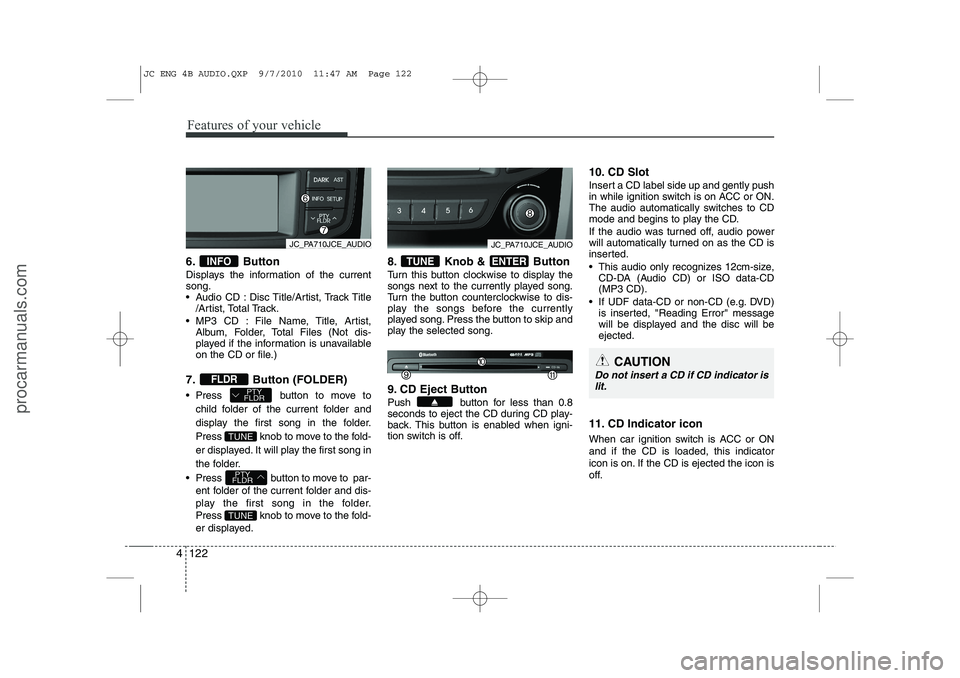
6. Button
Displays the information of the current song.
Audio CD : Disc Title/Artist, Track Title
/Artist, Total Track.
MP3 CD : File Name, Title, Artist, Album, Folder, Total Files (Not dis-
played if the information is unavailable
on the CD or file.)
7. Button (FOLDER)
Press button to move to child folder of the current folder and
display the first song in the folder.
Press knob to move to the fold-
er displayed. It will play the first song in
the folder.
Press button to move to par- ent folder of the current folder and dis-
play the first song in the folder.
Press knob to move to the fold-
er displayed. 8. Knob & Button
Turn this button clockwise to display the
songs next to the currently played song.
Turn the button counterclockwise to dis-
play the songs before the currently
played song. Press the button to skip and
play the selected song.
9. CD Eject Button
Push button for less than 0.8
seconds to eject the CD during CD play-
back. This button is enabled when igni-
tion switch is off.
10. CD Slot
Insert a CD label side up and gently push
in while ignition switch is on ACC or ON.
The audio automatically switches to CD
mode and begins to play the CD.
If the audio was turned off, audio power
will automatically turned on as the CD is
inserted.
This audio only recognizes 12cm-size,
CD-DA (Audio CD) or ISO data-CD (MP3 CD).
If UDF data-CD or non-CD (e.g. DVD) is inserted, "Reading Error" message
will be displayed and the disc will beejected.
11. CD Indicator icon
When car ignition switch is ACC or ON and if the CD is loaded, this indicator
icon is on. If the CD is ejected the icon is
off.ENTERTUNE
TUNE
PTY
FLDR
TUNE
PTY
FLDRFLDR
INFO
CAUTION
Do not insert a CD if CD indicator is
lit.
JC_PA710JCE_AUDIOJC_PA710JCE_AUDIO
JC ENG 4B AUDIO.QXP 9/7/2010 11:47 AM Page 122
procarmanuals.com
Page 201 of 420
4 123
Features of your vehicle
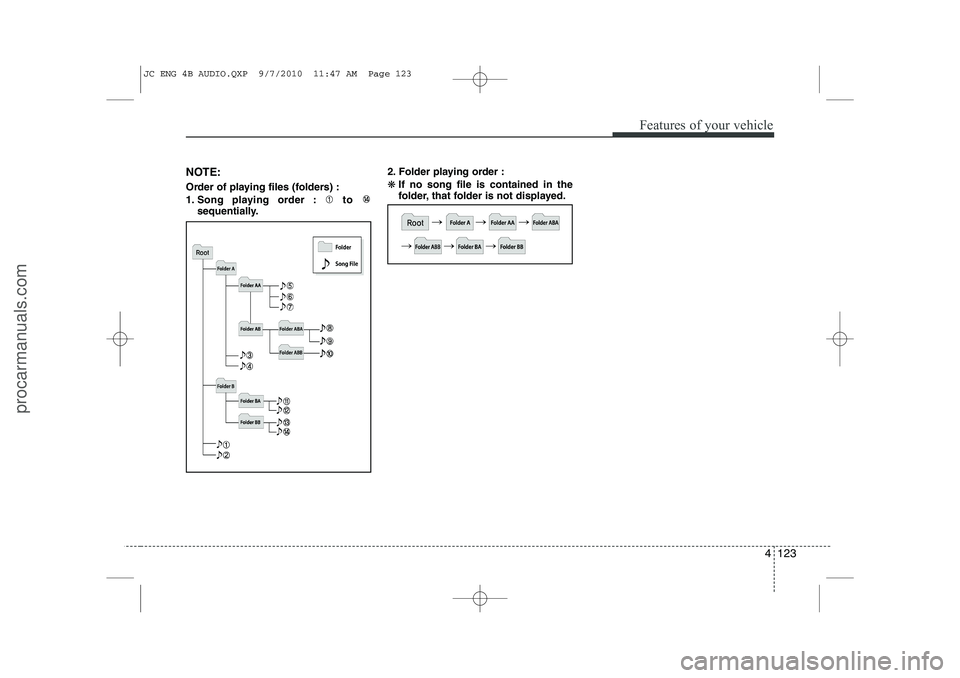
NOTE:
Order of playing files (folders) :
1. Song playing order : to sequentially. 2. Folder playing order :❋
If no song file is contained in the
folder, that folder is not displayed.
JC ENG 4B AUDIO.QXP 9/7/2010 11:47 AM Page 123
procarmanuals.com
Page 204 of 420
Features of your vehicle
126
4
Using USB device
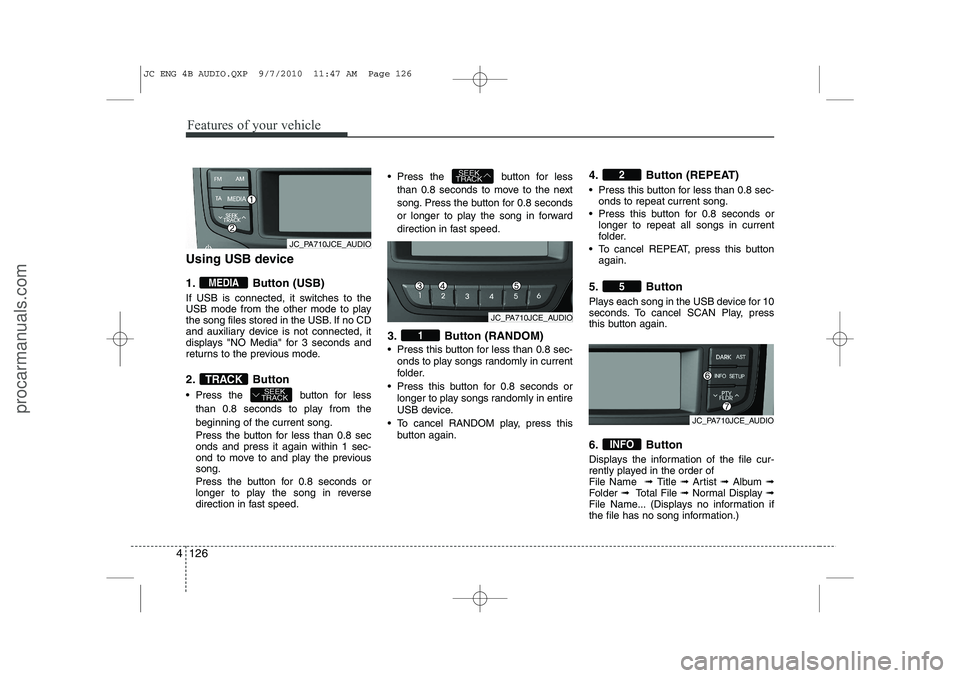
1. Button (USB)
If USB is connected, it switches to the
USB mode from the other mode to play
the song files stored in the USB. If no CD
and auxiliary device is not connected, it
displays "NO Media" for 3 seconds and
returns to the previous mode.
2. Button
Press the button for less
than 0.8 seconds to play from the beginning of the current song.
Press the button for less than 0.8 sec onds and press it again within 1 sec-
ond to move to and play the previoussong.
Press the button for 0.8 seconds or
longer to play the song in reverse
direction in fast speed. Press the button for less
than 0.8 seconds to move to the next
song. Press the button for 0.8 seconds
or longer to play the song in forward
direction in fast speed.
3. Button (RANDOM)
Press this button for less than 0.8 sec- onds to play songs randomly in current
folder.
Press this button for 0.8 seconds or longer to play songs randomly in entire
USB device.
To cancel RANDOM play, press this button again. 4. Button (REPEAT)
Press this button for less than 0.8 sec-
onds to repeat current song.
Press this button for 0.8 seconds or longer to repeat all songs in current
folder.
To cancel REPEAT, press this button again.
5. Button
Plays each song in the USB device for 10
seconds. To cancel SCAN Play, press
this button again.
6. Button
Displays the information of the file cur-
rently played in the order of File Name ➟ Title ➟ Artist ➟ Album ➟
Folder ➟ Total File ➟ Normal Display ➟
File Name... (Displays no information if
the file has no song information.)
INFO
5
2
1
SEEK
TRACK
SEEK
TRACKTRACK
MEDIA
JC_PA710JCE_AUDIO
JC_PA710JCE_AUDIO
JC_PA710JCE_AUDIO
JC ENG 4B AUDIO.QXP 9/7/2010 11:47 AM Page 126
procarmanuals.com
Page 205 of 420
4 127
Features of your vehicle
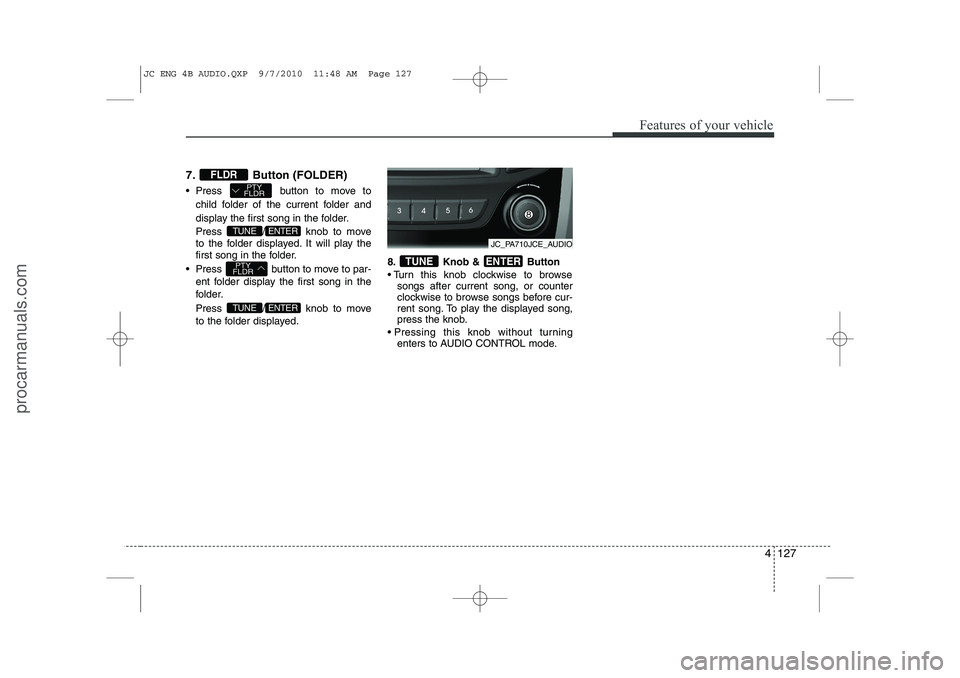
7. Button (FOLDER)
Press button to move tochild folder of the current folder and
display the first song in the folder.
Press / knob to move
to the folder displayed. It will play the
first song in the folder.
Press button to move to par- ent folder display the first song in the
folder.
Press / knob to move
to the folder displayed. 8. Knob & Button
Turn this knob clockwise to browse
songs after current song, or counter
clockwise to browse songs before cur-
rent song. To play the displayed song,
press the knob.
Pressing this knob without turning enters to AUDIO CONTROL mode.
ENTERTUNE
ENTERTUNE
PTY
FLDR
ENTERTUNE
PTY
FLDRFLDR
JC_PA710JCE_AUDIO
JC ENG 4B AUDIO.QXP 9/7/2010 11:48 AM Page 127
procarmanuals.com
Page 207 of 420
4 129
Features of your vehicle
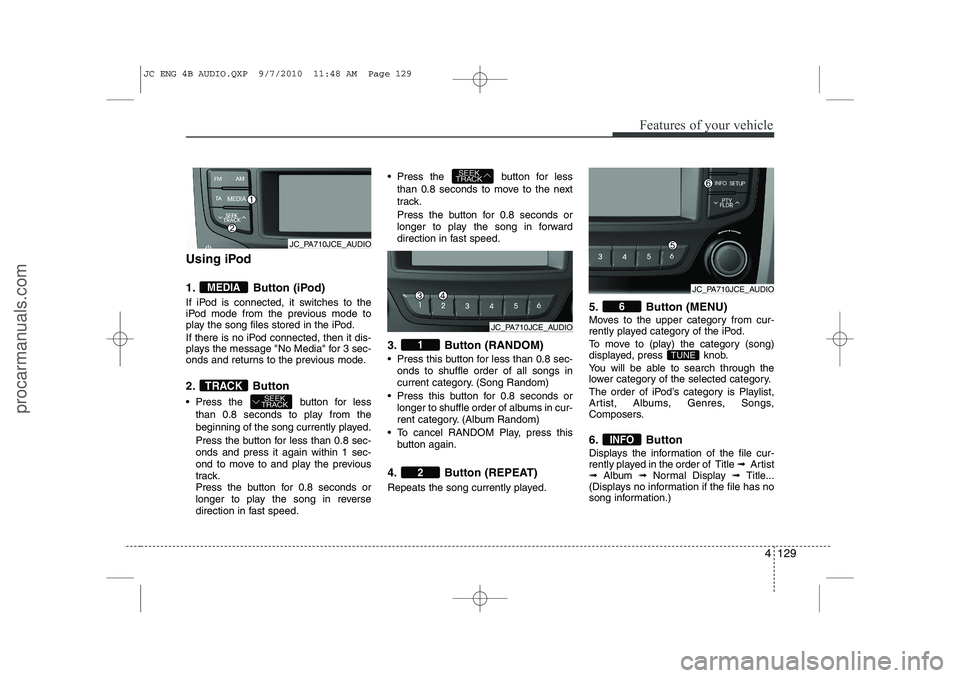
Using iPod
1. Button (iPod)
If iPod is connected, it switches to the
iPod mode from the previous mode to
play the song files stored in the iPod.
If there is no iPod connected, then it dis-
plays the message "No Media" for 3 sec-
onds and returns to the previous mode.
2. Button
Press the button for lessthan 0.8 seconds to play from the
beginning of the song currently played.
Press the button for less than 0.8 sec- onds and press it again within 1 sec-
ond to move to and play the previous
track.
Press the button for 0.8 seconds or
longer to play the song in reverse
direction in fast speed. Press the button for less
than 0.8 seconds to move to the next
track.
Press the button for 0.8 seconds or
longer to play the song in forward
direction in fast speed.
3. Button (RANDOM)
Press this button for less than 0.8 sec- onds to shuffle order of all songs in
current category. (Song Random)
Press this button for 0.8 seconds or longer to shuffle order of albums in cur-
rent category. (Album Random)
To cancel RANDOM Play, press this button again.
4. Button (REPEAT)
Repeats the song currently played. 5. Button (MENU)
Moves to the upper category from cur-
rently played category of the iPod.
To move to (play) the category (song)
displayed, press knob.
You will be able to search through the
lower category of the selected category.
The order of iPod’s category is Playlist,
Artist, Albums, Genres, Songs,
Composers.
6. Button
Displays the information of the file cur-
rently played in the order of Title
➟ Artist
➟ Album ➟Normal Display ➟ Title...
(Displays no information if the file has no
song information.)
INFO
TUNE
6
2
1
SEEK
TRACK
SEEK
TRACKTRACK
MEDIA
JC_PA710JCE_AUDIO
JC_PA710JCE_AUDIO
JC_PA710JCE_AUDIO
JC ENG 4B AUDIO.QXP 9/7/2010 11:48 AM Page 129
procarmanuals.com
Page 208 of 420
Features of your vehicle
130
4
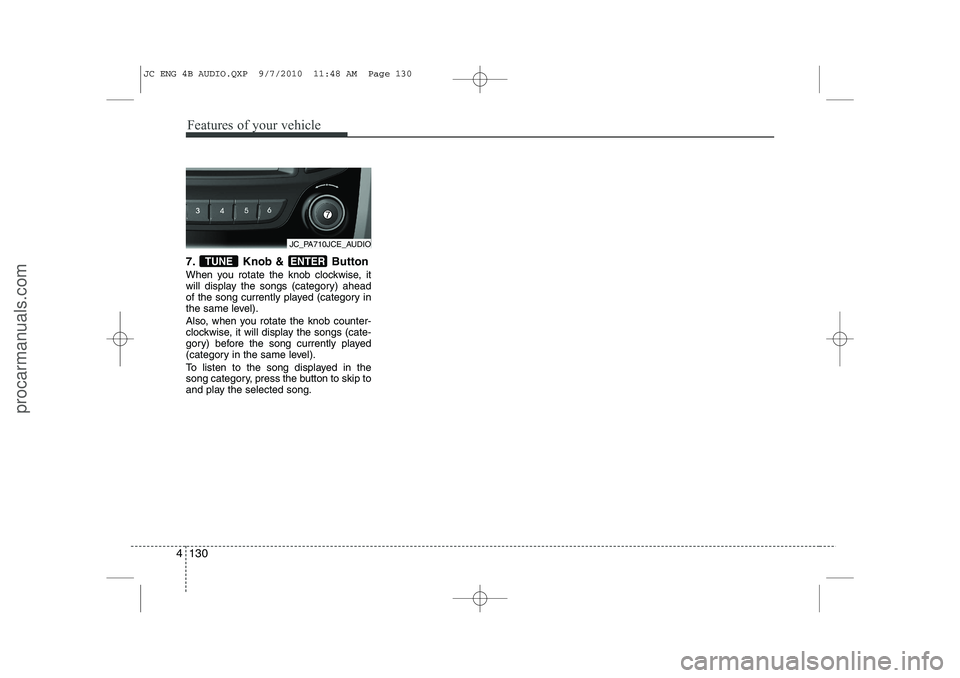
7. Knob & Button
When you rotate the knob clockwise, it
will display the songs (category) ahead
of the song currently played (category in
the same level).
Also, when you rotate the knob counter-
clockwise, it will display the songs (cate-
gory) before the song currently played
(category in the same level).
To listen to the song displayed in the
song category, press the button to skip to
and play the selected song.ENTERTUNE
JC_PA710JCE_AUDIO
JC ENG 4B AUDIO.QXP 9/7/2010 11:48 AM Page 130
procarmanuals.com
Page 212 of 420
Features of your vehicle
134
4
At any time if you say “help”, the system
will announce what commands are
available.
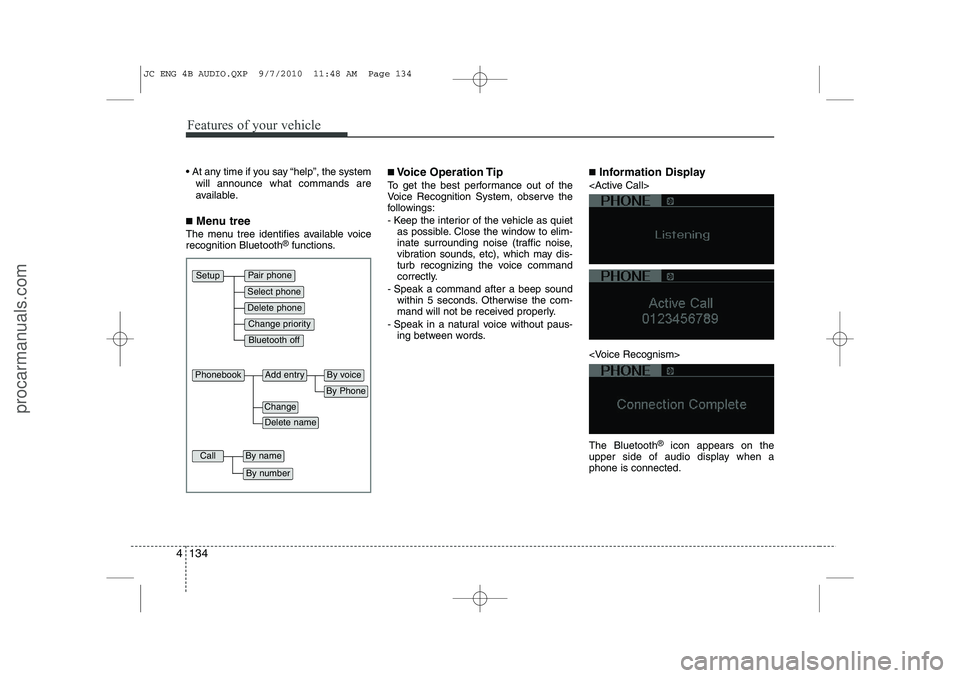
■ Menu tree
The menu tree identifies available voice recognition Bluetooth ®
functions. ■
Voice Operation Tip
To get the best performance out of the
Voice Recognition System, observe the
followings:
- Keep the interior of the vehicle as quiet as possible. Close the window to elim-
inate surrounding noise (traffic noise,
vibration sounds, etc), which may dis-
turb recognizing the voice command
correctly.
- Speak a command after a beep sound within 5 seconds. Otherwise the com-
mand will not be received properly.
- Speak in a natural voice without paus- ing between words. ■
Information Display
icon appears on the
upper side of audio display when a phone is connected.
Pair phone
Select phone
Change priority
Delete phone
Bluetooth off
Setup
Add entryPhonebook
Change
Delete name
By Phone
By voice
CallBy name
By number
JC ENG 4B AUDIO.QXP 9/7/2010 11:48 AM Page 134
procarmanuals.com
Page 214 of 420
Features of your vehicle
136
4
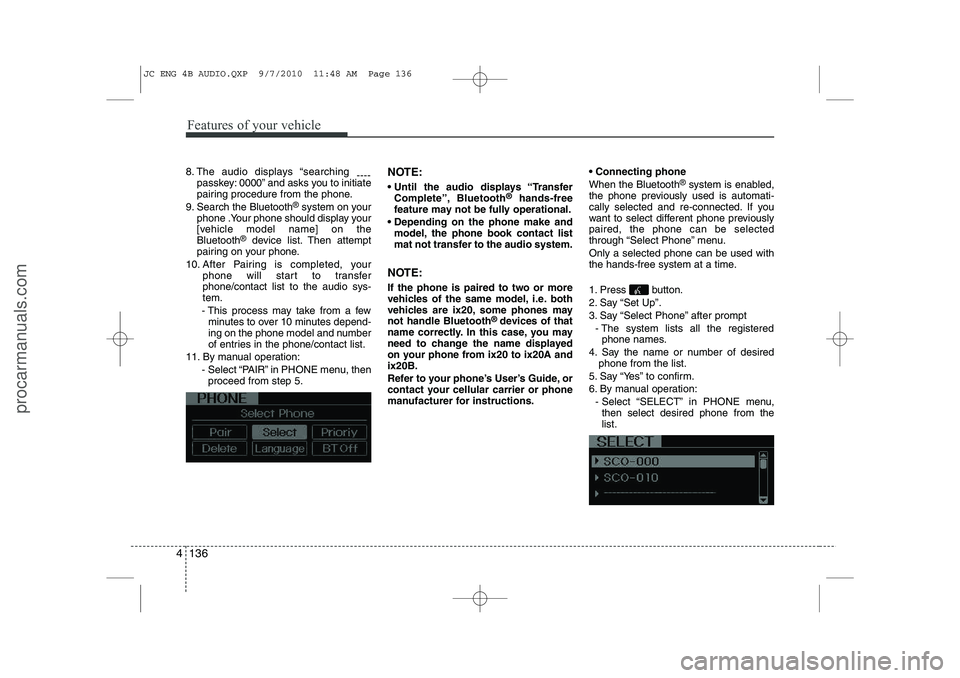
8. The audio displays “searching
----
passkey: 0000” and asks you to initiate
pairing procedure from the phone.
9. Search the Bluetooth ®
system on your
phone .Your phone should display your
[vehicle model name] on theBluetooth ®
device list. Then attempt
pairing on your phone.
10. After Pairing is completed, your phone will start to transferphone/contact list to the audio sys-tem.
- This process may take from a few minutes to over 10 minutes depend-
ing on the phone model and number
of entries in the phone/contact list.
11. By manual operation: - Select “PAIR” in PHONE menu, thenproceed from step 5. NOTE:
Until the audio displays “Transfer
Complete”, Bluetooth ®
hands-free
feature may not be fully operational.
Depending on the phone make and model, the phone book contact list
mat not transfer to the audio system.
NOTE:
If the phone is paired to two or more
vehicles of the same model, i.e. both
vehicles are ix20, some phones maynot handle Bluetooth ®
devices of that
name correctly. In this case, you may
need to change the name displayed
on your phone from ix20 to ix20A andix20B.
Refer to your phone’s User’s Guide, or
contact your cellular carrier or phone
manufacturer for instructions. Connecting phone When the Bluetooth
®
system is enabled,
the phone previously used is automati-
cally selected and re-connected. If you
want to select different phone previouslypaired, the phone can be selected
through “Select Phone” menu. Only a selected phone can be used with
the hands-free system at a time.
1. Press button.
2. Say “Set Up”.
3. Say “Select Phone” after prompt
- The system lists all the registeredphone names.
4. Say the name or number of desired phone from the list.
5. Say “Yes” to confirm.
6. By manual operation: - Select “SELECT” in PHONE menu,then select desired phone from the list.
JC ENG 4B AUDIO.QXP 9/7/2010 11:48 AM Page 136
procarmanuals.com
Page 216 of 420
Features of your vehicle
138
4
Turning Bluetooth ®
ON/OFF
Bluetooth ®
system can be enabled (ON)
or disabled (OFF) by this menu.
- If Bluetooth ®
is disabled, all the com-
mands related to Bluetooth ®
system
prompts whether you wish to turn Bluetooth ®
ON or not.
1. Press button.
2. Say “Set Up”
3. Say “Bluetooth Off ” after prompt.
4. Say “Yes” to confirm.
5. By manual operation:
- Select “BT Off ” in PHONE menu, then after announcement, say “YES”
to confirm. ■
Phone Book (In-Vehicle)
Adding Entry
Phone numbers and voice tags can be
registered. Entries registered in the
phone can also be transferred.
Adding Entry by Voice
1. Press button.
2. Say "Phonebook".
- The system replies with all availablecommands.
- To skip the information message, press again and then a beep is heard.
3. Say “Add Entry”.
4. Say “By Voice” to proceed.
5. Say the name of the entry when prompted.
6. Say “Yes” to confirm.
7. Say the phone number of that entry when prompted.
8. Say “Store” if phone number input is finished.
9. Say a phone number type. “Home”, “Work”, “Mobile”, “Other” or “Default” is
available.
10. Say “Yes” to complete adding entry.
11. Say “Yes” to store additional location for this contact, or say “Cancel” to fin-
ish the process.✽✽NOTICE
- The system can recognize single digits from zero to nine. Numbers that are
ten or greater cannot be recognized.
- You can enter each digit individually or group digits together in preferredstring lengths.
- To speed up input, it is a good idea to
group all digits into a continuousstring.
- Recommend to enter the numbers constituted an grouping within alldigit numbers to dial 995 / 734 / 0000
- The display corresponding to each
operation appears on the screen as fol-lows:
Input operation example: 1. Say: “Nine, nine, five”
➟ Display: “995”
2. And say: “Seven, three, four”
➟ Display: “995734”
JC ENG 4B AUDIO.QXP 9/7/2010 11:48 AM Page 138
procarmanuals.com
Page 217 of 420
4 139
Features of your vehicle
Adding Entry by Phone
1. Press button.
2. Say “Phonebook”.
3. Say “Add Entry” after prompt.
4. Say “By Phone” to proceed.
5. Say “Yes” to confirm.
6. Your phone will start to transferphone/contact list to the audio system.
This process may take over 10 minutes depending on the phone model and
number of entries
7. Wait till the audio displays “Transfer Complete” message.
Changing Name
The registered names can be modified.
1. Press button.
2. Say “Phonebook”.
3. Say “Change Name” after prompt.
4. Say the name of the entry (voice tag).
5. Say “Yes” to confirm.
6. Say new desired name.
Deleting Name
The registered names can be deleted.
1. Press button.
2. Say “Phonebook”.
3. Say “Delete Name” after prompt.
4. Say the name of the entry (voice tag).
5. Say “Yes” to confirm.
■ Making a Phone Call
Calling by Name
A phone call can be made by speaking names registered in the audio system.
1. Press button.
2. Say “Call”.
3. Say “Name” when prompted.
4. Say desired name (voice tag).
5. Say desired location (phone number type). Only stored locations can be selected.
6. Say “Yes” to confirm and make a call.
✽✽ Tip
A shortcut to each of the following func- tions is available:1. Say “Call Name”2. Say “Call
Dialing by Number
A phone call can be made by dialing the
spoken numbers. The system can recog-
nize single digits from zero to nine.
1. Press button.
2. Say “Call”.
3. Say “Number” when prompted.
4. Say desired phone numbers.
5. Say “Dial” to complete the number and make a call.
✽✽Tip
A shortcut to each of the following func- tions is available:1. Say “Dial Number”2. Say “Dial
JC ENG 4B AUDIO.QXP 9/7/2010 11:48 AM Page 139
procarmanuals.com