key HYUNDAI IX35 2014 Owners Manual
[x] Cancel search | Manufacturer: HYUNDAI, Model Year: 2014, Model line: IX35, Model: HYUNDAI IX35 2014Pages: 1534, PDF Size: 39.76 MB
Page 717 of 1534
4 227
Features of your vehicle
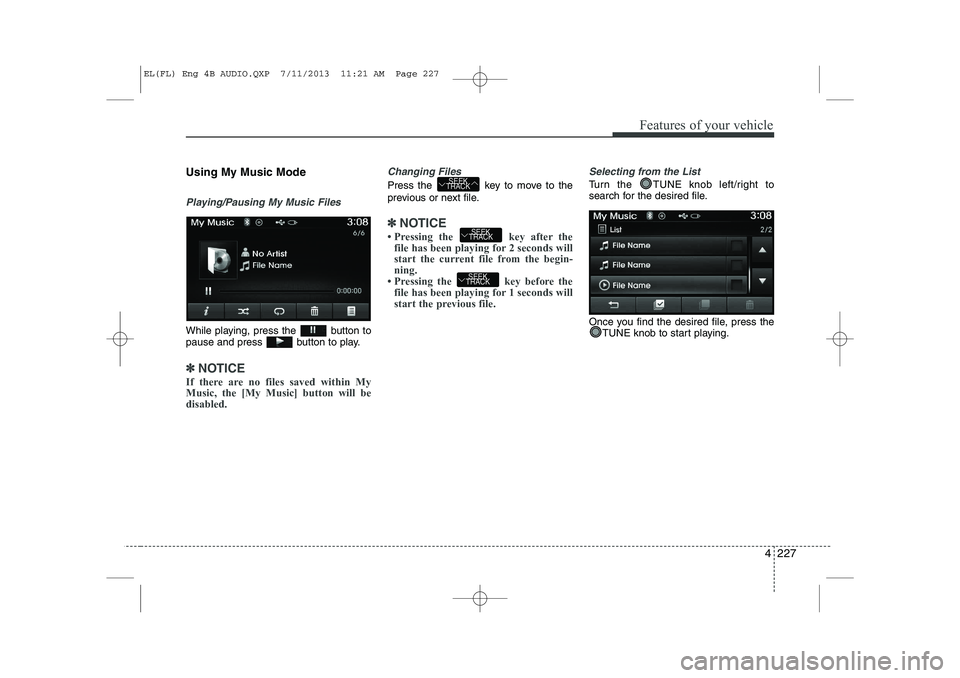
Using My Music Mode
Playing/Pausing My Music Files
While playing, press the button to
pause and press button to play.
✽✽NOTICE
If there are no files saved within My Music, the [My Music] button will bedisabled.
Changing Files
Press the key to move to the
previous or next file.
✽✽ NOTICE
Page 718 of 1534
Features of your vehicle
228
4
Rewinding / Fast-forwarding Files
While playing, press and hold the
key (over 0.8 seconds) to
rewind or fast-forward the current file.
Scan(for RDS model)
Press and hold the key (over
0.8 seconds) to play the first 10 seconds
of each file.
Pressing and holding the key again to
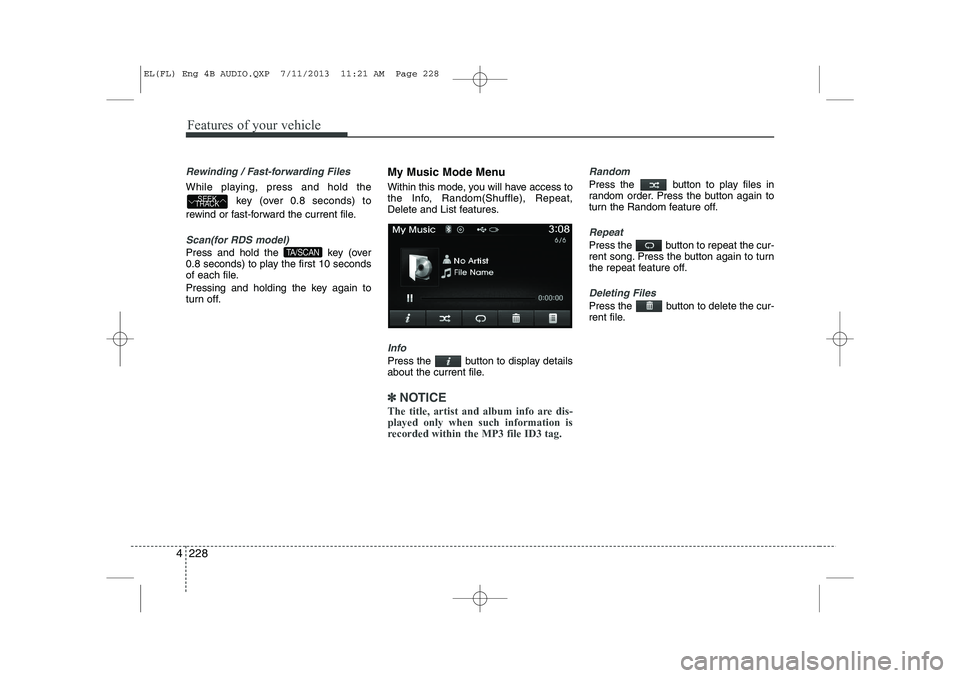
turn off. My Music Mode Menu
Within this mode, you will have access to
the Info, Random(Shuffle), Repeat,
Delete and List features.
Info
Press the button to display details
about the current file.
✽✽
NOTICE
The title, artist and album info are dis- played only when such information is
recorded within the MP3 file ID3 tag.
Random
Press the button to play files in
random order. Press the button again to
turn the Random feature off.
Repeat
Press the button to repeat the cur-
rent song. Press the button again to turn
the repeat feature off.
Deleting Files
Press the button to delete the cur-
rent file.
TA/SCAN
SEEK
TRACK
EL(FL) Eng 4B AUDIO.QXP 7/11/2013 11:21 AM Page 228
Page 721 of 1534
4 231
Features of your vehicle
Bluetooth®Wireless
Technology AUDIO MODE Using
Bluetooth®Wireless
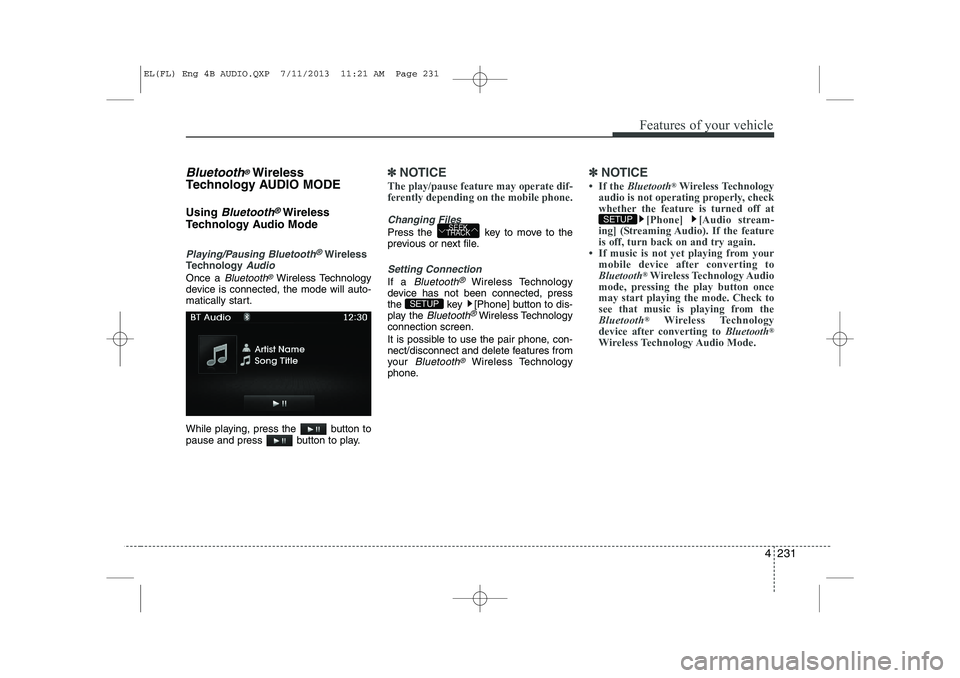
Technology Audio Mode
Playing/Pausing Bluetooth®Wireless
TechnologyAudio
Once a Bluetooth®Wireless Technology
device is connected, the mode will auto-
matically start.
While playing, press the button to
pause and press button to play.
✽✽ NOTICE
The play/pause feature may operate dif-
ferently depending on the mobile phone.
Changing Files
Press the key to move to the
previous or next file.
Setting Connection
If a Bluetooth®Wireless Technology
device has not been connected, press
the key [Phone] button to dis-
play the
Bluetooth®Wireless Technology
connection screen.
It is possible to use the pair phone, con-
nect/disconnect and delete features from
your
Bluetooth®Wireless Technology
phone.
✽✽ NOTICE
Page 725 of 1534
4 235
Features of your vehicle
Pairing a Bluetooth®Wireless
Technology De vice
What is
Bluetooth®Wireless
Technology Pairing?
Pairing refers to the process of synchro-
nizing your
Bluetooth®Wireless
Technology phone or device with the car
audio system for connection. Pairing is
necessary to connect and use the
Bluetooth®Wireless Technology feature. Pairing Key / Key on
the Steering Remote Controller
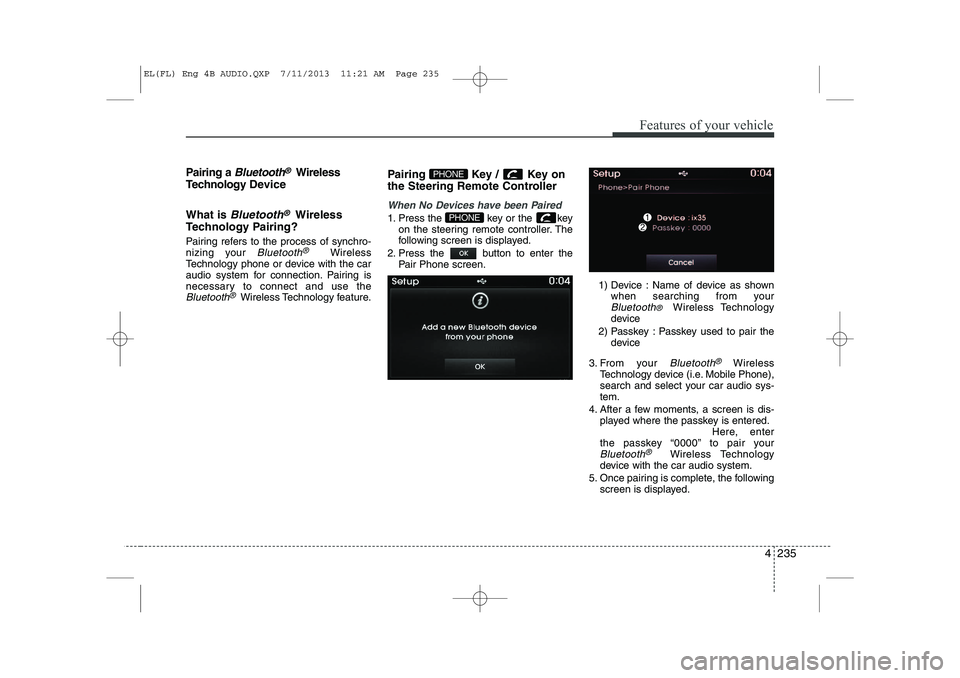
When No Devices have been Paired
1. Press the key or the key
on the steering remote controller. The
following screen is displayed.
2. Press the button to enter the Pair Phone screen.
1) Device : Name of device as shownwhen searching from your
Bluetooth® Wireless Technology
device
2) Passkey : Passkey used to pair the device
3. From your
Bluetooth®Wireless
Technology device (i.e. Mobile Phone),
search and select your car audio sys-tem.
4. After a few moments, a screen is dis- played where the passkey is entered. Here, enter
the passkey “0000” to pair your
Bluetooth®Wireless Technology
device with the car audio system.
5. Once pairing is complete, the following screen is displayed.
PHONE
PHONE
EL(FL) Eng 4B AUDIO.QXP 7/11/2013 11:21 AM Page 235
Page 726 of 1534
Features of your vehicle
236
4
✽✽
NOTICE
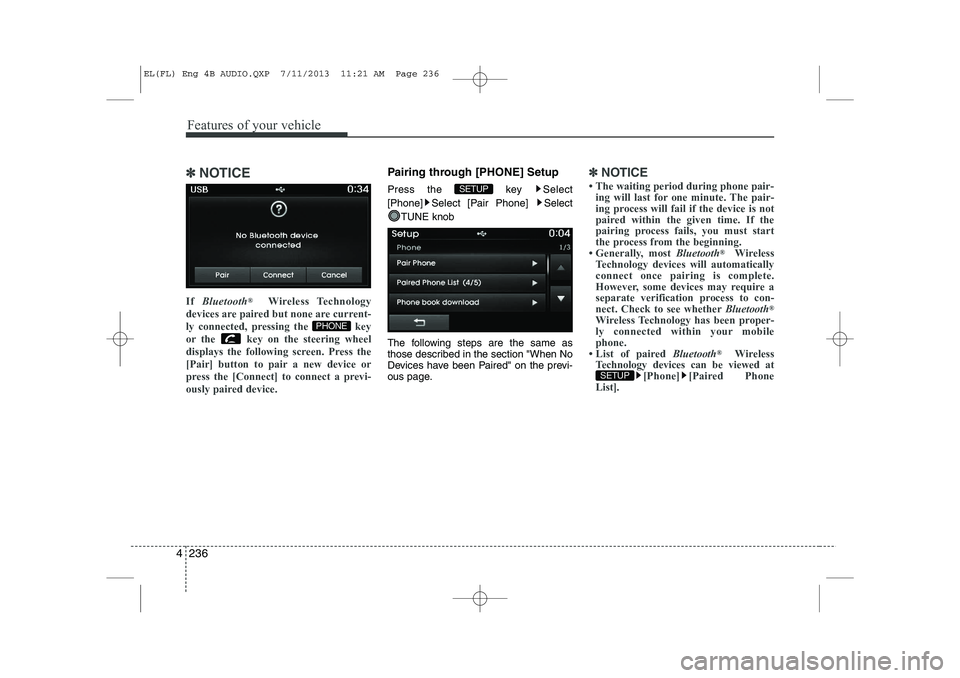
If Bluetooth ®
Wireless Technology
devices are paired but none are current-
ly connected, pressing the key
or the key on the steering wheel
displays the following screen. Press the
[Pair] button to pair a new device or
press the [Connect] to connect a previ-
ously paired device.Pairing through [PHONE] Setup
Press the key Select
[Phone] Select [Pair Phone] Select
TUNE knob
The following steps are the same as
those described in the section "When No
Devices have been Paired" on the previ-
ous page.✽✽ NOTICE
Page 727 of 1534
![HYUNDAI IX35 2014 Owners Manual 4 237
Features of your vehicle
Connecting a Device
Press the key Select
[Phone] Select [Paired Phone List]
1) Connected Phone : Device that is cur-rently connected
2) Paired Phone : Device that i](/img/35/56237/w960_56237-726.png "HYUNDAI IX35 2014 Owners Manual 4 237
Features of your vehicle
Connecting a Device
Press the key Select
[Phone] Select [Paired Phone List]
1) Connected Phone : Device that is cur-rently connected
2) Paired Phone : Device that i")
4 237
Features of your vehicle
Connecting a Device
Press the key Select
[Phone] Select [Paired Phone List]
1) Connected Phone : Device that is cur-rently connected
2) Paired Phone : Device that is paired but not connected From the paired phone list, select the
device you want to connect and press the
button.
SETUP
EL(FL) Eng 4B AUDIO.QXP 7/11/2013 11:21 AM Page 237
Page 728 of 1534
Features of your vehicle
238
4
Changing Priority
What is Priority?
It is possible to pair up to five Bluetooth®
Wireless Technology devices with the car
audio system. The "Change Priority" fea-
ture is used to set the connection priority
of paired phones. However, the most
recently connected phone will always be
set as the highest priority.
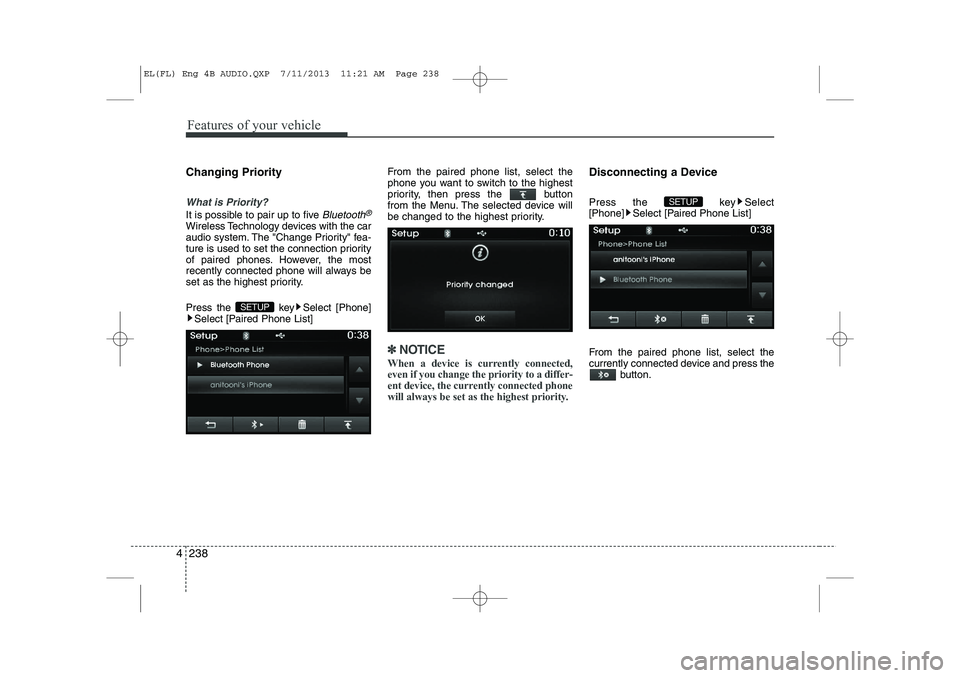
Press the key Select [Phone]
Select [Paired Phone List] From the paired phone list, select the
phone you want to switch to the highest
priority, then press the button
from the Menu. The selected device will
be changed to the highest priority.
✽✽
NOTICE
When a device is currently connected, even if you change the priority to a differ-
ent device, the currently connected phone
will always be set as the highest priority.
Disconnecting a Device
Press the key Select
[Phone] Select [Paired Phone List]
From the paired phone list, select the
currently connected device and press the button.
SETUP
SETUP
EL(FL) Eng 4B AUDIO.QXP 7/11/2013 11:21 AM Page 238
Page 729 of 1534
![HYUNDAI IX35 2014 Owners Manual 4 239
Features of your vehicle
Deleting a Device
Press the key Select
[Phone] Select [Paired Phone List]
From the paired phone list, select the
device you want to delete and press thebutton.✽âœ](/img/35/56237/w960_56237-728.png "HYUNDAI IX35 2014 Owners Manual 4 239
Features of your vehicle
Deleting a Device
Press the key Select
[Phone] Select [Paired Phone List]
From the paired phone list, select the
device you want to delete and press thebutton.✽âœ")
4 239
Features of your vehicle
Deleting a Device
Press the key Select
[Phone] Select [Paired Phone List]
From the paired phone list, select the
device you want to delete and press thebutton.✽✽NOTICE
Page 730 of 1534
Features of your vehicle
240
4
USING Bluetooth®Wireless
Technology
Phone Menu Screen
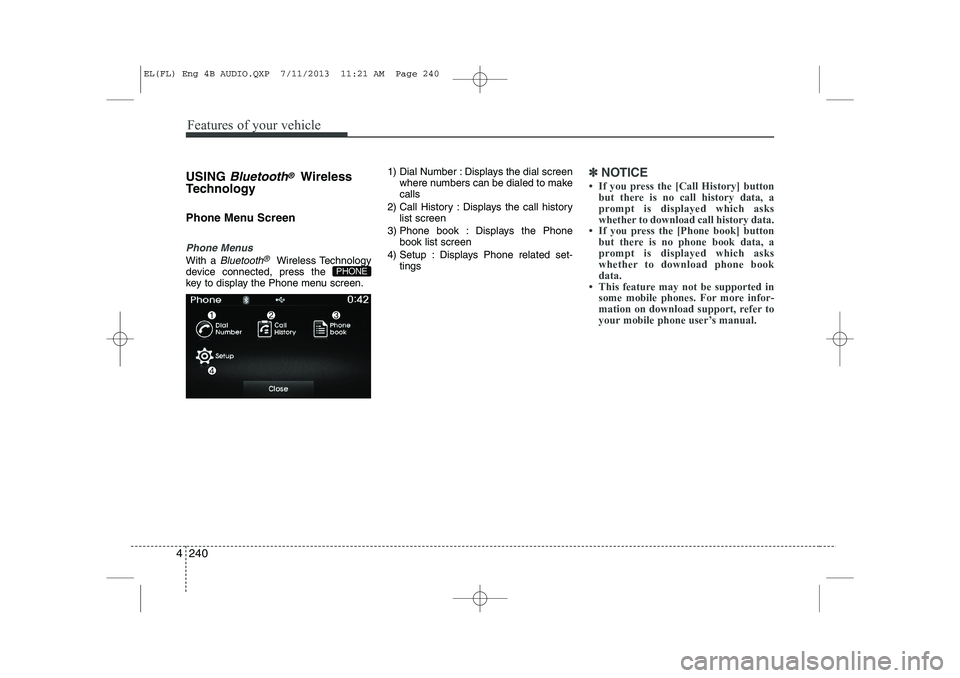
Phone Menus
With a Bluetooth®Wireless Technology
device connected, press the
key to display the Phone menu screen. 1) Dial Number : Displays the dial screen
where numbers can be dialed to makecalls
2) Call History : Displays the call history list screen
3) Phone book : Displays the Phone book list screen
4) Setup : Displays Phone related set- tings
✽✽NOTICE
Page 731 of 1534
![HYUNDAI IX35 2014 Owners Manual 4 241
Features of your vehicle
Calling by Dialing a Number
Press the key Select [Dial Number]
1) Dial Pad : Used to enter phone num-ber
2) Call : If a number has been entered, calls the number If n](/img/35/56237/w960_56237-730.png "HYUNDAI IX35 2014 Owners Manual 4 241
Features of your vehicle
Calling by Dialing a Number
Press the key Select [Dial Number]
1) Dial Pad : Used to enter phone num-ber
2) Call : If a number has been entered, calls the number If n")
4 241
Features of your vehicle
Calling by Dialing a Number
Press the key Select [Dial Number]
1) Dial Pad : Used to enter phone num-ber
2) Call : If a number has been entered, calls the number If no number has
been entered, switches to call historyscreen
3) End : Deletes the entered phone num- ber
4) Delete : Deletes entered numbers one digit at a time Answering Calls
Answering a Call
Answering a call with a Bluetooth®
Wireless Technology device connected
will display the following screen.
1) Caller : Displays the other party’s
name when the incoming caller is
saved within your phone book
2) Incoming Number : Displays the incoming number
3) Accept : Accept the incoming call
4) Reject : Reject the incoming call
✽✽ NOTICE