AUX HYUNDAI IX35 2014 User Guide
[x] Cancel search | Manufacturer: HYUNDAI, Model Year: 2014, Model line: IX35, Model: HYUNDAI IX35 2014Pages: 1534, PDF Size: 39.76 MB
Page 669 of 1534
4 179
Features of your vehicle
Bluetooth®Wireless
Technology AUDIO (if equipped) What is
Bluetooth®Wireless
Technology?
Bluetooth®Wireless Technology allows
devices to be connected in a short dis-
tance, including hands-free devices,
stereo headsets, wireless remote con-
trollers, etc. For more information, visitthe
Bluetooth®Wireless Technology
website at
www.Bluetooth.com
Before using Bluetooth®Wireless
Technology audio features
Bluetooth®Wireless Technology audio
may not be supported depending on
the compatibility of your
Bluetooth®
Wireless Technology mobile phone.
In order to use
Bluetooth®Wireless
Technology audio, you must first pairand connect the
Bluetooth®Wireless
Technology mobile phone. The
Bluetooth®word mark and logos
are registered trademarks owned by
Bluetooth®SIG, Inc. and any use of
such marks is under license. Other
trademarks and trade names are those
of their respective owners. A
Bluetooth®
enabled cell phone is required to useBluetooth®Wireless Technology
Bluetooth®Wireless Technology audio
can be used only when the [Audio
Streaming] of Phone is turned On.
❈ Setting
Bluetooth®Wireless Technology
Audio Streaming : Press the
key Select [Phone] through the tuneknob Select [Audio Streaming] through
the TUNE knob Set / Starting
Bluetooth®Wireless
Technology Audio Press the key to change the mode in order of CD ➟ USB ➟ AUX ➟
My Music ➟ BT Audio.
If BT Audio is selected,
Bluetooth®
Wireless Technology audio will start
playing.
❈ Audio may not automatically start play-
ing in some mobile phones.
Using the
Bluetooth®Wireless
Technology audio features
Play / Pause
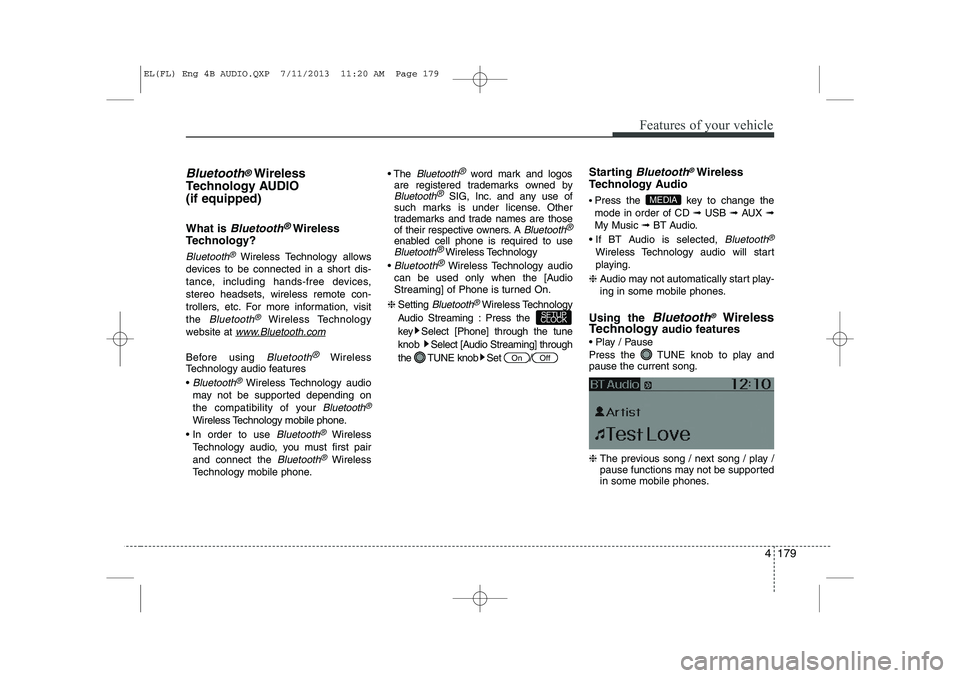
Press the TUNE knob to play and pause the current song. ❈ The previous song / next song / play /
pause functions may not be supported
in some mobile phones.
MEDIA
OffOn
SETUP
CLOCK
EL(FL) Eng 4B AUDIO.QXP 7/11/2013 11:20 AM Page 179
Page 676 of 1534
Features of your vehicle
186
4
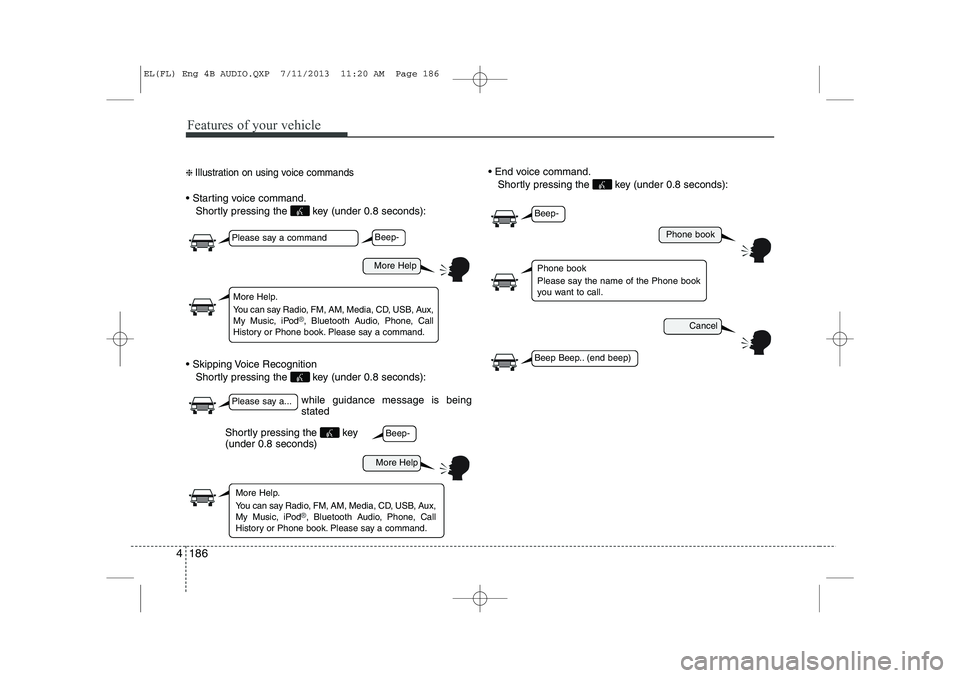
❈ Illustration on using voice commands
Starting voice command.
Shortly pressing the key (under 0.8 seconds):
Skipping Voice Recognition Shortly pressing the key (under 0.8 seconds): End voice command.
Shortly pressing the key (under 0.8 seconds):
while guidance message is being stated
More Help
Phone book
Cancel
More Help
Please say a command
Please say a...
More Help.
You can say Radio, FM, AM, Media, CD, USB, Aux,
My Music, iPod
®, Bluetooth A udio, Phone, Call
History or Phone book. Please say a command.
Phone book
Please say the name of the Phone book
you want to call.
More Help.
You can say Radio, FM, AM, Media, CD, USB, Aux,
My Music, iPod
®, Bluetooth A udio, Phone, Call
History or Phone book. Please say a command.
Beep-
Beep-
Beep-
Beep Beep.. (end beep)
Shortly pressing the key (under 0.8 seconds)
EL(FL) Eng 4B AUDIO.QXP 7/11/2013 11:20 AM Page 186
Page 678 of 1534
Features of your vehicle
188
4
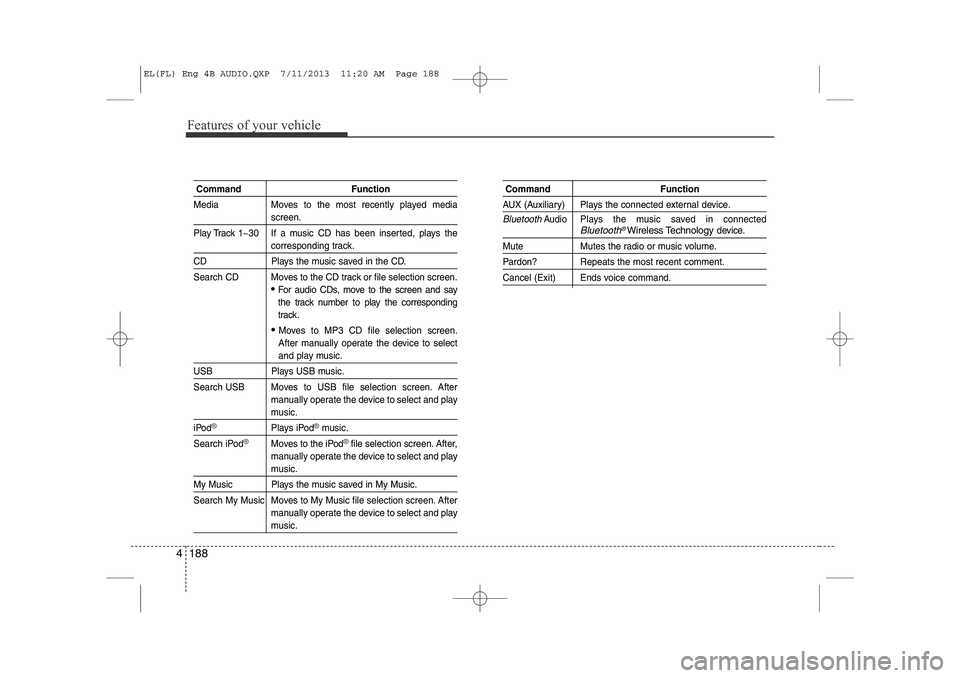
Command Function
Media Moves to the most recently played media
screen.
Play Track 1~30 If a music CD has been inserted, plays the
corresponding track.
CD Plays the music saved in the CD.
Search CD Moves to the CD track or file selection screen.
For audio CDs, move to the screen and say
the track number to play the corresponding
track.
Moves to MP3 CD file selection screen.
After manually operate the device to select
and play music.
USB Plays USB music.
Search USB Moves to USB file selection screen. After manually operate the device to select and play
music.
iPod®Plays iPod®music.
Search iPod
®Moves to the iPod®file selection screen. After,
manually operate the device to select and play
music.
My Music Plays the music saved in My Music.
Search My Music Moves to My Music file selection screen. After manually operate the device to select and play
music.
Command Function
AUX (Auxiliary) Plays the connected external device.
BluetoothAudio Plays the music saved in connectedBluetooth®Wireless Technologydevice.
Mute Mutes the radio or music volume.
Pardon? Repeats the most recent comment.
Cancel (Exit) Ends voice command.
EL(FL) Eng 4B AUDIO.QXP 7/11/2013 11:20 AM Page 188
Page 684 of 1534
Features of your vehicle
194
4
SYSTEM CONTROLLERS AND FUNCTIONS ❈ Display and settings may differ
depending on the selected audio.
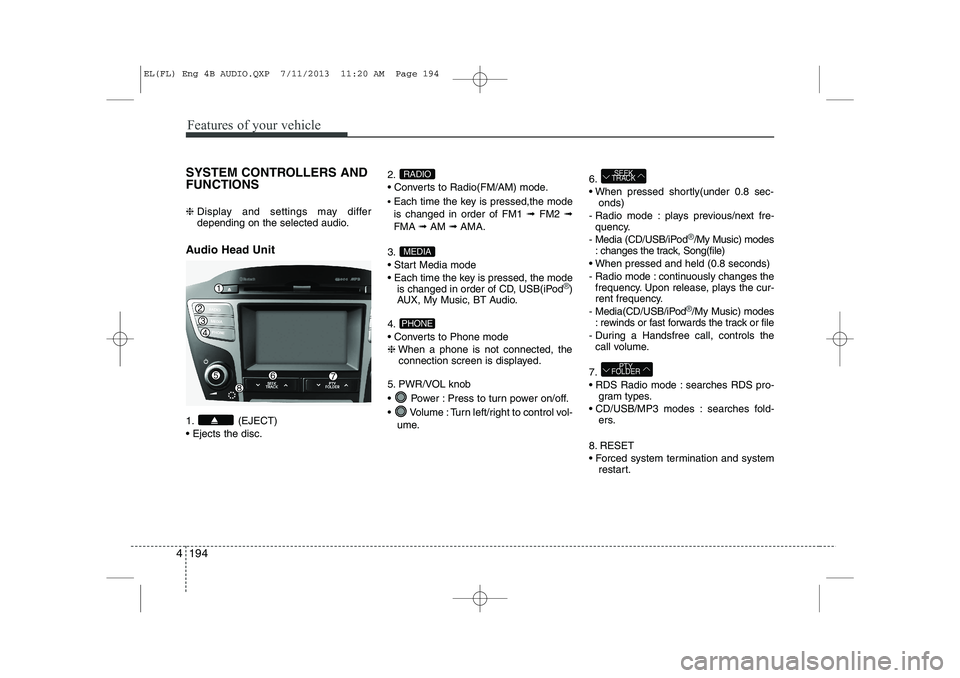
Audio Head Unit
1. (EJECT) Ejects the disc. 2.
Converts to Radio(FM/AM) mode.
Each time the key is pressed,the mode is changed in order of FM1 ➟FM2 ➟
FMA ➟AM ➟AMA.
3.
Start Media mode
Each time the key is pressed, the mode is changed in order of CD, USB(iPod
®)
AUX, My Music, BT Audio.
4.
Converts to Phone mode❈ When a phone is not connected, the
connection screen is displayed.
5. PWR/VOL knob
Power : Press to turn power on/off.
Volume : Turn left/right to control vol- ume. 6.
When pressed shortly(under 0.8 sec-
onds)
- Radio mode : plays previous/next fre- quency.
- Media (CD/USB/iPod
®/My Music) modes
: changes the track, Song(file)
When pressed and held (0.8 seconds)
- Radio mode : continuously changes the frequency. Upon release, plays the cur-
rent frequency.
- Media(CD/USB/iPod
®/My Music) modes
: rewinds or fast forwards the track or file
- During a Handsfree call, controls the call volume.
7.
RDS Radio mode : searches RDS pro- gram types.
CD/USB/MP3 modes : searches fold- ers.
8. RESET
Forced system termination and system restart.
PTY
FOLDER
SEEK
TRACK
PHONE
MEDIA
RADIO
EL(FL) Eng 4B AUDIO.QXP 7/11/2013 11:20 AM Page 194
Page 693 of 1534
4 203
Features of your vehicle
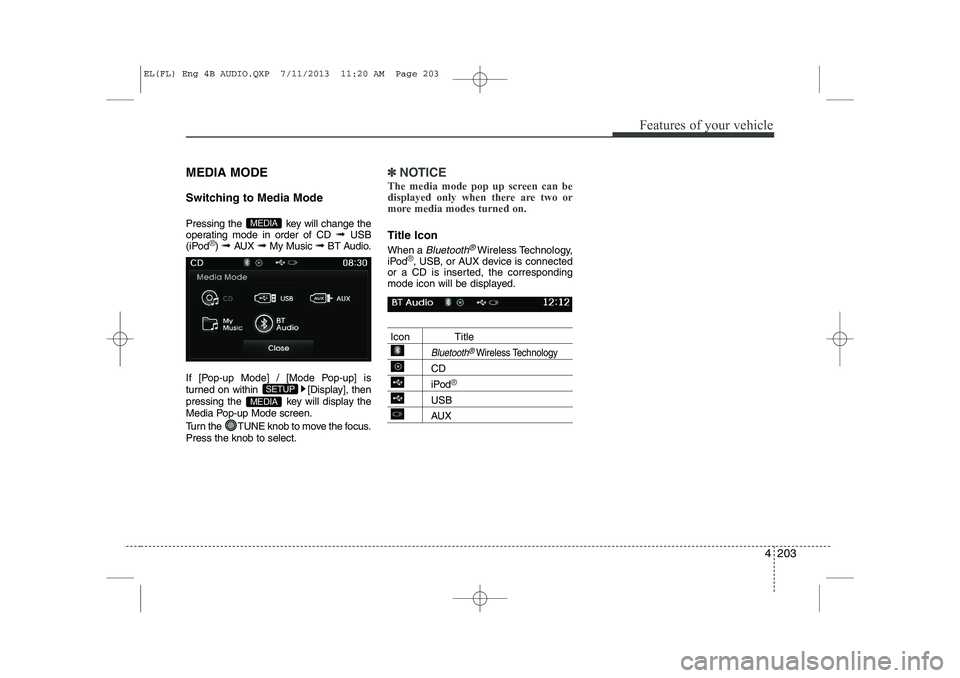
MEDIA MODE
Switching to Media Mode
Pressing the key will change the
operating mode in order of CD ➟ USB
(iPod
®) ➟ AUX ➟ My Music ➟BT Audio.
If [Pop-up Mode] / [Mode Pop-up] is
turned on within [Display], then
pressing the key will display the
Media Pop-up Mode screen.
Turn the TUNE knob to move the focus. Press the knob to select.
✽✽ NOTICE
The media mode pop up screen can be
displayed only when there are two or
more media modes turned on.
Title Icon When a
Bluetooth®Wireless Technology,
iPod®, USB, or AUX device is connected
or a CD is inserted, the corresponding
mode icon will be displayed.
Icon Title
Bluetooth®Wireless Technology
CD
iPod®
USB
AUX
MEDIA
SETUP
MEDIA
EL(FL) Eng 4B AUDIO.QXP 7/11/2013 11:20 AM Page 203
Page 715 of 1534
![HYUNDAI IX35 2014 User Guide 4 225
Features of your vehicle
AUX MODE
Using AUX Mode
Press the key Select [AUX]
An external device can be connected to
play music.
Connecting an External Device
External audio players (Camco](/img/35/56237/w960_56237-714.png "HYUNDAI IX35 2014 User Guide 4 225
Features of your vehicle
AUX MODE
Using AUX Mode
Press the key Select [AUX]
An external device can be connected to
play music.
Connecting an External Device
External audio players (Camco")
4 225
Features of your vehicle
AUX MODE
Using AUX Mode
Press the key Select [AUX]
An external device can be connected to
play music.
Connecting an External Device
External audio players (Camcorders, car
VCR, etc.) can be played through a ded-
icated cable.✽✽NOTICE
Page 737 of 1534
4 247
Features of your vehicle
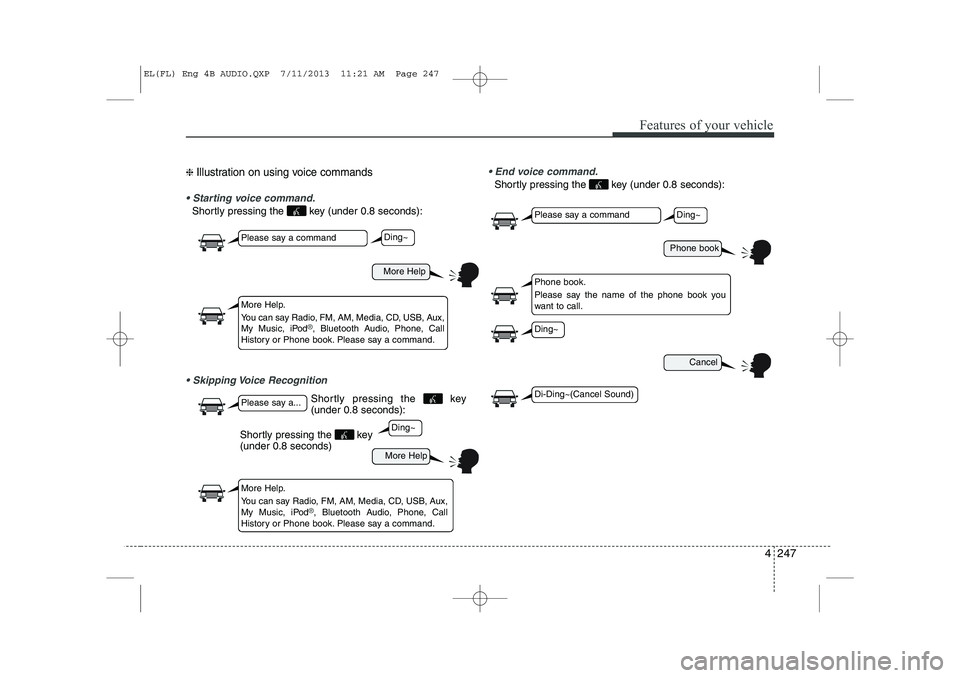
❈ Illustration on using voice commands
Starting voice command.
Shortly pressing the key (under 0.8 seconds):
Skipping Voice Recognition End voice command.
Shortly pressing the key (under 0.8 seconds):
More Help
More Help
Please say a command
Please say a...
More Help.
You can say Radio, FM, AM, Media, CD, USB, Aux,
My Music, iPod
®, Bluetooth Audio, Phone, Call
History or Phone book. Please say a command.
More Help.
You can say Radio, FM, AM, Media, CD, USB, Aux,
My Music, iPod
®, Bluetooth Audio, Phone, Call
History or Phone book. Please say a command.
Ding~
Ding~
Shortly pressing the key (under 0.8 seconds)
Phone book
Cancel
Please say a command
Phone book.
Please say the name of the phone book you
want to call.
Ding~
Di-Ding~(Cancel Sound)
Ding~
Shortly pressing the key (under 0.8 seconds):
EL(FL) Eng 4B AUDIO.QXP 7/11/2013 11:21 AM Page 247
Page 739 of 1534
4 249
Features of your vehicle
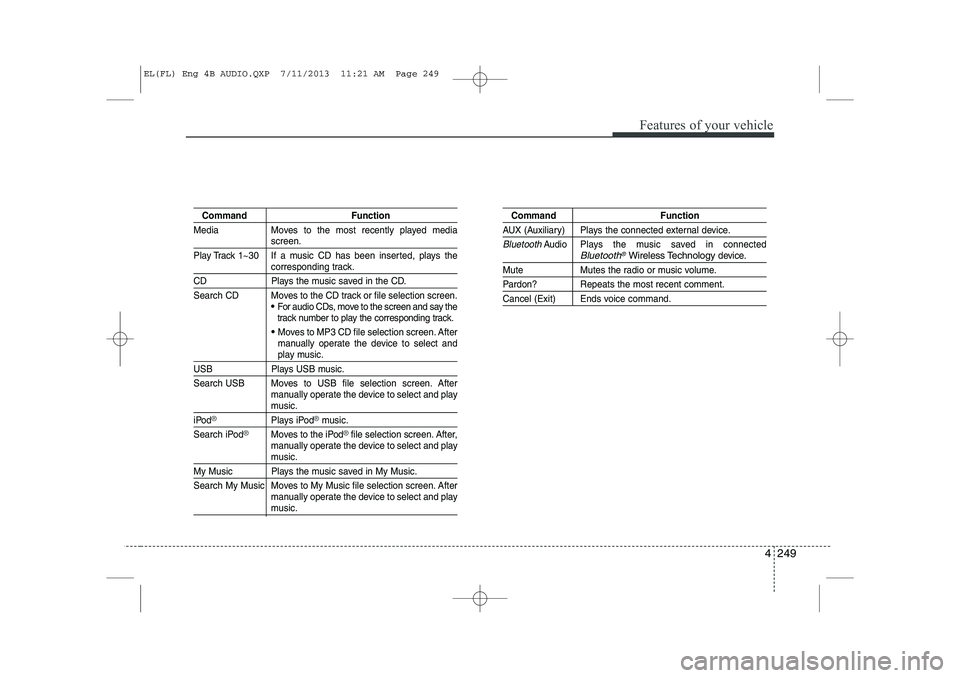
Command Function
Media Moves to the most recently played media
screen.
Play Track 1~30 If a music CD has been inserted, plays the
corresponding track.
CD Plays the music saved in the CD.
Search CD Moves to the CD track or file selection screen.
For audio CDs, move to the screen and say the
track number to play the corresponding track.
Moves to MP3 CD file selection screen. After
manually operate the device to select and
play music.
USB Plays USB music.
Search USB Moves to USB file selection screen. After manually operate the device to select and play
music.
iPod®Plays iPod®music.
Search iPod
®Moves to the iPod®file selection screen. After,
manually operate the device to select and play
music.
My Music Plays the music saved in My Music.
Search My Music Moves to My Music file selection screen. After manually operate the device to select and play
music.
Command Function
AUX (Auxiliary) Plays the connected external device.
BluetoothAudio Plays the music saved in connectedBluetooth®Wireless Technologydevice.
Mute Mutes the radio or music volume.
Pardon? Repeats the most recent comment.
Cancel (Exit) Ends voice command.
EL(FL) Eng 4B AUDIO.QXP 7/11/2013 11:21 AM Page 249
Page 754 of 1534
Features of your vehicle
264
4
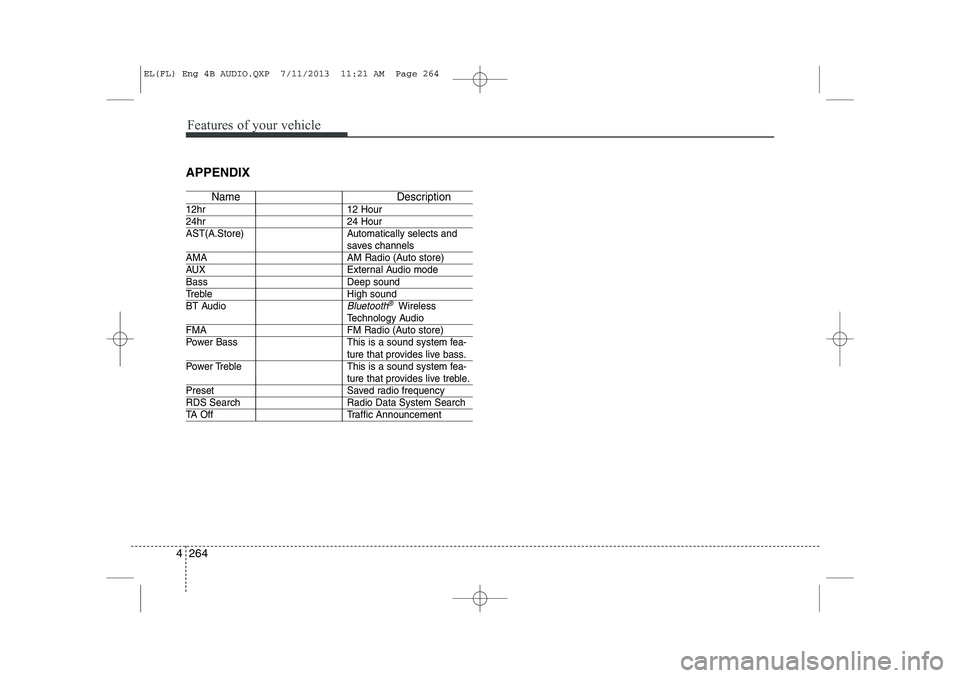
APPENDIX
Name Description
12hr 12 Hour
24hr 24 Hour
AST(A.Store) Automatically selects and
saves channels
AMA AM Radio (Auto store)
AUX External Audio mode
Bass Deep sound
Treble High sound
BT Audio
Bluetooth®Wireless
Technology Audio
FMA FM Radio (Auto store)
Power Bass This is a sound system fea-
ture that provides live bass.
Power Treble This is a sound system fea-
ture that provides live treble.
Preset Saved radio frequency
RDS Search Radio Data System Search
TA Off Traffic Announcement
EL(FL) Eng 4B AUDIO.QXP 7/11/2013 11:21 AM Page 264
Page 1002 of 1534
23
Your vehicle at a glance
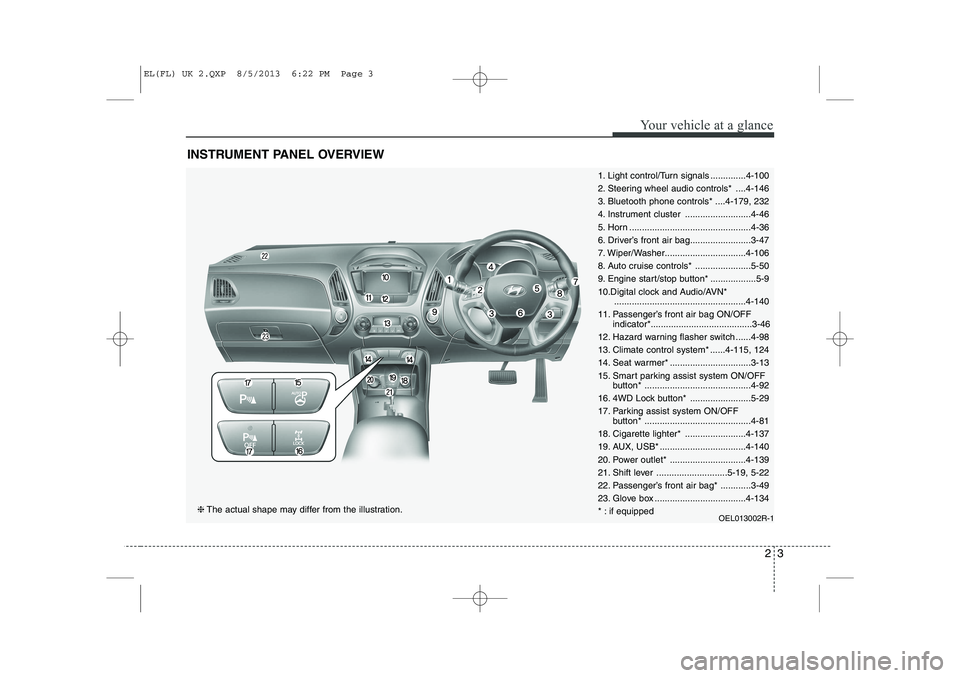
INSTRUMENT PANEL OVERVIEW
1. Light control/Turn signals ..............4-100
2. Steering wheel audio controls* ....4-146
3. Bluetooth phone controls* ....4-179, 232
4. Instrument cluster ..........................4-46
5. Horn ................................................4-36
6. Driver’s front air bag........................3-47
7. Wiper/Washer................................4-106
8. Auto cruise controls* ......................5-50
9. Engine start/stop button* ..................5-9
10.Digital clock and Audio/AVN*....................................................4-140
11. Passenger’s front air bag ON/OFF indicator*........................................3-46
12. Hazard warning flasher switch ......4-98
13. Climate control system* ......4-115, 124
14. Seat warmer* ................................3-13
15. Smart parking assist system ON/OFF button* ..........................................4-92
16. 4WD Lock button* ........................5-29
17. Parking assist system ON/OFF button* ..........................................4-81
18. Cigarette lighter* ........................4-137
19. AUX, USB* ..................................4-140
20. Power outlet* ..............................4-139
21. Shift lever ............................5-19, 5-22
22. Passenger’s front air bag* ............3-49
23. Glove box ....................................4-134
* : if equipped OEL013002R-1
❈The actual shape may differ from the illustration.
EL(FL) UK 2.QXP 8/5/2013 6:22 PM Page 3