AUX HYUNDAI IX35 2014 Owner's Manual
[x] Cancel search | Manufacturer: HYUNDAI, Model Year: 2014, Model line: IX35, Model: HYUNDAI IX35 2014Pages: 1534, PDF Size: 39.76 MB
Page 1211 of 1534
Features of your vehicle
140
4
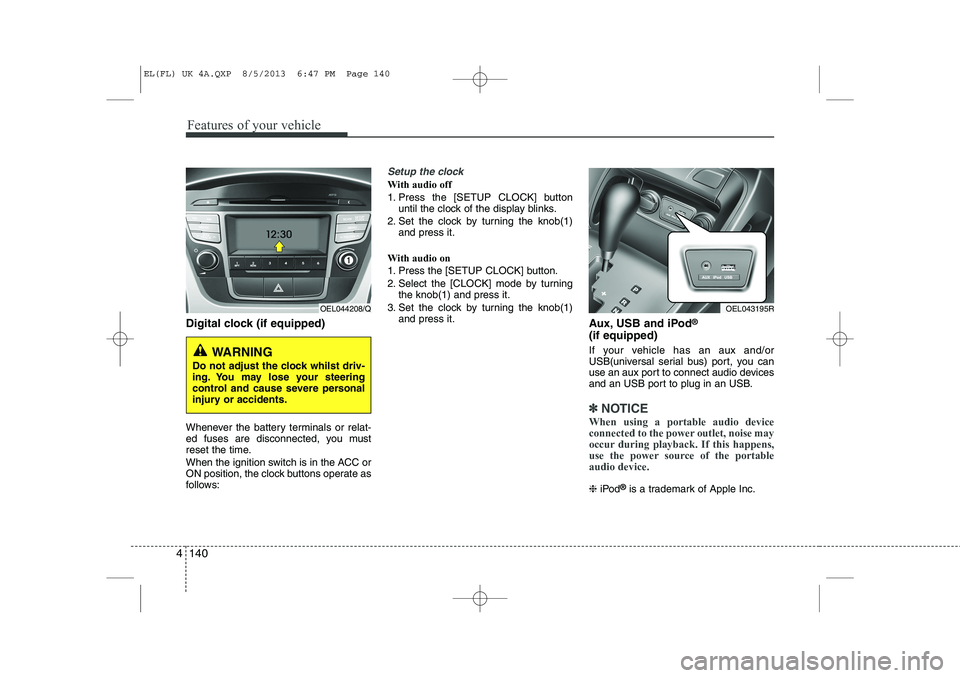
Digital clock (if equipped)
Whenever the battery terminals or relat-
ed fuses are disconnected, you must
reset the time.
When the ignition switch is in the ACC or
ON position, the clock buttons operate as
follows:
Setup the clock
With audio off
1. Press the [SETUP CLOCK] button
until the clock of the display blinks.
2. Set the clock by turning the knob(1) and press it.
With audio on
1. Press the [SETUP CLOCK] button.
2. Select the [CLOCK] mode by turning the knob(1) and press it.
3. Set the clock by turning the knob(1) and press it. Aux, USB and iPod®
(if equipped)
If your vehicle has an aux and/or
USB(universal serial bus) port, you can
use an aux port to connect audio devices
and an USB port to plug in an USB.
✽✽ NOTICE
When using a portable audio device
connected to the power outlet, noise may
occur during playback. If this happens,
use the power source of the portableaudio device.
❈ iPod ®
is a trademark of Apple Inc.
WARNING
Do not adjust the clock whilst driv-
ing. You may lose your steering
control and cause severe personal
injury or accidents.
OEL044208/QOEL043195R
EL(FL) UK 4A.QXP 8/5/2013 6:47 PM Page 140
Page 1227 of 1534
Features of your vehicle
156
4
SYSTEM CONTROLLERS AND FUNCTIONS ❈ Display and settings may differ
depending on the selected audio.
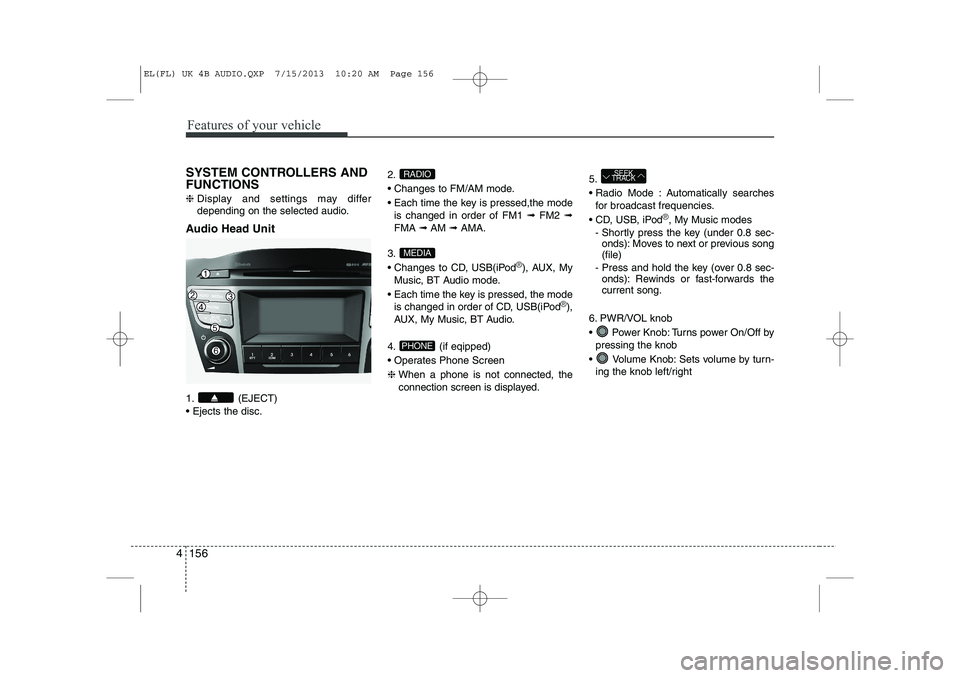
Audio Head Unit
1. (EJECT) Ejects the disc. 2.
Changes to FM/AM mode.
Each time the key is pressed,the mode
is changed in order of FM1 ➟FM2 ➟
FMA ➟AM ➟AMA.
3.
Changes to CD, USB(iPod
®), AUX, My
Music, BT Audio mode.
Each time the key is pressed, the mode is changed in order of CD, USB(iPod
®),
AUX, My Music, BT Audio.
4. (if eqipped)
Operates Phone Screen❈ When a phone is not connected, the
connection screen is displayed. 5.
Radio Mode : Automatically searches
for broadcast frequencies.
CD, USB, iPod
®, My Music modes
- Shortly press the key (under 0.8 sec- onds): Moves to next or previous song (file)
- Press and hold the key (over 0.8 sec- onds): Rewinds or fast-forwards thecurrent song.
6. PWR/VOL knob
Power Knob: Turns power On/Off by pressing the knob
Volume Knob: Sets volume by turn- ing the knob left/right
SEEK
TRACK
PHONE
MEDIA
RADIO
EL(FL) UK 4B AUDIO.QXP 7/15/2013 10:20 AM Page 156
Page 1242 of 1534
4 171
Features of your vehicle
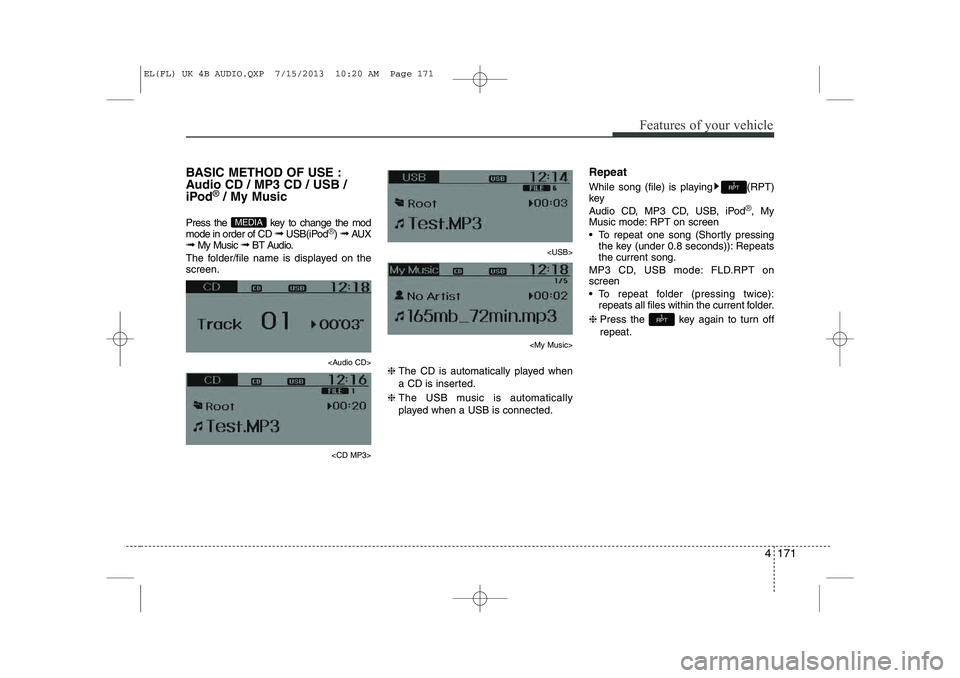
BASIC METHOD OF USE :
Audio CD / MP3 CD / USB /
iPod
®/ My Music
Press the key to change the mod mode in order of CD ➟ USB(iPod
®) ➟ AUX
➟ My Music ➟ BT Audio.
The folder/file name is displayed on the screen.
Page 1245 of 1534
Features of your vehicle
174
4
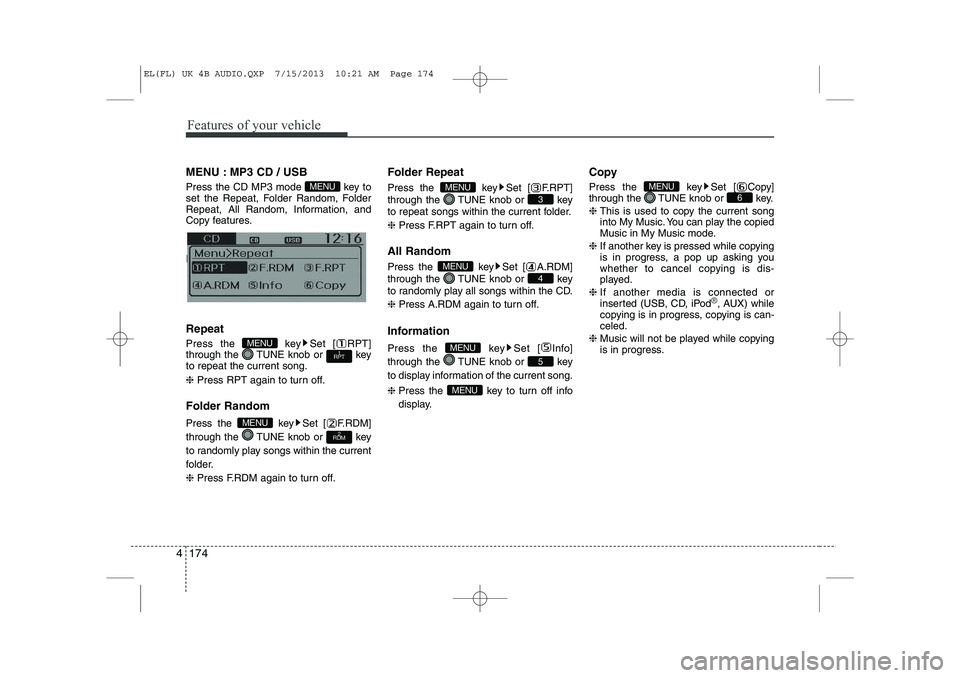
MENU : MP3 CD / USB
Press the CD MP3 mode key to
set the Repeat, Folder Random, Folder
Repeat, All Random, Information, and
Copy features.
Information, and Copy features. Repeat
Press the key Set [ RPT]
through the TUNE knob or keyto repeat the current song. ❈ Press RPT again to turn off.
Folder Random
Press the key Set [ F.RDM]
through the TUNE knob or key
to randomly play songs within the current
folder. ❈ Press F.RDM again to turn off. Folder Repeat
Press the key Set [ F.RPT]
through the TUNE knob or key
to repeat songs within the current folder. ❈
Press F.RPT again to turn off.
All Random
Press the key Set [ A.RDM]
through the TUNE knob or key
to randomly play all songs within the CD. ❈ Press A.RDM again to turn off.
Information
Press the key Set [ Info]
through the TUNE knob or key
to display information of the current song. ❈ Press the key to turn off info
display. Copy
Press the key Set [ Copy]
through the TUNE knob or key. ❈
This is used to copy the current song
into My Music. You can play the copied
Music in My Music mode.
❈ If another key is pressed while copying
is in progress, a pop up asking you
whether to cancel copying is dis-
played.
❈ If another media is connected or
inserted (USB, CD, iPod
®, AUX) while
copying is in progress, copying is can- celed.
❈ Music will not be played while copying
is in progress.
6MENU
MENU
5
MENU
4
MENU
3
MENU
2
RDMMENU
1
RPTMENU
MENU
EL(FL) UK 4B AUDIO.QXP 7/15/2013 10:21 AM Page 174
Page 1249 of 1534
Features of your vehicle
178
4
Bluetooth®Wireless
Technology AUDIO (if equipped) What is
Bluetooth®Wireless
Technology?
Bluetooth®Wireless Technology allows
devices to be connected in a short dis-
tance, including hands-free devices,
stereo headsets, wireless remote con-
trollers, etc. For more information, visitthe
Bluetooth®Wireless Technology
website at
www.Bluetooth.com
Before using Bluetooth®Wireless
Technology audio features
Bluetooth®Wireless Technology audio
may not be supported depending on
the compatibility of your
Bluetooth®
Wireless Technology mobile phone.
In order to use
Bluetooth®Wireless
Technology audio, you must first pairand connect the
Bluetooth®Wireless
Technology mobile phone. The
Bluetooth®word mark and logos
are registered trademarks owned by
Bluetooth®SIG, Inc. and any use of
such marks is under license. Other
trademarks and trade names are those
of their respective owners. A
Bluetooth®
enabled cell phone is required to useBluetooth®Wireless Technology
Bluetooth®Wireless Technology audio
can be used only when the [Audio
Streaming] of Phone is turned On.
❈ Setting
Bluetooth®Wireless Technology
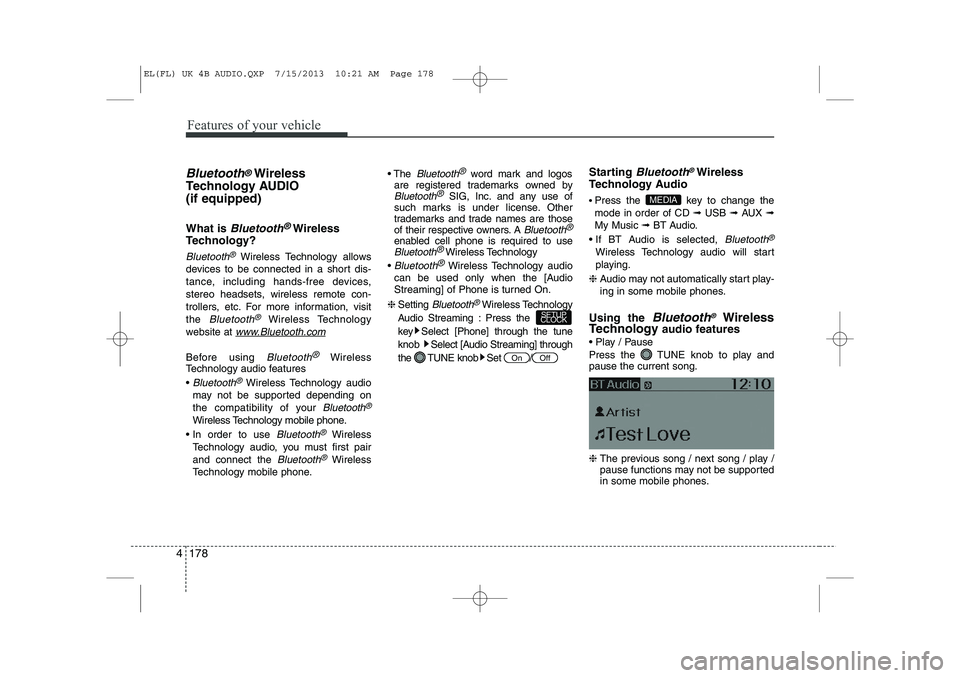
Audio Streaming : Press the
key Select [Phone] through the tuneknob Select [Audio Streaming] through
the TUNE knob Set / Starting
Bluetooth®Wireless
Technology Audio Press the key to change the mode in order of CD ➟ USB ➟ AUX ➟
My Music ➟ BT Audio.
If BT Audio is selected,
Bluetooth®
Wireless Technology audio will start
playing.
❈ Audio may not automatically start play-
ing in some mobile phones.
Using the
Bluetooth®Wireless
Technology audio features
Play / Pause
Press the TUNE knob to play and pause the current song. ❈ The previous song / next song / play /
pause functions may not be supported
in some mobile phones.
MEDIA
OffOn
SETUP
CLOCK
EL(FL) UK 4B AUDIO.QXP 7/15/2013 10:21 AM Page 178
Page 1256 of 1534
4 185
Features of your vehicle
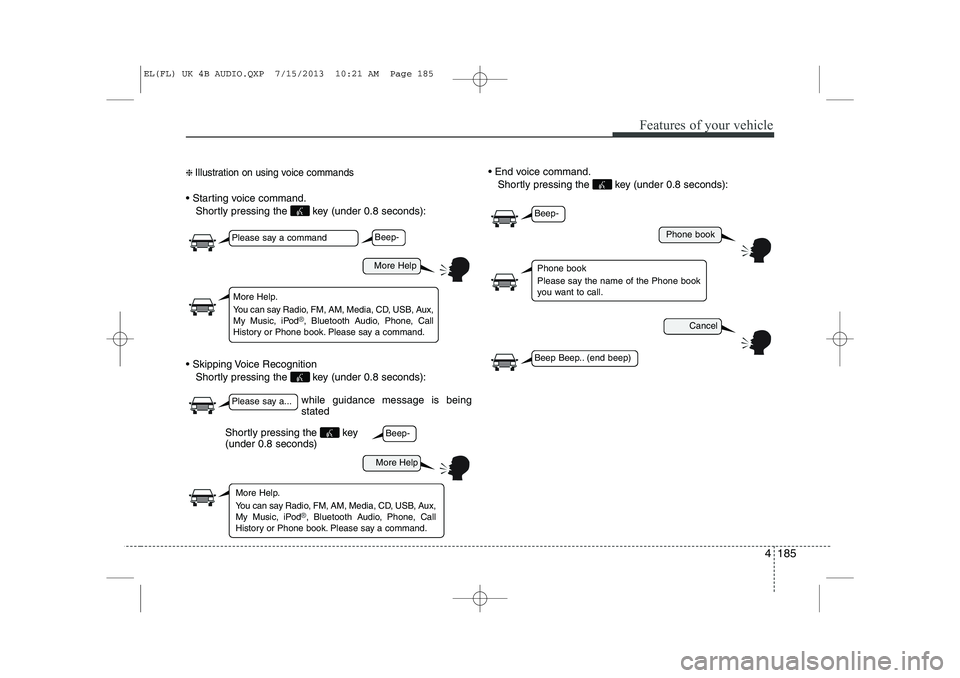
❈ Illustration on using voice commands
Starting voice command.
Shortly pressing the key (under 0.8 seconds):
Skipping Voice Recognition Shortly pressing the key (under 0.8 seconds): End voice command.
Shortly pressing the key (under 0.8 seconds):
while guidance message is being stated
More Help
Phone book
Cancel
More Help
Please say a command
Please say a...
More Help.
You can say Radio, FM, AM, Media, CD, USB, Aux,
My Music, iPod
®, Bluetooth A udio, Phone, Call
History or Phone book. Please say a command.
Phone book
Please say the name of the Phone book
you want to call.
More Help.
You can say Radio, FM, AM, Media, CD, USB, Aux,
My Music, iPod
®, Bluetooth A udio, Phone, Call
History or Phone book. Please say a command.
Beep-
Beep-
Beep-
Beep Beep.. (end beep)
Shortly pressing the key (under 0.8 seconds)
EL(FL) UK 4B AUDIO.QXP 7/15/2013 10:21 AM Page 185
Page 1258 of 1534
4 187
Features of your vehicle
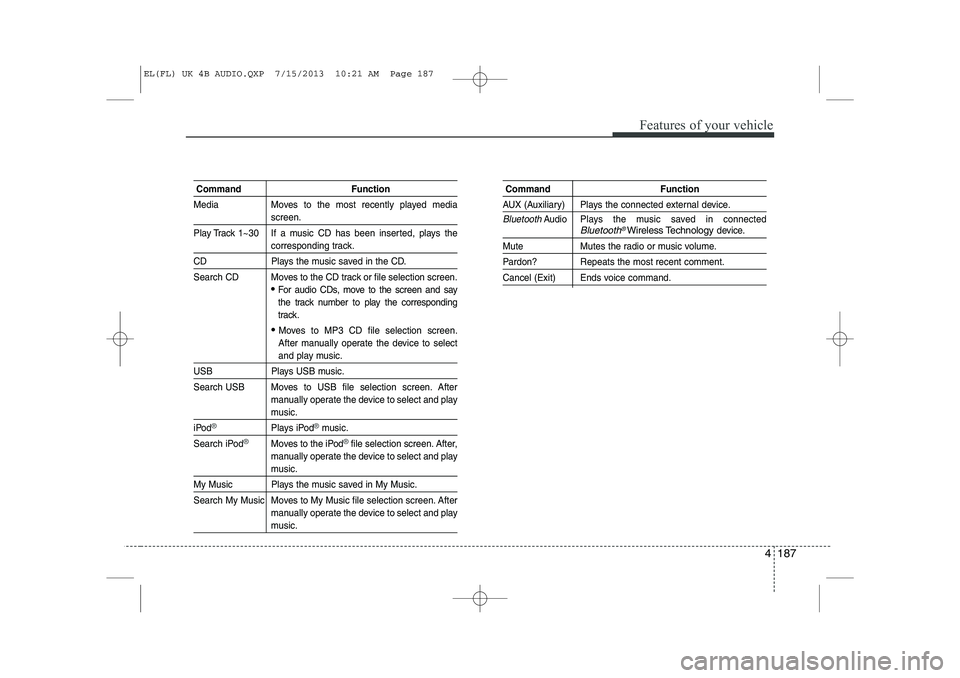
Command Function
Media Moves to the most recently played media
screen.
Play Track 1~30 If a music CD has been inserted, plays the
corresponding track.
CD Plays the music saved in the CD.
Search CD Moves to the CD track or file selection screen.
For audio CDs, move to the screen and say
the track number to play the corresponding
track.
Moves to MP3 CD file selection screen.
After manually operate the device to select
and play music.
USB Plays USB music.
Search USB Moves to USB file selection screen. After manually operate the device to select and play
music.
iPod®Plays iPod®music.
Search iPod
®Moves to the iPod®file selection screen. After,
manually operate the device to select and play
music.
My Music Plays the music saved in My Music.
Search My Music Moves to My Music file selection screen. After manually operate the device to select and play
music.
Command Function
AUX (Auxiliary) Plays the connected external device.
BluetoothAudio Plays the music saved in connectedBluetooth®Wireless Technologydevice.
Mute Mutes the radio or music volume.
Pardon? Repeats the most recent comment.
Cancel (Exit) Ends voice command.
EL(FL) UK 4B AUDIO.QXP 7/15/2013 10:21 AM Page 187
Page 1264 of 1534
4 193
Features of your vehicle
SYSTEM CONTROLLERS AND FUNCTIONS ❈ Display and settings may differ
depending on the selected audio.
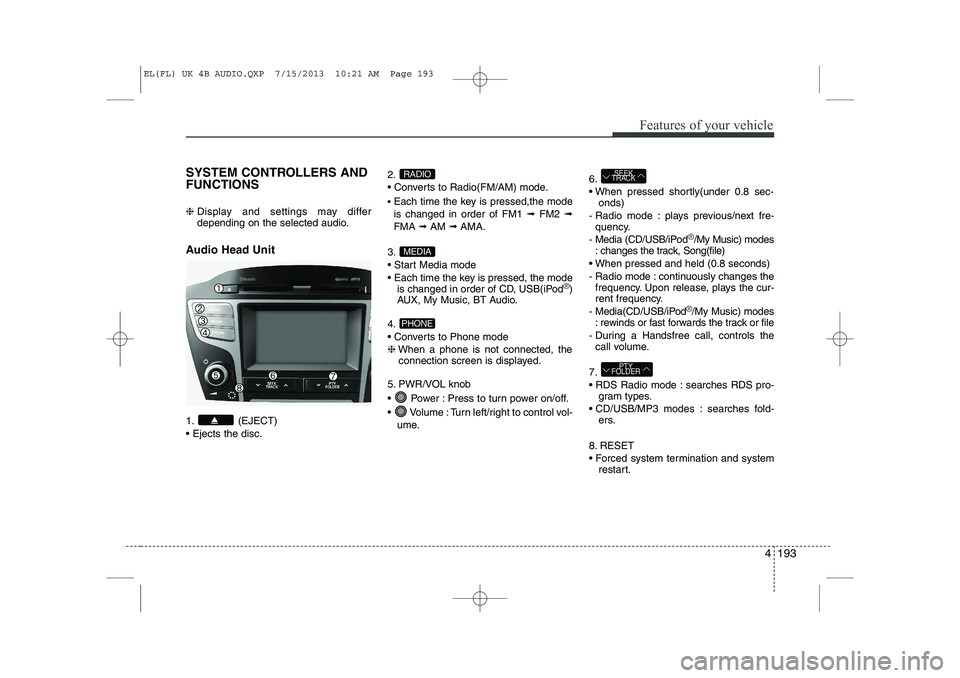
Audio Head Unit
1. (EJECT) Ejects the disc. 2.
Converts to Radio(FM/AM) mode.
Each time the key is pressed,the mode is changed in order of FM1 ➟FM2 ➟
FMA ➟AM ➟AMA.
3.
Start Media mode
Each time the key is pressed, the mode is changed in order of CD, USB(iPod
®)
AUX, My Music, BT Audio.
4.
Converts to Phone mode❈ When a phone is not connected, the
connection screen is displayed.
5. PWR/VOL knob
Power : Press to turn power on/off.
Volume : Turn left/right to control vol- ume. 6.
When pressed shortly(under 0.8 sec-
onds)
- Radio mode : plays previous/next fre- quency.
- Media (CD/USB/iPod
®/My Music) modes
: changes the track, Song(file)
When pressed and held (0.8 seconds)
- Radio mode : continuously changes the frequency. Upon release, plays the cur-
rent frequency.
- Media(CD/USB/iPod
®/My Music) modes
: rewinds or fast forwards the track or file
- During a Handsfree call, controls the call volume.
7.
RDS Radio mode : searches RDS pro- gram types.
CD/USB/MP3 modes : searches fold- ers.
8. RESET
Forced system termination and system restart.
PTY
FOLDER
SEEK
TRACK
PHONE
MEDIA
RADIO
EL(FL) UK 4B AUDIO.QXP 7/15/2013 10:21 AM Page 193
Page 1273 of 1534
Features of your vehicle
202
4
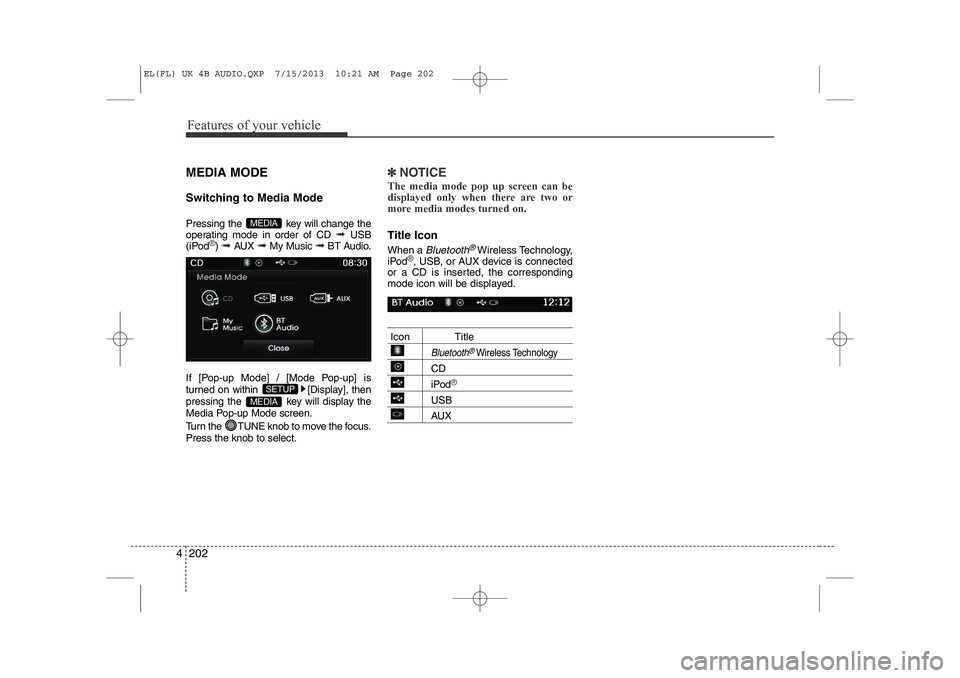
MEDIA MODE
Switching to Media Mode
Pressing the key will change the
operating mode in order of CD ➟ USB
(iPod
®) ➟ AUX ➟ My Music ➟BT Audio.
If [Pop-up Mode] / [Mode Pop-up] is
turned on within [Display], then
pressing the key will display the
Media Pop-up Mode screen.
Turn the TUNE knob to move the focus. Press the knob to select.
✽✽ NOTICE
The media mode pop up screen can be
displayed only when there are two or
more media modes turned on.
Title Icon When a
Bluetooth®Wireless Technology,
iPod®, USB, or AUX device is connected
or a CD is inserted, the corresponding
mode icon will be displayed.
Icon Title
Bluetooth®Wireless Technology
CD
iPod®
USB
AUX
MEDIA
SETUP
MEDIA
EL(FL) UK 4B AUDIO.QXP 7/15/2013 10:21 AM Page 202
Page 1295 of 1534
![HYUNDAI IX35 2014 Owners Manual Features of your vehicle
224
4
AUX MODE
Using AUX Mode
Press the key Select [AUX]
An external device can be connected to
play music.
Connecting an External Device
External audio players (Camco](/img/35/56237/w960_56237-1294.png "HYUNDAI IX35 2014 Owners Manual Features of your vehicle
224
4
AUX MODE
Using AUX Mode
Press the key Select [AUX]
An external device can be connected to
play music.
Connecting an External Device
External audio players (Camco")
Features of your vehicle
224
4
AUX MODE
Using AUX Mode
Press the key Select [AUX]
An external device can be connected to
play music.
Connecting an External Device
External audio players (Camcorders, car
VCR, etc.) can be played through a ded-
icated cable.✽✽
NOTICE