display HYUNDAI IX35 2016 Repair Manual
[x] Cancel search | Manufacturer: HYUNDAI, Model Year: 2016, Model line: IX35, Model: HYUNDAI IX35 2016Pages: 550, PDF Size: 9.92 MB
Page 292 of 550
4 207
Features of your vehicle
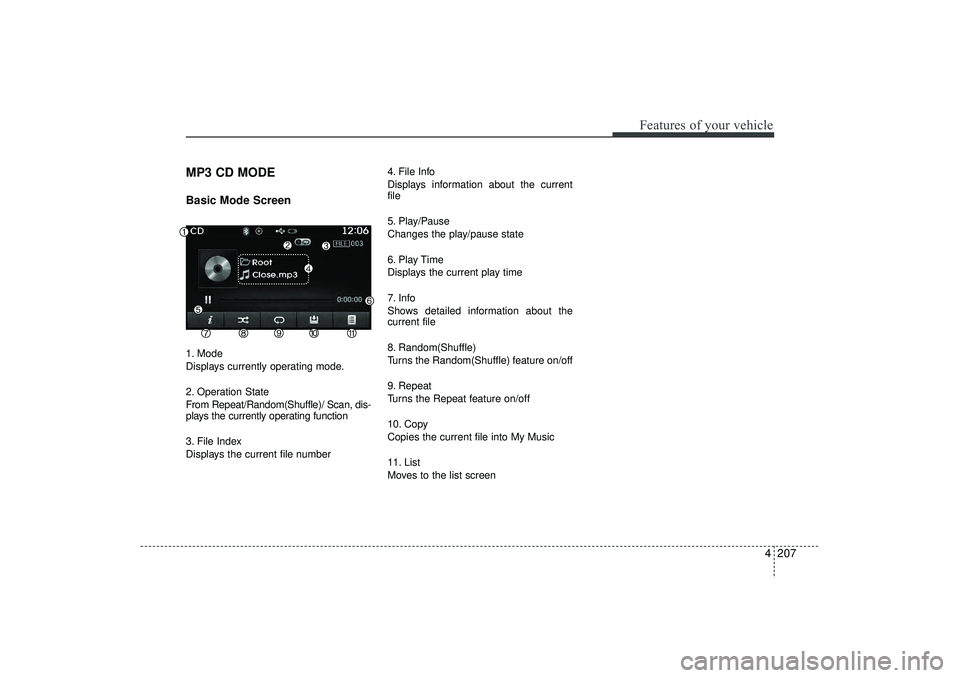
MP3 CD MODEBasic Mode Screen1. Mode
Displays currently operating mode.
2. Operation State
From Repeat/Random(Shuffle)/ Scan, dis-
plays the currently operating function
3. File Index
Displays the current file number4. File Info
Displays information about the current
file
5. Play/Pause
Changes the play/pause state
6. Play Time
Displays the current play time
7. Info
Shows detailed information about the
current file
8. Random(Shuffle)
Turns the Random(Shuffle) feature on/off
9. Repeat
Turns the Repeat feature on/off
10. Copy
Copies the current file into My Music
11. List
Moves to the list screen
EL(FL) UK 4B AUDIO.QXP 3/13/2015 4:19 PM Page 207
Page 293 of 550
Features of your vehicle208
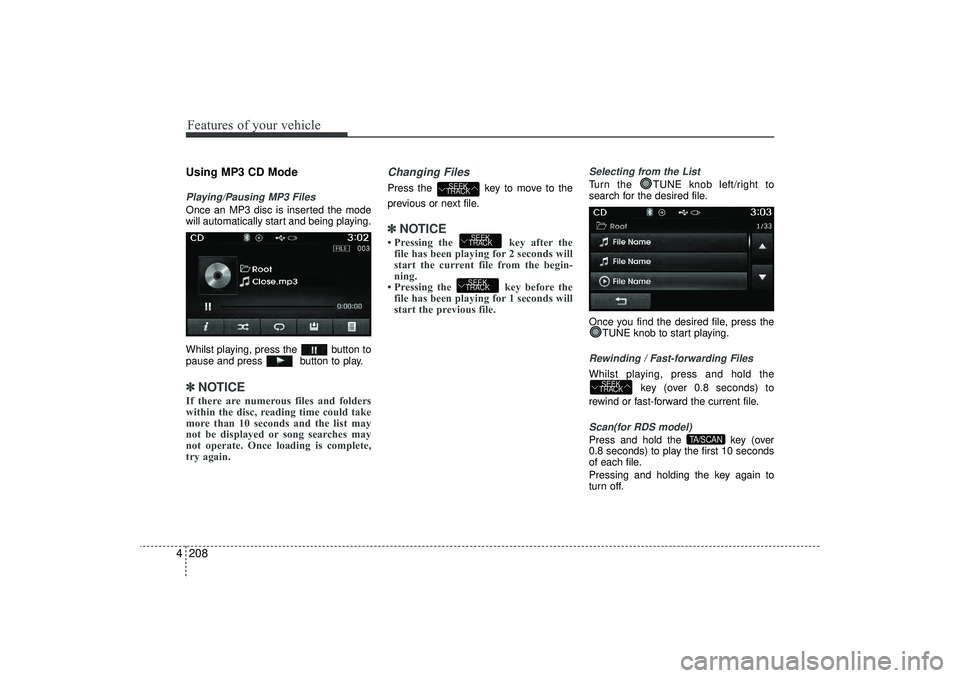
4Using MP3 CD ModePlaying/Pausing MP3 FilesOnce an MP3 disc is inserted the mode
will automatically start and being playing.
Whilst playing, press the button to
pause and press button to play.✽ ✽
NOTICE If there are numerous files and folders
within the disc, reading time could take
more than 10 seconds and the list may
not be displayed or song searches may
not operate. Once loading is complete,
try again.
Changing FilesPress the key to move to the
previous or next file.✽ ✽ NOTICE • Pressing the key after the
file has been playing for 2 seconds will
start the current file from the begin-
ning.
• Pressing the key before the file has been playing for 1 seconds will
start the previous file.
Selecting from the ListTurn the TUNE knob left/right to
search for the desired file.
Once you find the desired file, press the
TUNE knob to start playing.Rewinding / Fast-forwarding FilesWhilst playing, press and hold the
key (over 0.8 seconds) to
rewind or fast-forward the current file.Scan(for RDS model)Press and hold the key (over
0.8 seconds) to play the first 10 seconds
of each file.
Pressing and holding the key again to
turn off.
TA/SCAN
SEEK
TRACK
SEEK
TRACKSEEK
TRACK
SEEK
TRACK
EL(FL) UK 4B AUDIO.QXP 3/13/2015 4:19 PM Page 208
Page 294 of 550
4 209
Features of your vehicle
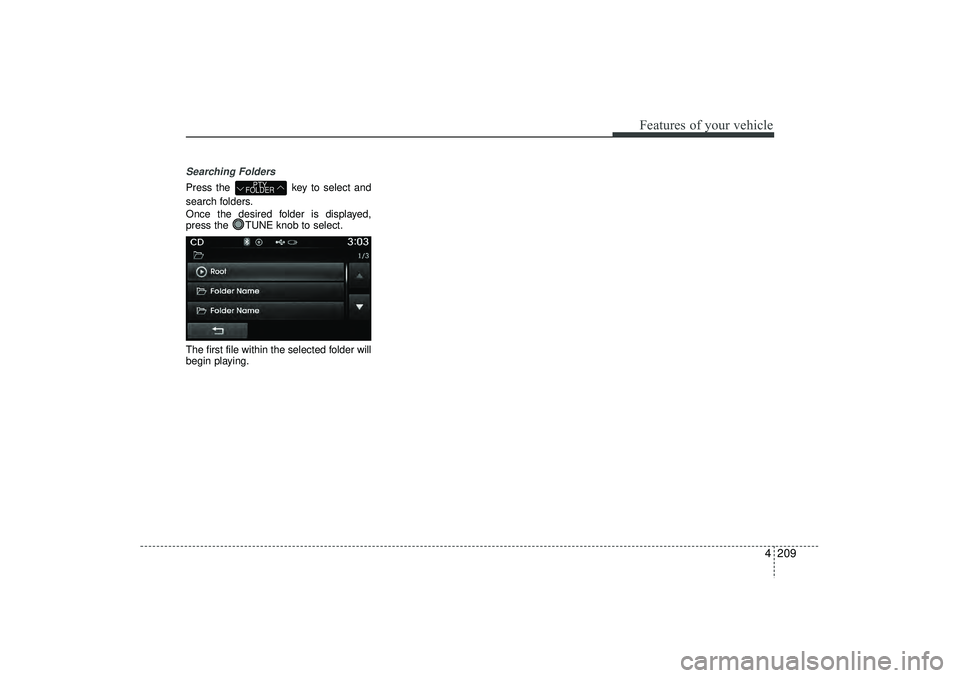
Searching FoldersPress the key to select and
search folders.
Once the desired folder is displayed,
press the TUNE knob to select.
The first file within the selected folder will
begin playing.
PTY
FOLDER
EL(FL) UK 4B AUDIO.QXP 3/13/2015 4:19 PM Page 209
Page 295 of 550
Features of your vehicle210
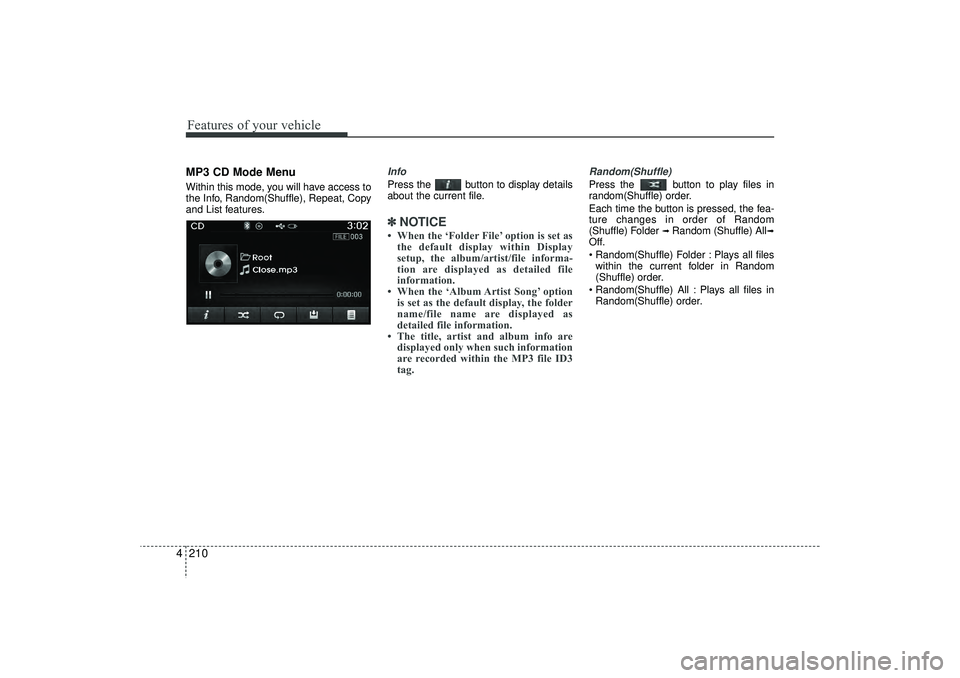
4MP3 CD Mode MenuWithin this mode, you will have access to
the Info, Random(Shuffle), Repeat, Copy
and List features.
InfoPress the button to display details
about the current file.✽ ✽
NOTICE • When the ‘Folder File’ option is set as
the default display within Display
setup, the album/artist/file informa-
tion are displayed as detailed file
information.
• When the ‘Album Artist Song’ option is set as the default display, the folder
name/file name are displayed as
detailed file information.
• The title, artist and album info are displayed only when such information
are recorded within the MP3 file ID3
tag.
Random(Shuffle)Press the button to play files in
random(Shuffle) order.
Each time the button is pressed, the fea-
ture changes in order of Random
(Shuffle) Folder
➟ Random (Shuffle) All
➟
Off.
Random(Shuffle) Folder : Plays all files
within the current folder in Random
(Shuffle) order.
Random(Shuffle) All : Plays all files in Random(Shuffle) order.
EL(FL) UK 4B AUDIO.QXP 3/13/2015 4:19 PM Page 210
Page 296 of 550
4 211
Features of your vehicle
RepeatPress the button to repeat the cur-
rent file or folder.
Each time the button is pressed, the fea-
ture changes in order of Repeat
➟Repeat
Folder
➟Off.
Repeat: Repeats the current file.
Repeat Folder: Repeats all files within the current Folder.
Copying FilesPress the button to copy the cur-
rent file into My Music.✽ ✽ NOTICE Selecting another feature during copy-
ing will display a pop-up asking whether
you wish to cancel copying. To cancel,
select 'Yes’.
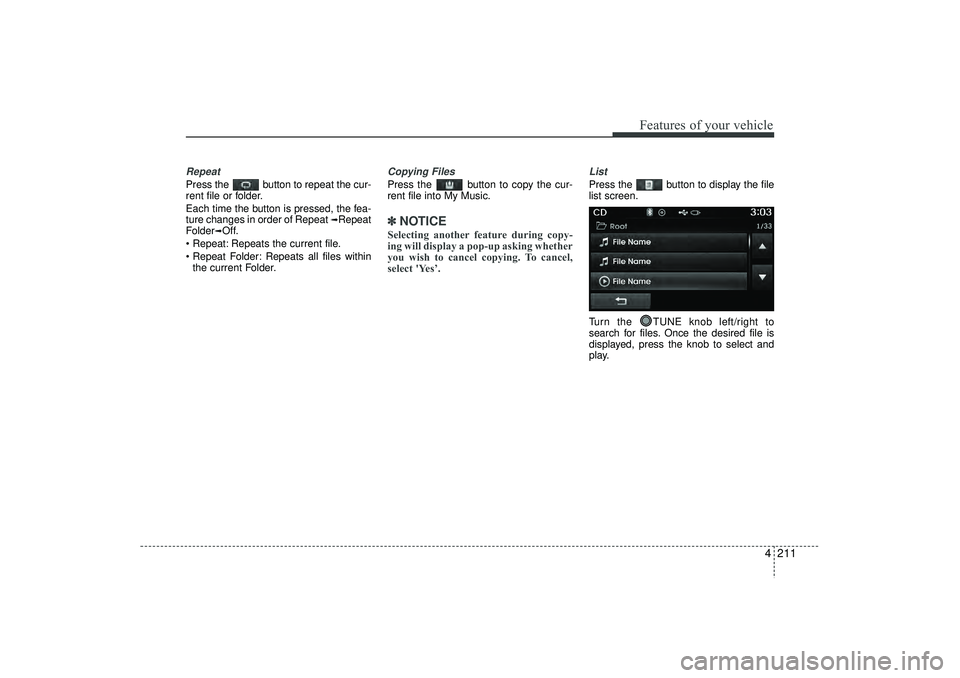
ListPress the button to display the file
list screen.
Turn the TUNE knob left/right to
search for files. Once the desired file is
displayed, press the knob to select and
play.
EL(FL) UK 4B AUDIO.QXP 3/13/2015 4:19 PM Page 211
Page 299 of 550
Features of your vehicle214
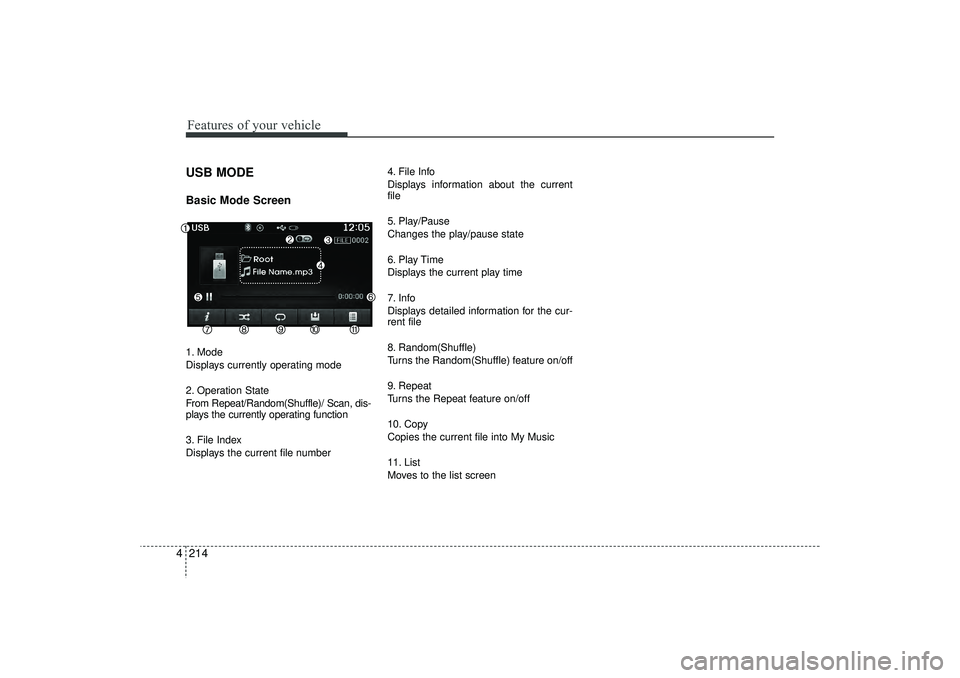
4USB MODE Basic Mode Screen1. Mode
Displays currently operating mode
2. Operation State
From Repeat/Random(Shuffle)/ Scan, dis-
plays the currently operating function
3. File Index
Displays the current file number 4. File Info
Displays information about the current
file
5. Play/Pause
Changes the play/pause state
6. Play Time
Displays the current play time
7. Info
Displays detailed information for the cur-
rent file
8. Random(Shuffle)
Turns the Random(Shuffle) feature on/off
9. Repeat
Turns the Repeat feature on/off
10. Copy
Copies the current file into My Music
11. List
Moves to the list screen
EL(FL) UK 4B AUDIO.QXP 3/13/2015 4:19 PM Page 214
Page 300 of 550
4 215
Features of your vehicle
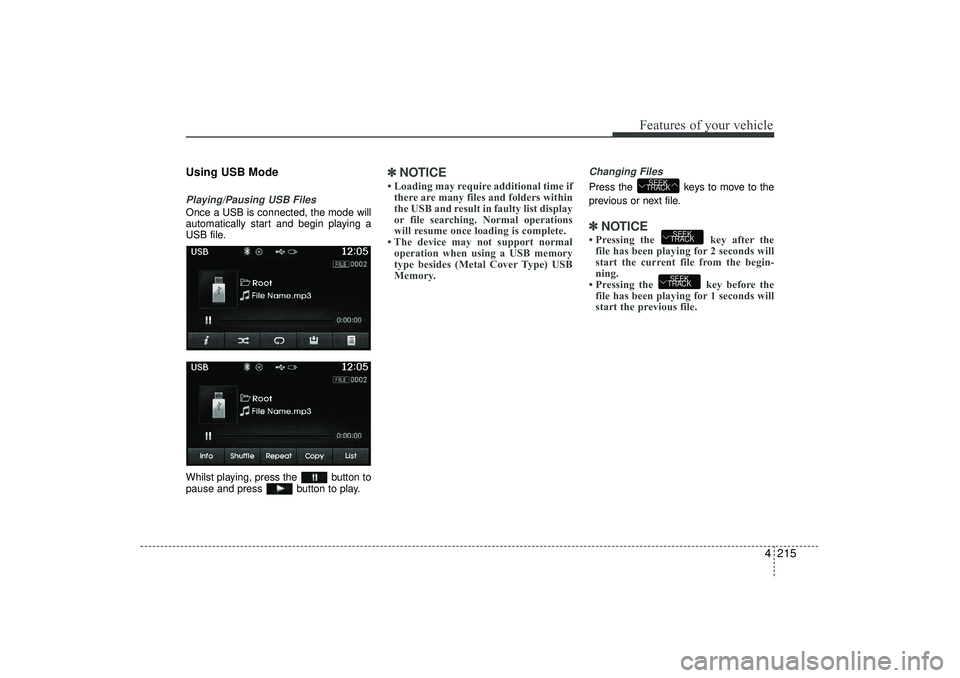
Using USB ModePlaying/Pausing USB FilesOnce a USB is connected, the mode will
automatically start and begin playing a
USB file.
Whilst playing, press the button to
pause and press button to play.
✽ ✽NOTICE • Loading may require additional time if
there are many files and folders within
the USB and result in faulty list display
or file searching. Normal operations
will resume once loading is complete.
• The device may not support normal operation when using a USB memory
type besides (Metal Cover Type) USB
Memory.
Changing FilesPress the keys to move to the
previous or next file.✽ ✽ NOTICE • Pressing the key after the
file has been playing for 2 seconds will
start the current file from the begin-
ning.
• Pressing the key before the file has been playing for 1 seconds will
start the previous file.
SEEK
TRACKSEEK
TRACK
SEEK
TRACK
EL(FL) UK 4B AUDIO.QXP 3/13/2015 4:19 PM Page 215
Page 301 of 550
Features of your vehicle216
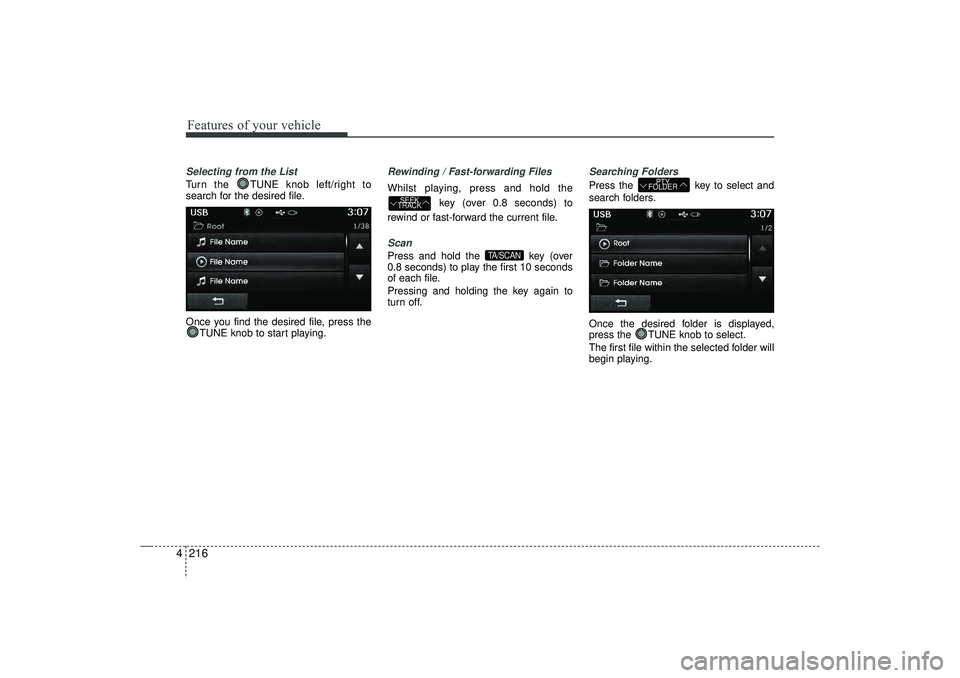
4Selecting from the ListTurn the TUNE knob left/right to
search for the desired file.
Once you find the desired file, press the
TUNE knob to start playing.
Rewinding / Fast-forwarding FilesWhilst playing, press and hold the
key (over 0.8 seconds) to
rewind or fast-forward the current file.Scan Press and hold the key (over
0.8 seconds) to play the first 10 seconds
of each file.
Pressing and holding the key again to
turn off.
Searching FoldersPress the key to select and
search folders.
Once the desired folder is displayed,
press the TUNE knob to select.
The first file within the selected folder will
begin playing.
PTY
FOLDER
TA/SCAN
SEEK
TRACK
EL(FL) UK 4B AUDIO.QXP 3/13/2015 4:19 PM Page 216
Page 302 of 550
4 217
Features of your vehicle
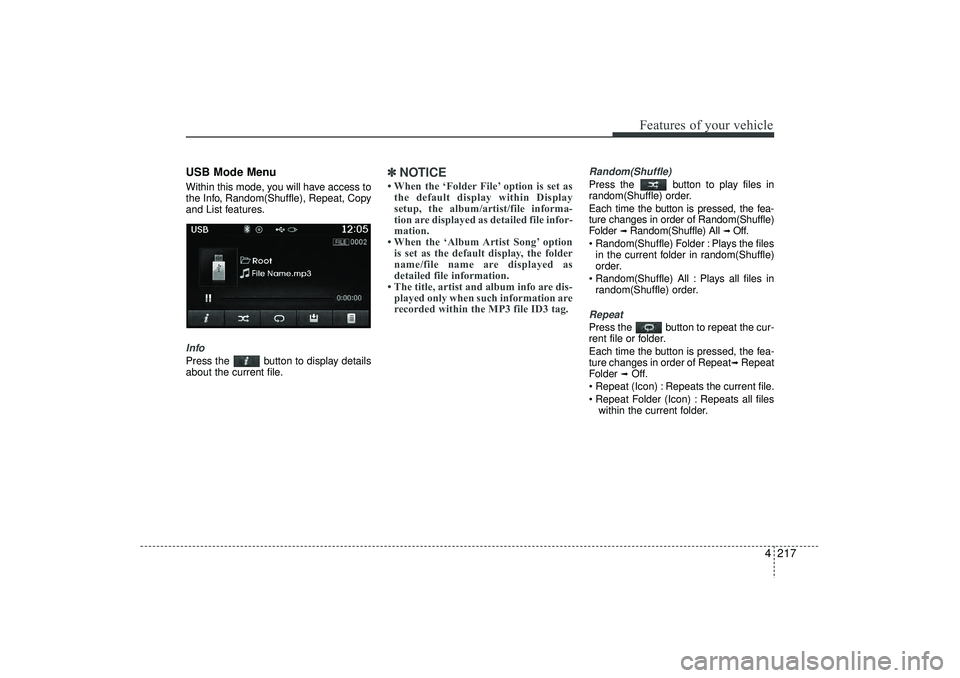
USB Mode MenuWithin this mode, you will have access to
the Info, Random(Shuffle), Repeat, Copy
and List features.InfoPress the button to display details
about the current file.
✽ ✽NOTICE • When the ‘Folder File’ option is set as
the default display within Display
setup, the album/artist/file informa-
tion are displayed as detailed file infor-
mation.
• When the ‘Album Artist Song’ option is set as the default display, the folder
name/file name are displayed as
detailed file information.
• The title, artist and album info are dis- played only when such information are
recorded within the MP3 file ID3 tag.
Random(Shuffle)Press the button to play files in
random(Shuffle) order.
Each time the button is pressed, the fea-
ture changes in order of Random(Shuffle)
Folder
➟ Random(Shuffle) All
➟ Off.
Random(Shuffle) Folder : Plays the files in the current folder in random(Shuffle)
order.
Random(Shuffle) All : Plays all files in random(Shuffle) order.
RepeatPress the button to repeat the cur-
rent file or folder.
Each time the button is pressed, the fea-
ture changes in order of Repeat
➟Repeat
Folder
➟Off.
Repeat (Icon) : Repeats the current file.
Repeat Folder (Icon) : Repeats all files within the current folder.
EL(FL) UK 4B AUDIO.QXP 3/13/2015 4:19 PM Page 217
Page 303 of 550
Features of your vehicle218
4Copying FilesPress the button to copy the cur-
rent file into My Music.✽ ✽
NOTICE Selecting another feature during copy-
ing will display a pop-up asking whether
you wish to cancel copying. To cancel,
select 'Yes’.
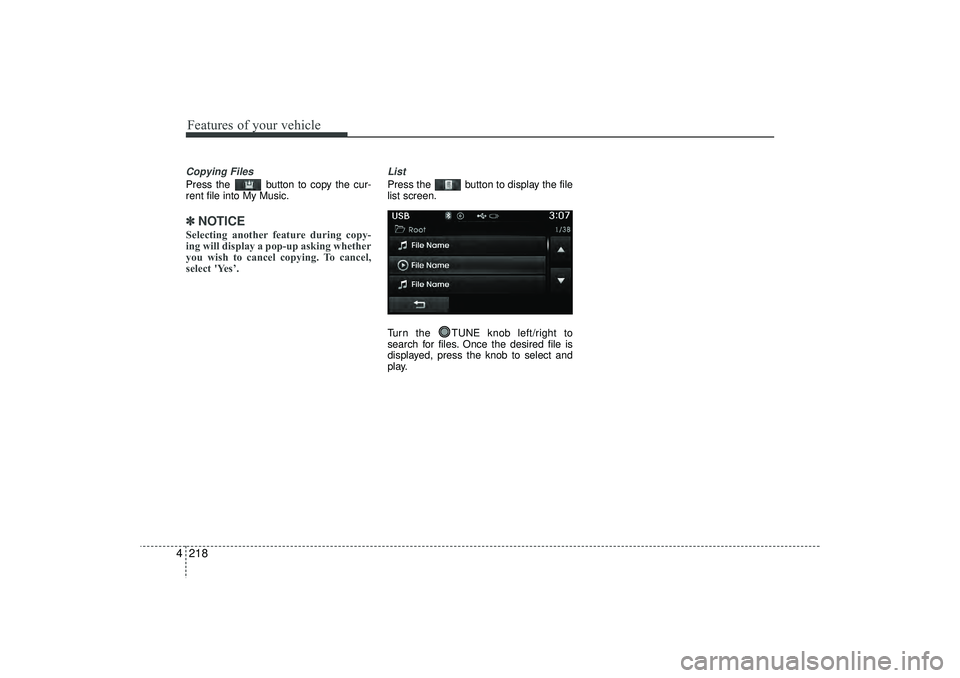
ListPress the button to display the file
list screen.
Turn the TUNE knob left/right to
search for files. Once the desired file is
displayed, press the knob to select and
play.
EL(FL) UK 4B AUDIO.QXP 3/13/2015 4:19 PM Page 218