AUX Hyundai Kona 2018 Owner's Manual
[x] Cancel search | Manufacturer: HYUNDAI, Model Year: 2018, Model line: Kona, Model: Hyundai Kona 2018Pages: 523, PDF Size: 33.6 MB
Page 222 of 523
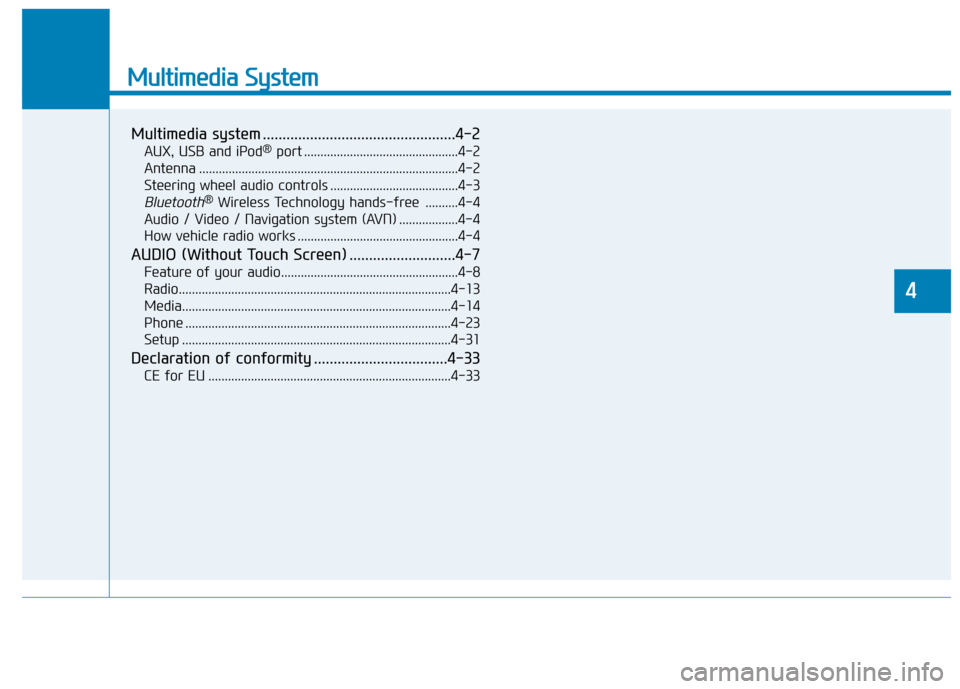
Multimedia System
Multimedia system .................................................4-2AUX, USB and iPod ®
port ...............................................4-2
Antenna ...............................................................................4-2
Steering wheel audio controls .......................................4-3
Bluetooth® Wireless Technology hands-free ..........4-4
Audio / Video / Navigation system (AVN) ..................4-4
How vehicle radio works .................................................4-4
AUDIO (Without Touch Screen) ...........................4-7 Feature of your audio......................................................4-8
Radio...................................................................................4-13
Media..................................................................................4-14
Phone .................................................................................4-23
Setup ..................................................................................4-31
Declaration of conformity ..................................4-33 CE for EU ..........................................................................4-33
4
Page 223 of 523
4-2
Multimedia System
Information
If you install an aftermarket HID headlamp, your vehicle’s audio and
electronic devices may malfunction.
Prevent chemicals such as perfume, cosmetic oil, sun cream, hand clean-
er, and air freshener from contacting
the interior parts because they may
cause damage or discoloration.
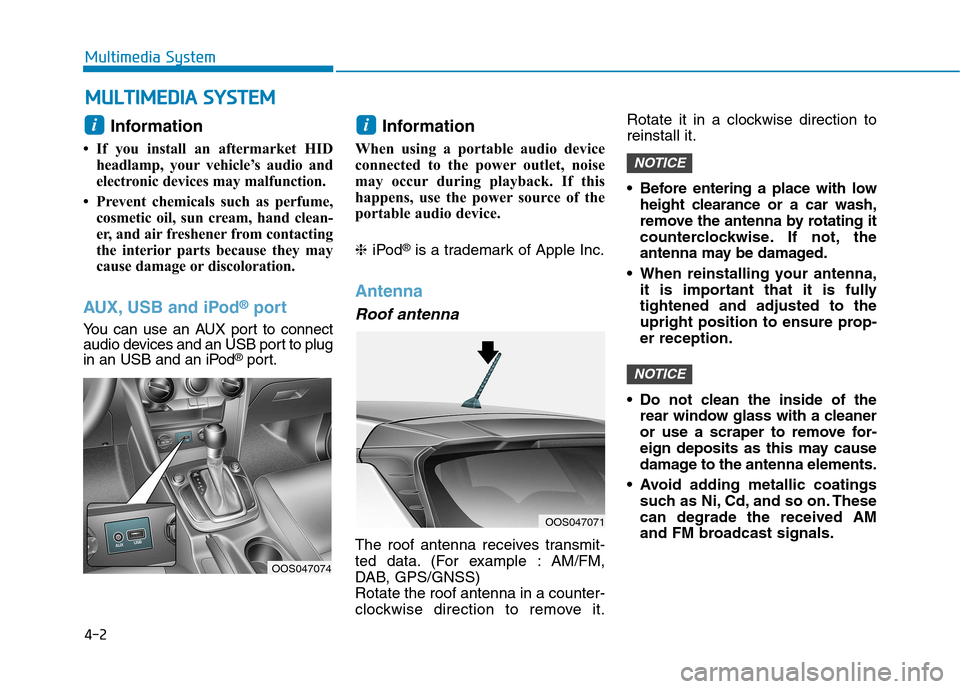
AUX, USB and iPod ®
port
You can use an AUX port to connect
audio devices and an USB port to plug
in an USB and an iPod ®
port. Information
When using a portable audio device
connected to the power outlet, noise
may occur during playback. If this
happens, use the power source of the
portable audio device. ❈ iPod ®
is a trademark of Apple Inc.
Antenna
Roof antenna
The roof antenna receives transmit-
ted data. (For example : AM/FM,
DAB, GPS/GNSS)Rotate the roof antenna in a counter-
clockwise direction to remove it. Rotate it in a clockwise direction toreinstall it.
Before entering a place with low
height clearance or a car wash,
remove the antenna by rotating it
counterclockwise. If not, the
antenna may be damaged.
When reinstalling your antenna, it is important that it is fullytightened and adjusted to the
upright position to ensure prop-er reception.
Do not clean the inside of the rear window glass with a cleaner
or use a scraper to remove for-
eign deposits as this may cause
damage to the antenna elements.
Avoid adding metallic coatings such as Ni, Cd, and so on. Thesecan degrade the received AM
and FM broadcast signals.
NOTICE
NOTICE
ii
MM UULLTT IIMM EEDD IIAA SS YY SSTT EEMM
OOS047071
OOS047074
Page 224 of 523
4-3
Multimedia System
4
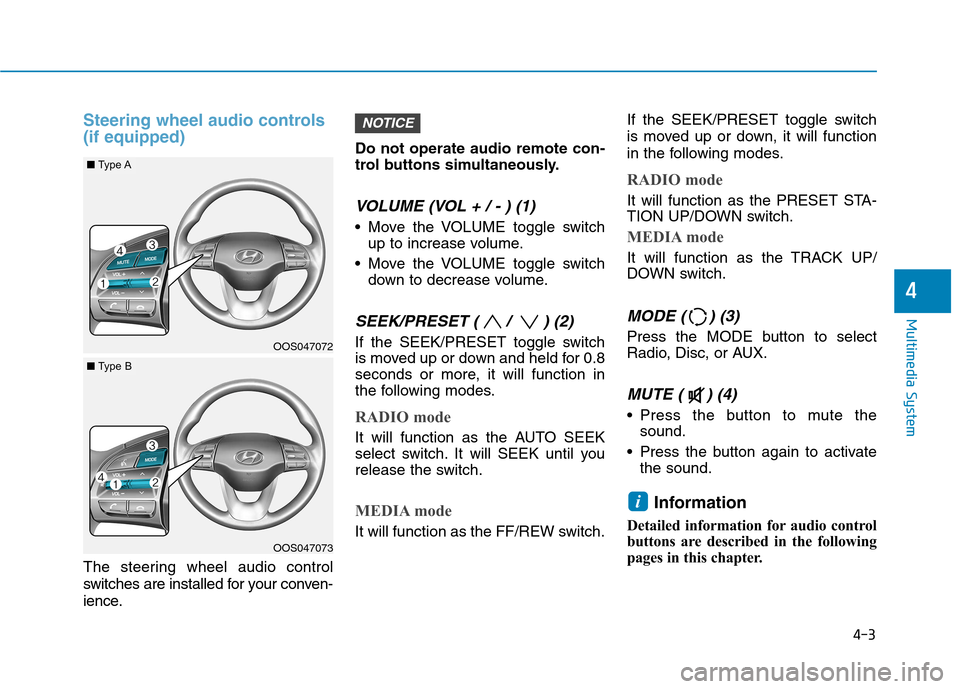
Steering wheel audio controls (if equipped)
The steering wheel audio control
switches are installed for your conven-
ience.Do not operate audio remote con-
trol buttons simultaneously.
VOLUME (VOL + / - ) (1)
Move the VOLUME toggle switch
up to increase volume.
Move the VOLUME toggle switch down to decrease volume.
SEEK/PRESET ( / ) (2)
If the SEEK/PRESET toggle switch
is moved up or down and held for 0.8
seconds or more, it will function in
the following modes.
RADIO mode
It will function as the AUTO SEEK
select switch. It will SEEK until you
release the switch.
MEDIA mode
It will function as the FF/REW switch. If the SEEK/PRESET toggle switch
is moved up or down, it will function
in the following modes.
RADIO mode
It will function as the PRESET STA-
TION UP/DOWN switch.
MEDIA mode
It will function as the TRACK UP/
DOWN switch.
MODE ( ) (3)
Press the MODE button to select
Radio, Disc, or AUX.
MUTE ( ) (4)
Press the button to mute the
sound.
Press the button again to activate the sound.
Information
Detailed information for audio control
buttons are described in the following
pages in this chapter.
i
NOTICE
OOS047072
OOS047073
■ Type A
■Type B
Page 229 of 523
4-8
Multimedia System
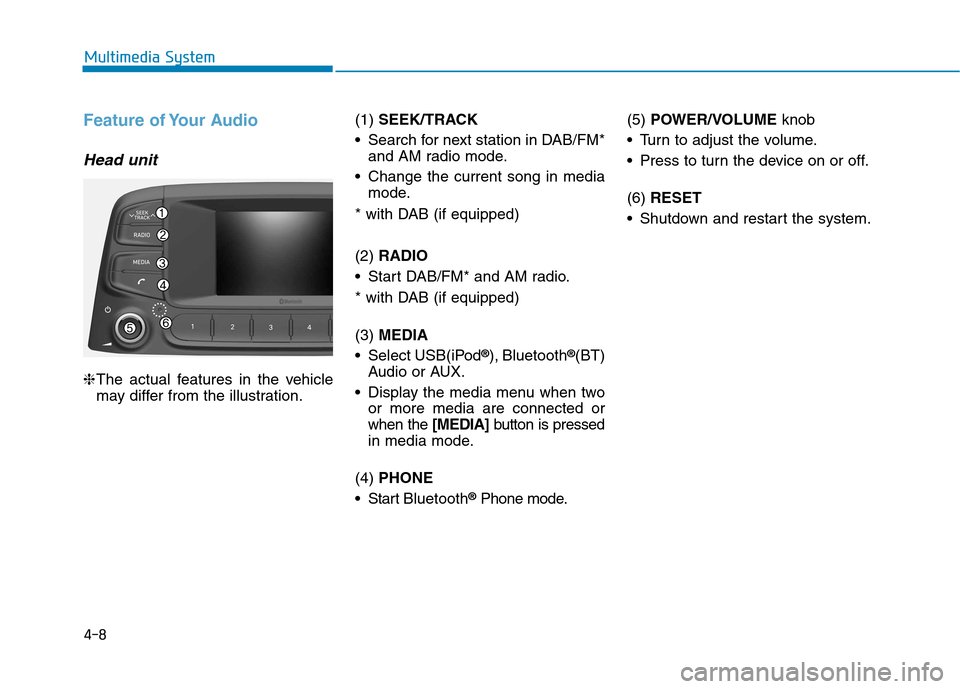
Feature of Your Audio
Head unit
❈The actual features in the vehicle
may differ from the illustration. (1)
SEEK/TRACK
Search for next station in DAB/FM* and AM radio mode.
Change the current song in media mode.
* with DAB (if equipped) (2) RADIO
Start DAB/FM* and AM radio.
* with DAB (if equipped) (3) MEDIA
Select USB(iPod ®
), Bluetooth ®
(BT)
Audio or AUX.
Display the media menu when two or more media are connected or when the [MEDIA]button is pressed
in media mode.
(4) PHONE
Start Bluetooth ®
Phone mode. (5)
POWER/VOLUME knob
Turn to adjust the volume.
Press to turn the device on or off. (6) RESET
Shutdown and restart the system.
Page 231 of 523
4-10
Multimedia System
Steering wheel remote control
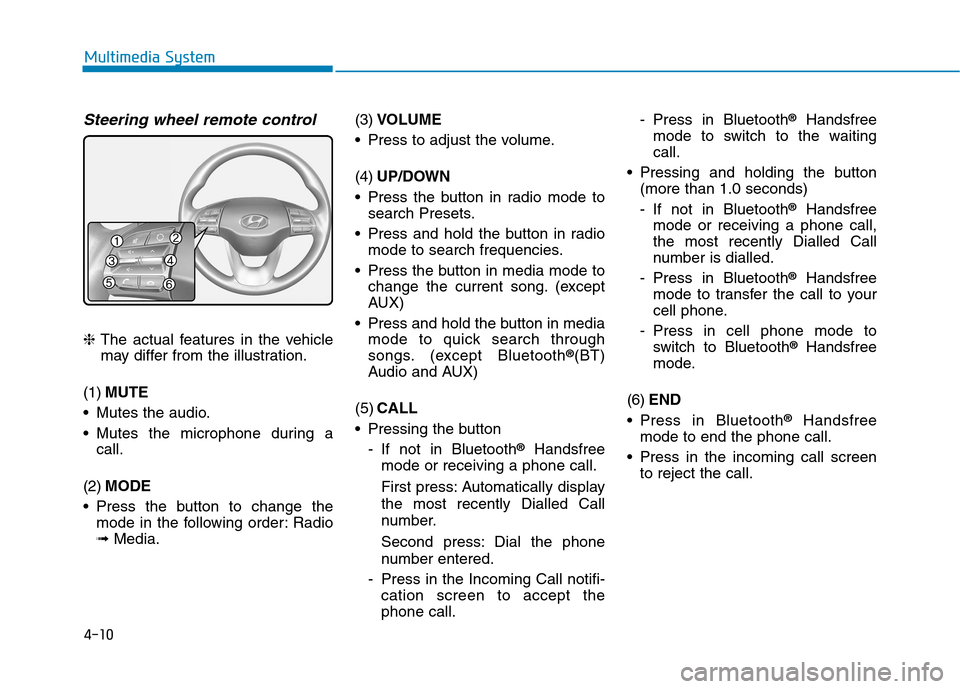
❈The actual features in the vehicle
may differ from the illustration.
(1) MUTE
Mutes the audio.
Mutes the microphone during a call.
(2) MODE
Press the button to change the mode in the following order: Radio ➟ Media. (3)
VOLUME
Press to adjust the volume. (4) UP/DOWN
Press the button in radio mode to search Presets.
Press and hold the button in radio mode to search frequencies.
Press the button in media mode to change the current song. (except
AUX)
Press and hold the button in media mode to quick search through
songs. (except Bluetooth ®
(BT)
Audio and AUX)
(5) CALL
Pressing the button
- If not in Bluetooth ®
Handsfree
mode or receiving a phone call.
First press: Automatically display
the most recently Dialled Call
number.
Second press: Dial the phone
number entered.
- Press in the Incoming Call notifi- cation screen to accept the phone call. - Press in Bluetooth
®
Handsfree
mode to switch to the waitingcall.
Pressing and holding the button (more than 1.0 seconds)
- If not in Bluetooth ®
Handsfree
mode or receiving a phone call,
the most recently Dialled Call
number is dialled.
- Press in Bluetooth ®
Handsfree
mode to transfer the call to your
cell phone.
- Press in cell phone mode to switch to Bluetooth ®
Handsfree
mode.
(6) END
Press in Bluetooth ®
Handsfree
mode to end the phone call.
Press in the incoming call screen to reject the call.
Page 238 of 523
4-17
Multimedia System
4
Operation of HDD, CF, SD andmemory stick devices is not guaran-
teed.
DRM (Digital Rights Management) files cannot be played.
SD-type USB memory, CF-type USB memory, and other USB mem-
ory devices that require adapters
for connection are not supported.
Proper operation of USB HDDs or USB drives with connectors that
loosen due to vehicle vibrations is
not guaranteed. (iStick, etc.)
USB products that are used as key chains or
cell phone accessories
may damage the USB
jack and affect proper
file playback. Please refrain from
use. Use only products with plug
connectors, as shown in the follow-
ing illustration.
When MP3 devices or cell phones are connected simultaneously
through AUX, BT Audio and USB
modes, a popping noise or malfunc-
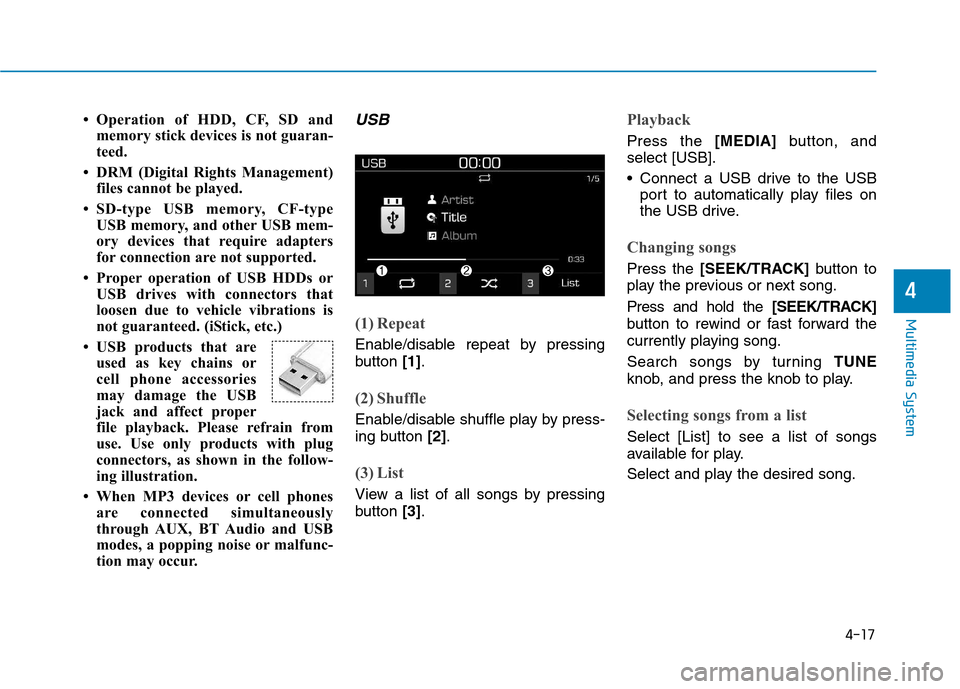
tion may occur.USB
(1) Repeat
Enable/disable repeat by pressing
button [1].
(2) Shuffle
Enable/disable shuffle play by press-
ing button [2].
(3) List
View a list of all songs by pressing
button [3].
Playback
Press the [MEDIA]button, and
select [USB].
Connect a USB drive to the USB port to automatically play files on
the USB drive.
Changing songs
Press the [SEEK/TRACK] button to
play the previous or next song. Press and hold the [SEEK/TRACK]
button to rewind or fast forward the
currently playing song.
Search songs by turning TUNE
knob, and press the knob to play.
Selecting songs from a list
Select [List] to see a list of songs
available for play.
Select and play the desired song.
Page 239 of 523
![Hyundai Kona 2018 Owners Manual 4-18
Multimedia System
Repeat play
Select [Repeat] to enable or disable
‘Repeat all’, ‘Repeat current song’,
‘Repeat folder’ or ‘Repeat category’
play.
Repeat all: Repeat all songs.](/img/35/16231/w960_16231-238.png "Hyundai Kona 2018 Owners Manual 4-18
Multimedia System
Repeat play
Select [Repeat] to enable or disable
‘Repeat all’, ‘Repeat current song’,
‘Repeat folder’ or ‘Repeat category’
play.
Repeat all: Repeat all songs.")
4-18
Multimedia System
Repeat play
Select [Repeat] to enable or disable
‘Repeat all’, ‘Repeat current song’,
‘Repeat folder’ or ‘Repeat category’
play.
Repeat all: Repeat all songs.
Repeat current song: The cur-rently playing song is repeated.
Repeat folder: All songs in the current folder are repeated.
Repeat category: Repeat all songs in the current category.
Information
The repeat folder function is available
only when songs are playing from the
[File] category under [List].
Shuffle play
Select [Shuffle] to enable or disable
‘Shuffle’, ‘Shuffle folder’ or ‘Shuffle
category’ play.
Shuffle: Songs are played in random order.
Shuffle folder: Songs within the current folder are played in ran-
dom order.
Shuffle category: Songs within the current category are played in
random order.
Menu
Press the [MENU]button, and select
the desired function.
Information: Detailed information on the song that is currently play-
ing is displayed.
Sound Settings: Audio sound set- tings can be changed. Information
- Using the iPod
®
Devices
To use the audio system’s iPod ®
con-
trol function, use the dedicated
cable provided with your iPod ®
.
Connecting the iPod ®
to the vehicle
during play may result in a loud
noise that lasts about one to two sec-
onds. Connect the iPod ®
to the vehi-
cle after stopping or pausing play.
Connect the iPod ®
with the vehicle
in the ACC ON state to begin charg-
ing.
When connecting the iPod ®
cable,
be sure to fully push the cable into
the port.
When EQ effects are enabled simul- taneously on external devices, such
as iPod ®
s and the audio system, the
EQ effects may overlap, causing
sound quality deterioration or dis-
tortion. Deactivate the EQ function
for all external devices, if possible.
Noise may occur when your iPod ®
or the AUX port is connected.
Disconnect and store separately
when not in use.
i
i
Page 240 of 523
4-19
Multimedia System
4
There may be noise if the audio sys-tem is used with an iPod ®
or AUX
external device connected to the
power jack. In these cases, discon-
nect the iPod ®
or external device
from the power jack.
Play may be interrupted, or device malfunctions may occur depending
on the characteristics of your
iPod ®
/iPhone ®
.
Play may fail if your iPhone ®
is con-
nected through both Bluetooth ®
and
USB. In this case, select Dock con-
nector or Bluetooth ®
on your
iPhone ®
to change the sound output
settings.
If your software version does not support the communication proto-
col or your iPod ®
is not recognized
due to device failure, anomalies or
defects, iPod ®
mode cannot be used.
iPod ®
nano (5th generation) devices
may not be recognized if the battery
is low. Charge sufficiently before
use.
The search and song play order in the iPod ®
device may be different
from the search order in the audio
system. If the iPod
®
has failed due to an
internal defect, please reset the
iPod ®
(consult your iPod ®
manual).
Depending on the software version, the iPod ®
may fail to sync with the
system. If the media is removed or
disconnected before recognition, the
previous mode may not be restored
(iPad ®
cannot be charged).
Cables other than the 1-meter cable provided with iPod ®
/iPhone ®
prod-
ucts may not be recognized.
When other music apps are used on your iPod ®
, the system sync func-
tion may fail due to malfunction of
the iPod ®
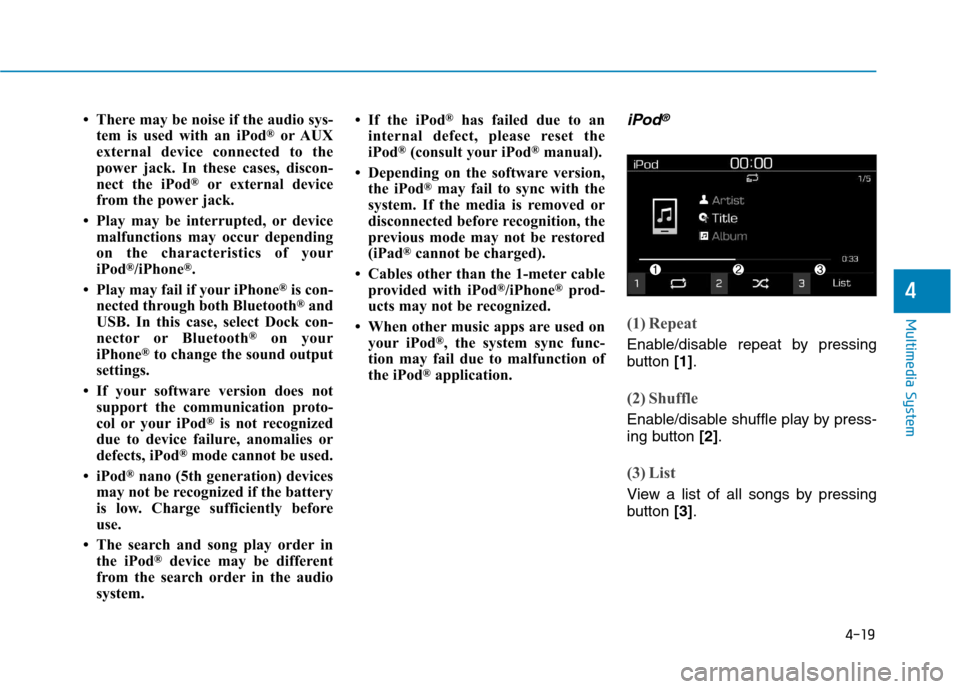
application.iPod®
(1) Repeat
Enable/disable repeat by pressing
button [1].
(2) Shuffle
Enable/disable shuffle play by press-
ing button [2].
(3) List
View a list of all songs by pressing
button [3].
Page 244 of 523
![Hyundai Kona 2018 Owners Manual 4-23
Multimedia System
4
AUX
Running AUX
Press the [MEDIA]button, and
select [AUX].
Connect the external device con- nection jack to the AUX terminal to
run AUX.
Menu
Press the [MENU]button and se](/img/35/16231/w960_16231-243.png "Hyundai Kona 2018 Owners Manual 4-23
Multimedia System
4
AUX
Running AUX
Press the [MEDIA]button, and
select [AUX].
Connect the external device con- nection jack to the AUX terminal to
run AUX.
Menu
Press the [MENU]button and se")
4-23
Multimedia System
4
AUX
Running AUX
Press the [MEDIA]button, and
select [AUX].
Connect the external device con- nection jack to the AUX terminal to
run AUX.
Menu
Press the [MENU]button and select
the desired function.
Sound Settings: Audio sound set- tings can be changed.
Phone
Information
- Using Bluetooth ®
(BT) Phone
Bluetooth ®
is a near-field wireless
networking technology that uses the
2.4 GHz frequency to connect vari-
ous devices within a certain distance
wirelessly.
The technology is used in PCs, peripherals, Bluetooth ®
phones,
tablet PCs, household appliances
and automobiles. Devices support-
ing Bluetooth ®
can exchange data at
high speeds without physical cable
connections.
Bluetooth ®
Handsfree devices
enable convenient access to phone
functions through cell phones
equipped with Bluetooth ®
.
Some Bluetooth ®
devices may not be
supported by the Bluetooth ®
Handsfree function.
When Bluetooth ®
is connected and
calls are attempted through a con-
nected cell phone from outside the
vehicle, the call is connected
through the Bluetooth ®
Handsfree
function of the vehicle. Please be sure to disconnect the
Bluetooth ®
Handsfree function
through your Bluetooth ®
device or
the audio screen.
The Bluetooth ®
Handsfree function
helps drivers to drive safely. By con-
necting a Bluetooth ®
-enabled phone
to the vehicle’s audio system, phone
calls can be made and received
through the audio system and con-
tacts can be managed. Consult the
user manual before use.
Excessive manipulation of controls while driving, making it difficult to
pay attention to the road ahead, can
lead to accidents. Do not operate the
device excessively while driving.
Looking at the screen for a pro- longed time increases the risk of
accidents. Keep time spent looking
at the screen to a minimum.i
Page 513 of 523
I-2Air bag warning labels .................................................2-64
Air bags.........................................................................2-45
Driver's air bag .........................................................2-48
Passenger's front air bag ..........................................2-48
Passenger's front air bag ON/OFF switch................2-49
Side air bags .............................................................2-51
Curtain air bags ........................................................2-52
How does the air bags system operate? ...................2-53
SRS components and functions ...............................2-53
SRS warning light ....................................................2-54
What to expect after an air bag inflates ...................2-57
Do not install a child restraint on the front passenger seat ........................................................2-58
Air bag collision sensors ..........................................2-58
Why didn't my air bag go off in a collision .............2-58
Air bag inflation conditions .....................................2-60
Air bag non-inflation conditions ..............................2-61
SRS Care ..................................................................2-63
Additional safety precautions ..................................2-63
Air bag warning labels .............................................2-64
Air cleaner ....................................................................7-28
Air conditioner compressor label .................................8-11
Air conditioning refrigerant label .......................3-115, 123
Air conditioning system specification ............................8-5
Alarm system ................................................................3-16
Antenna ...........................................................................4-2
Anti-lock brake system (ABS) .....................................5-31 Appearance care ...........................................................7-78
Exterior care .............................................................7-78
Interior care ..............................................................7-82
Armrest .........................................................................2-14
Audio / Video / Navigation system ................................4-4
Auto defogging system ...............................................3-126
Auto light position ........................................................3-83
Automatic climate control system ..............................3-116
Automatic ventilation .................................................3-127
Aux, USB and iPod ........................................................4-2
Battery...........................................................................7-32 Battery recharging ....................................................7-34
Battery saver function...................................................3-90
Before driving .................................................................5-4
Blade type fuse .............................................................7-48
Blind-spot Collsion Warning (BCW) system ...............5-55
Bluetooth ®
Wireless Technology hands-free ..................4-4
Bottle holder ...............................................................3-131
Brake system.................................................................5-28 Power brakes ............................................................5-28
Disc brakes wear indicator.......................................5-29
Parking brake ...........................................................5-29
Anti-lock brake system (ABS).................................5-31
Electronic stability control (ESC) ............................5-33
Vehicle stability management (VSM) ......................5-36
Hill-start assist control (HAC) .................................5-37
Index
A
B