display Hyundai Kona 2020 Manual PDF
[x] Cancel search | Manufacturer: HYUNDAI, Model Year: 2020, Model line: Kona, Model: Hyundai Kona 2020Pages: 505, PDF Size: 13.47 MB
Page 321 of 505
5-87
Driving your vehicle
5
LKA system Function Change
The driver can change LKA to Lane
Departure Warning (LDW) system or
change the LKA system mode
between Standard LKA and Active
LKA from the LCD display. Go to the
'User Settings →Driver Assistance →
Lane Keeping Assist → Lane
Departure Warning/Standard
LKA/Active LKA'.
Lane Departure Warning
LDW system alerts the driver with a
visual warning and a warning alarm
when the system detects the vehicle
departing the lane. The steering
wheel will not be controlled.
Standard LKA
The Standard LKA mode guides the
driver to help keep the vehicle within
the lanes. It rarely controls the steer-
ing wheel, when the vehicle drives
well inside the lanes. However, it
starts to control the steering wheel,
when the vehicle is about to deviate
out of the lanes.
Active LKA
The Active LKA mode provides more
frequent steering wheel control in
comparison with the Standard LKA
mode. Active LKA can help reduce
the driver's fatigue to assist the
steering for maintaining the vehicle
in the middle of the lane.
Information
This device complies with Part 15 of
the FCC rules.
Operation is subject to the following
two conditions:
1. This device may not cause harmful interference.
2. This device must accept any inter- ference received, including interfer-
ence that may cause undesired
operation.
i
Page 322 of 505
5-88
Driving your vehicle
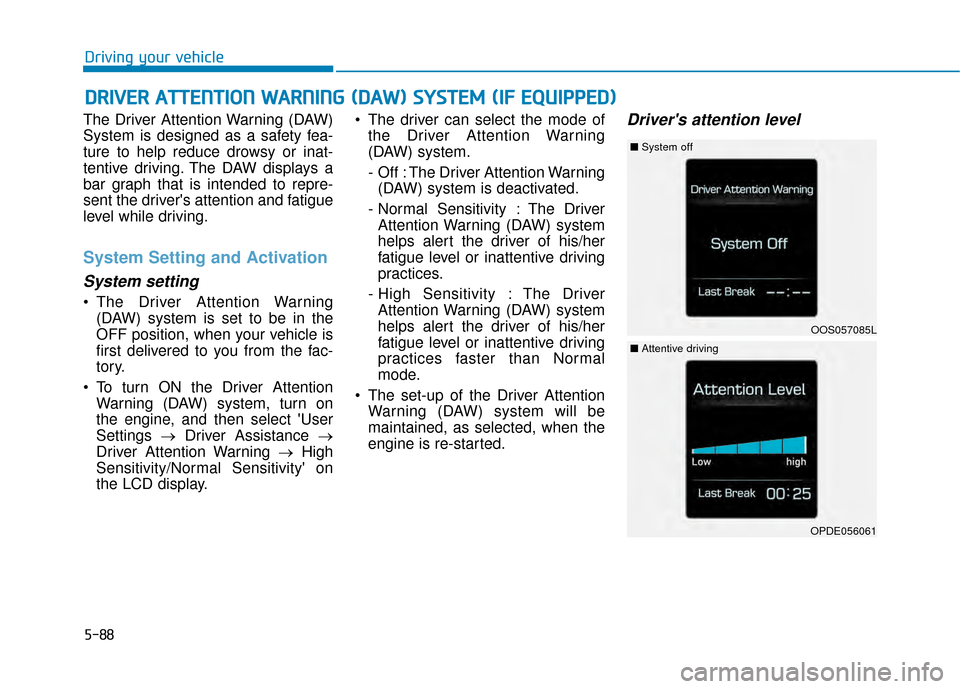
The Driver Attention Warning (DAW)
System is designed as a safety fea-
ture to help reduce drowsy or inat-
tentive driving. The DAW displays a
bar graph that is intended to repre-
sent the driver's attention and fatigue
level while driving.
System Setting and Activation
System setting
The Driver Attention Warning (DAW) system is set to be in the
OFF position, when your vehicle is
first delivered to you from the fac-
tory.
To turn ON the Driver Attention Warning (DAW) system, turn on
the engine, and then select 'User
Settings →Driver Assistance →
Driver Attention Warning →High
Sensitivity/Normal Sensitivity' on
the LCD display. The driver can select the mode of
the Driver Attention Warning
(DAW) system.
- Off : The Driver Attention Warning(DAW) system is deactivated.
- Normal Sensitivity : The Driver Attention Warning (DAW) system
helps alert the driver of his/her
fatigue level or inattentive driving
practices.
- High Sensitivity : The Driver Attention Warning (DAW) system
helps alert the driver of his/her
fatigue level or inattentive driving
practices faster than Normal
mode.
The set-up of the Driver Attention Warning (DAW) system will be
maintained, as selected, when the
engine is re-started.
Driver's attention level
D DR
RI
IV
V E
ER
R
A
A T
TT
TE
EN
N T
TI
IO
O N
N
W
W A
AR
RN
N I
IN
N G
G
(
( D
D A
A W
W )
)
S
S Y
Y S
ST
T E
EM
M
(
( I
IF
F
E
E Q
Q U
UI
IP
P P
PE
ED
D )
)
OOS057085L
■ System off
OPDE056061
■Attentive driving
Page 323 of 505
5-89
Driving your vehicle
5
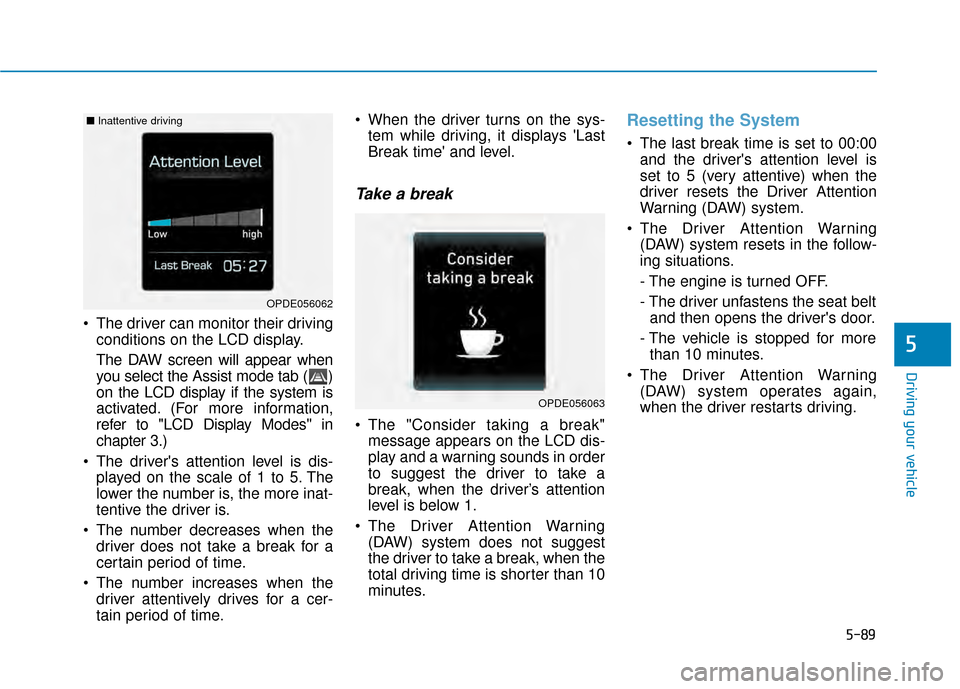
The driver can monitor their drivingconditions on the LCD display.
The DAW screen will appear when
you select the Assist mode tab ( )
on the LCD display if the system is
activated. (For more information,
refer to "LCD Display Modes" in
chapter 3.)
The driver's attention level is dis- played on the scale of 1 to 5. The
lower the number is, the more inat-
tentive the driver is.
The number decreases when the driver does not take a break for a
certain period of time.
The number increases when the driver attentively drives for a cer-
tain period of time. When the driver turns on the sys-
tem while driving, it displays 'Last
Break time' and level.
Take a break
The "Consider taking a break"message appears on the LCD dis-
play and a warning sounds in order
to suggest the driver to take a
break, when the driver’s attention
level is below 1.
The Driver Attention Warning (DAW) system does not suggest
the driver to take a break, when the
total driving time is shorter than 10
minutes.
Resetting the System
The last break time is set to 00:00and the driver's attention level is
set to 5 (very attentive) when the
driver resets the Driver Attention
Warning (DAW) system.
The Driver Attention Warning (DAW) system resets in the follow-
ing situations.
- The engine is turned OFF.
- The driver unfastens the seat beltand then opens the driver's door.
- The vehicle is stopped for more than 10 minutes.
The Driver Attention Warning (DAW) system operates again,
when the driver restarts driving.
OPDE056063
OPDE056062
■ Inattentive driving
Page 324 of 505
5-90
Driving your vehicle
System Standby
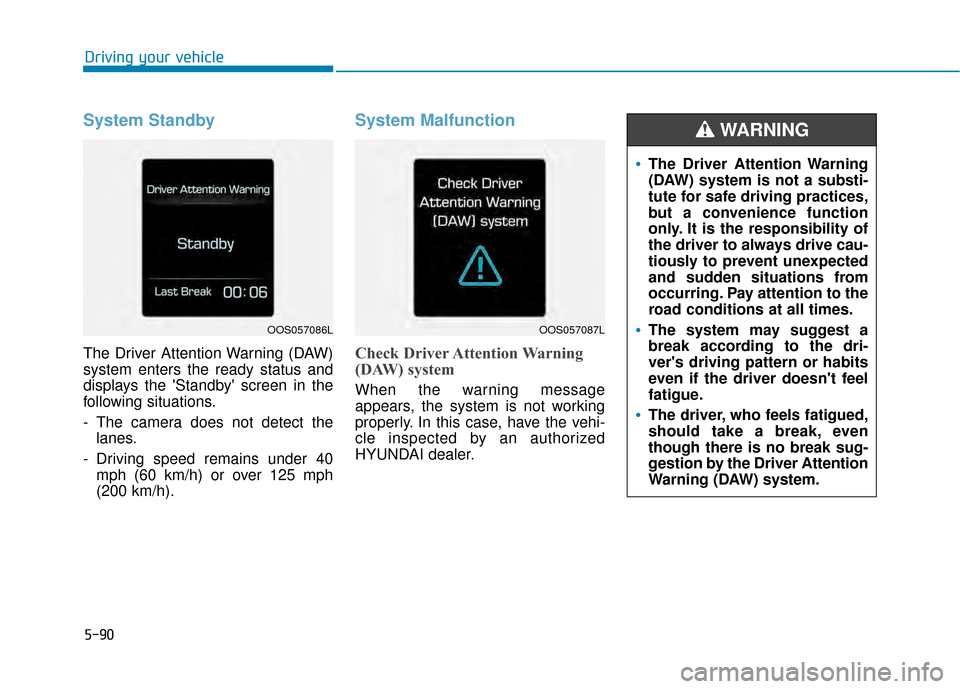
The Driver Attention Warning (DAW)
system enters the ready status and
displays the 'Standby' screen in the
following situations.
- The camera does not detect thelanes.
- Driving speed remains under 40 mph (60 km/h) or over 125 mph
(200 km/h).
System Malfunction
Check Driver Attention Warning
(DAW) system
When the warning message
appears, the system is not working
properly. In this case, have the vehi-
cle inspected by an authorized
HYUNDAI dealer.
The Driver Attention Warning
(DAW) system is not a substi-
tute for safe driving practices,
but a convenience function
only. It is the responsibility of
the driver to always drive cau-
tiously to prevent unexpected
and sudden situations from
occurring. Pay attention to the
road conditions at all times.
The system may suggest a
break according to the dri-
ver's driving pattern or habits
even if the driver doesn't feel
fatigue.
The driver, who feels fatigued,
should take a break, even
though there is no break sug-
gestion by the Driver Attention
Warning (DAW) system.
WARNING
OOS057086LOOS057087L
Page 331 of 505
5-97
Driving your vehicle
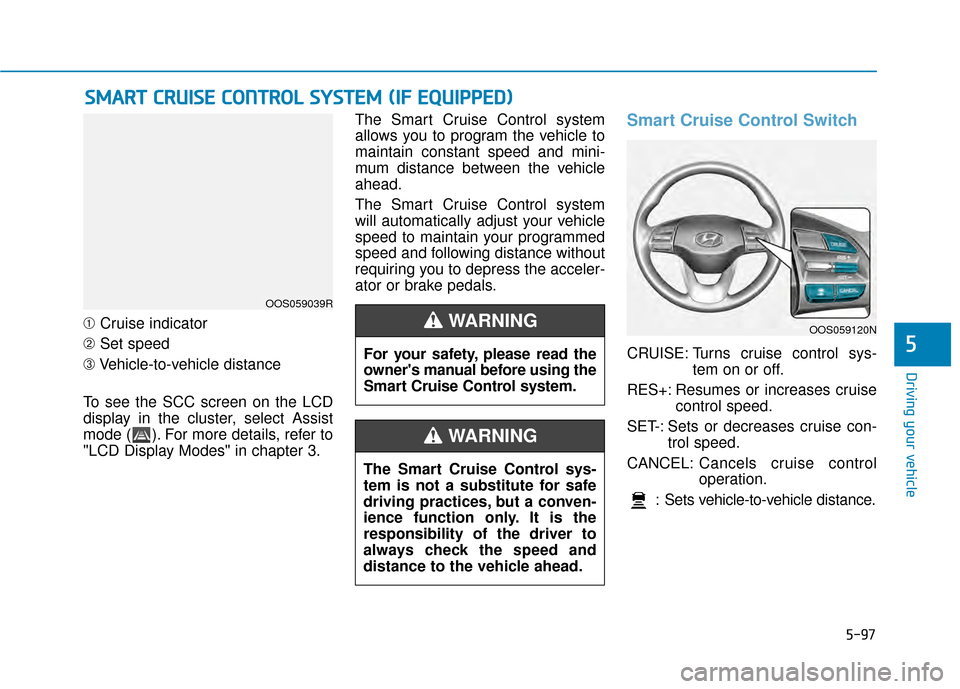
➀Cruise indicator
➁ Set speed
➂ Vehicle-to-vehicle distance
To see the SCC screen on the LCD
display in the cluster, select Assist
mode ( ). For more details, refer to
"LCD Display Modes" in chapter 3. The Smart Cruise Control system
allows you to program the vehicle to
maintain constant speed and mini-
mum distance between the vehicle
ahead.
The Smart Cruise Control system
will automatically adjust your vehicle
speed to maintain your programmed
speed and following distance without
requiring you to depress the acceler-
ator or brake pedals.
Smart Cruise Control Switch
CRUISE: Turns cruise control sys-
tem on or off.
RES+: Resumes or increases cruise control speed.
SET-: Sets or decreases cruise con- trol speed.
CANCEL: Cancels cruise control
operation.
: Sets vehicle-to-vehicle distance.
S
S M
M A
AR
RT
T
C
C R
R U
U I
IS
S E
E
C
C O
O N
NT
TR
R O
O L
L
S
S Y
Y S
ST
T E
EM
M
(
( I
IF
F
E
E Q
Q U
UI
IP
P P
PE
ED
D )
)
5
OOS059039R
OOS059120N
For your safety, please read the
owner's manual before using the
Smart Cruise Control system.
WARNING
The Smart Cruise Control sys-
tem is not a substitute for safe
driving practices, but a conven-
ience function only. It is the
responsibility of the driver to
always check the speed and
distance to the vehicle ahead.
WARNING
Page 332 of 505
5-98
Smart Cruise Control Speed
To set Smart Cruise Controlspeed
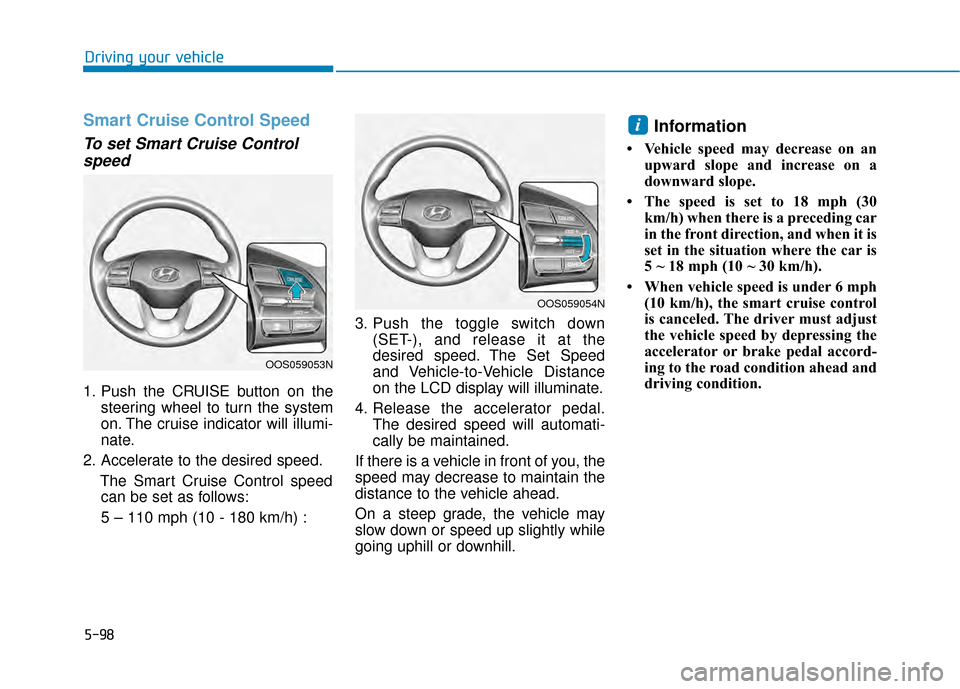
1. Push the CRUISE button on the
steering wheel to turn the system
on. The cruise indicator will illumi-
nate.
2. Accelerate to the desired speed. The Smart Cruise Control speedcan be set as follows:
5 – 110 mph (10 - 180 km/h) : 3. Push the toggle switch down
(SET-), and release it at the
desired speed. The Set Speed
and Vehicle-to-Vehicle Distance
on the LCD display will illuminate.
4. Release the accelerator pedal. The desired speed will automati-
cally be maintained.
If there is a vehicle in front of you, the
speed may decrease to maintain the
distance to the vehicle ahead.
On a steep grade, the vehicle may
slow down or speed up slightly while
going uphill or downhill.
Information
• Vehicle speed may decrease on an upward slope and increase on a
downward slope.
• The speed is set to 18 mph (30 km/h) when there is a preceding car
in the front direction, and when it is
set in the situation where the car is
5 ~ 18 mph (10 ~ 30 km/h).
• When vehicle speed is under 6 mph (10 km/h), the smart cruise control
is canceled. The driver must adjust
the vehicle speed by depressing the
accelerator or brake pedal accord-
ing to the road condition ahead and
driving condition.
i
Driving your vehicle
OOS059053N
OOS059054N
Page 334 of 505
5-100
To temporarily accelerate withthe Smart Cruise Control on
If you want to speed up temporarily
when the Smart Cruise Control is on,
depress the accelerator pedal.
Increased speed will not interfere
with Smart Cruise Control operation
or change the set speed.
To return to the set speed, take your
foot off the accelerator pedal.
If you push the toggle lever down
(SET-) at increased speed, the cruis-
ing speed will be set again pedal.
Smart Cruise Control set speedwill be temporarily canceledwhen:
Canceled manually
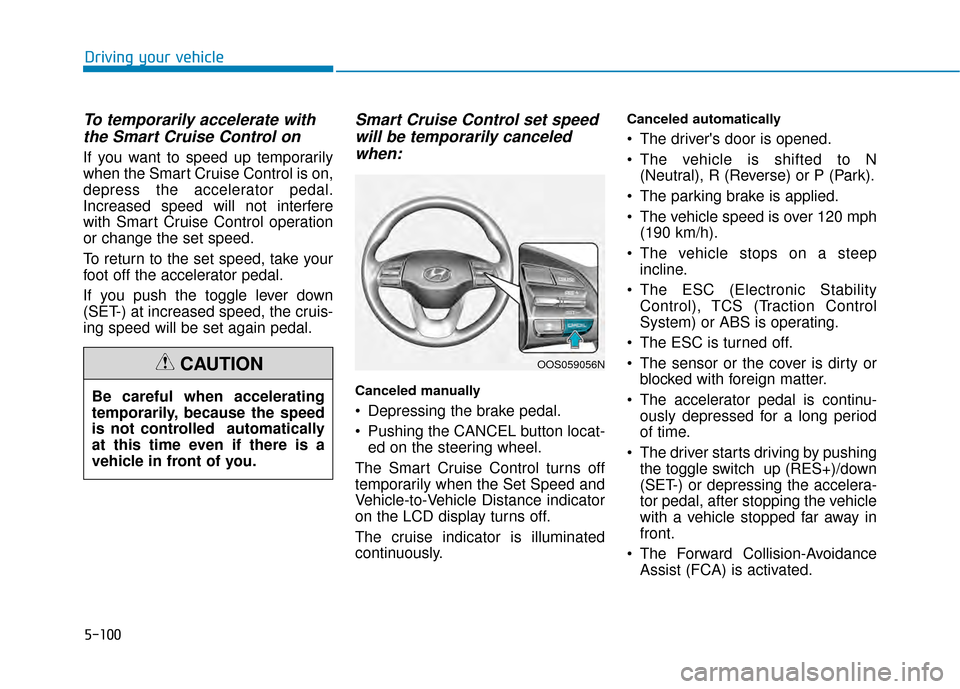
Depressing the brake pedal.
Pushing the CANCEL button locat-
ed on the steering wheel.
The Smart Cruise Control turns off
temporarily when the Set Speed and
Vehicle-to-Vehicle Distance indicator
on the LCD display turns off.
The cruise indicator is illuminated
continuously.
Canceled automatically
The driver's door is opened.
The vehicle is shifted to N (Neutral), R (Reverse) or P (Park).
The parking brake is applied.
The vehicle speed is over 120 mph (190 km/h).
The vehicle stops on a steep incline.
The ESC (Electronic Stability Control), TCS (Traction Control
System) or ABS is operating.
The ESC is turned off.
The sensor or the cover is dirty or blocked with foreign matter.
The accelerator pedal is continu- ously depressed for a long period
of time.
The driver starts driving by pushing the toggle switch up (RES+)/down
(SET-) or depressing the accelera-
tor pedal, after stopping the vehicle
with a vehicle stopped far away in
front.
The Forward Collision-Avoidance Assist (FCA) is activated.
Driving your vehicle
Be careful when accelerating
temporarily, because the speed
is not controlled automatically
at this time even if there is a
vehicle in front of you.
CAUTIONOOS059056N
Page 337 of 505
5-103
Driving your vehicle
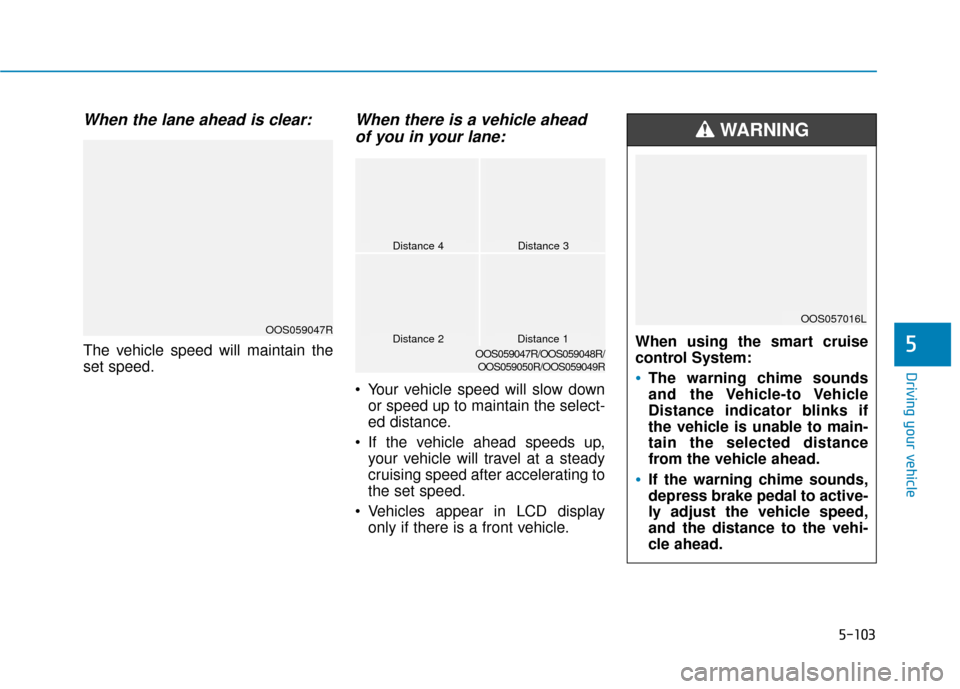
When the lane ahead is clear:
The vehicle speed will maintain the
set speed.
When there is a vehicle aheadof you in your lane:
Your vehicle speed will slow down
or speed up to maintain the select-
ed distance.
If the vehicle ahead speeds up, your vehicle will travel at a steady
cruising speed after accelerating to
the set speed.
Vehicles appear in LCD display only if there is a front vehicle.
5
OOS059047R
Distance 4Distance 3
Distance 1Distance 2OOS059047R/OOS059048R/
OOS059050R/OOS059049RWhen using the smart cruise
control System:
The warning chime sounds
and the Vehicle-to Vehicle
Distance indicator blinks if
the vehicle is unable to main-
tain the selected distance
from the vehicle ahead.
If the warning chime sounds,
depress brake pedal to active-
ly adjust the vehicle speed,
and the distance to the vehi-
cle ahead.
WARNING
OOS057016L
Page 340 of 505
5-106
Warning message
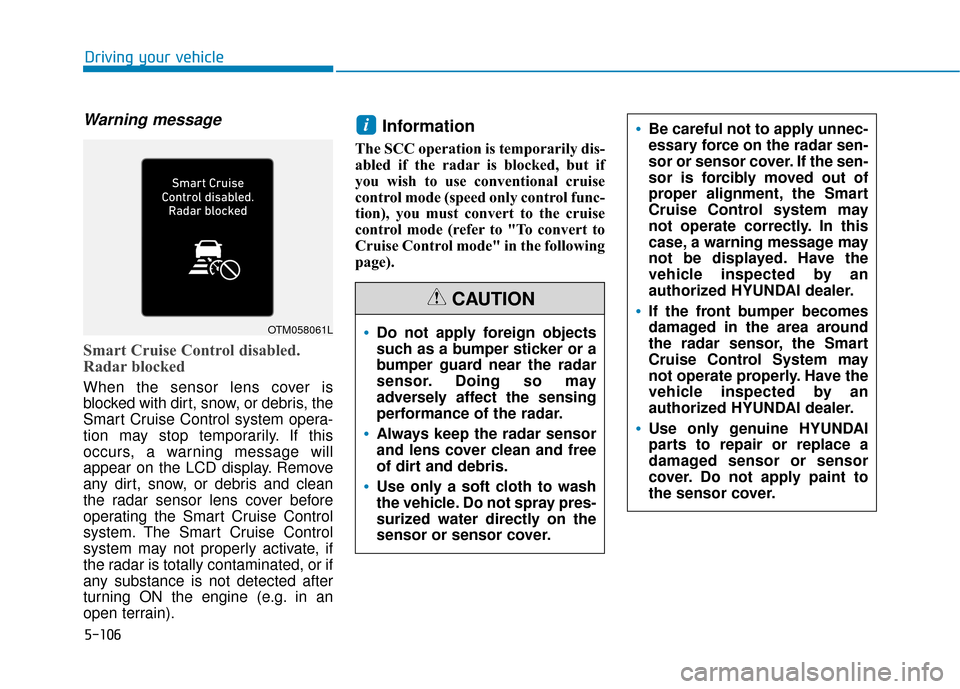
Smart Cruise Control disabled.
Radar blocked
When the sensor lens cover is
blocked with dirt, snow, or debris, the
Smart Cruise Control system opera-
tion may stop temporarily. If this
occurs, a warning message will
appear on the LCD display. Remove
any dirt, snow, or debris and clean
the radar sensor lens cover before
operating the Smart Cruise Control
system. The Smart Cruise Control
system may not properly activate, if
the radar is totally contaminated, or if
any substance is not detected after
turning ON the engine (e.g. in an
open terrain).
Information
The SCC operation is temporarily dis-
abled if the radar is blocked, but if
you wish to use conventional cruise
control mode (speed only control func-
tion), you must convert to the cruise
control mode (refer to "To convert to
Cruise Control mode" in the following
page).
i
Driving your vehicle
OTM058061LDo not apply foreign objects
such as a bumper sticker or a
bumper guard near the radar
sensor. Doing so may
adversely affect the sensing
performance of the radar.
Always keep the radar sensor
and lens cover clean and free
of dirt and debris.
Use only a soft cloth to wash
the vehicle. Do not spray pres-
surized water directly on the
sensor or sensor cover.
CAUTION
Be careful not to apply unnec-
essary force on the radar sen-
sor or sensor cover. If the sen-
sor is forcibly moved out of
proper alignment, the Smart
Cruise Control system may
not operate correctly. In this
case, a warning message may
not be displayed. Have the
vehicle inspected by an
authorized HYUNDAI dealer.
If the front bumper becomes
damaged in the area around
the radar sensor, the Smart
Cruise Control System may
not operate properly. Have the
vehicle inspected by an
authorized HYUNDAI dealer.
Use only genuine HYUNDAI
parts to repair or replace a
damaged sensor or sensor
cover. Do not apply paint to
the sensor cover.
Page 341 of 505
5-107
Driving your vehicle
Check Smart Cruise Control System
The message will appear when the
vehicle to vehicle distance control
system is not functioning normally.
Take your vehicle to an authorized
HYUNDAI dealer and have the sys-
tem checked.
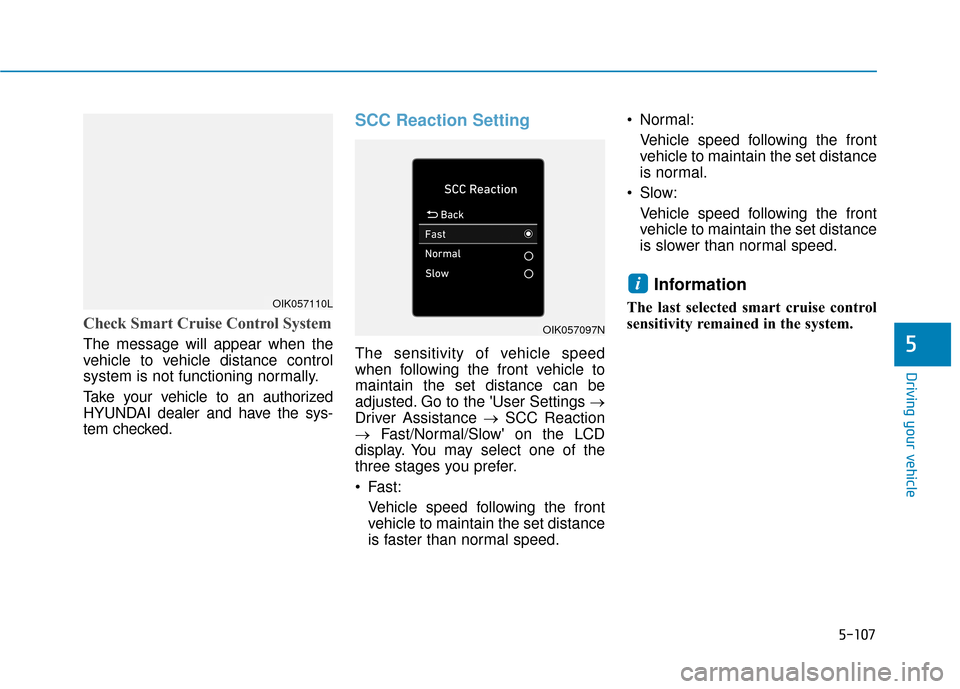
SCC Reaction Setting
The sensitivity of vehicle speed
when following the front vehicle to
maintain the set distance can be
adjusted. Go to the 'User Settings →
Driver Assistance →SCC Reaction
→ Fast/Normal/Slow' on the LCD
display. You may select one of the
three stages you prefer.
Fast:
Vehicle speed following the front
vehicle to maintain the set distance
is faster than normal speed. Normal:
Vehicle speed following the front
vehicle to maintain the set distance
is normal.
Slow: Vehicle speed following the front
vehicle to maintain the set distance
is slower than normal speed.
Information
The last selected smart cruise control
sensitivity remained in the system.
i
5
OIK057110L
OIK057097N