Change HYUNDAI KONA 2022 Manual Online
[x] Cancel search | Manufacturer: HYUNDAI, Model Year: 2022, Model line: KONA, Model: HYUNDAI KONA 2022Pages: 579, PDF Size: 35.31 MB
Page 400 of 579
Driver assistance system
7-68
OTM070142N
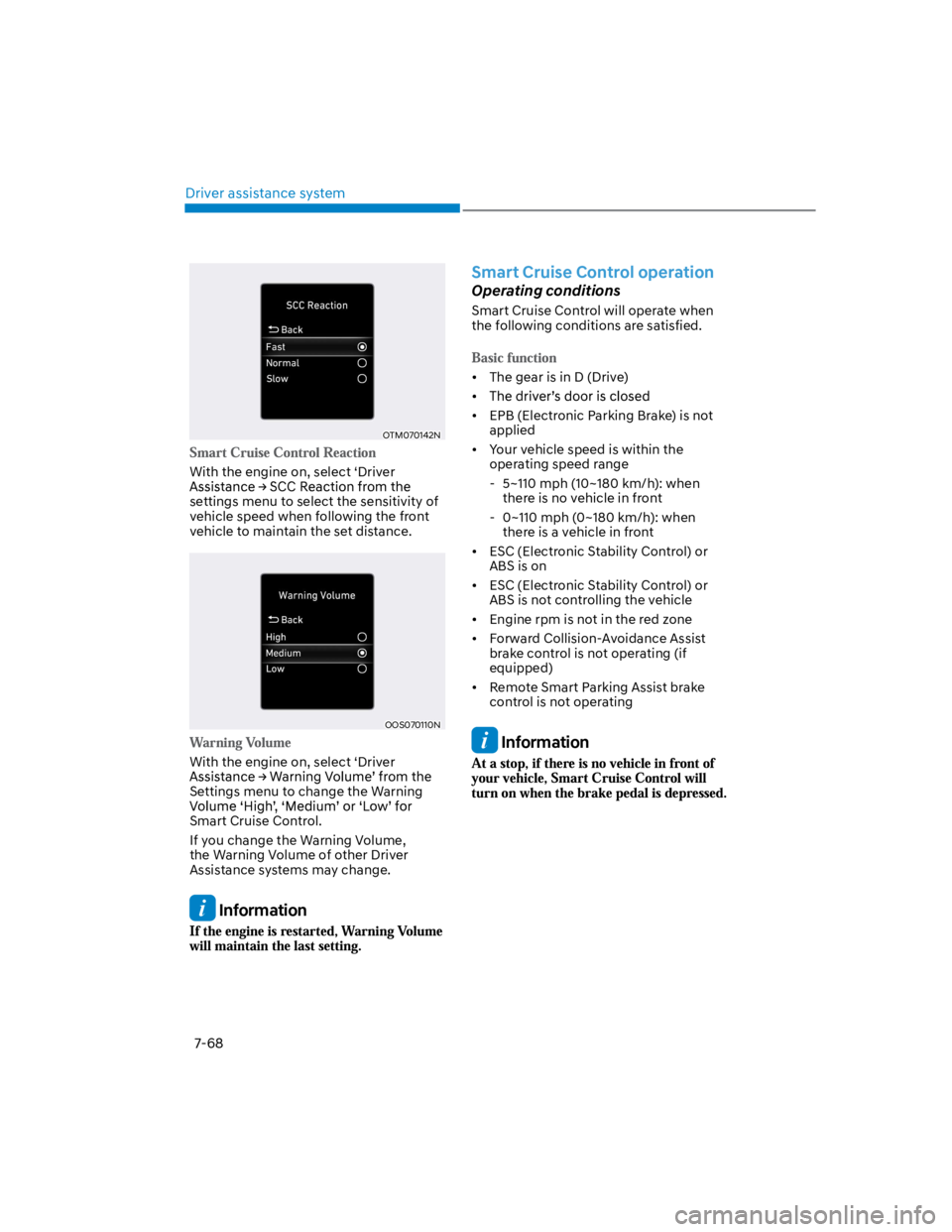
With the engine on, select ‘Driver
settings menu to select the sensitivity of
vehicle speed when following the front
vehicle to maintain the set distance.
OOS070110N
With the engine on, select ‘Driver
Settings menu to change the Warning
Smart Cruise Control.
If you change the Warning Volume,
the Warning Volume of other Driver
Assistance systems may change.
Information
Smart Cruise Control operation
Operating conditions
Smart Cruise Control will operate when
the following conditions are satisfied.
The gear is in D (Drive)
EPB (Electronic Parking Brake) is not
applied
Your vehicle speed is within the
operating speed range
- 5~110 mph (10~180 km/h): when
there is no vehicle in front
- 0~110 mph (0~180 km/h): when
there is a vehicle in front
ESC (Electronic Stability Control) or
ABS is on
ESC (Electronic Stability Control) or
ABS is not controlling the vehicle
Engine rpm is not in the red zone
Forward Collision-Avoidance Assist
brake control is not operating (if
equipped)
Remote Smart Parking Assist brake
control is not operating
Information
Page 406 of 579
Driver assistance system
7-74
When you are towing a trailer or
another vehicle, we recommend that
Smart Cruise Control is turned off
due to safety reasons.
Turn off Smart Cruise Control when
your vehicle is being towed.
Smart Cruise Control may not
operate normally if interfered by
strong electromagnetic waves.
Smart Cruise Control may not
detect an obstacle in front and lead
to a collision. Always look ahead
cautiously to prevent unexpected
and sudden situations from
occurring.
Vehicles moving in front of you with
a frequent lane change may cause
a delay in Smart Cruise Control
reaction or may cause Smart Cruise
Control to react to a vehicle actually
in an adjacent lane. Always drive
cautiously to prevent unexpected
and sudden situations from
occurring.
Always be aware of the surroundings
and drive safely, even though a
warning message does not appear or
an audible warning does not sound.
If any other function’s warning
message is displayed or warning
sound is generated, Smart Cruise
Control warning message may not
be displayed and warning sound may
not be generated.
You may not hear the warning sound
of Forward Collision-Avoidance
Assist if the surrounding is noisy.
The vehicle manufacturer is not
responsible for any traffic violation
or accidents caused by the driver.
Always set the vehicle speed to the
speed limit in your country.
Information
Smart Cruise Control
malfunction and limitations
Smart Cruise Control malfunction
OTM070116N
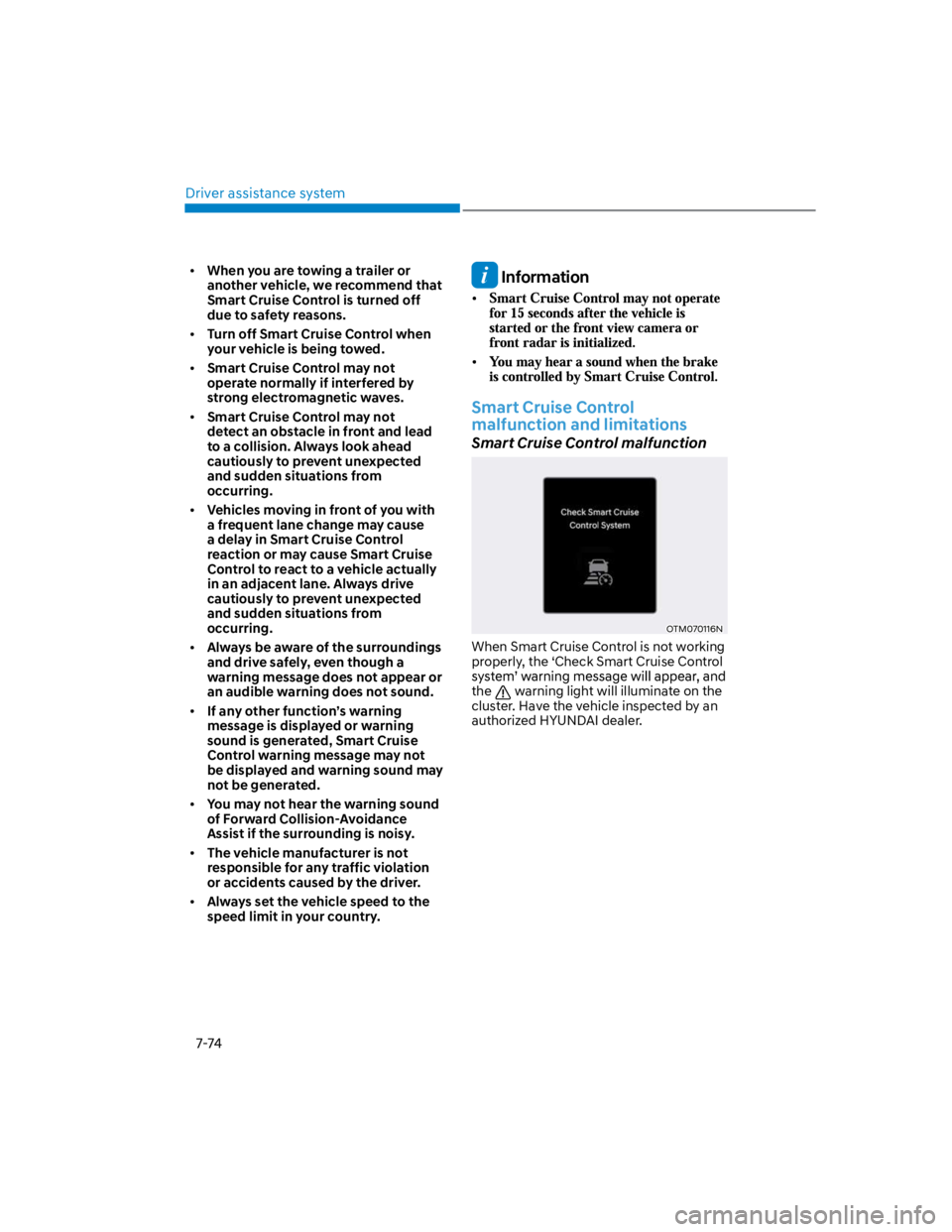
When Smart Cruise Control is not working
properly, the ‘Check Smart Cruise Control
the warning light will illuminate on the
cluster. Have the vehicle inspected by an
authorized HYUNDAI dealer.
Page 407 of 579
07
7-75
Smart Cruise Control disabled
OTM070115N
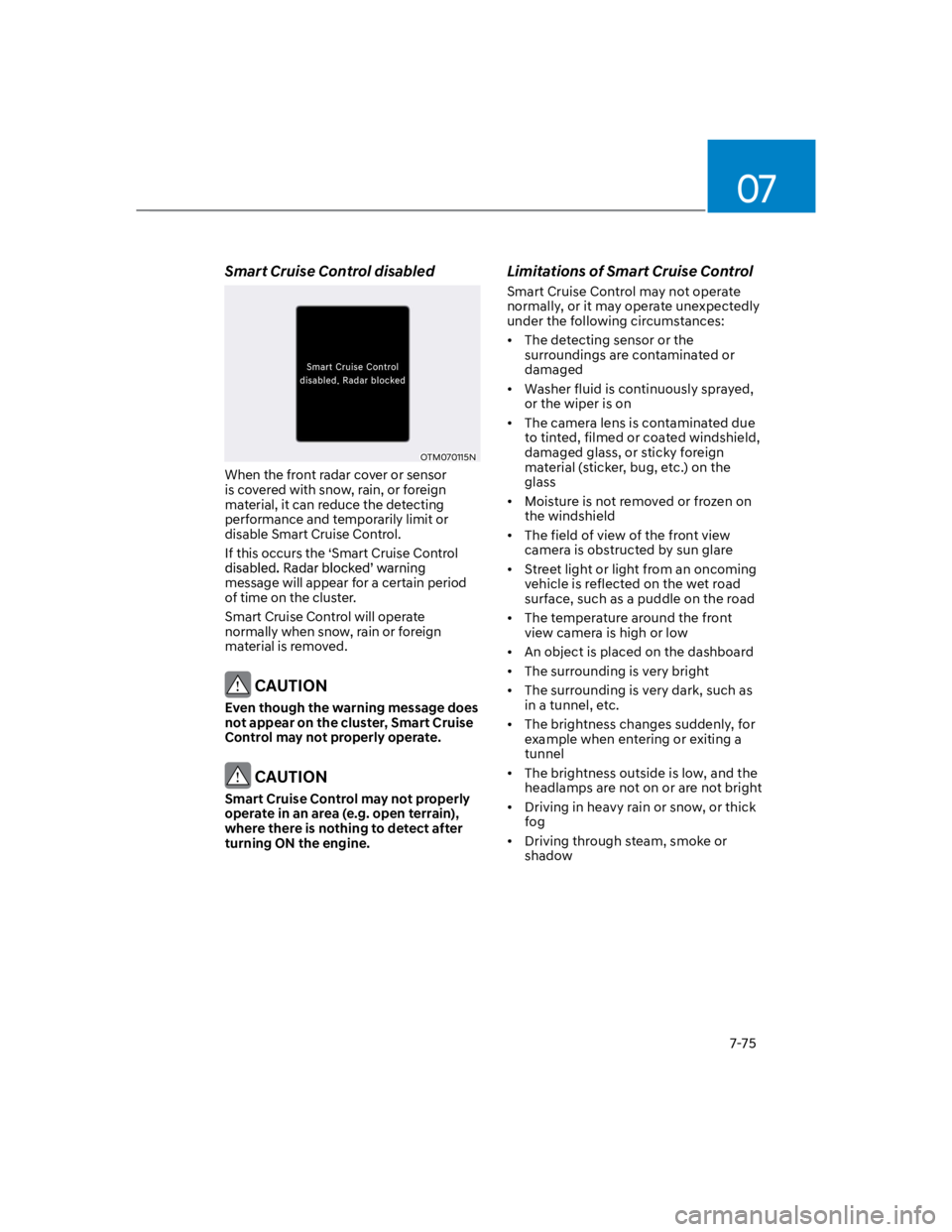
When the front radar cover or sensor
is covered with snow, rain, or foreign
material, it can reduce the detecting
performance and temporarily limit or
disable Smart Cruise Control.
If this occurs the ‘Smart Cruise Control
message will appear for a certain period
of time on the cluster.
Smart Cruise Control will operate
normally when snow, rain or foreign
material is removed.
CAUTION
Even though the warning message does
not appear on the cluster, Smart Cruise
Control may not properly operate.
CAUTION
Smart Cruise Control may not properly
operate in an area (e.g. open terrain),
where there is nothing to detect after
turning ON the engine.
Limitations of Smart Cruise Control
Smart Cruise Control may not operate
normally, or it may operate unexpectedly
under the following circumstances:
The detecting sensor or the
surroundings are contaminated or
damaged
Washer fluid is continuously sprayed,
or the wiper is on
The camera lens is contaminated due
to tinted, filmed or coated windshield,
damaged glass, or sticky foreign
material (sticker, bug, etc.) on the
glass
Moisture is not removed or frozen on
the windshield
The field of view of the front view
camera is obstructed by sun glare
Street light or light from an oncoming
vehicle is reflected on the wet road
surface, such as a puddle on the road
The temperature around the front
view camera is high or low
An object is placed on the dashboard
The surrounding is very bright
The surrounding is very dark, such as
in a tunnel, etc.
The brightness changes suddenly, for
example when entering or exiting a
tunnel
The brightness outside is low, and the
headlamps are not on or are not bright
Driving in heavy rain or snow, or thick
fog
Driving through steam, smoke or
shadow
Page 408 of 579

Driver assistance system
7-76
Only part of the vehicle is detected
The vehicle in front has no tail lights,
tail lights are located unusually, etc.
The brightness outside is low, and the
tail lamps are not on or are not bright
The rear of the front vehicle is small
or does not look normal (i.e. tilted,
overturned, etc.)
low or high
A vehicle suddenly cuts in front
Your vehicle is being towed
Driving through a tunnel or iron bridge
Driving near areas containing metal
substances, such as a construction
zone, railroad, etc.
A material is near that reflects very
well on the front radar, such as a
guardrail, nearby vehicle, etc.
The bumper around the front radar is
impacted, damaged or the front radar
is out of position
The temperature around the front
radar is high or low
Driving in large areas where there are
few vehicles or structures (i.e. desert,
meadow, suburb, etc.)
The vehicle in front is made of
material that does not reflect on the
front radar
Driving near a highway (or motorway)
interchange or tollgate
Driving on a slippery surface due to
snow, water puddle, ice, etc.
Driving on a curved road
The vehicle in front is detected late
The vehicle in front is suddenly
blocked by a obstacle
The vehicle in front suddenly changes
lane or suddenly reduces speed
The vehicle in front is bent out of
shape
slow
With a vehicle in front, your vehicle
changes lane at low speed
The vehicle in front is covered with
snow
Unstable driving
You are on a roundabout and the
vehicle in front is not detected
You are continuously driving in a circle
Driving in a parking lot
Driving through a construction area,
unpaved road, partial paved road,
uneven road, speed bumps, etc.
Driving on an incline road, curved
road, etc.
Driving through a roadside with trees
or streetlights
The adverse road conditions cause
excessive vehicle vibrations while
driving
Your vehicle height is low or high
due to heavy loads, abnormal tire
pressure, etc.
Driving through a narrow road where
trees or grass are overgrown
There is interference by
electromagnetic waves, such as
driving in an area with strong radio
waves or electrical noise
Page 410 of 579
![HYUNDAI KONA 2022 Manual Online Driver assistance system
7-78
Changing lanes
OADAS030
[A] : Your vehicle, [B] : Lane changing vehicle
When a vehicle moves into your lane
from an adjacent lane, it cannot be
detected by the sensor](/img/35/41169/w960_41169-409.png "HYUNDAI KONA 2022 Manual Online Driver assistance system
7-78
Changing lanes
OADAS030
[A] : Your vehicle, [B] : Lane changing vehicle
When a vehicle moves into your lane
from an adjacent lane, it cannot be
detected by the sensor")
Driver assistance system
7-78
Changing lanes
OADAS030
[A] : Your vehicle, [B] : Lane changing vehicle
When a vehicle moves into your lane
from an adjacent lane, it cannot be
detected by the sensor until it is in the
sensor's detection range. Smart Cruise
Control may not immediately detect
the vehicle when the vehicle changes
lanes abruptly. In this case, you must
maintain a safe braking distance, and
if necessary, depress the brake pedal
to reduce your driving speed in order
to maintain a safe distance.
Detecting vehicle
OJX1079181
In the following cases, some vehicles
in your lane cannot be detected by the
sensor:
- Vehicles offset to one side
- Slow-moving vehicles or sudden-
decelerating vehicles
- Oncoming vehicles
- Stopped vehicles
- Vehicles with small rear profile, such
as trailers
- Narrow vehicles, such as
motorcycles or bicycles
- Special vehicles
- Animals and pedestrians
Adjust your vehicle speed by
depressing the brake pedal according
to the road and driving conditions
ahead.
Page 413 of 579
07
7-81
Navigation-based Smart Cruise Control
will help drive at a speed according
to the road conditions by using road
information from the navigation system
while Smart Cruise Control is operating.
Information
Information
Highway Curve Zone Auto Slowdown
If vehicle speed is high, Highway Curve
Zone Auto Slowdown function will
temporarily decelerate your vehicle or
limit acceleration to help you drive on
a curve based on the curve information
from the navigation.
Highway Set Speed Auto Change
Highway Set Speed Auto Change
function automatically changes Smart
Cruise Control set speed based on
the speed limit information from the
navigation.
Navigation-based Smart Cruise
Control settings
Setting features
OTM070192N
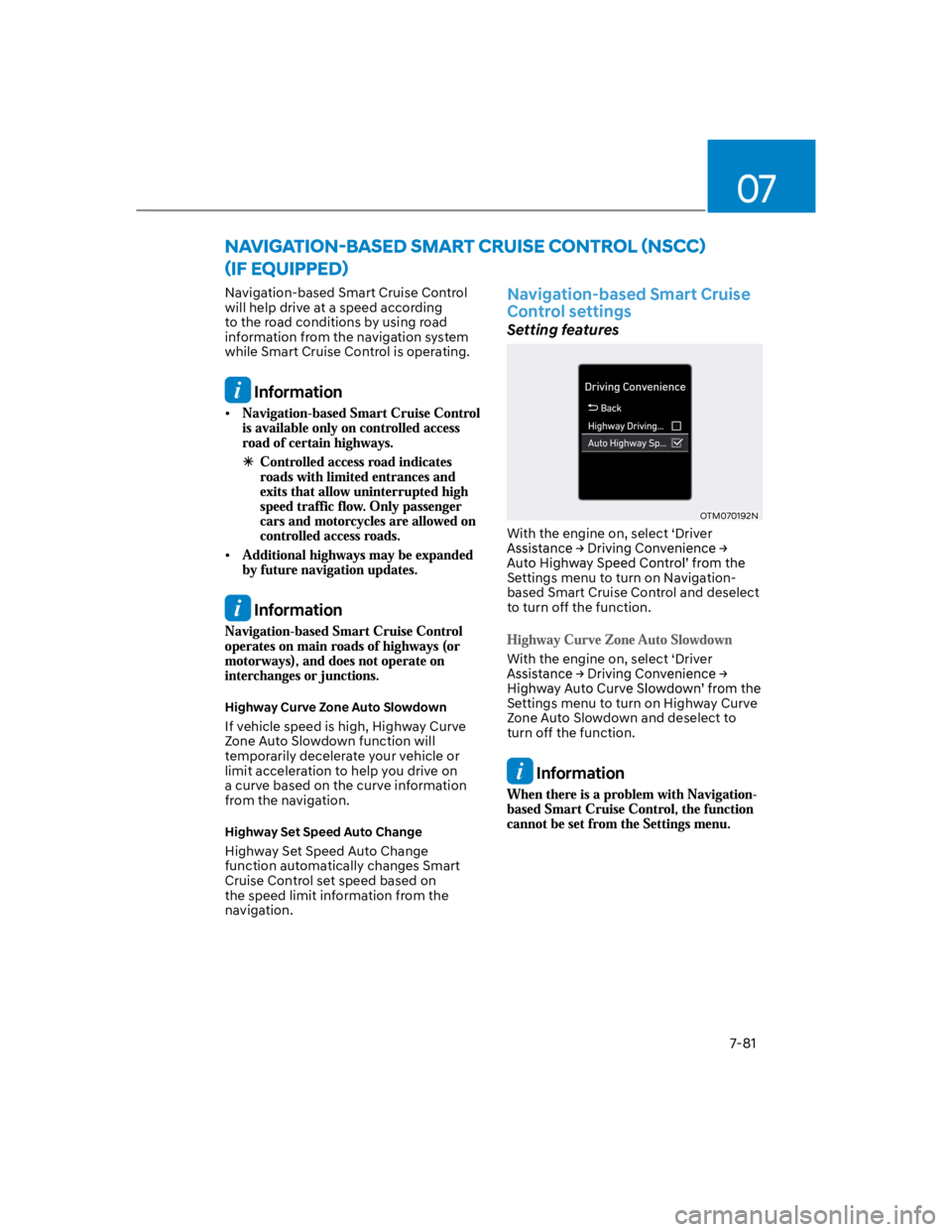
With the engine on, select ‘Driver
Settings menu to turn on Navigation-
based Smart Cruise Control and deselect
to turn off the function.
With the engine on, select ‘Driver
Settings menu to turn on Highway Curve
Zone Auto Slowdown and deselect to
turn off the function.
Information
Page 414 of 579
Driver assistance system
7-82
Navigation-based Smart Cruise
Control operation
Operating conditions
Navigation-based Smart Cruise Control
is ready to operate if all of the following
conditions are satisfied:
Smart Cruise Control is operating
Driving on main roads of highways
Information
Navigation-based Smart Cruise
Control display and control
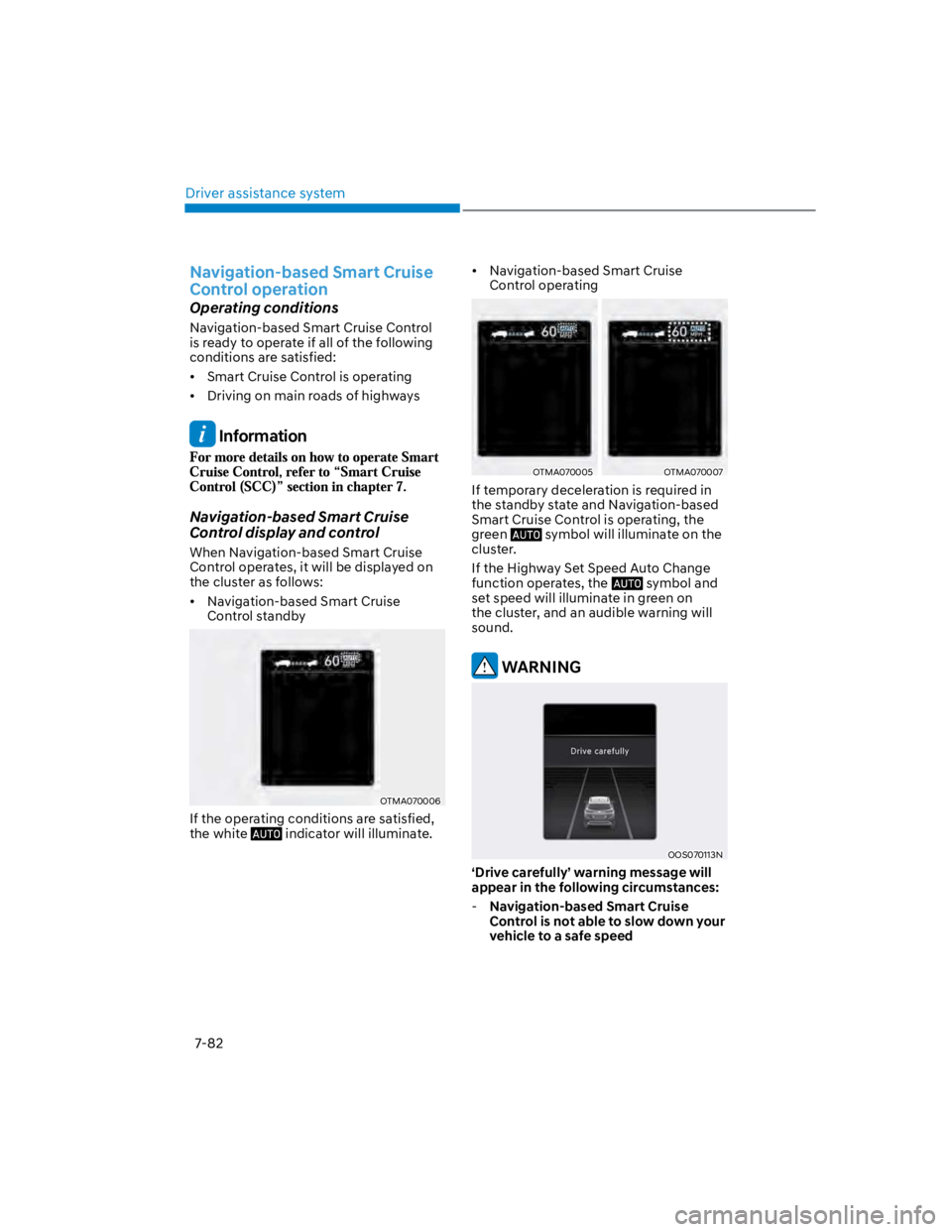
When Navigation-based Smart Cruise
Control operates, it will be displayed on
the cluster as follows:
Navigation-based Smart Cruise
Control standby
OTMA070006
If the operating conditions are satisfied,
the white indicator will illuminate.
Navigation-based Smart Cruise
Control operating
OTMA070005OTMA070007
If temporary deceleration is required in
the standby state and Navigation-based
Smart Cruise Control is operating, the
green symbol will illuminate on the
cluster.
If the Highway Set Speed Auto Change
function operates, the symbol and
set speed will illuminate in green on
the cluster, and an audible warning will
sound.
WARNING
OOS070113N
‘Drive carefully’ warning message will
appear in the following circumstances:
-Navigation-based Smart Cruise
Control is not able to slow down your
vehicle to a safe speed
Page 415 of 579
07
7-83
Information
Depending on the curve ahead on the
highway, the vehicle will decelerate,
and after passing the curve, the
vehicle will accelerate to Smart Cruise
Control set speed.
Vehicle deceleration time may differ
depending on the vehicle speed
and the degree of the curve on the
road. The higher the driving speed,
deceleration will start faster.
Highway Set Speed Auto Change
function will operate when Smart
Cruise Control set speed and the
highway speed limit is matched.
While Highway Set Speed Auto
Change function is operating, when
the highway speed limit changes,
Smart Cruise Control set speed
automatically changes to the changed
speed limit.
If Smart Cruise Control set speed is
adjusted different from the speed
limit, Highway Set Speed Auto Change
function will be in the standby state.
If Highway Set Speed Auto Change
function has changed to the standby
state by driving on a road other than
the highway main road, Highway Set
Speed Auto Change function will
operate again when you drive on the
main road again without setting the
set speed.
If Highway Set Speed Auto Change
function has changed to the standby
state by depressing the brake pedal
or pressing the switch on the
steering wheel, press the switch
to restart the function.
Highway Set Speed Auto Change
function does not operate on highway
interchanges or junctions.
Information
Page 416 of 579

Driver assistance system
7-84
Limitations of Navigation-based
Smart Cruise Control
Navigation-based Smart Cruise Control
may not operate normally under the
following circumstances:
The navigation is not working properly
Map information is not transmitted
due to infotainment system's
abnormal operation
Speed limit and road information in
the navigation is not updated
The map information and the actual
road is different because of real-time
GPS data or map information error
The navigation searches for a route
while driving
GPS signals are blocked in areas such
as a tunnel
The navigation is updated while
driving
A road that divides into two or more
roads and joins again
The driver goes off course the route
set in the navigation
The route to the destination is
changed or canceled by resetting the
navigation
The vehicle enters a service station or
rest area
Android Auto or Car Play is operating
The navigation cannot detect the
current vehicle position (ex: elevated
roads including overpass adjacent to
general roads or nearby roads exist in
a parallel way)
The navigation is being updated while
driving
The navigation is being restarted while
driving
The speed limit of some sections
changes according to the road
situations
Driving on a road under construction
Driving on a road that is controlled
There is bad weather, such as heavy
rain, heavy snow, etc.
Driving on a road that is sharply
curved
Page 417 of 579
![HYUNDAI KONA 2022 Manual Online 07
7-85
OJX1070280L
[1] : Set route, [2] : Branch line, [3] : Driving route,
[4] : Main road, [5] : Curved road section
When there is a difference between
the navigation set route (branch line)
and](/img/35/41169/w960_41169-416.png "HYUNDAI KONA 2022 Manual Online 07
7-85
OJX1070280L
[1] : Set route, [2] : Branch line, [3] : Driving route,
[4] : Main road, [5] : Curved road section
When there is a difference between
the navigation set route (branch line)
and")
07
7-85
OJX1070280L
[1] : Set route, [2] : Branch line, [3] : Driving route,
[4] : Main road, [5] : Curved road section
When there is a difference between
the navigation set route (branch line)
and the driving route (main road),
Highway Curve Zone Auto Slowdown
function may not operate until the
driving route is recognized as the
main road.
When the vehicle's driving route
is recognized as the main road by
maintaining the main road instead
of the navigation set route, Highway
Curve Zone Auto Slowdown function
will operate. Depending on the
distance to the curve and the current
vehicle speed, vehicle deceleration
may not be sufficient or may
decelerate rapidly.
OJX1070281L
[1] : Set route, [2] : Branch line, [3] : Driving route,
[4] : Main road, [5] : Curved road section
When there is a difference between
the navigation route (main road)
and the driving route (branch line),
Highway Curve Zone Auto Slowdown
function will operate based on the
curve information on the main road.
When it is judged that you are driving
out of the route by entering the
highway interchange or junction,
Highway Curve Zone Auto Slowdown
function will not operate.