user setting HYUNDAI KONA 2022 Owners Manual
[x] Cancel search | Manufacturer: HYUNDAI, Model Year: 2022, Model line: KONA, Model: HYUNDAI KONA 2022Pages: 579, PDF Size: 35.31 MB
Page 96 of 579
4
4. Instrument cluster
LCD display ...................................................................................................... 4-28
LCD display control ....................................................................................................4-28
View modes ................................................................................................................4-29
Trip computer mode ............................................................................................... 4-30
Turn By Turn (TBT) mode ........................................................................................ 4-30
Driving Assist mode ................................................................................................ 4-30
Master warning group ............................................................................................. 4-31
User settings mode .................................................................................................... 4-32
Trip computer (Type A)...............................................................................................4-38
Trip modes ................................................................................................................4-38
Trip computer (Type B).............................................................................................. 4-40
Trip modes ............................................................................................................... 4-40
Page 100 of 579
04
4-7
Information
WARNING
Running out of fuel can expose vehicle
occupants to danger.
You must stop and obtain additional
fuel as soon as possible after the
warning light comes on or when the
gauge indicator comes close to the “E
(Empty) or 0” level.
NOTICE
Avoid driving with an extremely low
fuel level. Running out of fuel could
cause the engine to misfire damaging
the catalytic converter.
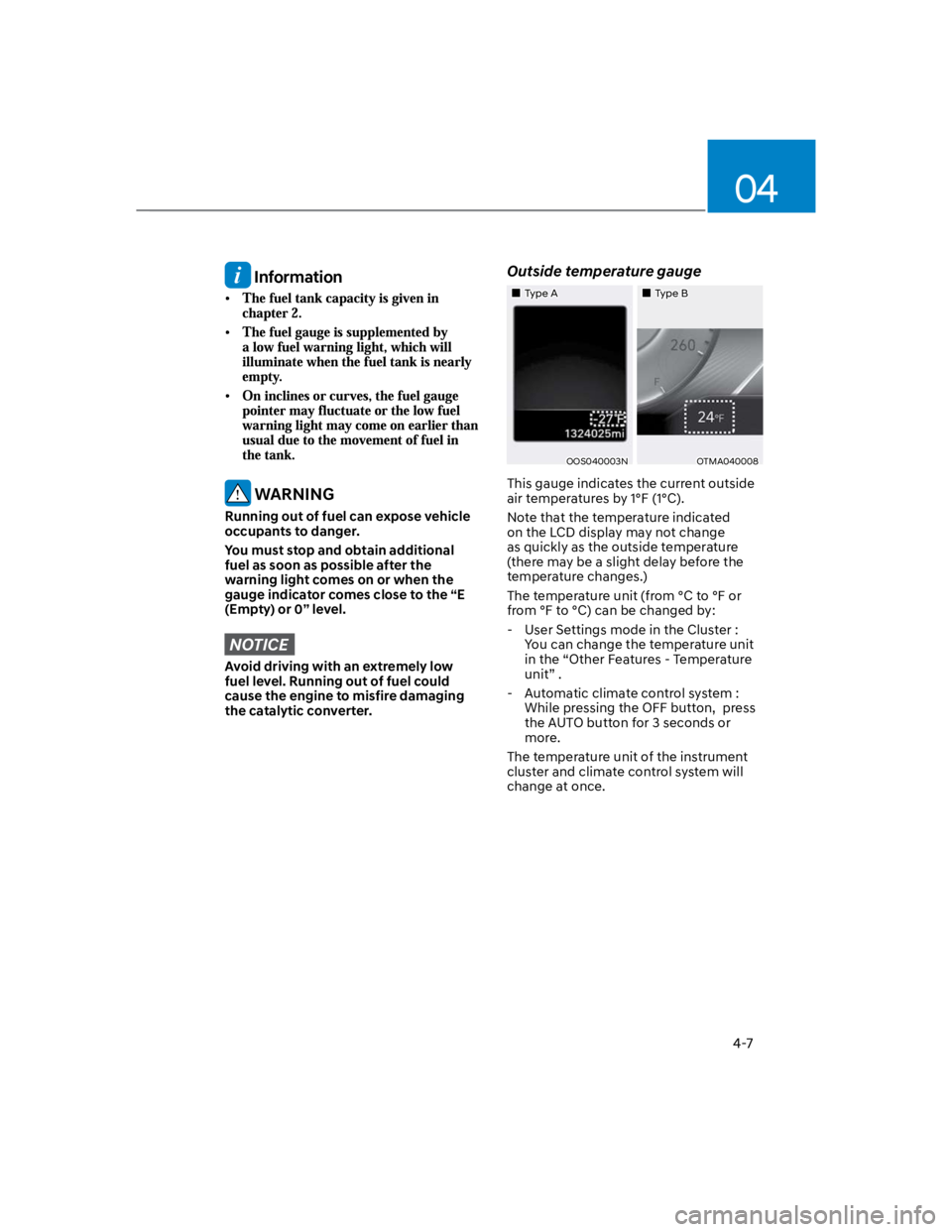
Outside temperature gauge
Type AType B
OOS040003NOTMA040008
This gauge indicates the current outside
air temperatures by 1°F (1°C).
Note that the temperature indicated
on the LCD display may not change
as quickly as the outside temperature
(there may be a slight delay before the
temperature changes.)
The temperature unit (from °C to °F or
from °F to °C) can be changed by:
- User Settings mode in the Cluster :
You can change the temperature unit
in the “Other Features - Temperature
unit” .
- Automatic climate control system :
While pressing the OFF button, press
the AUTO button for 3 seconds or
more.
The temperature unit of the instrument
cluster and climate control system will
change at once.
Page 122 of 579
04
4-29
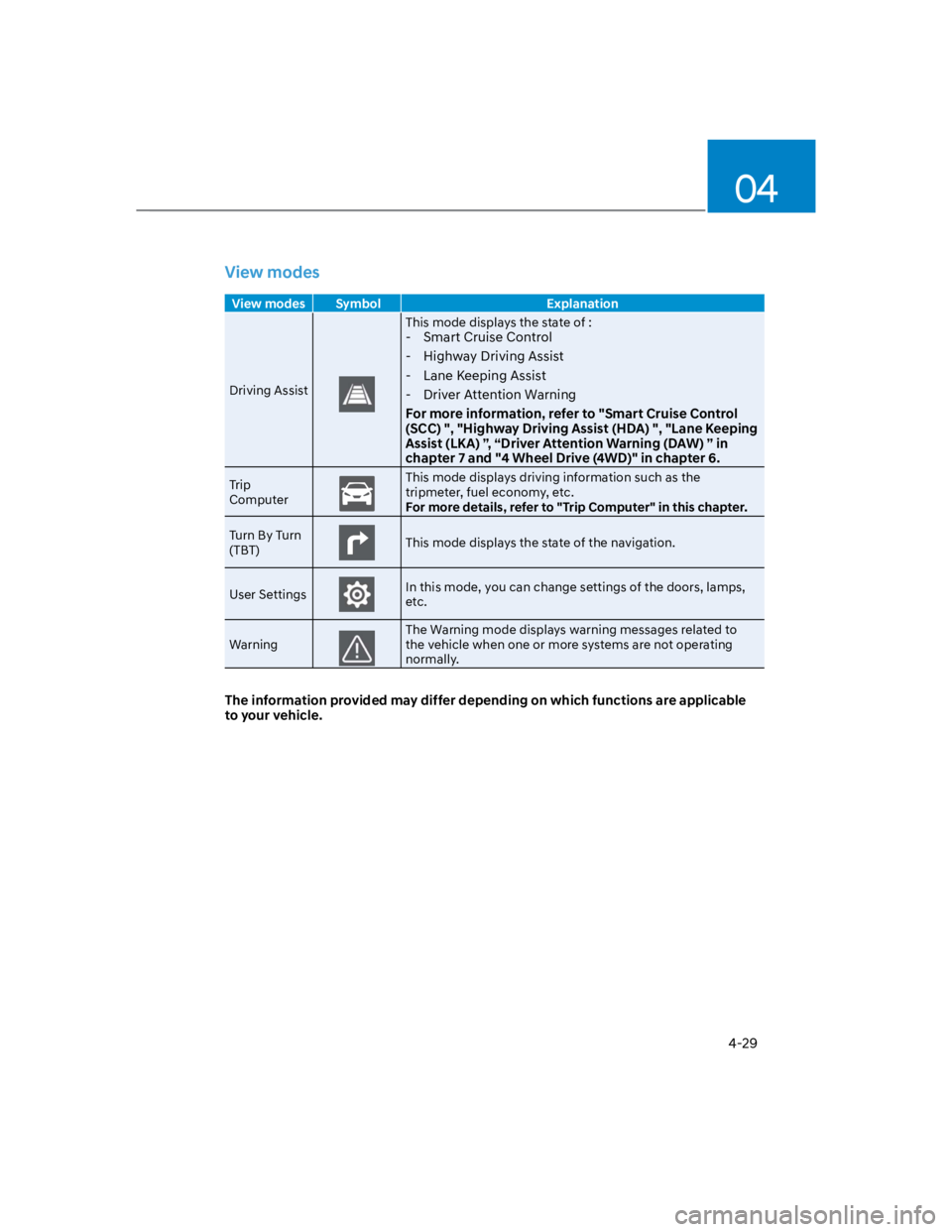
View modes
View modes Symbol Explanation
Driving Assist
This mode displays the state of :
- Smart Cruise Control
- Highway Driving Assist
- Lane Keeping Assist
- Driver Attention Warning
For more information, refer to "Smart Cruise Control
(SCC) ", "Highway Driving Assist (HDA) ", "Lane Keeping
Assist (LKA) ”, “Driver Attention Warning (DAW) ” in
chapter 7 and "4 Wheel Drive (4WD)" in chapter 6.
Trip
Computer
This mode displays driving information such as the
tripmeter, fuel economy, etc.
For more details, refer to "Trip Computer" in this chapter.
Turn By Turn
(TBT)This mode displays the state of the navigation.
User SettingsIn this mode, you can change settings of the doors, lamps,
etc.
Warning
The Warning mode displays warning messages related to
the vehicle when one or more systems are not operating
normally.
The information provided may differ depending on which functions are applicable
to your vehicle.
Page 124 of 579
04
4-31
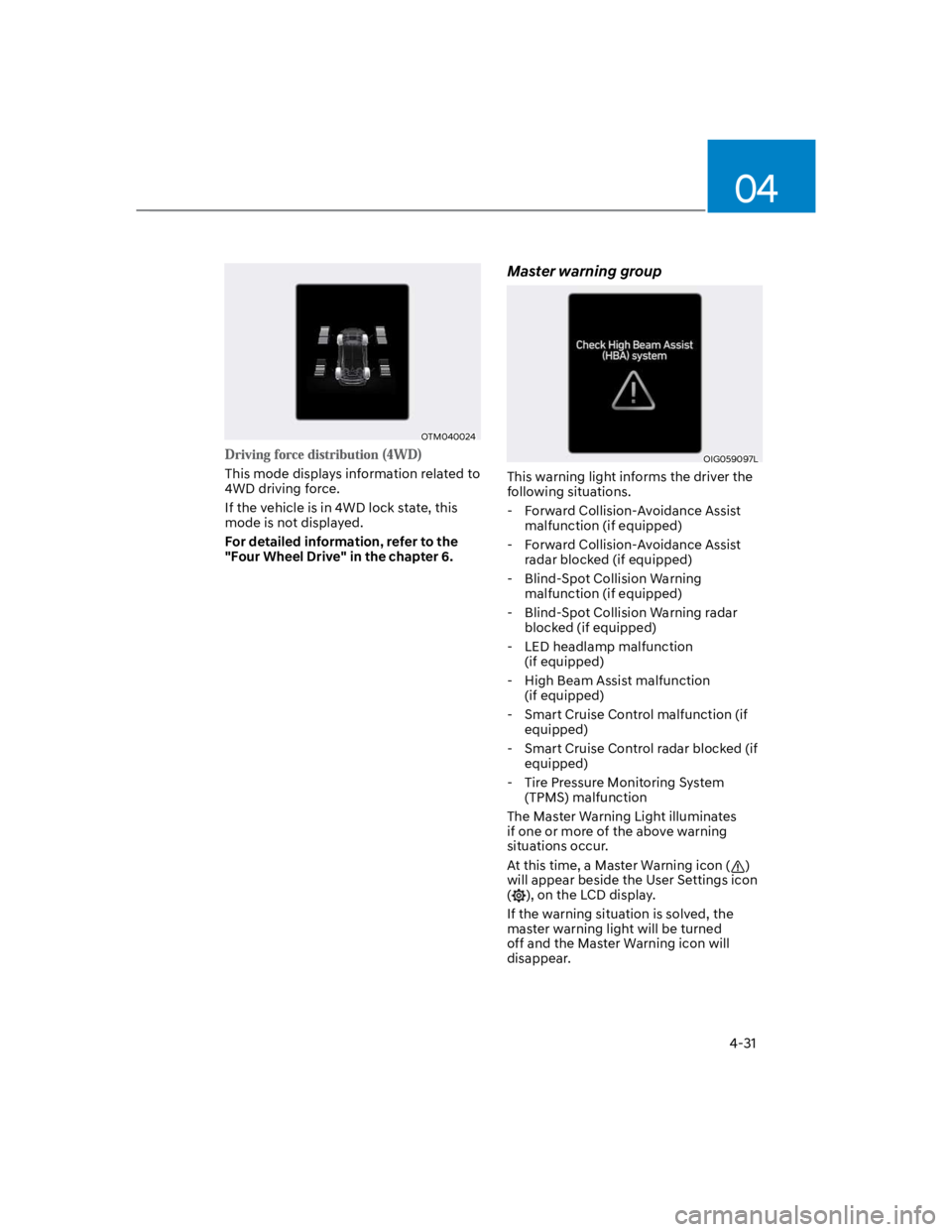
OTM040024
This mode displays information related to
4WD driving force.
If the vehicle is in 4WD lock state, this
mode is not displayed.
For detailed information, refer to the
"Four Wheel Drive" in the chapter 6.
Master warning group
OIG059097L
This warning light informs the driver the
following situations.
- Forward Collision-Avoidance Assist
malfunction (if equipped)
- Forward Collision-Avoidance Assist
radar blocked (if equipped)
- Blind-Spot Collision Warning
malfunction (if equipped)
- Blind-Spot Collision Warning radar
blocked (if equipped)
- LED headlamp malfunction
(if equipped)
- High Beam Assist malfunction
(if equipped)
- Smart Cruise Control malfunction (if
equipped)
- Smart Cruise Control radar blocked (if
equipped)
- Tire Pressure Monitoring System
(TPMS) malfunction
The Master Warning Light illuminates
if one or more of the above warning
situations occur.
At this time, a Master Warning icon ()
will appear beside the User Settings icon
(), on the LCD display.
If the warning situation is solved, the
master warning light will be turned
off and the Master Warning icon will
disappear.
Page 125 of 579
Instrument cluster
4-32
OCN7040026L
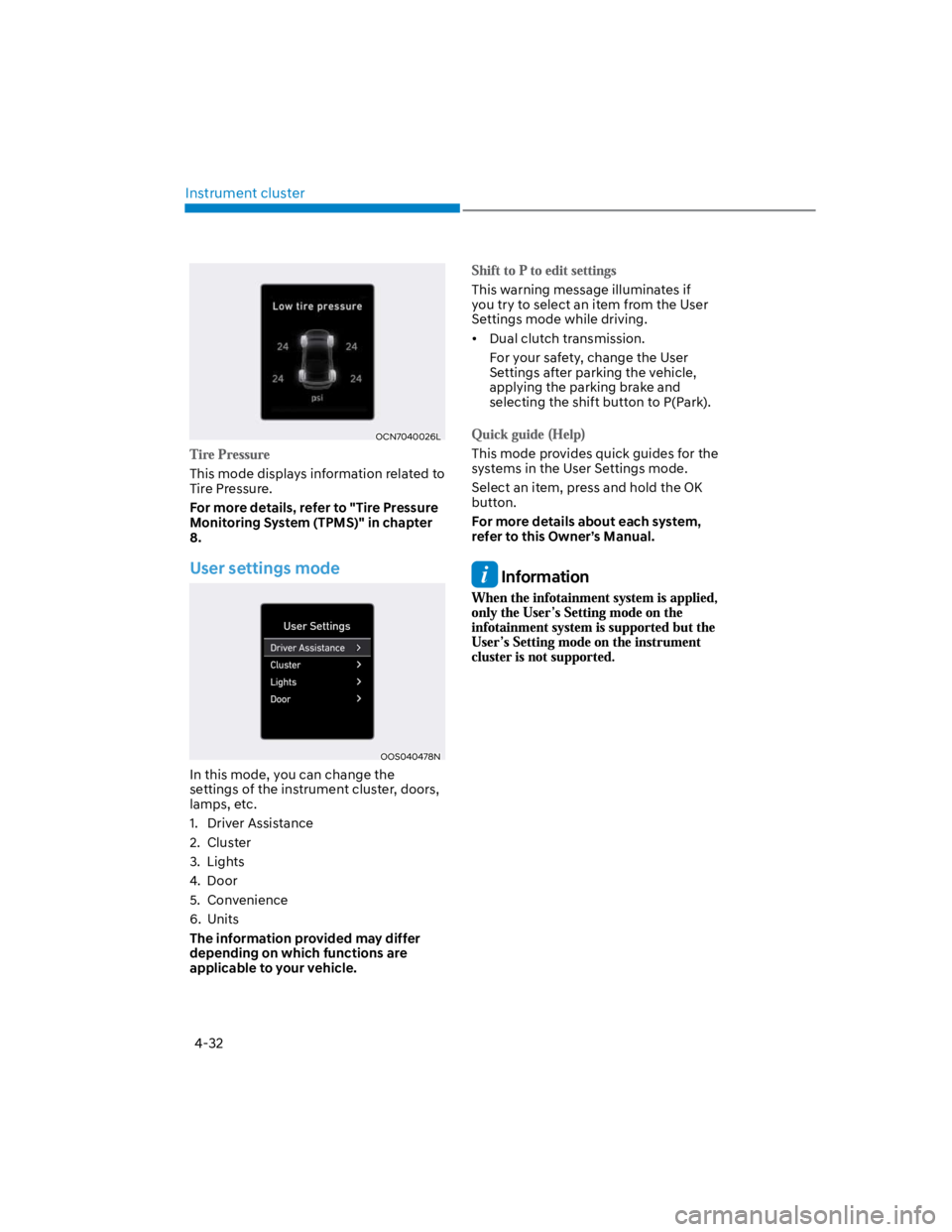
This mode displays information related to
Tire Pressure.
For more details, refer to "Tire Pressure
Monitoring System (TPMS)" in chapter
8.
User settings mode
OOS040478N
In this mode, you can change the
settings of the instrument cluster, doors,
lamps, etc.
1. Driver Assistance
2. Cluster
3. Lights
4. Door
5. Convenience
6. Units
The information provided may differ
depending on which functions are
applicable to your vehicle.
This warning message illuminates if
you try to select an item from the User
Settings mode while driving.
Dual clutch transmission.
For your safety, change the User
Settings after parking the vehicle,
applying the parking brake and
selecting the shift button to P(Park).
This mode provides quick guides for the
systems in the User Settings mode.
Select an item, press and hold the OK
button.
For more details about each system,
refer to this Owner’s Manual.
Information
Page 138 of 579
Convenient features
5-4
Remote key (if equipped)
OOS050035N
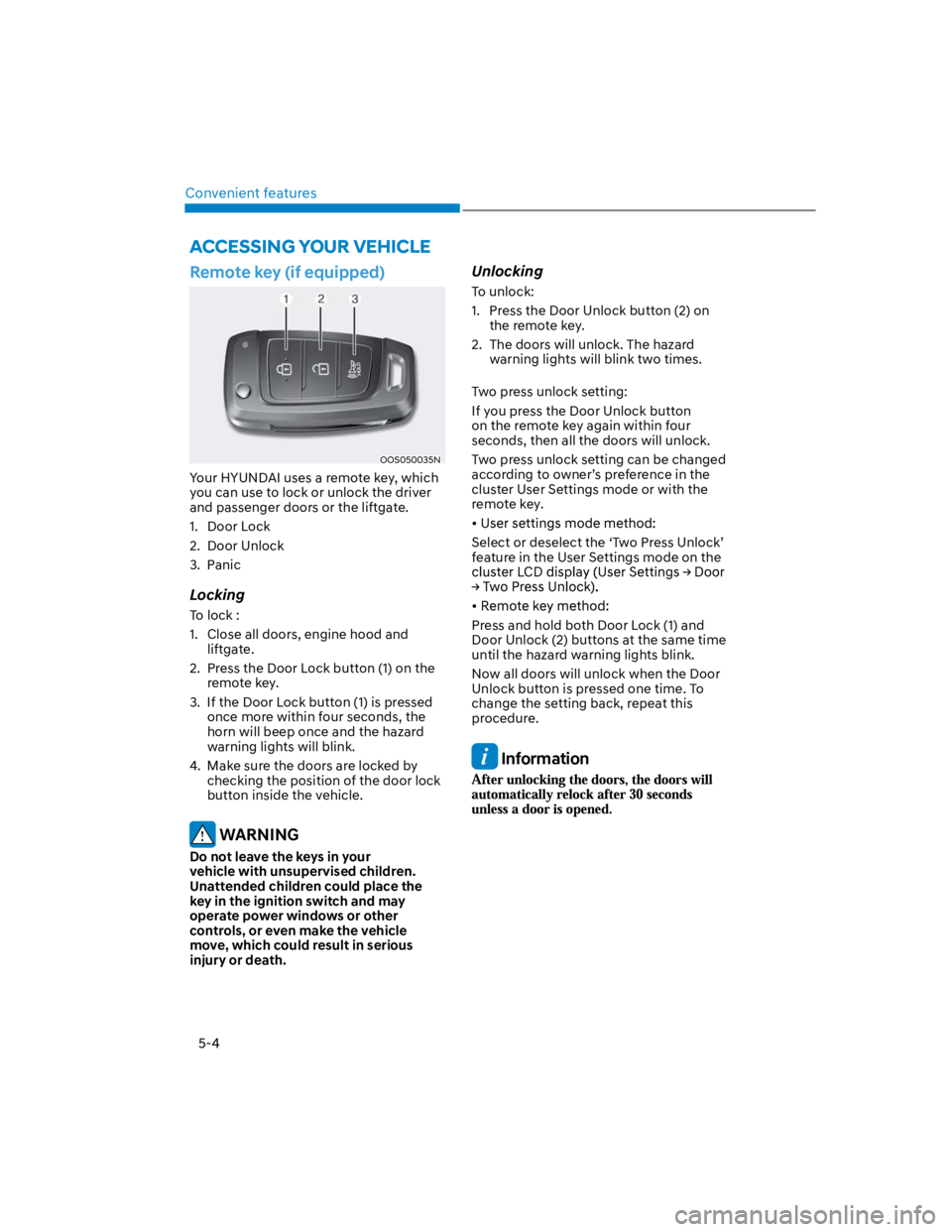
Your HYUNDAI uses a remote key, which
you can use to lock or unlock the driver
and passenger doors or the liftgate.
1. Door Lock
2. Door Unlock
3. Panic
Locking
To lock :
1. Close all doors, engine hood and
liftgate.
2. Press the Door Lock button (1) on the
remote key.
3. If the Door Lock button (1) is pressed
once more within four seconds, the
horn will beep once and the hazard
warning lights will blink.
4. Make sure the doors are locked by
checking the position of the door lock
button inside the vehicle.
WARNING
Do not leave the keys in your
vehicle with unsupervised children.
Unattended children could place the
key in the ignition switch and may
operate power windows or other
controls, or even make the vehicle
move, which could result in serious
injury or death.
Unlocking
To unlock:
1. Press the Door Unlock button (2) on
the remote key.
2. The doors will unlock. The hazard
warning lights will blink two times.
Two press unlock setting:
If you press the Door Unlock button
on the remote key again within four
seconds, then all the doors will unlock.
Two press unlock setting can be changed
according to owner’s preference in the
cluster User Settings mode or with the
remote key.
Select or deselect the ‘Two Press Unlock’
feature in the User Settings mode on the
Press and hold both Door Lock (1) and
Door Unlock (2) buttons at the same time
until the hazard warning lights blink.
Now all doors will unlock when the Door
Unlock button is pressed one time. To
change the setting back, repeat this
procedure.
Information
ACCESSING YOUR VEHICLE
Page 143 of 579
05
5-9
Unlocking your vehicle (Button type)
Button type
OOS047001
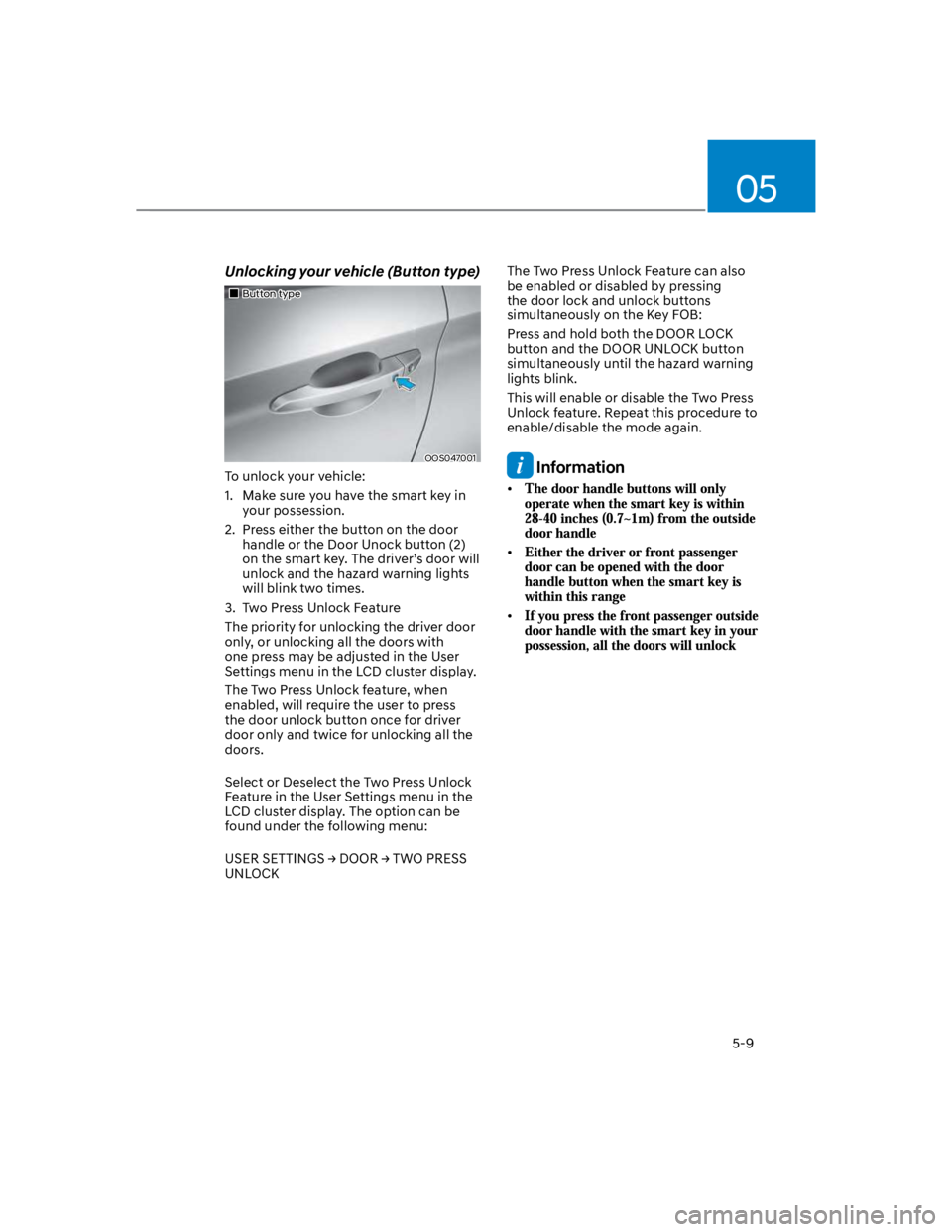
To unlock your vehicle:
1. Make sure you have the smart key in
your possession.
2. Press either the button on the door
handle or the Door Unock button (2)
on the smart key. The driver’s door will
unlock and the hazard warning lights
will blink two times.
3. Two Press Unlock Feature
The priority for unlocking the driver door
only, or unlocking all the doors with
one press may be adjusted in the User
Settings menu in the LCD cluster display.
The Two Press Unlock feature, when
enabled, will require the user to press
the door unlock button once for driver
door only and twice for unlocking all the
doors.
Select or Deselect the Two Press Unlock
Feature in the User Settings menu in the
LCD cluster display. The option can be
found under the following menu:
UNLOCK
The Two Press Unlock Feature can also
be enabled or disabled by pressing
the door lock and unlock buttons
simultaneously on the Key FOB:
Press and hold both the DOOR LOCK
button and the DOOR UNLOCK button
simultaneously until the hazard warning
lights blink.
This will enable or disable the Two Press
Unlock feature. Repeat this procedure to
enable/disable the mode again.
Information
Page 144 of 579
Convenient features
5-10
Unlocking your vehicle (Touch
sensor type, When the Two Press
Unlock feature is off)
OOS050021K
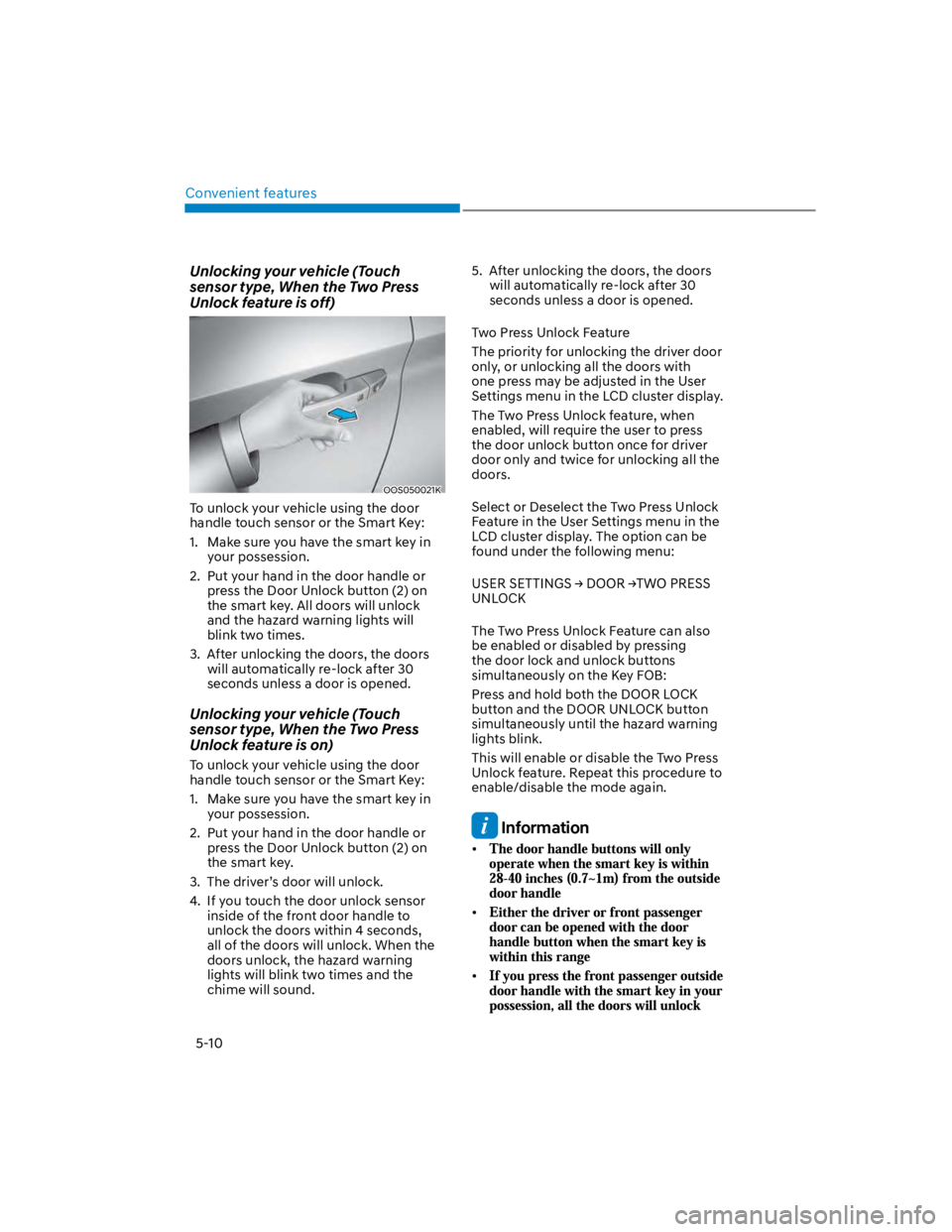
To unlock your vehicle using the door
handle touch sensor or the Smart Key:
1. Make sure you have the smart key in
your possession.
2. Put your hand in the door handle or
press the Door Unlock button (2) on
the smart key. All doors will unlock
and the hazard warning lights will
blink two times.
3. After unlocking the doors, the doors
will automatically re-lock after 30
seconds unless a door is opened.
Unlocking your vehicle (Touch
sensor type, When the Two Press
Unlock feature is on)
To unlock your vehicle using the door
handle touch sensor or the Smart Key:
1. Make sure you have the smart key in
your possession.
2. Put your hand in the door handle or
press the Door Unlock button (2) on
the smart key.
3. The driver’s door will unlock.
4. If you touch the door unlock sensor
inside of the front door handle to
unlock the doors within 4 seconds,
all of the doors will unlock. When the
doors unlock, the hazard warning
lights will blink two times and the
chime will sound.
5. After unlocking the doors, the doors
will automatically re-lock after 30
seconds unless a door is opened.
Two Press Unlock Feature
The priority for unlocking the driver door
only, or unlocking all the doors with
one press may be adjusted in the User
Settings menu in the LCD cluster display.
The Two Press Unlock feature, when
enabled, will require the user to press
the door unlock button once for driver
door only and twice for unlocking all the
doors.
Select or Deselect the Two Press Unlock
Feature in the User Settings menu in the
LCD cluster display. The option can be
found under the following menu:
UNLOCK
The Two Press Unlock Feature can also
be enabled or disabled by pressing
the door lock and unlock buttons
simultaneously on the Key FOB:
Press and hold both the DOOR LOCK
button and the DOOR UNLOCK button
simultaneously until the hazard warning
lights blink.
This will enable or disable the Two Press
Unlock feature. Repeat this procedure to
enable/disable the mode again.
Information
Page 150 of 579
Convenient features
5-16
Digital key (smartphone)
1. Turn the vehicle on with the Smart key
and make sure to keep the smart key
inside the vehicle during digital key
registration.
2. Register your Digital key from the
vehicle user setting menu as follows.
With Navigation screen :
From the infotainment screen menu,
go to [Setup] - [Vehicle] - [Digital Key]
- [Smart Phone Key] then select the
[Save] from submenu.
Without navigation screen :
From cluster menu, go to [Digital Key]
- [Smart Phone Key] and select [Save].
Information
3. Select the vehicle to save on your
Digital key application and activate
the save mode.
Save mode is available only on
the vehicle owner’s Digital key
application.
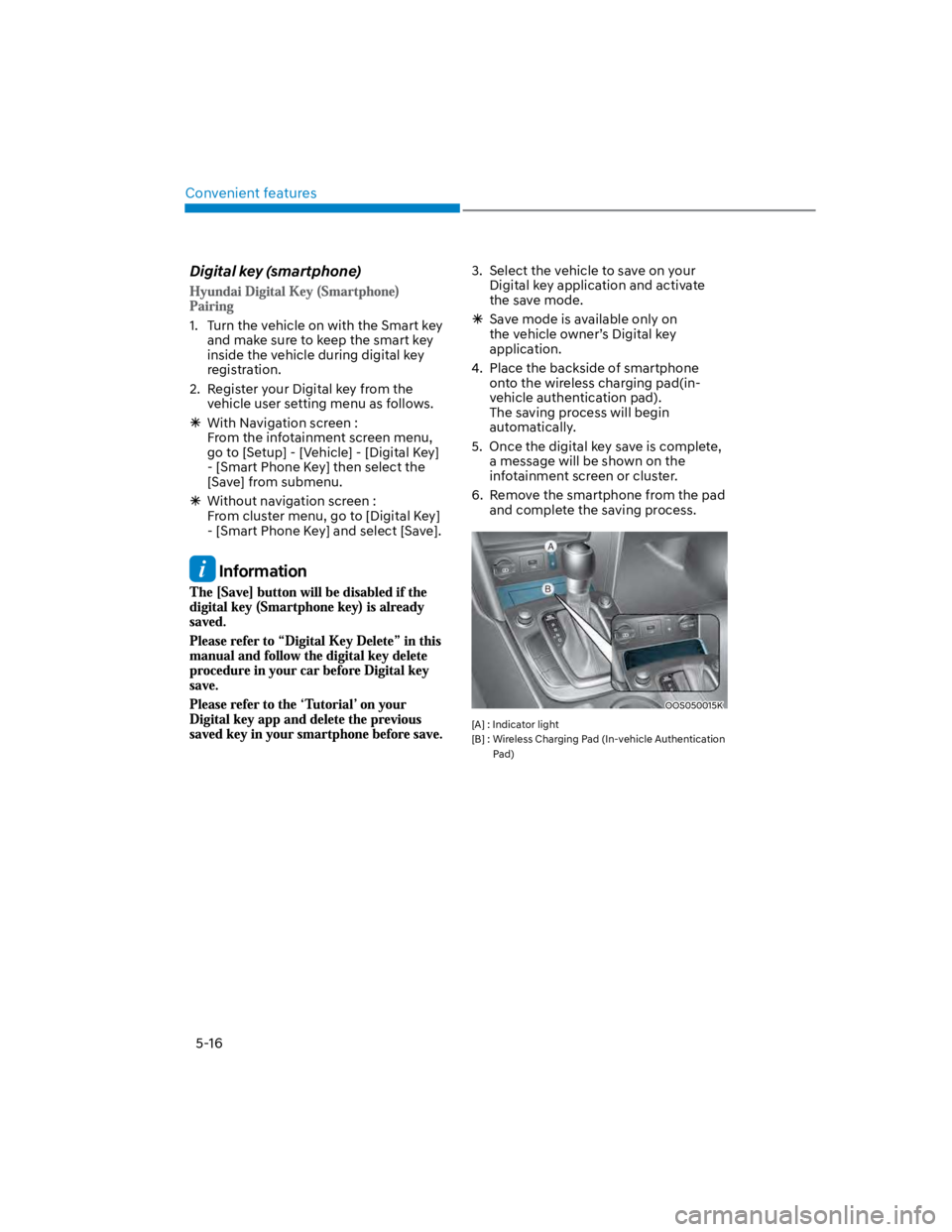
4. Place the backside of smartphone
onto the wireless charging pad(in-
vehicle authentication pad).
The saving process will begin
automatically.
5. Once the digital key save is complete,
a message will be shown on the
infotainment screen or cluster.
6. Remove the smartphone from the pad
and complete the saving process.
OOS050015K
[A] : Indicator light
[B] : Wireless Charging Pad (In-vehicle Authentication
Pad)
Page 151 of 579
05
5-17
1. Turn the vehicle on with the Smart
key and make sure to keep the smart
key inside the vehicle during delete
process.
2. Delete your Digital key from the
vehicle user setting menu as follows.
With Navigation screen :
From the infotainment screen menu,
go to [Setup] - [Vehicle] - [Digital Key]
- [Smart Phone Key] then select the
[Delete] from submenu.
Without navigation screen :
From cluster menu, go to [Digital
Key] - [Smart Phone Key] and select
[Delete].
Information
3. Once the digital key delete is
complete, a message will be shown
on the infotainment screen or cluster.
4. Go to [Initialize Digital Key] menu on
the digital key application and select
the vehicle to delete the digital key
information.
If the saved digital key information
in your car is deleted due to vehicle
maintenance, the digital key in your
smartphone should be deleted as well.
For more information, please refer to
the ‘Tutorial’ on your Digital key app.
CAUTION
If the smartphone is removed
from the interior authentication
pad during enrollment, the saving
process will be cancelled.
If the infotainment or instrument
cluster screen is changed during
enrollment, the saving process will
be cancelled.
If the vehicle is turned off during
enrollment, the saving process will
be cancelled.
If the gear is shifted, the saving
process will be cancelled.
If you try to save the smartphone
which is not logged in with the
vehicle owner’s ID or if you try to
save the Card key, the saving process
will not begin.
If the NFC setting on your
smartphone is off, the saving process
will not begin.
If the smartphone screen is changed
to off or locked status, the saving
process will be cancelled.
If there is no Smart key during the
save process, the saving process will
not begin.