phone HYUNDAI KONA EV 2022 User Guide
[x] Cancel search | Manufacturer: HYUNDAI, Model Year: 2022, Model line: KONA EV, Model: HYUNDAI KONA EV 2022Pages: 548, PDF Size: 49.14 MB
Page 270 of 548
Convenient features
5-86
NOTICE
To prevent damage to the Power
Outlets : • Use the power outlet only when the
vehicle is in the ready (
) mode
and remove the accessory plug after
use. Using the accessory plug for
prolonged periods of time with the
vehicle off could cause the battery to
discharge.
• Only use 12V electric accessories
which are less than 180 W(Watt) in
electric capacity.
• Adjust the air-conditioner or heater
to the lowest operating level when
using the power outlet.
• Close the cover when not in use.
• Some electronic devices can
cause electronic interference
when plugged into a vehicle’s
power outlet. These devices may
cause excessive audio static and
malfunctions in other electronic
systems or devices used in your
vehicle.
• Push the plug in as far as it will go. If
good contact is not made, the plug
may overheat and the fuse may open.
• Plug in battery equipped electrical/
electronic devices with reverse
current protection. The current
from the battery may flow into the
vehicle’s electrical/electronic system
and cause system malfunction.
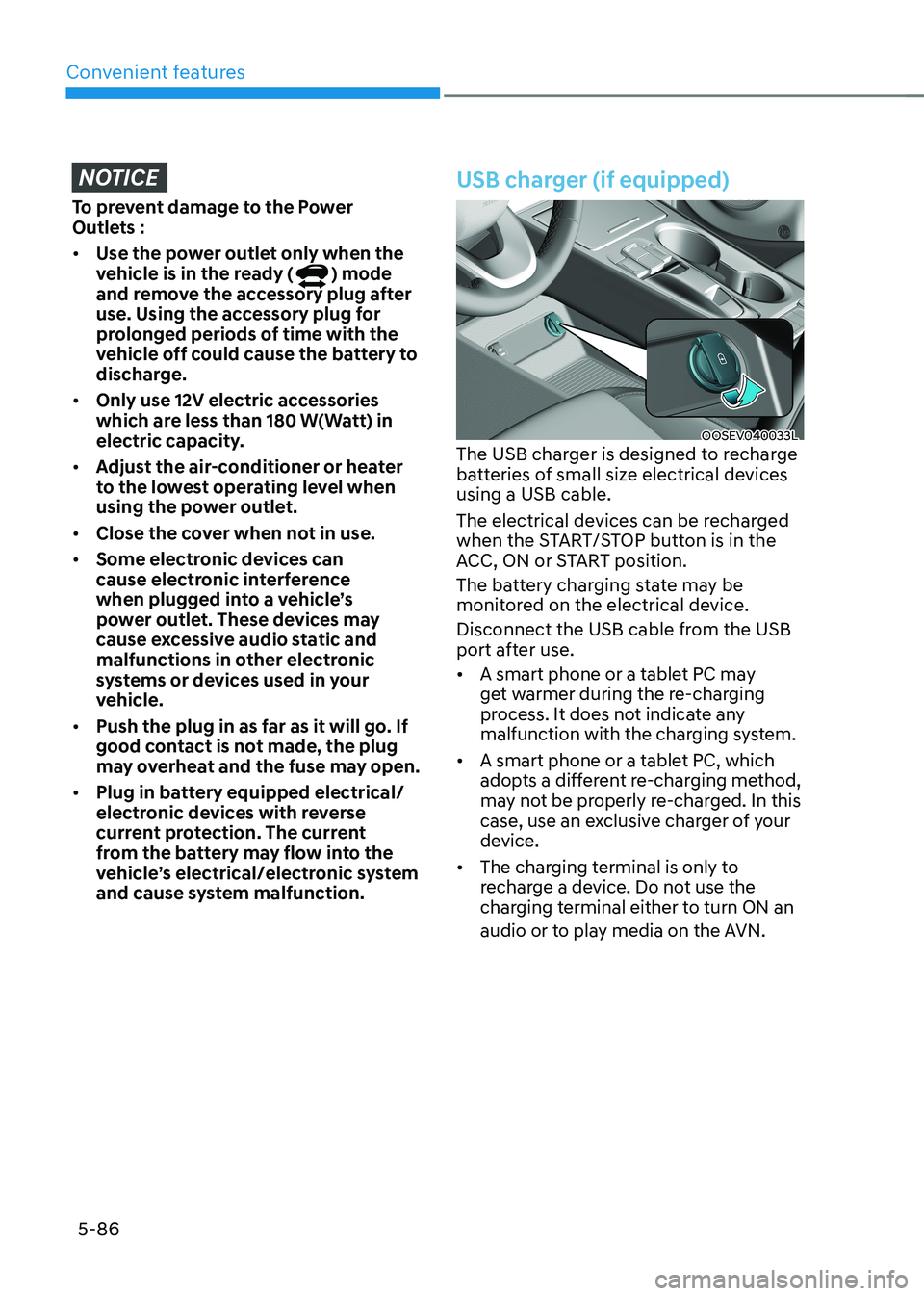
USB charger (if equipped)
OOSEV040033L
The USB charger is designed to recharge
batteries of small size electrical devices using a USB cable.
The electrical devices can be recharged
when the START/STOP button is in the
ACC, ON or START position.
The battery charging state may be
monitored on the electrical device.
Disconnect the USB cable from the USB
port after use. • A smart phone or a tablet PC may
get warmer during the re-charging
process. It does not indicate any
malfunction with the charging system.
• A smart phone or a tablet PC, which
adopts a different re-charging method,
may not be properly re-charged. In this
case, use an exclusive charger of your
device.
• The charging terminal is only to
recharge a device. Do not use the
charging terminal either to turn ON an
audio or to play media on the AVN.
Page 271 of 548
![HYUNDAI KONA EV 2022 User Guide 05
5-87
Wireless cellular phone charging
system (if equipped)
OOSEV041034N
[A] : Indicator light, [B] : Charging pad
There is a wireless cellular phone charger
inside the front console.
The sy](/img/35/56171/w960_56171-270.png "HYUNDAI KONA EV 2022 User Guide 05
5-87
Wireless cellular phone charging
system (if equipped)
OOSEV041034N
[A] : Indicator light, [B] : Charging pad
There is a wireless cellular phone charger
inside the front console.
The sy")
05
5-87
Wireless cellular phone charging
system (if equipped)
OOSEV041034N
[A] : Indicator light, [B] : Charging pad
There is a wireless cellular phone charger
inside the front console.
The system is available when all doors
are closed, and when the START/STOP
button is in the ON position (1).
After use, to close the cover, slightly pull
down the cover.
The system is available when all doors
are closed, and when the START/STOP
button is in the ON or START position.
To charge a cellular phone
The wireless cellular phone charging
system charges only the Qi-enabled cellular phones (
). Read the label on
the cellular phone accessory cover or
visit your cellular phone manufacturer’s
website to check whether your cellular
phone supports the Qi technology.
The wireless charging process starts
when you put a Qi-enabled cellular
phone on the wireless charging unit.
1. Remove other items, including the smart key, from the wireless charging
unit. If not, the wireless charging
process may be interrupted. Place
the cellular phone on the center of
charging pad.
2. The indicator light is orange when the cellular phone is charging. The
indicator light turns green when
phone charging is complete. 3. You can turn ON or OFF the wireless
charging function in the User Settings
mode on the instrument cluster. For
further information, refer to the “User
setting mode” in chapter 4.
If your cellular phone is not charging: - Slightly change the position of the cellular phone on the charging pad.
- Make sure the indicator light is orange.
The indicator light will blink orange for 10
seconds if there is a malfunction in the
wireless charging system.
In this case, temporarily stop the
charging process, and re-attempt to
wirelessly charge your cellular phone again.
The system warns you with a message
on the LCD display if the cellular phone
is still on the wireless charging unit after
the vehicle is turned OFF and the front door is opened. • High speed wireless charging can
be activated only when the cellular
phones equipped with a wireless
charging function is on the charging pad. Information
For some manufacturers’ cellular phones, the system may not warn you even though
the cellular phone is left on the wireless
charging unit. This is due to the particular
characteristic of the cellular phone and
not a malfunction of the wireless charging.
Page 272 of 548
Convenient features
5-88
NOTICE
• The wireless smart phone charging
system may not support certain
smart phones, which are not verified
for the Qi specification (
).
• When placing your smart phone on
the charging pad, position the phone
in the middle of the mat for optimal
charging performance. If your smart
phone is off to the side, the charging
rate may be less and in some cases
the smart phone may experience
higher heat conduction.
• In some cases, the wireless charging
may stop temporarily when the
smart key is used, either when
starting the vehicle or locking/
unlocking the doors, etc.
• When charging certain smart
phones, the charging indicator may
not change to blue when the smart
phone is fully charged.
• The wireless charging process may
temporarily stop, when temperature
abnormally increases inside the
wireless smart phone charging
system. The wireless charging
process restarts, when temperature
falls to a certain level.
• The wireless charging process may
temporarily stop when there is
any metallic item, such as a coin,
between the wireless smart phone
charging system and smart phone.
• When charging some smart phones
with a self-protection feature,
the wireless charging speed may
decrease and the wireless charging
may stop.
• If the smart phone has a thick cover,
the wireless charging may not be possible.
• If the smart phone is not completely
contacting the charging pad,
wireless charging may not operate
properly. •
Some magnetic items like credit
cards, phone cards or rail tickets may
be damaged if left with the smart
phone during the charging process.
• When any smart phone without
a wireless charging function or a
metallic object is placed on the
charging pad, a small noise may
sound. This small sound is due to the
vehicle discerning compatibility of
the object placed on the charging
pad. It does not affect your vehicle or
the smart phone in any way.
Information
If the START/STOP button is OFF, the charging also stops.
Information
This device complies with Industry Canada RSS-210 standard. Operation is subject to the following two conditions: 1. This device may not cause harmful
interference, and
2. This device must accept any
interference received, including
interference that may cause undesired operation.
Page 279 of 548
05
5-95
MODE (
) (3)
Press the MODE button to select Radio,
Disc, or AUX. MUTE (
) (4)
• Press the button to mute the sound.
• Press the button again to activate the sound.
Information
Detailed information is described in a separately supplied manual.
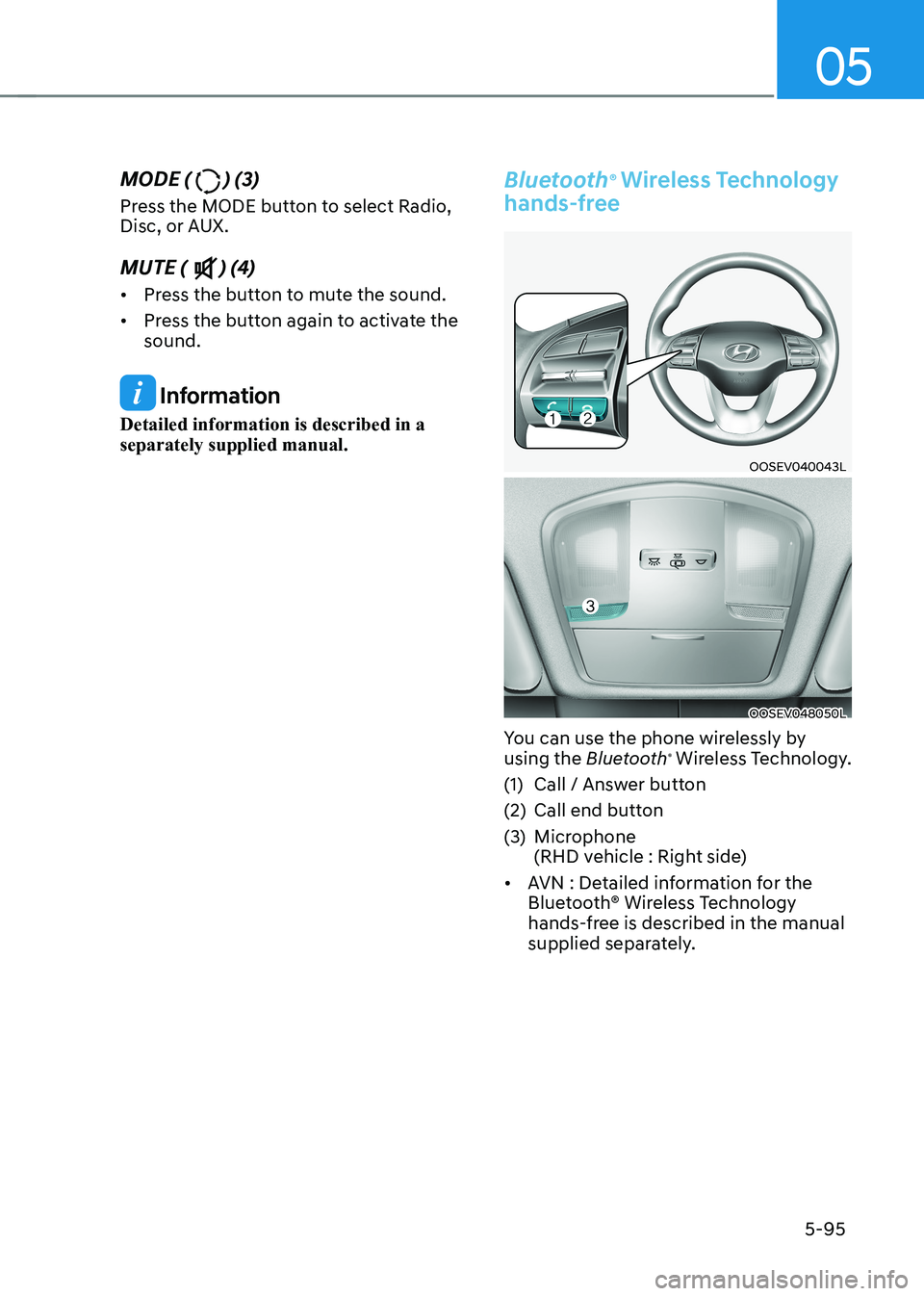
Bluetooth ®
Wireless Technology
hands-free
OOSEV040043L
OOSEV048050L
You can use the phone wirelessly by using the Bluetooth®
Wireless Technology.
(1) Call / Answer button
(2) Call end button
(3) Microphone
(RHD vehicle : Right side)
• AVN : Detailed information for the
Bluetooth® Wireless Technology
hands-free is described in the manual
supplied separately.
Page 542 of 548
I
I -7
Interior features .................................................................................................... 5-84
Cargo area cover ............................................................................................... 5-91
Clock ................................................................................................................ 5-89
Clothes hanger .................................................................................................. 5-89
Cup holder ........................................................................................................ 5-84
Floor mat anchor(s) .......................................................................................... 5-90
Luggage net (holder) ........................................................................................ 5-91
Power outlet ...................................................................................................... 5-85
Sunvisor ............................................................................................................ 5-85
USB charger ..................................................................................................... 5-86
Wireless cellular phone charging system .........................................................5-87
Interior overview (I) .............................................................................................. 2-4
Interior overview (II) ............................................................................................. 2-5
J
Jump Starting (12V Battery) .................................................................................. 8-4
L
Lane Following Assist (LFA) .............................................................................. 7-87
Lane Following Assist malfunction and limitations .........................................7-90
Lane Following Assist operation ...................................................................... 7-88
Lane Following Assist settings ......................................................................... 7-87
Lane Keeping Assist (LKA) ................................................................................ 7-28
Lane Keeping Assist malfunction and limitations ............................................7-32
Lane Keeping Assist operation ......................................................................... 7-30
Lane Keeping Assist settings ........................................................................... 7-28
LCD display ......................................................................................................... 4-27
LCD display control ......................................................................................... 4-27
User settings mode ........................................................................................... 4-31
View modes ...................................................................................................... 4-28
LCD display messages ......................................................................................... 4-17