infotainment HYUNDAI KONA EV 2022 Owners Manual
[x] Cancel search | Manufacturer: HYUNDAI, Model Year: 2022, Model line: KONA EV, Model: HYUNDAI KONA EV 2022Pages: 548, PDF Size: 49.14 MB
Page 15 of 548
Foreword / Electric Vehicle System Overview
1-10
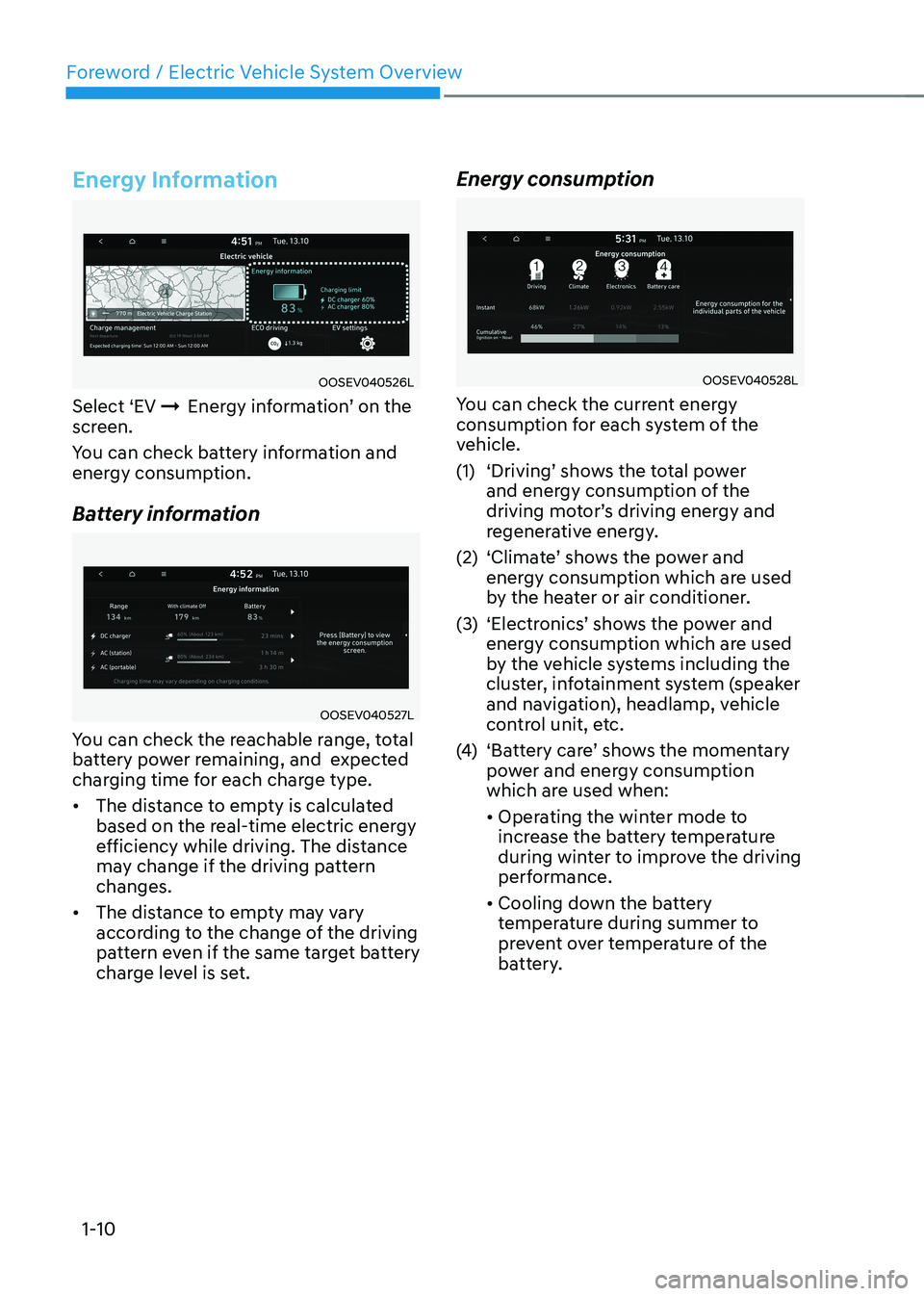
Energy Information
OOSEV040526L
Select ‘EV ÞEnergy information’ on the
screen.
You can check battery information and
energy consumption.
Battery information
OOSEV040527L
You can check the reachable range, total
battery power remaining, and expected
charging time for each charge type. • The distance to empty is calculated
based on the real-time electric energy
efficiency while driving. The distance
may change if the driving pattern changes.
• The distance to empty may vary
according to the change of the driving
pattern even if the same target battery
charge level is set. Energy consumption
OOSEV040528L
You can check the current energy
consumption for each system of the
vehicle.
(1) ‘Driving’ shows the total power and energy consumption of the
driving motor’s driving energy and
regenerative energy.
(2) ‘Climate’ shows the power and energy consumption which are used
by the heater or air conditioner.
(3) ‘Electronics’ shows the power and energy consumption which are used
by the vehicle systems including the
cluster, infotainment system (speaker
and navigation), headlamp, vehicle
control unit, etc.
(4) ‘Battery care’ shows the momentary
power and energy consumption
which are used when: • Operating the winter mode to
increase the battery temperature
during winter to improve the driving
performance.
• Cooling down the battery
temperature during summer to
prevent over temperature of the
battery.
Page 20 of 548
01
1-15
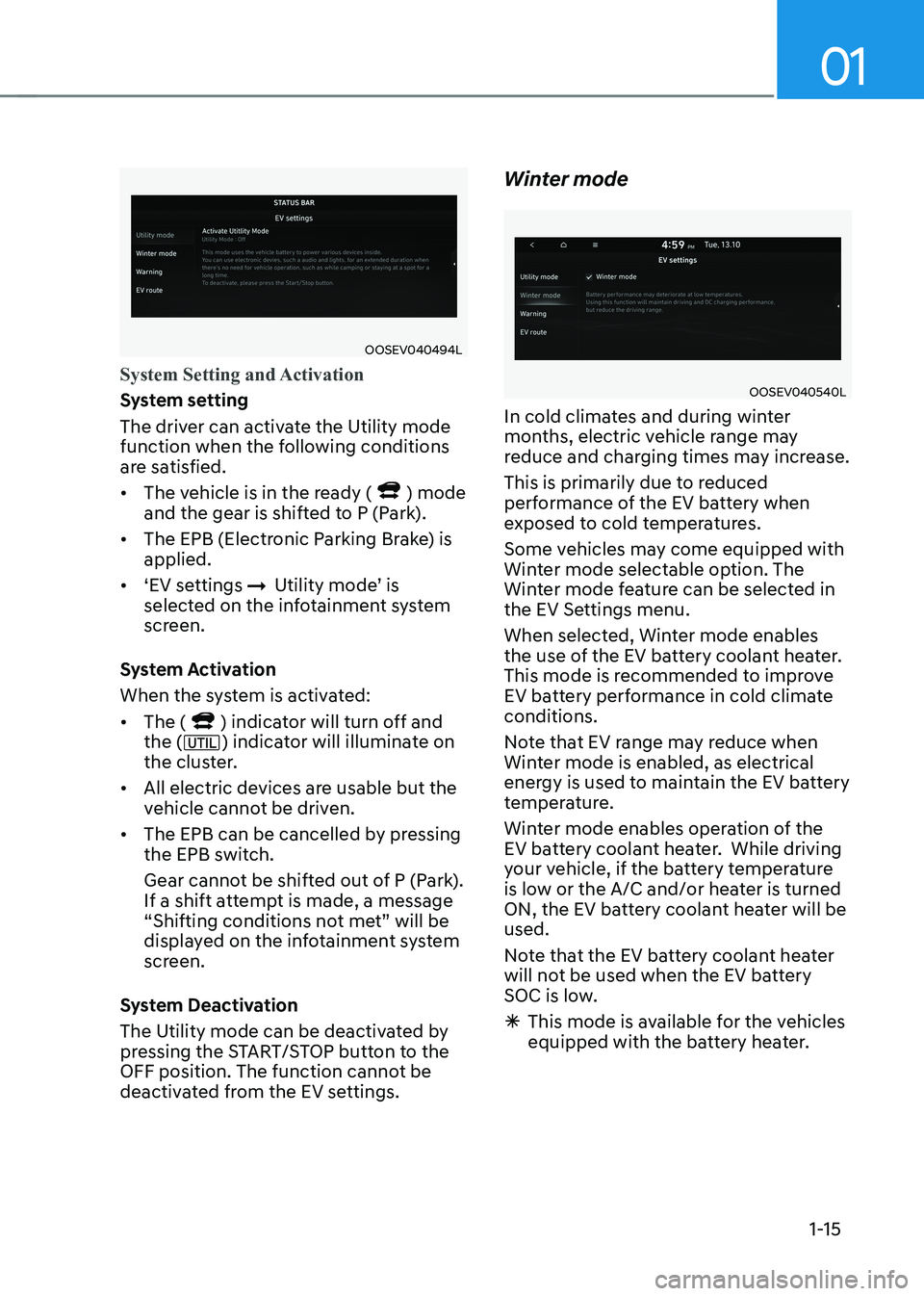
OOSEV040494L
System Setting and Activation
System setting
The driver can activate the Utility mode
function when the following conditions
are satisfied. • The vehicle is in the ready (
) mode
and the gear is shifted to P (Park).
• The EPB (Electronic Parking Brake) is applied.
• ‘EV settings
ÞUtility mode’ is
selected on the infotainment system
screen.
System Activation
When the system is activated:• The (
) indicator will turn off and
the () indicator will illuminate on
the cluster.
• All electric devices are usable but the
vehicle cannot be driven.
• The EPB can be cancelled by pressing
the EPB switch.
Gear cannot be shifted out of P (Park).
If a shift attempt is made, a message
“Shifting conditions not met” will be
displayed on the infotainment system
screen.
System Deactivation
The Utility mode can be deactivated by
pressing the START/STOP button to the
OFF position. The function cannot be
deactivated from the EV settings. Winter mode
OOSEV040540L
In cold climates and during winter
months, electric vehicle range may
reduce and charging times may increase.
This is primarily due to reduced
performance of the EV battery when
exposed to cold temperatures.
Some vehicles may come equipped with
Winter mode selectable option. The
Winter mode feature can be selected in
the EV Settings menu.
When selected, Winter mode enables
the use of the EV battery coolant heater.
This mode is recommended to improve
EV battery performance in cold climate conditions.
Note that EV range may reduce when
Winter mode is enabled, as electrical
energy is used to maintain the EV battery
temperature.
Winter mode enables operation of the
EV battery coolant heater. While driving
your vehicle, if the battery temperature
is low or the A/C and/or heater is turned
ON, the EV battery coolant heater will be used.
Note that the EV battery coolant heater
will not be used when the EV battery
SOC is low.
à This mode is available for the vehicles
equipped with the battery heater.
Page 27 of 548
Foreword / Electric Vehicle System Overview
1-22
sCHeduled CHarging
Scheduled Charging
• You can set-up a charging schedule
for your vehicle using the Audio
or Navigation screen or Blue Link
application.
Refer to the Multimedia manual or
the Blue Link manual for detailed
information about setting scheduled
charging.
• Scheduled charging can only be done
when using a Level 2 AC charging
station or the Level 1 AC charger with
the Hyundai-supplied charging power
cord.
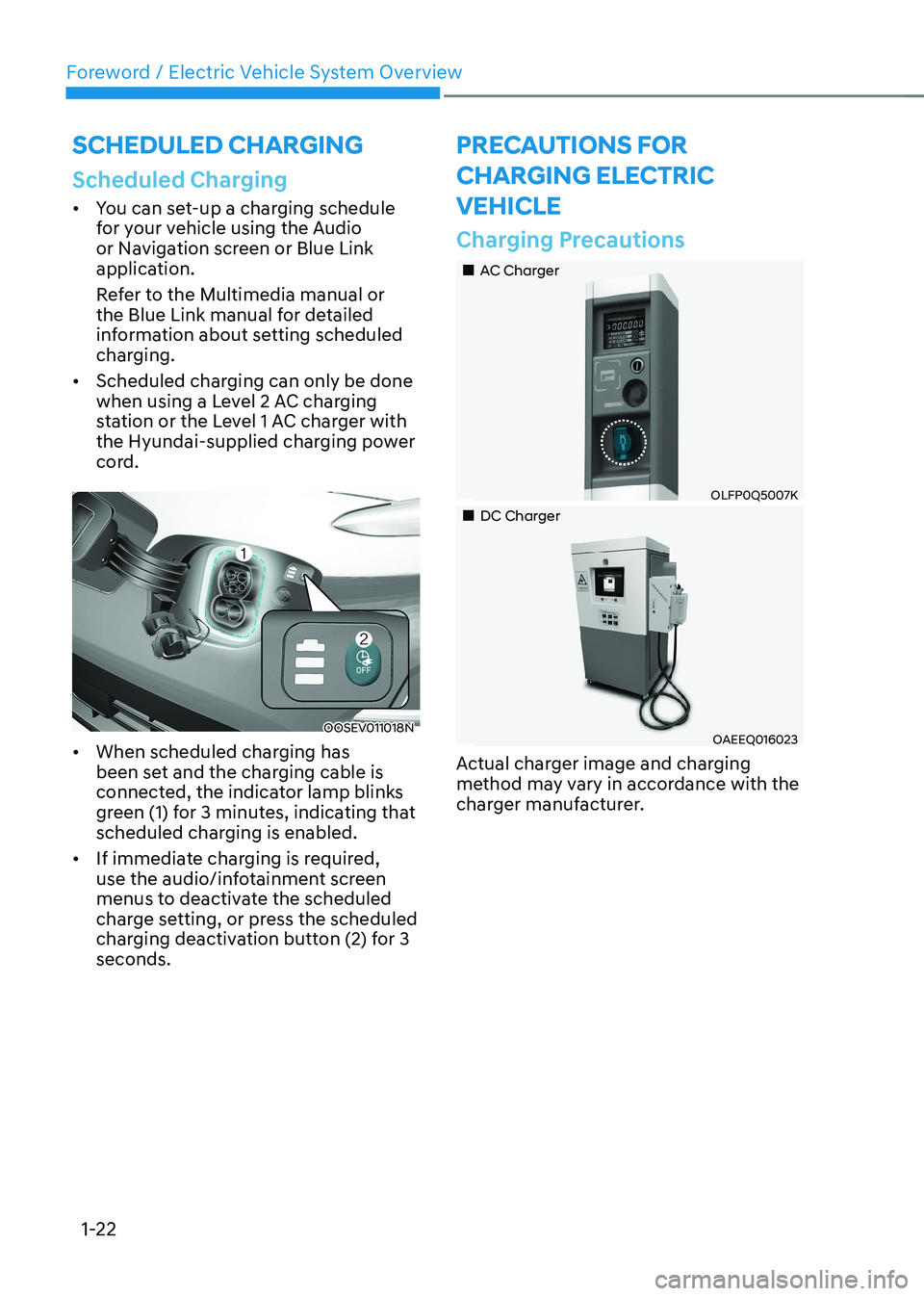
OOSEV011018N
• When scheduled charging has
been set and the charging cable is
connected, the indicator lamp blinks
green (1) for 3 minutes, indicating that
scheduled charging is enabled.
• If immediate charging is required,
use the audio/infotainment screen
menus to deactivate the scheduled
charge setting, or press the scheduled
charging deactivation button (2) for 3 seconds.
preCauTions For
CHarging eleCTriC VeHiCle
Charging Precautions
„„AC Charger
OLFP0Q5007K
„„DC Charger
OAEEQ016023
Actual charger image and charging
method may vary in accordance with the
charger manufacturer.
Page 174 of 548
04
4-31
User settings mode (if equipped)
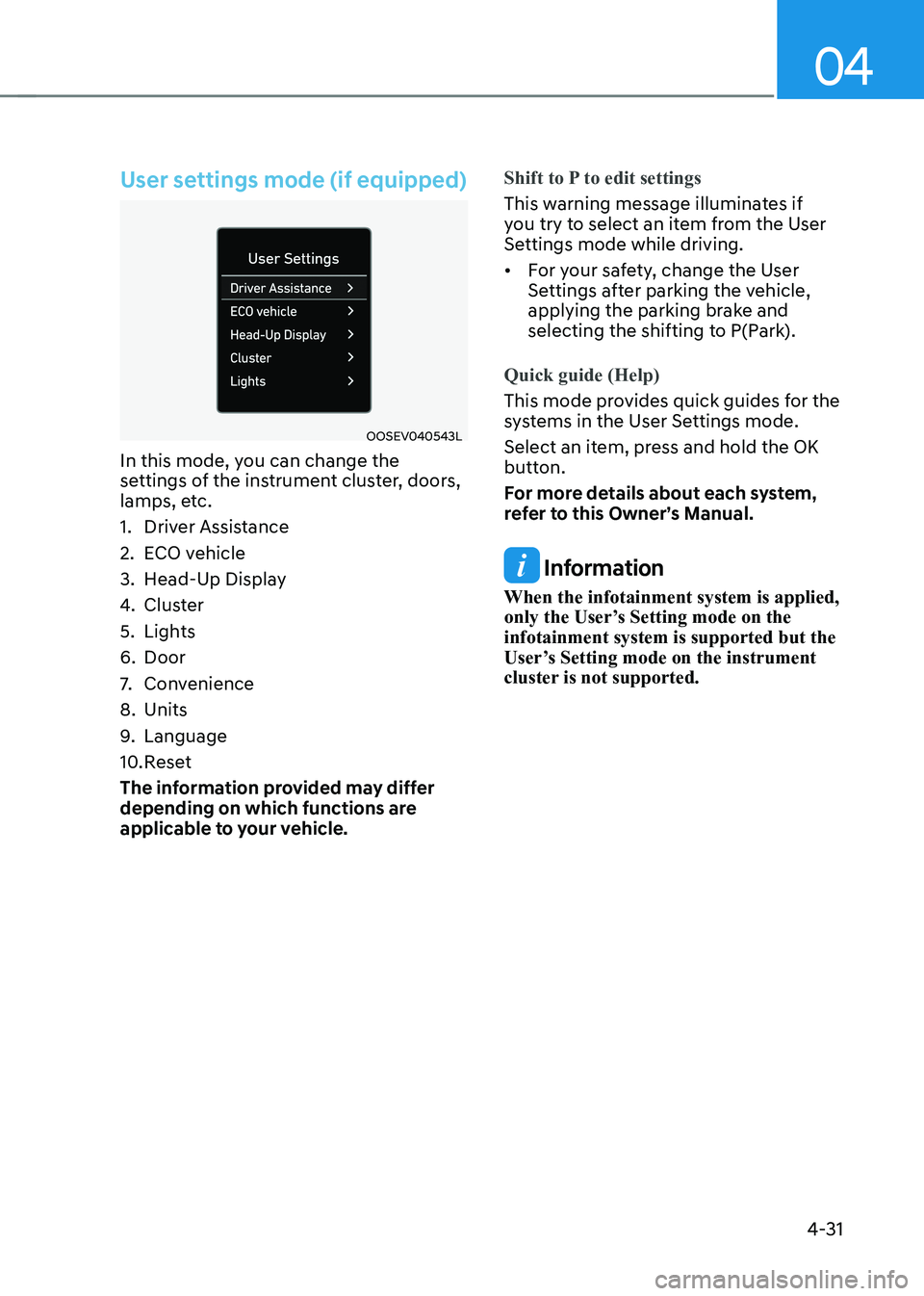
OOSEV040543L
In this mode, you can change the
settings of the instrument cluster, doors,
lamps, etc.
1. Driver Assistance
2. ECO vehicle
3. Head-Up Display
4. Cluster
5. Lights
6. Door
7. Convenience
8. Units
9. Language
10. Reset
The information provided may differ
depending on which functions are
applicable to your vehicle.
Shift to P to edit settings
This warning message illuminates if
you try to select an item from the User
Settings mode while driving. • For your safety, change the User
Settings after parking the vehicle,
applying the parking brake and
selecting the shifting to P(Park).
Quick guide (Help)
This mode provides quick guides for the
systems in the User Settings mode.
Select an item, press and hold the OK
button.
For more details about each system,
refer to this Owner’s Manual.
Information
When the infotainment system is applied,
only the User’s Setting mode on the infotainment system is supported but the
User’s Setting mode on the instrument
cluster is not supported.
Page 187 of 548
5
Interior features .............................................................................................. 5-84
Cup holder ................................................................................................................. 5-84
Sunvisor ...................................................................................................................... 5-85
Power outlet ............................................................................................................... 5-85
USB charger ............................................................................................................... 5-86
Wireless cellular phone charging system .................................................................5-87
Clock .......................................................................................................................... 5-89
Clothes hanger .......................................................................................................... 5-89
Floor mat anchor(s) ................................................................................................... 5-90
Luggage net (holder) .................................................................................................. 5-91
Cargo area cover ........................................................................................................ 5-91
Exterior features .............................................................................................. 5-92
Roof rack ..................................................................................................................... 5-92
Infotainment system ....................................................................................... 5-93
USB and iPod ® port ....................................................................................................5-93
Antenna ....................................................................................................................... 5-93
Steering wheel audio controls ................................................................................. 5-94
Bluetooth ® Wireless Technology hands-free ........................................................... 5-95
Voice recognition ...................................................................................................... 5-96
Audio / Video / Navigation system (AVN) ................................................................5-96
5. Convenient features
Page 198 of 548
Convenient features
5-14
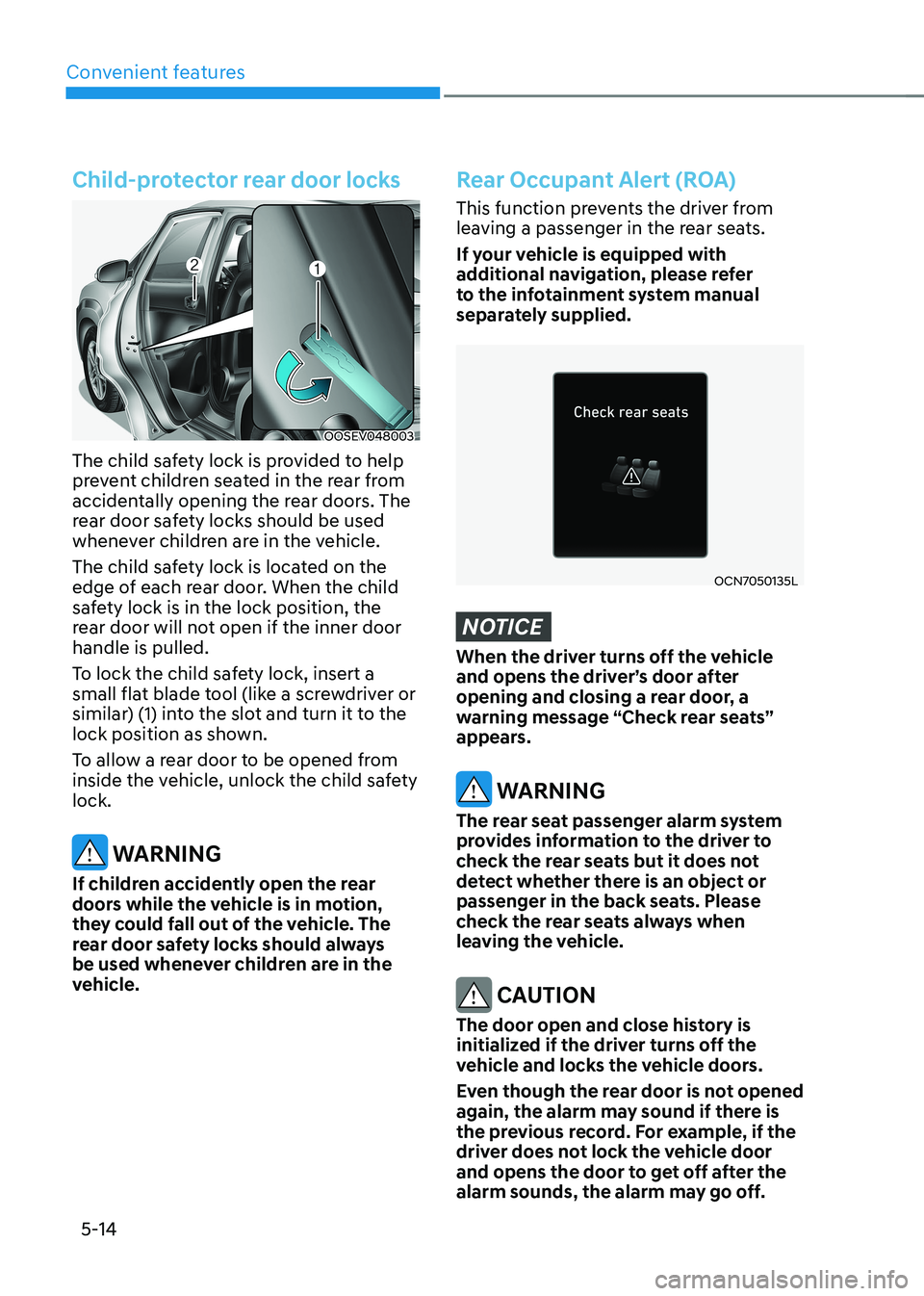
Child-protector rear door locks
OOSEV048003
The child safety lock is provided to help
prevent children seated in the rear from
accidentally opening the rear doors. The
rear door safety locks should be used
whenever children are in the vehicle.
The child safety lock is located on the
edge of each rear door. When the child
safety lock is in the lock position, the
rear door will not open if the inner door handle is pulled.
To lock the child safety lock, insert a
small flat blade tool (like a screwdriver or
similar) (1) into the slot and turn it to the
lock position as shown.
To allow a rear door to be opened from
inside the vehicle, unlock the child safety lock.
WARNING
If children accidently open the rear
doors while the vehicle is in motion,
they could fall out of the vehicle. The
rear door safety locks should always
be used whenever children are in the
vehicle.
Rear Occupant Alert (ROA)
This function prevents the driver from
leaving a passenger in the rear seats.
If your vehicle is equipped with
additional navigation, please refer
to the infotainment system manual
separately supplied.
OCN7050135L
NOTICE
When the driver turns off the vehicle
and opens the driver’s door after
opening and closing a rear door, a
warning message “Check rear seats”
appears.
WARNING
The rear seat passenger alarm system
provides information to the driver to
check the rear seats but it does not
detect whether there is an object or
passenger in the back seats. Please
check the rear seats always when
leaving the vehicle.
CAUTION
The door open and close history is
initialized if the driver turns off the
vehicle and locks the vehicle doors.
Even though the rear door is not opened
again, the alarm may sound if there is
the previous record. For example, if the
driver does not lock the vehicle door
and opens the door to get off after the
alarm sounds, the alarm may go off.
Page 277 of 548
05
5-93
Information
• If you install an aftermarket HID
headlamp, your vehicle’s audio and
electronic devices may malfunction.
• Prevent chemicals such as perfume,
cosmetic oil, sun cream, hand cleaner,
and air freshener from contacting the
interior parts because they may cause
damage or discoloration.
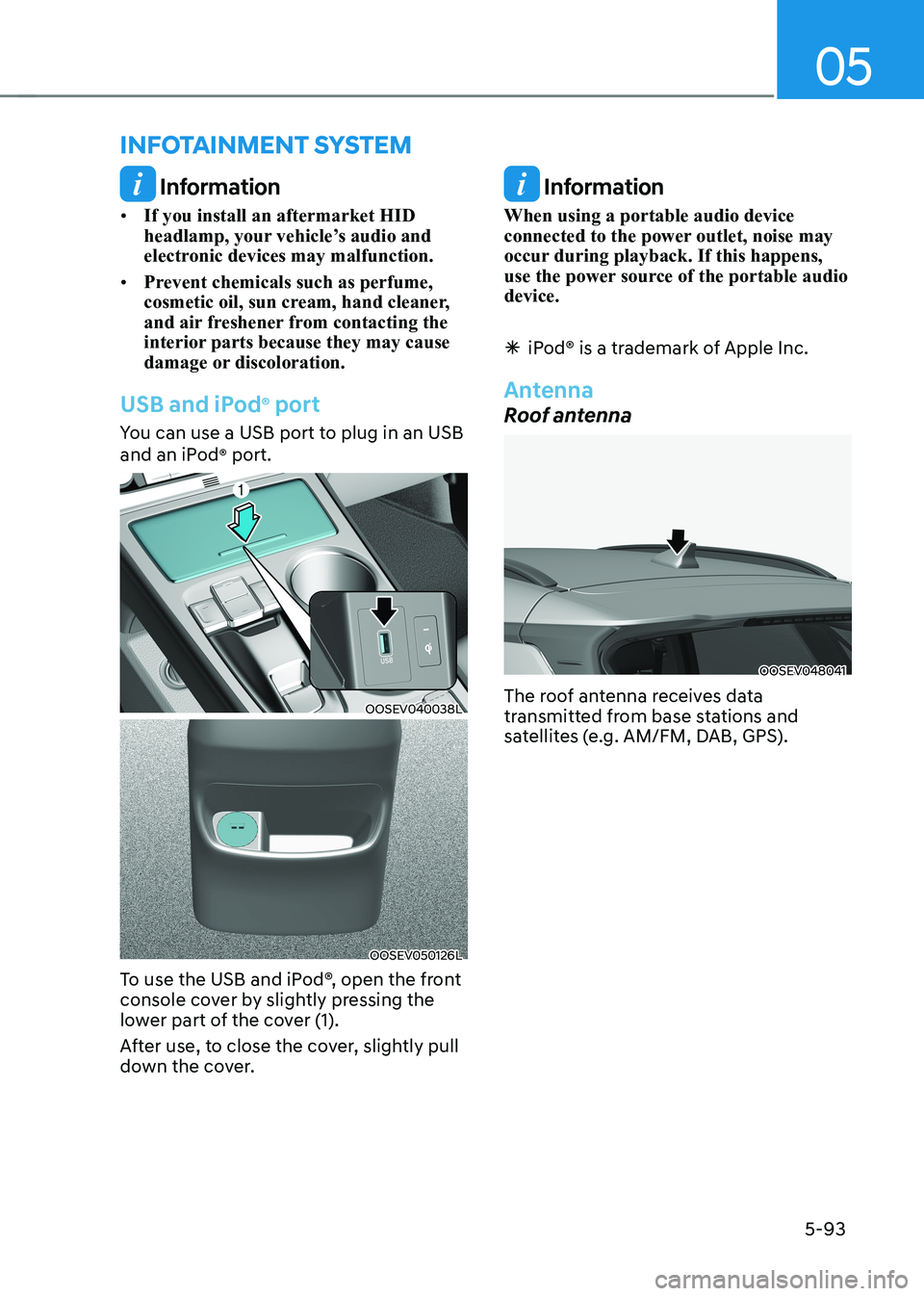
USB and iPod ®
port
You can use a USB port to plug in an USB
and an iPod ®
port.
OOSEV040038L
OOSEV050126L
To use the USB and iPod®, open the front
console cover by slightly pressing the
lower part of the cover (1).
After use, to close the cover, slightly pull
down the cover.
Information
When using a portable audio device
connected to the power outlet, noise may
occur during playback. If this happens,
use the power source of the portable audio device.
à iPod® is a trademark of Apple Inc.
Antenna
Roof antenna
OOSEV048041
The roof antenna receives data
transmitted from base stations and
satellites (e.g. AM/FM, DAB, GPS).
infoTainmenT sysTem
Page 280 of 548
Convenient features
5-96
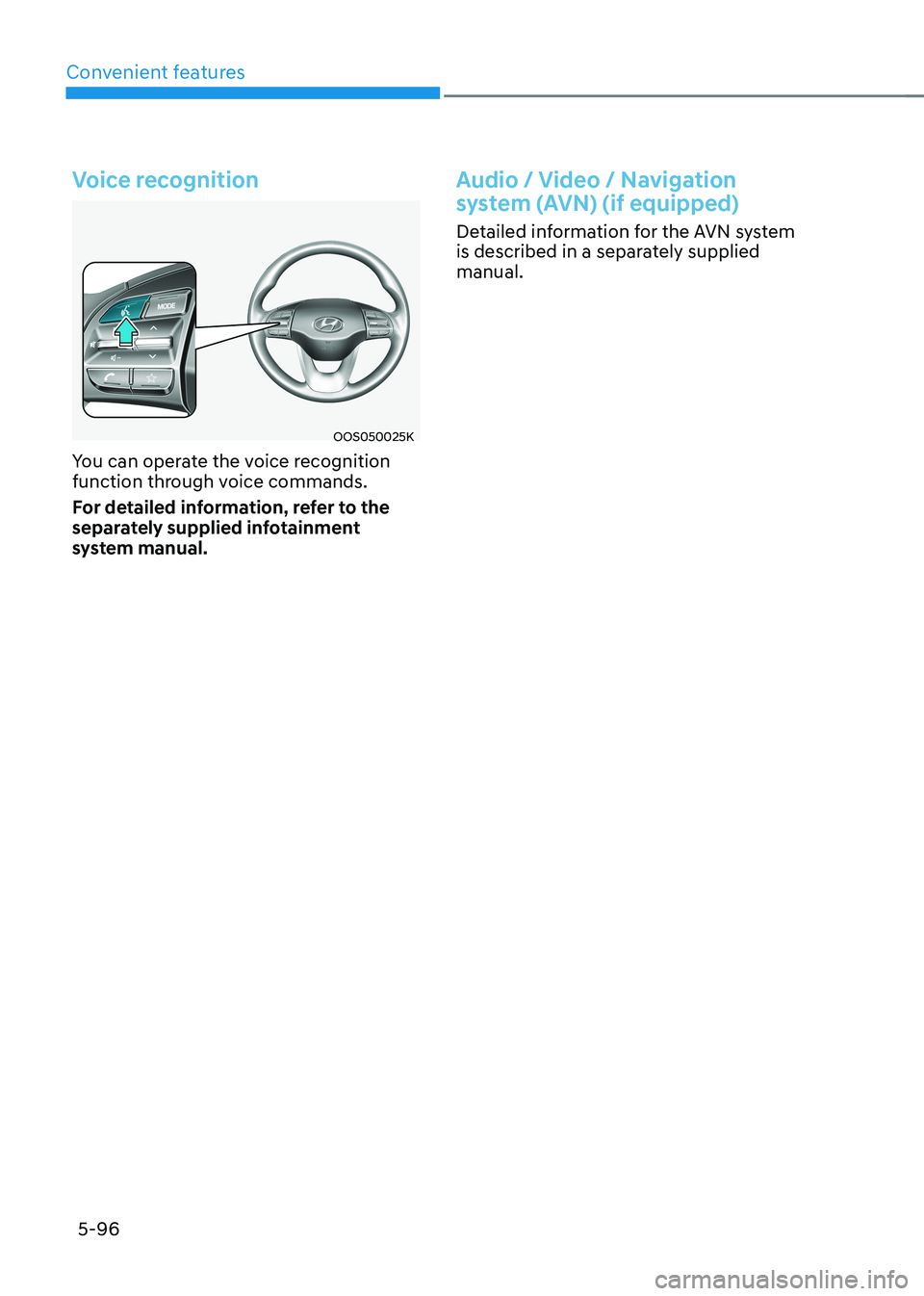
Voice recognition
OOS050025K
You can operate the voice recognition
function through voice commands.
For detailed information, refer to the
separately supplied infotainment
system manual.
Audio / Video / Navigation
system (AVN) (if equipped)
Detailed information for the AVN system
is described in a separately supplied manual.
Page 364 of 548
07
7-31
warning
• The steering wheel may not be
assisted if the steering wheel is held
very tight or the steering wheel is
steered over a certain degree.
• Lane Keeping Assist does not operate
at all times. It is the responsibility of
the driver to safely steer the vehicle
and to maintain the vehicle in its lane.
• The hands–off warning message
may appear late depending on road
conditions. Always have your hands
on the steering wheel while driving.
• If the steering wheel is held very
lightly, the hands–off warning
message may appear because Lane
Keeping Assist may not recognize
that the driver has their hands on the
steering wheel.
• If you attach objects to the steering
wheel, the hands-off warning may
not work properly. Information
• For more details on setting the functions in the infotainment system,
refer to “Vehicle Settings” section in
chapter 4.
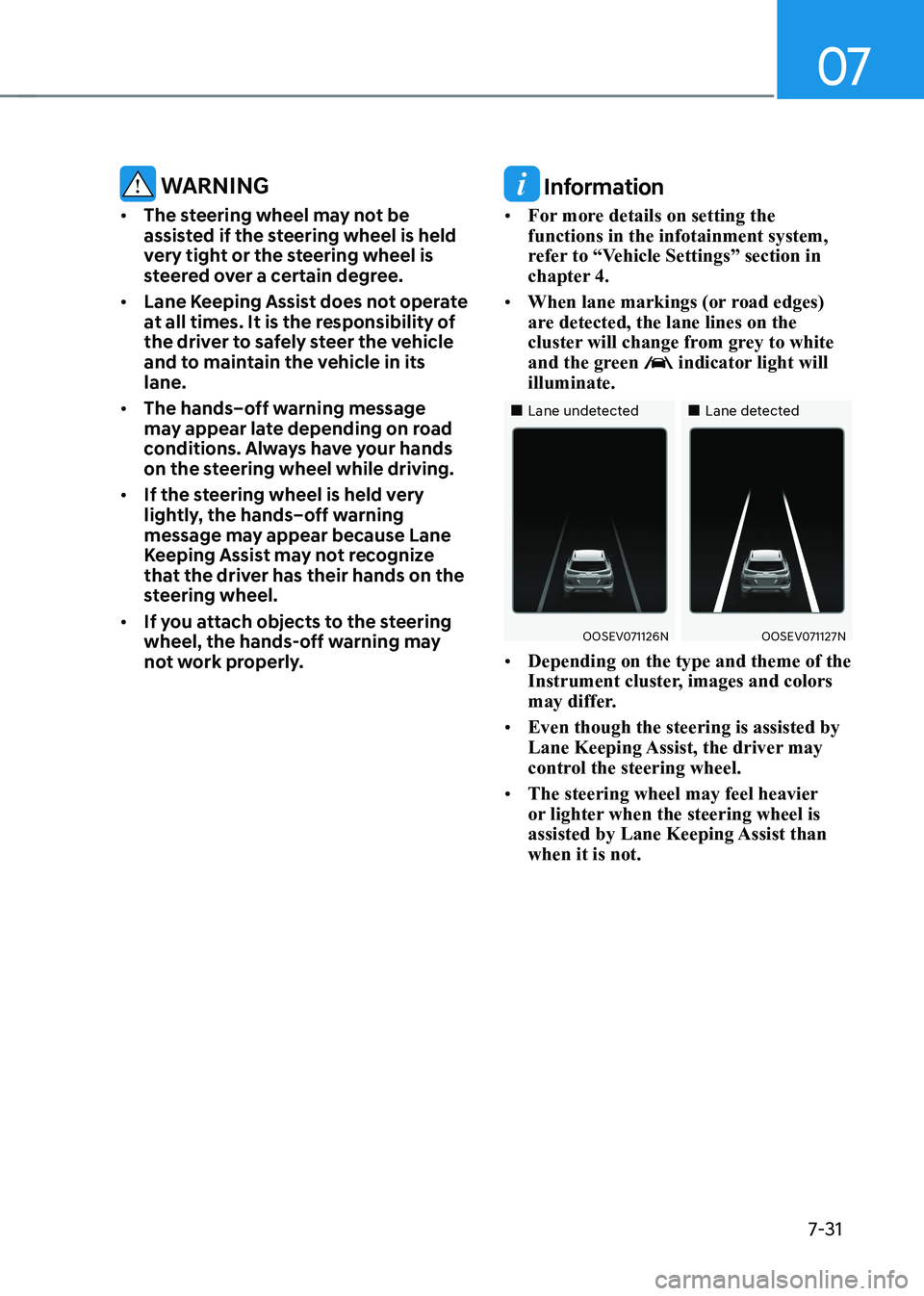
• When lane markings (or road edges)
are detected, the lane lines on the
cluster will change from grey to white
and the green
indicator light will
illuminate.
„„Lane undetected „„Lane detected
OOSEV071126NOOSEV071127N
• Depending on the type and theme of the
Instrument cluster, images and colors
may differ.
• Even though the steering is assisted by
Lane Keeping Assist, the driver may
control the steering wheel.
• The steering wheel may feel heavier
or lighter when the steering wheel is
assisted by Lane Keeping Assist than when it is not.
Page 389 of 548
Driver assistance system
7-56
• The driver’s attention level is displayed
on the scale of 1 to 5. The lower the
level is, the more inattentive the driver is.
• The level decreases when the driver
does not take a break for a certain
period of time.
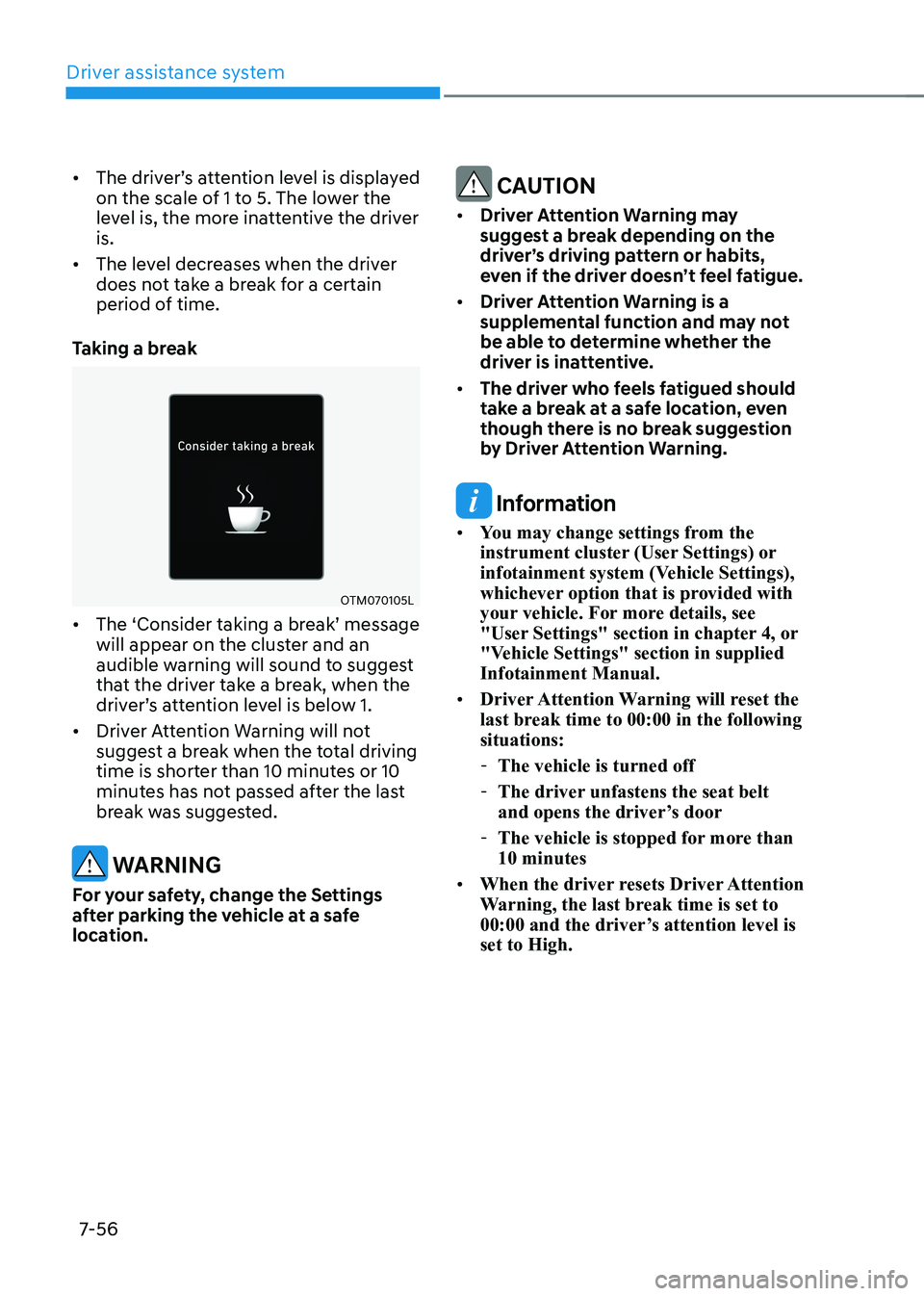
Taking a break
OTM070105L
• The ‘Consider taking a break’ message will appear on the cluster and an
audible warning will sound to suggest
that the driver take a break, when the
driver’s attention level is below 1.
• Driver Attention Warning will not
suggest a break when the total driving
time is shorter than 10 minutes or 10
minutes has not passed after the last
break was suggested.
warning
For your safety, change the Settings
after parking the vehicle at a safe
location.
CAUTION
• Driver Attention Warning may
suggest a break depending on the
driver’s driving pattern or habits,
even if the driver doesn’t feel fatigue.
• Driver Attention Warning is a
supplemental function and may not
be able to determine whether the
driver is inattentive.
• The driver who feels fatigued should
take a break at a safe location, even
though there is no break suggestion
by Driver Attention Warning.
Information
• You may change settings from the
instrument cluster (User Settings) or
infotainment system (Vehicle Settings),
whichever option that is provided with
your vehicle. For more details, see
"User Settings" section in chapter 4, or
"Vehicle Settings" section in supplied Infotainment Manual.
• Driver Attention Warning will reset the
last break time to 00:00 in the following situations:
- The vehicle is turned off
- The driver unfastens the seat belt
and opens the driver’s door
- The vehicle is stopped for more than 10 minutes
• When the driver resets Driver Attention
Warning, the last break time is set to
00:00 and the driver’s attention level is set to High.