navigation system Hyundai Nexo 2019 Owner's Manual
[x] Cancel search | Manufacturer: HYUNDAI, Model Year: 2019, Model line: Nexo, Model: Hyundai Nexo 2019Pages: 560, PDF Size: 24.2 MB
Page 14 of 560
I
IN
N S
ST
T R
R U
U M
M E
EN
N T
T
P
P A
A N
N E
EL
L
O
O V
VE
ER
R V
V I
IE
E W
W
The actual shape may differ from the illustration.
1-5
Your vehicle at a glance
1
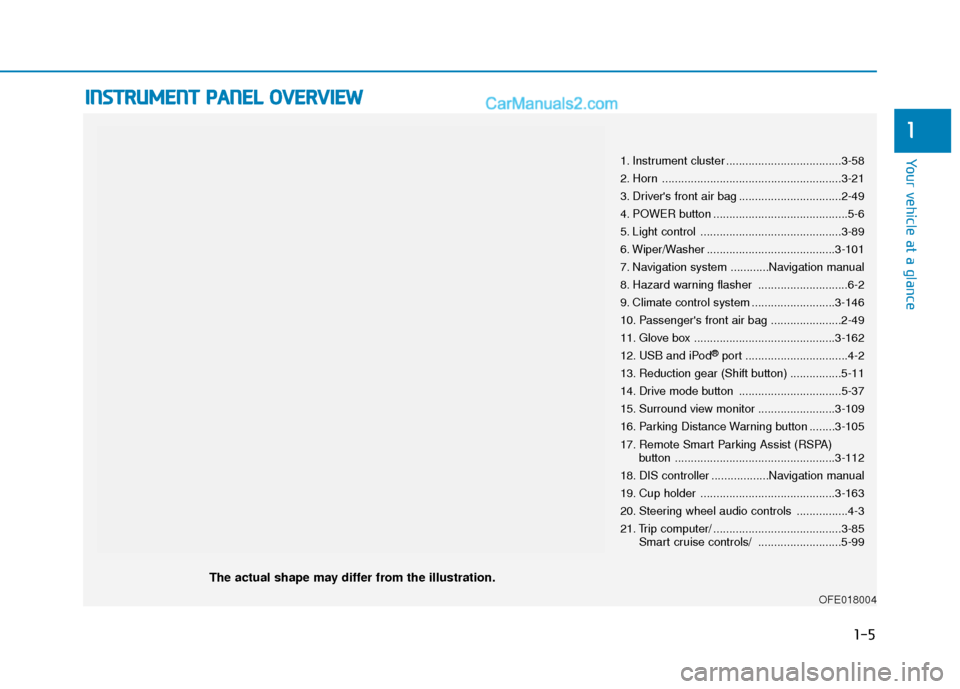
1. Instrument cluster ....................................3-58
2. Horn ........................................................3-21
3. Driver's front air bag ................................2-49
4. POWER button ..........................................5-6
5. Light control ............................................3-89
6. Wiper/Washer ........................................3-101
7. Navigation system ............Navigation manual
8. Hazard warning flasher ............................6-2
9. Climate control system ..........................3-146
10. Passenger's front air bag ......................2-49
11. Glove box ............................................3-162
12. USB and iPod
®port ................................4-2
13. Reduction gear (Shift button) ................5-11
14. Drive mode button ................................5-37
15. Surround view monitor ........................3-109
16. Parking Distance Warning button ........3-105
17. Remote Smart Parking Assist (RSPA) button ..................................................3-112
18. DIS controller ..................Navigation manual
19. Cup holder ..........................................3-163
20. Steering wheel audio controls ................4-3
21. Trip computer/ ........................................3-85 Smart cruise controls/ ..........................5-99
OFE018004
Page 17 of 560
2-2
You will find many safety precautions
and recommendations throughout
this section, and throughout this
manual. The safety precautions in
this section are among the most
important.
Always Wear Your Seat Belt
A seat belt is your best protection in
all types of accidents. Air bags are
designed to supplement seat belts,
not replace them. So even though
your vehicle is equipped with air
bags, ALWAYS make sure you and
your passengers wear your seat
belts, and wear them properly.
Restrain All Children
All children under age 13 should ride
in your vehicle properly restrained in
a rear seat, not the front seat. Infants
and small children should be
restrained in an appropriate child
restraint. Larger children should use
a booster seat with the lap/shoulder
belt until they can use the seat belt
properly without a booster seat.
Air Bag Hazards
While air bags can save lives, they
can also cause serious or fatal
injuries to occupants who sit too
close to them, or who are not prop-
erly restrained. Infants, young chil-
dren, and shorter adults are at the
greatest risk of being injured by an
inflating air bag. Follow all instruc-
tions and warnings in this manual.
Driver Distraction
Driver distraction presents a serious
and potentially deadly danger, espe-
cially for inexperienced drivers.
Safety should be the first concern
when behind the wheel and drivers
need to be aware of the wide array of
potential distractions, such as
drowsiness, reaching for objects,
eating, personal grooming, other
passengers, and using cellular
phones.
Drivers can become distracted when
they take their eyes and attention off
the road or their hands off the wheel
to focus on activities other than driv-
ing. To reduce your risk of distraction
or getting into an accident:
• ALWAYS set up your mobiledevices (i.e., MP3 players, phones,
navigation units, etc.) when your
vehicle is parked or safely stopped.
I IM
M P
PO
O R
RT
TA
A N
N T
T
S
S A
A F
FE
E T
T Y
Y
P
P R
R E
EC
CA
A U
U T
TI
IO
O N
NS
S
Safety system of your vehicle
Page 139 of 560
3-52
Convenient features of your vehicle
How to use the Smart Liftgate
The hands-free smart liftgate system
can be opened automatically when
the following conditions are met:
The Smart Liftgate option isenabled in the User Settings in the
AVN screen.
The Smart Liftgate is activated and ready 15 seconds after all the
doors are closed and locked
The Smart Liftgate will open when the smart key is detected in the
area behind the vehicle for 3 sec-
ondsInformation
The Smart Liftgate will NOT operate
when:
• Any door is open, or all doors areclosed but not locked
• The smart key is detected within 15 seconds from when the doors were
closed and locked
• For vehicles equipped with illumi- nated exterior front door handles, if
the smart key is detected within 15
seconds from when the doors were
closed and locked or if the smart key
is within 60 inches (1.5m) from the
front door handles
• The smart key is in the vehicle. 1. Setting
To activate the Smart Liftgate, go to
"Vehicle settings →
Door/Tailgate"
and select Smart Tailgate (Liftgate)
on the AVN screen.
For more information refer to the
separately supplied Navigation
manual.
2.Detect and Alert
The Smart Liftgate detecting area
extends approximately 20-40 in (50-
100 cm) behind the vehicle. If you
are positioned in the detecting area
and are carrying the smart key, the
hazard warning lights will blink and
the chime will sound to alert you that
the smart liftgate will open.
Information
Do not approach the detecting area if
you do not want the liftgate to open. If
you have unintentionally entered the
detecting area and the hazard warn-
ing lights and chime starts to operate,
move away from the area behind the
vehicle with the smart key. The lift-
gate will remain closed.
i
i
Page 170 of 560
3-83
Convenient features of your vehicle
3
Trip computer mode
The trip computer mode displays
information related to vehicle driving
parameters including fuel economy,
tripmeter information and vehicle
speed.
For more details, refer to "Trip
Computer" in this chapter.
Turn By Turn (TBT) mode
This mode displays the state of the
navigation.
Information mode
Tire Pressure
This mode displays information relat-
ed to Tire Pressure.
For more details, refer to "Tire
Pressure Monitoring System
(TPMS)" in chapter 6.
OFE048154NOFE048119NOFE048155L
Page 182 of 560
3-95
Convenient features of your vehicle
3
One-touch turn signal function
To activate the One Touch Turn
Signal function, push the turn signal
lever up or down to position (B) and
then release it.
The lane change signals will blink 3,
5 or 7 times.
You can activate or deactivate the
One Touch Turn Signal function or
choose the number of blinks (3, 5, or
7) from the Vehicle Settings mode in
the AVN screen.
For more details, refer to the sepa-
rately supplied Navigation manual.
Battery saver function
The purpose of this feature is to pre-
vent the battery from being dis-
charged. The system automatically
turns off the parking lamp when the
driver turns the vehicle off and opens
the driver-side door.
With this feature, the parking lamps
will turn off automatically if the driver
parks on the side of road at night.
If necessary, to keep the lamps on
when the vehicle is turned off, perform
the following:
1) Open the driver-side door.
2) Turn the parking lamps OFF andON again using the headlamp
switch on the steering column.
Headlight time-out function (if equipped)
If the POWER button is placed in the
ACC position or the OFF position
with the headlamps ON, the head-
lamps (and/or parking lamps) remain
on for about 5 minutes. However, if
the driver's door is opened and
closed, the headlights are turned off
after 15 seconds. Also, with the vehi-
cle off if the driver's door is opened
and closed, the headlamps (and/or
parking lamps) are turned off after 15
seconds.
The headlamps (and/or parking
lamps) can be turned off by pressing
the lock button on the smart key
twice or turning the light switch to the
OFF or AUTO position.
You can activate or deactivate the
Headlamp Delay function from the
Vehicle Settings mode (Light) on the
AVN screen.
For more details, refer to the sepa-
rately supplied Navigation manual.
Page 186 of 560
3-99
Convenient features of your vehicle
3
Escort light
When the vehicle is turned OFF and
the driver's door is opened, the pud-
dle lamp will come on for 30 sec-
onds. If the driver's door is closed
within the 30 seconds, the puddle
lamp will turn off after 15 seconds. If
the driver's door is closed and
locked, the puddle lamp will turn off
immediately.
The Puddle Lamp Escort Light will
turn on only the first time the driver's
door is opened after the vehicle is
turned off.
Welcome System (if equipped)
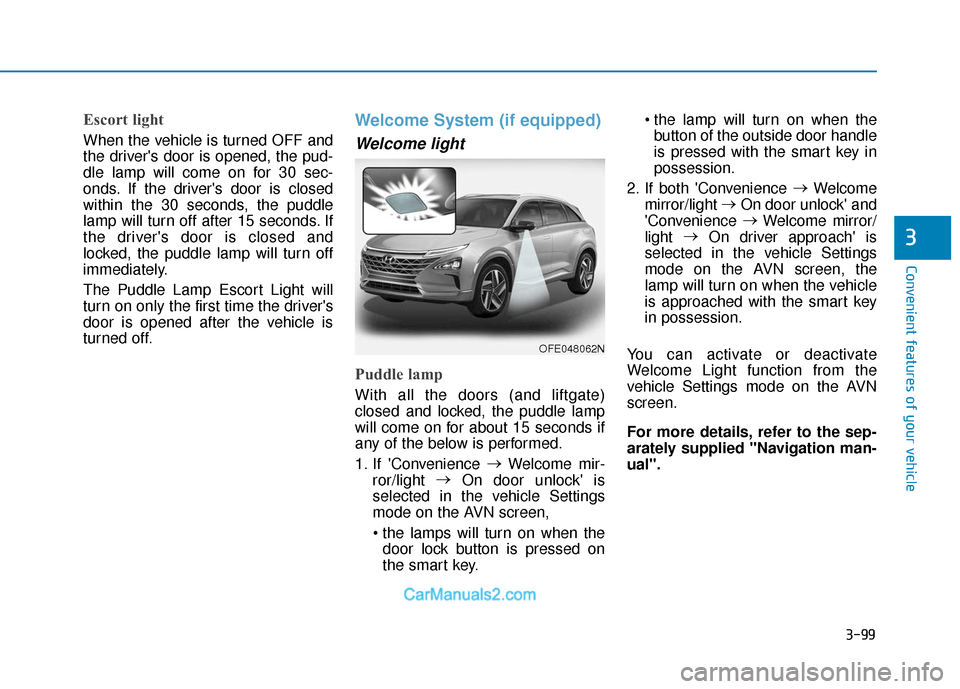
Welcome light
Puddle lamp
With all the doors (and liftgate)
closed and locked, the puddle lamp
will come on for about 15 seconds if
any of the below is performed.
1. If 'Convenience →
Welcome mir-
ror/light →
On door unlock' is
selected in the vehicle Settings
mode on the AVN screen,
door lock button is pressed on
the smart key. the lamp will turn on when the
button of the outside door handle
is pressed with the smart key in
possession.
2. If both 'Convenience →
Welcome
mirror/light →
On door unlock' and
'Convenience →
Welcome mirror/
light →
On driver approach' is
selected in the vehicle Settings
mode on the AVN screen, the
lamp will turn on when the vehicle
is approached with the smart key
in possession.
You can activate or deactivate
Welcome Light function from the
vehicle Settings mode on the AVN
screen.
For more details, refer to the sep-
arately supplied "Navigation man-
ual".
OFE048062N
Page 206 of 560
3-119
Convenient features of your vehicle
3
How the System Works
(Smart Parking)
Smart Parking is available with the
driver on board. Make sure the con-
ditions available before activating the
Smart parking function.
1. Select Smart Parking:Press the RSPA button with the
shift lever placed in D (Drive) or N
(Neutral) position.
❈However, the Smart Exit is
selected if you press the RSPA
button when the gear is in N
(Neutral) position after the initial
startup.
2. Search for parking space: Slowly move forward below 12 mph (20
km/h)
3. Search complete: Automatic search by sensor.
However, check the actual parking
environment before parking the
vehicle.
4. Select parking type: Reverse (left/right), parallel (left/right)
5. Operating instructions: Smart Parking/Remote Smart Parking 6. Smart Parking assist: Steering
wheel, gear shift and vehicle
speed control (reverse parking).
7. Parking complete: Smart Parking complete after reaching the park-
ing position
❈ After the parking is complete,
arrange the vehicle position manu-
ally, if necessary.
❈ You can use Smart Parking after
navigation or home screen display
on AVN (You cannot use Smart
Parking if you don't choose
"Confirm" on AVN booting)
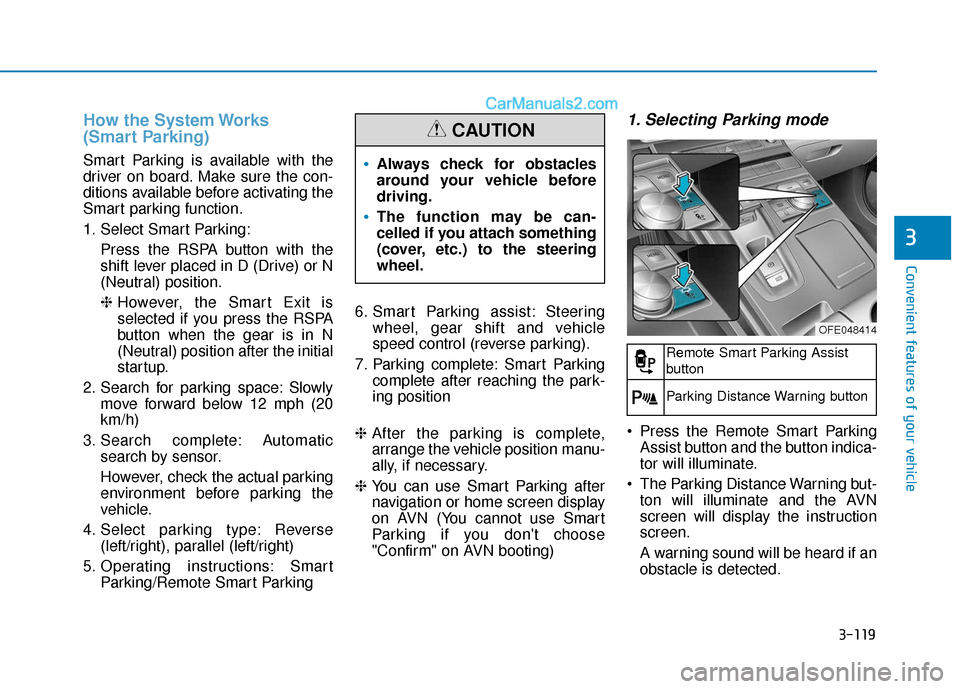
1. Selecting Parking mode
Press the Remote Smart Parking
Assist button and the button indica-
tor will illuminate.
The Parking Distance Warning but- ton will illuminate and the AVN
screen will display the instruction
screen.
A warning sound will be heard if an
obstacle is detected.
Always check for obstacles
around your vehicle before
driving.
The function may be can-
celled if you attach something
(cover, etc.) to the steering
wheel.
CAUTION
OFE048414
Remote Smart Parking Assist
button
Parking Distance Warning button
Page 218 of 560
3-131
Convenient features of your vehicle
3
❈ You can use Smart Parking after
navigation or home screen display
on AVN(You cannot use Smart
Parking if you don't choose
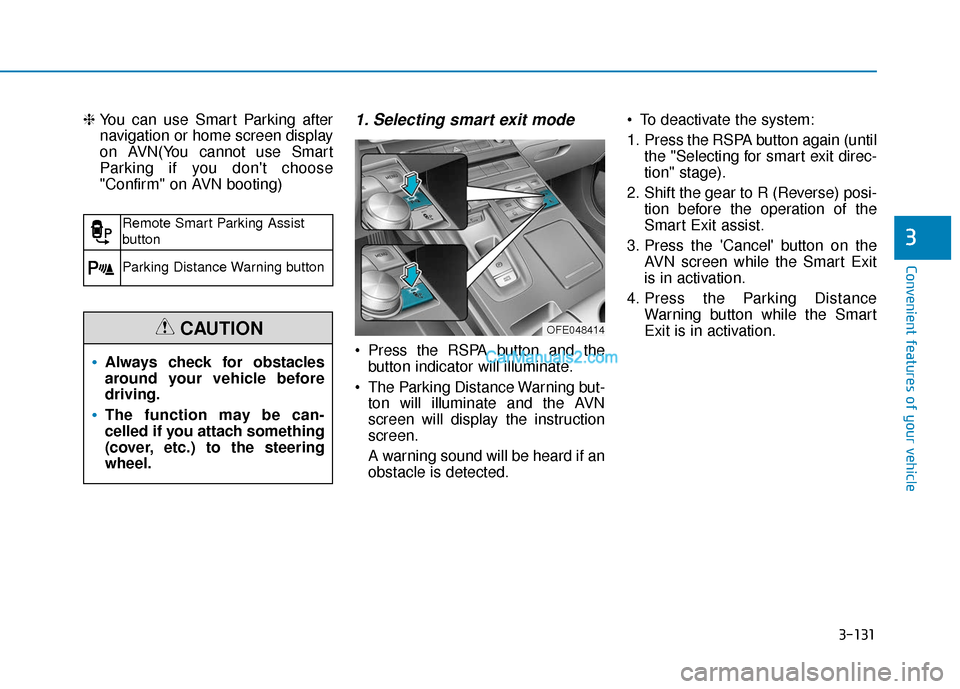
"Confirm" on AVN booting)1. Selecting smart exit mode
Press the RSPA button and the
button indicator will illuminate.
The Parking Distance Warning but- ton will illuminate and the AVN
screen will display the instruction
screen.
A warning sound will be heard if an
obstacle is detected. To deactivate the system:
1. Press the RSPA button again (until
the "Selecting for smart exit direc-
tion" stage).
2. Shift the gear to R (Reverse) posi- tion before the operation of the
Smart Exit assist.
3. Press the 'Cancel' button on the AVN screen while the Smart Exit
is in activation.
4. Press the Parking Distance Warning button while the Smart
Exit is in activation.
Remote Smart Parking Assist
button
Parking Distance Warning button
Always check for obstacles
around your vehicle before
driving.
The function may be can-
celled if you attach something
(cover, etc.) to the steering
wheel.
CAUTIONOFE048414
Page 256 of 560
3-169
Convenient features of your vehicle
3
To charge a cellular phone
The wireless cellular phone charging
system charges only the Qi-enabled
cellular phones ( ). Read the label
on the cellular phone accessory
cover or visit your cellular phone
manufacturer's website to check
whether your cellular phone supports
the Qi technology.
The wireless charging process starts
when you put a Qi-enabled cellular
phone on the wireless charging unit.
1. Remove other items, including thesmart key, from the wireless charg-
ing unit. If not, the wireless charg-
ing process may be interrupted.
Place the cellular phone on the
center of the charging pad ( ).
2. The indicator light is orange when the cellular phone is charging. The
indicator light turns green when
phone charging is complete.
3. You can turn ON or OFF the wire- less charging function in the
Vehicle Settings mode on the AVN
screen. For further information,
refer to the separately supplied
"Navigation manual". If your cellular phone is not charging:
- Slightly change the position of the
cellular phone on the charging
pad.
- Make sure the indicator light is orange.
The indicator light will blink orange for
10 seconds if there is a malfunction in
the wireless charging system.
In this case, temporarily stop the
charging process, and re-attempt to
charge your cellular phone again.
The system warns you with a mes-
sage on the LCD display if the cellular
phone is still on the wireless charging
unit after the POWER button is in the
OFF position and the front door is
opened.
Information
For some manufacturer's cellular
phones, the system may not warn you
even though the cellular phone is left
on the wireless charging unit. This is
due to the particular characteristic of
the cellular phone and not a malfunc-
tion of the wireless charging. The wireless cellular phone
charging system may not sup-
port certain cellular phones,
which are not verified for the Qi
specification ( ).
When placing your cellular phone on the charging mat,
position the phone in the middle
of the mat for optimal charging
performance. If your cell phone
is off to the side, the charging
rate may be less and in some
cases the cell phone may experi-
ence higher heat conduction.
In some cases, the wireless charging may stop temporarily
when the Smart Key is used,
either when starting the vehicle or
locking/unlocking the doors, etc.
When charging certain cellular phones, the charging indicator
may not change to green when
the cell phone is fully charged.
NOTICE
i
Page 257 of 560
3-170
Convenient features of your vehicle
The wireless charging processmay temporarily stop, when tem-
perature abnormally increases
inside the wireless cellular phone
charging system. Stop the charg-
ing cellular phone and wait until
temperature falls to a certain level.
The wireless charging process may temporarily stop when there
is any metallic item, such as a
coin, between the wireless cellular
phone charging system and the
cellular phone.
When charging some cellular phones with a self-protection fea-
ture, the wireless charging speed
may decrease and the wireless
charging may stop.
If the cellular phone has a thick cover, the wireless charging may
not be possible.
If the cell phone is not completely contacting the charging pad, wire-
less charging may not operate
properly.
Some magnetic items like credit cards, phone cards or rail tickets
may be damaged if left with the
cellular phone during the charging
process. When any cellular phone without a
wireless charging function or a
metallic object is placed on the
charging pad, a small noise may
sound. This small sound is due to
the vehicle discerning compatibil-
ity of the object placed on the
charging pad. It does not affect
your vehicle or the cellular phone
in any way.
Information
If the POWER button is in the OFF
position, the charging also stops.
Information
This device complies with part 15 of
the FCC Rules.
Operation is subject to the following
two conditions:
1. This device may not cause harmful interference, and
2. This device must accept any inter- ference received, including interfer-
ence that may cause undesired
operation.
Clock
Select the Vehicle Settings menu on
the AVN screen ➟Select [Date/Time].
GPS time: Displays time according to the received GNSS time.
Daylight saving time : The clock is adjusted forward one hour.
Time format : Switches to 12 hour or 24 hour.
For more details, refer to the sepa-
rately supplied Navigation manual.
i
i
Do not attempt to adjust the
clock while driving. Doing so
may result in distracted driving
which may lead to an accident
involving personal injury or
death.
WARNING