LKA Hyundai Palisade 2020 Owner's Manual
[x] Cancel search | Manufacturer: HYUNDAI, Model Year: 2020, Model line: Palisade, Model: Hyundai Palisade 2020Pages: 611, PDF Size: 18.86 MB
Page 15 of 611
1-4
Your vehicle at a glance
I
IN
N T
TE
ER
R I
IO
O R
R
O
O V
VE
ER
R V
V I
IE
E W
W
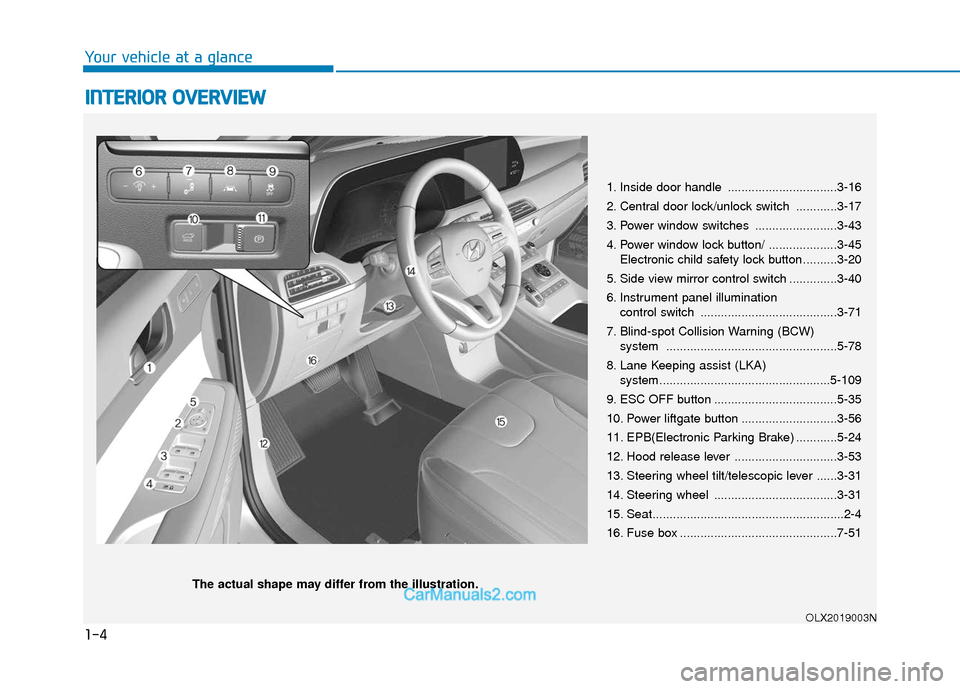
1. Inside door handle ................................3-16
2. Central door lock/unlock switch ............3-17
3. Power window switches ........................3-43
4. Power window lock button/ ....................3-45
Electronic child safety lock button..........3-20
5. Side view mirror control switch ..............3-40
6. Instrument panel illumination control switch ........................................3-71
7. Blind-spot Collision Warning (BCW) system ..................................................5-78
8. Lane Keeping assist (LKA) system..................................................5-109
9. ESC OFF button ....................................5-35
10. Power liftgate button ............................3-56
11. EPB(Electronic Parking Brake) ............5-24
12. Hood release lever ..............................3-53
13. Steering wheel tilt/telescopic lever ......3-31
14. Steering wheel ....................................3-31
15. Seat........................................................2-4
16. Fuse box ..............................................7-51
OLX2019003N
The actual shape may differ from the illustration.
Page 180 of 611
3-84
Convenient features of your vehicle
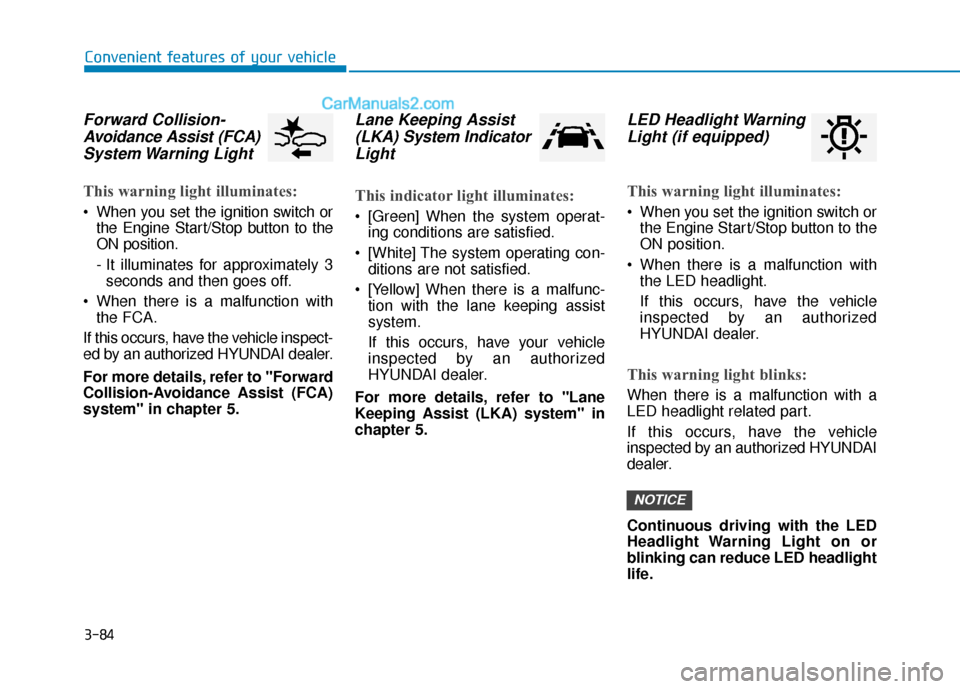
Forward Collision-Avoidance Assist (FCA)System Warning Light
This warning light illuminates:
When you set the ignition switch or
the Engine Start/Stop button to the
ON position.
- It illuminates for approximately 3seconds and then goes off.
When there is a malfunction with the FCA.
If this occurs, have the vehicle inspect-
ed by an authorized HYUNDAI dealer.
For more details, refer to "Forward
Collision-Avoidance Assist (FCA)
system" in chapter 5.
Lane Keeping Assist (LKA) System IndicatorLight
This indicator light illuminates:
[Green] When the system operat-
ing conditions are satisfied.
[White] The system operating con- ditions are not satisfied.
[Yellow] When there is a malfunc- tion with the lane keeping assist
system.
If this occurs, have your vehicle
inspected by an authorized
HYUNDAI dealer.
For more details, refer to "Lane
Keeping Assist (LKA) system" in
chapter 5.
LED Headlight Warning Light (if equipped)
This warning light illuminates:
When you set the ignition switch or
the Engine Start/Stop button to the
ON position.
When there is a malfunction with the LED headlight.
If this occurs, have the vehicle
inspected by an authorized
HYUNDAI dealer.
This warning light blinks:
When there is a malfunction with a
LED headlight related part.
If this occurs, have the vehicle
inspected by an authorized HYUNDAI
dealer.
Continuous driving with the LED
Headlight Warning Light on or
blinking can reduce LED headlight
life.
NOTICE
Page 191 of 611
3-95
Convenient features of your vehicle
3
Check Smart Cruise ControlSystem (if equipped)
This warning message is displayed if
there is a problem with the Smart
Cruise Control system. Have the
vehicle inspected by an authorized
HYUNDAI dealer.
For more details, refer to "Smart
Cruise Control with Stop & Go" in
chapter 5.
Check Driver Attention Warning(DAW) system (if equipped)
This warning message is displayed if
there is a problem with the Driver
Attention Warning (DAW). Have the
vehicle inspected by an authorized
HYUNDAI dealer.
For more details, refer to "Driver
Attention Warning (DAW)" in chap-
ter 5.
Check Lane Keeping Assist(LKA) system (if equipped)
This warning message is displayed if
there is a problem with the Check
Lane Keeping Assist (LKA) system.
Have the vehicle inspected by an
authorized HYUNDAI dealer.
For more details, refer to "Check
Lane Keeping Assist (LKA) sys-
tem" in chapter 5.
Page 193 of 611
3-97
Convenient features of your vehicle
3
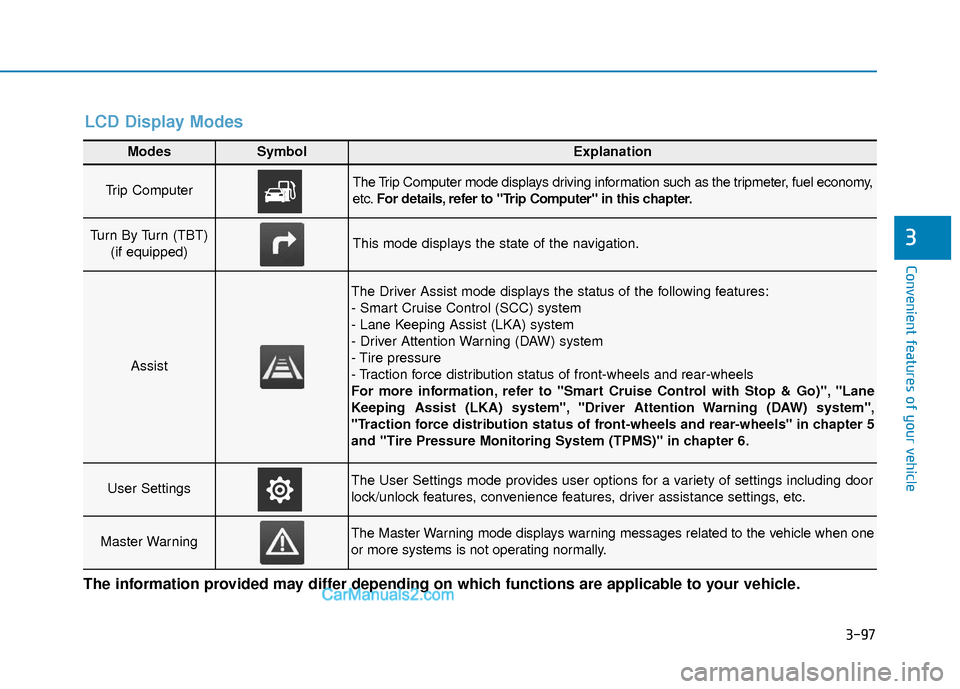
Modes SymbolExplanation
Trip Computer The Trip Computer mode displays driving information such as the tripmeter, fuel economy,
etc.For details, refer to "Trip Computer" in this chapter.
Turn By Turn (TBT)
(if equipped)This mode displays the state of the navigation.
Assist
The Driver Assist mode displays the status of the following features:
- Smart Cruise Control (SCC) system
- Lane Keeping Assist (LKA) system
- Driver Attention Warning (DAW) system
- Tire pressure
- Traction force distribution status of front-wheels and rear-wheels
For more information, refer to "Smart Cruise Control with Stop & Go)", "Lane
Keeping Assist (LKA) system", "Driver Attention Warning (DAW) system",
"Traction force distribution status of front-wheels and rear-wheels" in chapter 5
and "Tire Pressure Monitoring System (TPMS)" in chapter 6.
User SettingsThe User Settings mode provides user options for a variety of settings including door
lock/unlock features, convenience features, driver assistance settings, etc.
Master WarningThe Master Warning mode displays warning messages related to the vehicle when one
or more systems is not operating normally.
The information provided may differ depending on which functions are applicable to your vehicle.
LCD Display Modes
Page 194 of 611
3-98
Convenient features of your vehicle
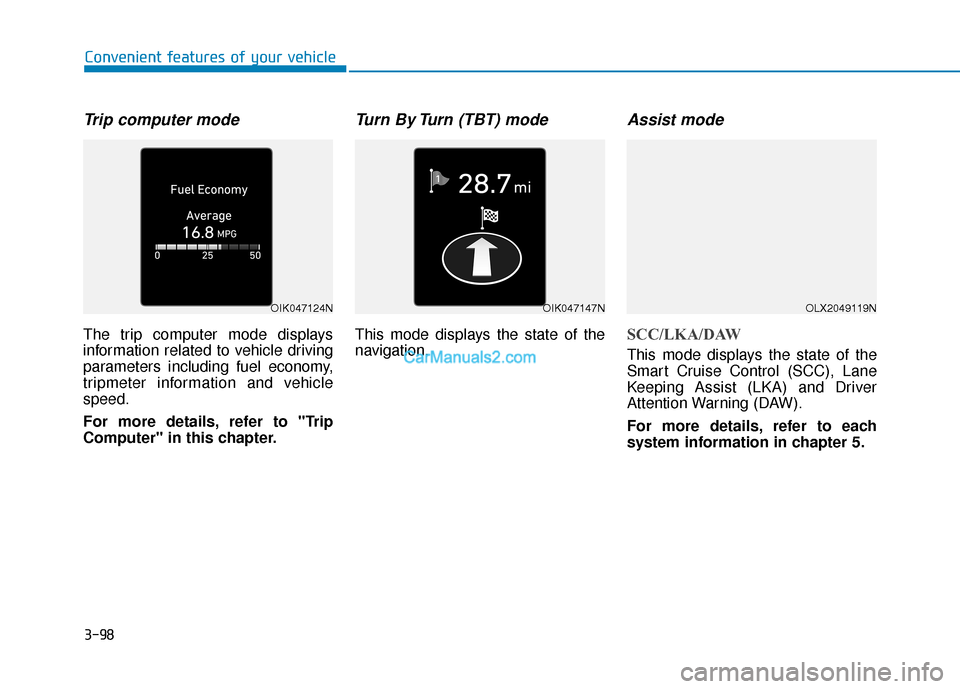
Trip computer mode
The trip computer mode displays
information related to vehicle driving
parameters including fuel economy,
tripmeter information and vehicle
speed.
For more details, refer to "Trip
Computer" in this chapter.
Turn By Turn (TBT) mode
This mode displays the state of the
navigation.
Assist mode
SCC/LKA/DAW
This mode displays the state of the
Smart Cruise Control (SCC), Lane
Keeping Assist (LKA) and Driver
Attention Warning (DAW).
For more details, refer to each
system information in chapter 5.
OIK047124NOIK047147NOLX2049119N
Page 199 of 611
3-103
Convenient features of your vehicle
3
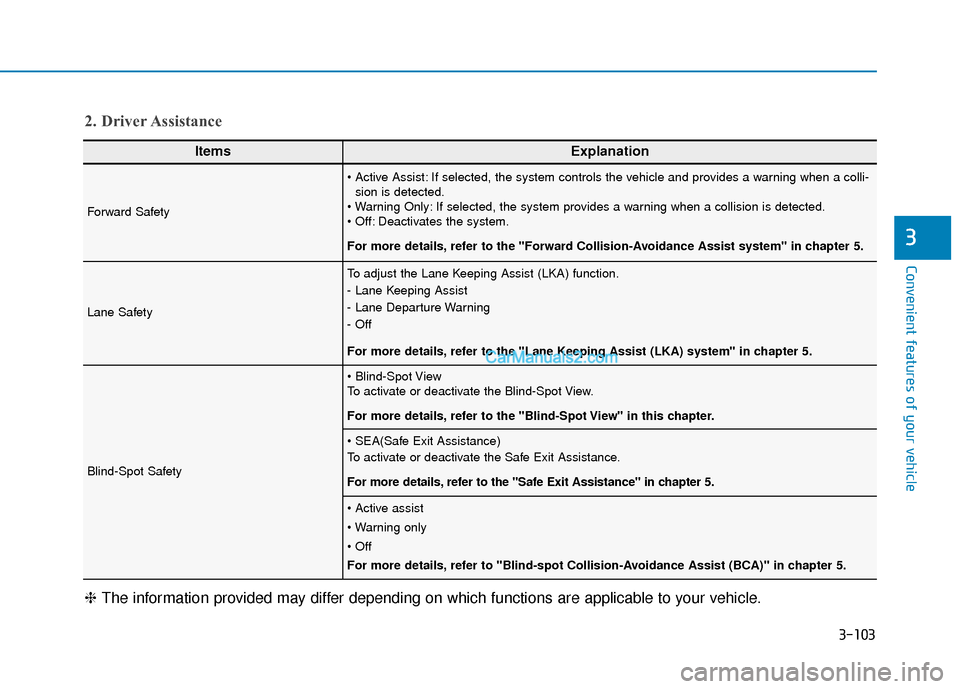
ItemsExplanation
Forward Safety
If selected, the system controls the vehicle and provides a warning when a colli-sion is detected.
If selected, the system provides a warning when a collision is detected.
Deactivates the system.
For more details, refer to the "Forward Collision-Avoidance Assist system" in chapter 5.
Lane Safety
To adjust the Lane Keeping Assist (LKA) function.
- Lane Keeping Assist
- Lane Departure Warning
- Off
For more details, refer to the "Lane Keeping Assist (LKA) system" in chapter 5.
Blind-Spot Safety
To activate or deactivate the Blind-Spot View.
For more details, refer to the "Blind-Spot View" in this chapter.
To activate or deactivate the Safe Exit Assistance.
For more details, refer to the "Safe Exit Assistance" in chapter 5.
For more details, refer to "Blind-spot Collision-Avoidance Assist (BCA)" in chapter 5.
❈ The information provided may differ depending on which functions are applicable to your vehicle.
2. Driver Assistance
Page 213 of 611
3-117
Convenient features of your vehicle
3
Driving Assist View Mode
SCC/LKA/HAD/FCA
This mode displays the state of the
Smart Cruise Control (SCC) and
Lane Keeping Assist (LKA).
For more details, refer to system
information in chapter 5.
TBT (Turn By Turn) Mode
It shows the information by inter-
working with the navigation.
Parking Assist View Mode
It displays the information related to
the parking assist system move-
ment.
OLX2059118NOLX2059119NOLX2049145N
Page 219 of 611
3-123
Convenient features of your vehicle
3
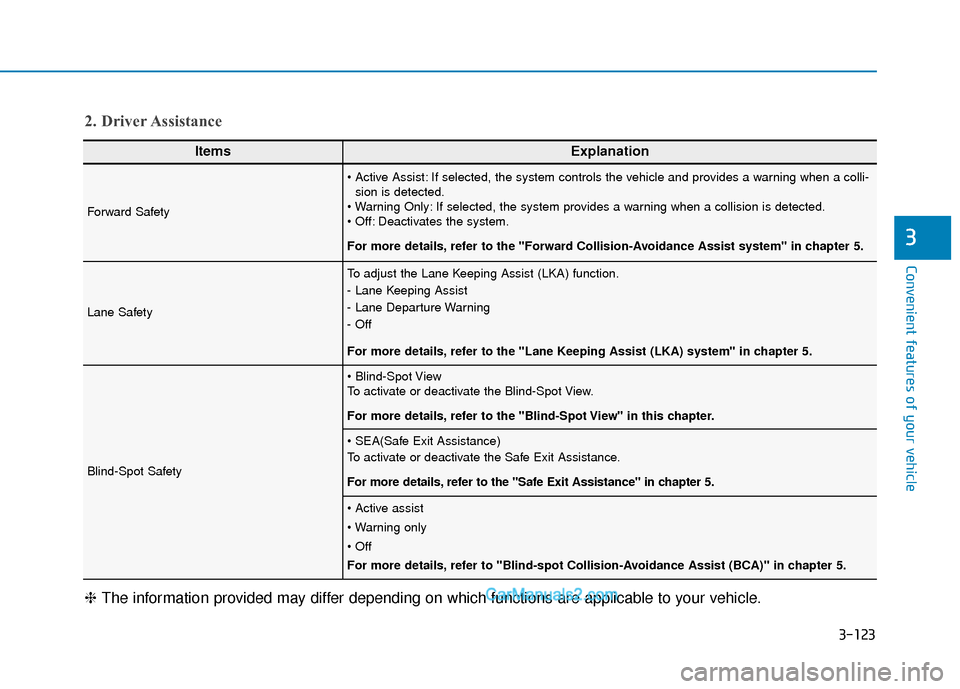
ItemsExplanation
Forward Safety
If selected, the system controls the vehicle and provides a warning when a colli-sion is detected.
If selected, the system provides a warning when a collision is detected.
Deactivates the system.
For more details, refer to the "Forward Collision-Avoidance Assist system" in chapter 5.
Lane Safety
To adjust the Lane Keeping Assist (LKA) function.
- Lane Keeping Assist
- Lane Departure Warning
- Off
For more details, refer to the "Lane Keeping Assist (LKA) system" in chapter 5.
Blind-Spot Safety
To activate or deactivate the Blind-Spot View.
For more details, refer to the "Blind-Spot View" in this chapter.
To activate or deactivate the Safe Exit Assistance.
For more details, refer to the "Safe Exit Assistance" in chapter 5.
For more details, refer to "Blind-spot Collision-Avoidance Assist (BCA)" in chapter 5.
❈ The information provided may differ depending on which functions are applicable to your vehicle.
2. Driver Assistance
Page 227 of 611
3-131
Convenient features of your vehicle
3
Head-up display ON/OFF
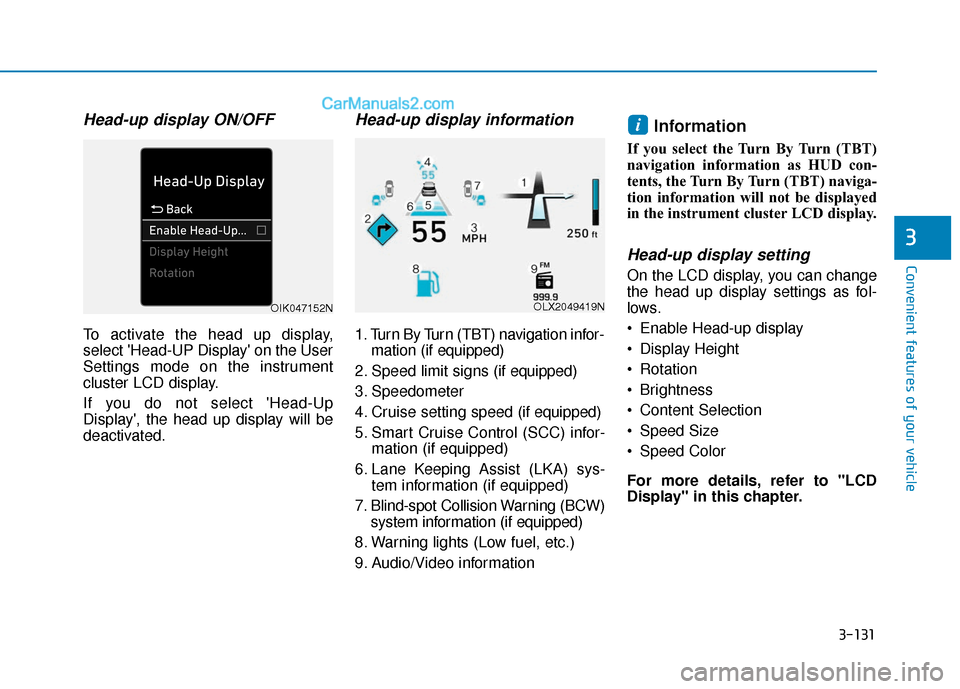
To activate the head up display,
select 'Head-UP Display' on the User
Settings mode on the instrument
cluster LCD display.
If you do not select 'Head-Up
Display', the head up display will be
deactivated.
Head-up display information
1. Turn By Turn (TBT) navigation infor-mation (if equipped)
2. Speed limit signs (if equipped)
3. Speedometer
4. Cruise setting speed (if equipped)
5. Smart Cruise Control (SCC) infor- mation (if equipped)
6. Lane Keeping Assist (LKA) sys- tem information (if equipped)
7. Blind-spot Collision Warning (BCW) system information (if equipped)
8. Warning lights (Low fuel, etc.)
9. Audio/Video information
Information
If you select the Turn By Turn (TBT)
navigation information as HUD con-
tents, the Turn By Turn (TBT) naviga-
tion information will not be displayed
in the instrument cluster LCD display.
Head-up display setting
On the LCD display, you can change
the head up display settings as fol-
lows.
Enable Head-up display
Display Height
Rotation
Brightness
Content Selection
Speed Size
Speed Color
For more details, refer to "LCD
Display" in this chapter.
i
OLX2049419NOIK047152N
Page 232 of 611
3-136
Convenient features of your vehicleThe system may not operate nor-
mally if any of the following con-
ditions should occur:
1) When the illumination from an on-coming vehicle or a
vehicle in front is dim. Such
examples may include:
When the headlamps of an on-
coming vehicle or the tail
lamps of a vehicle in front is
covered with dust, snow, or
water.
When the headlamps on an on-
coming vehicle are OFF, but the
fog lamps are ON.
2) When the High Beam Assist camera is adversely affected
by an external condition.
Such examples may include:
When the vehicle's head-
lamps have been damaged or
not repaired properly.
When the vehicle headlamps
are not aimed properly.
When the vehicle is driven on
a narrow curved road or rough
road.
When the vehicle is driven on
an uphill road or downhill
road.
When only part of the vehicle in
front is visible on a crossroad
or curved road.
When there is a traffic light,
reflecting sign, flashing sign or
mirror.
When the road conditions are
bad such as being wet or cov-
ered with snow.
When a vehicle suddenly
appears from a curve.
When the vehicle is tilted from
a flat tire or being towed.
When the Lane Keeping Assist
(LKA) system warning light
illuminates.
When the light from the on-
coming or front vehicle is not
detected because of exhaust
fume, smoke, fog, snow, etc.
When the front window is cov-
ered with foreign matters such
as ice, dust, fog, or is damaged.
3) When the forward visibility is poor. Such examples may
include:
When the headlamps of an on-
coming vehicle or a vehicle in
front is not detected due to
poor outside visibility (smog,
smoke, dust, fog, heavy rain,
snow, etc.).
When the windshield visibility
is poor.
WARNING