shift HYUNDAI PALISADE 2021 Owner's Manual
[x] Cancel search | Manufacturer: HYUNDAI, Model Year: 2021, Model line: PALISADE, Model: HYUNDAI PALISADE 2021Pages: 612, PDF Size: 33.36 MB
Page 186 of 612
3-90
Convenient features of your vehicle
LCD Display Messages
Shift to P or N to start engine
(for smart key system)
This warning message is displayed if
you try to start the engine with the
shift button not in the P (Park) or N
(Neutral) position.
Information
You can start the engine with the shift
button in the N (Neutral) position.
But, for your safety, we recommend
that you start the engine with the shift
button in the P (Park) position.
Low key battery
(for smart key system)
This warning message is displayed if
the battery of the smart key is dis-
charged while changing the Engine
Start/Stop button to the OFF position.
Press brake pedal to start
engine (for smart key system)
This warning message is displayed if
the Engine Start/Stop button
changes to the ACC position twice
by pressing the button repeatedly
without depressing the brake pedal.
You can start the vehicle by depress-
ing the brake pedal and then press-
ing the Engine Start/Stop button.
Key not in vehicle
(for smart key system)
This warning message is displayed if
the smart key is not in the vehicle
when you press the Engine Start/
Stop button.
When attempting to start the vehicle,
always have the smart key with you.
Key not detected
(for smart key system)
This warning message is displayed if
the smart key is not detected when you
press the Engine Start/Stop button.
Press START button again
(for smart key system)
This message is displayed if you
were unable to start the vehicle when
the Engine Start/Stop button was
pressed.
If this occurs, attempt to start the
engine by pressing the Engine Start/
Stop button again.
If the warning message appears
each time you press the Engine
Start/Stop button, have your vehicle
inspected by an authorized
HYUNDAI dealer.i
Page 196 of 612
3-100
Convenient features of your vehicle
The Master Warning Light illumi-
nates if one or more of the above
warning situations occur. At this time,
the LCD Modes Icon will change
from ( ) to ( ).
If the warning situation is solved, the
master warning light will be turned
off and the LCD Modes Icon will be
changed back to its previous icon
().
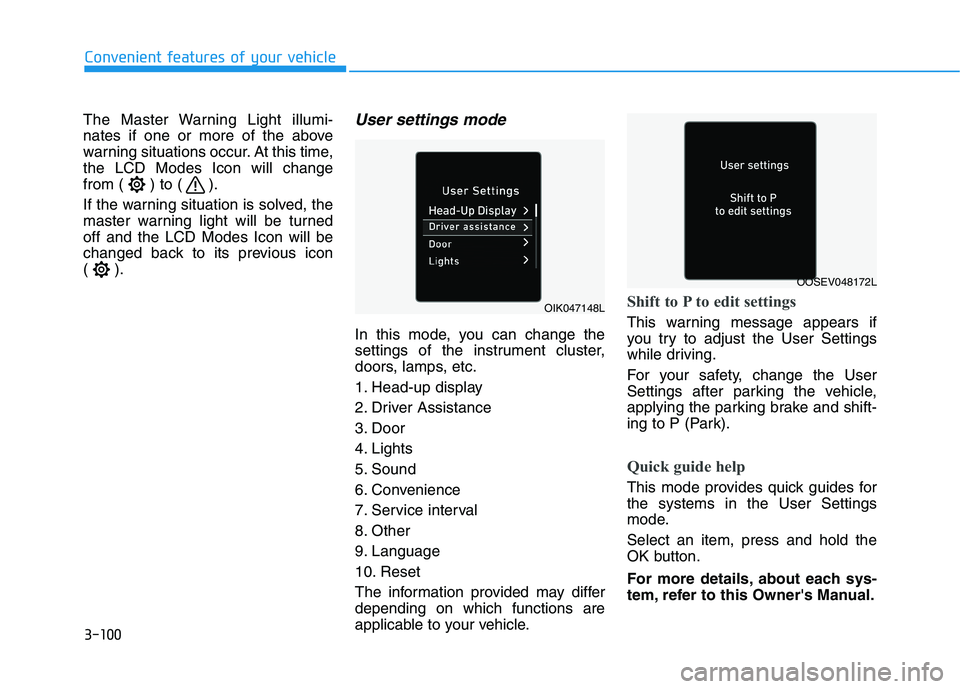
User settings mode
In this mode, you can change the
settings of the instrument cluster,
doors, lamps, etc.
1. Head-up display
2. Driver Assistance
3. Door
4. Lights
5. Sound
6. Convenience
7. Service interval
8. Other
9. Language
10. Reset
The information provided may differ
depending on which functions are
applicable to your vehicle.
Shift to P to edit settings
This warning message appears if
you try to adjust the User Settings
while driving.
For your safety, change the User
Settings after parking the vehicle,
applying the parking brake and shift-
ing to P (Park).
Quick guide help
This mode provides quick guides for
the systems in the User Settings
mode.
Select an item, press and hold the
OK button.
For more details, about each sys-
tem, refer to this Owner's Manual.
OIK047148L
OOSEV048172L
Page 200 of 612
3-104
Convenient features of your vehicle
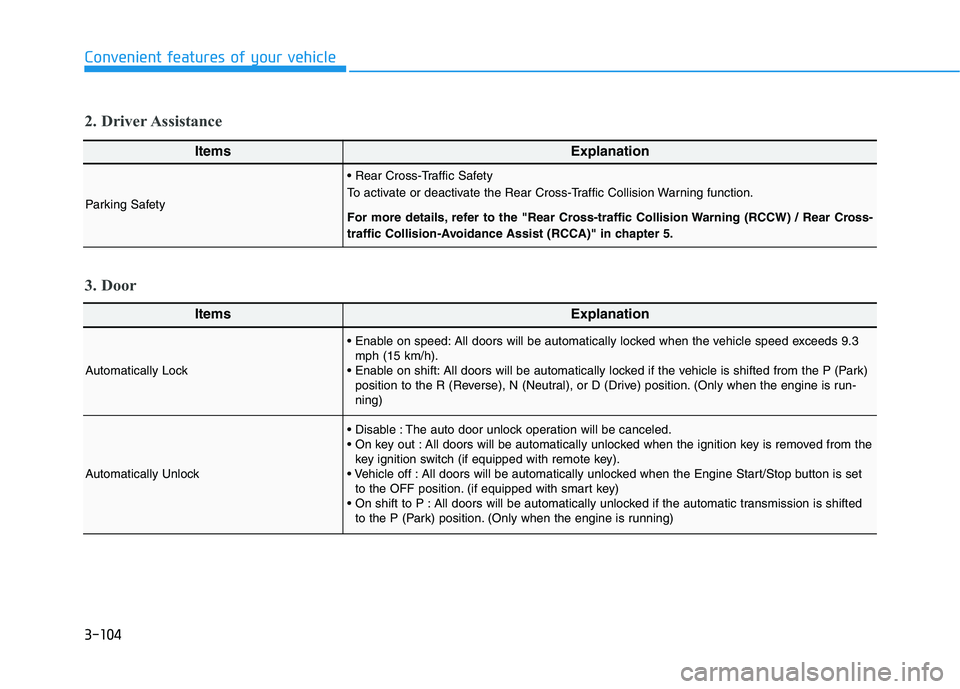
ItemsExplanation
Automatically Lock
All doors will be automatically locked when the vehicle speed exceeds 9.3
mph (15 km/h).
All doors will be automatically locked if the vehicle is shifted from the P (Park)
position to the R (Reverse), N (Neutral), or D (Drive) position. (Only when the engine is run-
ning)
Automatically Unlock
The auto door unlock operation will be canceled.
All doors will be automatically unlocked when the ignition key is removed from the
key ignition switch (if equipped with remote key).
All doors will be automatically unlocked when the Engine Start/Stop button is set
to the OFF position. (if equipped with smart key)
All doors will be automatically unlocked if the automatic transmission is shifted
to the P (Park) position. (Only when the engine is running)
3. Door
ItemsExplanation
Parking Safety
To activate or deactivate the Rear Cross-Traffic Collision Warning function.
For more details, refer to the "Rear Cross-traffic Collision Warning (RCCW) / Rear Cross-
traffic Collision-Avoidance Assist (RCCA)" in chapter 5.
2. Driver Assistance
Page 206 of 612
3-110
Convenient features of your vehicle
The trip computer is a microcomput-
er-controlled driver information sys-
tem that displays information related
to driving.
Information
Some driving information stored in the
trip computer (for example Average
Vehicle Speed) resets if the battery is
disconnected.
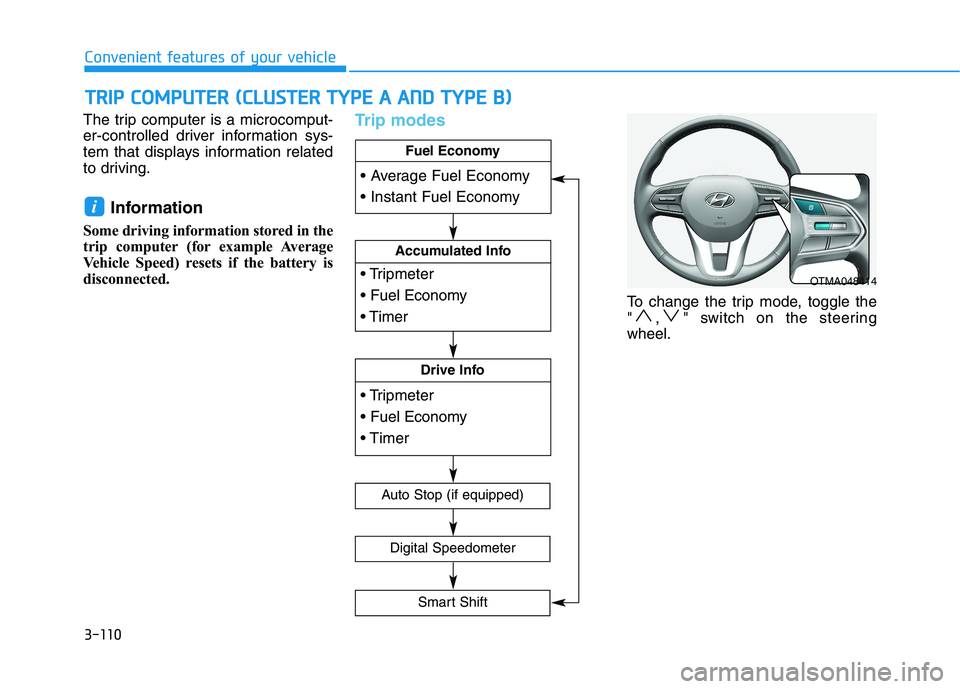
Trip modes
To change the trip mode, toggle the
" , " switch on the steering
wheel.
i
T TR
RI
IP
P
C
CO
OM
MP
PU
UT
TE
ER
R
(
(C
CL
LU
US
ST
TE
ER
R
T
TY
YP
PE
E
A
A
A
AN
ND
D
T
TY
YP
PE
E
B
B)
)
OTMA048414
Accumulated Info
Drive Info
Fuel Economy
Digital Speedometer
Auto Stop (if equipped)
Smart Shift
Page 209 of 612
3-113
Convenient features of your vehicle
3
The driving information will continue to
be counted while the engine is still run-
ning (for example, when the vehicle is
in traffic or stopped at a stop light).
Information
The vehicle must be driven for a mini-
mum of 0.19 miles (300 meters) since the
last ignition key cycle before the average
fuel economy will be recalculated.
Digital speedometer
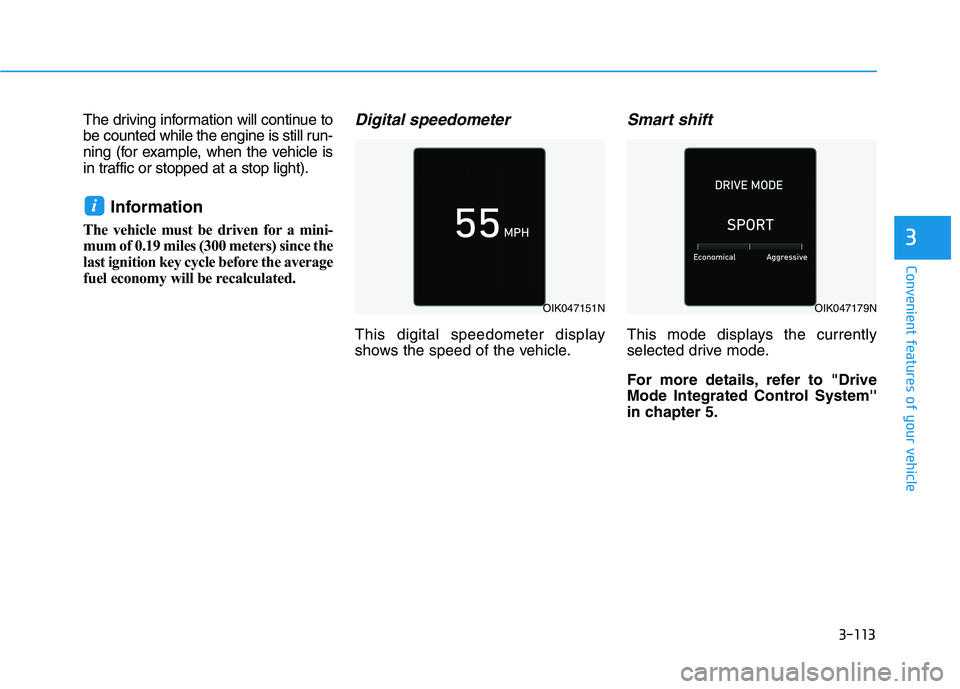
This digital speedometer display
shows the speed of the vehicle.
Smart shift
This mode displays the currently
selected drive mode.
For more details, refer to "Drive
Mode Integrated Control System''
in chapter 5.
i
OIK047151NOIK047179N
Page 212 of 612
3-116
Convenient features of your vehicle
Utility View Mode
The utility view mode displays infor-
mation related to vehicle driving
parameters including fuel economy
and trip distance information.
Utility Items
The utility items appear as well in trip
computer mode, driving assist mode
and turn by turn mode.
The information provided may differ
depending on which functions are
applicable to your vehicle.
Fuel Economy Information
The average fuel economy and
instant fuel economy are displayed.
- Manual reset: Press and hold OK
button to initialize set up
- Automatic reset: Automatically
reset the average fuel economy
when the set-up conditions are
satisfied in User Settings menu.
Driving Information
The trip distance for each ignition
cycle, fuel economy (undisplayed
item in fuel economy: driving speed),
trip time are shown. Press and hold
OK button to initialize set up. When
the engine has been OFF for 4 hours
or longer the average fuel economy
will reset automatically.
Information after Refueling
The vehicle information such as trip
distance, fuel economy (undisplayed
item in fuel economy: driving speed)
and trip time is displayed after refuel-
ing. Press and hold OK button to ini-
tialize set up.
Accumulated Information
The vehicle information such as trip
distance, fuel economy (undisplayed
item in fuel economy: driving speed)
and trip time is displayed after manu-
al initialization.
Digital Speed Display
It shows current vehicle speed.
AUTO STOP
The cumulative time is show when
the engine is off. Press and hold OK
button to initialize set up.
Driver Attention Warning
Display the status of the Driver
Attention Warning system. When the
engine is off or the vehicle comes to
a stop, the system is reset. Press
and hold OK button to initialize set
up.
Smart Shift
Tire Pressure
Digital RPM
Page 216 of 612
3-120
User settings mode
In this mode, you can change the
settings of the instrument cluster,
doors, lamps, etc.
1. Head-up display
2. Driver Assistance
3. Door
4. Lights
5. Sound
6. Convenience
7. Service interval
8. Other
9. Language
10. Reset
The information provided may differ
depending on which functions are
applicable to your vehicle.
Shift to P to edit settings
This warning message appears if
you try to adjust the User Settings
while driving.
For your safety, change the User
Settings after parking the vehicle,
applying the parking brake and shift-
ing to P (Park).
Quick guide help
This mode provides quick guides for
the systems in the User Settings
mode.
Select an item, press and hold the
OK button.
For more details, about each sys-
tem, refer to this Owner's Manual.
Convenient features of your vehicle
Page 220 of 612
3-124
Convenient features of your vehicle
ItemsExplanation
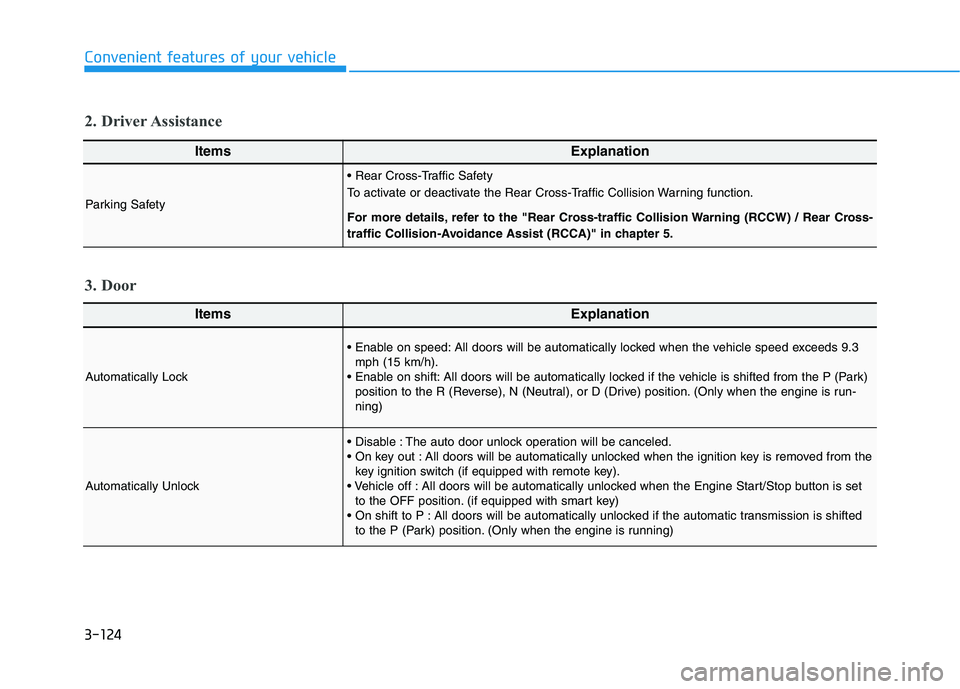
Automatically Lock
All doors will be automatically locked when the vehicle speed exceeds 9.3
mph (15 km/h).
All doors will be automatically locked if the vehicle is shifted from the P (Park)
position to the R (Reverse), N (Neutral), or D (Drive) position. (Only when the engine is run-
ning)
Automatically Unlock
The auto door unlock operation will be canceled.
All doors will be automatically unlocked when the ignition key is removed from the
key ignition switch (if equipped with remote key).
All doors will be automatically unlocked when the Engine Start/Stop button is set
to the OFF position. (if equipped with smart key)
All doors will be automatically unlocked if the automatic transmission is shifted
to the P (Park) position. (Only when the engine is running)
3. Door
ItemsExplanation
Parking Safety
To activate or deactivate the Rear Cross-Traffic Collision Warning function.
For more details, refer to the "Rear Cross-traffic Collision Warning (RCCW) / Rear Cross-
traffic Collision-Avoidance Assist (RCCA)" in chapter 5.
2. Driver Assistance
Page 244 of 612

3-148
Convenient features of your vehicle
Rear View Monitor
(if equipped)
The Rear View Monitor will activate
when the engine is running and the
shift button is in the R (Reverse)
position.This is a supplemental system that
helps provide a view of the area
behind the vehicle through the info-
tainment system screen while the
vehicle is in the R (Reverse) position.
Always keep the camera lens
clean. The camera may not work
normally if the lens is covered
with dirt, water or snow.
NOTICE
D DR
RI
IV
VE
ER
R
A
AS
SS
SI
IS
ST
T
S
SY
YS
ST
TE
EM
M
The Rear View Monitor is not a
safety device. It only serves to
assist the driver in identifying
objects directly behind the mid-
dle of the vehicle. The camera
does NOT cover the complete
area behind the vehicle.
WARNING
Never rely solely on the Rear
view monitor when backing-
up.
ALWAYS look around your
vehicle to make sure there are
no objects or obstacles before
moving the vehicle in any
direction to prevent a collision.
Always pay close attention
when the vehicle is driven
close to objects, particularly
pedestrians, and especially
children.
WARNING
OLX2048056
OLX2048057L
Page 245 of 612
3-149
Convenient features of your vehicle
3
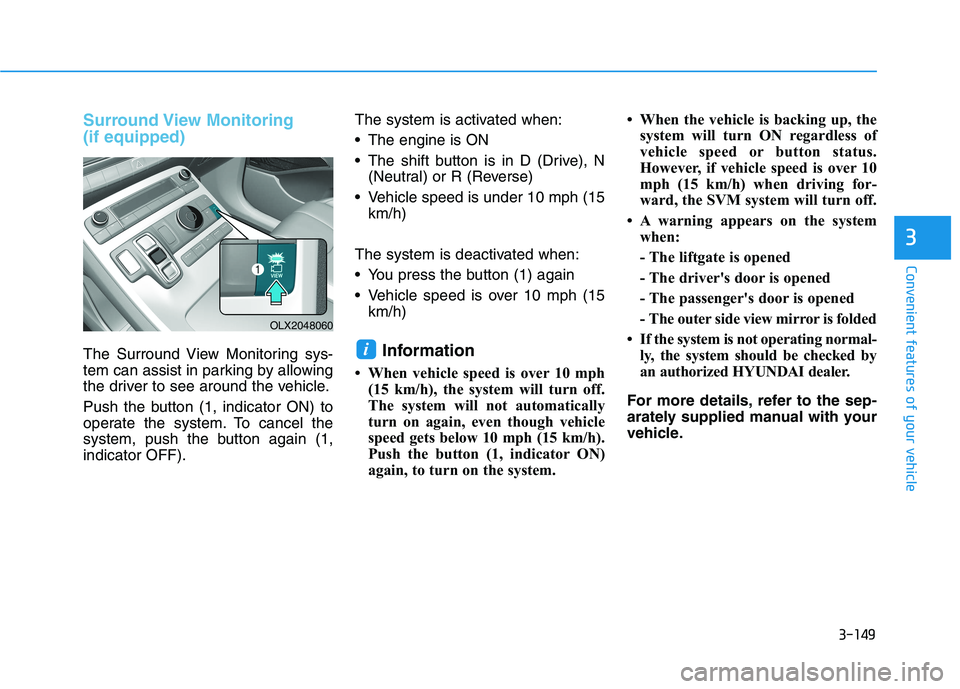
Surround View Monitoring
(if equipped)
The Surround View Monitoring sys-
tem can assist in parking by allowing
the driver to see around the vehicle.
Push the button (1, indicator ON) to
operate the system. To cancel the
system, push the button again (1,
indicator OFF).The system is activated when:
The engine is ON
The shift button is in D (Drive), N
(Neutral) or R (Reverse)
Vehicle speed is under 10 mph (15
km/h)
The system is deactivated when:
You press the button (1) again
Vehicle speed is over 10 mph (15
km/h)Information
• When vehicle speed is over 10 mph
(15 km/h), the system will turn off.
The system will not automatically
turn on again, even though vehicle
speed gets below 10 mph (15 km/h).
Push the button (1, indicator ON)
again, to turn on the system.• When the vehicle is backing up, the
system will turn ON regardless of
vehicle speed or button status.
However, if vehicle speed is over 10
mph (15 km/h) when driving for-
ward, the SVM system will turn off.
• A warning appears on the system
when:
- The liftgate is opened
- The driver's door is opened
- The passenger's door is opened
- The outer side view mirror is folded
• If the system is not operating normal-
ly, the system should be checked by
an authorized HYUNDAI dealer.
For more details, refer to the sep-
arately supplied manual with your
vehicle.
i
OLX2048060