Smart drive HYUNDAI PALISADE 2022 User Guide
[x] Cancel search | Manufacturer: HYUNDAI, Model Year: 2022, Model line: PALISADE, Model: HYUNDAI PALISADE 2022Pages: 663, PDF Size: 15.74 MB
Page 130 of 663
3-34
Convenience Features
While resetting the driver's seatmemory system
1. It starts with the notification sound.
2. The driver's seat and seatback is
adjusted to the rearward position
with the notification sound.
3. The driver's seat and seatback is re-adjusted to the default position
(central position) with the notifica-
tion sound.
However, in the following cases, the
resetting procedure and the notifica-
tion sound may stop.
- The memory button is pressed.
- The control switch is operated.
- The driving speed exceeds 2 mph (3 km/h).
- The driver's door is closed. Reattempt to do the resetting
procedure again, when the
resetting procedure incomplete-
ly stops or the notification
sound do not stop.
Make sure that there is no obsta- cle around the driver's seat in
advance of resetting the driver's
seat memory system.
Easy Access Function
The system will move the driver's
seat automatically as follows:
With remote key
- It will move the driver's seat rear-ward and downward when the igni-
tion key is removed.
- It will move the driver's seat for- ward and upward when the ignition
key is inserted.
With smart key
- It will move the driver's seat rear- ward and downward when the
Engine Start/Stop button is
pressed to the OFF position.
- It will move the driver's seat forward and upward when the Engine
Start/Stop button is pressed to the
ACC or START position.
NOTICE
If the reset is failed, initialize
the system once again.
Initialize the system after
cleaning the obstacles sur-
rounding of seat.
After completing the initializa-
tion, adjust the driver position
memory system again.
CAUTION
Page 173 of 663
3-77
Convenience Features
3
3. Automatic opening
After the hazard warning lights blink
and the chime sounds 6 times, the
power liftgate will open.How to deactivate the SmartLiftgate function using thesmart key
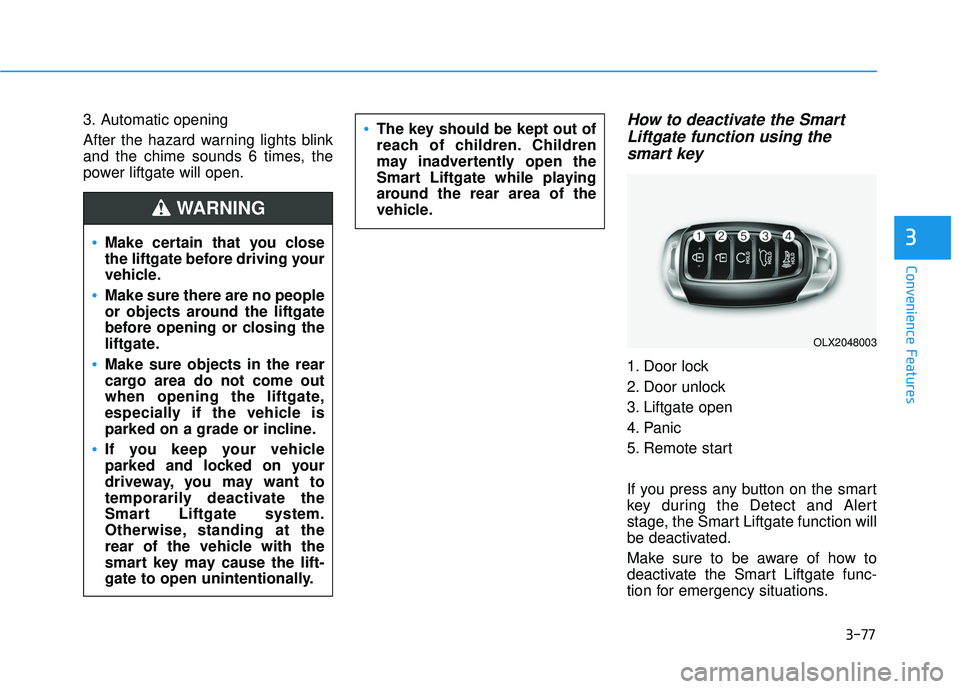
1. Door lock
2. Door unlock
3. Liftgate open
4. Panic
5. Remote start
If you press any button on the smart
key during the Detect and Alert
stage, the Smart Liftgate function will
be deactivated.
Make sure to be aware of how to
deactivate the Smart Liftgate func-
tion for emergency situations.
Make certain that you close
the liftgate before driving your
vehicle.
Make sure there are no people
or objects around the liftgate
before opening or closing the
liftgate.
Make sure objects in the rear
cargo area do not come out
when opening the liftgate,
especially if the vehicle is
parked on a grade or incline.
If you keep your vehicle
parked and locked on your
driveway, you may want to
temporarily deactivate the
Smart Liftgate system.
Otherwise, standing at the
rear of the vehicle with the
smart key may cause the lift-
gate to open unintentionally.
WARNING
The key should be kept out of
reach of children. Children
may inadvertently open the
Smart Liftgate while playing
around the rear area of the
vehicle.
OLX2048003
Page 198 of 663
3-102
Convenience Features
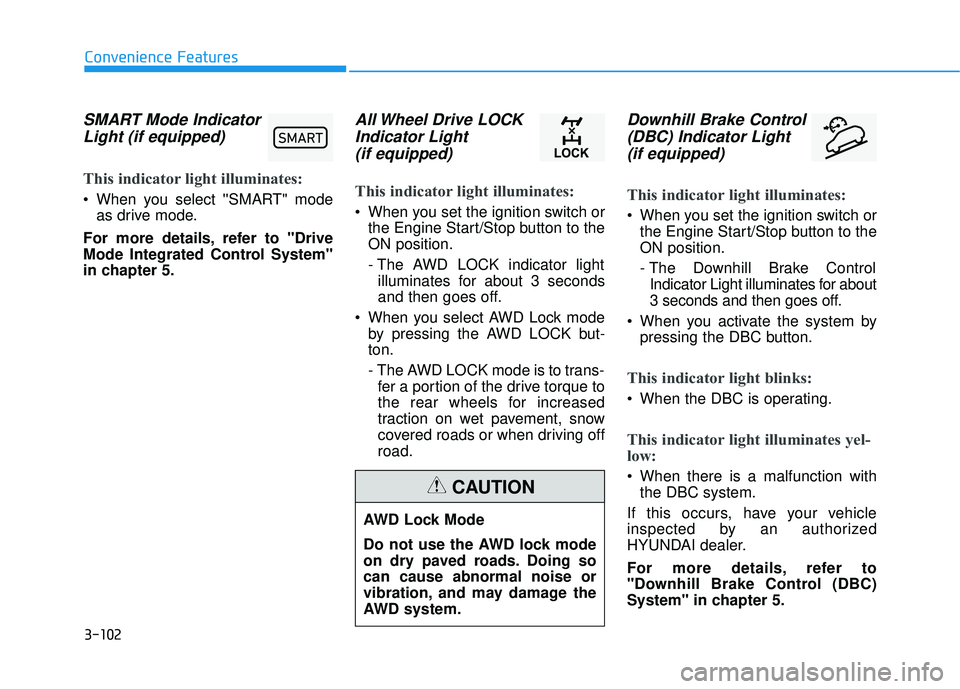
SMART Mode IndicatorLight (if equipped)
This indicator light illuminates:
When you select ''SMART" mode
as drive mode.
For more details, refer to "Drive
Mode Integrated Control System''
in chapter 5.
All Wheel Drive LOCK Indicator Light (if equipped)
This indicator light illuminates:
When you set the ignition switch or
the Engine Start/Stop button to the
ON position.
- The AWD LOCK indicator lightilluminates for about 3 seconds
and then goes off.
When you select AWD Lock mode by pressing the AWD LOCK but-
ton.
- The AWD LOCK mode is to trans-fer a portion of the drive torque to
the rear wheels for increased
traction on wet pavement, snow
covered roads or when driving off
road.
Downhill Brake Control(DBC) Indicator Light(if equipped)
This indicator light illuminates:
When you set the ignition switch or
the Engine Start/Stop button to the
ON position.
- The Downhill Brake ControlIndicator Light illuminates for about
3 seconds and then goes off.
When you activate the system by pressing the DBC button.
This indicator light blinks:
When the DBC is operating.
This indicator light illuminates yel-
low:
When there is a malfunction withthe DBC system.
If this occurs, have your vehicle
inspected by an authorized
HYUNDAI dealer.
For more details, refer to
"Downhill Brake Control (DBC)
System" in chapter 5.
AWD Lock Mode
Do not use the AWD lock mode
on dry paved roads. Doing so
can cause abnormal noise or
vibration, and may damage the
AWD system.
CAUTION
00360030002400350037
Page 204 of 663
3-108
Convenience Features
Check Smart Cruise ControlSystem (if equipped)
This warning message is displayed if
there is a problem with the Smart
Cruise Control system. Have the
vehicle inspected by an authorized
HYUNDAI dealer.
For more details, refer to "Smart
Cruise Control with Stop & Go" in
chapter 5.
Check Driver Attention Warning(DAW) system (if equipped)
This warning message is displayed if
there is a problem with the Driver
Attention Warning (DAW). Have the
vehicle inspected by an authorized
HYUNDAI dealer.
For more details, refer to "Driver
Attention Warning (DAW)" in chap-
ter 5.
Check Lane Keeping Assist(LKA) system (if equipped)
This warning message is displayed if
there is a problem with the Check
Lane Keeping Assist (LKA) system.
Have the vehicle inspected by an
authorized HYUNDAI dealer.
For more details, refer to "Check
Lane Keeping Assist (LKA) sys-
tem" in chapter 5.
Page 206 of 663
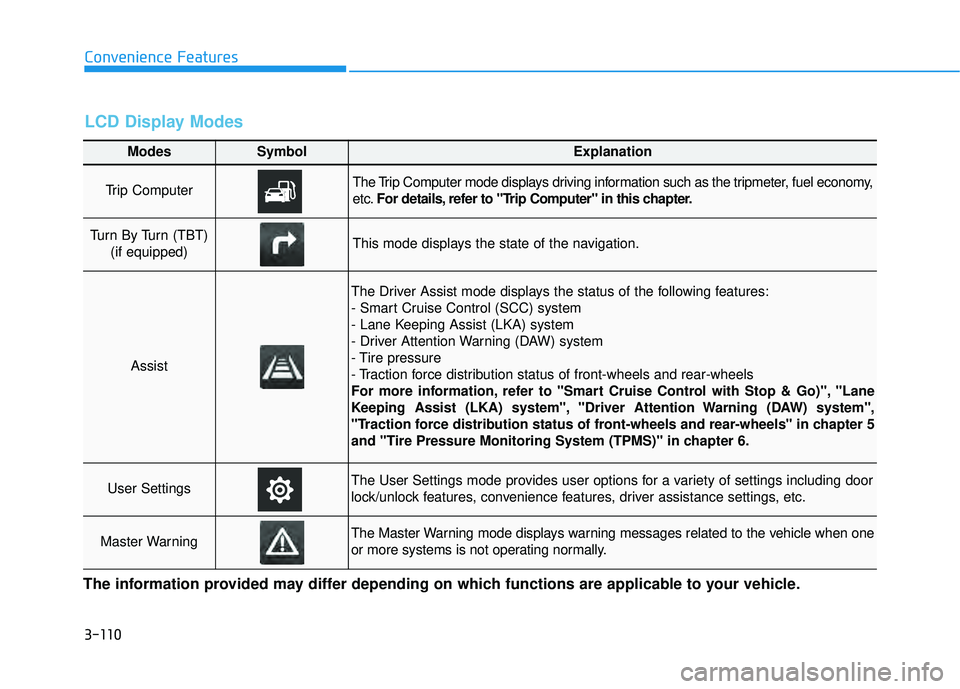
3-110
Convenience Features
Modes SymbolExplanation
Trip Computer The Trip Computer mode displays driving information such as the tripmeter, fuel economy,
etc.For details, refer to "Trip Computer" in this chapter.
Turn By Turn (TBT)
(if equipped)This mode displays the state of the navigation.
Assist
The Driver Assist mode displays the status of the following features:
- Smart Cruise Control (SCC) system
- Lane Keeping Assist (LKA) system
- Driver Attention Warning (DAW) system
- Tire pressure
- Traction force distribution status of front-wheels and rear-wheels
For more information, refer to "Smart Cruise Control with Stop & Go)", "Lane
Keeping Assist (LKA) system", "Driver Attention Warning (DAW) system",
"Traction force distribution status of front-wheels and rear-wheels" in chapter 5
and "Tire Pressure Monitoring System (TPMS)" in chapter 6.
User SettingsThe User Settings mode provides user options for a variety of settings including door
lock/unlock features, convenience features, driver assistance settings, etc.
Master WarningThe Master Warning mode displays warning messages related to the vehicle when one
or more systems is not operating normally.
The information provided may differ depending on which functions are applicable to your vehicle.
LCD Display Modes
Page 207 of 663
3-111
Convenience Features
3
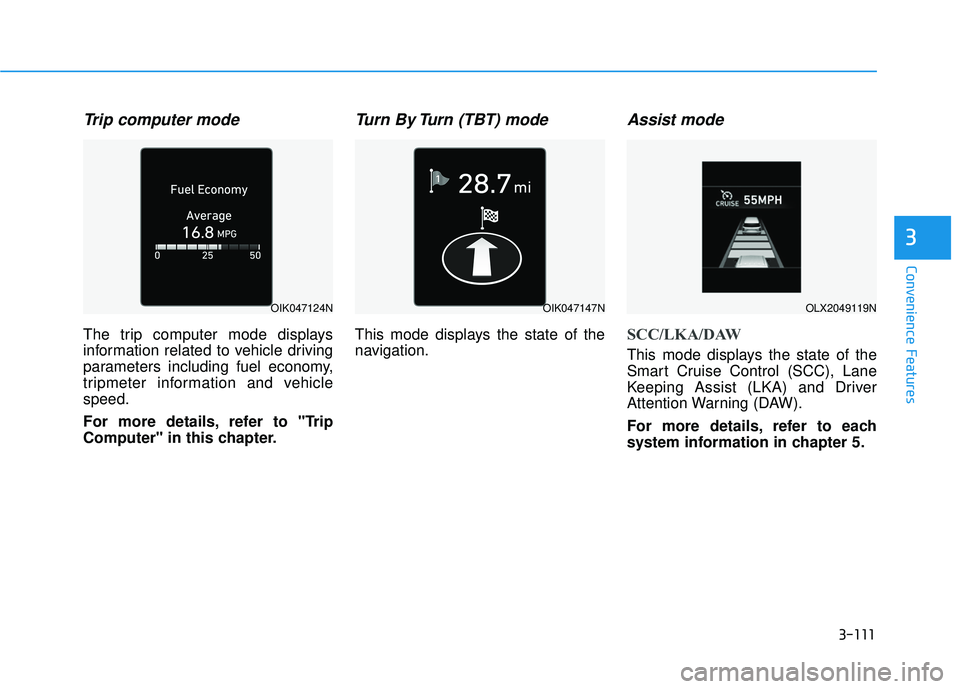
Trip computer mode
The trip computer mode displays
information related to vehicle driving
parameters including fuel economy,
tripmeter information and vehicle
speed.
For more details, refer to "Trip
Computer" in this chapter.
Turn By Turn (TBT) mode
This mode displays the state of the
navigation.
Assist mode
SCC/LKA/DAW
This mode displays the state of the
Smart Cruise Control (SCC), Lane
Keeping Assist (LKA) and Driver
Attention Warning (DAW).
For more details, refer to each
system information in chapter 5.
OIK047124NOIK047147NOLX2049119N
Page 208 of 663
3-112
Convenience Features
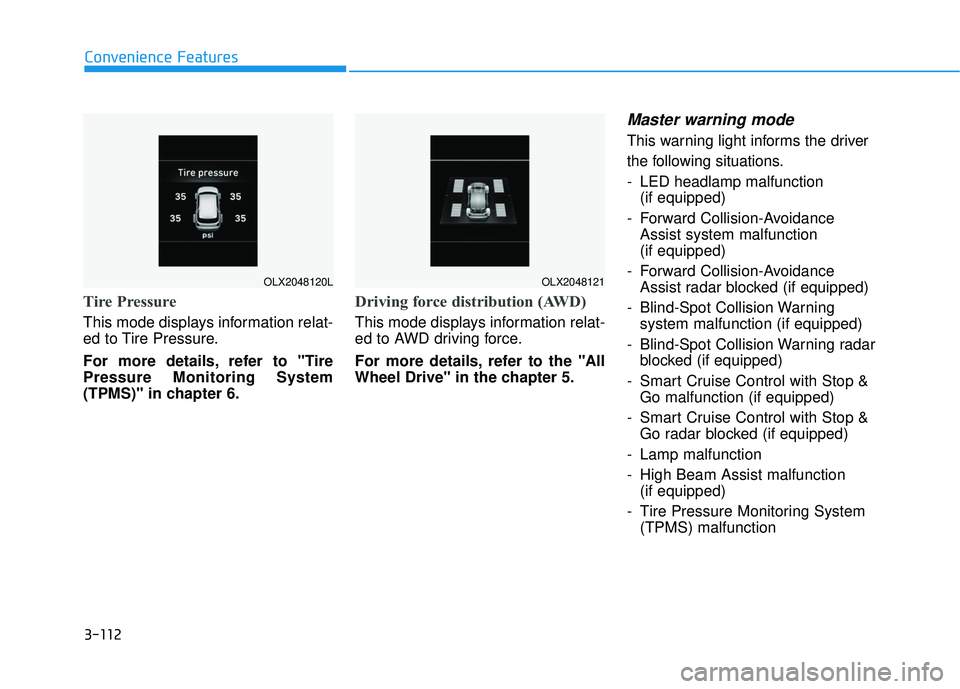
Tire Pressure
This mode displays information relat-
ed to Tire Pressure.
For more details, refer to "Tire
Pressure Monitoring System
(TPMS)" in chapter 6.
Driving force distribution (AWD)
This mode displays information relat-
ed to AWD driving force.
For more details, refer to the "All
Wheel Drive" in the chapter 5.
Master warning mode
This warning light informs the driver
the following situations.
- LED headlamp malfunction(if equipped)
- Forward Collision-Avoidance Assist system malfunction
(if equipped)
- Forward Collision-Avoidance Assist radar blocked (if equipped)
- Blind-Spot Collision Warning system malfunction (if equipped)
- Blind-Spot Collision Warning radar blocked (if equipped)
- Smart Cruise Control with Stop & Go malfunction (if equipped)
- Smart Cruise Control with Stop & Go radar blocked (if equipped)
- Lamp malfunction
- High Beam Assist malfunction (if equipped)
- Tire Pressure Monitoring System (TPMS) malfunction
OLX2048120LOLX2048121
Page 211 of 663
3-115
Convenience Features
3
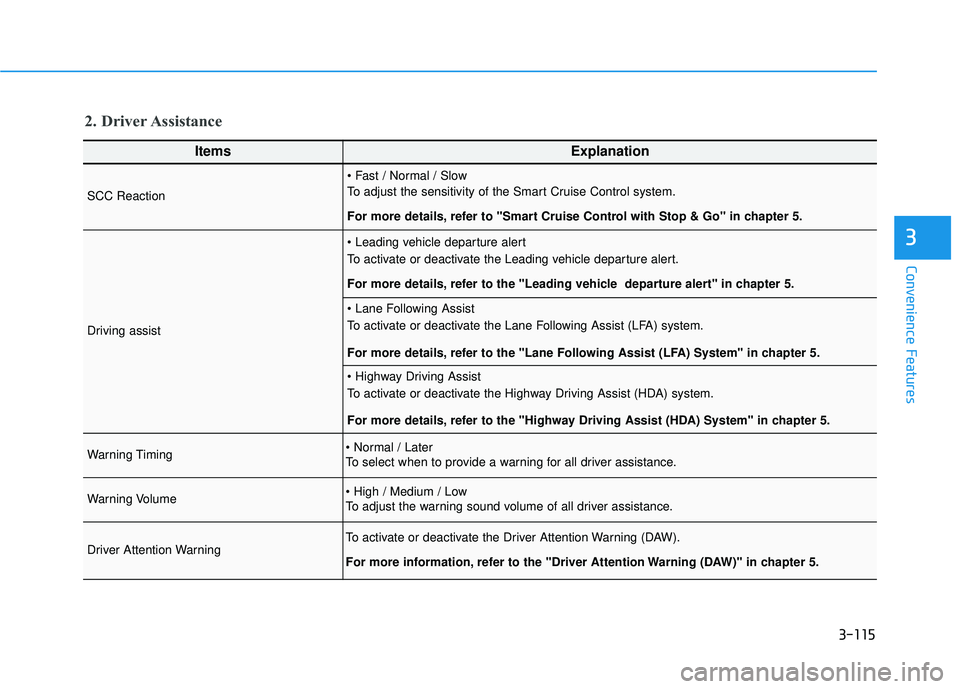
ItemsExplanation
SCC Reaction
To adjust the sensitivity of the Smart Cruise Control system.
For more details, refer to ''Smart Cruise Control with Stop & Go'' in chapter 5.
Driving assist
To activate or deactivate the Leading vehicle departure alert.
For more details, refer to the "Leading vehicle departure alert" in chapter 5.
To activate or deactivate the Lane Following Assist (LFA) system.
For more details, refer to the "Lane Following Assist (LFA) System" in chapter 5.
To activate or deactivate the Highway Driving Assist (HDA) system.
For more details, refer to the "Highway Driving Assist (HDA) System" in chapter 5.
Warning Timing
To select when to provide a warning for all driver assistance.
Warning Volume
To adjust the warning sound volume of all driver assistance.
Driver Attention WarningTo activate or deactivate the Driver Attention Warning (DAW).
For more information, refer to the "Driver Attention Warning (DAW)" in chapter 5.
2. Driver Assistance
Page 213 of 663
3-117
Convenience Features
3
ItemsExplanation
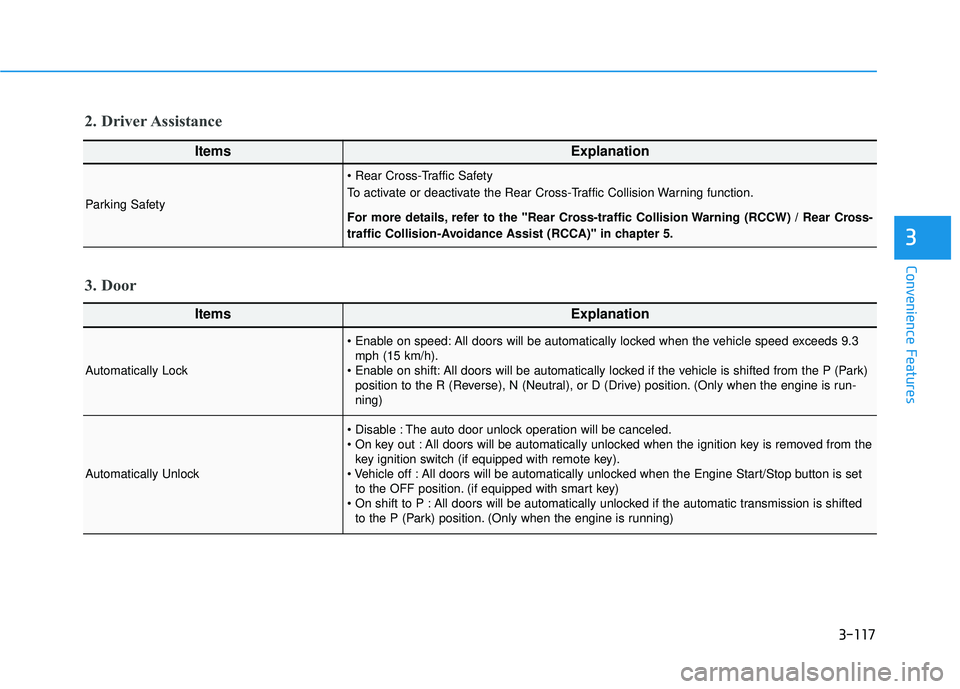
Automatically Lock
All doors will be automatically locked when the vehicle speed exceeds 9.3mph (15 km/h).
All doors will be automatically locked if the vehicle is shifted from the P (Park) position to the R (Reverse), N (Neutral), or D (Drive) position. (Only when the engine is run-
ning)
Automatically Unlock
The auto door unlock operation will be canceled.
All doors will be automatically unlocked when the ignition key is removed from thekey ignition switch (if equipped with remote key).
All doors will be automatically unlocked when the Engine Start/Stop button is set to the OFF position. (if equipped with smart key)
All doors will be automatically unlocked if the automatic transmission is shifted to the P (Park) position. (Only when the engine is running)
3. Door
ItemsExplanation
Parking Safety
To activate or deactivate the Rear Cross-Traffic Collision Warning function.
For more details, refer to the "Rear Cross-traffic Collision Warning (RCCW) / Rear Cross-
traffic Collision-Avoidance Assist (RCCA)" in chapter 5.
2. Driver Assistance
Page 214 of 663
3-118
Convenience Features
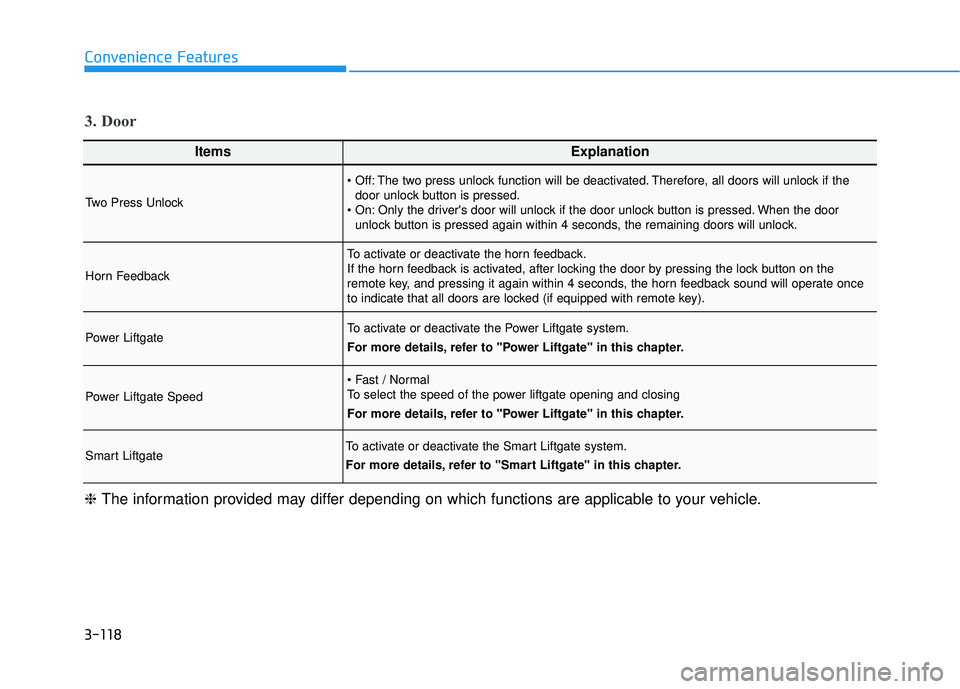
ItemsExplanation
Two Press Unlock
The two press unlock function will be deactivated. Therefore, all doors will unlock if thedoor unlock button is pressed.
Only the driver's door will unlock if the door unlock button is pressed. When the door unlock button is pressed again within 4 seconds, the remaining doors will unlock.
Horn Feedback
To activate or deactivate the horn feedback.
If the horn feedback is activated, after locking the door by pressing the lock button on the
remote key, and pressing it again within 4 seconds, the horn feedback sound will operate once
to indicate that all doors are locked (if equipped with remote key).
Power LiftgateTo activate or deactivate the Power Liftgate system.
For more details, refer to "Power Liftgate" in this chapter.
Power Liftgate Speed
To select the speed of the power liftgate opening and closing
For more details, refer to "Power Liftgate" in this chapter.
Smart LiftgateTo activate or deactivate the Smart Liftgate system.
For more details, refer to "Smart Liftgate" in this chapter.
❈ The information provided may differ depending on which functions are applicable to your vehicle.
3. Door