steering HYUNDAI PALISADE 2022 Workshop Manual
[x] Cancel search | Manufacturer: HYUNDAI, Model Year: 2022, Model line: PALISADE, Model: HYUNDAI PALISADE 2022Pages: 663, PDF Size: 15.74 MB
Page 456 of 663
5-122
Driving your vehicle
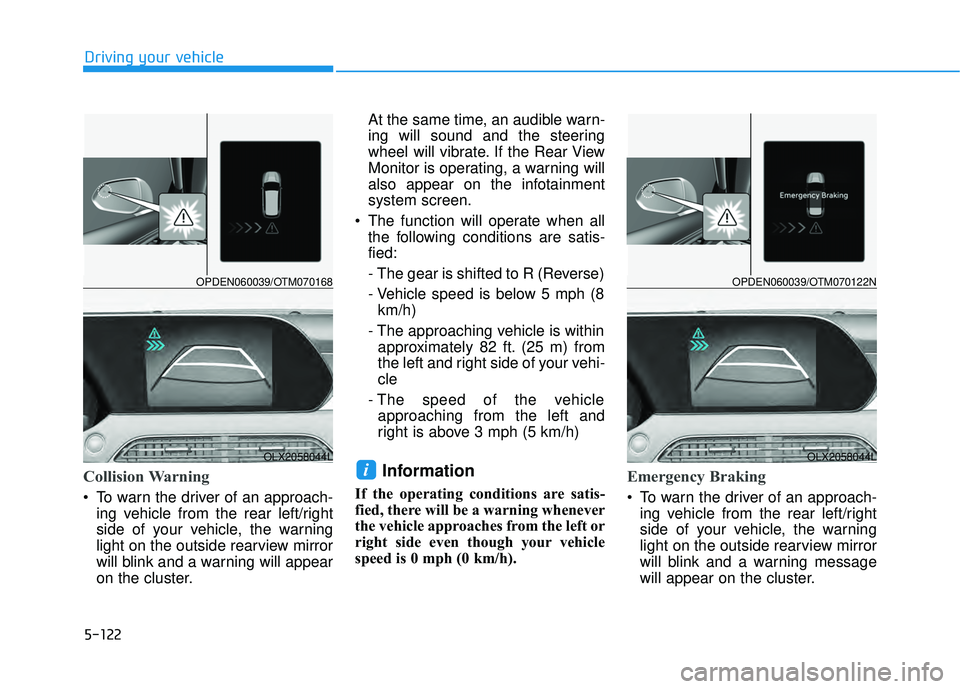
Collision Warning
To warn the driver of an approach-ing vehicle from the rear left/right
side of your vehicle, the warning
light on the outside rearview mirror
will blink and a warning will appear
on the cluster. At the same time, an audible warn-
ing will sound and the steering
wheel will vibrate. If the Rear View
Monitor is operating, a warning will
also appear on the infotainment
system screen.
The function will operate when all the following conditions are satis-
fied:
- The gear is shifted to R (Reverse)
- Vehicle speed is below 5 mph (8km/h)
- The approaching vehicle is within approximately 82 ft. (25 m) from
the left and right side of your vehi-
cle
- The speed of the vehicle approaching from the left and
right is above 3 mph (5 km/h)
Information
If the operating conditions are satis-
fied, there will be a warning whenever
the vehicle approaches from the left or
right side even though your vehicle
speed is 0 mph (0 km/h).
Emergency Braking
To warn the driver of an approach- ing vehicle from the rear left/right
side of your vehicle, the warning
light on the outside rearview mirror
will blink and a warning message
will appear on the cluster.
iOLX2058044L
OPDEN060039/OTM070168
OLX2058044L
OPDEN060039/OTM070122N
Page 457 of 663
5-123
Driving your vehicle
5
At the same time, an audible warn-
ing will sound and the steering
wheel will vibrate. If the Rear View
Monitor is operating, a warning will
also appear on the infotainment
system screen.
The function will operate when all the following conditions are satis-
fied:
- The gear is shifted to R (Reverse)
- Vehicle speed is below 5 mph (8km/h)
- The approaching vehicle is within approximately 5 ft. (1.5 m) from
the left and right side of your vehi-
cle
- The speed of the vehicle approaching from the left and
right is above 3 mph (5 km/h)
Emergency braking will be assist- ed to help prevent collision with
approaching vehicles from the left
and right.
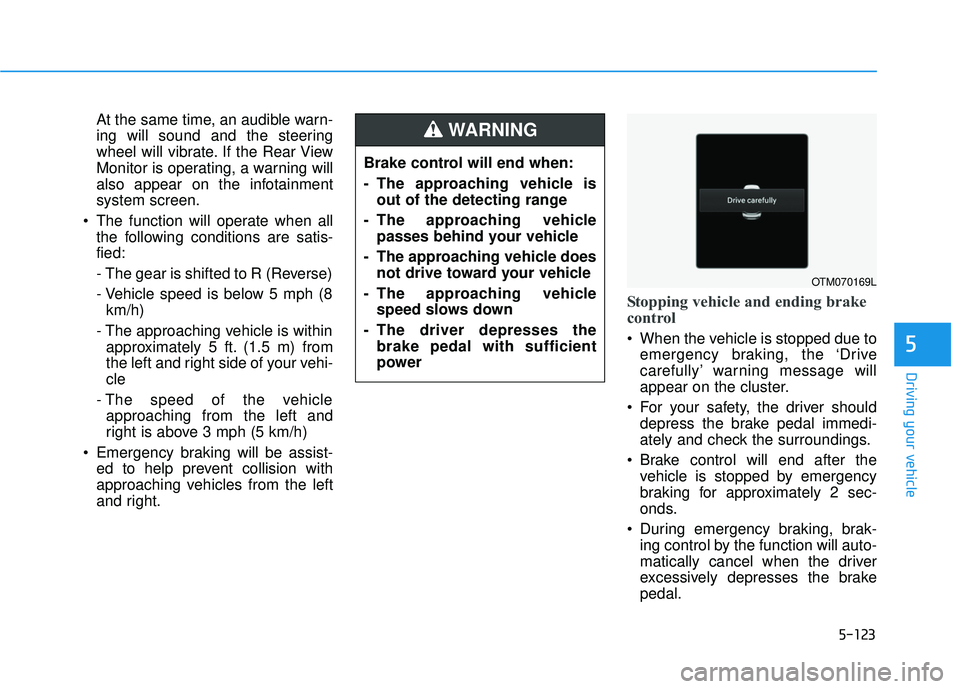
Stopping vehicle and ending brake
control
When the vehicle is stopped due toemergency braking, the ‘Drive
carefully’ warning message will
appear on the cluster.
For your safety, the driver should depress the brake pedal immedi-
ately and check the surroundings.
Brake control will end after the vehicle is stopped by emergency
braking for approximately 2 sec-
onds.
During emergency braking, brak- ing control by the function will auto-
matically cancel when the driver
excessively depresses the brake
pedal.
Brake control will end when:
- The approaching vehicle is
out of the detecting range
- The approaching vehicle passes behind your vehicle
- The approaching vehicle does not drive toward your vehicle
- The approaching vehicle speed slows down
- The driver depresses the brake pedal with sufficient
power
WARNING
OTM070169L
Page 465 of 663
5-131
Driving your vehicle
5
Lane Following Assist is designed to
help detect lane markings and/or
vehicles on the road, and assists the
driver’s steering to help keep the
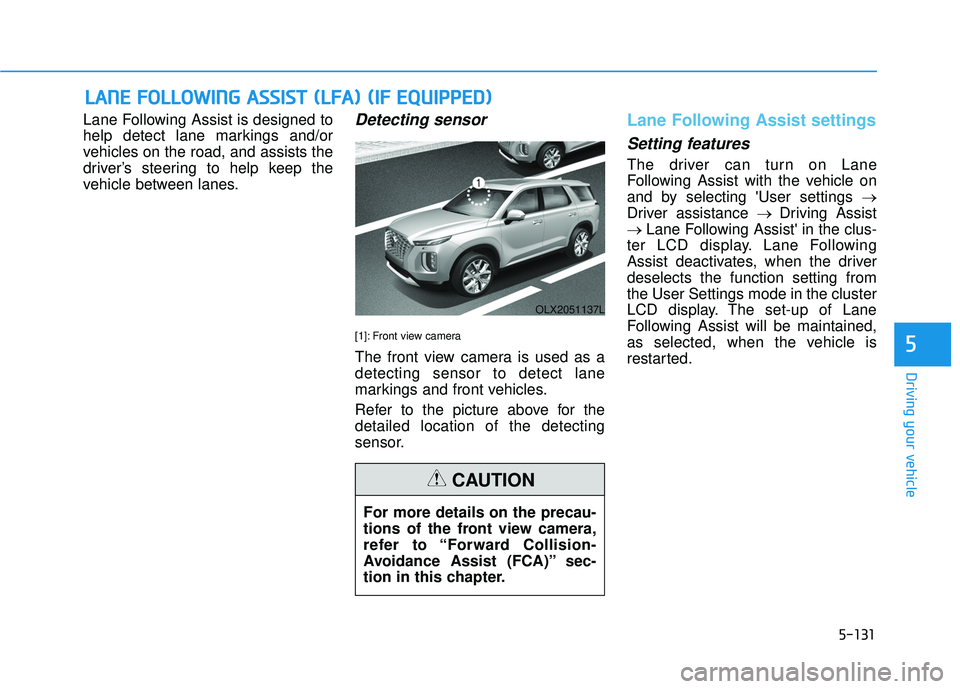
vehicle between lanes.Detecting sensor
[1]: Front view camera
The front view camera is used as a
detecting sensor to detect lane
markings and front vehicles.
Refer to the picture above for the
detailed location of the detecting
sensor.
Lane Following Assist settings
Setting features
The driver can turn on Lane
Following Assist with the vehicle on
and by selecting 'User settings →
Driver assistance → Driving Assist
→ Lane Following Assist' in the clus-
ter LCD display. Lane Following
Assist deactivates, when the driver
deselects the function setting from
the User Settings mode in the cluster
LCD display. The set-up of Lane
Following Assist will be maintained,
as selected, when the vehicle is
restarted.
L L A A N N E E F F O O L LL LO O W W I IN N G G A A S SS SI IS S T T ( ( L L F F A A ) ) ( ( I IF F E E Q Q U UI IP P P PE ED D ) )
OLX2051137L
For more details on the precau-
tions of the front view camera,
refer to “Forward Collision-
Avoidance Assist (FCA)” sec-
tion in this chapter.
CAUTION
5
Page 466 of 663
5-132
Driving your vehicle
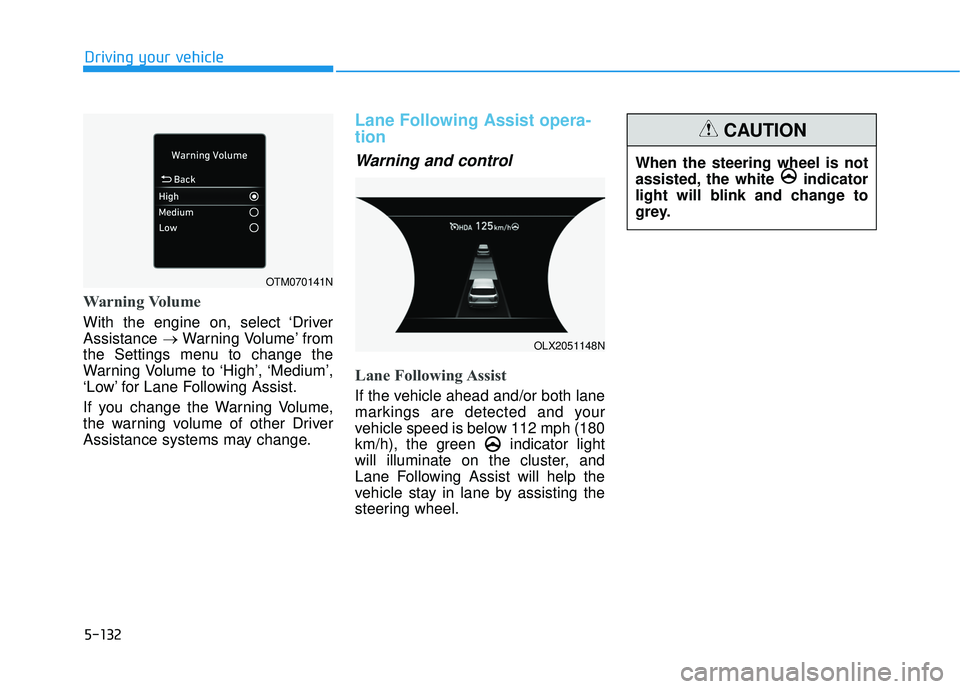
Warning Volume
With the engine on, select ‘Driver
Assistance →Warning Volume’ from
the Settings menu to change the
Warning Volume to ‘High’, ‘Medium’,
‘Low’ for Lane Following Assist.
If you change the Warning Volume,
the warning volume of other Driver
Assistance systems may change.
Lane Following Assist opera-
tion
Warning and control
Lane Following Assist
If the vehicle ahead and/or both lane
markings are detected and your
vehicle speed is below 112 mph (180
km/h), the green indicator light
will illuminate on the cluster, and
Lane Following Assist will help the
vehicle stay in lane by assisting the
steering wheel.
When the steering wheel is not
assisted, the white indicator
light will blink and change to
grey.
CAUTION
OTM070141N
OLX2051148N
Page 467 of 663
5-133
Driving your vehicle
5
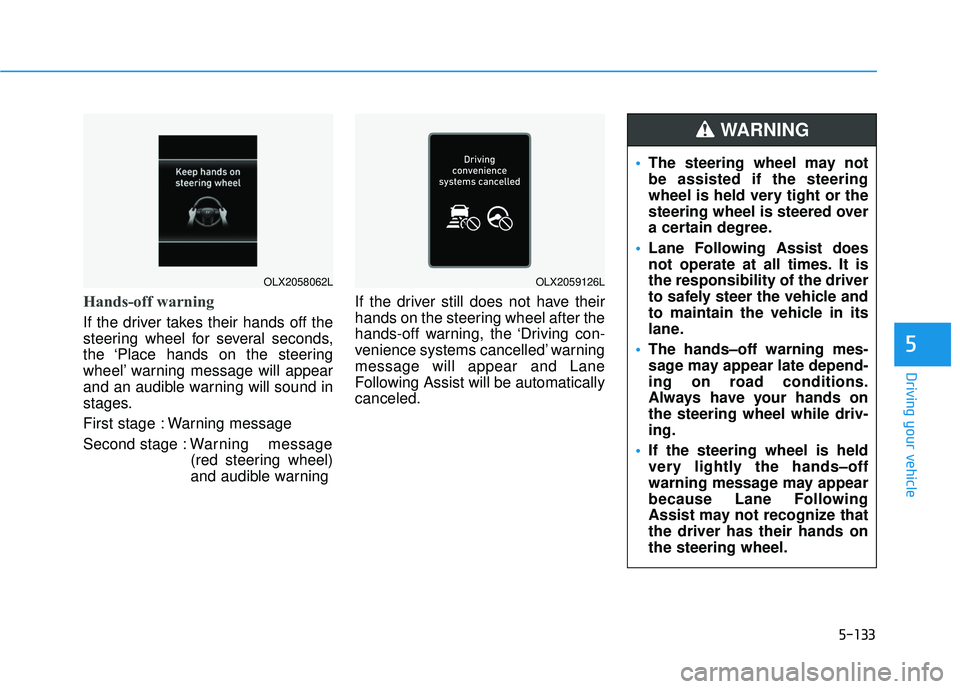
Hands-off warning
If the driver takes their hands off the
steering wheel for several seconds,
the ‘Place hands on the steering
wheel’ warning message will appear
and an audible warning will sound in
stages.
First stage : Warning message
Second stage : Warning message
(red steering wheel)
and audible warning If the driver still does not have their
hands on the steering wheel after the
hands-off warning, the ‘Driving con-
venience systems cancelled’ warning
message will appear and Lane
Following Assist will be automatically
canceled.
OLX2058062LOLX2059126L
The steering wheel may not
be assisted if the steering
wheel is held very tight or the
steering wheel is steered over
a certain degree.
Lane Following Assist does
not operate at all times. It is
the responsibility of the driver
to safely steer the vehicle and
to maintain the vehicle in its
lane.
The hands–off warning mes-
sage may appear late depend-
ing on road conditions.
Always have your hands on
the steering wheel while driv-
ing.
If the steering wheel is held
very lightly the hands–off
warning message may appear
because Lane Following
Assist may not recognize that
the driver has their hands on
the steering wheel.
WARNING
Page 468 of 663
5-134
Driving your vehicle
Information
• You may change settings from theinstrument cluster (User Settings)
or infotainment system (Vehicle
Settings), whichever option that is
provided with your vehicle. For
more details, see "User Settings"
section in chapter 4, or "Vehicle
Settings" section in supplied
Infotainment Manual.
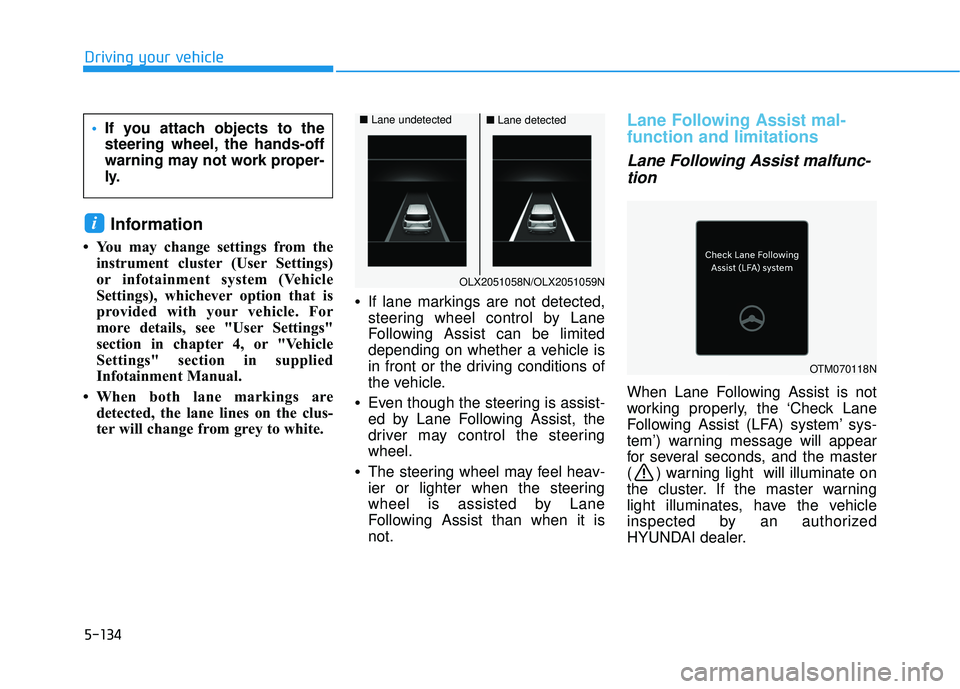
• When both lane markings are detected, the lane lines on the clus-
ter will change from grey to white. •
If lane markings are not detected,
steering wheel control by Lane
Following Assist can be limited
depending on whether a vehicle is
in front or the driving conditions of
the vehicle.
• Even though the steering is assist-
ed by Lane Following Assist, the
driver may control the steering
wheel.
• The steering wheel may feel heav-
ier or lighter when the steering
wheel is assisted by Lane
Following Assist than when it is
not.
Lane Following Assist mal-
function and limitations
Lane Following Assist malfunc-
tion
When Lane Following Assist is not
working properly, the ‘Check Lane
Following Assist (LFA) system’ sys-
tem’) warning message will appear
for several seconds, and the master
( ) warning light will illuminate on
the cluster. If the master warning
light illuminates, have the vehicle
inspected by an authorized
HYUNDAI dealer.
i
If you attach objects to the
steering wheel, the hands-off
warning may not work proper-
ly.
OLX2051058N/OLX2051059N
■ Lane undetected■Lane detected
OTM070118N
Page 481 of 663
5-147
Driving your vehicle
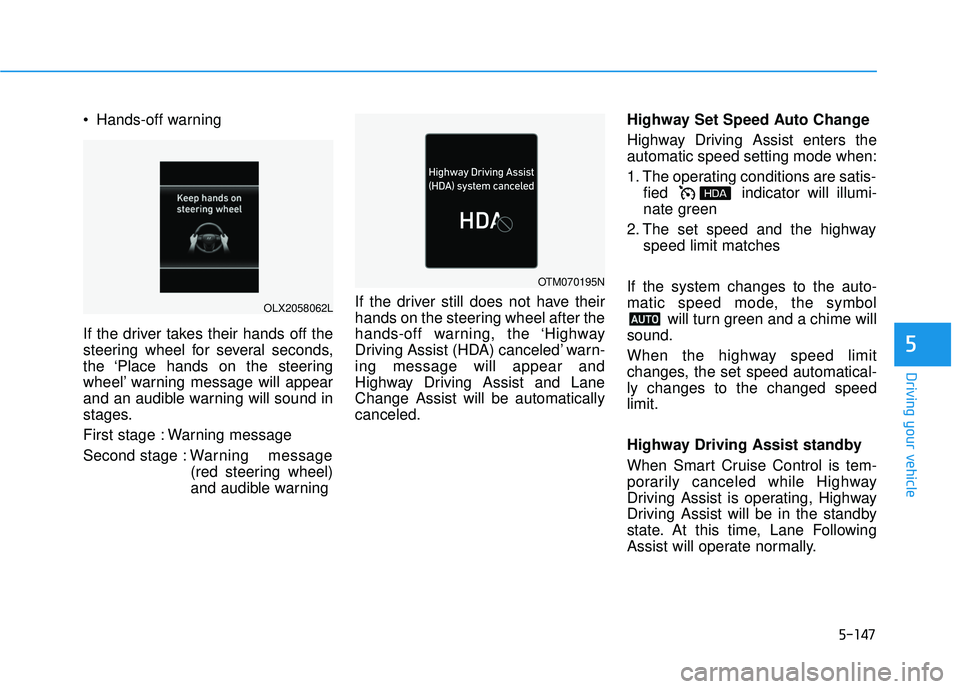
Hands-off warning
If the driver takes their hands off the
steering wheel for several seconds,
the ‘Place hands on the steering
wheel’ warning message will appear
and an audible warning will sound in
stages.
First stage : Warning message
Second stage : Warning message
(red steering wheel)
and audible warning If the driver still does not have their
hands on the steering wheel after the
hands-off warning, the ‘Highway
Driving Assist (HDA) canceled’ warn-
ing message will appear and
Highway Driving Assist and Lane
Change Assist will be automatically
canceled. Highway Set Speed Auto Change
Highway Driving Assist enters the
automatic speed setting mode when:
1. The operating conditions are satis-
fied indicator will illumi-
nate green
2. The set speed and the highway speed limit matches
If the system changes to the auto-
matic speed mode, the symbol will turn green and a chime will
sound.
When the highway speed limit
changes, the set speed automatical-
ly changes to the changed speed
limit.
Highway Driving Assist standby
When Smart Cruise Control is tem-
porarily canceled while Highway
Driving Assist is operating, Highway
Driving Assist will be in the standby
state. At this time, Lane Following
Assist will operate normally.
5
OLX2058062L
OTM070195N
Page 482 of 663
5-148
Highway Driving Assist
Malfunction and Limitations
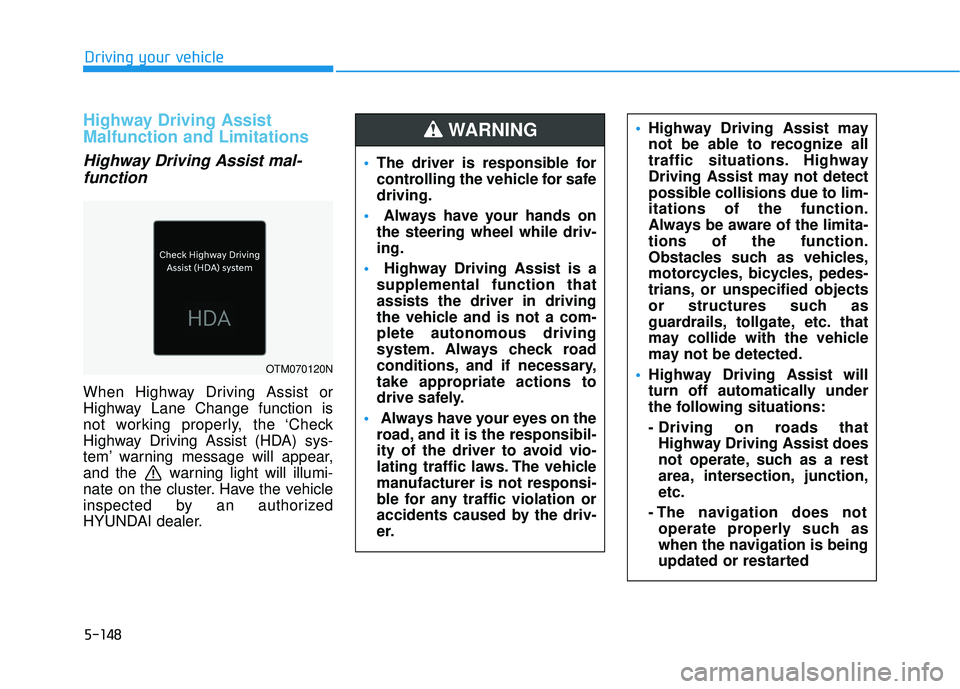
Highway Driving Assist mal-function
When Highway Driving Assist or
Highway Lane Change function is
not working properly, the ‘Check
Highway Driving Assist (HDA) sys-
tem’ warning message will appear,
and the warning light will illumi-
nate on the cluster. Have the vehicle
inspected by an authorized
HYUNDAI dealer.
Driving your vehicle
OTM070120N
The driver is responsible for
controlling the vehicle for safe
driving.
Always have your hands on
the steering wheel while driv-
ing.
Highway Driving Assist is a
supplemental function that
assists the driver in driving
the vehicle and is not a com-
plete autonomous driving
system. Always check road
conditions, and if necessary,
take appropriate actions to
drive safely.
Always have your eyes on the
road, and it is the responsibil-
ity of the driver to avoid vio-
lating traffic laws. The vehicle
manufacturer is not responsi-
ble for any traffic violation or
accidents caused by the driv-
er.
Highway Driving Assist may
not be able to recognize all
traffic situations. Highway
Driving Assist may not detect
possible collisions due to lim-
itations of the function.
Always be aware of the limita-
tions of the function.
Obstacles such as vehicles,
motorcycles, bicycles, pedes-
trians, or unspecified objects
or structures such as
guardrails, tollgate, etc. that
may collide with the vehicle
may not be detected.
Highway Driving Assist will
turn off automatically under
the following situations:
- Driving on roads that
Highway Driving Assist does
not operate, such as a rest
area, intersection, junction,
etc.
- The navigation does not operate properly such as
when the navigation is being
updated or restarted WARNING
Page 483 of 663
5-149
Driving your vehicle
Limitations of Highway DrivingAssist
Highway Driving Assist may not
operate normally, or may not operate
under the following circumstances:
The map information and the actu-
al road is different because the
navigation is not updated
The map information and the actu- al road is different because of real-
time GPS data or map information
error
The infotainment system is over- loaded by simultaneously perform-
ing functions such as route search,
video playback, voice recognition,
etc.
GPS signals are blocked in areas such as a tunnel
The driver goes off course or the route to the destination is changed
or canceled by resetting the navi-
gation
The vehicle enters a service sta- tion or rest area
Android Auto or Car Play is operat- ing
5
Highway Driving Assist may
inadvertently operate or turn
off depending on road condi-
tions (navigation information)
and surroundings.
Lane Following Assist func-
tion may be temporarily dis-
abled when the front view
camera cannot detect lanes
properly or the hands-off
warning is on.
You may not hear the warning
sound of Highway Driving
Assist if the surrounding is
noisy.
If the vehicle is driven at high
speed above a certain speed
at a curve, your vehicle may
drive to one side or may
depart from the driving lane.
When you are towing a trailer
or another vehicle, we recom-
mend that Highway Driving
Assist is turned off due to
safety reasons.The hands–off warning mes-
sage may appear early or late
depending on how the steer-
ing wheel is held or road con-
ditions. Always have your
hands on the steering wheel
while driving.
For your safety, please read
the owner's manual before
using the Highway Driving
Assist.
Highway Driving Assist will
not operate when the engine
is started, or when the detect-
ing sensors or navigation is
being initialized.
Page 486 of 663
5-152
Driving your vehicle
Smart Cruise Control settings
Setting features
To turn on Smart Cruise Control
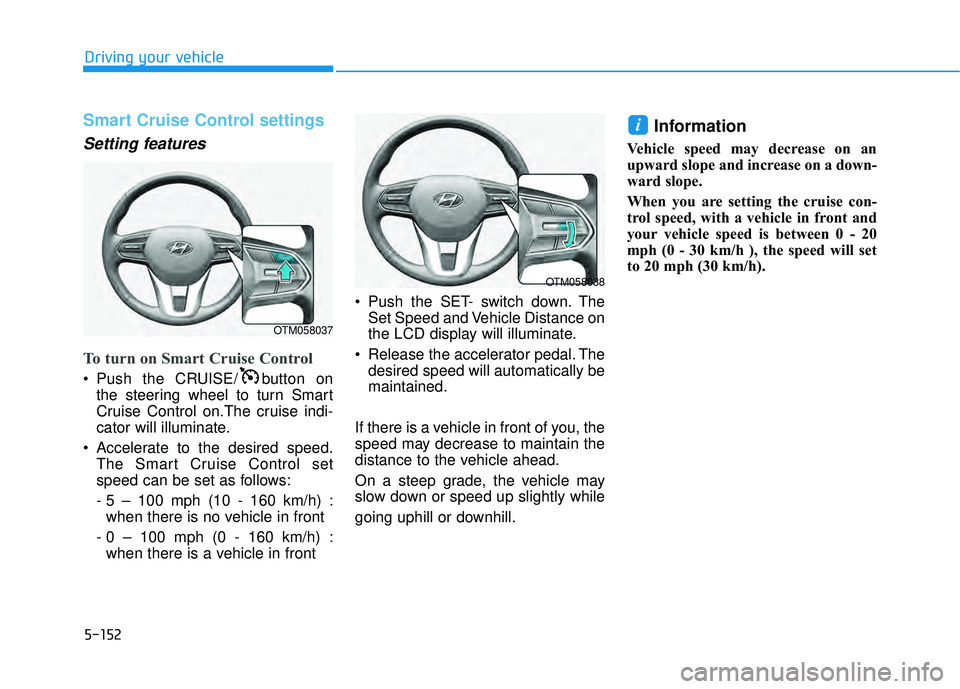
Push the CRUISE/ button onthe steering wheel to turn Smart
Cruise Control on.The cruise indi-
cator will illuminate.
Accelerate to the desired speed. The Smart Cruise Control set
speed can be set as follows:
- 5 – 100 mph (10 - 160 km/h) :when there is no vehicle in front
- 0 – 100 mph (0 - 160 km/h) : when there is a vehicle in front Push the SET- switch down. The
Set Speed and Vehicle Distance on
the LCD display will illuminate.
Release the accelerator pedal. The desired speed will automatically be
maintained.
If there is a vehicle in front of you, the
speed may decrease to maintain the
distance to the vehicle ahead.
On a steep grade, the vehicle may
slow down or speed up slightly while
going uphill or downhill.
Information
Vehicle speed may decrease on an
upward slope and increase on a down-
ward slope.
When you are setting the cruise con-
trol speed, with a vehicle in front and
your vehicle speed is between 0 - 20
mph (0 - 30 km/h ), the speed will set
to 20 mph (30 km/h).
i
OTM058037
OTM058038