eco Hyundai Santa Fe 2012 Owner's Manual
[x] Cancel search | Manufacturer: HYUNDAI, Model Year: 2012, Model line: Santa Fe, Model: Hyundai Santa Fe 2012Pages: 419, PDF Size: 5.61 MB
Page 226 of 419
4147
Features of your vehicle
1. ON/OFF and Speaker Volume
Press the POWER/VOLUMEknob to
turn the RSE on or off.
Rotate the knob to adjust the speaker
volume. Note that changing the volume
by using the POWER/VOLUME knob
affects only the vehicle speakers. The
wireless headset volume is not affected.
See the "Headphones" section of this
manual for more information.
2. RSE Display
This RSE control panel display indicates
the current selected source, mode of
operation in the current disc, and other
information. It will display FRONT to indi-
cate that the selected source is the front
vehicle radio and REAR to indicate that
the RSE player is the current source.
The display will indicate DISC IN when a
disc is in loaded the RSE player.
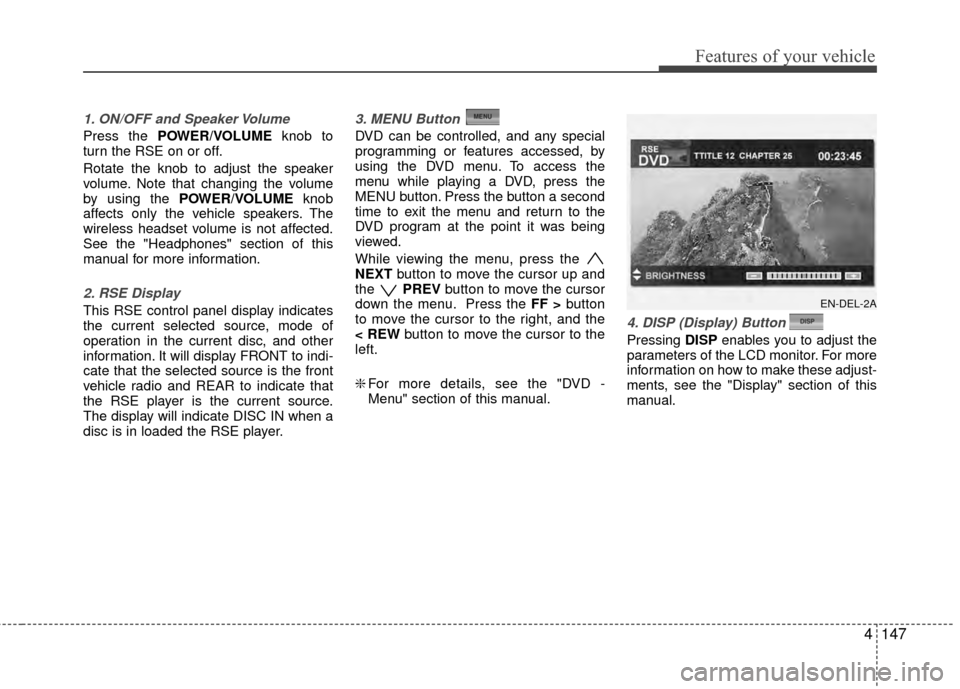
3. MENU Button
DVD can be controlled, and any special
programming or features accessed, by
using the DVD menu. To access the
menu while playing a DVD, press the
MENU button. Press the button a second
time to exit the menu and return to the
DVD program at the point it was being
viewed.
While viewing the menu, press the
NEXT button to move the cursor up and
the PREVbutton to move the cursor
down the menu. Press the FF > button
to move the cursor to the right, and the
< REW button to move the cursor to the
left.
❇ For more details, see the "DVD -
Menu" section of this manual.
4. DISP (Display) Button
Pressing DISPenables you to adjust the
parameters of the LCD monitor. For more
information on how to make these adjust-
ments, see the "Display" section of this
manual.
EN-DEL-2A
Page 227 of 419
Features of your vehicle
148
4
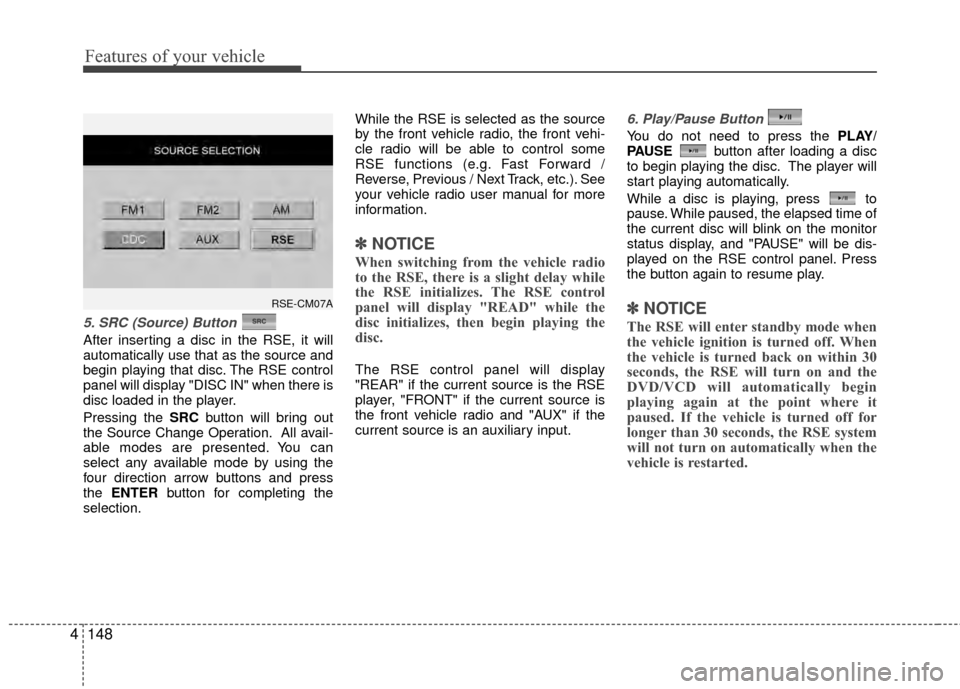
5. SRC (Source) Button
After inserting a disc in the RSE, it will
automatically use that as the source and
begin playing that disc. The RSE control
panel will display "DISC IN" when there is
disc loaded in the player.
Pressing the SRC button will bring out
the Source Change Operation. All avail-
able modes are presented. You can
select any available mode by using the
four direction arrow buttons and press
the ENTER button for completing the
selection. While the RSE is selected as the source
by the front vehicle radio, the front vehi-
cle radio will be able to control some
RSE functions (e.g. Fast Forward /
Reverse, Previous / Next Track, etc.). See
your vehicle radio user manual for more
information.
✽ ✽
NOTICE
When switching from the vehicle radio
to the RSE, there is a slight delay while
the RSE initializes. The RSE control
panel will display "READ" while the
disc initializes, then begin playing the
disc.
The RSE control panel will display
"REAR" if the current source is the RSE
player, "FRONT" if the current source is
the front vehicle radio and "AUX" if the
current source is an auxiliary input.
6. Play/Pause Button
You do not need to press the PLAY/
PAUSE button after loading a disc
to begin playing the disc. The player will
start playing automatically.
While a disc is playing, press to
pause. While paused, the elapsed time of
the current disc will blink on the monitor
status display, and "PAUSE" will be dis-
played on the RSE control panel. Press
the button again to resume play.
✽ ✽ NOTICE
The RSE will enter standby mode when
the vehicle ignition is turned off. When
the vehicle is turned back on within 30
seconds, the RSE will turn on and the
DVD/VCD will automatically begin
playing again at the point where it
paused. If the vehicle is turned off for
longer than 30 seconds, the RSE system
will not turn on automatically when the
vehicle is restarted.
RSE-CM07A
Page 229 of 419
Features of your vehicle
150
4
The player is only capable of reading the
bottom side of a disc. When inserting a
single-sided disc, the label side should
be up. When inserting a two-sided disc,
the desired play side should be down.
Press DISP on the RSE control panel or
the remote controller, then press the
NEXT or PREVbuttons to cycle
through monitor adjustments (SCREEN
SIZE, BRIGHTNESS, CONTRAST,
CHROMA, HUE). When the adjustment
for the SCREEN SIZE, use the < REW or
FF > buttons to select the preferred
screen size.Menu
DVDs can be controlled, and any special
programming or features accessed, by
using the menu. To access the menu
while playing a DVD, press the MENU
button. Press the button a second time to
exit the menu and return to the DVD pro-
gram at the point it was being viewed.
The menu is not available during disc ini-
tialization, the beginning credits or any
copyright and FBI warnings.
While viewing the menu, press the
NEXT button to move the cursor up and
the PREVbutton to move the cursor
down the menu. Press the FF > button
to move the cursor to the right, and the
< REW button to move the cursor to the
left.
✽ ✽ NOTICE
You must repeatedly push any button to
move through several items. Pressing
and holding a button will not advance
the cursor beyond the first item.
Press ENTER or Play/Pause to select the
desired menu choice.
Playing a DVD/VCD
You can control your DVD or VCD by
using the buttons on the RSE control
panel or by using the remote control.
Instructions for the controls listed below
are the same whether using the RSE
control panel or the remote control.
However, there are some additional func-
tions that are only available from the
remote control. These buttons and their
functions are discussed in the "Remote
Control" section of this manual.
Page 230 of 419
4151
Features of your vehicle
Play/Pause Button
You do not need to press the
PLAY/PAUSEbutton after loading a disc
to begin playing the disc. The player will
start playing automatically.
While a disc is playing, press PLAY/
PAUSE to pause. While paused, the
elapsed time of the current disc will blink
on the monitor status display, and
"PAUSE" will be displayed on the RSE
control panel. Press the button again to
resume play.
✽ ✽ NOTICE
The RSE will enter standby mode when
the vehicle ignition is turned off. When
the vehicle is turned back on within 30
seconds, the RSE will turn on and the
CD will automatically begin playing
again at the point where it paused. If the
vehicle is turned off for longer than 30
seconds, the RSE system will not turn on
automatically when the vehicle is
restarted.
Fast Forward/Reverse
Press and hold the FF > or < REW but-
ton and the player will fast forward or
reverse at 32 times the normal speed.
Release the FWD > or < REW button to
return to normal speed play.
Previous/Next Chapter
While a DVD/VCD is playing, press the
NEXT button to skip to the next chapter.
Press the PREVbutton to jump to
the beginning of the current chapter.
Press PREVagain to go move
through earlier chapters. Press the but-
ton repeatedly to move quickly through
chapters.
✽ ✽ NOTICE
Some VCDs do not have track informa-
tion. If the VCD has no chapter infor-
mation, pressing either of these buttons
will restart the VCD.
While pressing the NEXTor
PREV buttons, the Status Display, includ-
ing the current medium (DVD or VCD),
chapter and title information is displayed.
It will automatically disappear after five
seconds.
✽ ✽ NOTICE
Some DVDs do not permit chapter nav-
igation.
Instead of using the PREV /
NEXT buttons, you can also enter the
chapter number using the numbers on
the remote controller. While a DVD/VCD
is playing, press the number button(s)
that correspond to the desired chapter
and press ENTER.
Page 231 of 419
Features of your vehicle
152
4
Stop a Disc
The disc will automatically stop when any
other source (e.g. the vehicle radio or an
external game) is selected. When you
switch back to the DVD, it will begin play-
ing at the point where it stopped.
While the player is running, press the
RSE control panel POWER/VOLUME
knob, or the POWER ON/OFF button
on the remote control, to stop a
disc and turn off the RSE system and the
DVD player. When the RSE is turned on
again, the disc will begin playing at the
point where it stopped.
Eject a Disc
To eject a disc press the button. A
disc can be ejected even when the unit is
not turned on.
✽ ✽ NOTICE
The player has an Auto-Reload Disc
Protection feature to protect discs from
accidental damage. If a disc is not
removed within 12 seconds after being
ejected, it will be pulled back into the
player.
CD Player Operation
The RSE will play audio CDs in both
standard (12 cm) and mini-disc (8 cm)
format.
✽ ✽NOTICE
While the player will accept DVD ROM
and CD ROM discs, the RSE cannot
play discs in these formats.
Page 232 of 419
4153
Features of your vehicle
Volume Control
You can adjust the volume of the audio
heard in the vehicle speakers from the
RSE control panel or the remote control.
From the RSE control panel, rotate the
POWER/VOLUMEknob. From the
remote control, press "VOL +" to
increase and "VOL -" to decrease the
volume.
Adjusting the volume in this way will not
adjust the wireless headphone volume.
To adjust the headphones, roll the VOL
control wheel.
Play/Pause
When a CD is inserted, the RSE will
automatically begin playing the first track.
Press the PLAY/PAUSE button to
pause the CD. Press the button again to
resume play. While paused, the elapsed
time in the status display at the top of the
monitor will blink. The RSE control will
display "PAUSE."
When the player reaches the end of the
disc, the player will automatically return
to the first track and continue playing.
Fast Forward / Reverse
Press and hold the FF > or < REW but-
ton and the player will fast forward or
reverse at 10 times the normal speed.
Release the button to return to normal
speed play.
The audio is muted while the player fast
forwards or fast reverses.
Previous/Next Track
While a CD is playing, press the
PREV button to jump to the beginning of
the current track. If less than 10 seconds
has elapsed on the current track, press-
ing PREVwill go to the previous
track. Press the button repeatedly to con-
tinue moving through previous tracks.
Press the NEXTbutton to jump to the
beginning of the next track. Press the
button repeatedly to continue moving
through the following tracks.
Instead of using the PREV /
NEXT buttons, you can also enter the
track number using the numbers on the
remote control. While a CD is playing,
press the number button(s) that corre-
spond to the desired track and press
ENTER.
The current track number is shown in the
Status Display at the top of the monitor.
Stop
The CD will automatically stop when any
other source (e.g. the vehicle radio or an
external game) is selected. When you
switch back to the CD, it will begin play-
ing at the point where it stopped.
While a CD is playing, you can stop the
CD by pressing the POWER ON/OFF
button on the remote control or the
POWER/VOLUME knob on the RSE
control panel. When the RSE is turned on
again, it will automatically begin playing
the CD at the point where it was stopped.
Turning the vehicle off, or selecting a dif-
ferent RSE Source, will also stop playing
the CD.
Eject
Press the EJECT button to eject the
CD. Discs can be ejected even when the
unit is not turned on.
Page 234 of 419
4155
Features of your vehicle
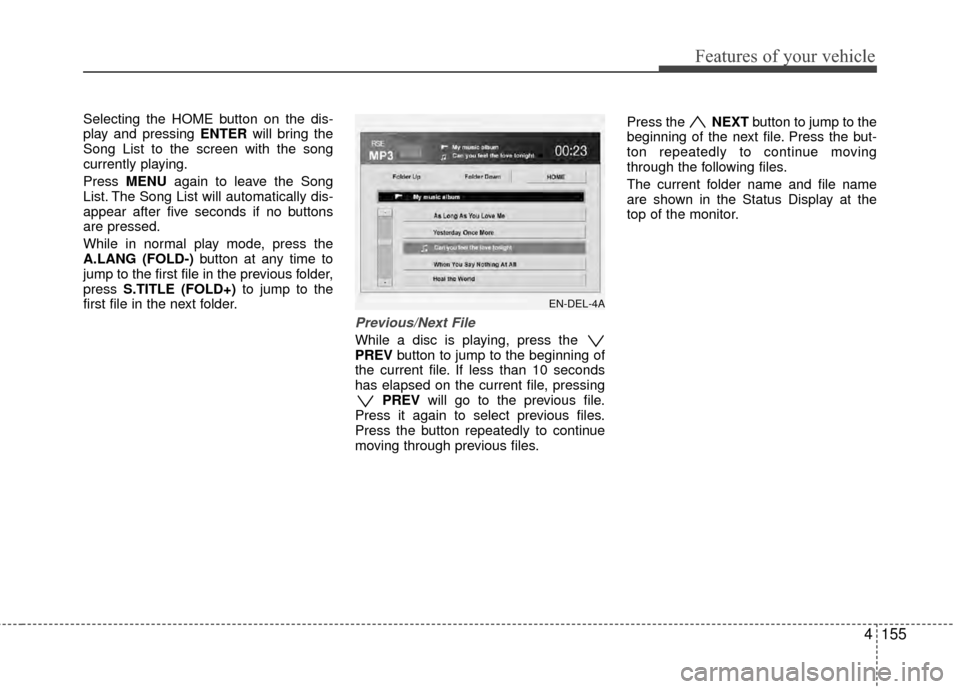
Selecting the HOME button on the dis-
play and pressing ENTERwill bring the
Song List to the screen with the song
currently playing.
Press MENU again to leave the Song
List. The Song List will automatically dis-
appear after five seconds if no buttons
are pressed.
While in normal play mode, press the
A.LANG (FOLD-) button at any time to
jump to the first file in the previous folder,
press S.TITLE (FOLD+) to jump to the
first file in the next folder.
Previous/Next File
While a disc is playing, press the
PREV button to jump to the beginning of
the current file. If less than 10 seconds
has elapsed on the current file, pressing PREV will go to the previous file.
Press it again to select previous files.
Press the button repeatedly to continue
moving through previous files. Press the
NEXTbutton to jump to the
beginning of the next file. Press the but-
ton repeatedly to continue moving
through the following files.
The current folder name and file name
are shown in the Status Display at the
top of the monitor.
EN-DEL-4A
Page 240 of 419
4161
Features of your vehicle
6. S.Title - Subtitles, Folders +
The S.TITLE button allows you to display
or remove language subtitles while play-
ing DVDs. If no language subtitles are
available, the display will show an invalid
icon. Press the S. TITLEbutton repeat-
edly to cycle through all of the available
languages.
Pressing the S. TITLE (or FOLD+) button
during MP3 normal play will immediately
bring the player to the first file of the next
folder.
Pressing the S. TITLE (or FOLD+) button
during CD or VCD play will do nothing.
7. Menu
Pressing the MENU button during DVD
play will present the DVD menu.
Pressing the MENU button during MP3
disc play will display the Song List on the
monitor.
Pressing the MENU button during CD or
VCD play has no effect.
Press the button again to return to the
program. After five seconds with no but-
ton press, the menu will automatically
close and the program begin playing.
8. Title/PBC
While viewing a DVD, press the TITLE
button on the remote control to jump to
the top menu. Press the < REW / FF > or
PREV / NEXT buttons to highlight
the desired selection, then press ENTER
to make your selection.
Press TITLE again to return to the DVD.
While viewing a VCD, pressing the
TITLE/PBC button will switch the PBC
function on and off.
9. Return
While viewing any operation, pressing
the RETURN button will exit the current
operation on screen display and resume
last play.
10. Speaker Volume "VOL +" and "VOL -"
If the audio from the RSE is being played
through the vehicle speakers, you can
adjust the volume of the speakers with
the "VOL +" and "VOL -" buttons.
Adjusting the volume in this way will not
adjust the wireless headphone volume.
To adjust the headphones, roll the VOL
control wheel.
Batteries
The remote control requires a CR2025
battery (included).
Page 241 of 419
Features of your vehicle
162
4
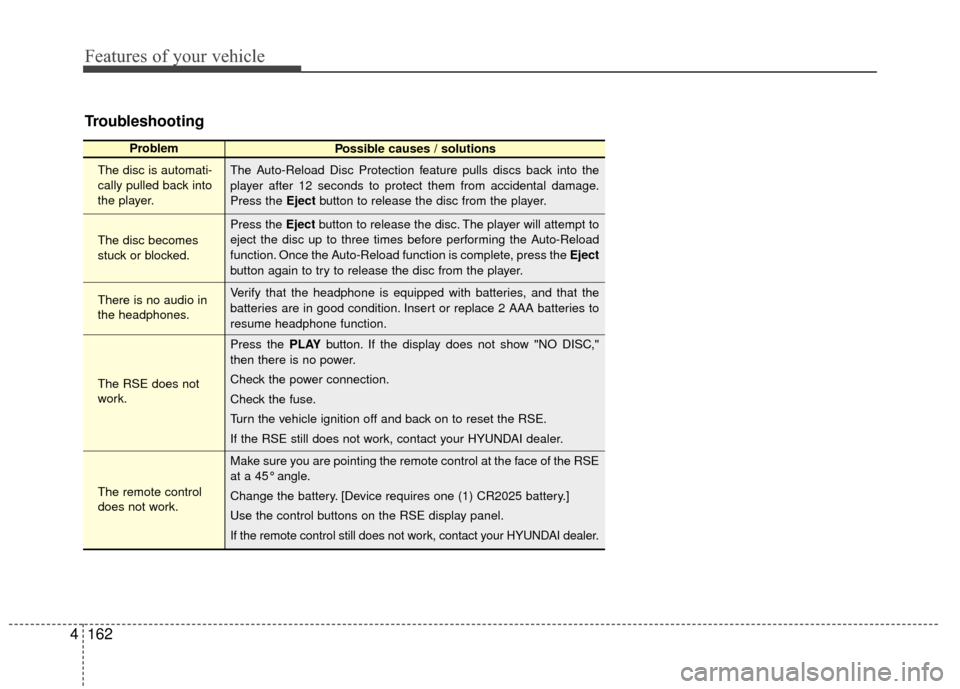
Troubleshooting
Problem
Possible causes / solutions
The disc is automati-
cally pulled back into
the player.
The disc becomes
stuck or blocked.
There is no audio in
the headphones.
The RSE does not
work.
The remote control
does not work. The Auto-Reload Disc Protection feature pulls discs back into the
player after 12 seconds to protect them from accidental damage.
Press the Eject
button to release the disc from the player.
Press the Eject button to release the disc. The player will attempt to
eject the disc up to three times before performing the Auto-Reload
function. Once the Auto-Reload function is complete, press the Eject
button again to try to release the disc from the player.
Verify that the headphone is equipped with batteries, and that the
batteries are in good condition. Insert or replace 2 AAA batteries to
resume headphone function.
Press the PLAY button. If the display does not show "NO DISC,"
then there is no power.
Check the power connection.
Check the fuse.
Turn the vehicle ignition off and back on to reset the RSE.
If the RSE still does not work, contact your HYUNDAI dealer.
Make sure you are pointing the remote control at the face of the RSE
at a 45° angle.
Change the battery. [Device requires one (1) CR2025 battery.]
Use the control buttons on the RSE display panel.
If the remote control still does not work, contact your HYUNDAI dealer.
Page 242 of 419
5
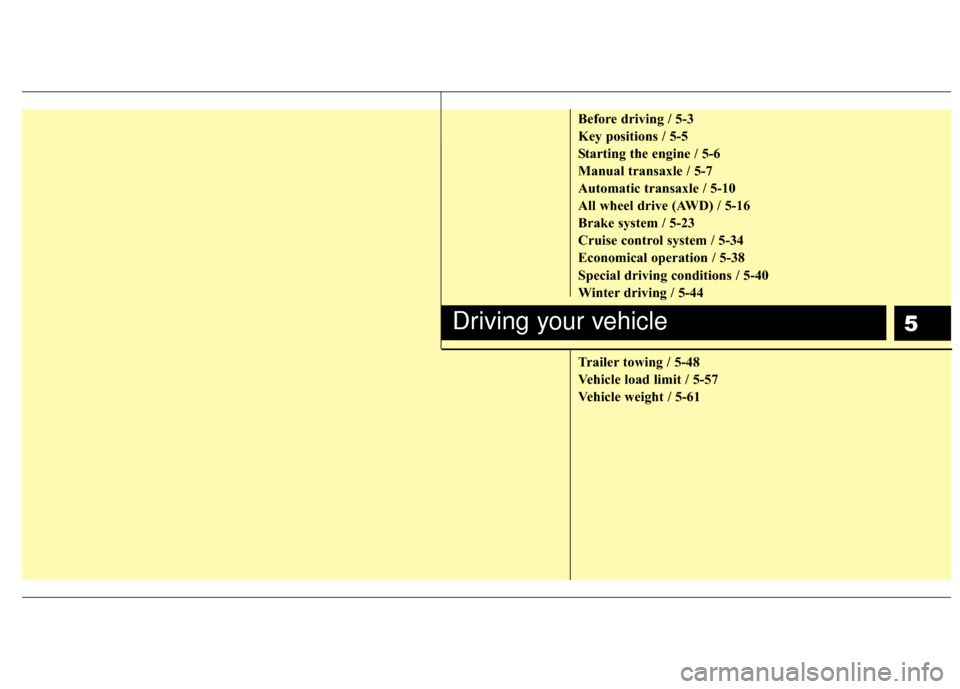
Before driving / 5-3
Key positions / 5-5
Starting the engine / 5-6
Manual transaxle / 5-7
Automatic transaxle / 5-10
All wheel drive (AWD) / 5-16
Brake system / 5-23
Cruise control system / 5-34
Economical operation / 5-38
Special driving conditions / 5-40
Winter driving / 5-44
Trailer towing / 5-48
Vehicle load limit / 5-57
Vehicle weight / 5-61
Driving your vehicle