Display Hyundai Santa Fe 2012 Owner's Guide
[x] Cancel search | Manufacturer: HYUNDAI, Model Year: 2012, Model line: Santa Fe, Model: Hyundai Santa Fe 2012Pages: 419, PDF Size: 5.61 MB
Page 216 of 419
4137
Features of your vehicle
➀Press button.
➁Say "Phonebook".
\bSay "Add Entry" after prompt.
➃Say "By Phone" to proceed.
➄Say “Yes” to confirm.
➅ Your phone will start to transfer
phone/contact list to the audio system.
This process may take over 10 min- utes depending on the phone model
and number of entries
\fWait till the audio displays “Transfer
Complete” message.
Changing Name
The registered names can be modified.
➀Press button.
➁Say “Phonebook”.
\bSay “Change Name” after prompt.
➃Say the name of the entry (voice tag).
➄Say “Yes” to confirm.
➅ Say new desired name.
Deleting Name
The registered names can be deleted.
➀Press button.
➁Say “Phonebook”.
\bSay “Delete Name” after prompt.
➃Say the name of the entry (voice tag).
➄Say “Yes” to confirm.
■Bluetooth®wireless technology
Audio Speaker Adaptation
Speaker adaptation will improve perform-
ance of voice recognition system to a
particular user voice.
This will degrade the performance for
other users.
➀Press button for 10sec.
➁Say “Record profile”.
\bSay “Yes”.
➃Say the word displayed on Radio.
➀Press button for 10sec.
➁Say “Delete profile”.
\bSay “Yes”.
Page 218 of 419
4139
Features of your vehicle
D320000AEN
Important Safety Information
It is always important to operate your
vehicle in a safe manner and to avoid dis-
traction while driving. This manual pro-
vides information that will help you safely
operate your Rear Seat Entertainment
System (RSE). Please read it completely
before using the system.
This device complies with part 15 of
the FCC rules.
Operation is subject to the following two
conditions:
1. This device may not cause harmfulinterference, and
2. This device must accept any interfer- ence received, including interference
that may cause undesired operation.
Welcome
The Rear Seat Entertainment System is
a compact, built-in, easy-to-use enter-
tainment system designed to provide
family fun while you are on the road.
Enjoy great quality sound from the vehi-
cle speakers, or have a private, quiet lis-
tening with the wireless headphones.
The overhead display unit is mounted to
the ceiling in the rear passenger area of
the vehicle, allowing rear-seat passen-
gers to play DVD movies, video CDs or
music CDs. Users may also plug in a
game platform or VHS player into an aux-
iliary input to show the programs through
the RSE display. The RSE can also
access to the vehicle's front radio pro-
grams.
System Overview
Connections / Setup
Your Rear Seat Entertainment system
will play DVD movies, video CDs, music
CDs or music MP3 discs, and is
designed to make your time on the road
more enjoyable. Please follow these
instructions carefully to get the most out
of your RSE.
REAR SEAT ENTERTAINMENT SYSTEM (RSE) (IF EQUIPPED)
CAUTION
Avoid having food or drinks near, in or on the RSE, the wirelessheadphones or the remote con-troller.
Direct sunlight may interfere with the headphone's operation andperformance.
Normal RSE operation cannot be guaranteed with unofficiallyduplicated discs.
(Continued)
WARNING
Changes or modifications not
expressly approved by the party
responsible for compliance could
void the user's authority to operate
the equipment.
Page 219 of 419
Features of your vehicle
140
4
✽
✽
NOTICE
The RSE requires a few seconds of set
up time after the ignition switch is
turned ON or to ACC mode.
Your RSE system is already set up and
ready for use, and can be turned on by
pushing the POWER/VOLUME knob on
the RSE control panel or the POWER
ON/OFF button on the remote
controll. The vehicle's ignition must be
turned on or in accessory power mode.
The RSE system can also be turned OFF
by the Audio Unit.
Components
Your RSE consists of several compo-
nents:
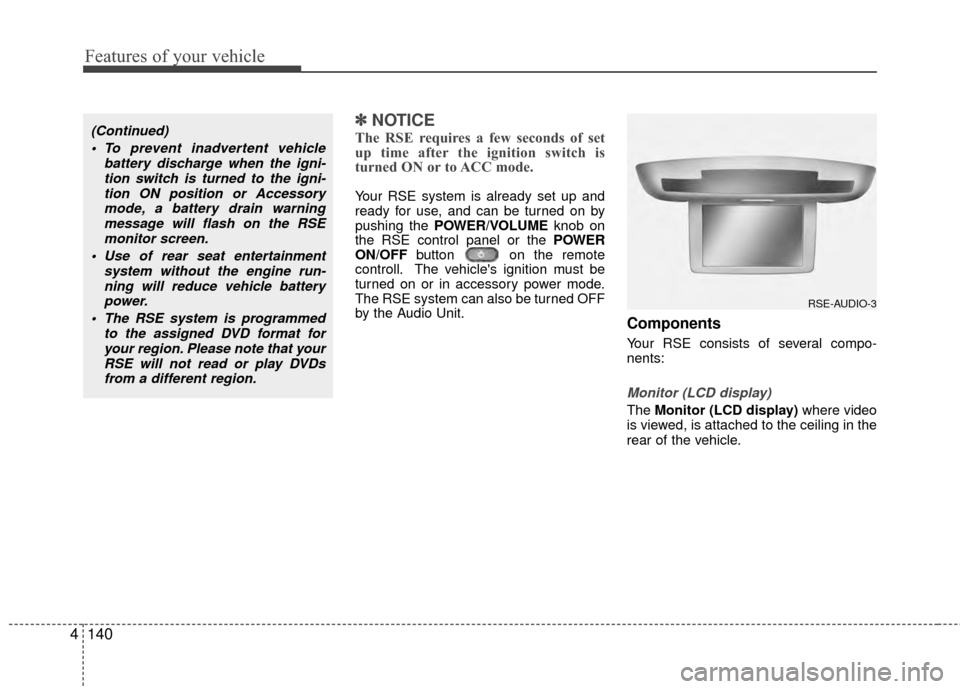
Monitor (LCD display)
The Monitor (LCD display) where video
is viewed, is attached to the ceiling in the
rear of the vehicle.
(Continued)
To prevent inadvertent vehicle battery discharge when the igni-tion switch is turned to the igni-tion ON position or Accessorymode, a battery drain warningmessage will flash on the RSEmonitor screen.
Use of rear seat entertainment system without the engine run-ning will reduce vehicle battery power.
The RSE system is programmed to the assigned DVD format foryour region. Please note that yourRSE will not read or play DVDsfrom a different region.
RSE-AUDIO-3
Page 220 of 419
4141
Features of your vehicle
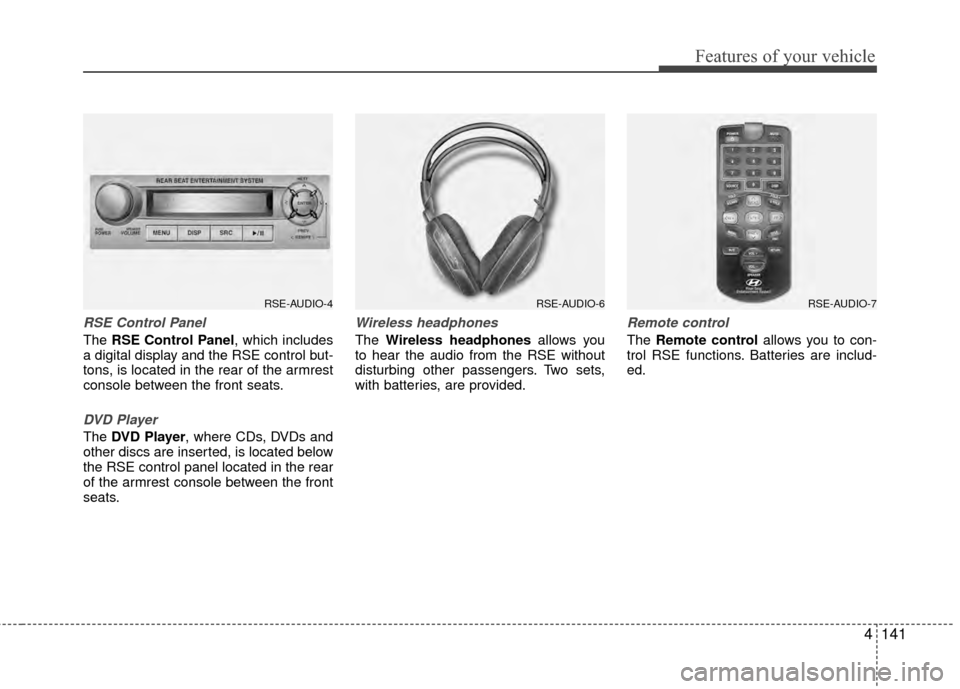
RSE Control Panel
The RSE Control Panel, which includes
a digital display and the RSE control but-
tons, is located in the rear of the armrest
console between the front seats.
DVD Player
The DVD Player, where CDs, DVDs and
other discs are inserted, is located below
the RSE control panel located in the rear
of the armrest console between the front
seats.
Wireless headphones
The Wireless headphones allows you
to hear the audio from the RSE without
disturbing other passengers. Two sets,
with batteries, are provided.
Remote control
The Remote control allows you to con-
trol RSE functions. Batteries are includ-
ed.
RSE-AUDIO-4RSE-AUDIO-6RSE-AUDIO-7
Page 221 of 419
Features of your vehicle
142
4
Opening and Closing the Monitor
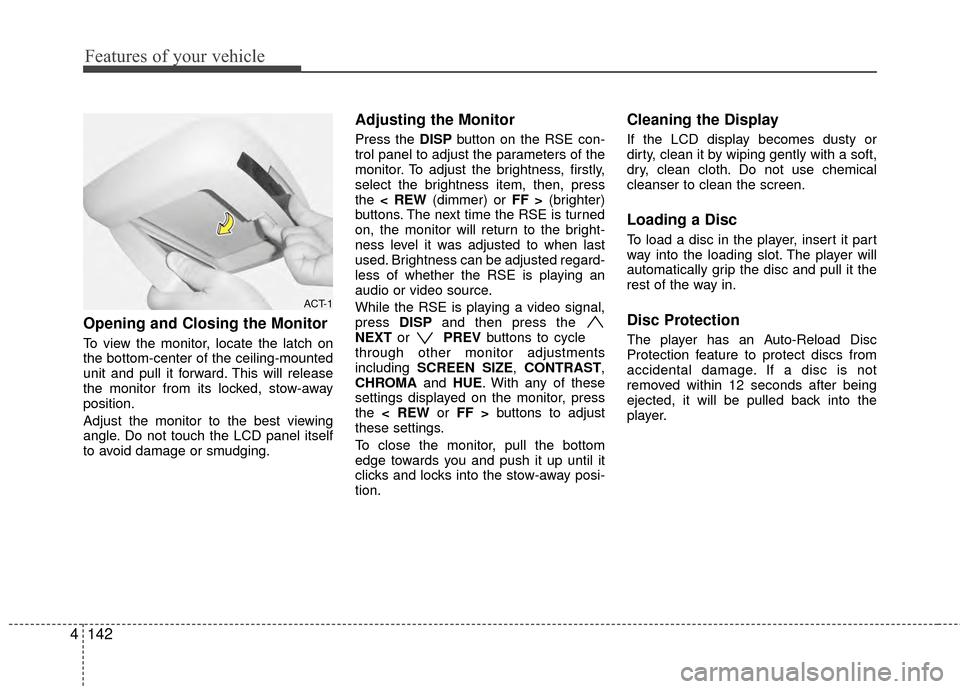
To view the monitor, locate the latch on
the bottom-center of the ceiling-mounted
unit and pull it forward. This will release
the monitor from its locked, stow-away
position.
Adjust the monitor to the best viewing
angle. Do not touch the LCD panel itself
to avoid damage or smudging.
Adjusting the Monitor
Press the DISP button on the RSE con-
trol panel to adjust the parameters of the
monitor. To adjust the brightness, firstly,
select the brightness item, then, press
the < REW (dimmer) or FF > (brighter)
buttons. The next time the RSE is turned
on, the monitor will return to the bright-
ness level it was adjusted to when last
used. Brightness can be adjusted regard-
less of whether the RSE is playing an
audio or video source.
While the RSE is playing a video signal,
press DISPand then press the
NEXT or PREVbuttons to cycle
through other monitor adjustments
including SCREEN SIZE, CONTRAST,
CHROMA and HUE. With any of these
settings displayed on the monitor, press
the < REW or FF > buttons to adjust
these settings.
To close the monitor, pull the bottom
edge towards you and push it up until it
clicks and locks into the stow-away posi-
tion.
Cleaning the Display
If the LCD display becomes dusty or
dirty, clean it by wiping gently with a soft,
dry, clean cloth. Do not use chemical
cleanser to clean the screen.
Loading a Disc
To load a disc in the player, insert it part
way into the loading slot. The player will
automatically grip the disc and pull it the
rest of the way in.
Disc Protection
The player has an Auto-Reload Disc
Protection feature to protect discs from
accidental damage. If a disc is not
removed within 12 seconds after being
ejected, it will be pulled back into the
player.
ACT-1
Page 222 of 419
4143
Features of your vehicle
Audio via Vehicle Speakers
To hear the audio from the RSE through
the vehicle's speakers, the RSE button
(located in the front radio control) must
be selected. Regardless of whether RSE
audio is selected for the vehicle speakers
or not, when the RSE audio is playing it
can be heard in the headphones.
Volume Control
You can adjust the volume of the audio
heard in the vehicle speakers from the
RSE control panel or the remote control.
From the RSE control panel, rotate the
POWER/VOLUMEknob. From the
remote control, press "VOL +" to
increase the volume and "VOL - " to
decrease the volume.
Adjusting the volume in this way will not
affect the wireless headphone volume. To
adjust the headphones, turn the VOL
control wheel on the headphones.
Headphones
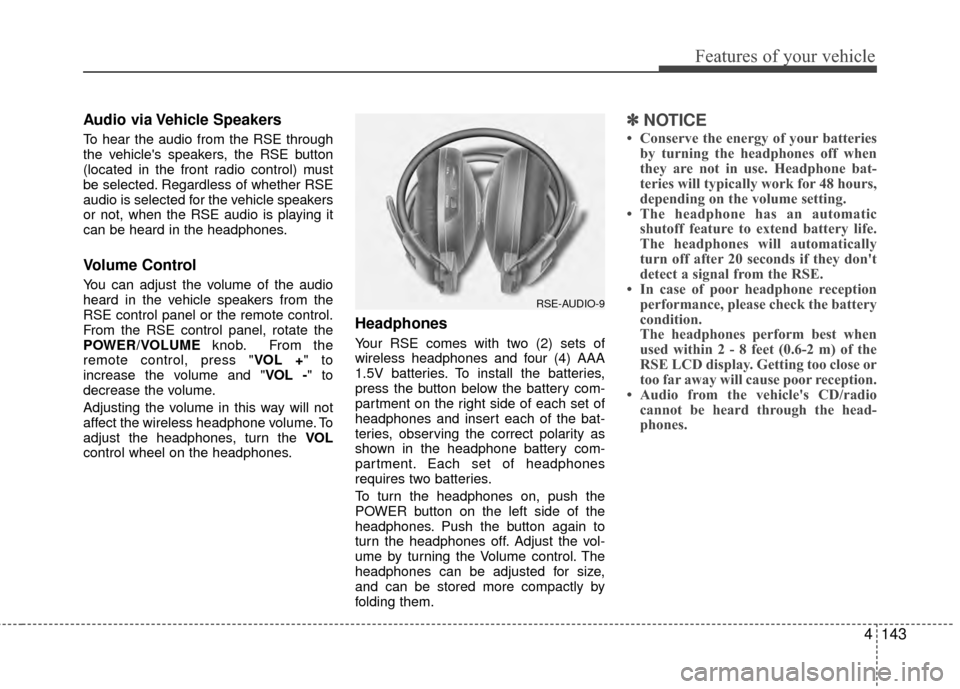
Your RSE comes with two (2) sets of
wireless headphones and four (4) AAA
1.5V batteries. To install the batteries,
press the button below the battery com-
partment on the right side of each set of
headphones and insert each of the bat-
teries, observing the correct polarity as
shown in the headphone battery com-
partment. Each set of headphones
requires two batteries.
To turn the headphones on, push the
POWER button on the left side of the
headphones. Push the button again to
turn the headphones off. Adjust the vol-
ume by turning the Volume control. The
headphones can be adjusted for size,
and can be stored more compactly by
folding them.
✽ ✽ NOTICE
• Conserve the energy of your batteries
by turning the headphones off when
they are not in use. Headphone bat-
teries will typically work for 48 hours,
depending on the volume setting.
• The headphone has an automatic shutoff feature to extend battery life.
The headphones will automatically
turn off after 20 seconds if they don't
detect a signal from the RSE.
• In case of poor headphone reception performance, please check the battery
condition.
The headphones perform best when
used within 2 - 8 feet (0.6-2 m) of the
RSE LCD display. Getting too close or
too far away will cause poor reception.
• Audio from the vehicle's CD/radio cannot be heard through the head-
phones.
RSE-AUDIO-9
Page 225 of 419
Features of your vehicle
146
4
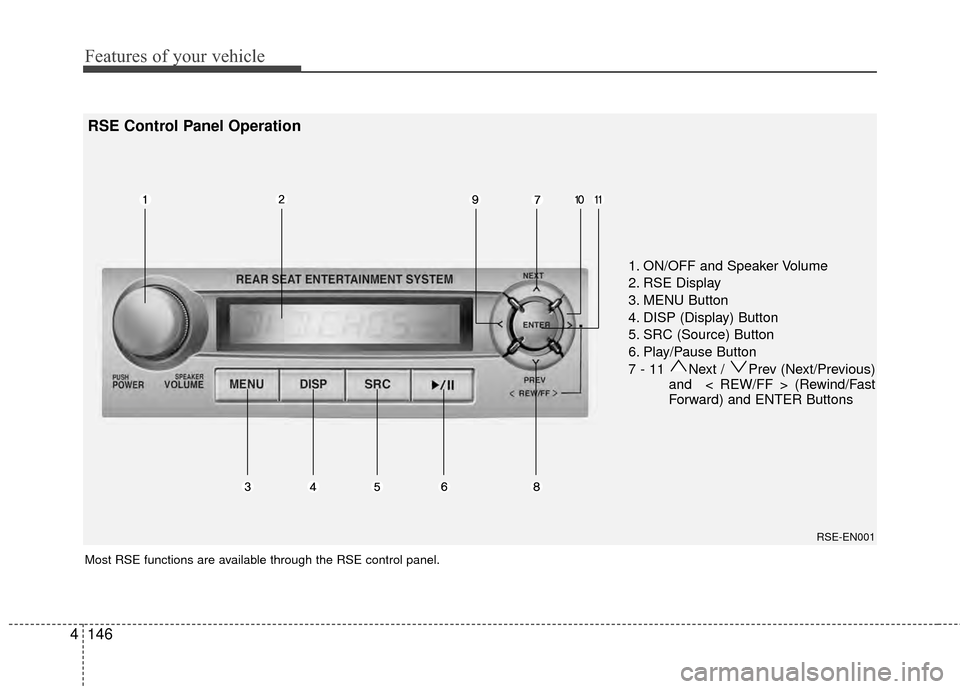
1. ON/OFF and Speaker Volume
2. RSE Display
3. MENU Button
4. DISP (Display) Button
5. SRC (Source) Button
6. Play/Pause Button
7 - 11 Next / Prev (Next/Previous)
and < REW/FF > (Rewind/Fast
Forward) and ENTER Buttons
Most RSE functions are available through the RSE control panel.
RSE-EN001
RSE Control Panel Operation
Page 226 of 419
4147
Features of your vehicle
1. ON/OFF and Speaker Volume
Press the POWER/VOLUMEknob to
turn the RSE on or off.
Rotate the knob to adjust the speaker
volume. Note that changing the volume
by using the POWER/VOLUME knob
affects only the vehicle speakers. The
wireless headset volume is not affected.
See the "Headphones" section of this
manual for more information.
2. RSE Display
This RSE control panel display indicates
the current selected source, mode of
operation in the current disc, and other
information. It will display FRONT to indi-
cate that the selected source is the front
vehicle radio and REAR to indicate that
the RSE player is the current source.
The display will indicate DISC IN when a
disc is in loaded the RSE player.
3. MENU Button
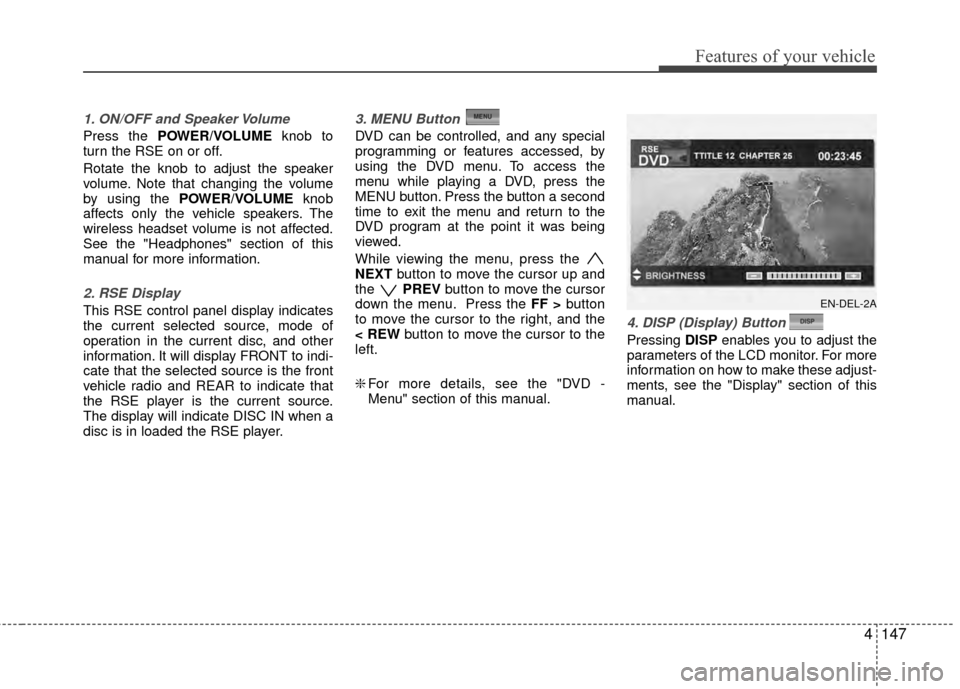
DVD can be controlled, and any special
programming or features accessed, by
using the DVD menu. To access the
menu while playing a DVD, press the
MENU button. Press the button a second
time to exit the menu and return to the
DVD program at the point it was being
viewed.
While viewing the menu, press the
NEXT button to move the cursor up and
the PREVbutton to move the cursor
down the menu. Press the FF > button
to move the cursor to the right, and the
< REW button to move the cursor to the
left.
❇ For more details, see the "DVD -
Menu" section of this manual.
4. DISP (Display) Button
Pressing DISPenables you to adjust the
parameters of the LCD monitor. For more
information on how to make these adjust-
ments, see the "Display" section of this
manual.
EN-DEL-2A
Page 227 of 419
Features of your vehicle
148
4
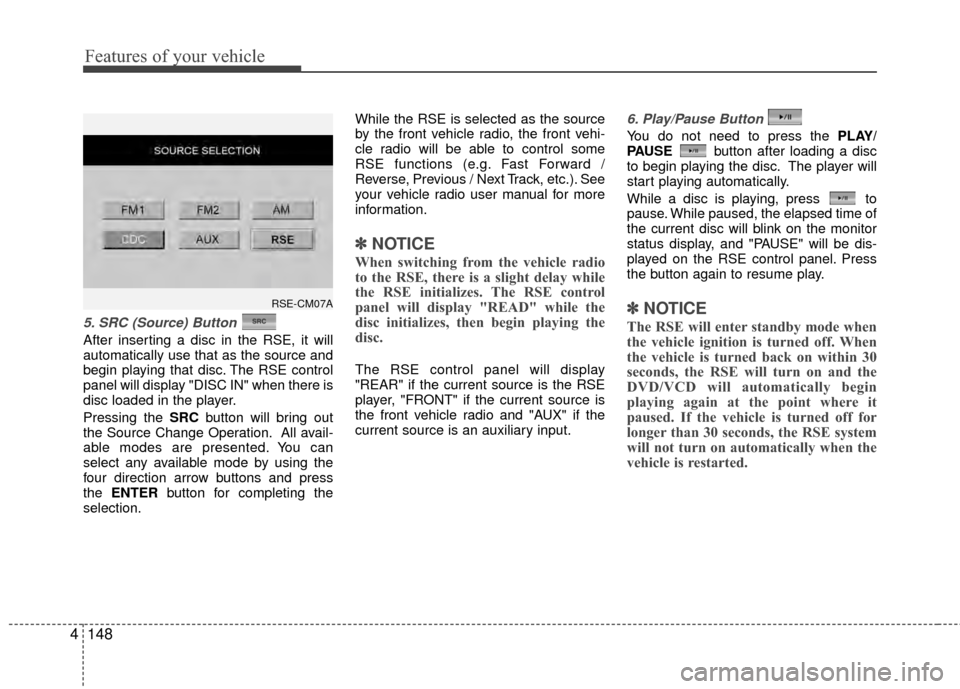
5. SRC (Source) Button
After inserting a disc in the RSE, it will
automatically use that as the source and
begin playing that disc. The RSE control
panel will display "DISC IN" when there is
disc loaded in the player.
Pressing the SRC button will bring out
the Source Change Operation. All avail-
able modes are presented. You can
select any available mode by using the
four direction arrow buttons and press
the ENTER button for completing the
selection. While the RSE is selected as the source
by the front vehicle radio, the front vehi-
cle radio will be able to control some
RSE functions (e.g. Fast Forward /
Reverse, Previous / Next Track, etc.). See
your vehicle radio user manual for more
information.
✽ ✽
NOTICE
When switching from the vehicle radio
to the RSE, there is a slight delay while
the RSE initializes. The RSE control
panel will display "READ" while the
disc initializes, then begin playing the
disc.
The RSE control panel will display
"REAR" if the current source is the RSE
player, "FRONT" if the current source is
the front vehicle radio and "AUX" if the
current source is an auxiliary input.
6. Play/Pause Button
You do not need to press the PLAY/
PAUSE button after loading a disc
to begin playing the disc. The player will
start playing automatically.
While a disc is playing, press to
pause. While paused, the elapsed time of
the current disc will blink on the monitor
status display, and "PAUSE" will be dis-
played on the RSE control panel. Press
the button again to resume play.
✽ ✽ NOTICE
The RSE will enter standby mode when
the vehicle ignition is turned off. When
the vehicle is turned back on within 30
seconds, the RSE will turn on and the
DVD/VCD will automatically begin
playing again at the point where it
paused. If the vehicle is turned off for
longer than 30 seconds, the RSE system
will not turn on automatically when the
vehicle is restarted.
RSE-CM07A
Page 228 of 419
4149
Features of your vehicle
7 - 11 Next / Prev (Next/Previous)and < REW/FF > (Rewind/FastForward) and ENTER Buttons
The NEXT/ PREV and
buttons provide a variety of functions,
depending on the media currently being
played in the RSE or the source selected.
For some of the functions, you will use
these buttons to navigate to the desired
location or option, then press the ENTER
button in the center to confirm your
selection.
For specific information about using
these buttons, see the appropriate sec-
tion for the various media types in this
manual.
DVD/VCD Player Operation
Disc/Format Compatibility
Your RSE player accepts and plays all
DVDs in 4:3 (normal) and 16:9
(widescreen) video formats. With DVDs
that offer multiple formats, the default for-
mat is 16:9 and will stay that way unless
changed by the user. See "Adjusting the
Monitor" to learn how to adjust the for-
mat.
The DVD player has the capability to play
DVD-Video, DVD-R, DVD-RW, CD-DA,
CD-R, CD-RW and VCD.
The DVD player was factory programmed
with a region code for the assigned mar-
ket or country. If a DVD is inserted for a
region code that doesn't match with the
player, an error message will be shown
on the overhead monitor and the RSE
control panel display.
✽ ✽ NOTICE
Because there is no universal standard
for DVD/VCD programming, your disc
may behave differently. Some DVDs
may present warning messages about
unauthorized duplication, some will go
directly to a menu, some may have dif-
ferent on-disc menu and start playing
the movie immediately, and some may
be unreadable or damaged and an error
message will be shown on the monitor.
✽ ✽NOTICE
While the player will accept DVD ROM
and CD ROM discs, the RSE cannot
play discs in these formats.