Display Hyundai Santa Fe 2012 Owner's Guide
[x] Cancel search | Manufacturer: HYUNDAI, Model Year: 2012, Model line: Santa Fe, Model: Hyundai Santa Fe 2012Pages: 419, PDF Size: 5.61 MB
Page 193 of 419
Features of your vehicle
114
4
CD/AUX Selection Button
If an auxiliary device is connected, it
switches to the AUX mode from the
other mode to play the sound from the
auxiliary player. If the CD is loaded,
turns to CD mode, and if a device is
connected to AUX then it toggles
CD
➟AUX➟CD... when the button is
pressed each time (It will not turn to
AUX if the auxiliary device is not con-
nected). If no CD or auxiliary device is
connected, it displays "NO Media" for 3
seconds and returns to the previous
mode.
CD/AUX/RSE Selection Button If the auxiliary device is connected, it
switches to the AUX mode from the
other mode to play the sound from the
auxiliary player. If the CD is loaded,
turns to CD mode, and if a device is
connected to AUX and there is a CD in
the RSE then it toggles:
CD
➟AUX➟RSE➟CD... when the but-
ton is pressed each time (It will not turn
to AUX and RSE if the auxiliary device
is not connected and there is no CD in
the RSE). If no CD, and auxiliary device is not
connected, it displays "NO Media" for 3
seconds and returns to the previous
mode.
8. CD Indicator (CDP Only)
When car ignition switch is ACC or ON
and if the CD is loaded, this indicator is
lighted. If the CD is ejected the light is
turned off.
9. Folder Moving Button
Moves [FOLDER ] button child fold-
er of the current folder and displays the
first song in the folder. Press TUNE/
ENTER knob to move to the folder dis-
played. It will play the first song in the
folder.
Moves [CAT ], [PTY ], [FOLDER ] button parent folder and displays the
first song in the folder. Press
TUNE/ENTER knob to move to the
folder displayed.
10. Search/ENTER Button
Turn this button clockwise to display the
songs next to the currently played song.
Turn the button counterclockwise to dis-
play the songs before the currently
played song. Press the button to skip and
play the selected song.
11. SCAN Play Button
Plays first 10 seconds of each song in
the DISC. To cancel the mode, press the
button once again.
12. DISC Selection Button
[DISC ] Change Button changesdisc to the previous disc.
[DISC ] Change Button changes disc to the next disc.
13. CD LOAD Button
Push [LOAD] button to load CDs to avail-
able CDC deck (from 1~6). Push [LOAD]
button for more than 2 seconds to load
into all available decks. The last CD will
play. 10 seconds idle status will disable
loading process.
Page 198 of 419
4119
Features of your vehicle
1. INFO Selection Button
Displays the information of the file cur-
rently played in the order of FILE NAME
➟TITLE➟ARTIST➟ALBUM➟FOLDER➟
TOTAL FILE➟NORMAL DISPLAY➟FILE
NAME
➟... (Displays no information if the
file has no song information.)
2. Track Moving Button
Press the [TRACK ] button for less than 0.8 second to play from the begin-
ning of the song currently played.
Press the button for less than 0.8 sec-
ond and press it again within 1 second
to move and play the previous track.
Press the button for 0.8 second or
longer to play the song in reverse
direction in fast speed.
Press the [SEEK ] button for less than 0.8 second to move to the next-
track. Press the button for 0.8 second
or longer to play the song in forward
direction in fast speed.
3. RANDOM Playback Button
Press this button for less than 0.8 sec-
onds to activate 'RDM' mode and more
than 0.8 seconds to activate 'ALL RDM'
mode. RDM : Only files in a folder are played
back in a random sequence.
ALL RDM : All files in a USB memory are played back in the random sequence.
4. REPEAT Button
Press this button for less than 0.8 sec-
onds to activate 'RPT' mode and more
than 0.8 seconds to activate 'FLD RPT'
mode.
RPT : Only a file is repeatedly playedback.
FLD RPT : Only files in a folder are repeatedly played back.
5. USB Selection Button
If USB is connected, it switches to the
USB mode from the other mode to play
the song files stored in the USB. If no CD
and auxiliary device is not connected, it
displays "NO Media" for 3 seconds and
returns to the previous mode.
6. Folder Moving Button
Moves [FOLDER ] button child folderof the current folder and displays the first
song in the folder. Press TUNE/ ENTER
knob to move to the folder displayed. It
will play the first song in the folder.
Moves [CAT ] button parent folder and displays the first song in the folder.
Press TUNE/ENTER knob to move to
the folder displayed
7. Search/ENTER Button
Turn this button clockwise to display the
songs next to the currently played song.
Turn the button counterclockwise to dis-
play the songs before the currently
played song. Press the button to skip and
play the selected song.
8. SCAN Selection Button
Plays 10 seconds of each song in the
USB device. Press the button once again
to cancel scanning.
Page 201 of 419
Features of your vehicle
122
4
When using an iPod with the exclusive
cable: Connect the exclusive cable to the
multiple terminal in the lower center area
to the right hand side of the cigarette
lighter. When the iPod is connected, the
'iPod' icon will be displayed on the top left
corner of the display screen.
❈Exclusive cable : Allows radio system
and iPod to be integrated together.
1. INFO Selection Button
Displays the information of the file cur-
rently played in the order of TITLE
➟
ARTIST➟ALBUM➟NORMAL DISPLAY➟
TITLE➟... (Displays no information if the
file has no song information.)
2. Track Moving Button
Press the [TRACK ] button for less than 0.8 second to play from the begin-
ning of the song currently played.
Press the button for less than 0.8 sec-
ond and press it again within 1 second
to move and play the previous track.
Press the button for 0.8 second or
longer to play the song in reverse
direction in fast speed. Press the [SEEK ] button for less
than 0.8 second to move to the next
track. Press the button for 0.8 second
or longer to play the song in forward
direction in fast speed.
3. RANDOM Playback Button
Press the button for less than 0.8 second
to activate or deactivate the random play-
back of the songs within the current cat-
egory. Press the button for longer than
0.8 second to randomly play all songs in
the entire album of the iPod. Press the
button once again to cancel the mode.
4. REPEAT Button
Repeats the song currently played.
5. iPod Selection Button
If iPod is connected, the audio switches
to the iPod mode from the CD mode to
play the song files stored in the iPod. If no
CD and auxiliary device is connected, it
displays "NO Media" for 3 seconds and
returns to the previous mode.
6. Menu/Category Selection Button
The menu button(preset 6) allows you to
see what category you are currently in
the iPod. The menu button along with the
Search/ENTER button will allow you to
select from the following list:
Songs, Composers, Playlists, Artists,
Albums, Genres.
7. Search/ENTER Button
When you turn the button clockwise or
counterclockwise, it will scroll to various
categories: songs, composers, playlists,
artists, albums, genres.
When you press ENTER on a desired
category, you can scroll through the list
of items in that category by turning the
button clockwise, or counterclockwise.
If you want to listen to the song displayed
in the song category, press the button,
when you have arrived at an item you
want to select within a category press the
ENTER button. Then it will skip to the
selected song and begin to play.
Page 202 of 419
4123
Features of your vehicle
✽
✽NOTICE FOR USING iPod®
DEVICE
• Some iPod models might not sup-
port the communication protocol
and the files will not be played.
(iPod models supported: Mini, 4G,
Photo, Nano, 5G)
• The order of search or playback of songs in the iPod can be different
from the order searched in the
audio system.
• If the iPod crashes due to its own trouble, reset iPod. (Reset: Refer to
iPod manual)
• iPod may not operate normally on low battery.
(Continued)
When the iPod cable is connected, the system can be switched to theAUX mode even without the iPoddevice and can cause noise. Disconnect iPod cable when youare not using the iPod device.
When the iPod is not used at audio system, iPod cable has tobe separate from iPod device.Origin display of iPod may not bedisplayed.CAUTION IN USING
iPod®DEVICE
You need the power cable exclu-
sive for iPod in order to operateiPod with the buttons on the audiosystem. The PC cable provided byApple may cause malfunction anddo not use it for vehicle use.
When connecting the device with iPod cable, push in the jack fullynot to interfere with communica-tion.
When adjusting the sound effects of iPod and the audio system, thesound effects of both devices willoverlap each and might cause,reduce, or distort the quality ofthe sound.
Deactivate (turn off) the equalizer function of iPod when adjustingthe audio system’s volume, andturn off the equalizer of the audio system when using the equalizerof iPod.
(Continued)
Page 205 of 419
Features of your vehicle
126
4
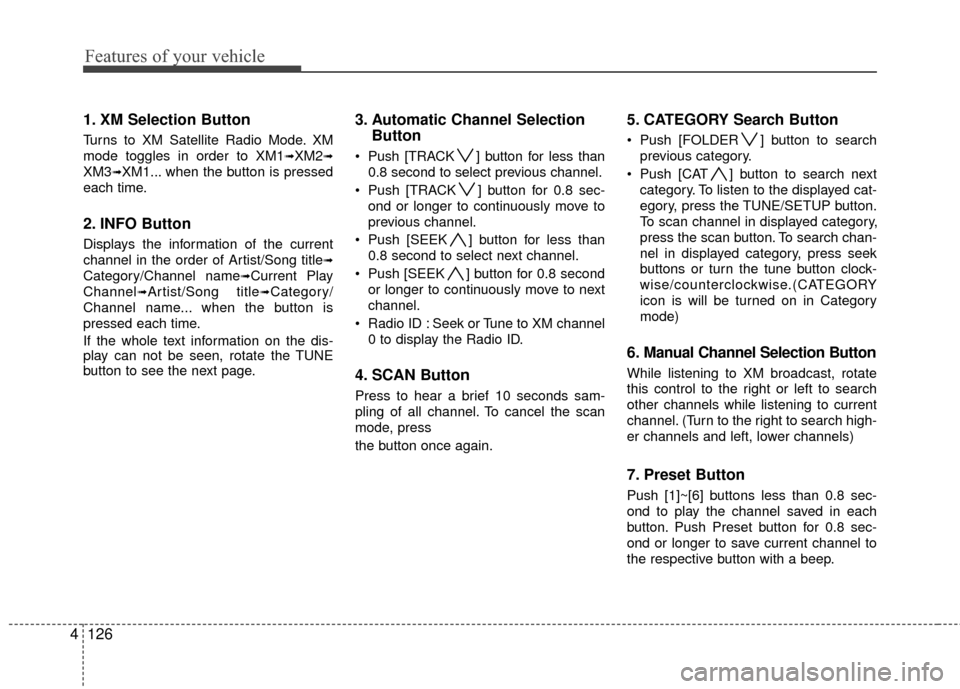
1. XM Selection Button
Turns to XM Satellite Radio Mode. XM
mode toggles in order to XM1
➟XM2➟
XM3➟XM1... when the button is pressed
each time.
2. INFO Button
Displays the information of the current
channel in the order of Artist/Song title
➟
Category/Channel name➟Current Play
Channel
➟Artist/Song title➟Category/
Channel name... when the button is
pressed each time.
If the whole text information on the dis-
play can not be seen, rotate the TUNE
button to see the next page.
3. Automatic Channel Selection Button
Push [TRACK ] button for less than
0.8 second to select previous channel.
Push [TRACK ] button for 0.8 sec- ond or longer to continuously move to
previous channel.
Push [SEEK ] button for less than 0.8 second to select next channel.
Push [SEEK ] button for 0.8 second or longer to continuously move to next
channel.
Radio ID : Seek or Tune to XM channel 0 to display the Radio ID.
4. SCAN Button
Press to hear a brief 10 seconds sam-
pling of all channel. To cancel the scan
mode, press
the button once again.
5. CATEGORY Search Button
Push [FOLDER ] button to searchprevious category.
Push [CAT ] button to search next category. To listen to the displayed cat-
egory, press the TUNE/SETUP button.
To scan channel in displayed category,
press the scan button. To search chan-
nel in displayed category, press seek
buttons or turn the tune button clock-
wise/counterclockwise.(CATEGORY
icon is will be turned on in Category
mode)
6. Manual Channel Selection Button
While listening to XM broadcast, rotate
this control to the right or left to search
other channels while listening to current
channel. (Turn to the right to search high-
er channels and left, lower channels)
7. Preset Button
Push [1]~[6] buttons less than 0.8 sec-
ond to play the channel saved in each
button. Push Preset button for 0.8 sec-
ond or longer to save current channel to
the respective button with a beep.
Page 207 of 419
Features of your vehicle
128
4
RSE (Rear Seat Entertainment)
An auxiliary device must be connected
to, or a DVD loaded into the RSE unit in
rear seat area before the RSE/AUX but-
ton on the radio can be activated.
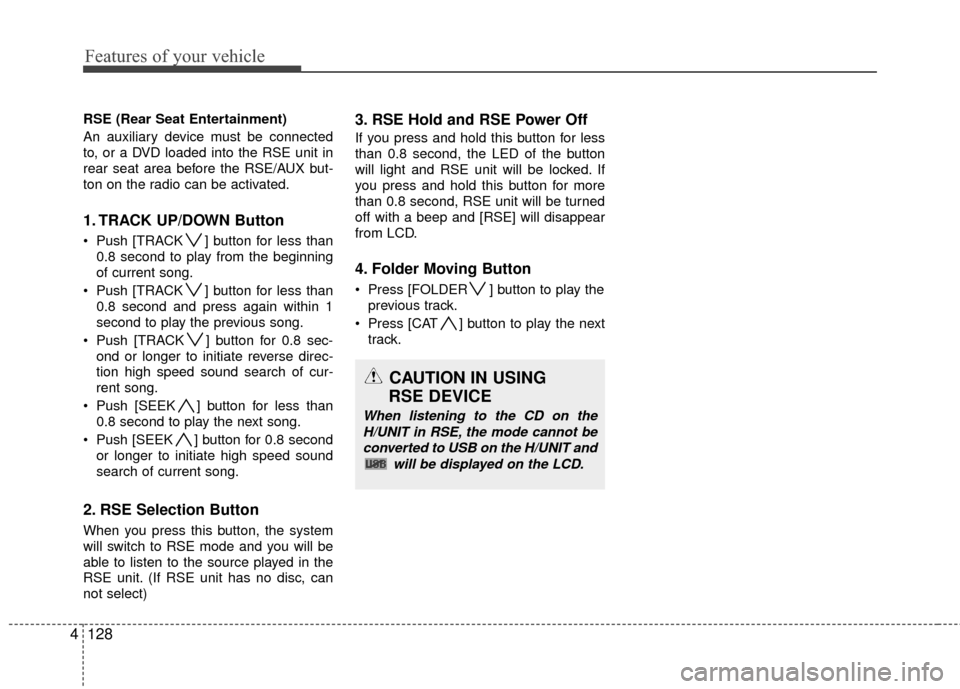
1. TRACK UP/DOWN Button
Push [TRACK ] button for less than
0.8 second to play from the beginning
of current song.
Push [TRACK ] button for less than 0.8 second and press again within 1
second to play the previous song.
Push [TRACK ] button for 0.8 sec- ond or longer to initiate reverse direc-
tion high speed sound search of cur-
rent song.
Push [SEEK ] button for less than 0.8 second to play the next song.
Push [SEEK ] button for 0.8 second or longer to initiate high speed sound
search of current song.
2. RSE Selection Button
When you press this button, the system
will switch to RSE mode and you will be
able to listen to the source played in the
RSE unit. (If RSE unit has no disc, can
not select)
3. RSE Hold and RSE Power Off
If you press and hold this button for less
than 0.8 second, the LED of the button
will light and RSE unit will be locked. If
you press and hold this button for more
than 0.8 second, RSE unit will be turned
off with a beep and [RSE] will disappear
from LCD.
4. Folder Moving Button
Press [FOLDER ] button to play theprevious track.
Press [CAT ] button to play the next track.
CAUTION IN USING
RSE DEVICE
When listening to the CD on the
H/UNIT in RSE, the mode cannot beconverted to USB on the H/UNIT and will be displayed on the LCD.
Page 209 of 419
Features of your vehicle
130
4
■Bluetooth®wireless technology
Language Setting
The system language can be changed by
the following steps:
1. Power on the audio system with the
volume set to an audible level.
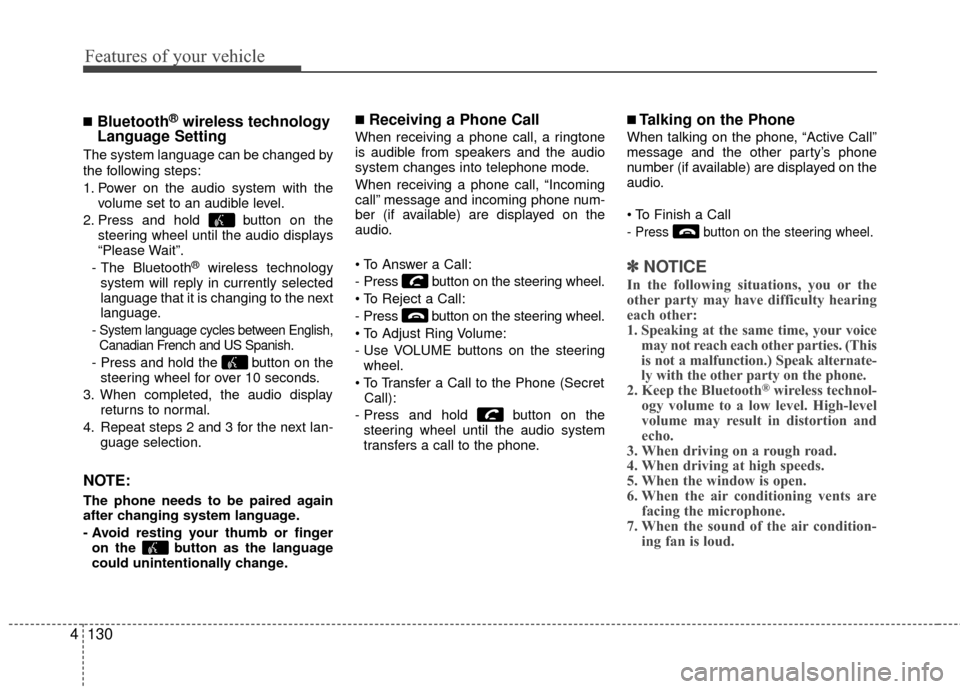
2. Press and hold button on the steering wheel until the audio displays
“Please Wait”.
- The Bluetooth
®wireless technology
system will reply in currently selected
language that it is changing to the next
language.
- System language cycles between English, Canadian French and US Spanish.
- Press and hold the button on the steering wheel for over 10 seconds.
3. When completed, the audio display returns to normal.
4. Repeat steps 2 and 3 for the next lan- guage selection.
NOTE:
The phone needs to be paired again
after changing system language.
- Avoid resting your thumb or fingeron the button as the language
could unintentionally change.
■Receiving a Phone Call
When receiving a phone call, a ringtone
is audible from speakers and the audio
system changes into telephone mode.
When receiving a phone call, “Incoming
call” message and incoming phone num-
ber (if available) are displayed on the
audio.
- Press button on the steering wheel.
- Press button on the steering wheel.
- Use VOLUME buttons on the steeringwheel.
Call):
- Press and hold button on the steering wheel until the audio system
transfers a call to the phone.
■Talking on the Phone
When talking on the phone, “Active Call”
message and the other party’s phone
number (if available) are displayed on the
audio.
- Press button on the steering wheel.
✽ ✽ NOTICE
In the following situations, you or the
other party may have difficulty hearing
each other:
1. Speaking at the same time, your voice
may not reach each other parties. (This
is not a malfunction.) Speak alternate-
ly with the other party on the phone.
2. Keep the Bluetooth
®wireless technol-
ogy volume to a low level. High-level
volume may result in distortion and
echo.
3. When driving on a rough road.
4. When driving at high speeds.
5. When the window is open.
6. When the air conditioning vents are facing the microphone.
7. When the sound of the air condition- ing fan is loud.
Page 210 of 419
4131
Features of your vehicle
■Bluetooth®wireless technology
Audio Music Streaming
The audio system supports Bluetooth®
wireless technology A2DP (Audio
Advanced Distribution Profile) and
AVRCP (Audio Video Remote Control
Profile) technologies.
Both profiles provide steaming of music
via compatible “PAIRED” Bluetooth
®
wireless technology enabled Cellular
phone.
To stream music from the Bluetooth
®
wireless technology enabled cellular
phone, play your music files on your cel-
lular phone according to your cellular
phone user’s manual and press the
, button on the
audio system until “MP3 play” is dis-
played on the LCD.
The audio system head unit displays
‘MP3 MODE’.
NOTE:
all music and sound files your cellu-
lar phone supports can be played
by the audio system.
®wireless technology
compatible cellular phones must
include A2DP and AVRCP capabili-
ties.
AVRCP compatible Bluetooth
®wireless technology cel-
lular phones may not play music
through the audio system initially.
These cellular phones may need to
have the Bluetooth
®wireless tech-
nology streaming enabled, for
example;
i.e : Menu
➟Filemanager➟Music➟Option➟Play via Bluetooth
cellular phone for more information.
To cancel Bluetooth
®wireless tech-
nology enabled cellular phone
music streaming, stop music play-
back on the cellular phone or
change the audio mode to AM/FM,
XM, CD, iPod, ect.
■Phone Setup
All Bluetooth®wireless technology relat-
ed operations can be performed in
PHONE menu.
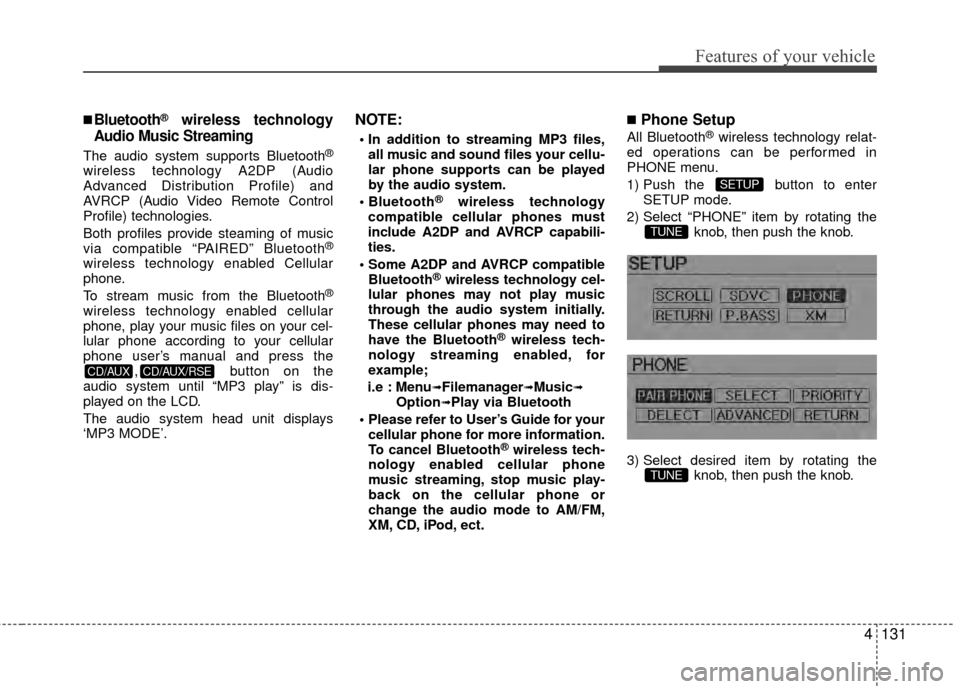
1) Push the button to enter SETUP mode.
2) Select “PHONE” item by rotating the knob, then push the knob.
3) Select desired item by rotating the knob, then push the knob.
TUNE
TUNE
SETUP
CD/AUX/RSE CD/AUX
Page 211 of 419
Features of your vehicle
132
4
Before using Bluetooth®wireless tech-
nology features, the phone must be
paired (registered) with the audio sys-
tem. Up to 5 phones can be paired with
the system.
NOTE:
•The pairing procedure of the phone
varies according to each phone
model. Before attempting to pair
phone, please see your phone’s
User’s Guide for instructions.
•Once pairing with the phone is com-
pleted, there is no need to pair with
that phone again unless the phone
is deleted manually from the audio
system (refer “Deleting a Phone”
section) or the vehicle’s information
is removed from the phone.
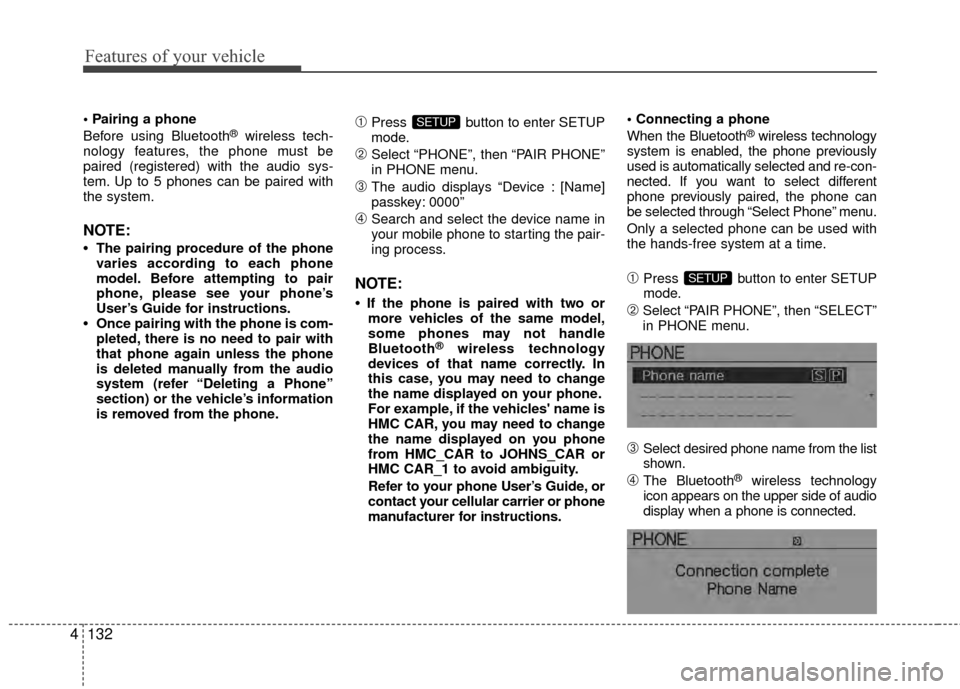
➀Press button to enter SETUP
mode.
➁Select “PHONE”, then “PAIR PHONE”
in PHONE menu.
\bThe audio displays “Device : [Name]
passkey: 0000”
➃Search and select the device name in
your mobile phone to starting the pair-
ing process.
NOTE:
• If the phone is paired with two or more vehicles of the same model,
some phones may not handle
Bluetooth
®wireless technology
devices of that name correctly. In
this case, you may need to change
the name displayed on your phone.
For example, if the vehicles' name is
HMC CAR, you may need to change
the name displayed on you phone
from HMC_CAR to JOHNS_CAR or
HMC CAR_1 to avoid ambiguity.
Refer to your phone User’s Guide, or
contact your cellular carrier or phone
manufacturer for instructions.
When the Bluetooth
®wireless technology
system is enabled, the phone previously
used is automatically selected and re-con-
nected. If you want to select different
phone previously paired, the phone can
be selected through “Select Phone” menu.
Only a selected phone can be used with
the hands-free system at a time.
➀Press button to enter SETUP
mode.
➁Select “PAIR PHONE”, then “SELECT”
in PHONE menu.
\bSelect desired phone name from the list
shown.
➃The Bluetooth®wireless technology
icon appears on the upper side of audio
display when a phone is connected.
SETUP
SETUP
Page 215 of 419
Features of your vehicle
136
4
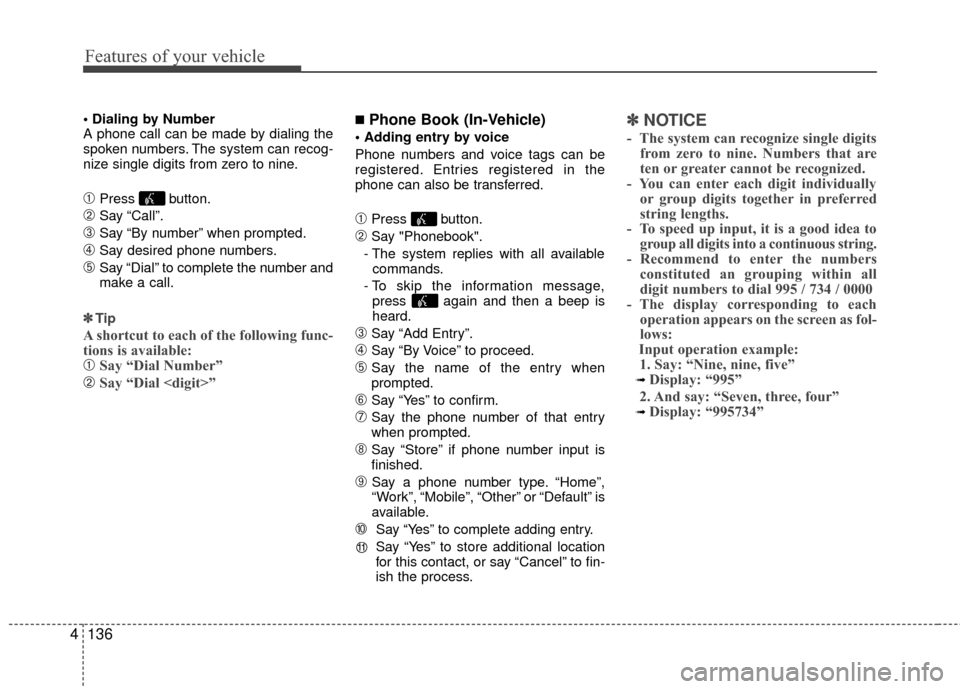
A phone call can be made by dialing the
spoken numbers. The system can recog-
nize single digits from zero to nine.
➀Press button.
➁Say “Call”.
\bSay “By number” when prompted.
➃Say desired phone numbers.
➄Say “Dial” to complete the number and
make a call.
✽ ✽ Tip
A shortcut to each of the following func-
tions is available:
➀Say “Dial Number”
➁Say “Dial
■Phone Book (In-Vehicle)
Phone numbers and voice tags can be
registered. Entries registered in the
phone can also be transferred.
➀Press button.
➁Say "Phonebook".
- The system replies with all available commands.
- To skip the information message, press again and then a beep is
heard.
\bSay “Add Entry”.
➃Say “By Voice” to proceed.
➄Say the name of the entry when
prompted.
➅Say “Yes” to confirm.
\fSay the phone number of that entry
when prompted.
➇Say “Store” if phone number input is
finished.
➈ Say a phone number type. “Home”,
“Work”, “Mobile”, “Other” or “Default” is
available.
➉ Say “Yes” to complete adding entry.
Say “Yes” to store additional location
for this contact, or say “Cancel” to fin-
ish the process.
✽ ✽ NOTICE
- The system can recognize single digits
from zero to nine. Numbers that are
ten or greater cannot be recognized.
- You can enter each digit individually or group digits together in preferred
string lengths.
- To speed up input, it is a good idea to group all digits into a continuous string.
- Recommend to enter the numbers constituted an grouping within all
digit numbers to dial 995 / 734 / 0000
- The display corresponding to each operation appears on the screen as fol-
lows:
Input operation example: 1. Say: “Nine, nine, five”
➟ Display: “995”
2. And say: “Seven, three, four”
➟ Display: “995734”
11