settings Hyundai Santa Fe 2014 User Guide
[x] Cancel search | Manufacturer: HYUNDAI, Model Year: 2014, Model line: Santa Fe, Model: Hyundai Santa Fe 2014Pages: 711, PDF Size: 14.72 MB
Page 311 of 711
![Hyundai Santa Fe 2014 User Guide Features of your vehicle
210 4
Audio Settings
This menu allows you to set the
‘Bass, Middle, Treble’ and the Sound
Fader and Balance.
Select [Audio Settings] Select
menu through TUNE knob Turn
TU](/img/35/16363/w960_16363-310.png "Hyundai Santa Fe 2014 User Guide Features of your vehicle
210 4
Audio Settings
This menu allows you to set the
‘Bass, Middle, Treble’ and the Sound
Fader and Balance.
Select [Audio Settings] Select
menu through TUNE knob Turn
TU")
Features of your vehicle
210 4
Audio Settings
This menu allows you to set the
‘Bass, Middle, Treble’ and the Sound
Fader and Balance.
Select [Audio Settings] Select
menu through TUNE knob Turn
TUNE knob left/right to set
• Bass, Middle, Treble : Selects the
sound tone.
• Fader, Balance : Moves the sound
fader and balance.
• Default : Restores default settings.
❈ Return : While adjusting values,
re-pressing the TUNE knob will
restore the parent menu.
Virtual Sound
The PoewrBass, PowerTreble, and
Surround can be set.
Select [Virtual Sound] Set menu
through TUNE knob Set /
through TUNE knob
• PowerBass : This is a sound sys-
tem feature that provides live bass.
• PowerTreble : This is a sound sys-
tem feature that provides live trem-
ble.
• Surround : This is a sound system
feature that provides surround
sound.
❈ May differ depending on the
selected audio.
Speed Dependent Volume
Control
This feature is used to automatically
control the volume level according to
the speed of the vehicle.
Select [Speed Dependent Vol.] Set
in 4 levels [Off/Low/Mid/High] of
TUNE knob
Volume Dialogue
Adjusts voice recognition volume.
Select [Volume Dialogue] Set vol-
ume of TUNE knob
Off
On
Page 312 of 711
![Hyundai Santa Fe 2014 User Guide 4211
Features of your vehicle
Clock Settings
Press the key Select
[Clock] through TUNE knob or
key Select menu through
TUNE knob
Clock Settings
This menu is used to set the time.
Select [Clock Sett](/img/35/16363/w960_16363-311.png "Hyundai Santa Fe 2014 User Guide 4211
Features of your vehicle
Clock Settings
Press the key Select
[Clock] through TUNE knob or
key Select menu through
TUNE knob
Clock Settings
This menu is used to set the time.
Select [Clock Sett")
4211
Features of your vehicle
Clock Settings
Press the key Select
[Clock] through TUNE knob or
key Select menu through
TUNE knob
Clock Settings
This menu is used to set the time.
Select [Clock Settings] Set through
TUNE knob Press TUNE knob
❈ Adjust the number currently in
focus to set the [hour] and press
the tune knob to set the [minute].
Day Settings
This menu is used to set the date
(DD/MM/YYYY).
Select [Day Settings] Set through
TUNE knob Press TUNE knob
❈ Adjust the number currently in
focus to make the settings and
press the tune knob to move to the
next setting. (Set in order of
Year/Month/Day)
3
SETUPCLOCK
Page 319 of 711
![Hyundai Santa Fe 2014 User Guide Features of your vehicle
218 4
System Settings
Press the key Select [System]
through tune knob or key Select
menu through TUNE knob
Memory Information
(if equipped)
Displays currently used memory](/img/35/16363/w960_16363-318.png "Hyundai Santa Fe 2014 User Guide Features of your vehicle
218 4
System Settings
Press the key Select [System]
through tune knob or key Select
menu through TUNE knob
Memory Information
(if equipped)
Displays currently used memory")
Features of your vehicle
218 4
System Settings
Press the key Select [System]
through tune knob or key Select
menu through TUNE knob
Memory Information
(if equipped)
Displays currently used memory and
total system memory.
Select [Memory Information] OK
The currently used memory is dis-
played on the left side while the total
system memory is displayed on the
right side.
VRS Mode
This feature is used to change voice
command feedback between Normal
and Expert modes.
Select [VRS Mode] Set through
TUNE knob
• Normal : This mode is for beginner
users and provides detailed
instructions during voice command
operation.
• Expert : This mode is for expert
users and omits some information
during voice command operation.
(When using Expert mode, guid-
ance instructions can be heard
through the [Help] or [Menu] com-
mands.
❈ May differ depending on the
selected audio.
5
SETUP
Page 320 of 711
![Hyundai Santa Fe 2014 User Guide 4219
Features of your vehicle
Language
This menu is used to set the display
and voice recognition language.
Select [Language] Set through
TUNE knob
❈ The system will reboot after the
language is ch](/img/35/16363/w960_16363-319.png "Hyundai Santa Fe 2014 User Guide 4219
Features of your vehicle
Language
This menu is used to set the display
and voice recognition language.
Select [Language] Set through
TUNE knob
❈ The system will reboot after the
language is ch")
4219
Features of your vehicle
Language
This menu is used to set the display
and voice recognition language.
Select [Language] Set through
TUNE knob
❈ The system will reboot after the
language is changed.
❈ Language support by region
-
SETUP
- AM100DMMG, AM110DMMG,
AM111DMMG, AM101DMGG,
AM110DMEE, AM111DMEE,
AM112DMEE, AM113DMEE,
AM110DMGL, AM111DMGL,
AM100DMMN, AM110DMMN
Display Settings
Press the key Select
[Display] through TUNE knob or
key Select menu through
TUNE knob
Mode Pop up
[Mode Pop up] Changes .
selection mode
• During On state, press the
or key to display the mode
change pop up screen.
Text Scroll
[Text Scroll ] Set /
• : Maintains scroll
• : Scrolls only one (1) time.
Media Display
When playing an MP3 file, select the
desired display info from ‘Folder/File’
or ‘Album/Artist/Song’.
Off
On
OffOn
MEDIA
RADIO
On
1 RPT
SETUP
Page 321 of 711
![Hyundai Santa Fe 2014 User Guide Features of your vehicle
220 4
SOUND SETTINGS
Press the key Select
[Sound] through TUNE knob or
key Select menu through
TUNE knob
Sound Settings
This menu allows you to set the
‘Bass, Middle, Tre](/img/35/16363/w960_16363-320.png "Hyundai Santa Fe 2014 User Guide Features of your vehicle
220 4
SOUND SETTINGS
Press the key Select
[Sound] through TUNE knob or
key Select menu through
TUNE knob
Sound Settings
This menu allows you to set the
‘Bass, Middle, Tre")
Features of your vehicle
220 4
SOUND SETTINGS
Press the key Select
[Sound] through TUNE knob or
key Select menu through
TUNE knob
Sound Settings
This menu allows you to set the
‘Bass, Middle, Treble’ and the Sound
Fader and Balance.
Select [Sound Settings] Select
menu through TUNE knob Turn
TUNE knob left/right to set
• Bass, Middle, Treble : Selects the
sound tone.
• Fader, Balance : Moves the sound
fader and balance.
• Default : Restores default settings.
❈ Return : While adjusting values,
re-pressing the TUNE knob will
restore the parent menu.
Virtual Sound
The PoewrBass, PowerTreble, and
Surround can be set.
Select [Virtual Sound] Set menu
through TUNE knob Set
/ through TUNE knob
• PowerBass : This is a sound system
feature that provides live bass.
• PowerTreble : This is a sound system
feature that provides live tremble.
• Surround : This is a sound system
feature that provides surround
sound.
❈ May differ depending on the select-
ed audio.
Off
On2 RDM
SETUP
Page 322 of 711
![Hyundai Santa Fe 2014 User Guide 4221
Features of your vehicle
Speed Dependent Volume
Control
This feature is used to automatically
control the volume level according to
the speed of the vehicle.
Select [Speed Dependent Vol.] Set
in](/img/35/16363/w960_16363-321.png "Hyundai Santa Fe 2014 User Guide 4221
Features of your vehicle
Speed Dependent Volume
Control
This feature is used to automatically
control the volume level according to
the speed of the vehicle.
Select [Speed Dependent Vol.] Set
in")
4221
Features of your vehicle
Speed Dependent Volume
Control
This feature is used to automatically
control the volume level according to
the speed of the vehicle.
Select [Speed Dependent Vol.] Set
in 4 levels [Off/Low/Mid/High] of
TUNE knob
Clock Settings
Press the key Select
[Clock] through TUNE knob or
key Select menu through
TUNE knob
Clock Settings
This menu is used to set the time.
Select [Clock Settings] Set through
TUNE knob Press TUNE knob
❈ Adjust the number currently in
focus to set the [hour] and press
the tune knob to set the [minute].
3
SETUPCLOCK
Page 323 of 711
![Hyundai Santa Fe 2014 User Guide Features of your vehicle
222 4
Calendar Settings
This menu is used to set the date
(DD/MM/YYYY).
Select [Calendar Settings] Set
through TUNE knob Press
TUNE knob
❈ Adjust the number currently in
fo](/img/35/16363/w960_16363-322.png "Hyundai Santa Fe 2014 User Guide Features of your vehicle
222 4
Calendar Settings
This menu is used to set the date
(DD/MM/YYYY).
Select [Calendar Settings] Set
through TUNE knob Press
TUNE knob
❈ Adjust the number currently in
fo")
Features of your vehicle
222 4
Calendar Settings
This menu is used to set the date
(DD/MM/YYYY).
Select [Calendar Settings] Set
through TUNE knob Press
TUNE knob
❈ Adjust the number currently in
focus to make the settings and
press the tune knob to move to the
next setting. (Set in order of
Year/Month/Day)
Clock Display when Power is
OFF
Select [Clock Disp.(Pwr Off) Set
/ through TUNE knob
• : Displays time/date on screen
• : Turn off.
Off
On
OffOn
Page 329 of 711
![Hyundai Santa Fe 2014 User Guide Features of your vehicle
228 4
SYSTEM SETTINGS
Press the key Select
[System] through tune knob or
key Select menu through TUNE
knob
Memory Information
(if equipped)
Displays currently used memory](/img/35/16363/w960_16363-328.png "Hyundai Santa Fe 2014 User Guide Features of your vehicle
228 4
SYSTEM SETTINGS
Press the key Select
[System] through tune knob or
key Select menu through TUNE
knob
Memory Information
(if equipped)
Displays currently used memory")
Features of your vehicle
228 4
SYSTEM SETTINGS
Press the key Select
[System] through tune knob or
key Select menu through TUNE
knob
Memory Information
(if equipped)
Displays currently used memory and
total system memory.
Select [Memory Information] OK
The currently used memory is dis-
played on the left side while the total
system memory is displayed on the
right side.
Language
This menu is used to set the display
and voice recognition language.
Select [Language] Set through
TUNE knob
❈ The system will reboot after the
language is changed.
❈ Language support by region
- , English5
SETUP
Page 345 of 711
Features of your vehicle
244 4
✽NOTICE - USING THE
Bluetooth®Wireless Technology
CELLULAR PHONE
• Do not use a cellular phone or per-
form Bluetooth®Wireless
Technology settings (e.g. pairing a
phone) while driving.
• Some Bluetooth
®Wireless
Technology -enabled phones may
not be recognized by the system or
fully compatible with the system.
• Before using Bluetooth
®Wireless
Technology related features of the
audio system, refer your phone’s
User’s Manual for phone-side
Bluetooth
®Wireless Technology
operations.
• The phone must be paired to the
audio system to use Bluetooth
®
Wireless Technology related fea-
tures.
• You will not be able to use the
hands-free feature when your
phone (in the car) is outside of the
cellular service area (e.g. in a tun-
nel, in a underground, in a moun-
tainous area, etc.).
(Continued)(Continued)
• If the cellular phone signal is poor
or the vehicles interior noise is too
loud, it may be difficult to hear the
other person’s voice during a call.
• Do not place the phone near or
inside metallic objects, otherwise
communications with Bluetooth
®
Wireless Technology system or cel-
lular service stations can be dis-
turbed.
• While a phone is connected
through Bluetooth
®Wireless
Technology your phone may dis-
charge quicker than usual for
additional Bluetooth
®Wireless
Technology-related operations.
• Some cellular phones or other
devices may cause interference
noise or malfunction to audio sys-
tem. In this case, store the device
in a different location may resolve
the condition.
• Phone contact names should be
saved in English or they may not
be displayed correctly.
(Continued)(Continued)
• If Priority is set upon vehicle igni-
tion(IGN/ACC ON), the
Bluetooth
®Wireless Technology
phone will be automatically con-
nected.
Even if you are outside, the
Bluetooth
®Wireless Technology
phone will be automatically con-
nected once you are in the vicinity
of the vehicle.
If you do not want automatic
Bluetooth
®Wireless Technology
connection, turn the Bluetooth®
Wireless Technology feature off.
• The hands-free call volume and
quality may differ depending on
the mobile phone type.
•Bluetooth
®Wireless Technology
features can be used only when the
mobile phone has been paired and
connected with the device. For
more information on pairing and
connecting Bluetooth
®Wireless
Technology enabled mobile
phones, refer to the “Phone Setup”
section.
(Continued)
Page 357 of 711
Features of your vehicle
256 4
SYSTEM CONTROLLERS
AND FUNCTIONS
❈ Display and settings may differ
depending on the selected audio.
Audio Head Unit
(for RDS,
Bluetooth®Wireless
Technology equipped model)
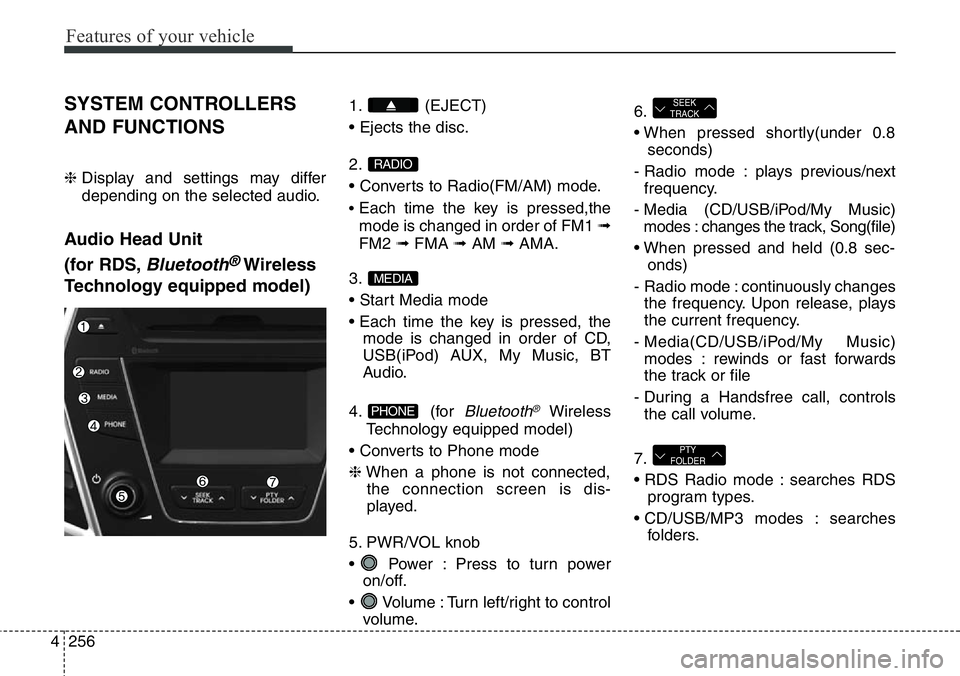
1. (EJECT)
• Ejects the disc.
2.
• Converts to Radio(FM/AM) mode.
•Each time the key is pressed,the
mode is changed in order of FM1 ➟
FM2 ➟FMA ➟AM ➟AMA.
3.
• Start Media mode
• Each time the key is pressed, the
mode is changed in order of CD,
USB(iPod) AUX, My Music, BT
Audio.
4. (for
Bluetooth®Wireless
Technology equipped model)
• Converts to Phone mode
❈When a phone is not connected,
the connection screen is dis-
played.
5. PWR/VOL knob
• Power : Press to turn power
on/off.
• Volume : Turn left/right to control
volume.6.
• When pressed shortly(under 0.8
seconds)
- Radio mode : plays previous/next
frequency.
- Media (CD/USB/iPod/My Music)
modes : changes the track, Song(file)
• When pressed and held (0.8 sec-
onds)
- Radio mode : continuously changes
the frequency. Upon release, plays
the current frequency.
- Media(CD/USB/iPod/My Music)
modes : rewinds or fast forwards
the track or file
- During a Handsfree call, controls
the call volume.
7.
• RDS Radio mode : searches RDS
program types.
• CD/USB/MP3 modes : searches
folders.
PTY
FOLDER
SEEK
TRACK
PHONE
MEDIA
RADIO