audio Hyundai Santa Fe 2016 Owner's Guide
[x] Cancel search | Manufacturer: HYUNDAI, Model Year: 2016, Model line: Santa Fe, Model: Hyundai Santa Fe 2016Pages: 759, PDF Size: 29.36 MB
Page 277 of 759
![Hyundai Santa Fe 2016 Owners Guide Features of your vehicle
180
4
Sound Settings
This menu allows you to set the ‘Bass,
Middle, Treble’ and the Sound Fader and
Balance.
Select [Sound Settings] Select
menu through
TUNE knobTu r n
T](/img/35/16331/w960_16331-276.png "Hyundai Santa Fe 2016 Owners Guide Features of your vehicle
180
4
Sound Settings
This menu allows you to set the ‘Bass,
Middle, Treble’ and the Sound Fader and
Balance.
Select [Sound Settings] Select
menu through
TUNE knobTu r n
T")
Features of your vehicle
180
4
Sound Settings
This menu allows you to set the ‘Bass,
Middle, Treble’ and the Sound Fader and
Balance.
Select [Sound Settings] Select
menu through
TUNE knobTu r n
TUNE knobleft/right to set
Bass, Middle, Treble : Selects the sound tone.
Fader, Balance : Moves the sound fader and balance.
Default : Restores default settings.
❈ Back : While adjusting values, re-
pressing the TUNE knob will
restore the parent menu.
Virtual Sound
The PoewrBass, PowerTreble, and
Surround can be set.
Select [Virtual Sound] Set menu
through
TUNEknob Set /
through
TUNEknob
This is a sound sys- tem feature that provides live bass.
This is a sound system feature that provides live tremble.
This is a sound system feature that provides surround
sound.
❈ May differ depending on the selected
audio.
Speed Dependent Volume Control
This feature is used to automatically
control the volume level according to
the speed of the vehicle.
Select [Speed Dependent Vol.] Set
[On/Off]
TUNEknob
Voice Recognition Volume
Adjusts voice recognition volume.
Select [Voice Recognition Vol.] Set
volume of
TUNEknob
Off
On
Page 278 of 759
4181
Features of your vehicle
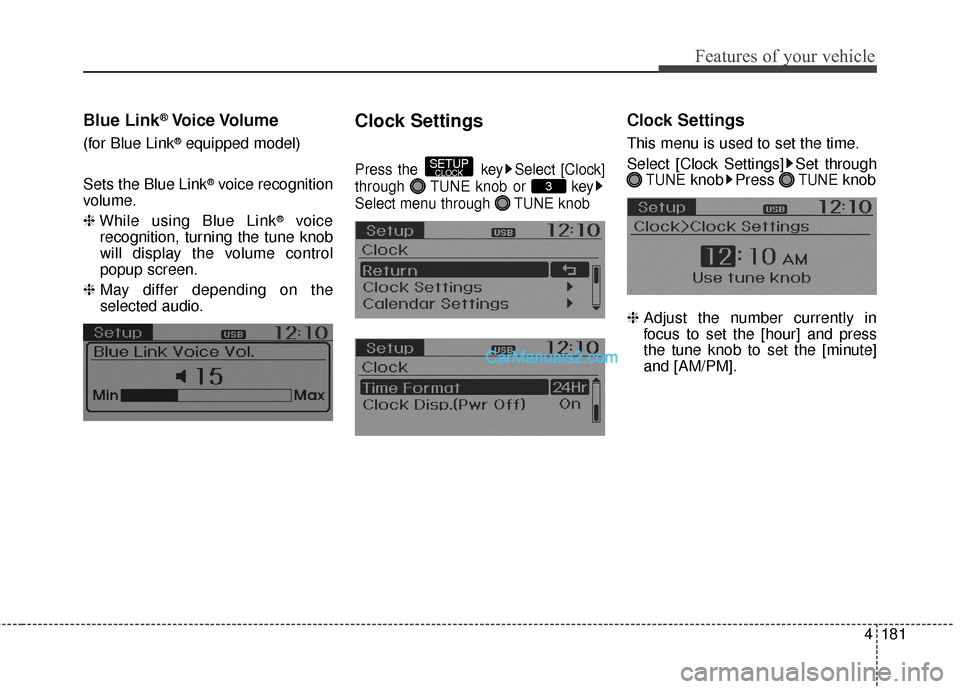
Blue Link®Voice Volume
(for Blue Link®equipped model)
Sets the Blue Link
®voice recognition
volume.
❈ While using Blue Link
®voice
recognition, turning the tune knob
will display the volume control
popup screen.
❈ May differ depending on the
selected audio.
Clock Settings
Press the key Select [Clock]
through TUNE knob or key
Select menu through TUNE knob
Clock Settings
This menu is used to set the time.
Select [Clock Settings] Set through
TUNEknob Press TUNEknob
❈ Adjust the number currently in
focus to set the [hour] and press
the tune knob to set the [minute]
and [AM/PM].3
SETUPCLOCK
Page 279 of 759
![Hyundai Santa Fe 2016 Owners Guide Features of your vehicle
182
4
Calendar Settings
This menu is used to set the date
(MM/DD/YYYY).
Select [Calendar Settings]] Set
through
TUNE knob Press
TUNE knob
❈ Adjust the number currently in](/img/35/16331/w960_16331-278.png "Hyundai Santa Fe 2016 Owners Guide Features of your vehicle
182
4
Calendar Settings
This menu is used to set the date
(MM/DD/YYYY).
Select [Calendar Settings]] Set
through
TUNE knob Press
TUNE knob
❈ Adjust the number currently in")
Features of your vehicle
182
4
Calendar Settings
This menu is used to set the date
(MM/DD/YYYY).
Select [Calendar Settings]] Set
through
TUNE knob Press
TUNE knob
❈ Adjust the number currently in
focus to make the settings and
press the tune knob to move to the
next setting. (Set in order of
Year/Month/Day)
Time Format
This function is used to set the 12/24
hour time format of the audio system.
Select [Time Format] Set 12Hr /
24Hr through
TUNEknob
Clock Display when Power is
OFF
Select [Clock Disp.(Pwr Off)]Set
/ through TUNE knob
: Displays time/date on screen
Turn off.
Off
On
OffOn
Page 285 of 759
Features of your vehicle
188
4
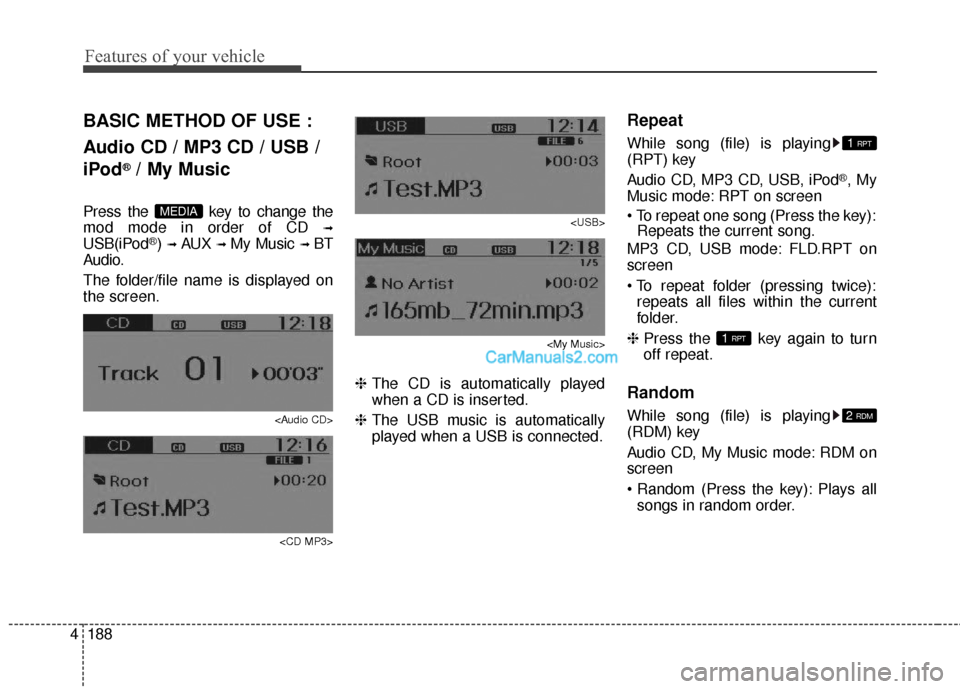
BASIC METHOD OF USE :
Audio CD / MP3 CD / USB /
iPod
®/ My Music
Press the key to change the
mod mode in order of CD
➟
USB(iPod®) ➟ AUX ➟ My Music ➟ BT
Audio.
The folder/file name is displayed on
the screen.
Page 287 of 759
![Hyundai Santa Fe 2016 Owners Guide Features of your vehicle
190
4
MENU : Audio CD
Press the CD MP3 mode key
to set the Repeat, Random,
Information features.
Repeat
Press the key Set [ RPT]
through the TUNEknob or
key to repeat the](/img/35/16331/w960_16331-286.png "Hyundai Santa Fe 2016 Owners Guide Features of your vehicle
190
4
MENU : Audio CD
Press the CD MP3 mode key
to set the Repeat, Random,
Information features.
Repeat
Press the key Set [ RPT]
through the TUNEknob or
key to repeat the")
Features of your vehicle
190
4
MENU : Audio CD
Press the CD MP3 mode key
to set the Repeat, Random,
Information features.
Repeat
Press the key Set [ RPT]
through the TUNEknob or
key to repeat the current song.
❈ Press RPT again to turn off.
Random
Press the key Set [ RDM]
through the
TUNEknob or
key to randomly play songs within
the current folder.
❈ Press RDM again to turn off.
Information
Press the key Set [ Info]
through the
TUNEknob or
key to display information of the cur-
rent song.
❈ Press the key to turn off
info display
.
MENU : MP3 CD / USB
Press the CD MP3 mode key
to set the Repeat, Folder Random,
Folder Repeat, All Random,
Information, and Copy features.
Repeat
Press the key Set [ RPT]
through the
TUNEknob or
key to repeat the current song.
❈ Press RPT again to turn off.1 RPTMENU
MENU
MENU
3
MENU
2 RDMMENU
1 RPTMENU
MENU
Page 292 of 759
4195
Features of your vehicle
Bluetooth®Wireless Technology
AUDIO
What is Bluetooth®Wireless
Technology
?
Bluetooth®Wireless Technology allows
devices to be connected in a short dis-
tance, including hands-free devices,
stereo headsets, wireless remote con-
trollers, etc. For more information, visit
the Bluetooth®Wireless Technology
website at www.Bluetooth.com
Before using Bluetooth®Wireless
Technology audio features
Bluetooth®Wireless Technology
audio may not be supported
depending on the compatibility of
your
Bluetooth®Wireless Technology
mobile phone.
Bluetooth®Wireless
Technology audio, you must first
pair and connect the
Bluetooth®
Wireless Technology mobile phone.
Bluetooth®Wireless Technology
audio can be used only when the
[Audio Streaming] of Phone is
turned . ❈
Setting
Bluetooth®Wireless
Technology Audio Streaming :
Press the key Select
[Phone] through the tune knob or key Select [Audio
Streaming] through the TUNE
knob Set /
Starting Bluetooth®Wireless
Technology Audio
key to change the
mode in order of CD ➟ USB ➟ AUX
➟ My Music ➟ BT Audio.
Bluetooth®
Wireless Technology audio will start
playing.
❈ Audio may not automatically start
playing in some mobile phones.
Using the Bluetooth®Wireless
Technology audio features
Press the TUNE knob to play and
pause the current song.
❈ The play / pause functions may
not be supported in some mobile
phones.
MEDIA
OffOn
4
SETUP
On
Page 294 of 759
4197
Features of your vehicle
Pairing a Bluetooth®Wireless
Technology Device
What is Bluetooth®Wireless
Technology Pairing?
Pairing refers to the process of syn-
chronizing your
Bluetooth®Wireless
Technology phone or device with the
car audio system for connection.
Pairing is necessary to connect and
use the
Bluetooth®Wireless
Technology feature.
WARNING
Driving while distracted can
result in a loss of vehicle control
that may lead to an accident,
severe personal injury, and
death. The driver’s primary
responsibility is in the safe and
legal operation of a vehicle, and
use of any handheld devices,
other equipment, or vehicle sys-
tems which take the driver’s
eyes, attention and focus away
from the safe operation of a vehi-
cle or which are not permissible
by law should never be used
during operation of the vehicle.
Page 295 of 759
Features of your vehicle
198
4
Pairing Key / Key
on the Steering Remote
Controller
When No Devices have been
Paired
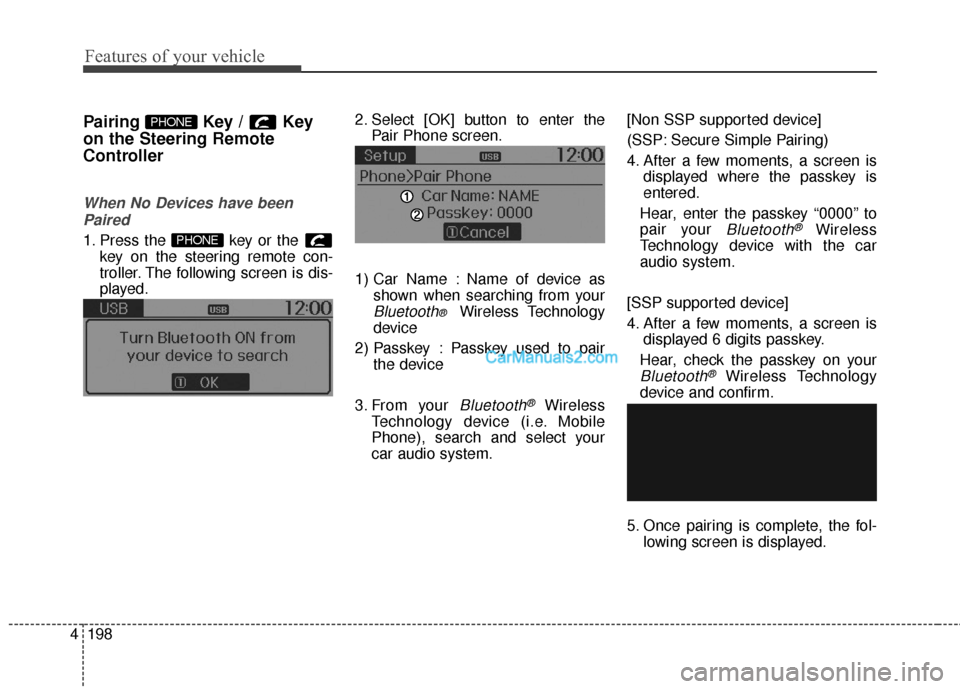
1. Press the key or the key on the steering remote con-
troller. The following screen is dis-
played. 2. Select [OK] button to enter the
Pair Phone screen.
1) Car Name : Name of device as shown when searching from your
Bluetooth® Wireless Technology
device
2) Passkey : Passkey used to pair the device
3. From your
Bluetooth®Wireless
Technology device (i.e. Mobile
Phone), search and select your
car audio system. [Non SSP supported device]
(SSP: Secure Simple Pairing)
4. After a few moments, a screen is
displayed where the passkey is
entered.
Hear, enter the passkey “0000” to
pair your
Bluetooth®Wireless
Technology device with the car
audio system.
[SSP supported device]
4. After a few moments, a screen is displayed 6 digits passkey.
Hear, check the passkey on your
Bluetooth®Wireless Technology
device and confirm.
5. Once pairing is complete, the fol- lowing screen is displayed.
PHONE
PHONE
Page 296 of 759
4199
Features of your vehicle
✽
✽NOTICE
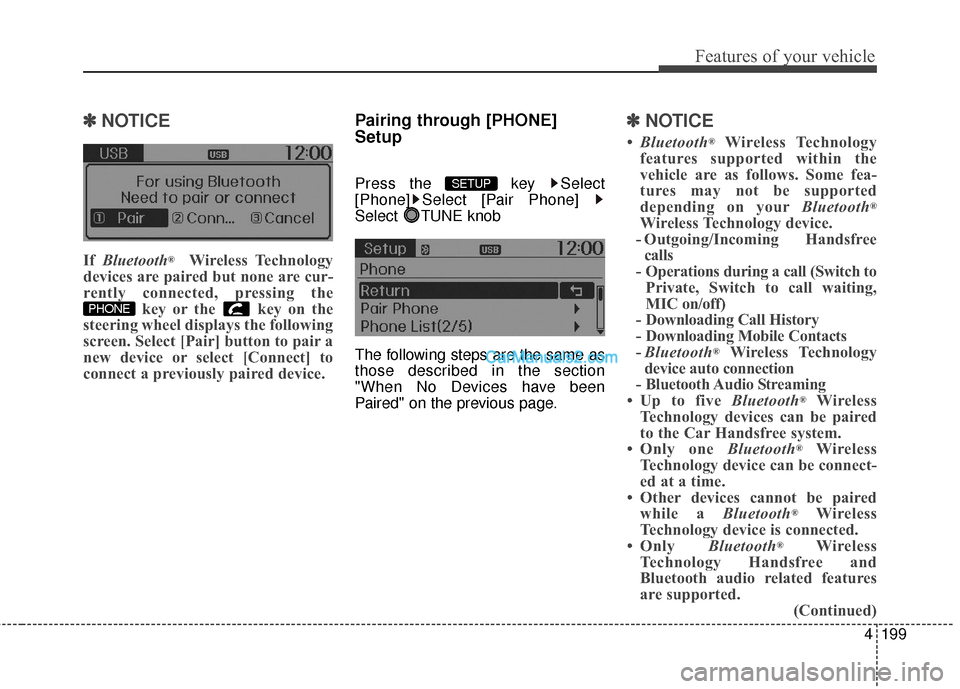
If Bluetooth®Wireless Technology
devices are paired but none are cur-
rently connected, pressing the key or the key on the
steering wheel displays the following
screen. Select [Pair] button to pair a
new device or select [Connect] to
connect a previously paired device.
Pairing through [PHONE]
Setup
Press the key Select
[Phone] Select [Pair Phone]
Select TUNE knob
The following steps are the same as
those described in the section
"When No Devices have been
Paired" on the previous page.
✽ ✽ NOTICE
•Bluetooth®Wireless Technology
features supported within the
vehicle are as follows. Some fea-
tures may not be supported
depending on your Bluetooth
®
Wireless Technology device.
- Outgoing/Incoming Handsfree calls
- Operations during a call (Switch to Private, Switch to call waiting,
MIC on/off)
- Downloading Call History
- Downloading Mobile Contacts
- Bluetooth
®Wireless Technology
device auto connection
- Bluetooth Audio Streaming
• Up to five Bluetooth
®Wireless
Technology devices can be paired
to the Car Handsfree system.
• Only one Bluetooth
®Wireless
Technology device can be connect-
ed at a time.
• Other devices cannot be paired while a Bluetooth
®Wireless
Technology device is connected.
• Only Bluetooth
®Wireless
Technology Handsfree and
Bluetooth audio related features
are supported. (Continued)
SETUP
PHONE
Page 297 of 759
Features of your vehicle
200
4
(Continued)
• Bluetooth related operations are
possible only with devices that
support Handsfree or audio fea-
tures, such as a Bluetooth
®
Wireless Technology mobile phone
or a Bluetooth audio device.
• If a connected Bluetooth
®Wireless
Technology device becomes dis-
connected due to being out of com-
munication range, turning the
device OFF, or a Bluetooth
®
Wireless Technology communica-
tion error, corresponding
Bluetooth
®Wireless Technology
devices are automatically searched
and reconnected.
• If the system becomes unstable due to communication errors
between the car Handsfree and the
Bluetooth
®Wireless Technology
device, reset the device by turning
off and back on again. Upon reset-
ting Bluetooth
®Wireless
Technology device, the system will
be restored. (Continued)(Continued)
• After pairing is complete, a con-
tacts download request is sent
once to the mobile phone. Some
mobile phones may require confir-
mation upon receiving a download
request, ensure your mobile phone
accepts the connection. Refer to
your phones user’s manual for
additional information regarding
phone pairing and connections.
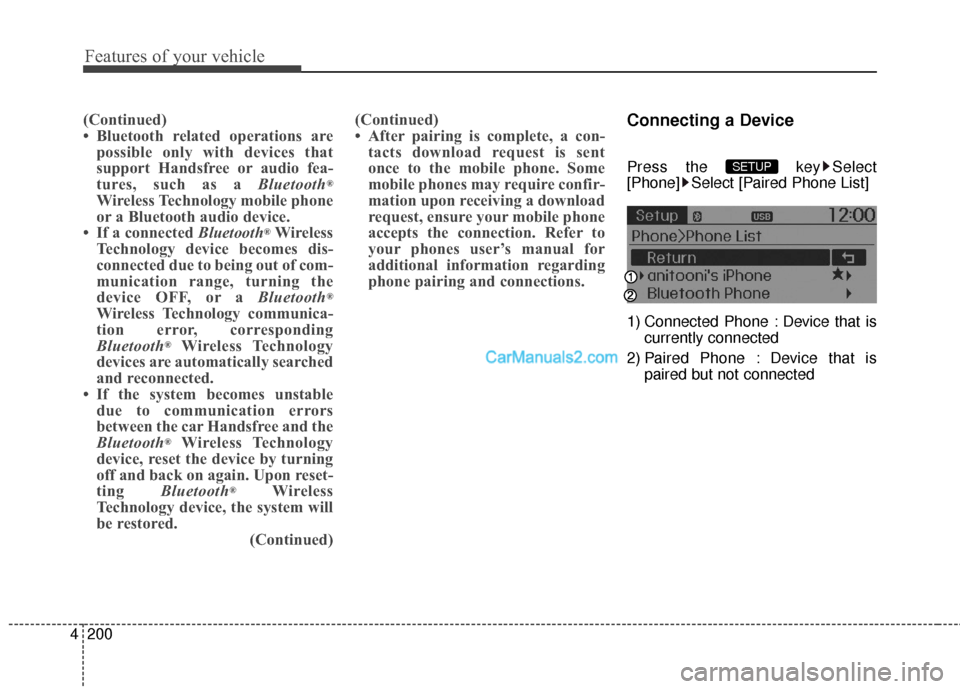
Connecting a Device
Press the key Select
[Phone] Select [Paired Phone List]
1) Connected Phone : Device that is
currently connected
2) Paired Phone : Device that is paired but not connectedSETUP