audio Hyundai Santa Fe 2016 Repair Manual
[x] Cancel search | Manufacturer: HYUNDAI, Model Year: 2016, Model line: Santa Fe, Model: Hyundai Santa Fe 2016Pages: 759, PDF Size: 29.36 MB
Page 368 of 759
![Hyundai Santa Fe 2016 Repair Manual 4271
Features of your vehicle
Calling by Dialing a Number
Press the key Select [Dial
Number]
1) Dial Pad : Used to enter phonenumber
2) Call : If a number has been entered, calls the number If no
num](/img/35/16331/w960_16331-367.png "Hyundai Santa Fe 2016 Repair Manual 4271
Features of your vehicle
Calling by Dialing a Number
Press the key Select [Dial
Number]
1) Dial Pad : Used to enter phonenumber
2) Call : If a number has been entered, calls the number If no
num")
4271
Features of your vehicle
Calling by Dialing a Number
Press the key Select [Dial
Number]
1) Dial Pad : Used to enter phonenumber
2) Call : If a number has been entered, calls the number If no
number has been entered, switch-
es to call history screen
3) End : Deletes the entered phone number
4) Delete : Deletes entered numbers one digit at a time
Answering Calls
Answering a Call
Answering a call with a Bluetooth®
Wireless Technology device connect-
ed will display the following screen.
1) Caller : Displays the other party’sname when the incoming caller is
saved within your contacts
2) Incoming Number : Displays the incoming number
3) Accept : Accept the incoming call
4) Reject : Reject the incoming call
✽ ✽ NOTICE
• When an incoming call pop-up is
displayed, most Audio and
SETUP mode features are dis-
abled. Only the call volume will
operate.
• The telephone number may not be properly displayed in some mobile
phones.
• When a call is answered with the mobile phone, the call mode will
automatically revert to Private
mode.
PHONE
Page 370 of 759
![Hyundai Santa Fe 2016 Repair Manual 4273
Features of your vehicle
Contacts
Press the key Select
[Contacts]
The list of saved phone book entries
is displayed. Press the but-
ton to download the call history.
1) Contacts List :-Displays](/img/35/16331/w960_16331-369.png "Hyundai Santa Fe 2016 Repair Manual 4273
Features of your vehicle
Contacts
Press the key Select
[Contacts]
The list of saved phone book entries
is displayed. Press the but-
ton to download the call history.
1) Contacts List :-Displays")
4273
Features of your vehicle
Contacts
Press the key Select
[Contacts]
The list of saved phone book entries
is displayed. Press the but-
ton to download the call history.
1) Contacts List :-Displays downloaded contactsentries
-Connects call upon selection
2) Sort by : Find a contact in an alphabetical order.
3) Download : Download contacts entries
✽ ✽NOTICE
• Up to 1,000 contacts saved in your
Bluetooth®Wireless Technology
phone can be downloaded into the
car contacts. Contacts that have
been downloaded to the car cannot
be edited or deleted on the phone.
• Mobile phone contacts are man- aged separately for each paired
Bluetooth
®Wireless Technology
device (max 5 devices x 1,000 con-
tacts each). Previously downloaded
data is maintained even if the
Bluetooth
®Wireless Technology
device has been disconnected.
(However, the contacts and call
history saved to the phone will be
deleted if a paired phone is delet-
ed.)
• It is possible to download contacts during Bluetooth streaming audio.
• When downloading contacts, the icon will be displayed within the
status bar. • It is not possible to begin down-
loading a contact list when the con-
tact download feature has been
turned off within the Bluetooth
®
Wireless Technology device. In
addition, some devices may require
device authorization upon
attempting to download contacts.
If downloading does not normally
occur, check the Bluetooth
®
Wireless Technology device set-
tings or the screen state.
• The contacts download feature may not be supported in some
mobile phones. For more informa-
tion of supported Bluetooth
®
devices and function support, refer
to your phone’s user manual.Download
PHONE
Page 371 of 759
![Hyundai Santa Fe 2016 Repair Manual Features of your vehicle
274
4
Bluetooth®Wireless
Technology Setting
Pairing a New Device
Press the key Select
[Phone] Select [Pair Phone]
Bluetooth®Wireless Technology
devices can be paired with t](/img/35/16331/w960_16331-370.png "Hyundai Santa Fe 2016 Repair Manual Features of your vehicle
274
4
Bluetooth®Wireless
Technology Setting
Pairing a New Device
Press the key Select
[Phone] Select [Pair Phone]
Bluetooth®Wireless Technology
devices can be paired with t")
Features of your vehicle
274
4
Bluetooth®Wireless
Technology Setting
Pairing a New Device
Press the key Select
[Phone] Select [Pair Phone]
Bluetooth®Wireless Technology
devices can be paired with the audio
system.
For more information, refer to the
“Pairing through Phone Setup” sec-
tion within
Bluetooth®Wireless
Technology.
Viewing Paired Phone List
Press the key Select
[Phone] Select [Paired Phone List]
This feature is used to view mobile
phones that have been paired with
the audio system. Upon selecting a
paired phone, the setup menu is dis-
played.
For more information, refer to the
“Setting
Bluetooth®Wireless
Technology Connection” section
within
Bluetooth®Wireless
Technology.
1) : Moves to the previous screen
2) Connect/Disconnect Phone : Connect/ disconnects currently
selected phone 3) Delete : Deletes the currently
selected phone
4) Change Priority : Sets currently selected phone to highest connec-
tion priority
SETUP
SETUP
Page 373 of 759
![Hyundai Santa Fe 2016 Repair Manual Features of your vehicle
276
4
Turning Bluetooth System Off
Press the key Select
[Phone] Select [Bluetooth System
Off]
Once
Bluetooth®Wireless
Technology is turned off,
Bluetooth®
Wireless Techno](/img/35/16331/w960_16331-372.png "Hyundai Santa Fe 2016 Repair Manual Features of your vehicle
276
4
Turning Bluetooth System Off
Press the key Select
[Phone] Select [Bluetooth System
Off]
Once
Bluetooth®Wireless
Technology is turned off,
Bluetooth®
Wireless Techno")
Features of your vehicle
276
4
Turning Bluetooth System Off
Press the key Select
[Phone] Select [Bluetooth System
Off]
Once
Bluetooth®Wireless
Technology is turned off,
Bluetooth®
Wireless Technology related features
will not be supported within the audio
system.
✽ ✽ NOTICE
To turn Bluetooth®Wireless
Technology back on, go to
[Phone] and press “Yes”.SETUP
SETUP
Page 377 of 759
Features of your vehicle
280
4
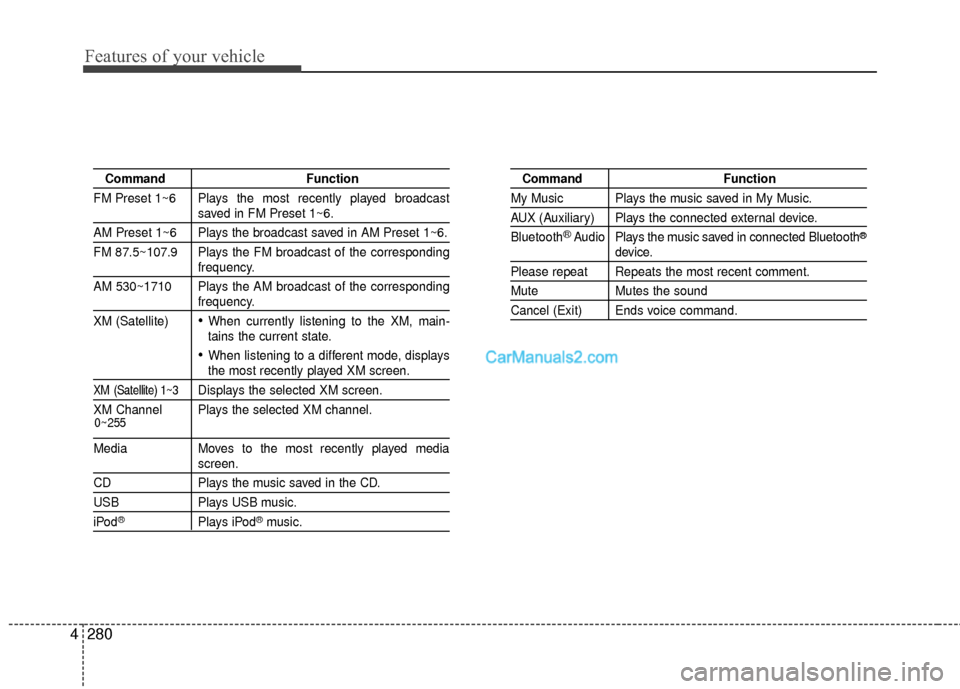
Command Function
FM Preset 1~6 Plays the most recently played broadcast
saved in FM Preset 1~6.
AM Preset 1~6 Plays the broadcast saved in AM Preset 1~6.
FM 87.5~107.9 Plays the FM broadcast of the corresponding
frequency.
AM 530~1710 Plays the AM broadcast of the corresponding
frequency.
XM (Satellite)
When currently listening to the XM, main-
tains the current state.
When listening to a different mode, displaysthe most recently played XM screen.
XM (Satellite) 1~3Displays the selected XM screen.
XM Channel Plays the selected XM channel.
Media Moves to the most recently played mediascreen.
CD Plays the music saved in the CD.
USBPlays USB music.
iPod®Plays iPod®music.
Command Function
My Music Plays the music saved in My Music.
AUX (Auxiliary) Plays the connected external device.
Bluetooth
®Audio Plays the music saved in connected Bluetooth®
device.
Please repeat Repeats the most recent comment.
Mute Mutes the sound
Cancel (Exit) Ends voice command.
0~255
Page 379 of 759
Features of your vehicle
282
4
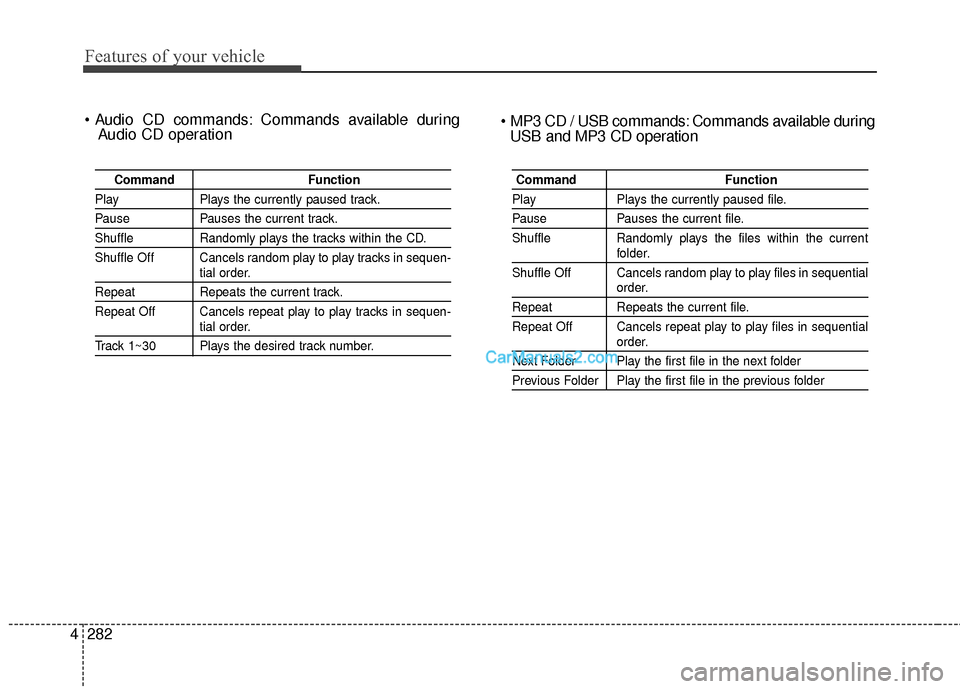
Commands available during
Audio CD operation
Command Function
PlayPlays the currently paused track.
PausePauses the current track.
ShuffleRandomly plays the tracks within the CD.
Shuffle Off Cancels random play to play tracks in sequen-
tial order.
Repeat Repeats the current track.
Repeat Off Cancels repeat play to play tracks in sequen-
tial order.
Track 1~30 Plays the desired track number.
Command Function
PlayPlays the currently paused file.
PausePauses the current file.
Shuffle Randomly plays the files within the current
folder.
Shuffle Off Cancels random play to play files in sequential
order.
Repeat Repeats the current file.
Repeat Off Cancels repeat play to play files in sequential
order.
Next Folder Play the first file in the next folder
Previous Folder Play the first file in the previous folder
Commands available during USB and MP3 CD operation
Page 384 of 759
![Hyundai Santa Fe 2016 Repair Manual 4287
Features of your vehicle
Touch Screen Beep
Press the key Select
[Sound] Select [Touch Screen
Beep]
This feature is used to turn the touch
screen beep on/off.
Blue Link Voice Volume
Press the k](/img/35/16331/w960_16331-383.png "Hyundai Santa Fe 2016 Repair Manual 4287
Features of your vehicle
Touch Screen Beep
Press the key Select
[Sound] Select [Touch Screen
Beep]
This feature is used to turn the touch
screen beep on/off.
Blue Link Voice Volume
Press the k")
4287
Features of your vehicle
Touch Screen Beep
Press the key Select
[Sound] Select [Touch Screen
Beep]
This feature is used to turn the touch
screen beep on/off.
Blue Link Voice Volume
Press the key Select
[Sound] Select [Blue Link Voice
Vol.]
Turn the TUNE knob to adjust the
Blue Link Voice Volume.
❈Blue Link
®may differ depending
on the selected audio.
Clock/Calendar Setting
Clock Setting
Press the key Select
[Clock/Calendar] Select [Clock
Settings]
Use the , buttons to set the
Hour, Minutes setting and select
AM/PM.
✽ ✽ NOTICE
Press and hold the key (over
0.8 seconds) to set the
Clock/Calendar screen.CLOCK
SETUP
SETUP SETUP
Page 385 of 759
![Hyundai Santa Fe 2016 Repair Manual Features of your vehicle
288
4
Calendar Setting
Press the key Select
[Clock/Calendar] Select [Calendar
Settings]
Use the , buttons to set the
Month, Day and Year setting.
Time Format
Press the key](/img/35/16331/w960_16331-384.png "Hyundai Santa Fe 2016 Repair Manual Features of your vehicle
288
4
Calendar Setting
Press the key Select
[Clock/Calendar] Select [Calendar
Settings]
Use the , buttons to set the
Month, Day and Year setting.
Time Format
Press the key")
Features of your vehicle
288
4
Calendar Setting
Press the key Select
[Clock/Calendar] Select [Calendar
Settings]
Use the , buttons to set the
Month, Day and Year setting.
Time Format
Press the key Select
[Clock/Calendar] Select [Time Format]
This feature is used to change the
clock format between 12hr or 24hr.
Clock Display
Press the key Select
[Clock/Calendar] Select [Clock
Display (Power off)]
This feature is used to display a clock
on the screen when the audio sys-
tem is turned off.SETUP SETUP SETUP
Page 392 of 759
4295
Features of your vehicle
How vehicle audio works
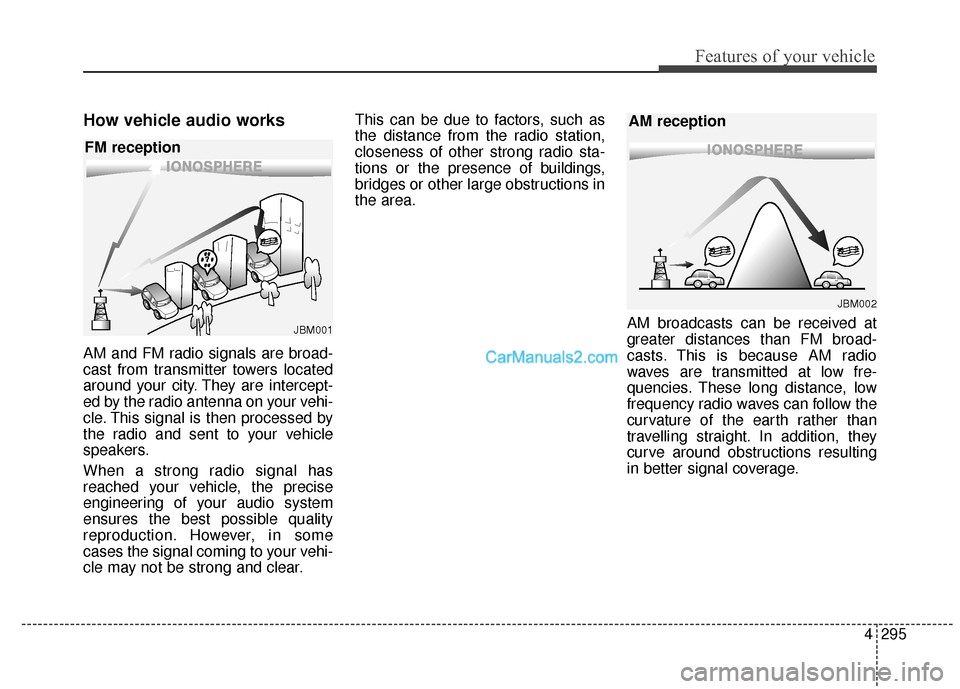
AM and FM radio signals are broad-
cast from transmitter towers located
around your city. They are intercept-
ed by the radio antenna on your vehi-
cle. This signal is then processed by
the radio and sent to your vehicle
speakers.
When a strong radio signal has
reached your vehicle, the precise
engineering of your audio system
ensures the best possible quality
reproduction. However, in some
cases the signal coming to your vehi-
cle may not be strong and clear.This can be due to factors, such as
the distance from the radio station,
closeness of other strong radio sta-
tions or the presence of buildings,
bridges or other large obstructions in
the area.
AM broadcasts can be received at
greater distances than FM broad-
casts. This is because AM radio
waves are transmitted at low fre-
quencies. These long distance, low
frequency radio waves can follow the
curvature of the earth rather than
travelling straight. In addition, they
curve around obstructions resulting
in better signal coverage.
JBM001
FM reception
JBM002
AM reception
Page 394 of 759
4297
Features of your vehicle
Using a cellular phone or a two-way radio
When a cellular phone is used inside
the vehicle, noise may be produced
from the audio system. This does not
mean that something is wrong with
the audio equipment. In such a case,
try to operate mobile devices as far
from the audio equipment as possible.
Caring for CDs
If the temperature inside the car is too high, open the car windows to venti-
late before using the system.
It is illegal to copy and use MP3/WMA files without permission.
Use CDs that are created only by
lawful means.
Do not apply volatile agents, such as benzene and thinner, normal
cleaners and magnetic sprays
made for analogue disc onto CDs.
To prevent the disc surface from getting damaged, hold CDs by the
edges or the center hole only.
Clean the disc surface with a piece of soft cloth before playback (wipe
it from the center to the outside
edge).
Do not damage the disc surface or attach pieces of sticky tape or
paper.
Make certain only CDs are insert- ed into the CD player (Do not insert
more than one CD at a time).
Keep CDs in their cases after use to protect them from scratches or dirt. Depending on the type of CD-
R/CD-RW CDs, certain CDs may
not operate normally according to
the manufacturing companies. In
such circumstances, continued
use may cause malfunctions to
your audio system.
✽ ✽ NOTICE - Playing an
Incompatible Copy Protected
Audio CD
Some copy protected CDs, which do
not comply with international audio
CD standards (Red Book), may not
play on your car audio. Please note
that inabilities to properly play a
copy protected CD may indicate
that the CD is defective, not the CD
player.CAUTION
When using a communication system such as a cellular phoneor a radio set inside the vehicle,a separate external antennamust be fitted. When a cellularphone or a radio set is usedwith an internal antenna alone,it may interfere with the vehi-cle's electrical system andadversely affect safe operationof the vehicle.
WARNING
Do not use a cellular phone
while driving. Stop at a safe
location to use a cellular phone.