audio Hyundai Santa Fe 2016 Owner's Guide
[x] Cancel search | Manufacturer: HYUNDAI, Model Year: 2016, Model line: Santa Fe, Model: Hyundai Santa Fe 2016Pages: 759, PDF Size: 29.36 MB
Page 298 of 759
![Hyundai Santa Fe 2016 Owners Guide 4201
Features of your vehicle
From the paired phone list, select the
device you want to connect and
select [Connect].Changing Priority
What is Priority?
It is possible to pair up to five
Bluetooth®Wi](/img/35/16331/w960_16331-297.png "Hyundai Santa Fe 2016 Owners Guide 4201
Features of your vehicle
From the paired phone list, select the
device you want to connect and
select [Connect].Changing Priority
What is Priority?
It is possible to pair up to five
Bluetooth®Wi")
4201
Features of your vehicle
From the paired phone list, select the
device you want to connect and
select [Connect].Changing Priority
What is Priority?
It is possible to pair up to five
Bluetooth®Wireless Technology
devices with the car audio system.
The "Change Priority" feature is used
to set the connection priority of
paired phones.
Press the key Select
[Phone] Select [Paired Phone List] From the paired phone list, select
the phone you want to switch to the
highest priority
, then select [Change
Priority] button from the Menu. The
selected device will be changed to
the highest priority.
SETUP
Page 302 of 759
4205
Features of your vehicle
✽
✽NOTICE
• When an incoming call pop-up is
displayed, most Audio and
SETUP mode features are dis-
abled. Only the call volume will
operate.
• The telephone number may not be properly displayed in some mobile
phones.
• When a call is answered with the mobile phone, the call mode will
automatically revert to Private
mode.
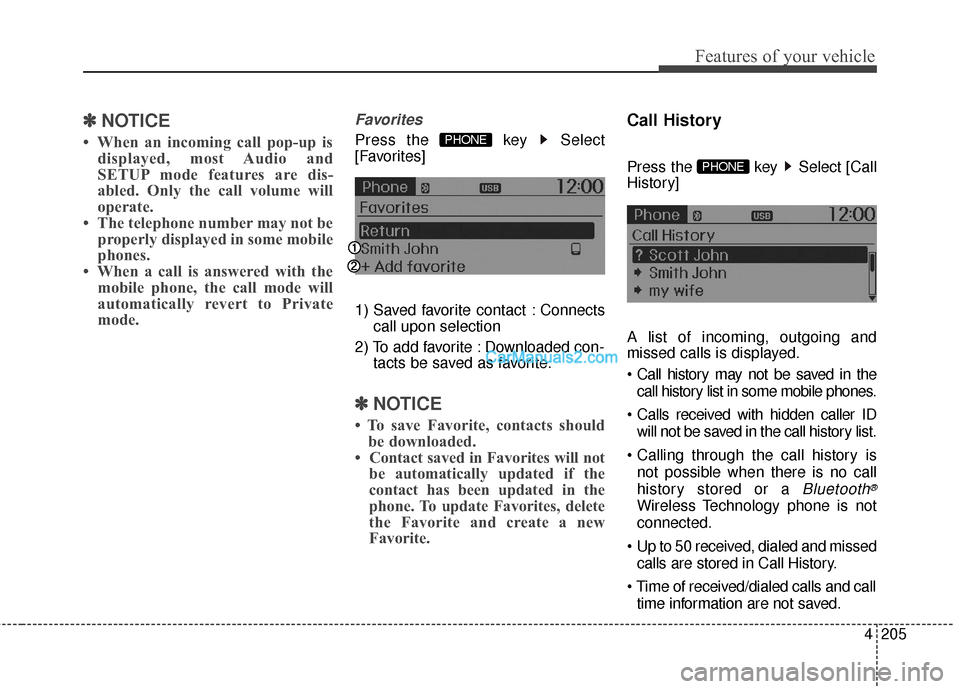
Favorites
Press the key Select
[Favorites]
1) Saved favorite contact : Connects
call upon selection
2) To add favorite : Downloaded con- tacts be saved as favorite.
✽ ✽NOTICE
• To save Favorite, contacts should
be downloaded.
• Contact saved in Favorites will not be automatically updated if the
contact has been updated in the
phone. To update Favorites, delete
the Favorite and create a new
Favorite.
Call History
Press the key Select [Call
History]
A list of incoming, outgoing and
missed calls is displayed.
call history list in some mobile phones.
will not be saved in the call history list.
not possible when there is no call
history stored or a
Bluetooth®
Wireless Technology phone is not
connected.
Up to 50 received, dialed and missed calls are stored in Call History.
time information are not saved.
PHONE
PHONE
Page 303 of 759
![Hyundai Santa Fe 2016 Owners Guide Features of your vehicle
206
4
Contacts
Press the key Select
[Contacts]
The list of saved phone book entries
is displayed.
✽ ✽
NOTICE
Find a contact in an alphabetical
order, press the key.
✽](/img/35/16331/w960_16331-302.png "Hyundai Santa Fe 2016 Owners Guide Features of your vehicle
206
4
Contacts
Press the key Select
[Contacts]
The list of saved phone book entries
is displayed.
✽ ✽
NOTICE
Find a contact in an alphabetical
order, press the key.
✽")
Features of your vehicle
206
4
Contacts
Press the key Select
[Contacts]
The list of saved phone book entries
is displayed.
✽ ✽
NOTICE
Find a contact in an alphabetical
order, press the key.
✽ ✽NOTICE
• Up to 1,000 contacts saved in your
Bluetooth®Wireless Technology
phone can be downloaded into the
car contacts. Contacts that have
been downloaded to the car cannot
be edited or deleted on the phone.
• Mobile phone contacts are man- aged separately for each paired
Bluetooth
®Wireless Technology
device (max 5 devices x 1,000 con-
tacts each). Previously down-
loaded data is maintained even if
the Bluetooth
®Wireless
Technology device has been dis-
connected. (However, the contacts
and call history saved to the phone
will be deleted if a paired phone is
deleted.)
• It is possible to download contacts during Bluetooth streaming audio.
• When downloading contacts, the icon will be displayed within the
status bar. (Continued)(Continued)
• It is not possible to begin down-
loading a contact list when the
contact download feature has been
turned off within the Bluetooth
®
Wireless Technology device. In
addition, some devices may
require device authorization upon
attempting to download contacts.
If downloading does not normally
occur, check the Bluetooth
®
Wireless Technology device set-
tings or the screen state.
• The contacts download feature may not be supported in some
mobile phones. For more informa-
tion of supported Bluetooth
®
devices and function support,
refer to your phone’s user manual.
MENU
PHONE
Page 304 of 759
![Hyundai Santa Fe 2016 Owners Guide 4207
Features of your vehicle
Bluetooth®Wireless
Technology Setting
Pairing a New Device
Press the key Select
[Phone] Select [Pair Phone]
Bluetooth®Wireless Technology
devices can be paired with th](/img/35/16331/w960_16331-303.png "Hyundai Santa Fe 2016 Owners Guide 4207
Features of your vehicle
Bluetooth®Wireless
Technology Setting
Pairing a New Device
Press the key Select
[Phone] Select [Pair Phone]
Bluetooth®Wireless Technology
devices can be paired with th")
4207
Features of your vehicle
Bluetooth®Wireless
Technology Setting
Pairing a New Device
Press the key Select
[Phone] Select [Pair Phone]
Bluetooth®Wireless Technology
devices can be paired with the audio
system.
For more information, refer to the
“Pairing through Phone Setup” sec-
tion within
Bluetooth®Wireless
Technology.
Viewing Paired Phone List
Press the key Select
[Phone] Select [Paired Phone List]
This feature is used to view mobile
phones that have been paired with
the audio system. Upon selecting a
paired phone, the setup menu is dis-
played.
For more information, refer to the
“Setting
Bluetooth®Wireless
Technology Connection” section with-
in
Bluetooth®Wireless Technology. 1) Connect/Disconnect Phone :
Connect/ disconnects currently
selected phone
2) Change Priority : Sets currently selected phone to highest connec-
tion priority
3) Delete : Deletes the currently selected phone
4) Return : Moves to the previous screen
SETUP
SETUP
Page 306 of 759
![Hyundai Santa Fe 2016 Owners Guide 4209
Features of your vehicle
Turning Bluetooth System Off
Press the key Select
[Phone] Select [Bluetooth System
Off]
Once
Bluetooth®Wireless Technology
is turned off,
Bluetooth®Wireless
Technolo](/img/35/16331/w960_16331-305.png "Hyundai Santa Fe 2016 Owners Guide 4209
Features of your vehicle
Turning Bluetooth System Off
Press the key Select
[Phone] Select [Bluetooth System
Off]
Once
Bluetooth®Wireless Technology
is turned off,
Bluetooth®Wireless
Technolo")
4209
Features of your vehicle
Turning Bluetooth System Off
Press the key Select
[Phone] Select [Bluetooth System
Off]
Once
Bluetooth®Wireless Technology
is turned off,
Bluetooth®Wireless
Technology related features will not be
supported within the audio system.
✽ ✽ NOTICE
To turn Bluetooth®Wireless
Technology back on, go to
[Phone] and select “Yes”.SETUP
SETUP
Page 311 of 759
Features of your vehicle
214
4
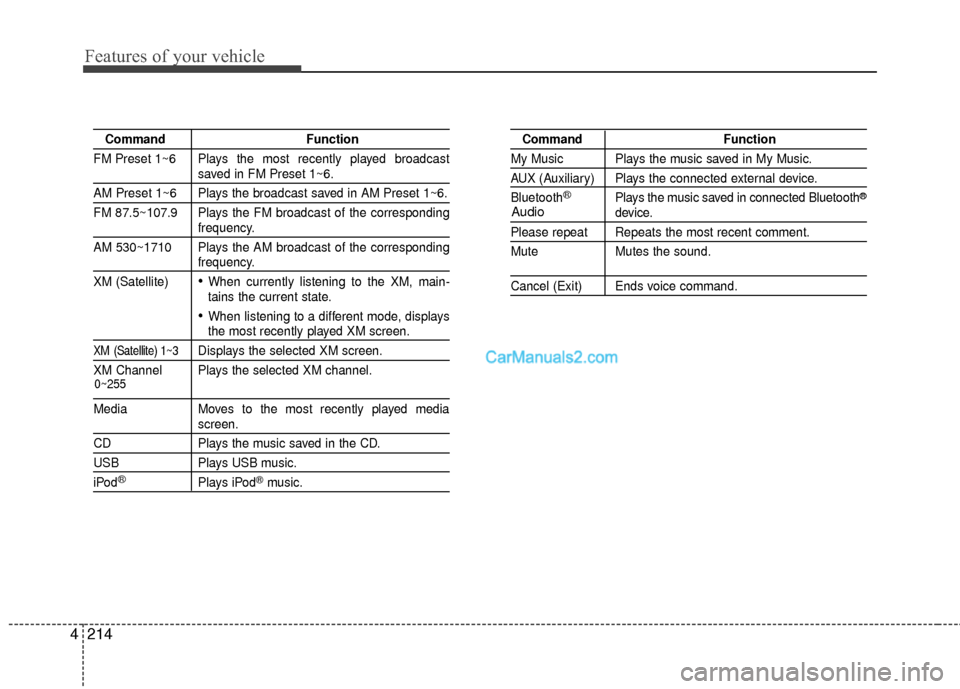
Command Function
FM Preset 1~6 Plays the most recently played broadcast
saved in FM Preset 1~6.
AM Preset 1~6 Plays the broadcast saved in AM Preset 1~6.
FM 87.5~107.9 Plays the FM broadcast of the corresponding
frequency.
AM 530~1710 Plays the AM broadcast of the corresponding
frequency.
XM (Satellite)
When currently listening to the XM, main-
tains the current state.
When listening to a different mode, displaysthe most recently played XM screen.
XM (Satellite) 1~3Displays the selected XM screen.
XM Channel Plays the selected XM channel.
Media Moves to the most recently played mediascreen.
CD Plays the music saved in the CD.
USBPlays USB music.
iPod®Plays iPod®music.
Command Function
My Music Plays the music saved in My Music.
AUX (Auxiliary) Plays the connected external device.
Bluetooth
®Plays the music saved in connected Bluetooth®
device.
Please repeat Repeats the most recent comment.
Mute Mutes the sound.
Cancel (Exit) Ends voice command.
0~255
Audio
Page 313 of 759
Features of your vehicle
216
4
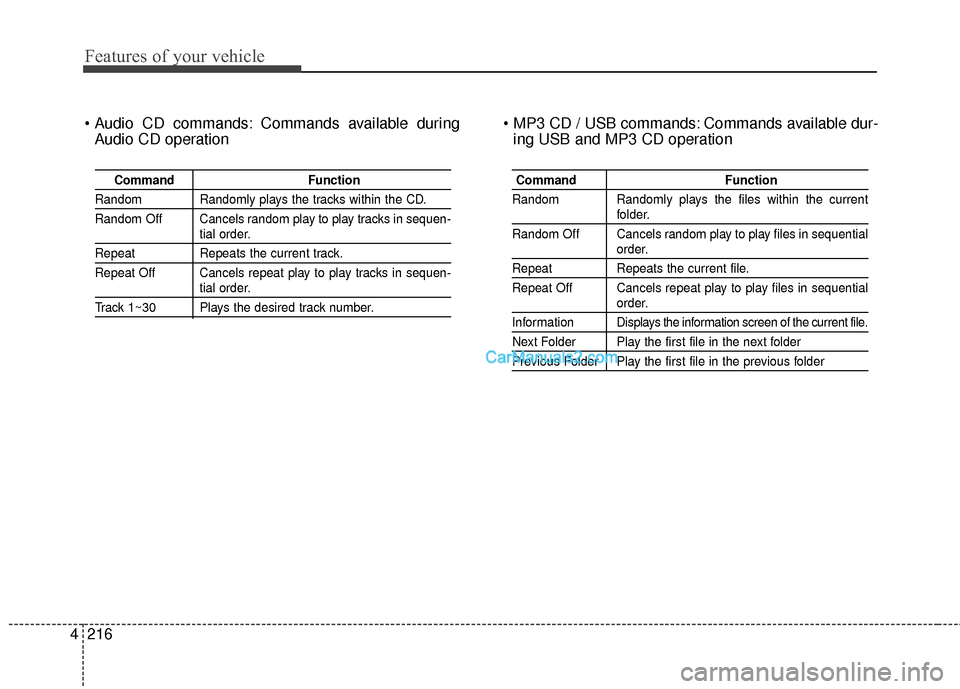
Commands available during
Audio CD operation Commands available dur-
ing USB and MP3 CD operation
Command Function
Random Randomly plays the tracks within the CD.
Random Off Cancels random play to play tracks in sequen-
tial order.
RepeatRepeats the current track.
Repeat Off Cancels repeat play to play tracks in sequen-
tial order.
Track 1~30 Plays the desired track number.
Command Function
Random Randomly plays the files within the current
folder.
Random Off Cancels random play to play files in sequential
order.
Repeat Repeats the current file.
Repeat Off Cancels repeat play to play files in sequential
order.
Infor mation Displays the information screen of the current file.
Next Folder Play the first file in the next folder
Previous Folder Play the first file in the previous folder
Page 315 of 759
Features of your vehicle
218
4
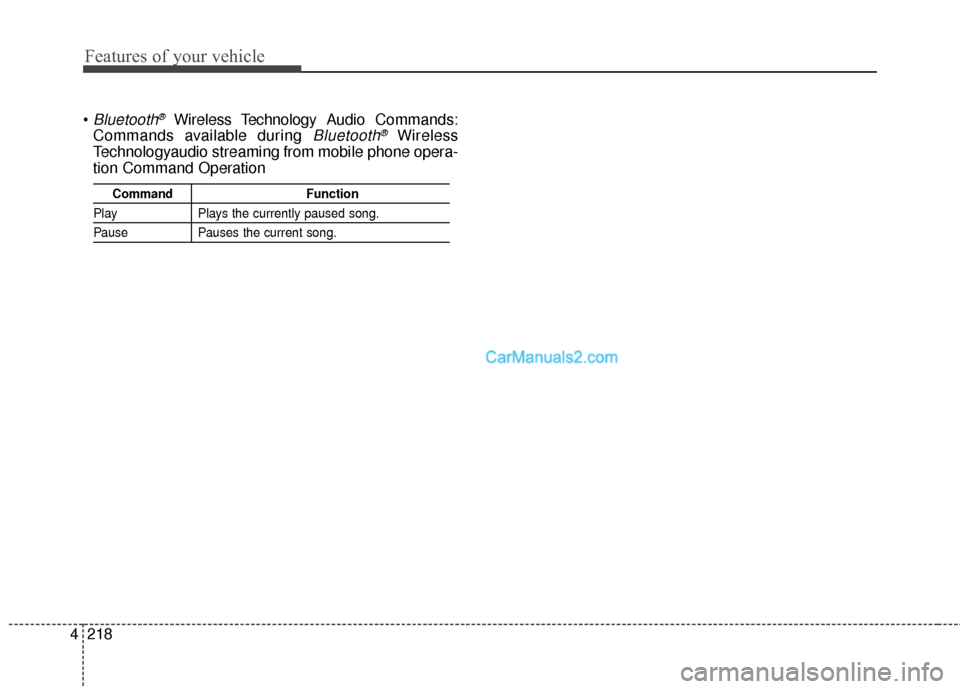
Bluetooth®Wireless Technology A udio Commands:
Commands available during
Bluetooth®Wireless
Technologyaudio streaming from mobile phone opera-
tion Command Operation
Command Function
PlayPlays the currently paused song.
PausePauses the current song.
Page 321 of 759
Features of your vehicle
224
4
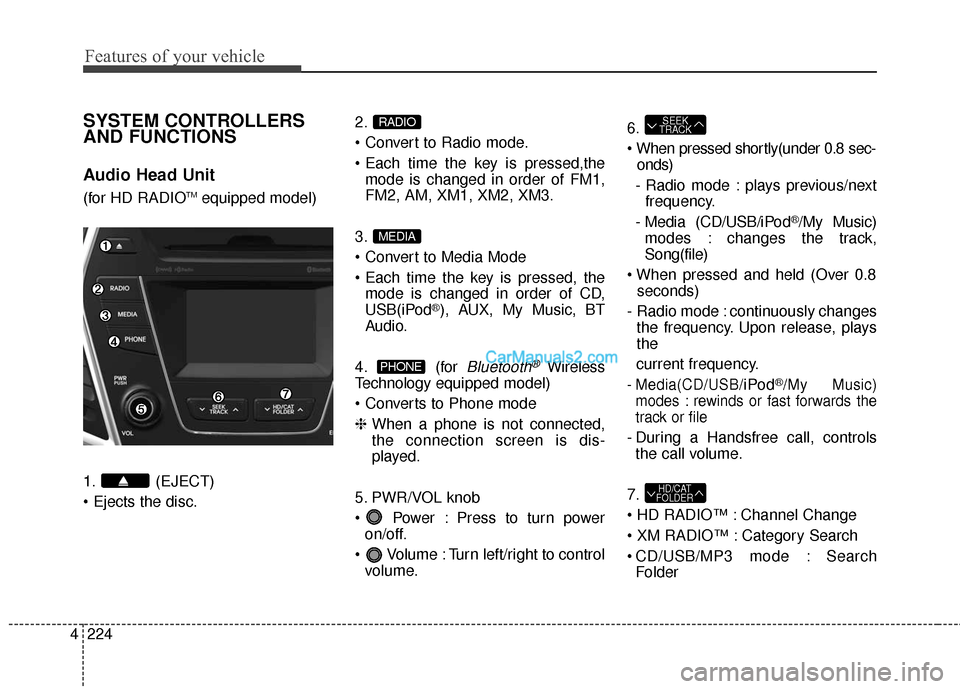
SYSTEM CONTROLLERS
AND FUNCTIONS
Audio Head Unit
(for HD RADIOTMequipped model)
1. (EJECT)
2.
mode is changed in order of FM1,
FM2, AM, XM1, XM2, XM3.
3.
mode is changed in order of CD,
USB(iPod
®), AUX, My Music, BT
Audio.
4. (for
Bluetooth®Wireless
Technology equipped model)
❈ When a phone is not connected,
the connection screen is dis-
played.
5. PWR/VOL knob
Power : Press to turn power on/off.
Volume : Turn left/right to control volume. 6.
onds)
- Radio mode : plays previous/next frequency.
- Media (CD/USB/iPod
®/My Music)
modes : changes the track,
Song(file)
seconds)
- Radio mode : continuously changes the frequency. Upon release, plays
the
current frequency.
- Media(CD/USB/iPod®/My Music)
modes : rewinds or fast forwards the
track or file
- During a Handsfree call, controls the call volume.
7.
Channel Change
Category Search
CD/USB/MP3 mode : Search Folder
HD/CAT
FOLDER
SEEK
TRACK
PHONE
MEDIA
RADIO
Page 322 of 759
4225
Features of your vehicle
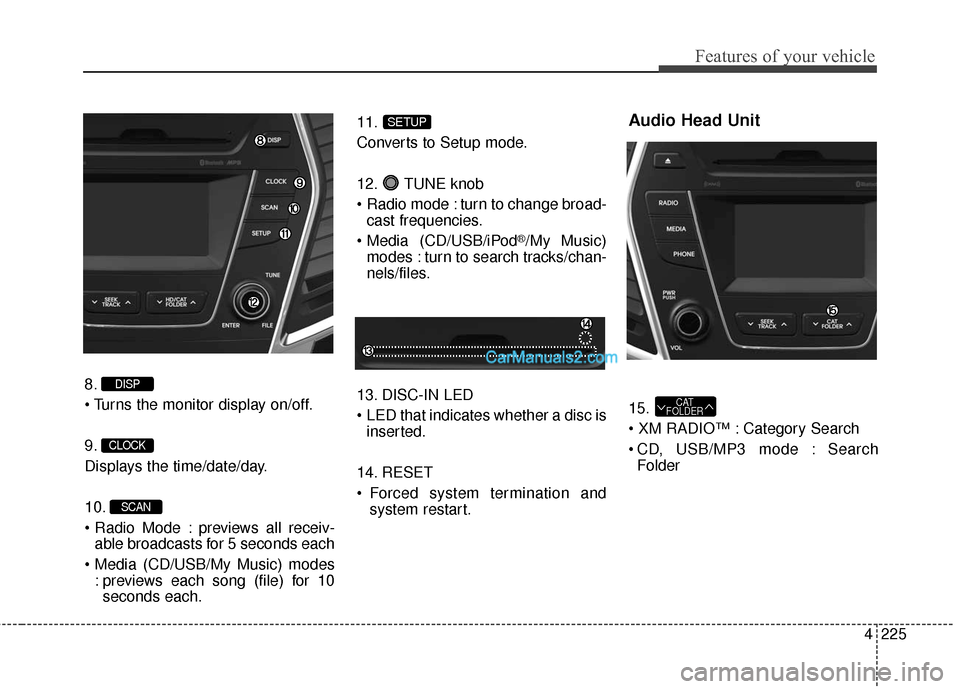
8.
9.
Displays the time/date/day.
10.
previews all receiv-able broadcasts for 5 seconds each
: previews each song (file) for 10seconds each. 11.
Converts to Setup mode.
12. TUNE knob
turn to change broad-
cast frequencies.
(CD/USB/iPod
®/My Music)
modes : turn to search tracks/chan-
nels/files.
13. DISC-IN LED
LED that indicates whether a disc is inserted.
14. RESET
Forced system termination and system restart.
Audio Head Unit
15.
Category Search
CD, USB/MP3 mode : SearchFolderCAT
FOLDER
SETUP
SCAN
CLOCK
DISP