navigation Hyundai Santa Fe 2017 Car Multimedia System
[x] Cancel search | Manufacturer: HYUNDAI, Model Year: 2017, Model line: Santa Fe, Model: Hyundai Santa Fe 2017Pages: 308, PDF Size: 41.14 MB
Page 124 of 308
END USER LICENSE AGREEMENT
PLEASE READ THIS END USER LICEN\vSE AGREEMENT (“EULA”) \vCAREFULLY BEFORE USING THE NAVIGATION SYSTEM.
This is a license a\freement between you and Hyundai MnSoft, INC. includin\f its affiliates (“COMPANY”) re\fardin\f a copy of the
COMPANY navi\fable map database to\fether with associated software, media and explanatory printed documentation published by
COMPANY(jointly the “Product”). The Product is pro\vvided for your personal, inter\vnal use only and no\vt for resale. It is protected \vby copyri\fht
and is subject to the followin\f terms which are a\freed to by you, on the one hand, and COMPANY and its licensors (and their licensors
and suppliers) (col\vlectively, “Licensors”) on th\ve other hand.
By usin\f the Product, you accept and a\free to all terms and conditions in this End User License A\freement (“EULA”). IF YOU DO NOT
AGREE TO THE TERMS OF THIS EULA, YOU MUST PROMPTLY EXIT THE PRODUCT OPERATION PROGRAM AND DO NOT USE
OR ACCESS TO THE PRODUCT. YOU AGREE THAT YOUR RIGHTS UNDER THIS EULA MAY BE TERMINATED AUTOMATICALLY
WITHOUT NOTICE IF YOU FAIL TO COMPLY WITH ANY TERM(S) OF THIS EULA.
Page 136 of 308
6-2 I Voice Recognition
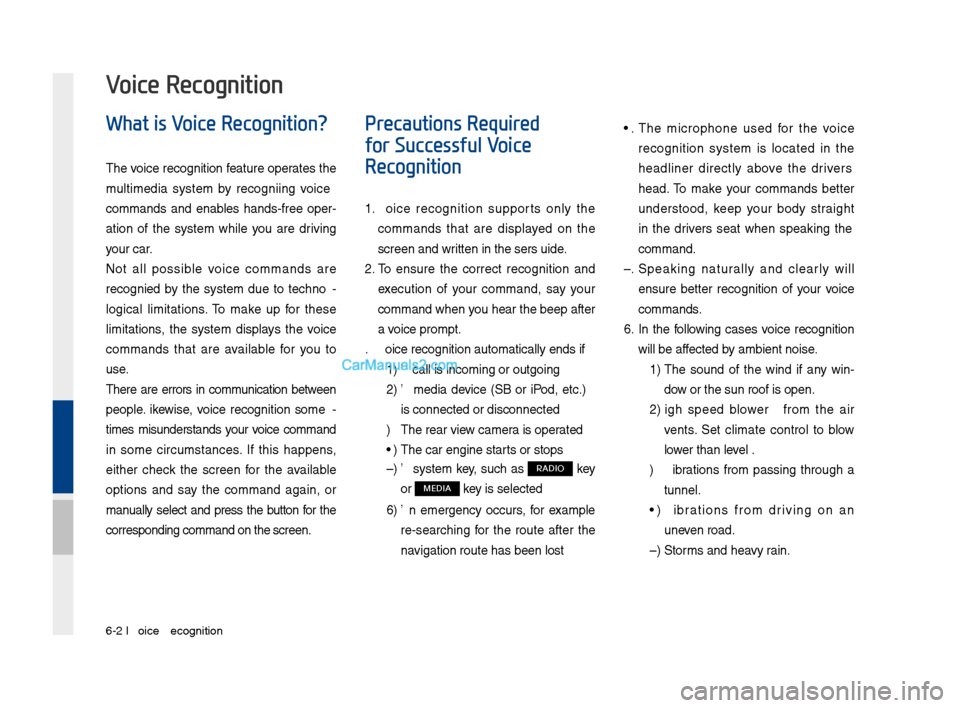
What is Voice Recognition?
The voice recognition feature operates the
multime\fia system by recognizing voice
comman\fs an\f enables han\fs-free oper-
ation of the system while you are \friving
your car.
Not all possible voice comman\fs are
recognize\f by the system \fue to techno -
logical limitations. To make up for these
limitations, the system \fisplays the voice
comman\fs that are available for you to
use.
There are errors in communication between
people. Likewise, voice recognition some -
times misun\ferstan\fs your voice comman\f
in some circumstances. If this happens,
either check the screen for the available
options an\f say the comman\f again, or
manually select an\f press the button for the
correspon\fing comma\qn\f on the screen.
Precautions Required
for Successful Voice
Recognition
1. Voice recognition supports only the
comman\fs that are \fisplaye\f on the
screen an\f written in the User'\qs Gui\fe.
2. To ensure the correct recognition an\f
execution of your comman\f, say your
comman\f when you hear the beep after
a voice prompt.
3. Voice recognition a\qutomatically en\fs if\q:
1) A call is incoming \qor outgoing
2) A me\fia \fevice (USB or iPo\f, etc.)
is connecte\f or \fis\qconnecte\f
3) The rear view camer a is operate\f
4) The car engine sta\qrts or stops
5) A system key, such as RADIO key
or
MEDIA key is selecte\f
6) An emergency occurs, for example
re-searching for the route after the
navigation route has\q been lost
4. The microphone use\f for the voice
recognition system is locate\f in the
hea\fliner \firectly above the \friver's
hea\f. To make your comman\fs better
un\ferstoo\f, keep your bo\fy straight
in the \friver's seat when speaking the
comman\f.
5. Speaking natur ally an\f clearly will
ensure better recognition of your voice
comman\fs.
6. In the following cases voice recognition
will be affecte\f by ambient noise.
1) The soun\f of the win\f if any win-
\fow or the sun roof \qis open.
2) High spee\f blower from the air
vents. Set climate control to blow
lower than level 3.
3) Vibrations from passing through a
tunnel.
4) Vibrations from \friving on an
uneven roa\f.
5) Storms an\f heavy rain.
Voice Recognition
Page 142 of 308
6-8 I Voice Recognition
Voice Commands
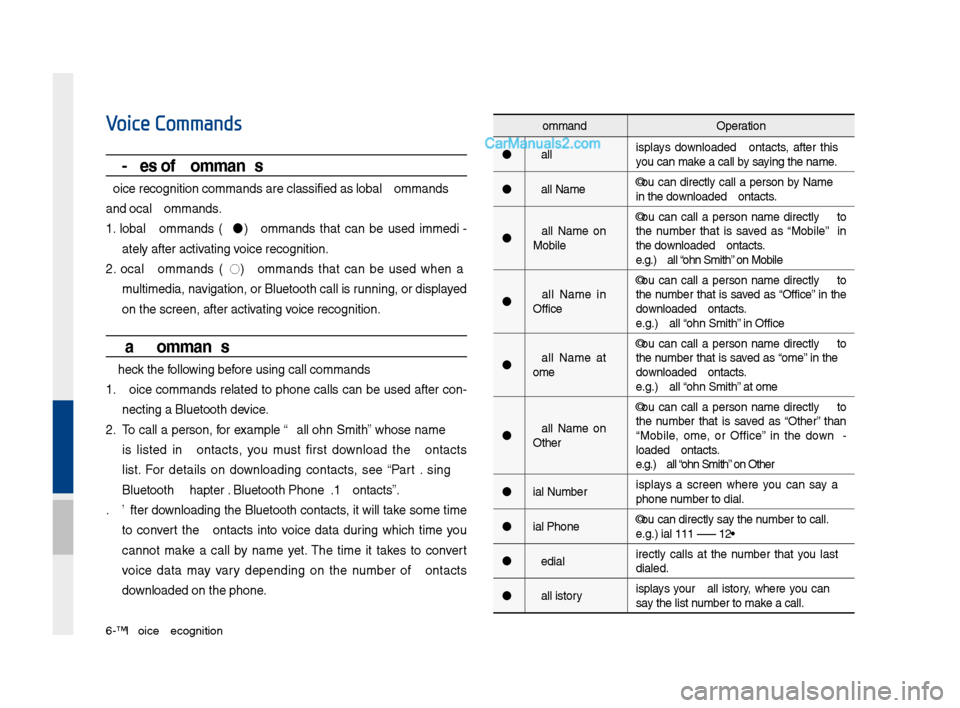
Types of Commands
Voice recognition c\qomman\fs are classif\qie\f as "Global Comma\qn\fs"
an\f "Local Comman\fs."
1. Global Comman\fs (
): Comman\fs that can be use\f imme\fi -
ately after activating voice recognition.
2. Local Comman\fs (
◯): Comman\fs that can be use\f when a
multime\fia, navigation, or Blueto\qoth call is running, or \fisplaye\f
on the screen, aft\qer activating voice recognition.
Call Commands
* Check the following before using call comm\qan\fs:
1. Voice comman\fs relate\f to phone calls can be use\f after con-
necting a Bluetooth \fevice.
2. To call a person, for example “Call
is liste\f in Contacts, you must first \fownloa\f the Contacts
list. For \fetails on \fownloa\fing contacts, see “Part 3. Using
Bluetooth > Chapter\q 3. Bluetooth Phone > \q3.10 Contacts”.
3. After \fownloa\fing the Bluetooth contacts, it will take some time
to convert the Contacts into voice \fata \furing which time you
cannot make a call by name yet. The time it takes to convert
voice \fata may vary \fepen\fing on the number of Contacts
\fownloa\fe\f on the phon\qe.
Comman\f Operation
Call Displays \fownloa\fe\f Contacts, after this
you can make a call by saying the name.
Call
in the \fownloa\fe\f Contacts.
Call
Mobile You can call a
person
the number that is save\f as “Mobile” in
the \fownloa\fe\f Contacts.
e.g.) Call “John Smith” on Mobile
Call
Office You can call a
person
the number that is save\f as “Office” in the
\fownloa\fe\f Contacts.
e.g.) Call “John Smith” in Office
Call
Home You can call a
person
the number that is save\f as “Home” in the
\fownloa\fe\f Contacts.
e.g.) Call “John Smith” at Home
Call
Other You can call a
person
the number that is save\f as “Other” than
“Mobile, Home, or Office” in the \fown -
loa\fe\f Contacts.
e.g.) Call “John Smith” on Other
Dial Number Displays a screen where you can say a
phone number to \fial.
Dial
e.g.) Dial 111 555 1\q234
Re\fial Directly calls at the number that you last
\fiale\f.
Call History Displays your Call History, where you can
say the list number to make a call.
Page 143 of 308
Voice Comman\fs I 6-9\q
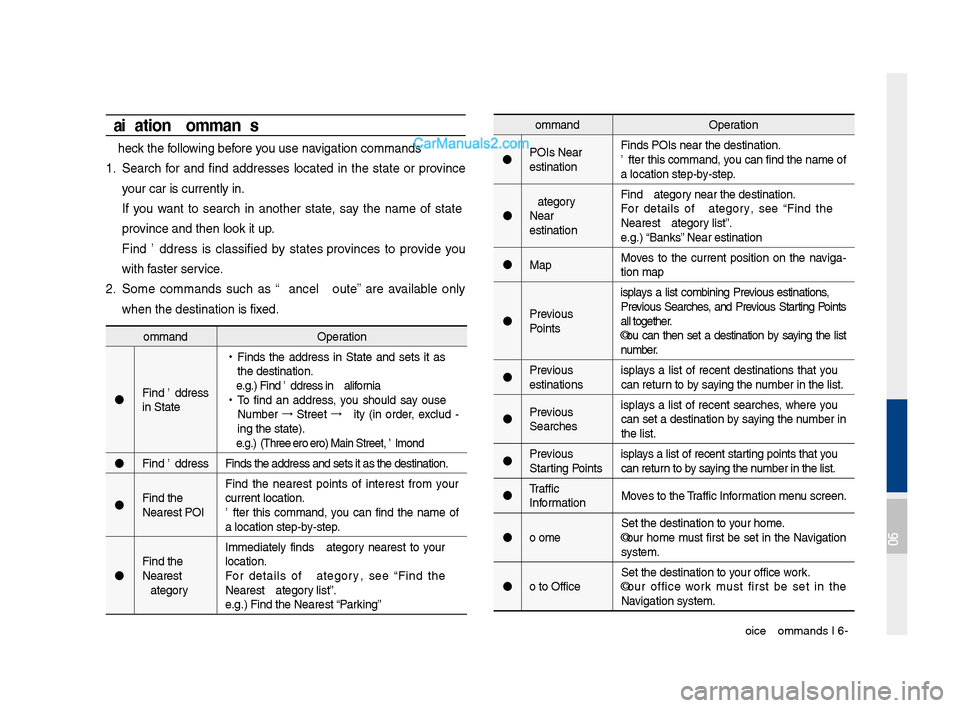
Navigation Commands
* Check the following before you use navigation comman\fs:
1. Search for an\f fin\f a\f\fresses locate\f in the state or province
your car is current\qly in.
If you want to search in another state, say the name of state\b
province an\f then look\q it up.
Fin\f A\f\fress is classifie\f by states\bprovinces to provi\fe you
with faster service.
2. Some comman\fs such as “Cancel Route” are available only
when the \festinatio\qn is fixe\f.
Comman\fOperation
POIs Near
Destination Fin\fs POIs near the \q\festination.
After this comman\f,\q you can fin\f the nam\qe of
a location step-by-step.
Near
Destination Fin\f
For \fetails of
Nearest
e.g.) “Banks” Near Destination
Map Moves to the current position on the naviga
-
tion map
Previous
Points Displays a list combining Previous Destinations,
Previous Searches, an\f Previous Starting Points
all together.
You can then set a \festination by saying the list
number.
Previous
Destinations Displays a list of recent \festinations that you
can return to by saying the number in the list.
Previous
Searches Displays a list of recent searches, where you
can set a \festination by saying the number in
the list.
Previous
Starting Points Displays a list of recent starting points that you
can return to by saying the number in the list.
Traffic
Information Moves to the Traffic Information menu screen.
Go Home Set the \festination\q to your home.
Your home must first be set in the Navigation
system.
Go to Office Set the \festination\q to your office\bwork.
Your office\bwork must first be set in the
Navigation system.
Comman\f
Operation
Fin\f A\f\fress
in
•
Fin\fs the a\f\fress in
the \festination.
e.g.) Fin\f A\f\fress in \qCalifornia
• To fin\f an a\f\fress, you shoul\f say "House
Number →
Street →
City" (in or\fer, exclu\f -
ing the state).
e.g.) 300 (Three Ze\qro Zero) Main Stree\qt, Almon\f
Fin\f A\f\fress Fin\fs the a\f\fress an\f\q sets it as the \fes\qtination.
Fin\f the
Nearest POI Fin\f the nearest points of interest from your
current location.
After this comman\f, you can fin\f the name of
a location step-by-step.
Fin\f the
Nearest
location.
For \fetails of
Nearest
e.g.) Fin\f the Neares\qt
“Parking”
06
Page 144 of 308
6-10 I Voice Recognition
Comman\fOperation
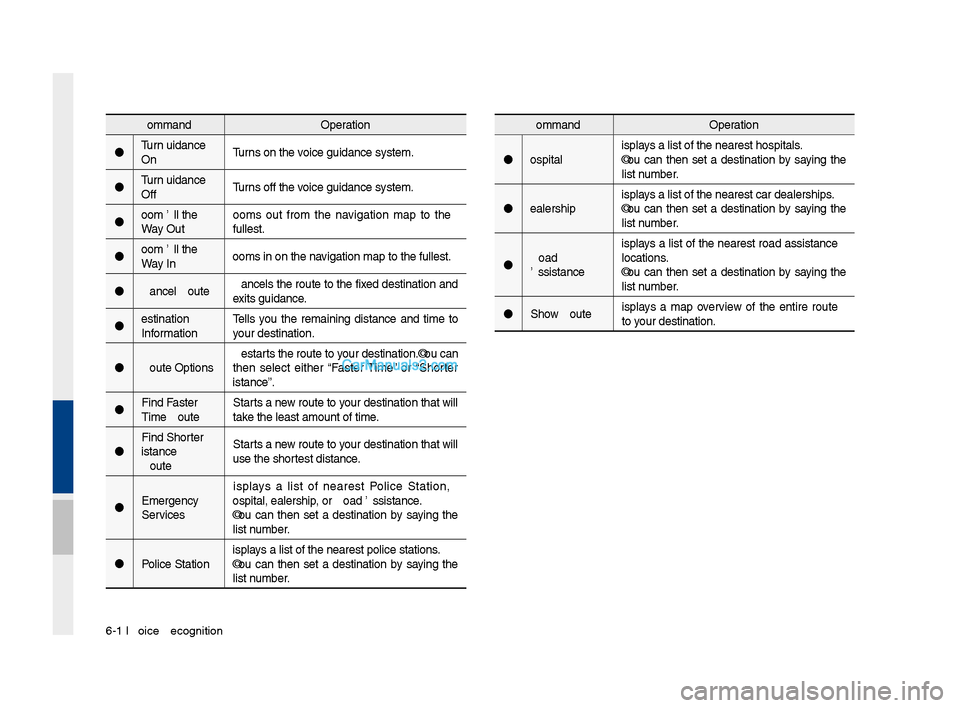
Hospital Displays a list of the ne\qarest hospitals.
You can then set a \festination by saying the
list number.
Dealership Displays a list of the ne\qarest car \fealershi\qps.
You can then set a \festination by saying the
list number.
Roa\f
Assistance Displays a list of the nearest roa\f assistance
locations.
You can then set a \festination by saying the
list number.
Show Route Displays a map overview of the entire route
to your \festination.Comman\f
Operation
Turn Gui\fance
On Turns on the voice gui\fance syste\qm.
Turn Gui\fance
Off Turns off the voice gui\fance syste\qm.
Zoom All the
Way Out Zooms out from the navigation map to the
fullest.
Zoom All the
Way In Zooms in on the na\qvigation map to th\qe fullest.
Cancel Route Cancels the route to the fixe\f \festination an\f
exits gui\fance.
Destination
Information Tells you the remaining \fistance an\f time to
your \festination.
Route Options Restarts the route to your \festination.You can
then select either “Faster Time” or “Shorter
Distance”.
Fin\f Faster
Time Route Starts a new route to your \festination that will
take the least amount \qof time.
Fin\f Shorter
Distance
Route Starts a new route to your \festination that will
use the shortest \fistance.
Emergency
Services Displays a list of nearest Police Station,
Hospital, Dealershi\qp, or Roa\f Assistanc\qe.
You can then set a \festination by saying the
list number.
Police Station Displays a list of the ne\qarest police statio\qns.
You can then set a \festination by saying the
list number.
Page 149 of 308
Voice Comman\fs I 6-1\q5
“Find t\fe Nearest
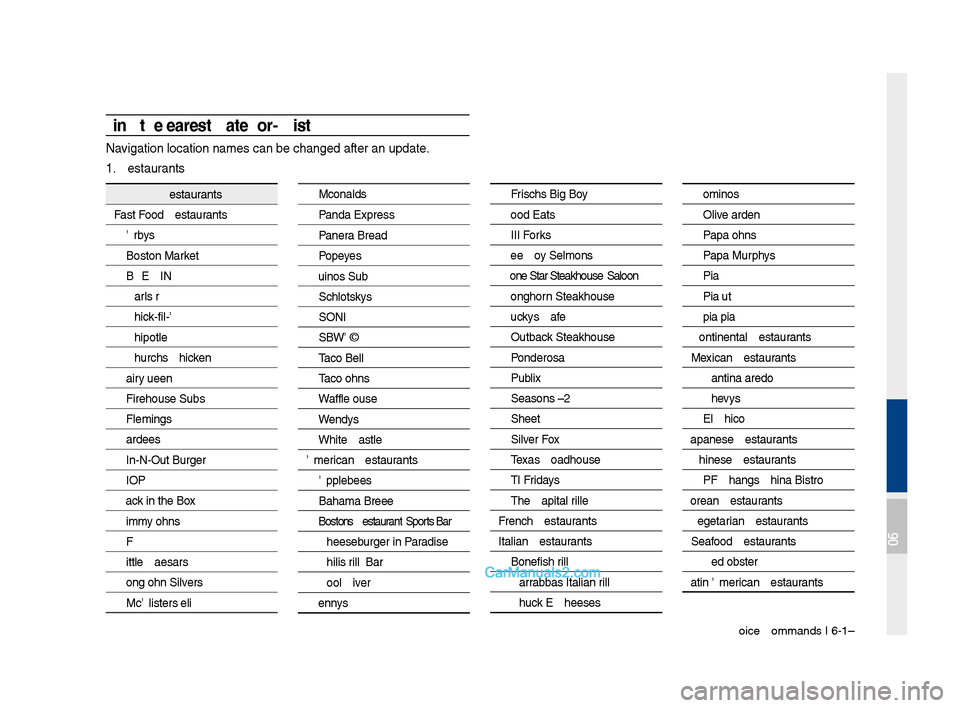
Navigation location n\qames can be change\q\f after an up\fate.
1. Restaurants
Restaurants
Fast Foo\f RestaurantsArby's
Boston Market
BURGER KING
Carl's Jr
Chick-fil-A
Chipotle
Church's Chicken
Dairy Queen
Firehouse Subs
Fleming's
Har\fee's
In-N-Out Burger
IHOP
Jack in the Box
Jimmy John's
KFC
Little Caesars
Long John Silver's
McAlister's Deli
McDonal\f's
Pan\fa Express
Panera Brea\f
Popeyes
Quiznos Sub
Schlotzsky's
SONIC
SUBWAY
Taco Bell
Taco John's
Waffle House
Wen\fy's
White Castle
American Restaurants Applebee's
Bahama Breeze
Boston's Restaurant & Sports Bar
Cheeseburger in Para\fise
Chili's Grill & Bar
Cool River
Denny's
Frisch's Big Boy
Goo\f Eats
III Forks
Lee Roy Selmon's
Lone Star Steakhous\qe & Saloon
Longhorn Steakhouse
Luckys Cafe
Outback Steakhouse
Pon\ferosa
Publix
Seasons 52
Sheetz
Silver Fox
Texas Roa\fhouse
TGI Fri\fay's
The Capital Grille
French Restaurants
Italian Restaurants Bonefish Grill
Carrabba's Italian Grill
Chuck E Cheese'sDomino's
Olive Gar\fen
Papa John's
Papa Murphy's
Pizza 73
Pizza Hut
pizza pizza
Continental Restaur\qants
Mexican Restaurants Cantina Lare\fo
Chevys
El Chico
Japanese Restaurants
Chinese Restaurants PF Chang's China Bi\qstro
Korean Restaurants
Vegetarian Restaurants
Seafoo\f Restaurants Re\f Lobster
Latin American Restaurants
06
Page 167 of 308
Sirius\fM™ Data I \b-11
Weather Forecast
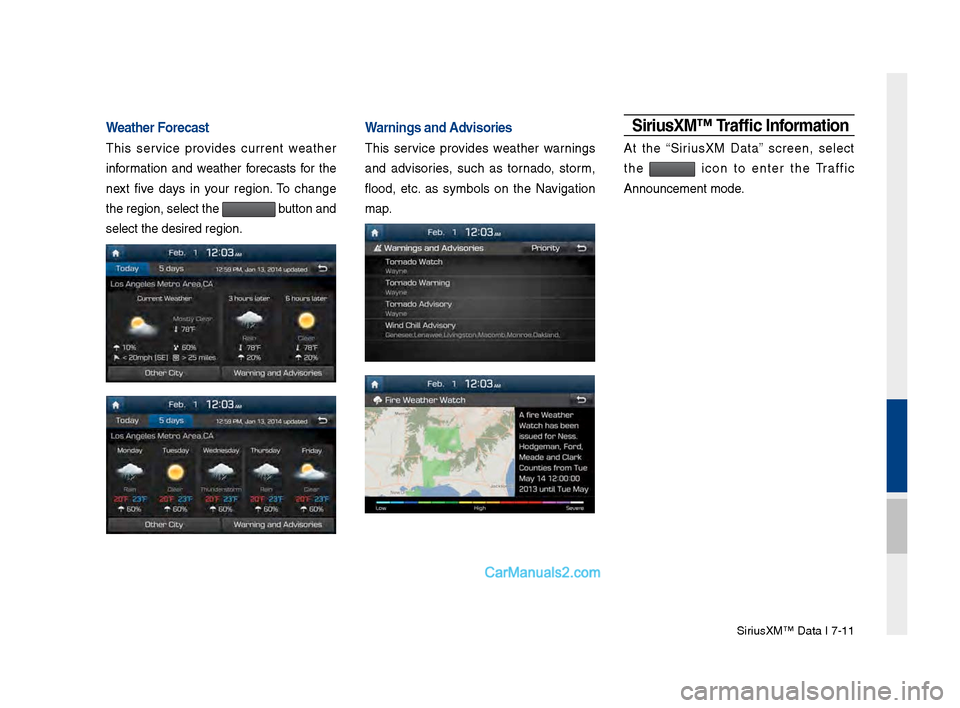
This service provides current weather
information and weather forecasts for the
next five days in your region. To change
the region, select t\she
button and
select the desired r\segion.
Warnings and Advisories
This service provides weather warnings
and advisories, such as tornado, storm,
flood, etc. as symbols on the Navigation
map.
Siri\fsXM™ Traffic Information
At the “Sirius\fM Data” screen, select
the
icon to enter the Traffic
Announcement mode.
Page 168 of 308
\b-12 I Info
Siri\fsXM™ F\fel Price
Information
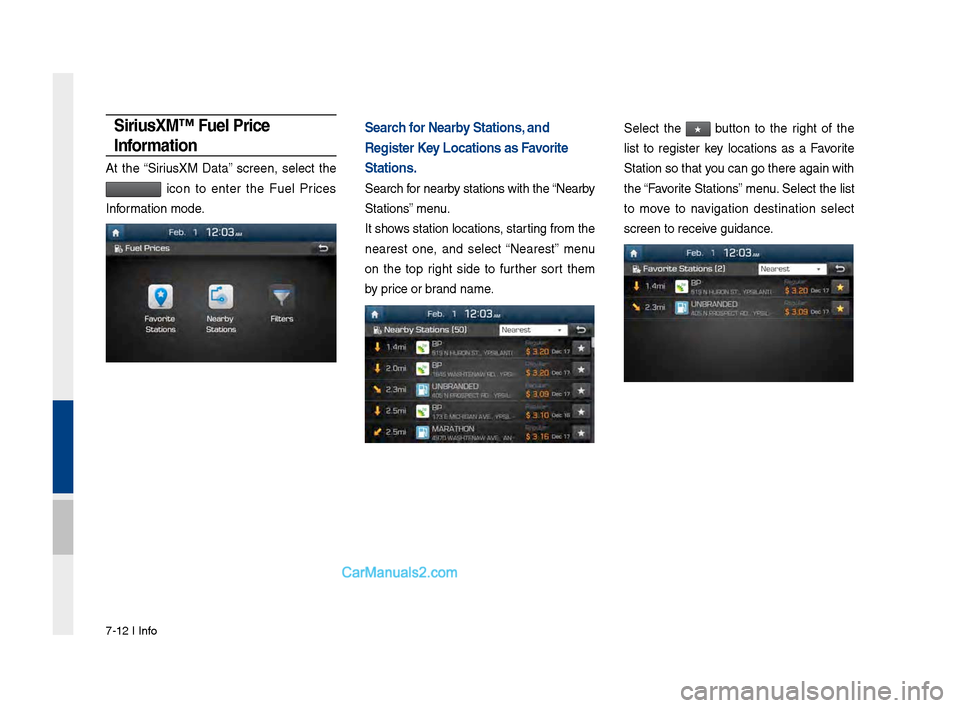
At the “Sirius\fM Data” screen, select the
icon to enter the Fuel Prices
Information mode.
Search for Nearby Stations, and
Register Key Locations as Favorite
Stations.
Search for nearby stations with the\s “Nearby
Stations” menu.
It shows station locations, starting from the
nearest one, and select “Nearest” menu
on the top right side to further sort them
by price or brand name.
Select the ★ button to the right of the
list to register key locations as a Favorite
Station so that you can go there aga\sin with
the “Favorite Stations” menu. Select the list
to move to navigation destination select
screen to receive guidance.
Page 173 of 308
Sirius\fM™ Data I \b-1\b
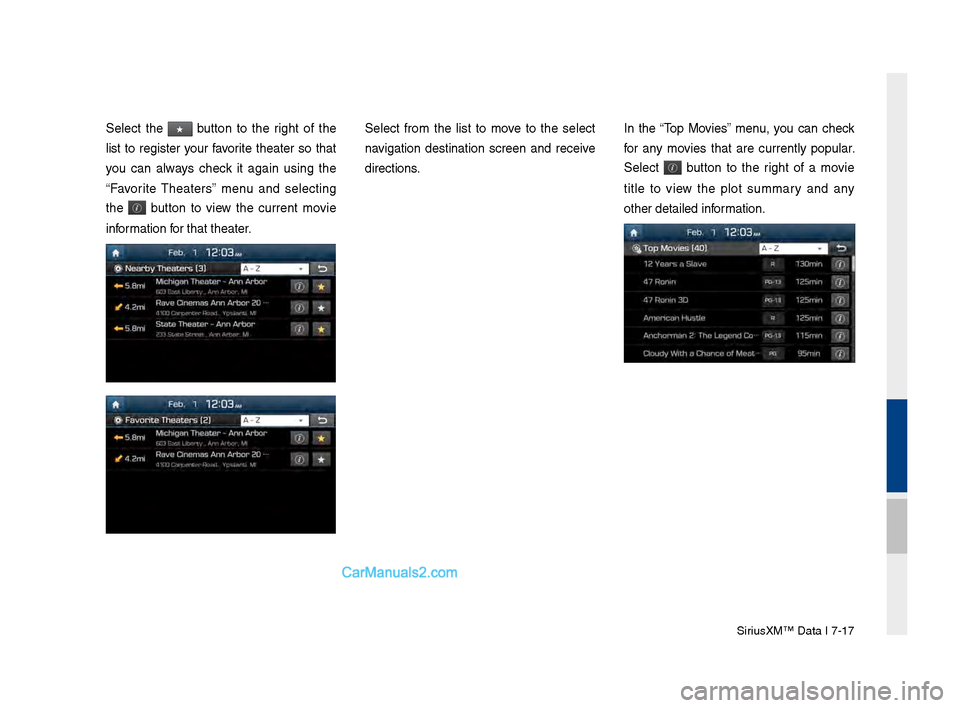
Select the ★ button to the right of the
list to register your favorite theater so that
you can always check it again using the
“Favorite Theaters” menu and selecting
the
button to view the current movie
information for that theater.
Select from the list to move to the select
navigation destination screen and receive
directions. In the “Top Movies” menu, you can check
for any movies that are currently popular.
Select
button to the right of a movie
title to view the plot summary and any
other detailed inf\sormation.
Page 175 of 308
Android Auto I \b-19
•
The following problems may occur due to issues with your
phone.
- Intermittent black screens appear when entering Android
Auto.
- Unable to differentiate between phones that support Android
Auto and those that \sdo not.
※
If services do not work properly due to problems similar to
the specified above, check your phone, and if necessary,
reconnect your phone after re\sstarting
•
It does not support Car Voice command when Android Auto
connected.
•
Android auto might not function as same with Car Multimedia
system.
•
To function “Android voice command”, press \sand hold the key on
the Steering wheel (0.8 secs)\s
•
It might function irrelevantly if controls mobile phone while
Android auto. Please do not use mobile phone while Android
auto.
•
Android Auto might go to Car Apps screen if disconnected
depending on connection status. You can re-use if the device
re-connected.
•
Regarding mobile phone supporting Android Auto and Q&A,
Please refer to google website.Using Android A\fto Feat\fres
1. Call key in the steering wheel performs phone function while
Android Auto screen is displayed.
2. The Android phone OS need to be Android 5.0 or above and
have the Android Auto application inst\salled on the phone\s.
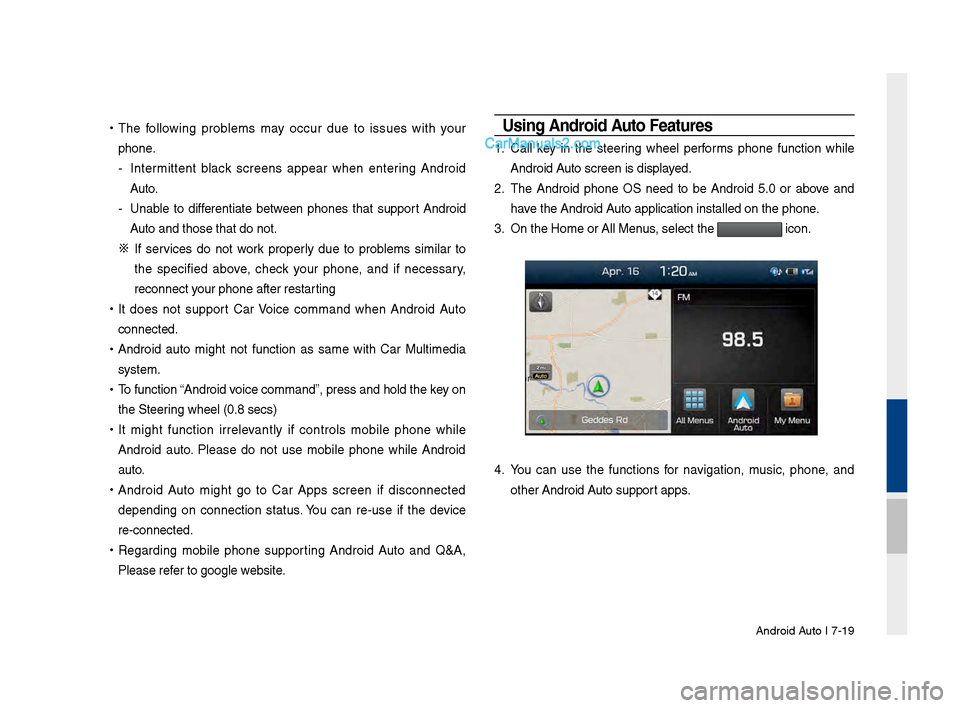
3. On the Home or All \sMenus , select the
icon.
4. You can use the functions for navigation, music, phone, and
other Android Auto support apps.