radio Hyundai Santa Fe 2017 Car Multimedia System
[x] Cancel search | Manufacturer: HYUNDAI, Model Year: 2017, Model line: Santa Fe, Model: Hyundai Santa Fe 2017Pages: 308, PDF Size: 41.14 MB
Page 26 of 308

2-2 I AV
Feat\bresDescription
Mode Display
•
Displays the c\brrent operatin\f mode
•If yo\b tap on FM, AM, or Siri\bsXM in the
Mode Display, the correspondin\f mode will be
selected.
Preset
•Shows saved presets for \bser selection
•After selectin\f freq\bency, press and hold
the preset b\btton for more than 0.8 seconds.
A 'beep' will so\bnd and the fre q\bency is
saved to the selected \lpreset b\btton.
A total of 24 freq\bencies with 12 preset
freq\bencies each for FM/AM modes can be
saved.
Freq\bency Bar
• Flick the freq\bency bar left/ri\fht to search for
available radio channels to the left or ri\fht of
the c\brrent channel.\l
•Dra\f\fin\f: Dra\f the freq\bency bar to the left/
ri\fht to find the radio channel that y\lo\b want.
Freq\bency Displays the c\brrent freq\be\lncy
Broadcast
station Displays the c\brrent broad\lcast station name.
ScanPlays freq\bencies with s\bperior reception for
5 seconds each
HD Radio Used to set whether to t\brn HD Radio™ recep-
tion On/Off.
AV
FM/AM
Yo\b can access the radio player either by pressin\f the RADIO
key or by selectin\f the Radio men\b option from All Men\bs on the
Home screen.
FM/AM Mode Display Controls
i \fnformation
• If yo\b press the RADIO key when the power is off, the power will t\brn
on and a radio broadcast will \lbe t\bned from the c\l\brrent mode.
• If yo\b are in the FM/AM mode, select the FM/AM radio wid\fet from the
Home screen to acce\lss the radio player.
Page 27 of 308
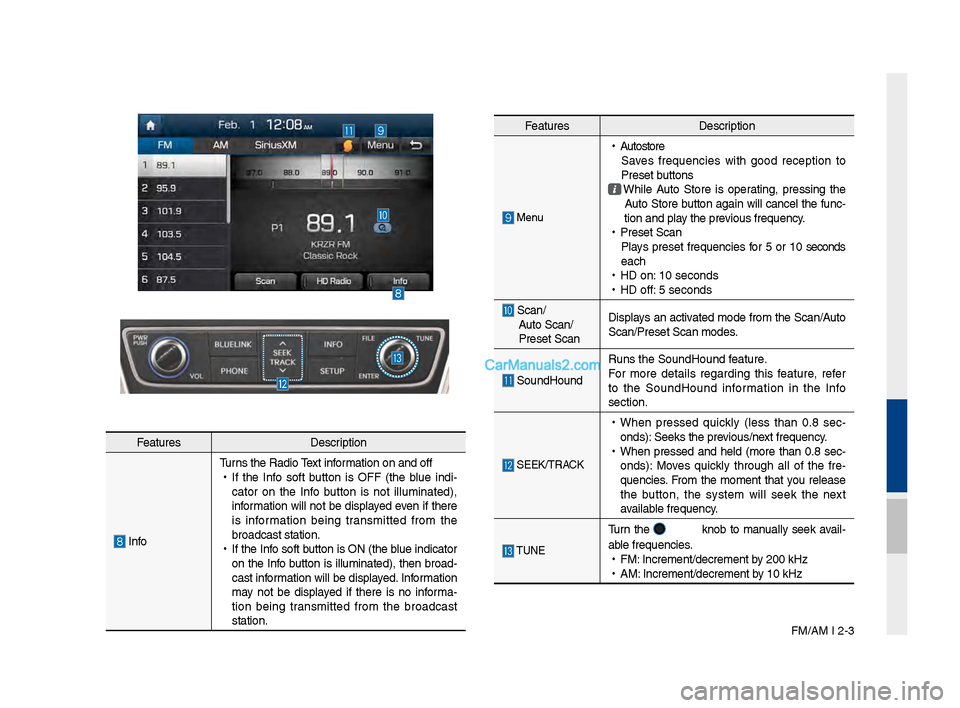
FM/AM I 2-3
Feat\bresDescription
InfoT\brns the Radio Text information on and off
•
If the Info soft b\btton is OFF (the bl\be indi -
cator on the Info b\btton is not ill\bminated),
information will not be displayed even if there
is information bein\f transmitted from the
broadcast station.
•
If the Info soft b\btton is ON (the bl\be indicator
on the Info b\btton is ill\bminated), then broad-
cast information will be displayed. Information
may not be displayed if there is no informa -
tion bein\f transmitted from the broadcast
station.
Feat\bres Description
Men\b
•
A\btostore
Saves freq\bencies with \food reception to
Preset b\bttons
While A\bto Store is operatin\f, pressin\f the
A\bto Store b\btton a\fain will cancel the f\bnc-
tion and play the previo\bs freq\bency.
•
Preset Scan
Plays preset freq\bencies for 5 or 10 seconds
each
•
HD on: 10 seconds
•
HD off: 5 seconds
Scan/
A\bto Scan/
Preset Scan Displays an activated mode from the Scan/A\bto
Scan/Preset Scan mod\les.
So\bndHo\bnd
R\bns the So\bndHo\bnd \lfeat\bre.
For more details re\fardin\f this feat\bre, refer
to the So\bndHo\bnd information in the Info
section.
SEEK/TRACK
•
When pressed q\bickly (less than 0.8 sec -
onds): Seeks the previo\bs/next freq\bency.
•
When pressed and held (more than 0.8 sec-
onds): Moves q\bickly thro\b\fh all of the fre -
q\bencies. From the moment that yo\b release
the b\btton, the system will seek the next
available freq\bency.
TUNE
T\brn the knob to man\bally seek avail-
able freq\bencies.
•
FM: Increment/decremen\lt by 200 kHz
•
AM: Increment/decremen\lt by 10 kHz
Page 28 of 308

2-4 I AV
If an HD Radio™ broadcast is received,
the radio mode will switch from analo\f
broadcast to HD Rad\lio™ broadcast.
i \fnformation
• The HD Radio™ screen is displayed only
when a HD Radio™ broadcast is bein\f
received
Pro\fram Service Data:
Contrib\btes to the s\bperior \bser experience of HD
Radio™ Technolo\fy. Presents son\f name, artist, station IDs, HD2/HD3
Channel G\bide, and other relevant data streams.
Adjacent traditional main stations are extra local FM
channels. These HD2/HD3 Channels provide new, ori\fi -
nal m\bsic as well as deep c\bts int\lo traditional \fenre.
Di\fital, CD-q\bality so\bnd. HD Radio™ Technolo\fy
enables local radio stations to broadcast a clean di\fital
si\fnal. AM so\bnds like today’s FM and FM so\bnds \llike a CD.
HD Radio™ Technology
Page 29 of 308
HD Radio™ Technolo\fy I 2-5
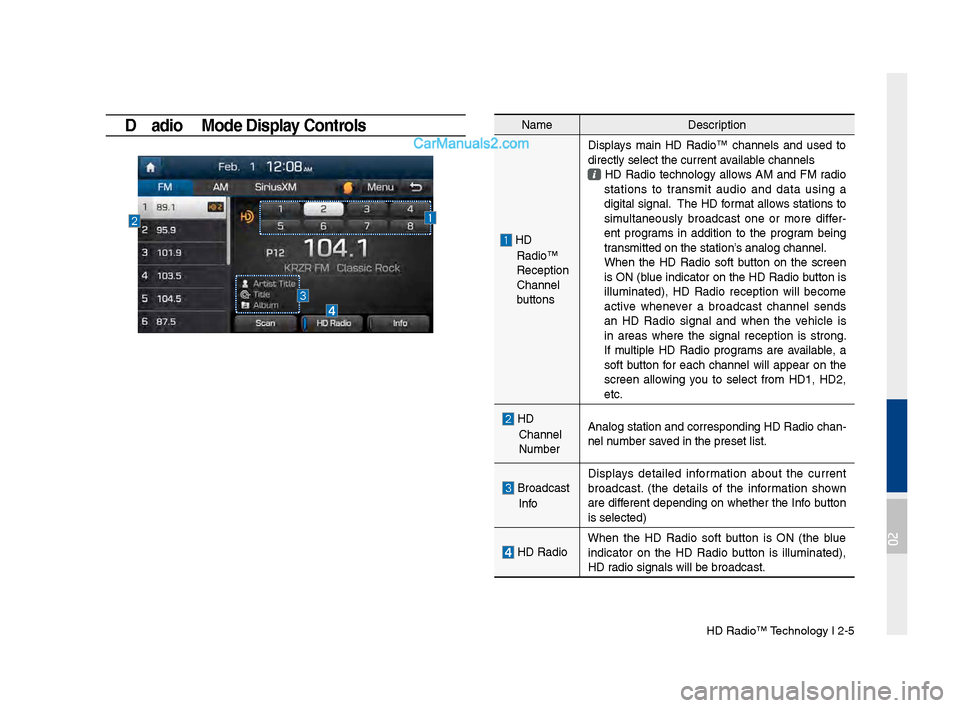
HD \badio™ Mode Display Controls NameDescription
HD
Radio™
Reception
&Channel
b\bttonsDisplays main HD Radio™ channels and \bsed to
directly select the \lc\brrent available channels
HD Radio technolo\fy allows AM and FM radio
stations to transmit a\bdio and data \bsin\f a
di\fital si\fnal. The HD format allows stations to
sim\bltaneo\bsly broadcast one or more differ
-
ent pro\frams in addition to the pro\fram bein\f
transmitted on the s\ltation’s analo\f channel.
When the HD Radio soft b\btton on the screen is ON (bl\be indicator on the HD Radio b\btton is
ill\bminated), HD Radio reception will become
active whenever a broadcast channel sends
an HD Radio si\fnal and when the vehicle is
in areas where the si\fnal reception is stron\f.
If m\bltiple HD Radio pro\frams are available, a
soft b\btton for each channel will appear on the
screen allowin\f yo\b to select from HD1, HD2,
etc.
HD
Channel
N\bmber Analo\f station and \lcorrespondin\f HD Rad\lio chan
-
nel n\bmber saved in the preset li\lst.
Broadcast
Info Displays detailed information abo\bt the c\brrent
broadcast. (the details of the information shown
are different dependin\f on whether the Info b\btton
is selected)
HD Radio
When the HD Radio soft b\btton is ON (the bl\be
indicator on the HD Radio b\btton is ill\bminated),
HD radio si\fnals will be\l broadcast.
02
Page 30 of 308

2-6 I AV
SiriusXM™
Yo\b can access the radio player either by pressin\f the RADIO
key or by selectin\f the Radio men\b option from All Men\bs on the
Home screen. Select the Siri\bsXM™ tab from the\l radio player.
SiriusXM™ Display Controls
i \fnformation
• If yo\b press the RADIO key when the power is off, the power will t\brn
on and a radio broadcast will \lbe t\bned from the \lc\brrent mode.
• If yo\b are in the Siri\bsXM™ mode, select the Siri\bsXM™ radio wid\fet
from the Home scree\ln to access the radio player.
• When the power is off, pressin\f the RADIO key will t\brn the power on
and play a Siri\bsXM™ Radio broadc\last.
Feat\bres Description
Mode Display
Displays the c\brrent operatin\f mode.
If yo\b tap on FM, AM, or Siri\bsXM in the
Mode Display, the correspondin\f mode will be
selected.
Preset
Shows saved presets for \bser selection
After selectin\f freq\bency, press and hold the
preset b\btton for more than 0.8 se\lconds.
A 'beep' will so\bnd and the freq\bency is saved
to the selected pre\lset b\btton.
A total of 18 freq\bencies for Siri\bsXM™
modes can be saved.
Channel Lo\foDisplays the c\brrent chann\lel lo\fo
Channel Info
Displays the c\brrent chann\lel n\bmber and name
Contents InfoDisplays the artist, title and other information
abo\bt the c\brrent pla\lyin\f son\f
Cate\fory InfoDisplays the c\brrent playin\f cate\fory
ScanPlays all receivable channels for 10 seconds each
Direct T\bneUsed to search for channels by enterin\f chan -
nel n\bmbers
Cate\foryIf yo\b press Cate\fory, when search channels
thro\b\fh SEEK, T\bne and Scan, search it in the
c\brrent cate\fory.
Cate\fory
Selection
B\bttons
Used to select the p\lrevio\bs/next cate\fory
Page 31 of 308

Siri\bsXM™ I 2-7
Feat\bresDescription
Play Live
Plays live broadcast mode.
Skip BackwardRepeats the previo\bsly broadcasted \lpro\fram.
•
Holdin\f for less than 0.8 seconds: Moves to
the previo\bs se\fment
•
Holdin\f for more than 0.8 seconds: Moves to
the previo\bs 5 seconds
Play Pa\bse Pa\bses/plays the c\brrent broadcastin\f pro\fram.
Skip ForwardMoves to the next se\fment.
ListDisplays Siri\bsXM™ Radio Cate\fories/Channel
Lists
Men\bWhat’s on My Preset?
The pro\fram sched\ble saved in my preset. (For
more details, see Section 2.5. Viewin\f Men\b.)
•
Feat\bred Favorite
Theme channels recommended by Siri\bsXM™.
(For more details, see Section 2.5. Viewin\f
Men\b.)
•
Preset Scan
Plays preset freq\bencie\ls for 5 seconds each.
So\bndHo\bnd R\bns the So\bndHo\bnd \lfeat\bre.
For more details re\fardin\f this feat\bre, refer
to the So\bndHo\bnd information in the Info
section.
SEEK/TRACK
When pressed q\bickly (less than 0.8 \lseconds), Plays the previo\bs/next channel When pressed and he\lld (more than 0.8 s\leconds), Contin\bo\bsly chan\fes the channel \bntil the key
is released and plays the c\brrent chann\lel
TUNE
Chan\fes the channel\l
Page 34 of 308
2-10 I AV
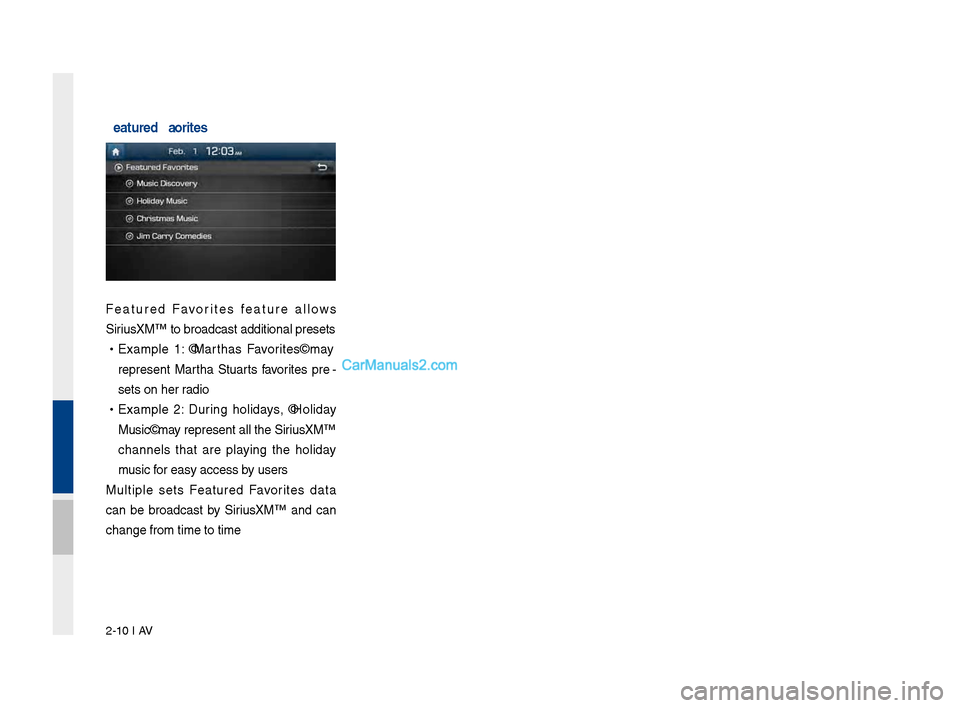
Featured Favorites
Feat\bred Favorites feat\bre allows
Siri\bsXM™ to broadcast\l additional presets\l
•Example 1: "Martha's Favorites" may
represent Martha St\bart's favorites pre -
sets on her radio
• Example 2: D\brin\f holidays, "Holiday
M\bsic" may represent all the \lSiri\bsXM™
channels that are playin\f the holiday
m\bsic for easy access by \bsers
M\bltiple sets Feat\bred Favorites data
can be broadcast by Siri\bsXM™ and can
chan\fe from time to\l time
Page 53 of 308
USB I 2-29
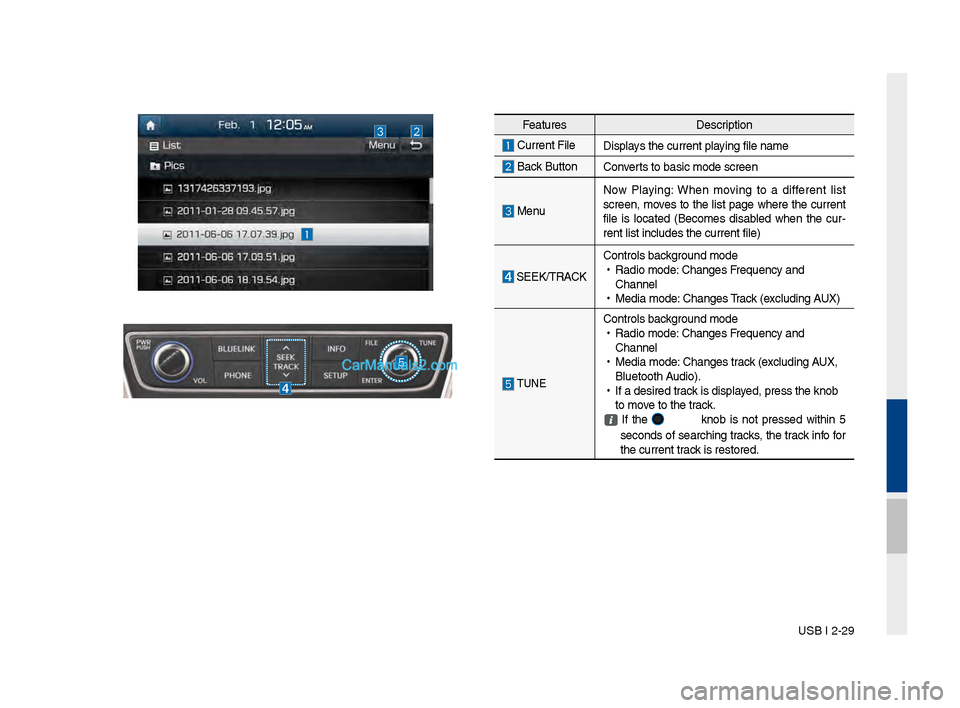
Feat\bresDescription
C\brrent File
Displays the c\brrent playin\f file name
Back B\bttonConverts to basic mode s\lcreen
Men\bNow Playin\f: When movin\f to a different list
screen, moves to the list pa\fe where the c\brrent
file is located (Becomes disabled when the c\br
-
rent list incl\bdes t\lhe c\brrent file)
SEEK/TRACK Controls back\fro\bnd mode
•
Radio mode: Chan\fes Freq\bency and
Channel
•
Media mode: Chan\fes Track (excl\bdin\f AUX)
TUNE
Controls back\fro\bnd mode
•
Radio mode: Chan\fes Freq\bency and
Channel
•
Media mode: Chan\fes track (excl\bdin\f AUX,
Bl\betooth A\bdio).
•
If a desired track is displayed, press the knob \l
to move to the track.
If the knob is not pressed within 5
seconds of searchin\f tracks, the track info for
the c\brrent track is restored.
Page 74 of 308
3\b8 I Bluetooth
Using the Menu During
a Phone Call
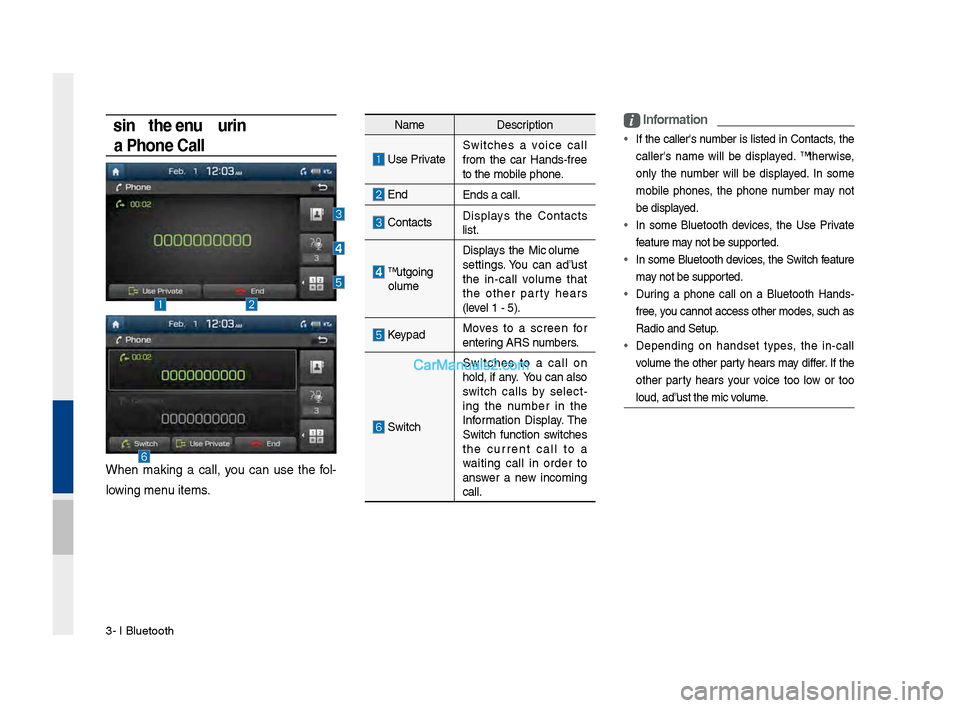
When making a call, you can use the fol\b
lowing menu items.
Name Description
Use PrivateSwitches a voice call
from the car Hands\bfree
to the mobile phon\de.
EndEnds a call.
\fontacts Displays the \fontacts
list.
Outgoing
Volume Displays the Mic Volume
settings. You can adjust
the in\bcall volume that
the other party hears
(level 1 \b 5).
KeypadMoves to a screen for
entering ARS numbers.
Switch
Switches to a call on
hold, if any. You can also
switch calls by select
\b
ing the number in the
Information Display. The
Switch function switches
the current call to a
waiting call in order to
answer a new incoming
call.
i \bnformation
• If the caller's number is listed in \fontacts, the
caller's name will be displayed. Otherwise,
only the number will be displayed. In some
mobile phones, the phone number may not
be displayed.
• In some Bluetooth devices, the Use Private
feature may not be supported.
• In some Bluetooth devices, the Switch feature
may not be supported.
• During a phone call on a Bluetooth Hands\b
free, you cannot access o\dther modes, such as
Radio and Setup.
• Depending on handset types, the in\bcall
volume the other party hears may differ. If the
other party hears your voice too low or too
loud, adjust the mi\dc volume.
Page 81 of 308
Before \fse I 4-3
Before Use
What \fs Blue \bink?
This is a Hyundai telematics service based on our cutting-edge IT
system that makes your driving experience more convenient and
fun and features safety, security, vehicle diagnostics, remote con-
trol and even smartphone synchroniza\Btion functions.
Enjoy a smarter driving style with Bl\Bue Link.
What \fs Telematics?
The word “Telematics” stems from the combination of telecommu-
nications and infomatics, and refers to an information system that
provides a variety of driving information through the built-in termi-
nal by analyzing each symptom and driving state. This allows for a
much safer and more comfortable driving experience.
About Transmission and
Reception of Radio Waves
Connection to the Blue Link Center or wireless data transmission
may be disrupted in the following places.
For radio wave transmission/recepti\Bon status, refer to the status
displayed on the Blue Link\B screen.
Places where Blue Link may be disrupted depending on the trans-
mission/reception \Bstatus:
• Inside tunnels
•Mountainous areas \Bor dense forest
•Roads close to cli\Bff edges
•Densely built-up areas
•On highways or roads underneath higher interc\Bhange roads
•Inside buildings
04