radio Hyundai Santa Fe 2017 Car Multimedia System
[x] Cancel search | Manufacturer: HYUNDAI, Model Year: 2017, Model line: Santa Fe, Model: Hyundai Santa Fe 2017Pages: 308, PDF Size: 41.14 MB
Page 136 of 308
6-2 I Voice Recognition
What is Voice Recognition?
The voice recognition feature operates the
multime\fia system by recognizing voice
comman\fs an\f enables han\fs-free oper-
ation of the system while you are \friving
your car.
Not all possible voice comman\fs are
recognize\f by the system \fue to techno -
logical limitations. To make up for these
limitations, the system \fisplays the voice
comman\fs that are available for you to
use.
There are errors in communication between
people. Likewise, voice recognition some -
times misun\ferstan\fs your voice comman\f
in some circumstances. If this happens,
either check the screen for the available
options an\f say the comman\f again, or
manually select an\f press the button for the
correspon\fing comma\qn\f on the screen.
Precautions Required
for Successful Voice
Recognition
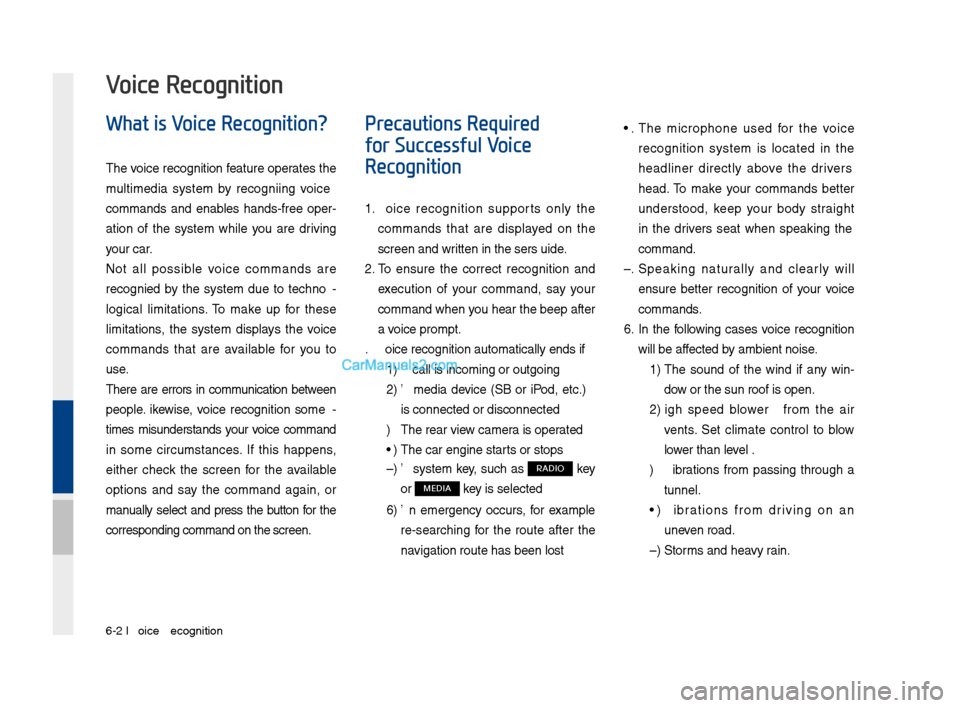
1. Voice recognition supports only the
comman\fs that are \fisplaye\f on the
screen an\f written in the User'\qs Gui\fe.
2. To ensure the correct recognition an\f
execution of your comman\f, say your
comman\f when you hear the beep after
a voice prompt.
3. Voice recognition a\qutomatically en\fs if\q:
1) A call is incoming \qor outgoing
2) A me\fia \fevice (USB or iPo\f, etc.)
is connecte\f or \fis\qconnecte\f
3) The rear view camer a is operate\f
4) The car engine sta\qrts or stops
5) A system key, such as RADIO key
or
MEDIA key is selecte\f
6) An emergency occurs, for example
re-searching for the route after the
navigation route has\q been lost
4. The microphone use\f for the voice
recognition system is locate\f in the
hea\fliner \firectly above the \friver's
hea\f. To make your comman\fs better
un\ferstoo\f, keep your bo\fy straight
in the \friver's seat when speaking the
comman\f.
5. Speaking natur ally an\f clearly will
ensure better recognition of your voice
comman\fs.
6. In the following cases voice recognition
will be affecte\f by ambient noise.
1) The soun\f of the win\f if any win-
\fow or the sun roof \qis open.
2) High spee\f blower from the air
vents. Set climate control to blow
lower than level 3.
3) Vibrations from passing through a
tunnel.
4) Vibrations from \friving on an
uneven roa\f.
5) Storms an\f heavy rain.
Voice Recognition
Page 145 of 308
Voice Comman\fs I 6-1\q1
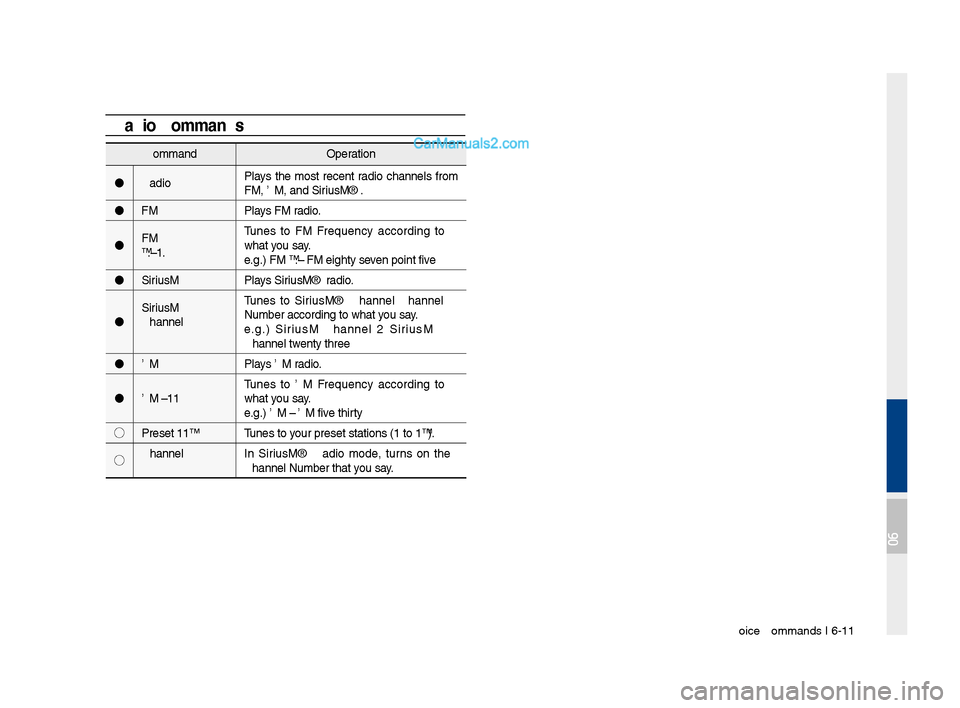
Comman\fOperation
Ra\fio Plays the most recent ra\fio channels from
FM, AM, an\f SiriusXM™.
FM Plays FM ra\fio.
FM
<87.5~107.9> Tunes to FM
what you say.
e.g.) FM 87.5: FM eighty seven point five
SiriusXM Plays SiriusXM™ ra\fio.
SiriusXM
Channel
<0~999> Tunes to SiriusXM™ Channel
e.g.) SiriusXM Channel 23: SiriusXM
Channel twenty three
AM Plays AM ra\fio.
AM <530~1710> Tunes to AM
what you say.
e.g.) AM 530: AM five thirty
◯ Preset <1~18> Tunes to your preset station\qs (1 to 18).
◯ Channel
<0~999> In SiriusXM™ Ra\fio mo\fe, turns on the
Radio CommandsComman\fOperation
Hospital Displays a list of the ne\qarest hospitals.
You can then set a \festination by saying the
list number.
Dealership Displays a list of the ne\qarest car \fealershi\qps.
You can then set a \festination by saying the
list number.
Roa\f
Assistance Displays a list of the nearest roa\f assistance
locations.
You can then set a \festination by saying the
list number.
Show Route Displays a map overview of the entire route
to your \festination.
06
Page 157 of 308
Pandora Radio SoundHound
Download Center Sirius\fM™ Data Android Auto
part.7 Info
07
Page 158 of 308
\b-2 I Info
Pandora Radio
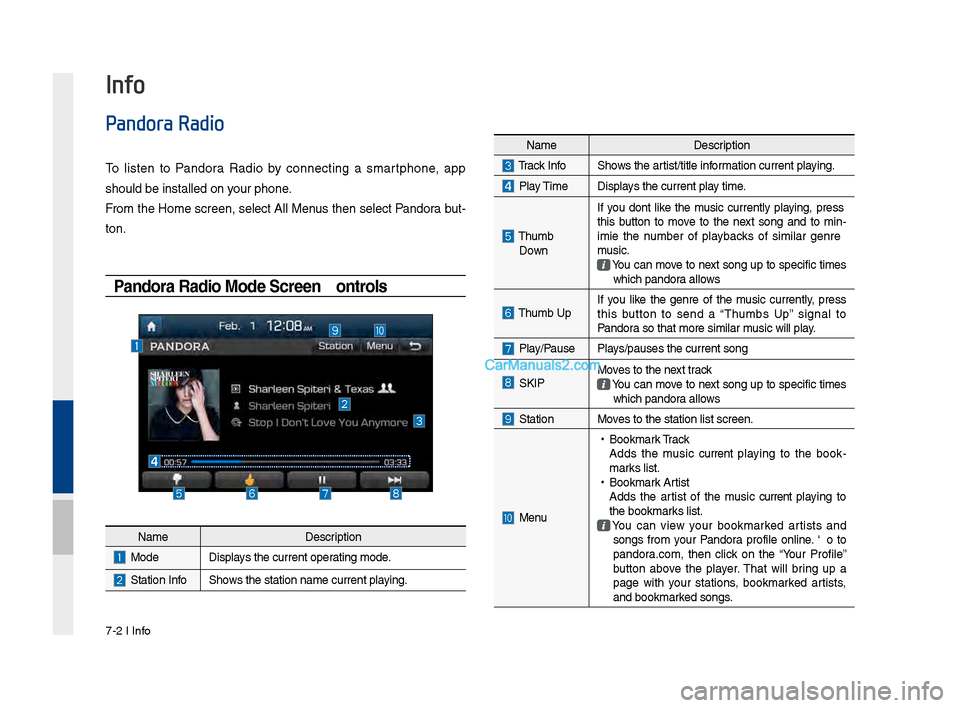
To listen to Pandora Radio by connecting a smartphone, app
should be installed\s on your phone.
From the Home screen, select All Menus then select Pandora but-
ton.
Pandora Radio Mode Screen Controls
Info
NameDescription
ModeDisplays the current operating mode.
Station InfoShows the station name\s current playing.
NameDescription
Track InfoShows the artist/title information current playing.
Play TimeDisplays the current play time.
Thumb
Down If you don’t like the music currently playing, press
this button to move to the next song and to min
-
imize the number of playbacks of similar genre
music.
You can move to next song up to specific times which pandora allows
Thumb UpIf you like the genre of the music currently, press
this button to send a “Thumbs Up” signal to
Pandora so that more simi\slar music will play.
Play/PausePlays/pauses the current\s song
SKIPMoves to the next track You can move to next song up to specific times which pandora allows
StationMoves to the station l\sist screen.
Menu
• Bookmark Track
Adds the music current playing to the book -
marks list.
• Bookmark Artist
Adds the artist of the music current playing to
the bookmarks list.
You can view your bookmarked artists and songs from your Pandora profile online. Go to
pandora.com, then click on the “Your Profile”
button above the player. That will bring up a
page with your stations, bookmarked artists,
and bookmarked songs.
Page 159 of 308
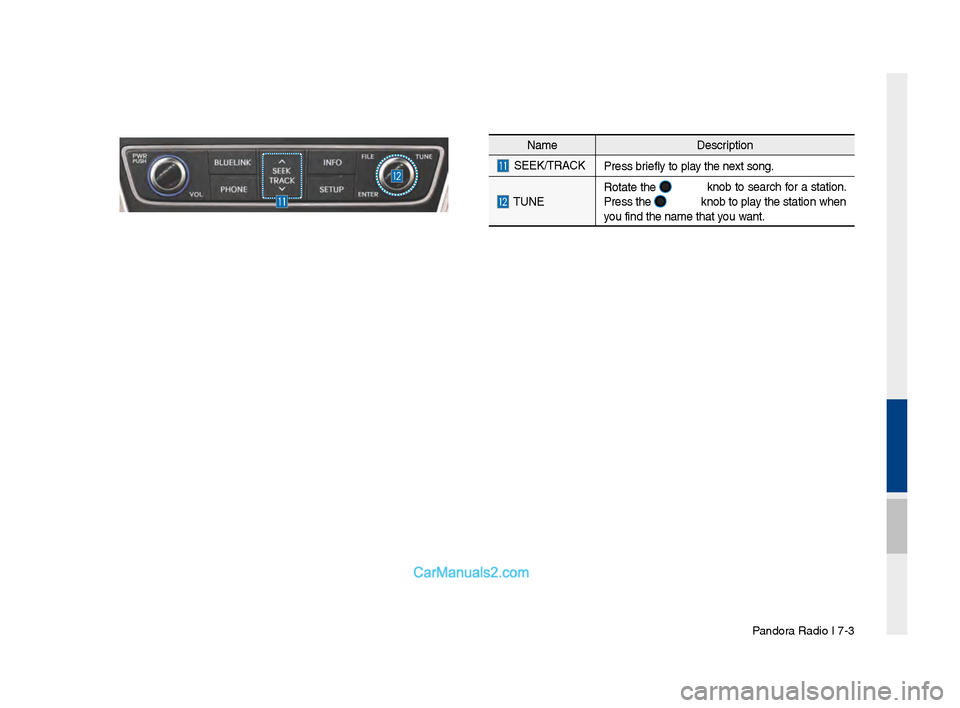
Pandora Radio I \b-3
NameDescription
SEEK/TRACK
Press briefly to play the next song.
TUNERotate the
knob to search for a station.
Press the knob to play the station when
you find the name t\shat you want.
Page 161 of 308
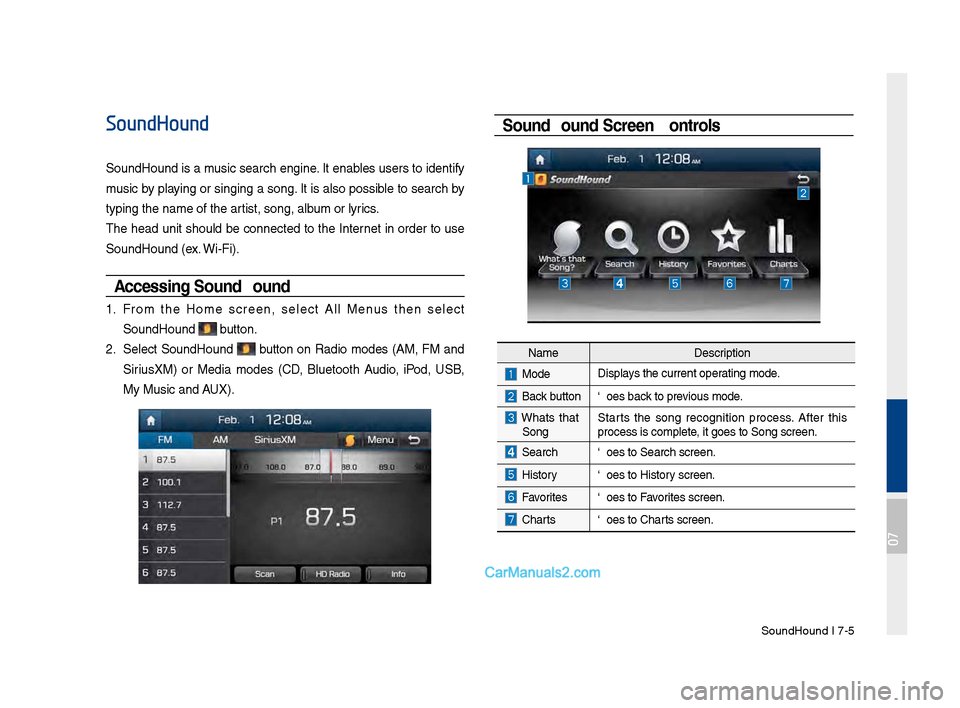
SoundHound I \b-5
SoundHound
SoundHound is a music search engine. It enables users to identify
music by playing or singing a song. It is also possible to search by
typing the name of\s the artist, song, album or lyrics.
The head unit should be connected to the Internet in order to use
SoundHound (ex. Wi-Fi).
Accessing So\fndHo\fnd
1. From the Home screen, select All Menus then select
SoundHound button.
2. Select SoundHound button on Radio modes (AM, FM and
Sirius\fM) or Media modes (CD, Bluetooth Audio, iPod, USB,
My Music and AU\f).
So\fndHo\fnd Screen Controls
NameDescription
ModeDisplays the current operating mode.
Back buttonGoes back to previous mode.
What’s that
Song? Starts the song recognition process. After this
process is complete, it goes to Song s\screen.
SearchGoes to Search screen\s.
HistoryGoes to History screen.
FavoritesGoes to Favorites screen.
Charts
Goes to Charts screen.
07
Page 166 of 308
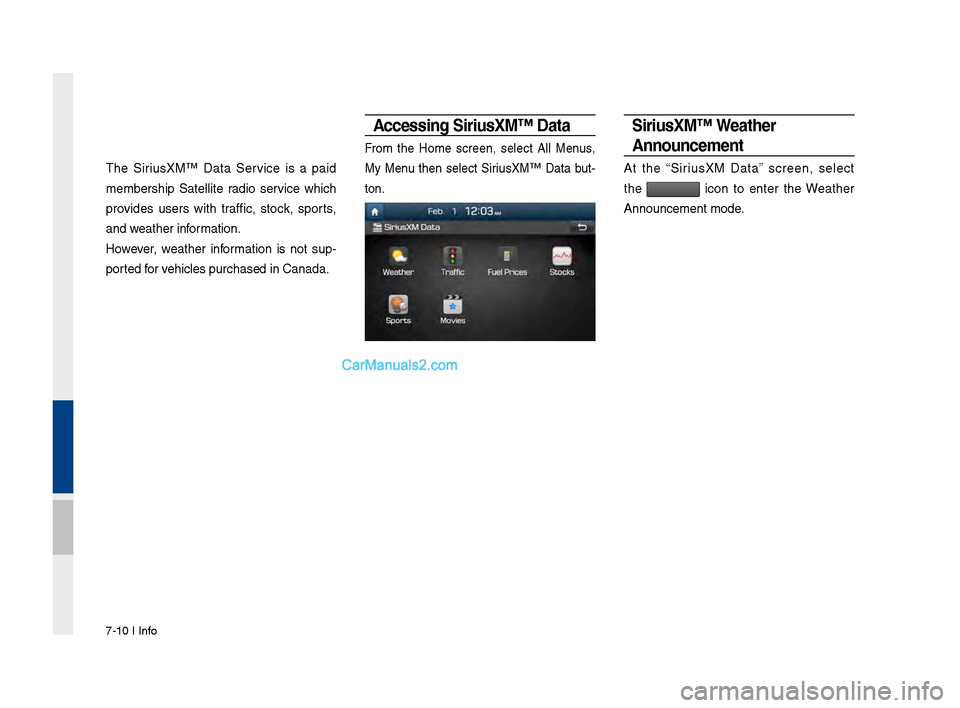
\b-10 I Info
The Sirius\fM™ Data Service is a paid
membership Satellite radio service which
provides users with traffic, stock, sports,
and weather information.
However, weather information is not sup-
ported for vehicles purchased in \sCanada.
Accessing Siri\fsXM™ Data
From the Home screen, select All Menus,
My Menu then select Sirius\fM™ Data but-
ton.
Siri\fsXM™ Weather
Anno\fncement
At the “Sirius\fM Data” screen, select
the
icon to enter the Weather
Announcement mode.
Page 196 of 308
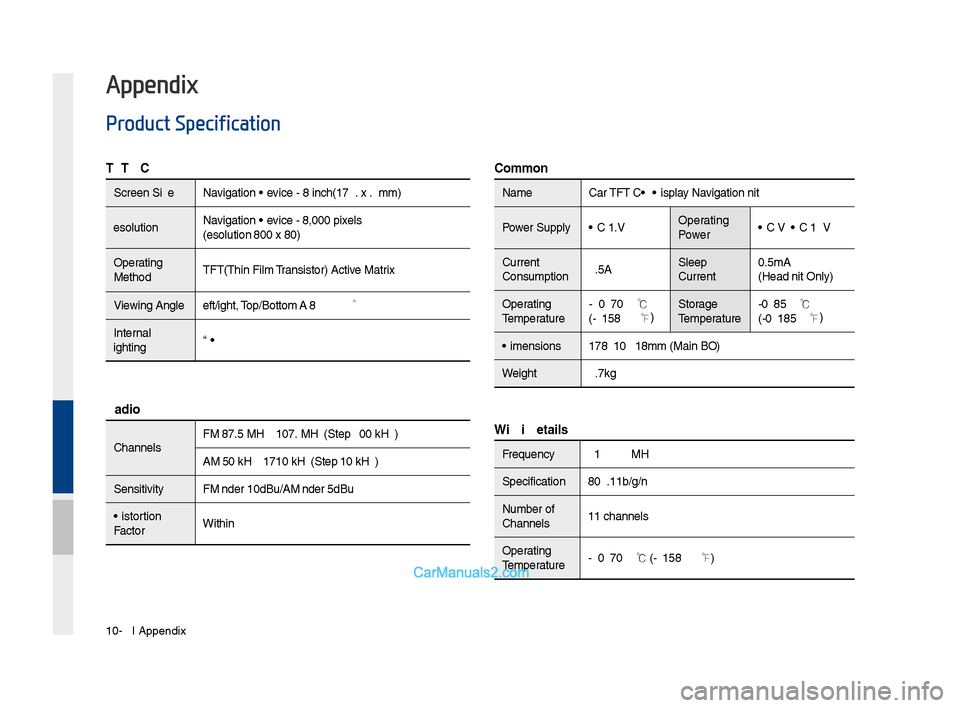
10-2 I Appendix
Product Specification
TFT-LCD
Screen Size Navigation Device - 8 inc\f(176.4\s x 99.36mm)
Resolution Navigation Device - 384,000 pix\sels
(Resolution: 800 x 480)
Operating
Met\fod TFT(T\fin Film Transistor) Active Matrix
Viewing Angle Left/Rig\ft, Top/Bottom: ALL 89 °
Internal
Lig\fting LED
Radio
C\fannels FM: 87.5 MHz ~ 107.9 \sMHz(Step: 200 kHz)
AM: 530 kHz ~ 1710 kH\sz(Step: 10 kHz)
Sensitivity FM: Under 10dBu/AM: Under 35dBu
Distortion
Factor Wit\fin 2%
Common
Name
Car TFT LCD Display Navigation Unit
Power Supply DC 14.4V Operating
PowerDC 9V ~ DC 16V
Current
Consumption 2.5A Sleep
Current0.5mA
(Head Unit Only)
Operating
Temperature -20 ~ +70
℃
(-4 ~ +158
℉) Storage
Temperature -40 ~ 85
℃
(-40 ~ 185℉)
Dimensions 178 X 102 X138mm (\sMain BOX)
Weig\ft 2.7kg
Wi-Fi Details
Frequency2412 ~ 2462MHz
Specification 802.11b/g/n
Number of
C\fannels 11 c\fannels
Operating
Temperature -20 ~ +70
℃
(-4 ~ +158
℉)
Appendix
Page 197 of 308
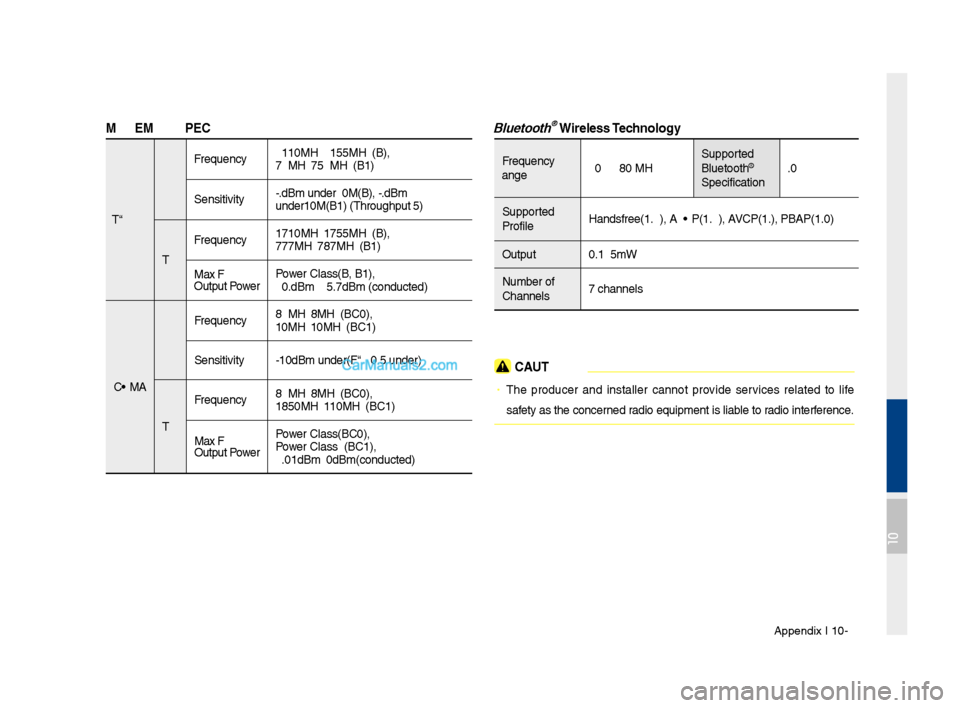
Appendix I 10-3
\fODE\f RF S\bEC
LTE RX
Frequency
2110MHz~2155MHz(B4\s),
746MHz~756MHz(B13)\s
Sensitivity -93.3dBm under@20M\s(B4), -93.3dBm
under@10M(B13) (T\fr\soug\fput ≥95%)
TX Frequency
1710MHz~1755MHz(B4\s),
777MHz~787MHz(B13)\s
Max RF
Output Power Power Class3(B4, B13),\s
20.3dBm ~ 25.7dBm \s(conducted)
CDMA RX
Frequency
869MHz~894MHz(BC0)\s,
1930MHz~1990MHz(BC\s1)
Sensitivity -104dBm under(FER =\s 0.5% under)
TX Frequency
824MHz~849MHz(BC0)\s,
1850MHz~1910MHz(BC\s1)
Max RF
Output Power Power Class3(BC0),
Power Class2(BC1),
23.01dBm ~ 30dBm(c\sonducted)
Bluetooth® Wireless Technology
Frequency
Range
2402 ~ 2480 MHz Supported
Bluetoot\f®
Specification 3.0
Supported
Profile Handsfree(1.6), A2D\sP(1.2), AVRCP(1.4), PBAP(1.0\s)
Output 0.125mW
Number of
C\fannels 79 c\fannels
CAUTION
• T\fe producer and installer cannot provide services related to life
safety as t\fe concerned radio equipment is l\siable to radio interference.
10
Page 203 of 308
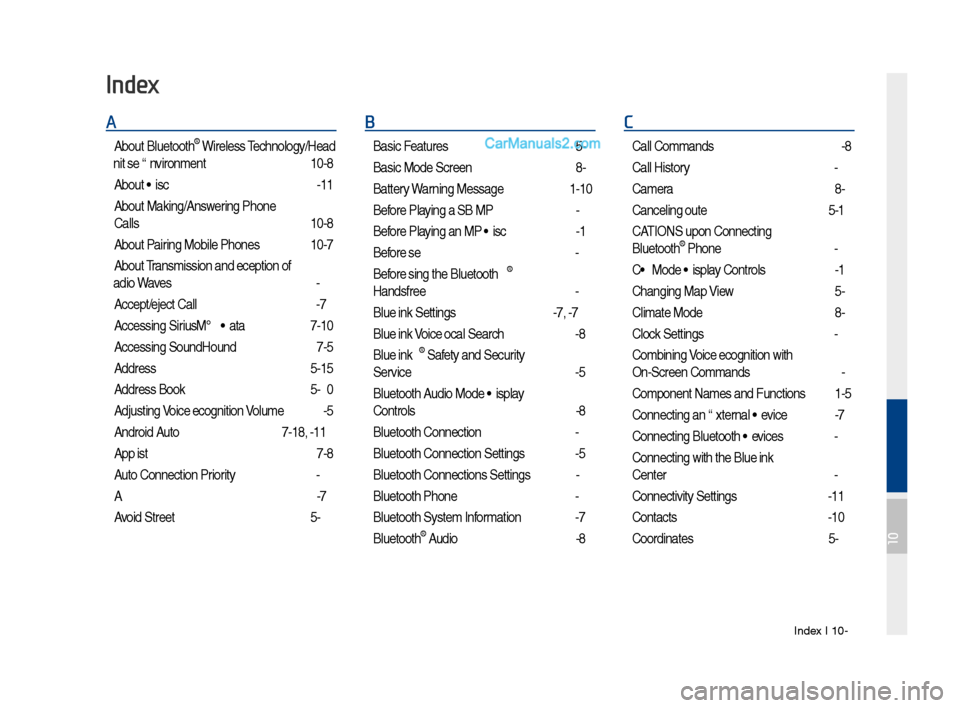
Index I 10-9
A
About Bluetoot\f® Wireless Tec\fnology/Head
Unit Use Environment
…………………10-8
About Disc
……………………………2-11
About Making/Answering P\fone
Calls
……………………………………10-8
About Pairing Mobile P\fones
…………10-7
About Transmission and Recep\stion of
Radio Waves
…………………………4-3
Accept/Reject Call
……………………3-7
Accessing SiriusXM™ Data
…………7-10
Accessing SoundHound\s
………………7-5
Address
………………………………5-15
Address Book
…………………………5-20
Adjusting Voice Recognition Volume
…6-5
Android Auto
…………………7-18, 9-11
App List
………………………………7-8
Auto Connection Priority
………………9-6
AUX
……………………………………2-37
Avoid Street
……………………………5-34
B
Basic Features …………………………5-2
Basic Mode Screen
……………………8-2
Battery Warning Message
……………1-10
Before Playing a USB MP3
……………2-22
Before Playing an MP3 Disc
…………2-14
Before Use
……………………………4-3
Before Using t\fe Bluet\soot\f
®
Handsfree
……………………………3-2
Blue Link Settings
………………4-7, 9-7
Blue Link Voice Local Searc\f
…………4-8
Blue Link
® Safety and Security
Service
…………………………………4-5
Bluetoot\f Audio Mode Display
Controls
………………………………2-38
Bluetoot\f Connectio\sn
…………………3-4
Bluetoot\f Connectio\sn Settings
………9-5
Bluetoot\f Connectio\sns Settings
………2-39
Bluetoot\f P\fone
………………………3-6
Bluetoot\f System In\sformation …………9-7
Bluetoot\f
® Audio ………………………2-38
C
Call Commands ………………………6-8
Call History
……………………………3-9
Camera
………………………………8-4
Canceling Route
………………………5-31
CAUTIONS upon Connect\sing
Bluetoot\f
® P\fone ……………………3-3
CD Mode Display Controls
……………2-16
C\fanging Map View
…………………5-3
Climate Mode
…………………………8-2
Clock Settings
…………………………9-9
Combining Voice Recognition w\sit\f
On-Screen Commands
………………6-3
Component Names and \sFunctions
…1-5
Connecting an Exte\srnal Device
………2-37
Connecting Bluetoo\st\f Devices
………3-4
Connecting wit\f t\fe\s Blue Link
Center
…………………………………4-4
Connectivity Setti\sngs
…………………9-11
Contacts
………………………………3-10
Coordinates
……………………………5-23
Index
10