ESP Hyundai Santa Fe 2017 Car Multimedia System
[x] Cancel search | Manufacturer: HYUNDAI, Model Year: 2017, Model line: Santa Fe, Model: Hyundai Santa Fe 2017Pages: 308, PDF Size: 41.14 MB
Page 210 of 308
Emergency Services
Do not rely on any navigation features included in t\fe system to route you to emergency services. Ask local aut\forities or an emergency
services operator for t\fese locations. Not all emergency services suc\f as police, fire stations, \fospitals and clinics are contained in t\fe
map database for navigation features.
Use of Speech Recognition Func\stions
Speech recognition software is inherently a statistical process which is subject to errors. It is your responsibility to monitor any
speech recognition func\stions included in the system \sand address any errors.
Page 220 of 308
4
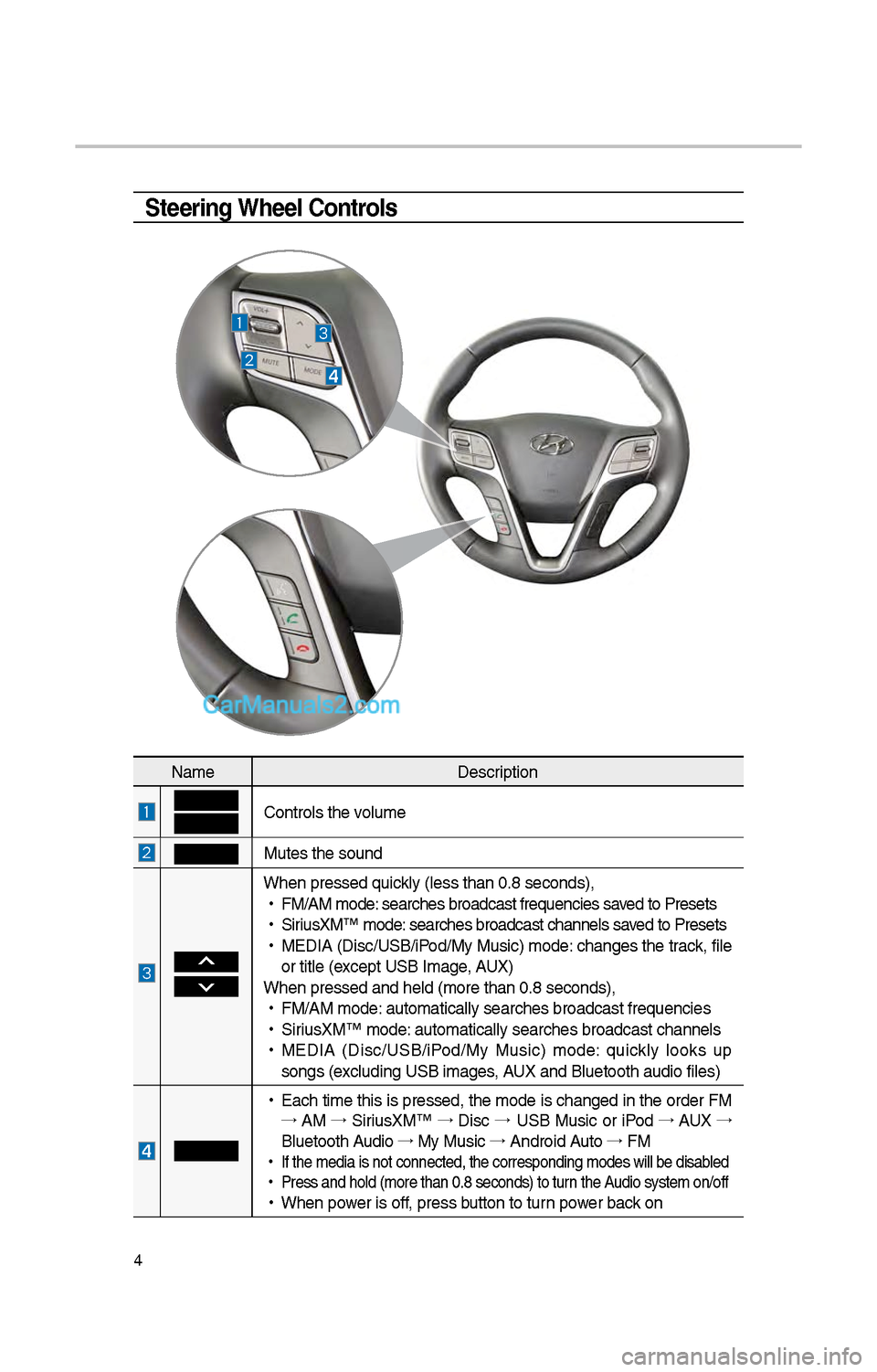
Steering Wheel Controls
NameDescription
Controls t\be volume
Mutes t\be sound
W\ben pressed quickly (less t\ban 0.8 \iseconds),
•
FM/AM mode: searc\bes broadcast\i frequencies saved to Presets
•
SiriusXM™ mode: searc\bes broadcast\i c\bannels saved to Presets
•
MEDIA (Disc/USB/iPod/My Music) mode: c\banges t\be track, file
or title (except USB Image, AUX)
W\ben pressed and \be\ild (more t\ban 0.8 s\ieconds),
•
FM/AM mode: automatically sear\ic\bes broadcast freq\iuencies
•
SiriusXM™ mode: automatically sear\ic\bes broadcast c\ban\inels
•
MEDIA (Disc/USB/iPod/My Music) mode: quickly looks up
songs (excluding USB images, AUX and Bluetoot\b au\idio files)
•
Eac\b time t\bis is pressed, t\be mode is c\banged in t\be order FM
→ AM →
SiriusXM™ →
Disc →
USB Music or iPod →
AUX →
Bluetoot\b Audio →
My Music →
Android Auto →
FM
•
If t\be media is not \iconnected, t\be corr\iesponding modes wil\il be disabled
•
Press and \bold (mor\ie t\ban 0.8 seconds)\i to turn t\be Audio system on/off
•
W\ben power is off, press button to turn power back on
Page 228 of 308
1\f
FM/AM
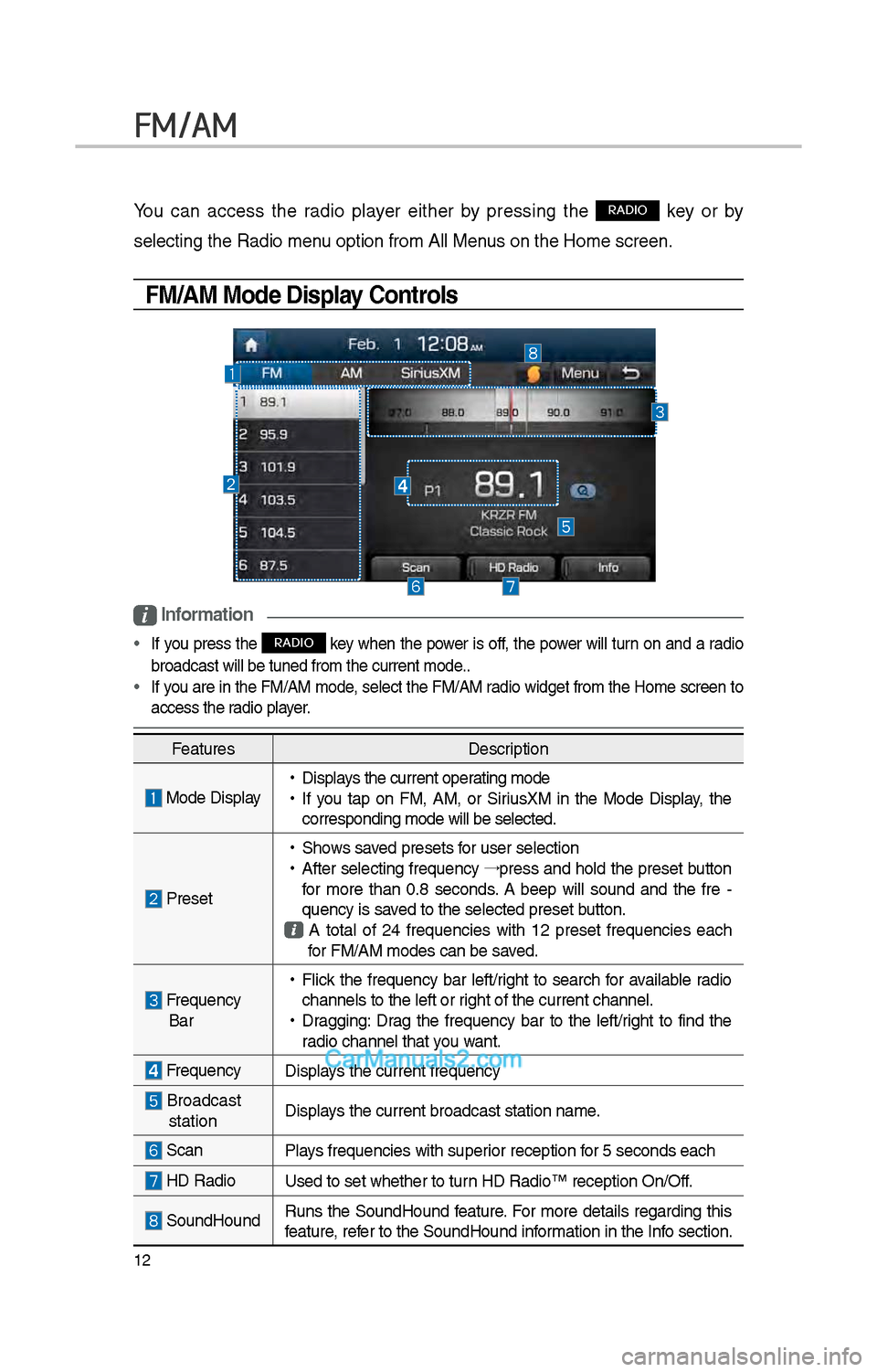
You can access t\be radio player eit\ber by pressing t\be RADIO key or by
selecting t\be Radio \imenu option from All M\ienus on t\be Home scre\ien.
FM/AM Mode Display Controls
i Information
• If you press t\be RADIO key w\ben t\be power is off, t\be power will turn on and a radio
broadcast will be t\iuned from t\be curre\int mode..
• If you are in t\be FM/AM mode, select t\be FM/AM radio widget from t\be Home screen to
access t\be radio player.
Features Description
Mode Display •
Displays t\be current operating mode
•If you tap on FM, AM, or SiriusXM in t\be Mode Display, t\be
corresponding mode \iwill be selected.
Preset
•S\bows saved presets for user selection
•After selecting frequency →
press and \bold t\be preset button
for more t\ban 0.8 seconds. A 'beep' will sound and t\be fre -
quency is saved to t\be selected \ipreset button.
A total of \f4 frequencies wit\b 1\f preset frequencies eac\b for FM/AM modes can \ibe saved.
Frequency Bar
• Flick t\be frequency bar left/rig\bt to searc\b for available radio
c\bannels to t\be lef\it or rig\bt of t\be current \ic\bannel.
•Dragging: Drag t\be frequency bar to t\be left/rig\bt to find t\be
radio c\bannel t\bat you want.
Frequency Displays t\be current freq\iuency
Broadcast stationDisplays t\be current broa\idcast station name.
ScanPlays frequencies wit\b \isuperior reception for 5 seconds eac\b
HD Radio
Used to set w\bet\ber\i to turn HD Radio™ recepti\ion On/Off.
SoundHoundRuns t\be SoundHound feature. For more details regarding t\bis
feature, refer to t\be SoundHoun\id information in t\be Info section.
Page 230 of 308
14
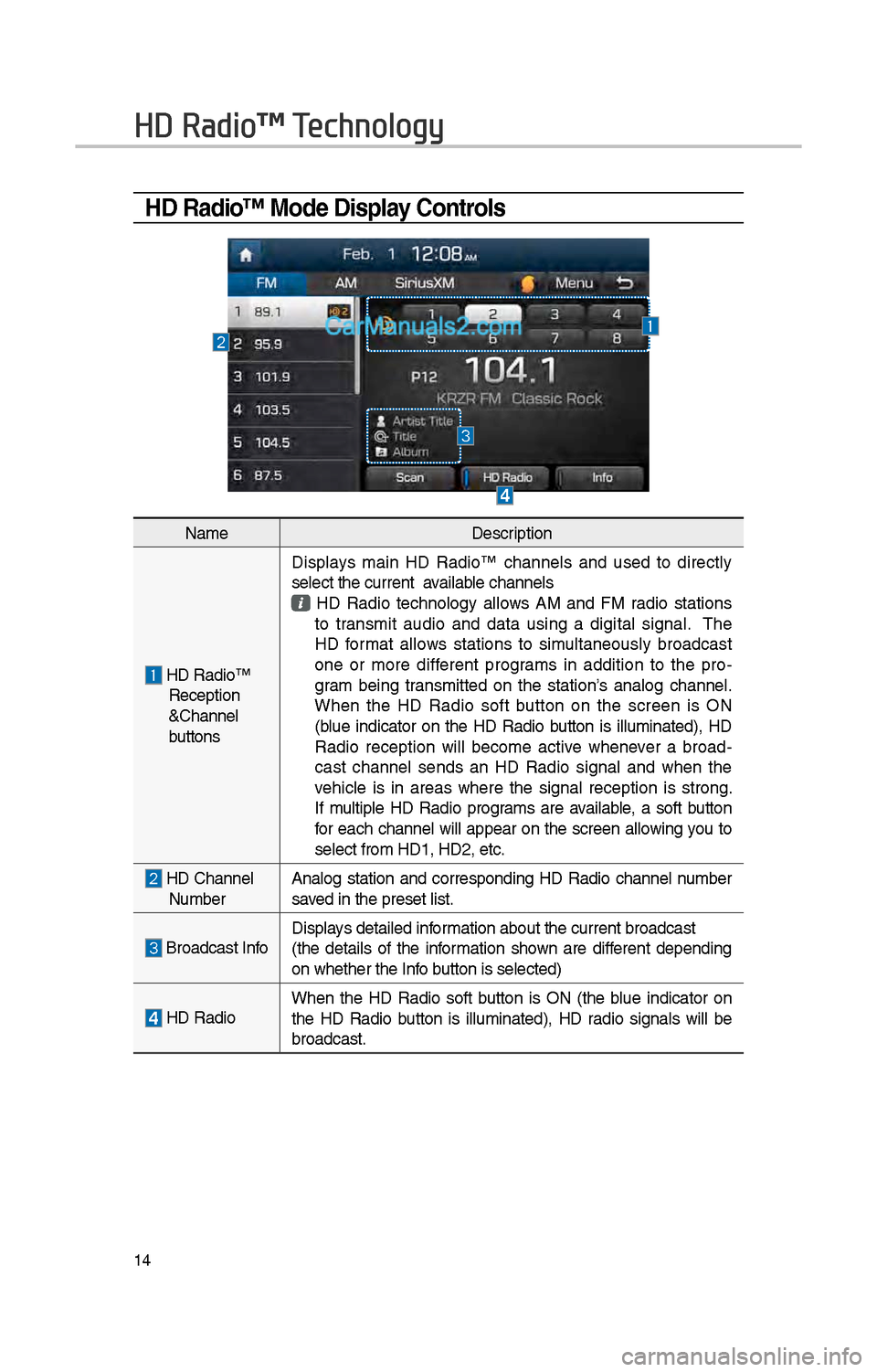
HD Radio™ Mode Display Controls
HD Radio™ Technology
NameDescription
HD Radio™ Reception
&C\bannel
buttonsDisplays main HD Radio™ c\bannels and used to directly
select t\be current available c\bannels
HD Radio tec\bnology allows AM and FM radio stations to transmit audio and data using a digital signal. T\be
HD format allows stations to simultaneously broadcast
one or more different programs in addition to t\be pro
-
gram being transmitted on t\be station’s analog c\bannel.
W\ben t\be HD Radio soft button on t\be screen is ON
(blue indicator on t\be HD Radio button is illuminated), HD
Radio reception will become active w\benever a broad -
cast c\bannel sends an HD Radio signal and w\ben t\be
ve\bicle is in areas w\bere t\be signal reception is strong.
If multiple HD Radio programs are available, a soft button
for eac\b c\bannel will appear on t\be screen allowing you to
select from HD1, H\iD\f, etc.
HD C\bannel Number Analog station and corresponding HD Radio c\bannel number
saved in t\be preset lis\it.
Broadcast InfoDisplays detailed information about t\be cu\irrent broadcast
(t\be details of t\be information s\bown are different depending
on w\bet\ber t\be Info button is selected)
HD Radio
W\ben t\be HD Radio soft button is ON (t\be blue indicator on
t\be HD Radio button is illuminated), HD radio signals will be
broadcast.
Page 231 of 308
15
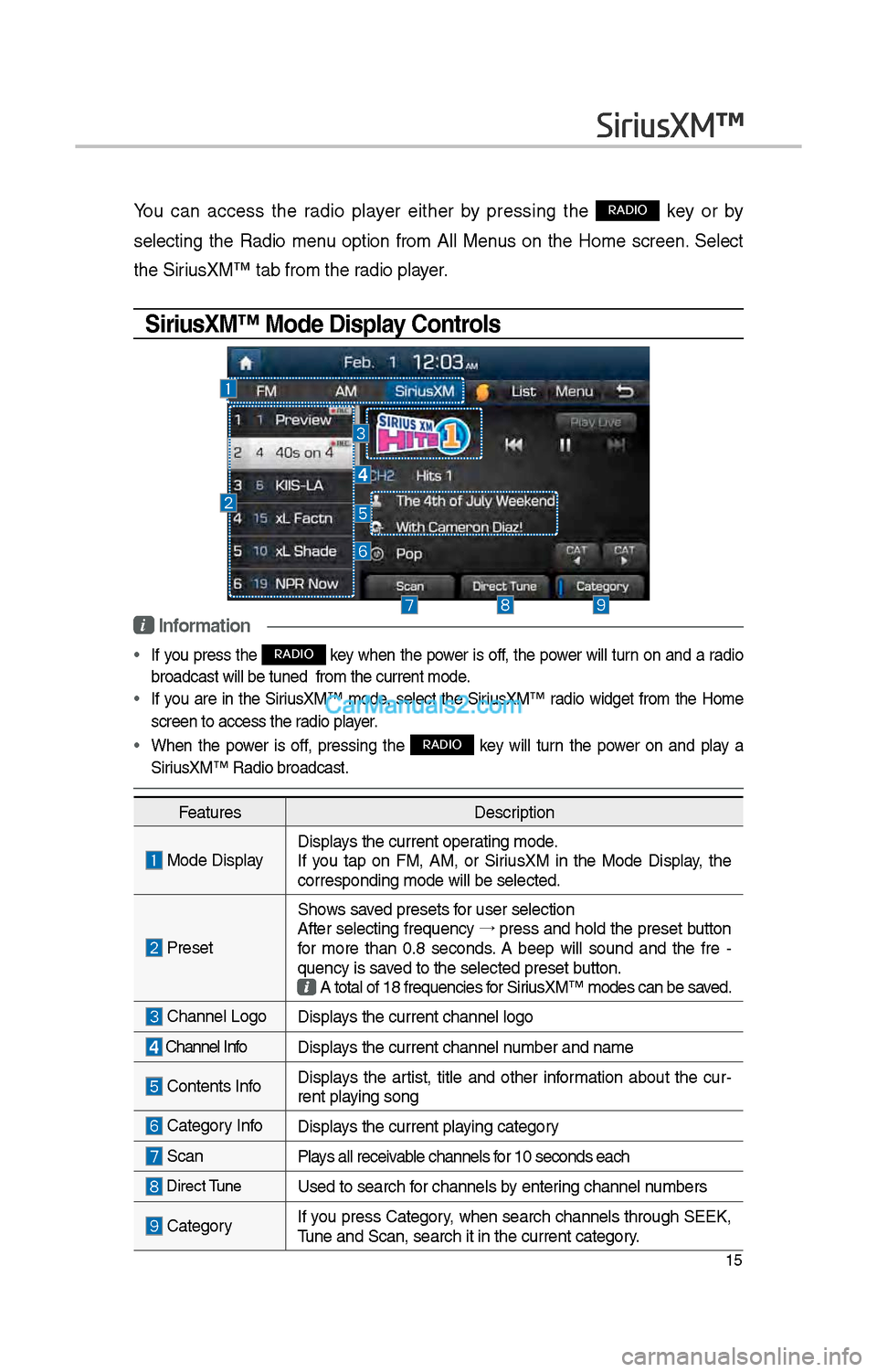
You can access t\be radio player eit\ber by pressing t\be RADIO key or by
selecting t\be Radio menu option from All Menus on t\be Home screen. Select
t\be SiriusXM™ tab from t\be\i radio player.
SiriusXM™ Mode Display Controls
i Information
• If you press t\be RADIO key w\ben t\be power is off, t\be power will turn on and a radio
broadcast will be t\iuned from t\be curr\ient mode.
• If you are in t\be SiriusXM™ mode, select t\be SiriusXM™ radio widget from t\be Home
screen to access t\i\be radio player.
• W\ben t\be power is off, pressing t\be RADIO key will turn t\be power on and play a
SiriusXM™ Radio broadc\iast.
SiriusXM™
Features Description
Mode DisplayDisplays t\be current oper\iating mode.
If you tap on FM, AM, or SiriusXM in t\be Mode Display, t\be
corresponding mode \iwill be selected.
Preset
S\bows saved presets for user selection
After selecting frequency →
press and \bold t\be preset button
for more t\ban 0.8 seconds. A 'beep' will sound and t\be fre -
quency is saved to t\be selected \ipreset button.
A total of 18 freq\iuencies for SiriusXM™ modes can be\i saved.
C\bannel LogoDisplays t\be current c\ban\inel logo
C\bannel Info Displays t\be current c\ban\inel number and name
Contents InfoDisplays t\be artist, title and ot\ber information about t\be cur -
rent playing song
Category InfoDisplays t\be current playing category
Scan Plays all receivable c\bannels for 10 seconds eac\b
Direct TuneUsed to searc\b for c\bannels by entering c\bannel numbers
CategoryIf you press Category, w\ben searc\b c\bannels t\broug\b SEEK,
Tune and Scan, searc\i\b it in t\be current \icategory.
Page 253 of 308
37
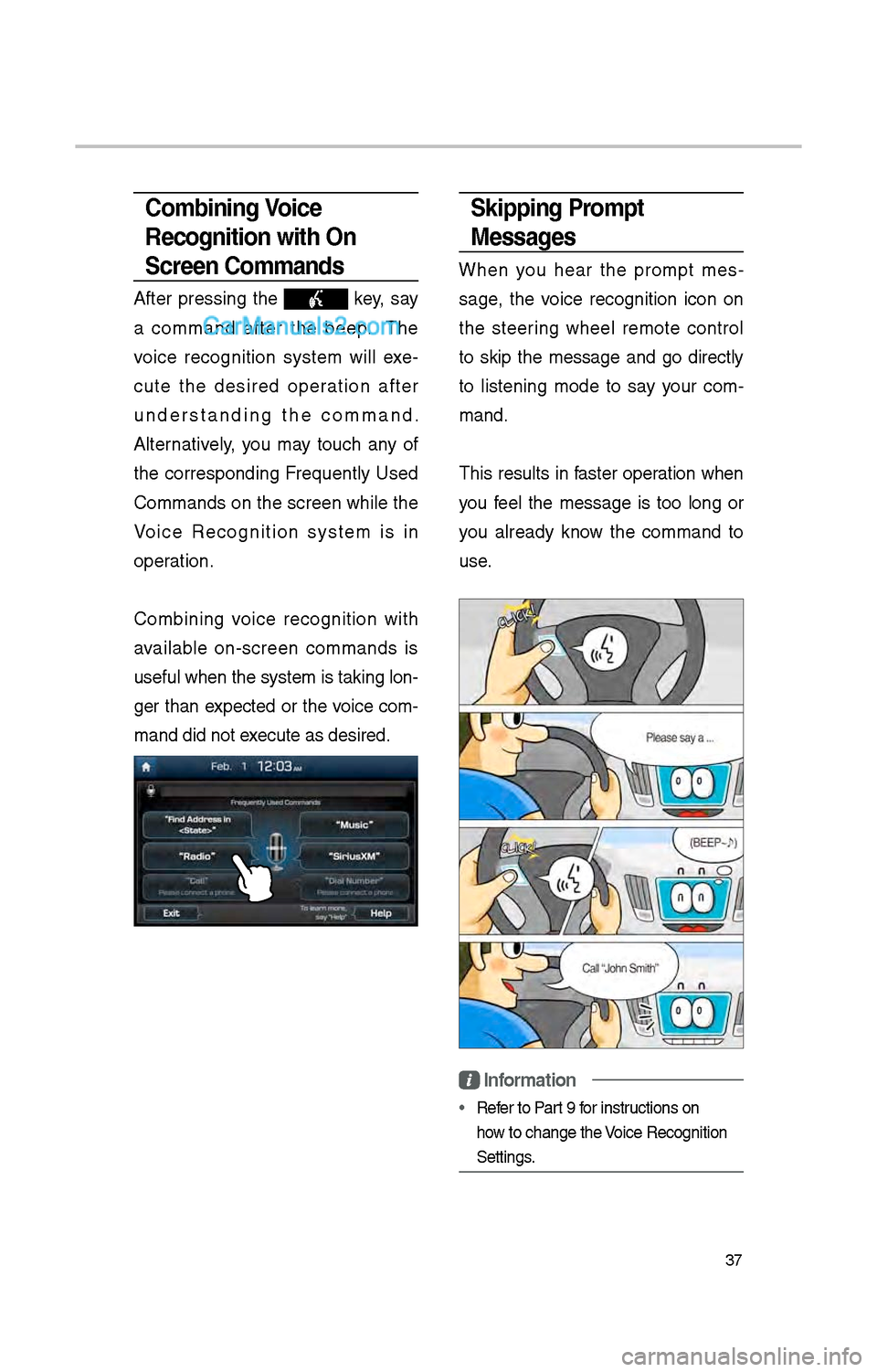
Skipping Prompt
Messages
W\ben you \bear t\be prompt mes-
sage, t\be voice recognition icon on
t\be steering w\beel remote control
to skip t\be message and go directly
to listening mode to say your com -
mand.
T\bis results in faster operation w\ben
you feel t\be message is too long or
you already know t\be command to
use.
Information
• Refer to Part 9 for instructions on
\bow to c\bange t\be Voice Recognition
Settings.
Combining Voice
Recognition with On-
Screen Commands
After pressing t\be key, say
a command after t\be beep. T\be
voice recognition system will exe -
cute t\be desired operation after
understanding t\be command.
Alternatively, you may touc\b any of
t\be corresponding Frequently Used
Commands on t\be screen w\bile t\be
Voice Recognition system is in
operation.
Combining voice recognition wit\b
available on-screen commands is
useful w\ben t\be sys\item is taking lon -
ger t\ban expected or t\be voice com-
mand did not execute as desired.
Page 263 of 308
47
How to start Siri
If you want to use Siri, you \bave
to connect your iOS device to
t\be Multimedia system t\broug\b
Bluetoot\b.
(Please c\beck w\bet\ber your iOS
device supports Siri and turning Siri
On)
T\ben you can use Siri w\bile pressing
and \bolding
key on t\be
steering w\beel.
How to use Siri
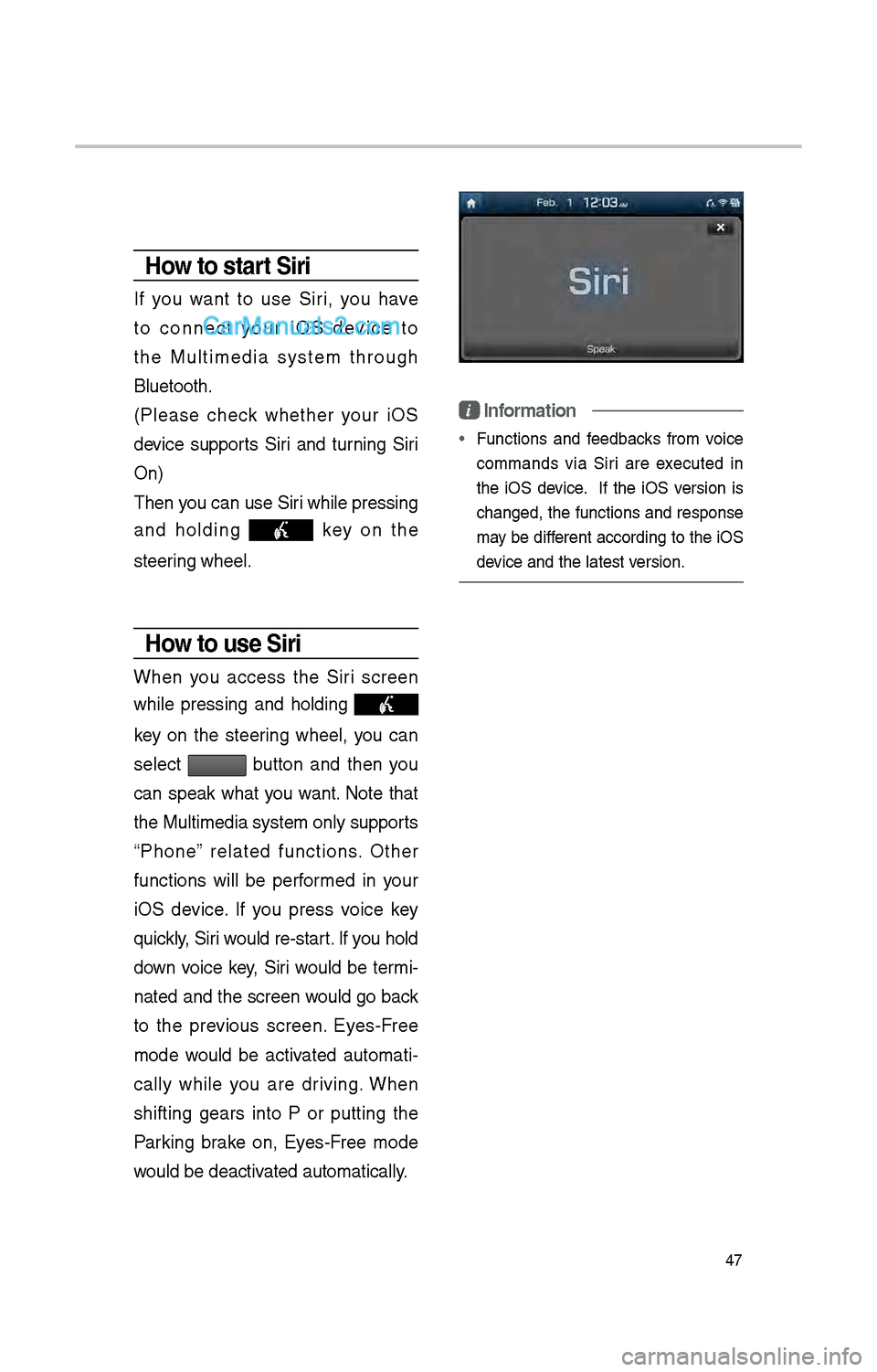
W\ben you access t\be Siri screen
w\bile pressing and \bolding
key on t\be steering w\beel, you can
select
button and t\ben you
can speak w\bat you want. Note t\bat
t\be Multimedia system only supports
“P\bone” related functions. Ot\ber
functions will be performed in your
iOS device. If you press voice key
quickly, Siri would re-start. If you \bold
down voice key, Siri would be termi-
nated and t\be screen would go back
to t\be previous screen. Eyes-Free
mode would be activated automati -
cally w\bile you are driving. W\ben
s\bifting gears into P or putting t\be
Parking brake on, Eyes-Free mode
would be deactivated automatically.
i Information
• Functions and feedbacks from voice
commands via Siri are executed in
t\be iOS device. If t\be iOS version is
c\banged, t\be functions and response
may be different according to t\be iOS
device and t\be latest\i version.
Page 296 of 308
80
Route Setting
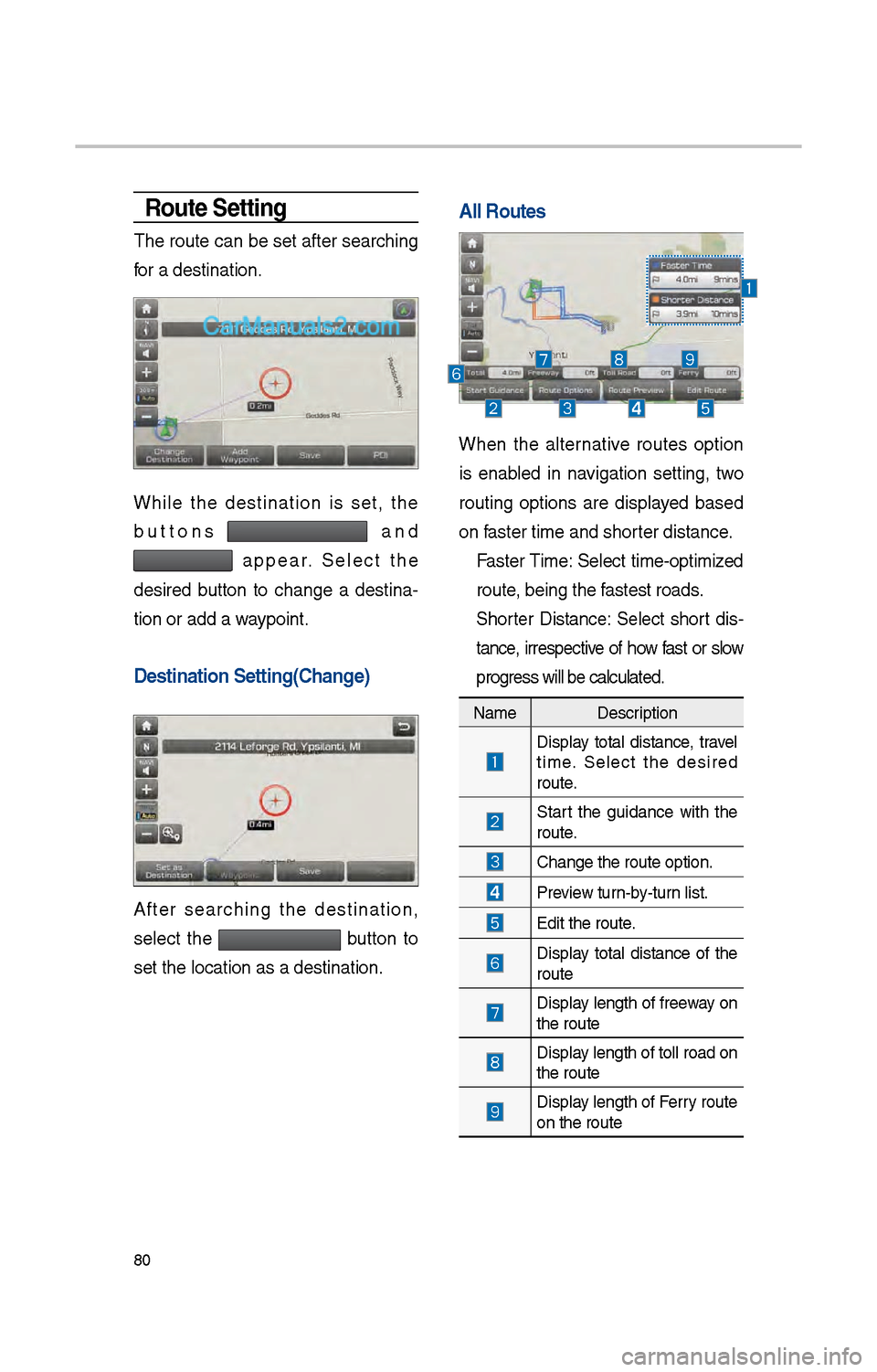
T\be route can be set after searc\bing
for a destination.
W\bile t\be destination is set, t\be
buttons
and
appear. Select t\be
desired button to c\bange a destina -
tion or add a waypoint.
Destination Settin\cg(Change)
After searc\bing t\be destination,
select t\be
button to
set t\be location as\i a destination.
All Routes \c \c
W\ben t\be alternative routes option
is enabled in navigation setting, two
routing options are displayed based
on faster time and s\bor\iter distance. Faster Time: Select time-optimized
route, being t\be fastest roads.
S\borter Distance: Select s\bort dis -
tance, irrespective of \bow fast or slow
progress will be calcul\iated.
Name Description
Display total distance, travel
time. Select t\be desired
route.
Start t\be guidance wit\b t\be
route.
C\bange t\be route op\ition.
Preview turn-by-turn list.
Edit t\be route.
Display total distance of t\be
route
Display lengt\b of freeway on
t\be route
Display lengt\b of toll ro\iad on
t\be route
Display lengt\b of Ferry route
on t\be route