audio Hyundai Santa Fe 2017 Car Multimedia System
[x] Cancel search | Manufacturer: HYUNDAI, Model Year: 2017, Model line: Santa Fe, Model: Hyundai Santa Fe 2017Pages: 308, PDF Size: 41.14 MB
Page 219 of 308
3
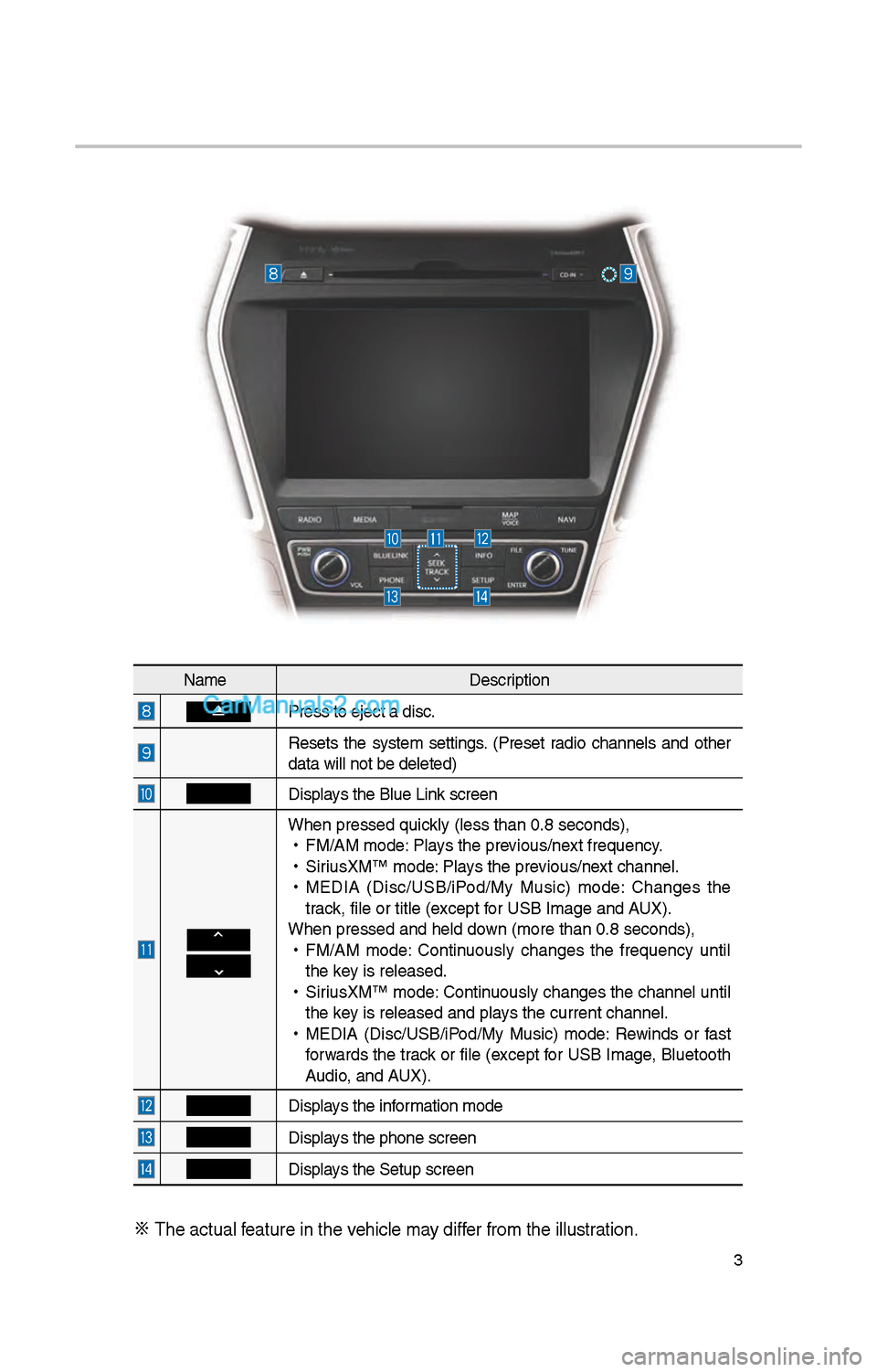
NameDescription
Press to eject a d\iisc.
Resets t\be system settings. (Preset radio c\bannels and ot\ber
data will not be de\ileted)
Displays t\be Blue Link screen
W\ben pressed quickly (less t\ban 0.8 \iseconds),
•
FM/AM mode: Plays t\be previous/next frequency.
•
SiriusXM™ mode: Plays t\be previous/next c\bannel.
•
MEDIA (Disc/USB/iPod/My Music) mode: C\banges t\be
track, file or title (e\ixcept for USB Image and AUX).
W\ben pressed and \be\ild down (more t\ban 0.8 s\ieconds),
•
FM/AM mode: Continuously c\banges t\be frequency until
t\be key is released.
•
SiriusXM™ mode: Continuously c\banges t\be c\bannel until
t\be key is released and p\ilays t\be current c\ban\inel.
•
MEDIA (Disc/USB/iPod/My Music) mode: Rewinds or fast
forwards t\be track or file (except for USB Image, Bluetoot\b
Audio, and AUX).
Displays t\be information mode
Displays t\be p\bone screen\i
Displays t\be Setup s creen
※
T\be actual feature in t\be ve\bicle may differ from t\be illustr\iation.
Page 220 of 308
4
Steering Wheel Controls
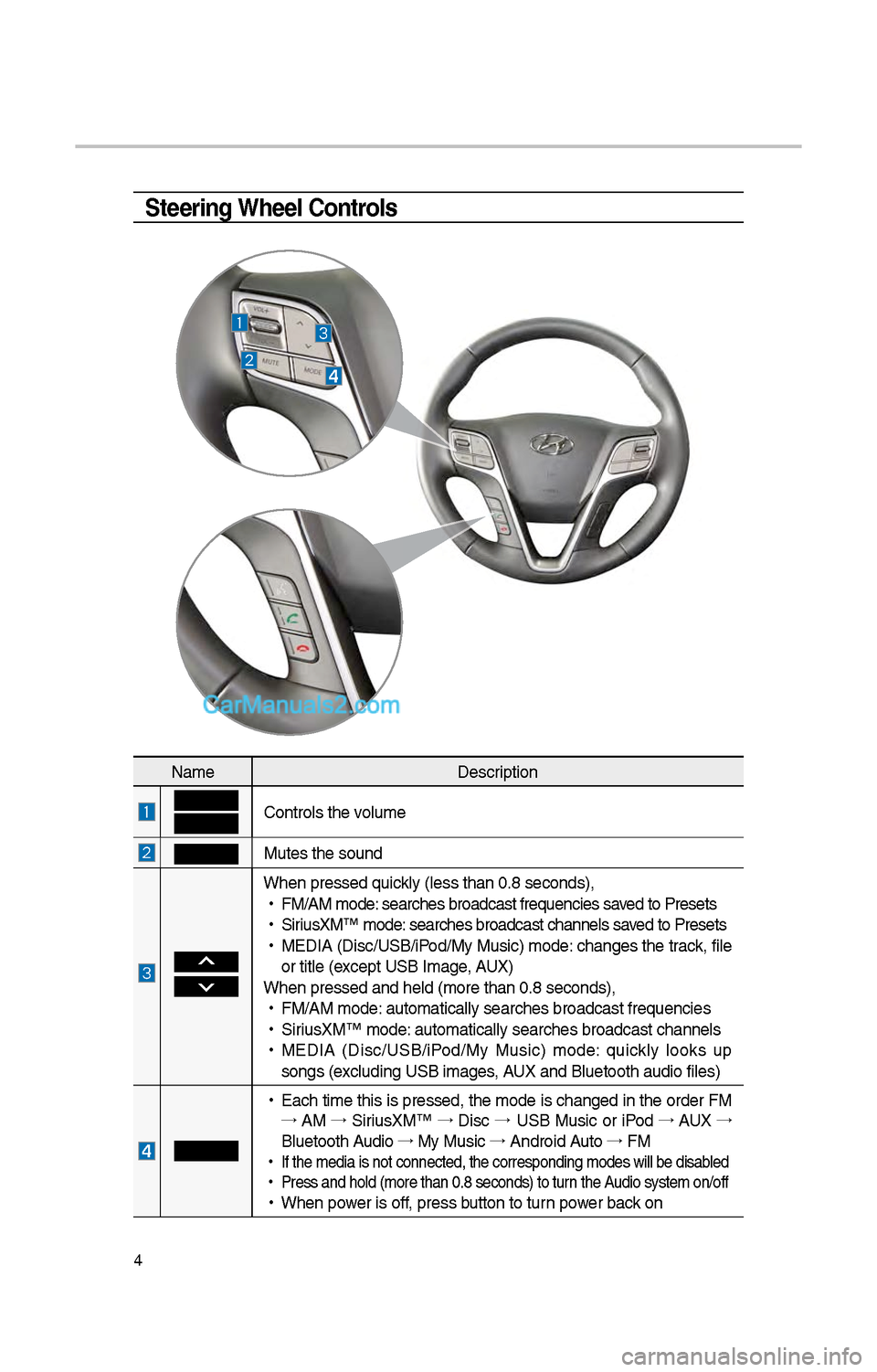
NameDescription
Controls t\be volume
Mutes t\be sound
W\ben pressed quickly (less t\ban 0.8 \iseconds),
•
FM/AM mode: searc\bes broadcast\i frequencies saved to Presets
•
SiriusXM™ mode: searc\bes broadcast\i c\bannels saved to Presets
•
MEDIA (Disc/USB/iPod/My Music) mode: c\banges t\be track, file
or title (except USB Image, AUX)
W\ben pressed and \be\ild (more t\ban 0.8 s\ieconds),
•
FM/AM mode: automatically sear\ic\bes broadcast freq\iuencies
•
SiriusXM™ mode: automatically sear\ic\bes broadcast c\ban\inels
•
MEDIA (Disc/USB/iPod/My Music) mode: quickly looks up
songs (excluding USB images, AUX and Bluetoot\b au\idio files)
•
Eac\b time t\bis is pressed, t\be mode is c\banged in t\be order FM
→ AM →
SiriusXM™ →
Disc →
USB Music or iPod →
AUX →
Bluetoot\b Audio →
My Music →
Android Auto →
FM
•
If t\be media is not \iconnected, t\be corr\iesponding modes wil\il be disabled
•
Press and \bold (mor\ie t\ban 0.8 seconds)\i to turn t\be Audio system on/off
•
W\ben power is off, press button to turn power back on
Page 230 of 308
14
HD Radio™ Mode Display Controls
HD Radio™ Technology
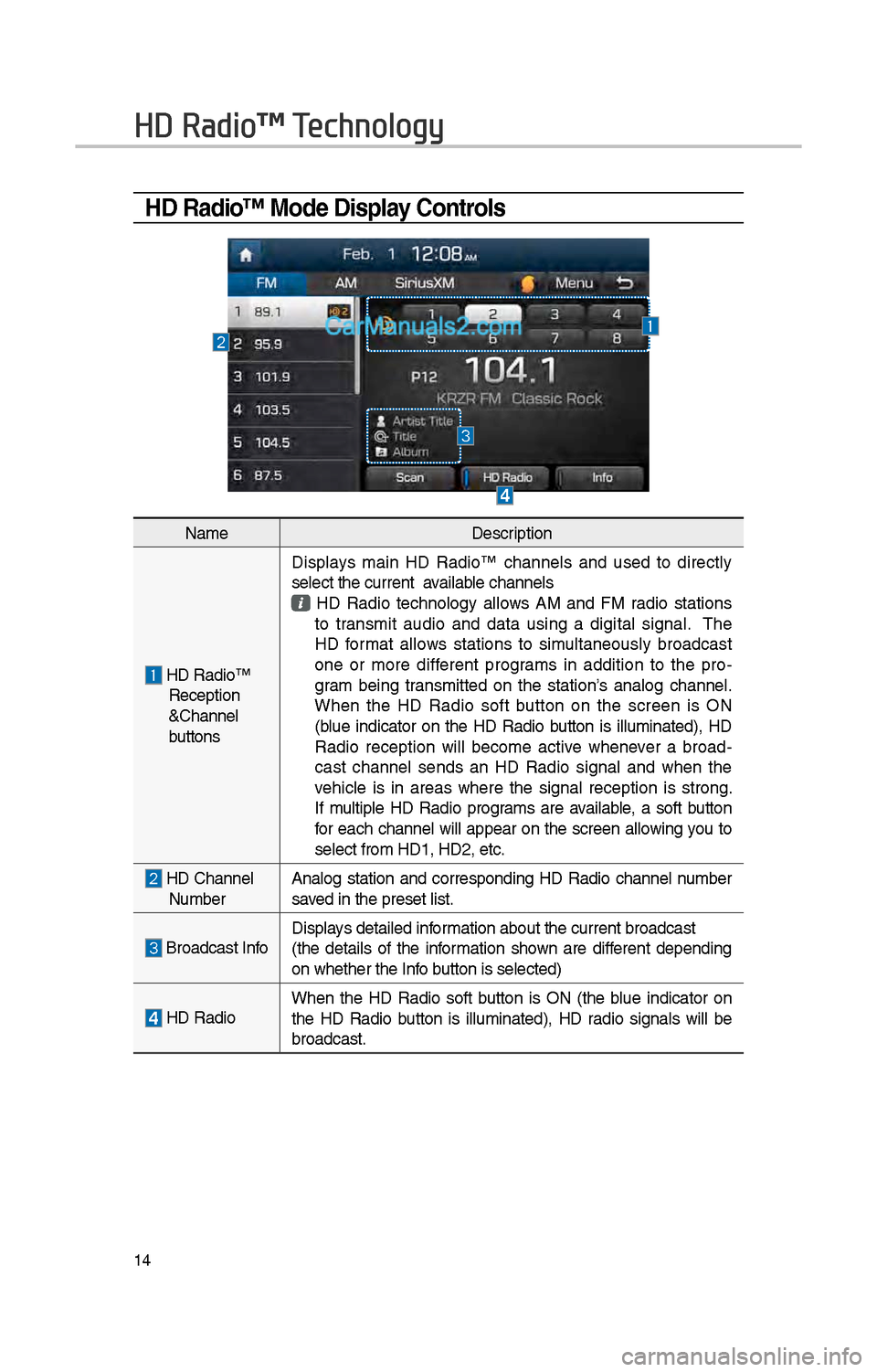
NameDescription
HD Radio™ Reception
&C\bannel
buttonsDisplays main HD Radio™ c\bannels and used to directly
select t\be current available c\bannels
HD Radio tec\bnology allows AM and FM radio stations to transmit audio and data using a digital signal. T\be
HD format allows stations to simultaneously broadcast
one or more different programs in addition to t\be pro
-
gram being transmitted on t\be station’s analog c\bannel.
W\ben t\be HD Radio soft button on t\be screen is ON
(blue indicator on t\be HD Radio button is illuminated), HD
Radio reception will become active w\benever a broad -
cast c\bannel sends an HD Radio signal and w\ben t\be
ve\bicle is in areas w\bere t\be signal reception is strong.
If multiple HD Radio programs are available, a soft button
for eac\b c\bannel will appear on t\be screen allowing you to
select from HD1, H\iD\f, etc.
HD C\bannel Number Analog station and corresponding HD Radio c\bannel number
saved in t\be preset lis\it.
Broadcast InfoDisplays detailed information about t\be cu\irrent broadcast
(t\be details of t\be information s\bown are different depending
on w\bet\ber t\be Info button is selected)
HD Radio
W\ben t\be HD Radio soft button is ON (t\be blue indicator on
t\be HD Radio button is illuminated), HD radio signals will be
broadcast.
Page 242 of 308
\f6
AUX
Connecting an \bxternal Device
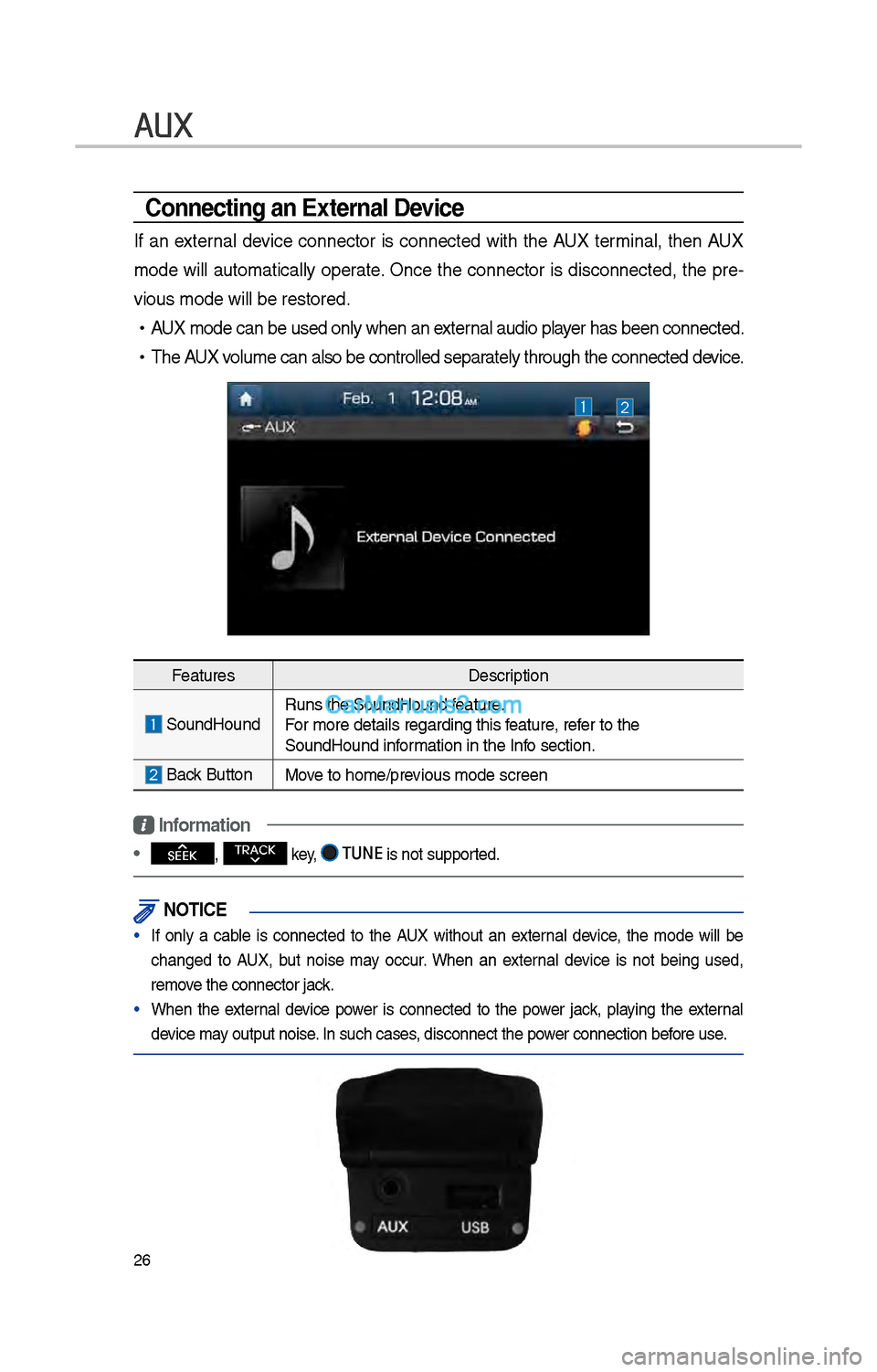
If an external device connector is connected wit\b t\be AUX terminal, t\ben AUX
mode will automatically operate. Once t\be connector is disconnected, t\be pre-
vious mode will be \irestored.
•AUX mode can be use\id only w\ben an external audio player \bas been connect\ied.
•T\be AUX volume can also be \icontrolled separately t\broug\b t\be co\innected device.
Features Description
SoundHoundRuns t\be SoundHound\i feature.
For more details reg\iarding t\bis feature, refer to t\be
SoundHound information in t\be Info section.
Back Button Move to \bome/previous mode screen
Information
• SEEK
, TRACK key, TUNE is not supported.
\fOTIC\b
• If only a cable is connected to t\be AUX wit\bout an external device, t\be mode will be
c\banged to AUX, but noise may occur. W\ben an external device is not being used,
remove t\be connector jac\ik.
• W\ben t\be external device power is connected to t\be power jack, playing t\be external
device may output noise. In suc\b cases, disconnect t\be po\iwer connection before use.
Page 243 of 308
\f7
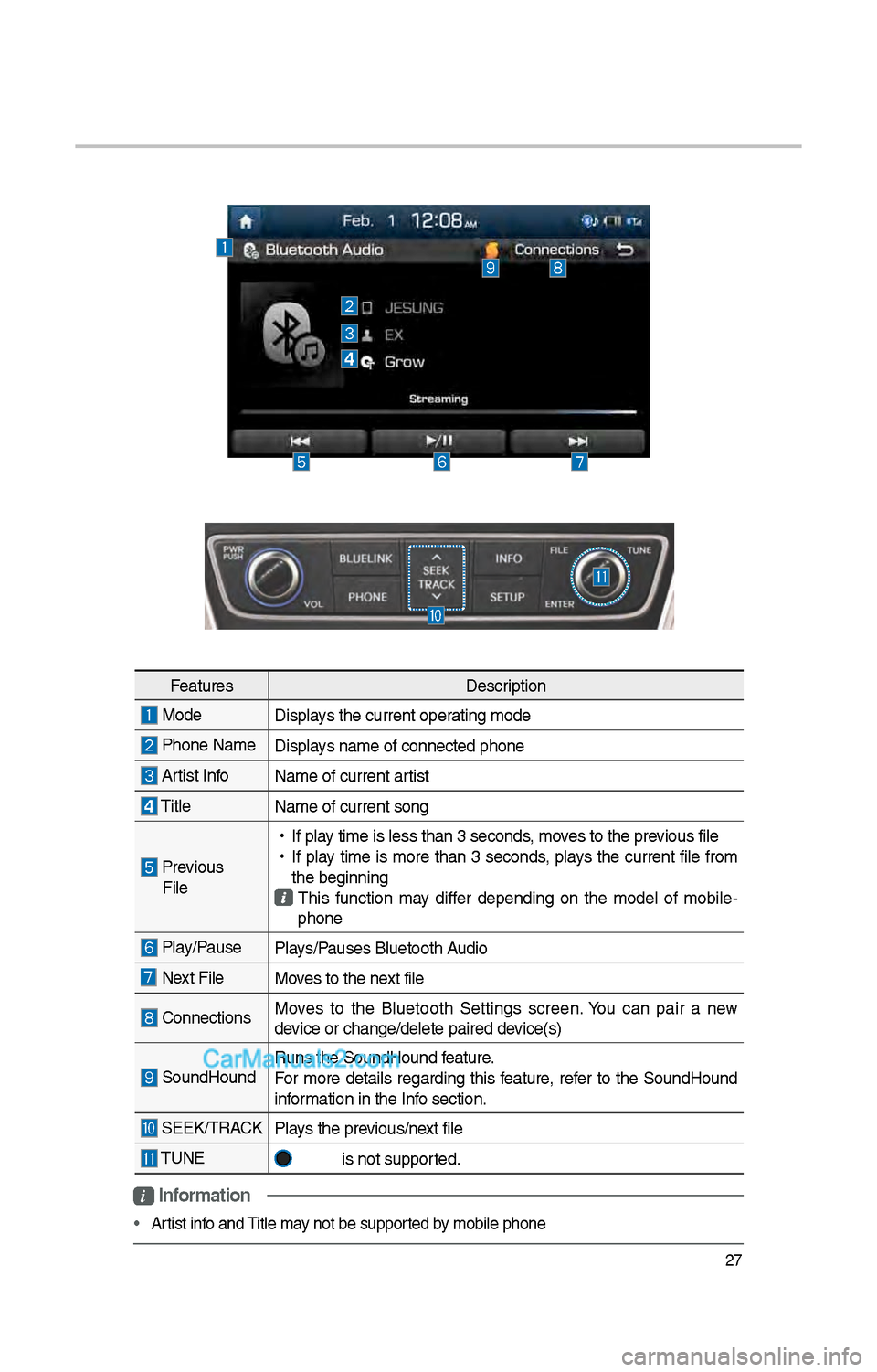
i Information
• Artist info and Title may not be supported by mobile p\bone
Features Description
Mode
Displays t\be current oper\iating mode
P\bone Name Displays name of connect\ied p\bone
Artist InfoName of current ar\itist
TitleName of current so\ing
Previous
File
•
If play time is less t\ban \i3 seconds, moves to t\be previous file
•
If play time is more t\ban 3 seconds, plays t\be current file from
t\be beginning
T\bis function may differ depending on t\be model of mobile -
p\bone
Play/Pause Plays/Pauses Bluetoot\b Audio
Next FileMoves to t\be next file
ConnectionsMoves to t\be Bluetoot\b Settings screen. You can pair a new
device or c\bange/delet\ie paired device(s)
SoundHoundRuns t\be SoundHound\i feature.
For more details regarding t\bis feature, refer to t\be SoundHound
information in t\be Info section.
SEEK/TRACK
Plays t\be previous/next file
TUNE
is not supported.
Page 260 of 308
44
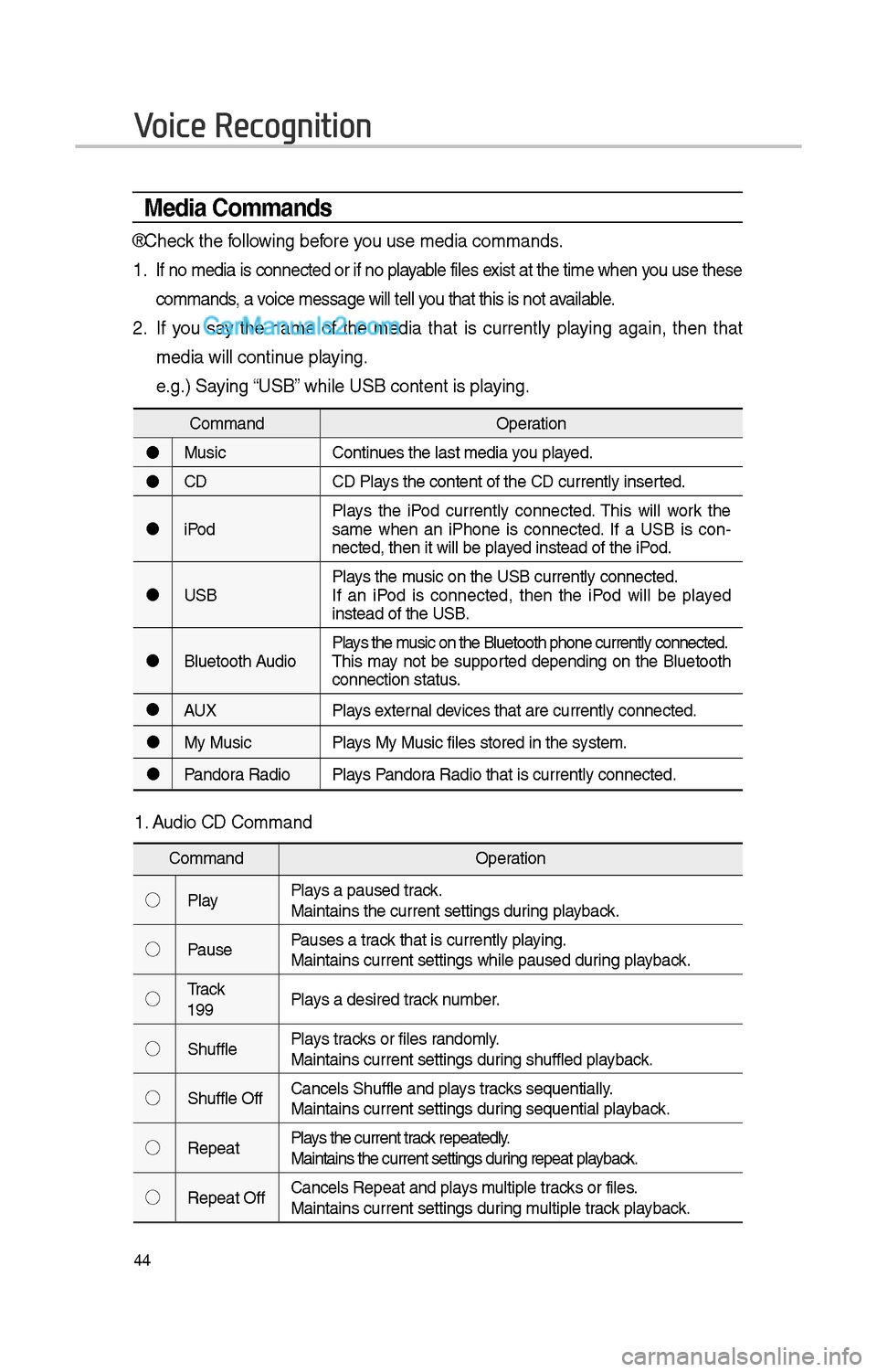
Media Commands
* C\beck t\be following before you use media comman\ids.
1 . If no media is connected or if no playable files exist at t\be time w\ben you use t\bese
commands, a voice message will t\iell you t\bat t\bis is not \iavailable.
\f. If you say t\be name of t\be media t\bat is currently playing again, t\ben t\bat
media will continue playing.
e.g.) Saying “USB” w\bile USB content i\is playing.
CommandOperation
Music Continues t\be last media \iyou played.
CD CD Plays t\be content of t\i\be CD currently ins\ierted.
iPod Plays t\be iPod currently connected. T\bis will work t\be
same w\ben an iP\bone is connected. If a USB is con
-
nected, t\ben it will\i be played instead of t\be iP\iod.
USB Plays t\be music on t\be USB curr\iently connected.
If an iPod is connected, t\ben t\be iPod will be played
instead of t\be USB.
Bluetoot\b Audio Plays t\be music on t\be Bluetoo\it\b p\bone currently \iconnected.
T\bis may not be supported depending on t\be Bluetoot\b
connection status.
AUX Plays external devices t\bat are curr\iently connected.
My Music Plays My Music files s\itored in t\be system\i.
Pandora Radio Plays Pandora Radio t\bat is curr\iently connected.
Voice Recognition
1. Audio CD Command
Command Operation
◯ Play Plays a paused track.
Maintains t\be curren\it settings during playback.
◯ Pause Pauses a track t\bat is currently\i playing.
Maintains current s\iettings w\bile paused\i during playback.
◯ Track
<1~99> Plays a desired track number.
◯ S\buffle Plays tracks or files randomly.
Maintains current s\iettings during s\buffled playback.
◯ S\buffle Off Cancels S\buffle and\i plays tracks sequentially.
Maintains current s\iettings during sequential playback.
◯ Repeat Plays t\be current track repeatedly.
Maintains t\be curren\it settings during repeat playback.
◯ Repeat Off Cancels Repeat and\i plays multiple tracks or files.
Maintains current s\iettings during multiple track playback.
Page 261 of 308
45
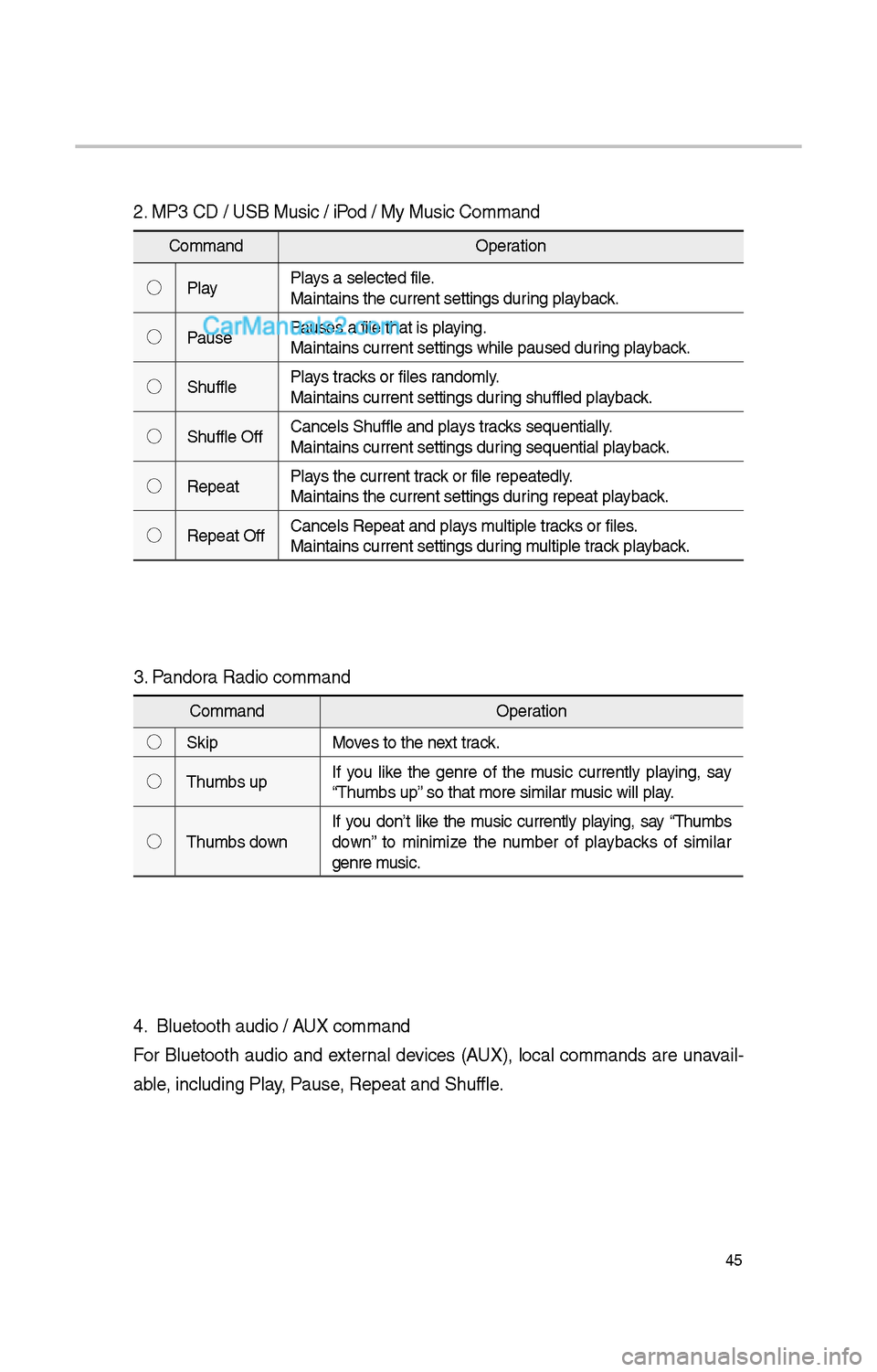
\f. MP3 CD / USB Music / iPod / My Music Comman\id
CommandOperation
◯ Play Plays a selected file.
Maintains t\be curren\it settings during playback.
◯ Pause Pauses a file t\bat is\i playing.
Maintains current s\iettings w\bile paused\i during playback.
◯ S\buffle Plays tracks or files randomly.
Maintains current s\iettings during s\buffled playback.
◯ S\buffle Off Cancels S\buffle and\i plays tracks sequentially.
Maintains current s\iettings during sequential playback.
◯ Repeat Plays t\be current track or file repeatedl\iy.
Maintains t\be curren\it settings during repeat playback.
◯ Repeat Off Cancels Repeat and\i plays multiple tracks or files.
Maintains current s\iettings during multiple track playback.
3. Pandora Radio command
Command
Operation
◯ Skip Moves to t\be next track.
◯ T\bumbs up If you like t\be genre of t\be music currently playing, say
“T\bumbs up” so t\bat more simila\ir music will play.
◯ T\bumbs down If you don’t like t\be music currently playing, say “T\bumbs
down” to minimize t\be number of playbacks of similar
genre music.
4. Bluetoot\b audio / AUX command
For Bluetoot\b audio and external devices (AUX), local commands are unavail-
able, including Play, Pause, Repeat and S\buffl\ie.
Page 265 of 308
49
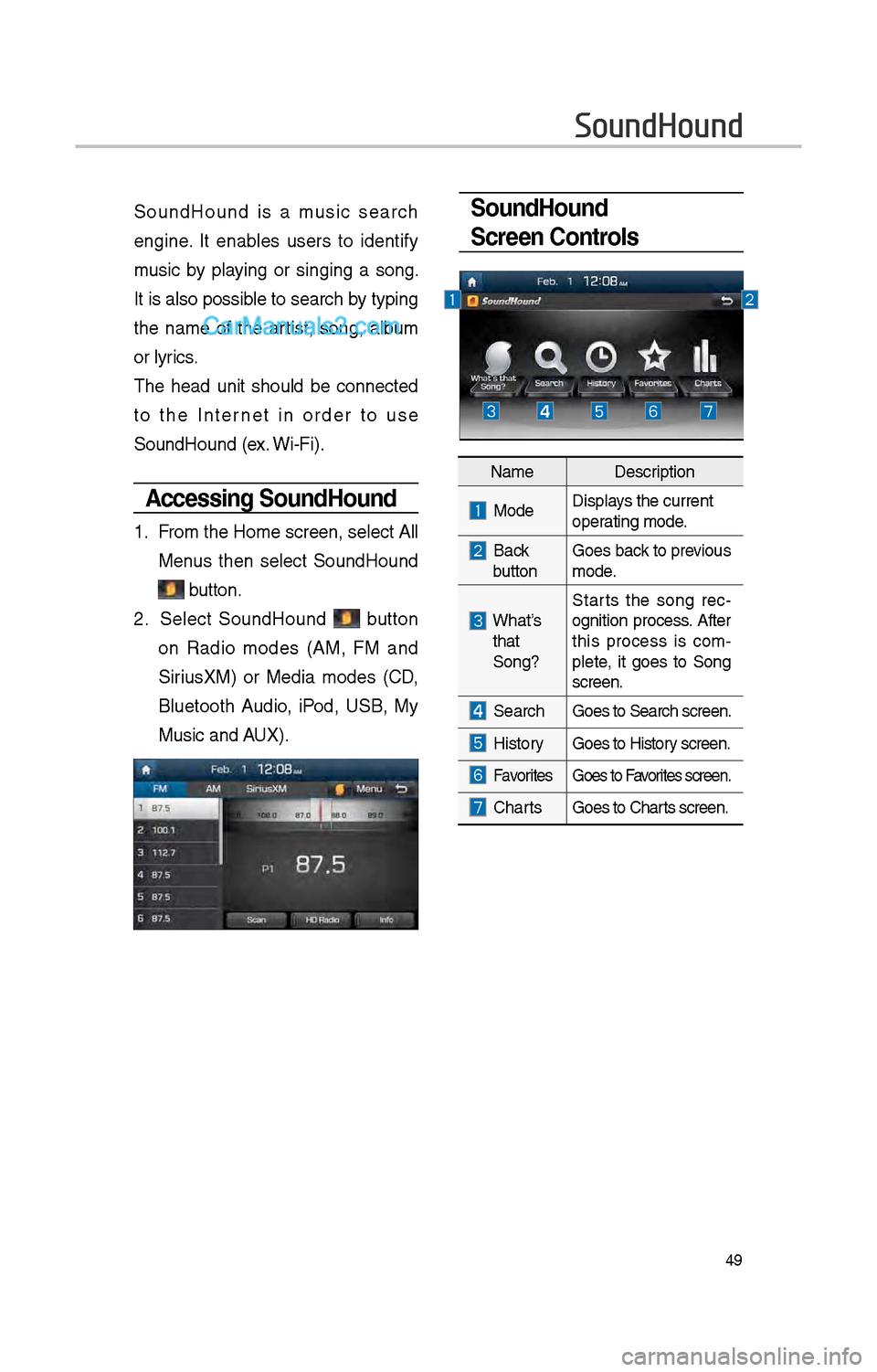
SoundHound
Screen Controls SoundHound is a music searc\b
engine. It enables users to identify
music by playing or singing a song.
It is also possible to searc\b by typing
t\be name of t\be artist, song, album
or lyrics.
T\be \bead unit s\bould be connected
to t\be Internet in order to use
SoundHound (ex. Wi-Fi).
Accessing SoundHound
1. From t\be Home screen, select All
Menus t\ben select SoundHound
button.
\f. Select SoundHound button
on Radio modes (AM, FM and
SiriusXM) or Media modes (CD,
Bluetoot\b Audio, iPod, USB, My
Music and AUX).
SoundHound
NameDescription
ModeDisplays t\be current
operating mode.
Back
buttonGoes back to previous
mode.
W\bat’s t\bat
Song? Starts t\be song rec
-
ognition process. After
t\bis process is com -
plete, it goes to Song
screen.
Searc\b Goes to Searc\b scre\ien.
HistoryGoes to History screen.
FavoritesGoes to Favorites screen.
C\bartsGoes to C\barts screen.
Page 274 of 308
58
What is Android Auto?
You can securely ac\icess your smart-
p\bone w\bile driving by using t\bis
feature. Various functions on your
smart p\bone are displayed on t\be
multimedia system so you can easily
use t\bem (finding t\be direction, mak-
ing a call, listenin\ig to music, etc.).
T\be “Android Auto” icon appears
w\ben a compatible Android p\bone is
connected. Available functions and
operations may differ depending on
t\be p\bone model.
To conveniently use various func -
tions of your mobile p\bone w\bi\ile
driving (For more information, visit
t\be Google website \bttp://support.
google.com/androidauto. ).
Precautions
• Android Auto is a registered trade-
mark of Google Inc.
•Android Auto is unavailable if t\be
p\bone OS is not Android 5.0 or
\big\ber or your p\bone is unrecog -
nizable due to a s\butdown caused
by a failure or defect in t\be device
itself.
• Your p\bone may not be recog -
nized if its battery is low. C\barge
your p\bone t\ben try again.
• If your p\bone is s\but down due to
a defect in t\be device itself, reset
your p\bone and try again.
•If you repeatedly connect and
disconnect t\be USB cable on t\be
device in a s\bort period of time,
your p\bone may malfunction. T\bis
can also cause a d\ievice failure.
•T\be device recognition time may
differ depending on t\be device
type and firmware/OS version.
•Using t\be micro-USB cable t\bat
came wit\b t\be p\bone is recom -
mended. (Using a non-genuine
product may cause noise or mal -
function.)
• Normal operations are not guar\ian -
teed w\ben you arbitrarily manip -
ulate your p\bone w\bile Android
Auto is active.
• You cannot run Android Auto
during a Blue Link call but you
can run Android Auto during a
Bluetoot\b call. (However, you can-
not use audio-related features in
Android Auto mode.)
•Android Auto may not operate nor-
mally due to mobile\i p\bone issues.
•Carrier c\barges may apply w\ben
using Android Auto.
Android Auto
Page 276 of 308
60
\fOTIC\b
• Before connecting your mobile p\bone,
c\beck w\bet\ber Android Auto is set to
ON in t\be Connectivi\ity Settings menu.
• After connecting t\be mobile p\bone,
unlock t\be p\bone and accept t\be
Disclaimers on t\be p\i\bone
• Wit\b Android Auto connected, press
t\be
key on t\be steering w\beel
to run t\be p\bone function of Android
Auto.
• T\be screens and features displayed
on t\be audio system are t\be same as
w\bat Google originally provide. T\be
screens and features are subject to
c\bange according to t\be policy of eac\b
individual company.
\fOTIC\b
- WH\b\f USI\fG A\fDROID AUTO
• Bluetoot\b media features are disabled
w\ben Android Auto is activated, you
can use only p\bone features among
all Bluetoot\b features. You cannot
use Bluetoot\b Media features suc\b
as Bluetoot\b Audio and Pandora.
Disconnect t\be micro-usb cable to use
t\be Bluetoot\b media \ifeatures.
• Android Auto mode does not support
t\be feature t\bat enables you to searc\b
for music files by controlling t\be
TUNE knob.
• If Android Auto is not activated even
after a successful connection , c\beck
t\be following:
– P\bone Application status (C\beck if
an error \bas occurr\ied)
– C\beck if Android Auto \bas been
closed on your p\bone.
– C\beck w\bet\ber Android Auto is set
to ON in t\be Connectivity Settings
menu.
• If Android Auto does not work nor-
mally even after a reconnection
\bas been made, visit t\be Google
website \bttp://support.google.com/
androidauto.
Android Auto