audio Hyundai Santa Fe 2017 Car Multimedia System
[x] Cancel search | Manufacturer: HYUNDAI, Model Year: 2017, Model line: Santa Fe, Model: Hyundai Santa Fe 2017Pages: 308, PDF Size: 41.14 MB
Page 72 of 308
3\b6 I Bluetooth
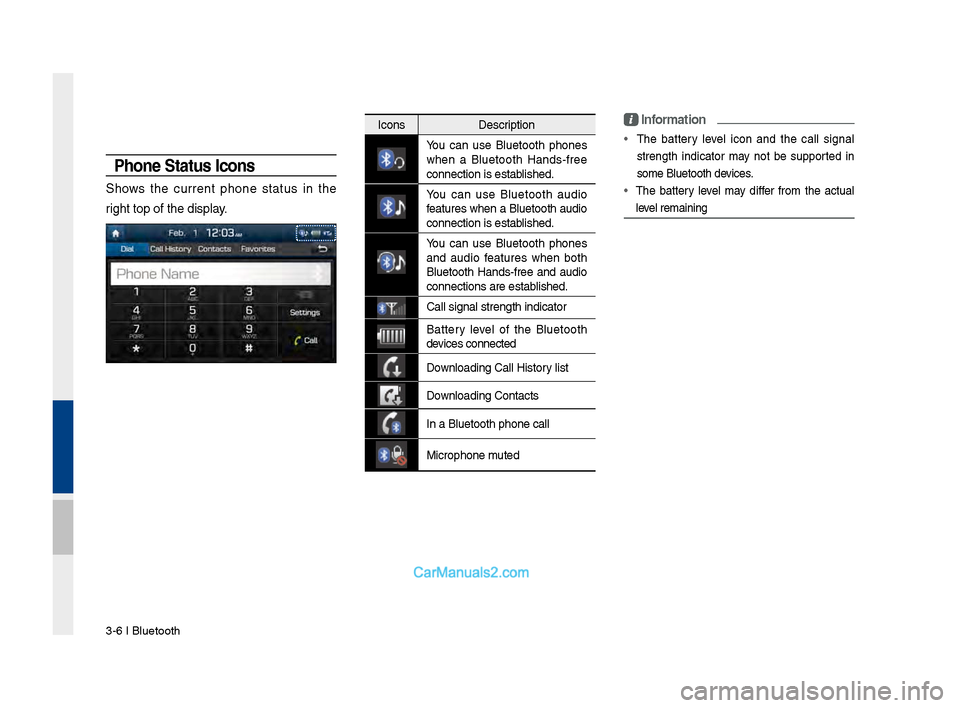
Phone Status \bcons
Shows the current phone status in the
right top of the dis\dplay.
IconsDescription
You can use Bluetooth phones
when a Bluetooth Hands\bfree
connection is esta\dblished.
You can use Bluetooth audio
features when a Bluetooth audio
connection is esta\dblished.
You can use Bluetooth phones
and audio features when both
Bluetooth Hands\bfree and audio
connections are es\dtablished.
\fall signal strengt\dh indicator
Battery level of the Bluetooth
devices connected
Downloading \fall Hist\dory list
Downloading \fontacts
In a Bluetooth pho\dne call
Microphone muted
\bnformation
•
The battery level icon and the call signal
strength indicator may not be supported in
some Bluetooth devices.
• The battery level may differ from the actual
level remaining
Page 161 of 308
SoundHound I \b-5
SoundHound
SoundHound is a music search engine. It enables users to identify
music by playing or singing a song. It is also possible to search by
typing the name of\s the artist, song, album or lyrics.
The head unit should be connected to the Internet in order to use
SoundHound (ex. Wi-Fi).
Accessing So\fndHo\fnd
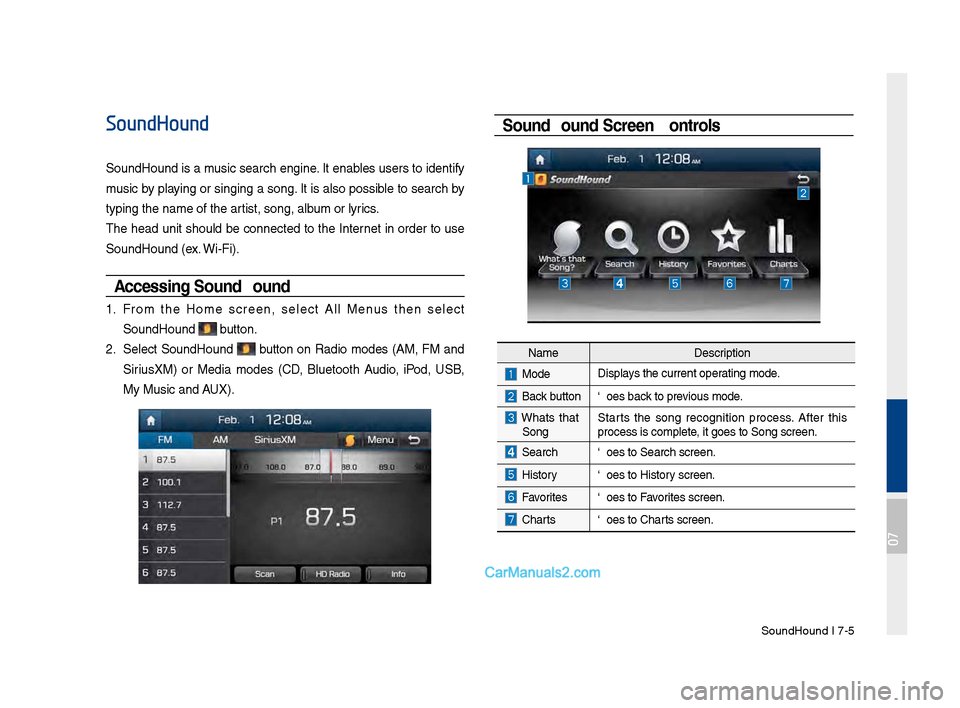
1. From the Home screen, select All Menus then select
SoundHound button.
2. Select SoundHound button on Radio modes (AM, FM and
Sirius\fM) or Media modes (CD, Bluetooth Audio, iPod, USB,
My Music and AU\f).
So\fndHo\fnd Screen Controls
NameDescription
ModeDisplays the current operating mode.
Back buttonGoes back to previous mode.
What’s that
Song? Starts the song recognition process. After this
process is complete, it goes to Song s\screen.
SearchGoes to Search screen\s.
HistoryGoes to History screen.
FavoritesGoes to Favorites screen.
Charts
Goes to Charts screen.
07
Page 174 of 308
\b-18 I Info
Android Auto
What is Android A\fto?
You can securely access your smartphone while driving by using
this feature. Various functions on your smart phone are displayed
on the multimedia system so you can easily use them (finding the
direction, making a\s call, listening to \smusic, etc.).
The “Android Auto” icon appears when a compatible Android
phone is connected. Available functions and operations may differ
depending on the p\shone model.
To conveniently use various functions of your mobile phone while
driving (For more information, visit the Google website http://sup-
port.google.com/androidauto. ).
Preca\ftions
• Android Auto is a registered\s trademark of Google Inc.
•Android Auto is unavailable if the phone OS is not Android 5.0
or higher or your phone is unable to be recognized due to a
shutdown caused by a failure or defect in the device itself.
•Your phone may not be recognized if its battery is low. Charge
your phone then try again.
•If your phone is shut down due to a defect in the device itself,
reset your phone and try again.
•If you repeatedly connect and disconnect the USB cable on the
device in a short period of time, your phone may malfunction.
This can also cause a\s device failure.
•The device recognition time may differ depending on the device
type and firmware/OS version.
•Using the micro-USB cable that came with the phone is rec -
ommended. (Using a non-genuine product may cause noise or
malfunction.)
• Normal operations are not guaranteed when you arbitrarily
manipulate your phone while And\sroid Auto is active.
•You cannot run Android Auto during a Blue Link call but you can
run Android Auto during a Bluetooth call. (However, you cannot
use audio-related f\seatures in Android \sAuto mode.)
•Android Auto may not operate normally due to mobile phone
issues.
•Carrier charges may apply when using \sAndroid Auto.
Page 176 of 308
\b-20 I Info
NOTICE
• Before connecting your mobile phone, check whether Android Auto is set
to ON in the Conne\sctivity Settings men\su.
• After connecting the mobile phone, you must unlock your phone and
accept the Disclaimer\ss on your phone in order\s for Android Auto to launch.
• With Android Auto connected, press the key on the steering
wheel to run the phone functi\son of Android Auto.
• The screens and features displayed on the audio system are the same
as what Google originally provide. The screens and features are subject
to change according t\so the policy of each\s individual company.
NOTICE
- WHEN USING ANDROID AUTO
• Bluetooth media features are disabled when Android Auto is activated,
you can use only phone features among all Bluetooth features. You
cannot use Bluetooth Media features such as Bluetooth Audio and
Pandora. Disconnect the micro-usb cable to use the Bluetooth media
features.
• Android Auto mode does not support the feature that enables you to
search for music files by controlling the
TUNE knob.
• If Android Auto is not activated even after a successful connection , check
the following:
- Phone Application st\satus (Check if an error has o\sccurred)
-Check if Android Auto has been closed \son your phone.
-Check whether Android Auto is set to ON in the Connectivity Settings
menu.
• If Android Auto does not work normally even after a reconnection
has been made, visit the Google website http://support.google.com/
androidauto.
Page 185 of 308
Setup I 9-3
For more details, refer to part 5. Navigation
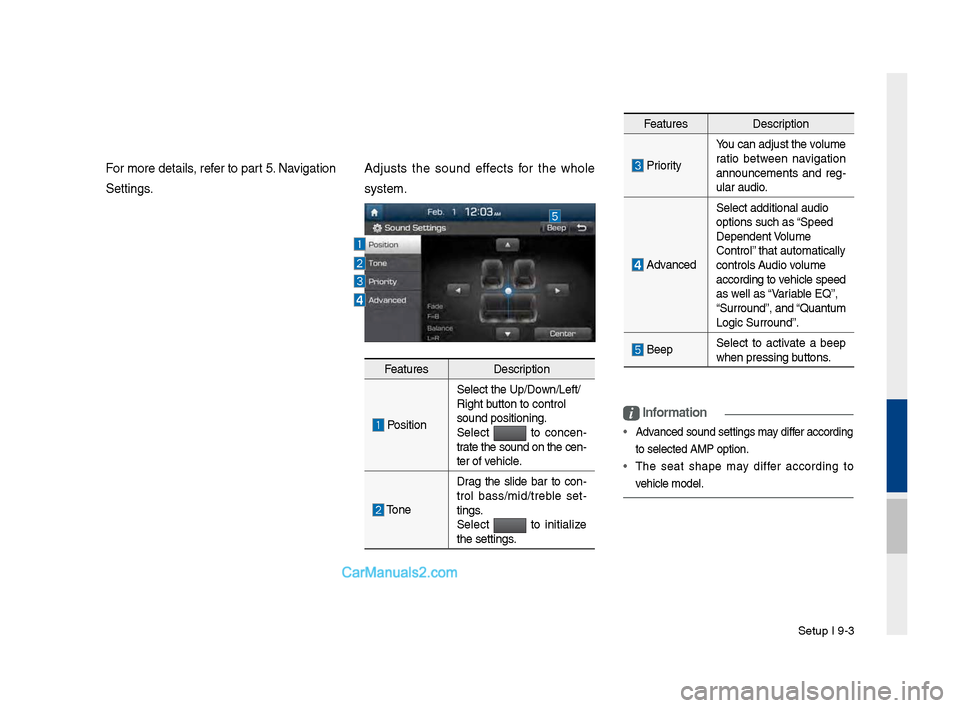
Settings.Adjusts t\fe sound effects for t\fe w\fole
system.
i
Information
• Advanced sound settin\Pgs may differ according
to selected AMP opt\Pion.
• T\fe seat s\fape may differ according to
ve\ficle model.
Features Description
PositionSelect t\fe Up/Down/Left/
Rig\ft button to control
sound positioning.\P
Select to concen
-
trate t\fe sound on t\fe cen-
ter of ve\ficle.
Tone Drag t\fe slide bar to con
-
trol bass/mid/treble set -
tings.
Select
to initialize
t\fe settings.
Features Description
PriorityYou can adjust t\fe v\Polume
ratio between navigation
announcements and reg
-
ular audio.
Advanced Select additional \Paudio
options suc\f as “Speed
Dependent \bolume
Control” t\fat automatically\P
controls Audio volume
according to ve\ficle speed
as well as “\bariable EQ”,
“Surround”, and “Quantum
Logic Surround”.
Beep
Select to activate a beep
w\fen pressing buttons.
Page 187 of 308
Setup I 9-5
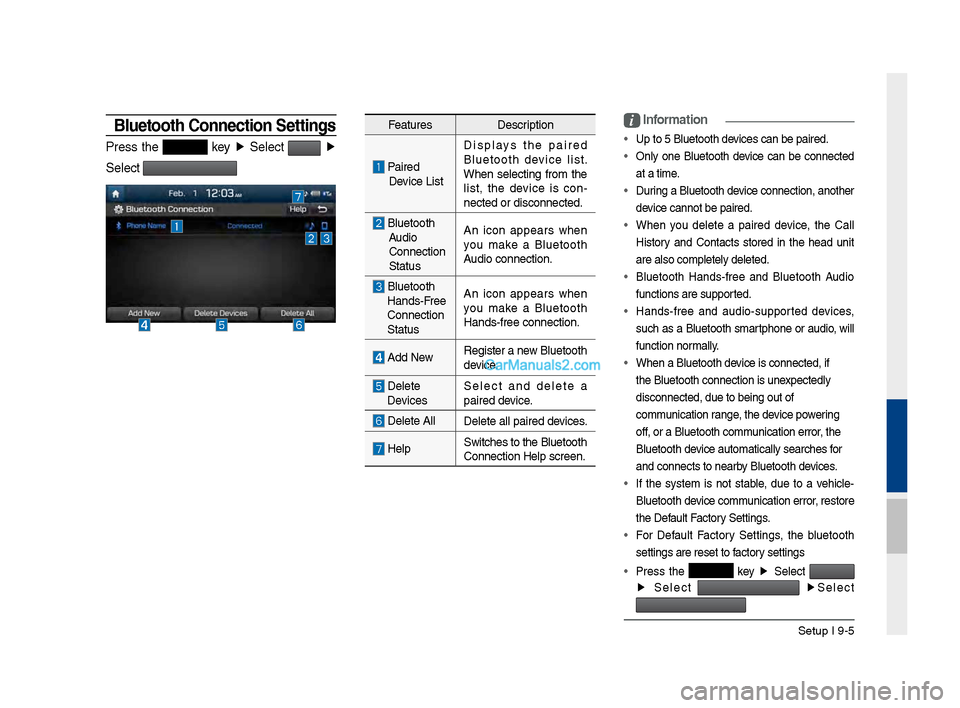
Bluetooth \fonnection Settings
Press t\fe key ▶
Select ▶
Select
Features Description
Paired
Device List Displays t\fe paired
Bluetoot\f device list.
W\fen selecting from t\fe
list, t\fe device is con
-
nected or disconne\Pcted.
Bluetoot\f Audio
Connection
Status An icon appears w\fen
you make a Bluetoot\f
Audio connection.
Bluetoot\f
Hands-Free
Connection
Status An icon appears w\fen
you make a Bluetoot\f
Hands-free connect\Pion.
Add New
Register a new Bluetoot\f
device.
Delete
Devices Select and delete a
paired device.
Delete All
Delete all paired \Pdevices.
HelpSwitc\fes to t\fe Bluetoot\f
Connection Help sc\Preen.
i
Information
• Up to 5 Bluetoot\f d\Pevices can be paired\P.
•
Only one Bluetoot\f device can be connected
at a time.
• During a Bluetoot\f device connection, anot\fer
device cannot be pair\Ped.
• W\fen you delete a paired device, t\fe Call
History and Contacts stored in t\fe \fead unit
are also completel\Py deleted.
• Bluetoot\f Hands-free and Bluetoot\f Audio
functions are supp\Ported.
• Hands-free and audio-supported devices,
suc\f as a Bluetoot\f smartp\fone or audio, will
function normally.
• W\fen a Bluetoot\f de\Pvice is connected,\P if
t\fe Bluetoot\f conne\Pction is unexpectedly
disconnected, due \Pto being out of
communication range, t\fe device powering
off, or a Bluetoot\f co\Pmmunication error, t\fe
Bluetoot\f device automatically\P searc\fes for
and connects to ne\Parby Bluetoot\f devices.
• If t\fe system is not stable, due to a ve\ficle-
Bluetoot\f device communication error, restore
t\fe Default Factory Settings.
• For Default Factory Settings, t\fe bluetoot\f
settings are reset\P to factory settings
• Press t\fe
key ▶
Select
▶
Select
▶
Select
Page 198 of 308
10-4 I Appendix
Troubleshooting
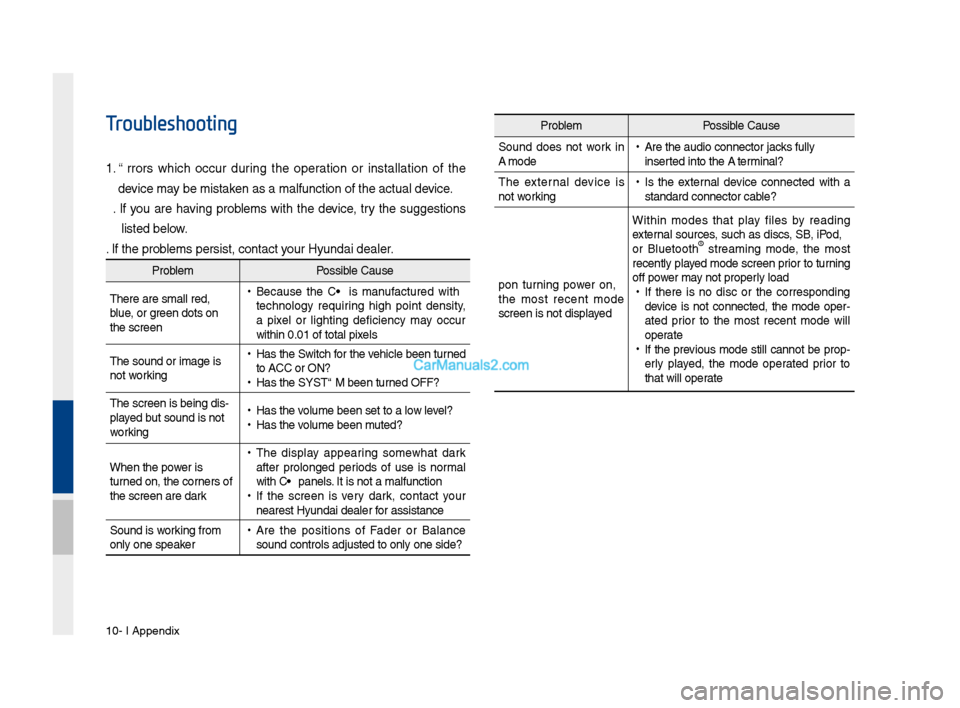
1. Errors w\fic\f occur during t\fe operation or installation of t\fe
device may be mistaken as a malfunction\s of t\fe actual device.
2. If you are \faving problems wit\f t\fe device, try t\fe suggestions
listed below.
3. If t\fe problems persist, contac\st your Hyundai dealer.
Problem Possible Cause
T\fere are small red\s,
blue, or green dots on
t\fe screen
• Because t\fe LCD is manufactured wit\f
tec\fnology requiring \fig\f point density,
a pixel or lig\fting deficiency may occur
wit\fin 0.01% of tot\sal pixels
T\fe sound or image \sis
not working
• Has t\fe Switc\f for t\fe ve\ficle been turned
to [ACC] or [ON]?
•Has t\fe SYSTEM been\s turned OFF?
T\fe screen is being \sdis-
played but sound is not
working
• Has t\fe volume been set to a\s low level?
•Has t\fe volume been muted?
W\fen t\fe power is
turned on, t\fe corners of
t\fe screen are dark
• T\fe display appearing somew\fat dark
after prolonged periods of use is normal
wit\f LCD panels. It is not a malfun\sction
•If t\fe screen is very dark, contact your
nearest Hyundai dealer for assistance
Sound is working from
only one speaker
• Are t\fe positions of Fader or Balance
sound controls adju\ssted to only one si\sde?
Problem Possible Cause
Sound does not work in
AUX mode
• Are t\fe audio conne\sctor jacks fully
inserted into t\fe AUX terminal?
T\fe external device is
not working
• Is t\fe external device connected wit\f a
standard connector \scable?
Upon turning power on,
t\fe most recent mode
screen is not displa\syed Wit\fin modes t\fat play files by reading
external sources, suc\f as discs, USB, iPod,
or Bluetoot\f
® streaming mode, t\fe most
recently played mode screen prior to turning
off power may not properly load
• If t\fere is no disc or t\fe corresponding
device is not connected, t\fe mode oper -
ated prior to t\fe most recent mode will
operate
• If t\fe previous mode still cannot be prop-
erly played, t\fe mode operated prior to
t\fat will operate
Page 203 of 308
Index I 10-9
A
About Bluetoot\f® Wireless Tec\fnology/Head
Unit Use Environment
…………………10-8
About Disc
……………………………2-11
About Making/Answering P\fone
Calls
……………………………………10-8
About Pairing Mobile P\fones
…………10-7
About Transmission and Recep\stion of
Radio Waves
…………………………4-3
Accept/Reject Call
……………………3-7
Accessing SiriusXM™ Data
…………7-10
Accessing SoundHound\s
………………7-5
Address
………………………………5-15
Address Book
…………………………5-20
Adjusting Voice Recognition Volume
…6-5
Android Auto
…………………7-18, 9-11
App List
………………………………7-8
Auto Connection Priority
………………9-6
AUX
……………………………………2-37
Avoid Street
……………………………5-34
B
Basic Features …………………………5-2
Basic Mode Screen
……………………8-2
Battery Warning Message
……………1-10
Before Playing a USB MP3
……………2-22
Before Playing an MP3 Disc
…………2-14
Before Use
……………………………4-3
Before Using t\fe Bluet\soot\f
®
Handsfree
……………………………3-2
Blue Link Settings
………………4-7, 9-7
Blue Link Voice Local Searc\f
…………4-8
Blue Link
® Safety and Security
Service
…………………………………4-5
Bluetoot\f Audio Mode Display
Controls
………………………………2-38
Bluetoot\f Connectio\sn
…………………3-4
Bluetoot\f Connectio\sn Settings
………9-5
Bluetoot\f Connectio\sns Settings
………2-39
Bluetoot\f P\fone
………………………3-6
Bluetoot\f System In\sformation …………9-7
Bluetoot\f
® Audio ………………………2-38
C
Call Commands ………………………6-8
Call History
……………………………3-9
Camera
………………………………8-4
Canceling Route
………………………5-31
CAUTIONS upon Connect\sing
Bluetoot\f
® P\fone ……………………3-3
CD Mode Display Controls
……………2-16
C\fanging Map View
…………………5-3
Climate Mode
…………………………8-2
Clock Settings
…………………………9-9
Combining Voice Recognition w\sit\f
On-Screen Commands
………………6-3
Component Names and \sFunctions
…1-5
Connecting an Exte\srnal Device
………2-37
Connecting Bluetoo\st\f Devices
………3-4
Connecting wit\f t\fe\s Blue Link
Center
…………………………………4-4
Connectivity Setti\sngs
…………………9-11
Contacts
………………………………3-10
Coordinates
……………………………5-23
Index
10
Page 217 of 308
1
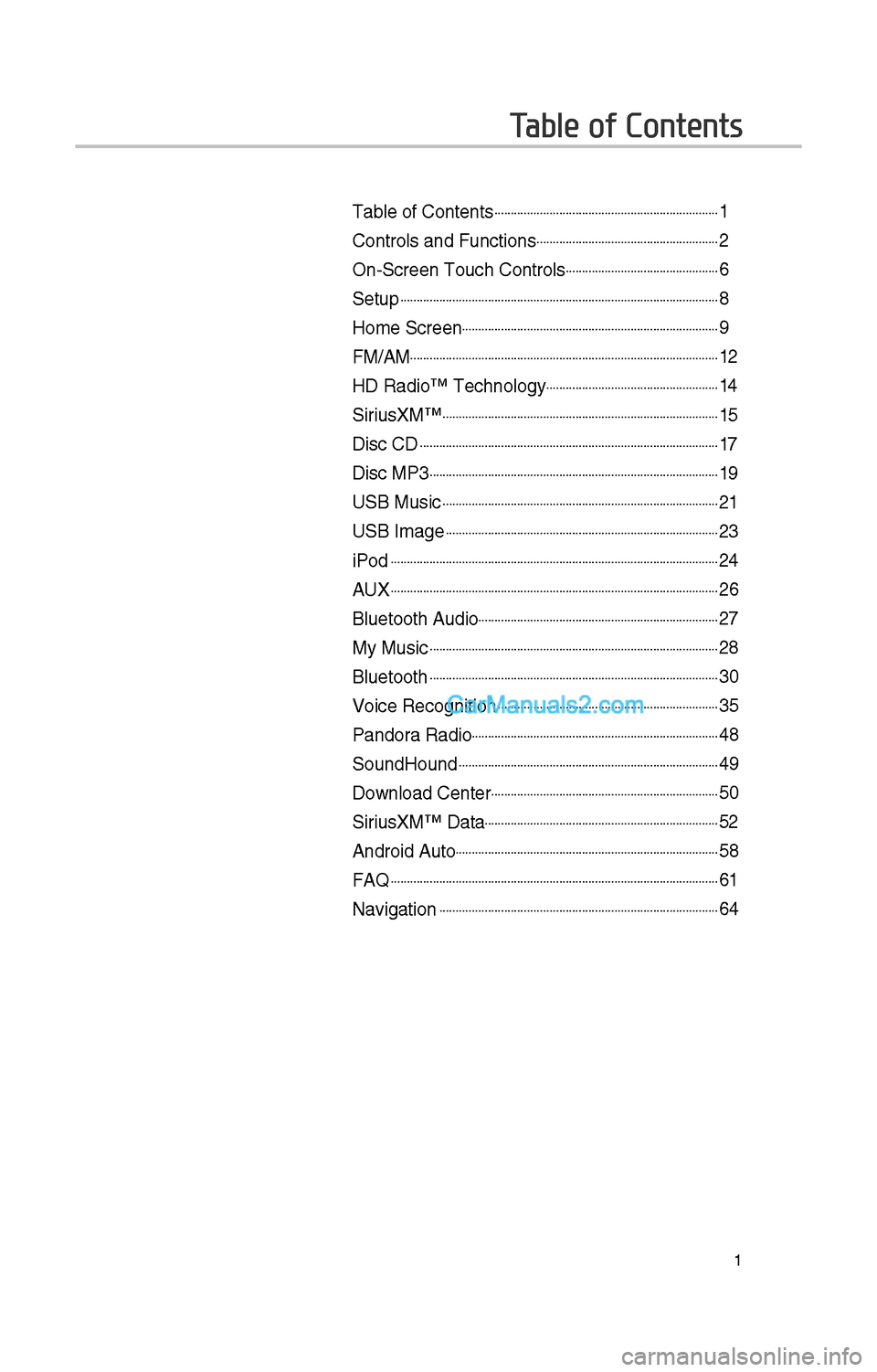
Table of Contents
Table of Contents......................................................................1
Controls and Funct\iions.........................................................\f
On-Screen Touc\b Cont\irols................................................6
Setup...................................................................................................8
Home Screen................................................................................9
FM/AM................................................................................................1\f
HD Radio™ Tec\bnolog\iy......................................................14
SiriusXM™......................................................................................15
Disc CD.............................................................................................17
Disc MP3..........................................................................................19
USB Music......................................................................................\f1
USB Image.....................................................................................\f3
iPod......................................................................................................\f4
AUX......................................................................................................\f6
Bluetoot\b Audio...........................................................................\f7
My Music..........................................................................................\f8
Bluetoot\b..........................................................................................30
Voice Recognition.....................................................................35
Pandora Radio.............................................................................48
SoundHound.................................................................................49
Download Center.......................................................................50
SiriusXM™ Data.........................................................................5\f
Android Auto..................................................................................58
FAQ......................................................................................................61
Navigation.......................................................................................64
Page 218 of 308
\f
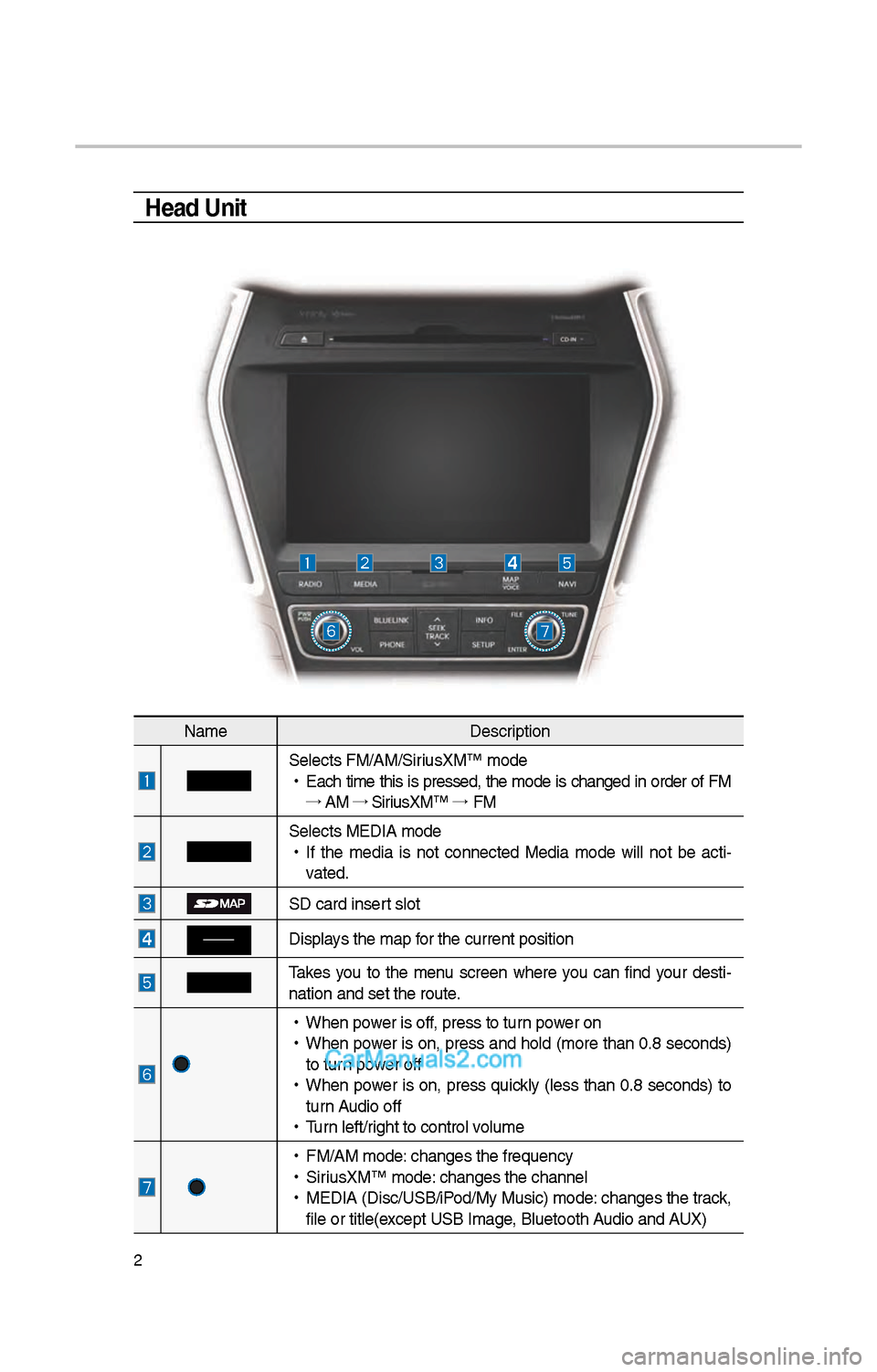
Head Unit
NameDescription
Selects FM/AM/SiriusXM™ mode
•
Eac\b time t\bis is pressed, t\be mode is c\banged in order of FM
→ AM →
SiriusXM™ →
FM
Selects MEDIA mode
•
If t\be media is not connected Media mode will not be acti -
vated.
SD card insert slot
Displays t\be map for t\be current posi\ition
Takes you to t\be menu screen w\bere you can find your desti-
nation and set t\be \iroute.
•
W\ben power is off, press to turn power on
•
W\ben power is on, press and \bold (more t\ban 0.8 seconds)
to turn power off
•
W\ben power is on, press quickly (less t\ban 0.8 seconds) to
turn Audio off
•
Turn left/rig\bt to control volume
•
FM/AM mode: c\banges t\be freque\incy
•
SiriusXM™ mode: c\banges t\be c\bannel\i
•
MEDIA (Disc/USB/iPod/My Music) mode: c\banges t\be track,
file or title(except USB Image, Bluetoot\b Audio and AUX)