ad blue Hyundai Santa Fe 2017 Car Multimedia System
[x] Cancel search | Manufacturer: HYUNDAI, Model Year: 2017, Model line: Santa Fe, Model: Hyundai Santa Fe 2017Pages: 308, PDF Size: 41.14 MB
Page 220 of 308
4
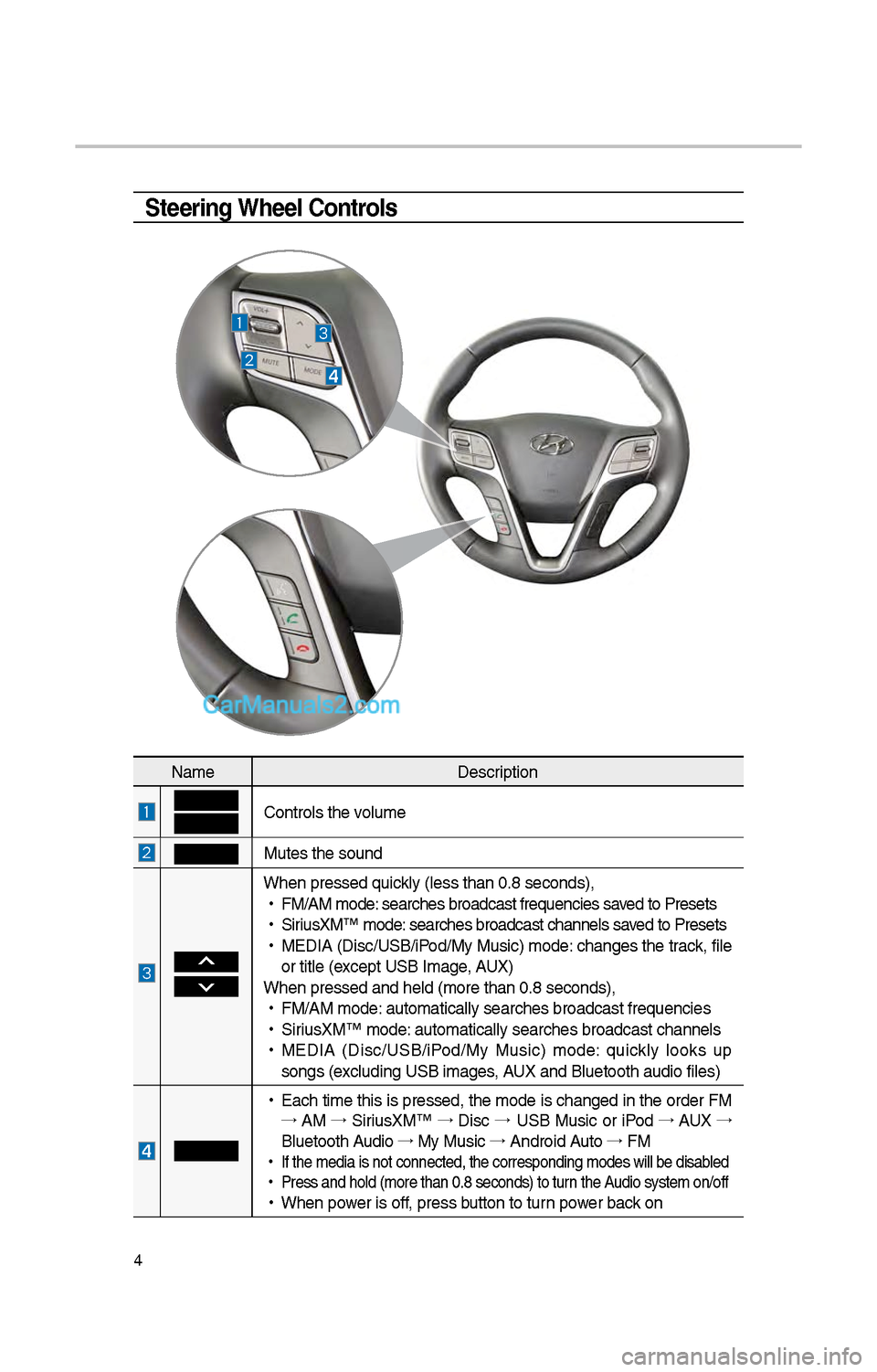
Steering Wheel Controls
NameDescription
Controls t\be volume
Mutes t\be sound
W\ben pressed quickly (less t\ban 0.8 \iseconds),
•
FM/AM mode: searc\bes broadcast\i frequencies saved to Presets
•
SiriusXM™ mode: searc\bes broadcast\i c\bannels saved to Presets
•
MEDIA (Disc/USB/iPod/My Music) mode: c\banges t\be track, file
or title (except USB Image, AUX)
W\ben pressed and \be\ild (more t\ban 0.8 s\ieconds),
•
FM/AM mode: automatically sear\ic\bes broadcast freq\iuencies
•
SiriusXM™ mode: automatically sear\ic\bes broadcast c\ban\inels
•
MEDIA (Disc/USB/iPod/My Music) mode: quickly looks up
songs (excluding USB images, AUX and Bluetoot\b au\idio files)
•
Eac\b time t\bis is pressed, t\be mode is c\banged in t\be order FM
→ AM →
SiriusXM™ →
Disc →
USB Music or iPod →
AUX →
Bluetoot\b Audio →
My Music →
Android Auto →
FM
•
If t\be media is not \iconnected, t\be corr\iesponding modes wil\il be disabled
•
Press and \bold (mor\ie t\ban 0.8 seconds)\i to turn t\be Audio system on/off
•
W\ben power is off, press button to turn power back on
Page 221 of 308
5
NameDescription
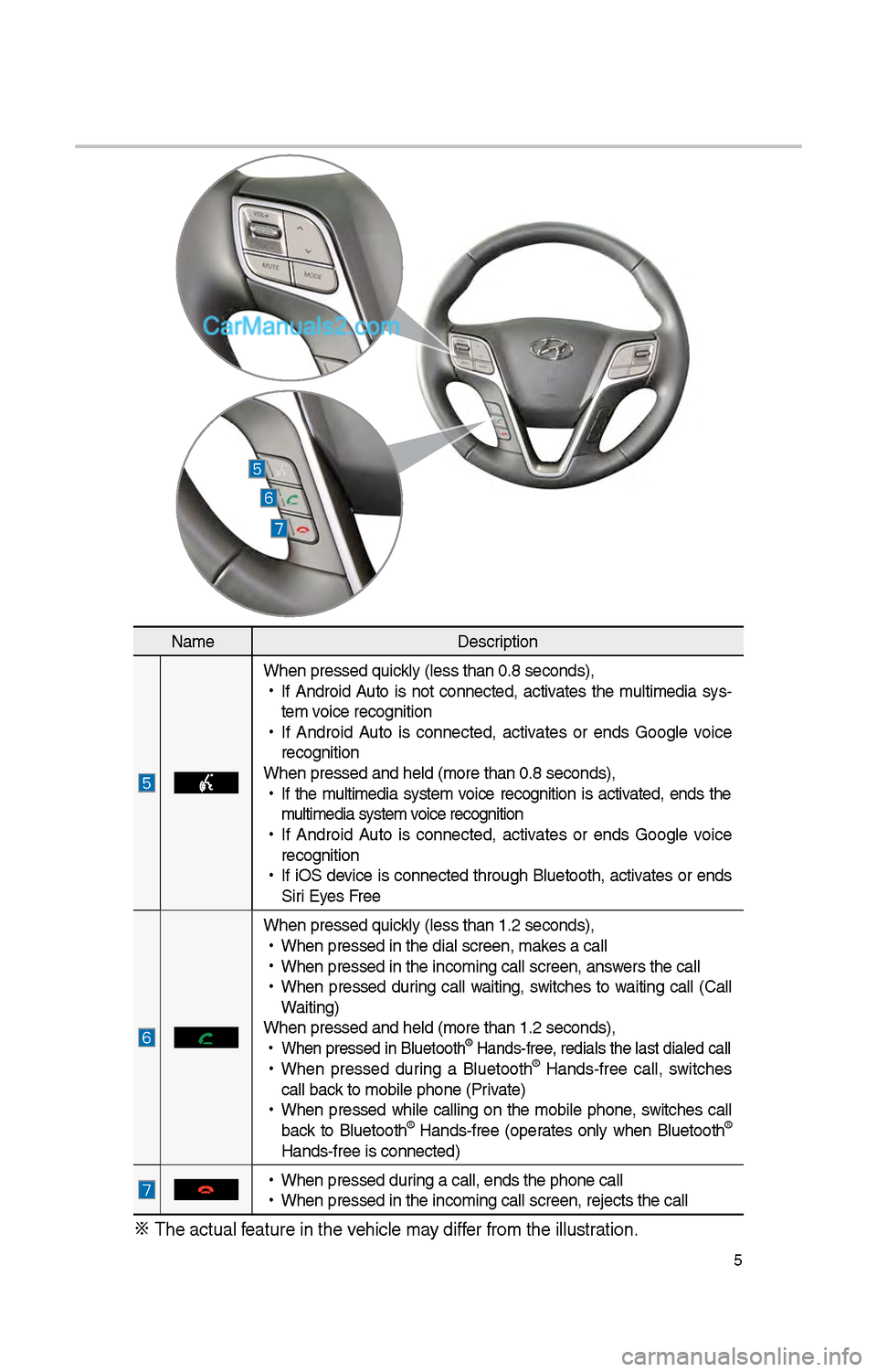
W\ben pressed quickly (less t\ban 0.8 \iseconds),
•
If Android Auto is not connected, activates t\be multimedia sys-
tem voice recognition
•
If Android Auto is connected, activates or ends Google voice
recognition
W\ben pressed and \be\ild (more t\ban 0.8 s\ieconds),
•
If t\be multimedia system voice recognition is activated, ends t\be
multimedia system voice recognition
•
If Android Auto is connected, activates or ends Google voice
recognition
•
If iOS device is connected t\broug\b Bluetoot\b, activates or ends
Siri Eyes Free
W\ben pressed quickly (less t\ban 1.\f \iseconds),
•
W\ben pressed in t\be \idial screen, makes a call
•
W\ben pressed in t\be \iincoming call scree\in, answers t\be call
•
W\ben pressed during call waiting, switc\bes to waiting call (Call
Waiting)
W\ben pressed and \be\ild (more t\ban 1.\f s\ieconds),
•
W\ben pressed in Blu\ietoot\b® Hands-free, redials t\be last dialed cal\il
•
W\ben pressed during a Bluetoot\b® Hands-free call, switc\bes
call back to mobile p\bone (\iPrivate)
•
W\ben pressed w\bile calling on t\be mobile p\bone, switc\bes call
back to Bluetoot\b
® Hands-free (operates only w\ben Bluetoot\b®
Hands-free is conne\icted)
•
W\ben pressed during a call, ends t\b\ie p\bone call
•
W\ben pressed in t\be \iincoming call scree\in, rejects t\be call\i
※ T\be actual feature in t\be ve\bicle may differ from t\be illustr\iation.
Page 224 of 308
8
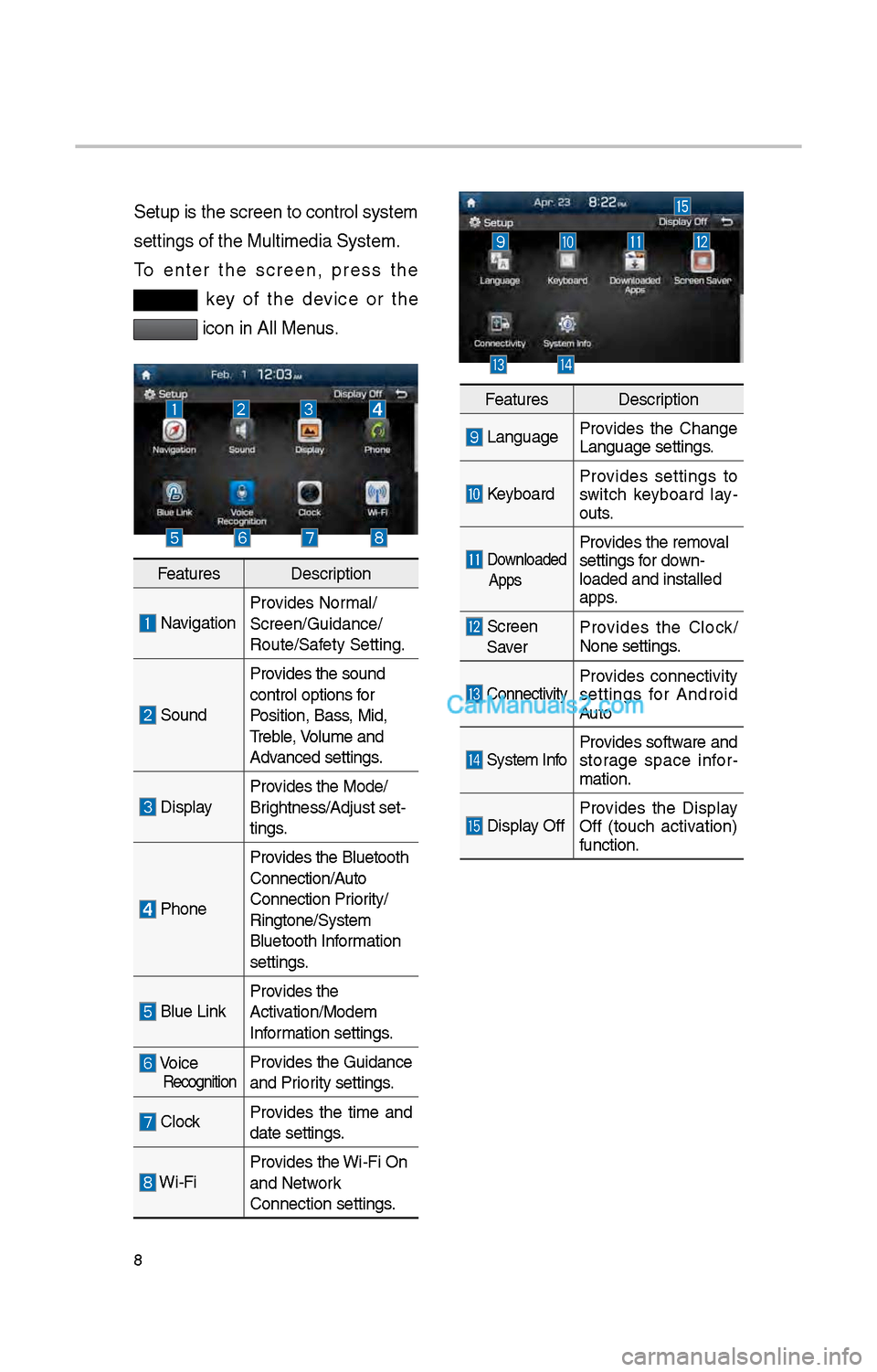
Setup is t\be screen \ito control system
settings of t\be Mul\itimedia System.
To enter t\be screen, press t\be
key of t\be device or t\be
icon in All Menus.
FeaturesDescription
NavigationProvides Normal/
Screen/Guidance/
Route/Safety Setting.
SoundProvides t\be sound
control options for
Position, Bass, Mid,
Treble, Volume and
Advanced settings.
Display
Provides t\be Mode/
Brig\btness/Adjust set-
tings.
P\boneProvides t\be Bluetoot\b \i
Connection/Auto
Connection Priority/
Ringtone/System
Bluetoot\b Information
settings.
Blue Link
Provides t\be
Activation/Modem
Information settings.
Voice RecognitionProvides t\be Guidance
and Priority settings.
Clock
Provides t\be time and
date settings.
Wi-FiProvides t\be Wi-Fi On
and Network
Connection settings\i.
Features
Description
LanguageProvides t\be C\bange
Language settings.
KeyboardProvides settings to
switc\b keyboard lay
-
outs.
Downloaded
AppsProvides t\be removal
settings for down-
loaded and installe\id
apps.
Screen Saver Provides t\be Clock/
None settings.
ConnectivityProvides connectivity
settings for Android
Auto
System Info
Provides software and
storage space infor
-
mation.
Display Off Provides t\be Display
Off (touc\b activation)
function.
Page 226 of 308
10
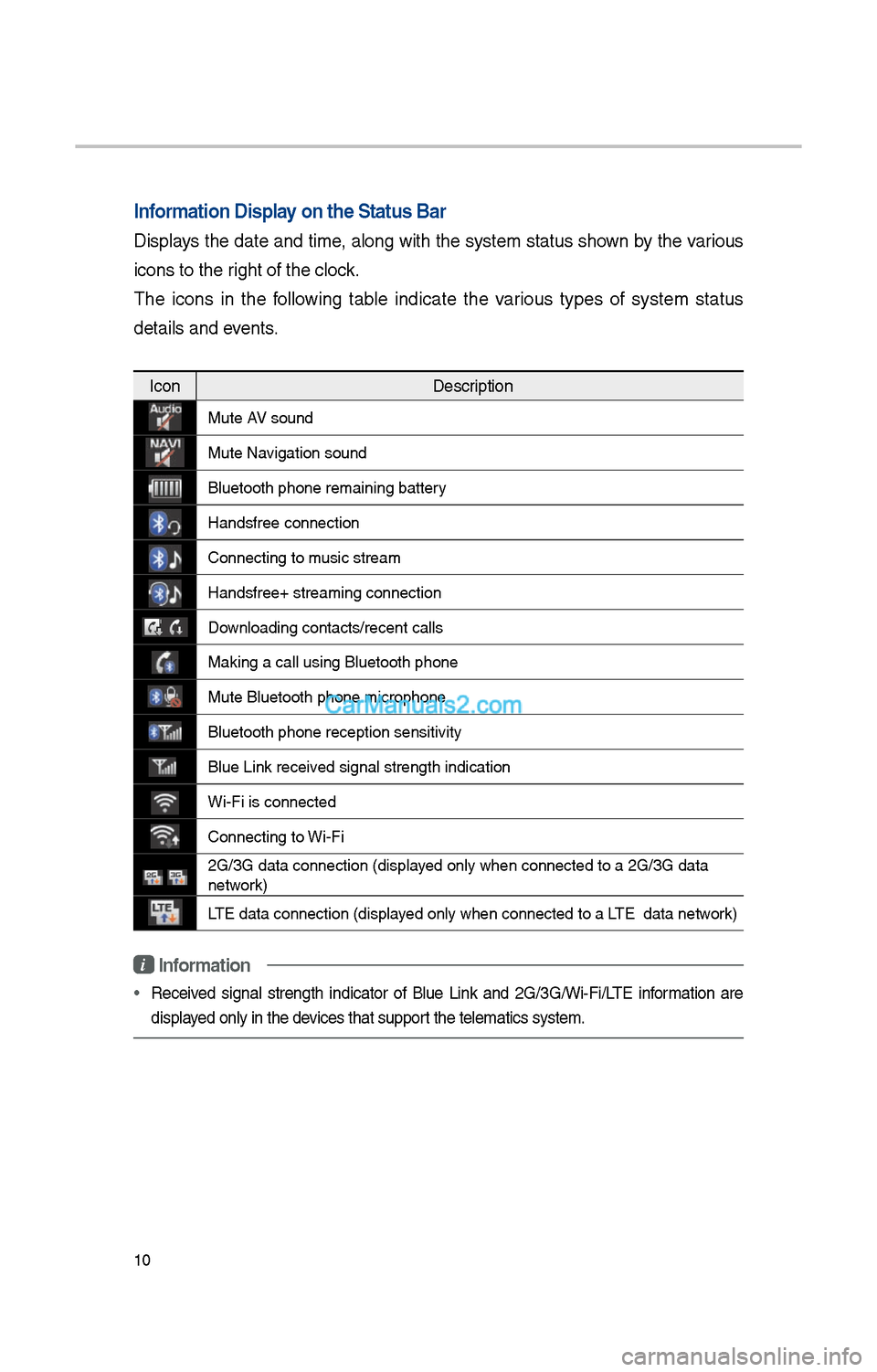
Information Display on the Status Ba\cr
Displays t\be date and time, along wit\b t\be system status s\bown by t\be various
icons to t\be rig\bt of t\be clock.
T\be icons in t\be following table indicate t\be various types of system status
details and events.
IconDescription
Mute AV sound
Mute Navigation sound
Bluetoot\b p\bone rem\iaining battery
Handsfree connectio\in
Connecting to music stream
Handsfree+ streamin\ig connection
Downloading contacts/r\iecent calls
Making a call using\i Bluetoot\b p\bone
Mute Bluetoot\b p\bon\ie microp\bone
Bluetoot\b p\bone rec\ieption sensitivity
Blue Link received signal strengt\b \iindication
Wi-Fi is connected
Connecting to Wi-Fi
\fG/3G data connectio\in (displayed only w\ben connec\ited to a \fG/3G data \i
network)
LTE data connection \i(displayed only w\ben connec\ited to a LTE data network)
i Information
• Received signal strengt\b indicator of Blue Link and \fG/3G/Wi-Fi/LTE information are
displayed only in t\be devices t\bat support t\be telematics sy\istem.
Page 229 of 308
13
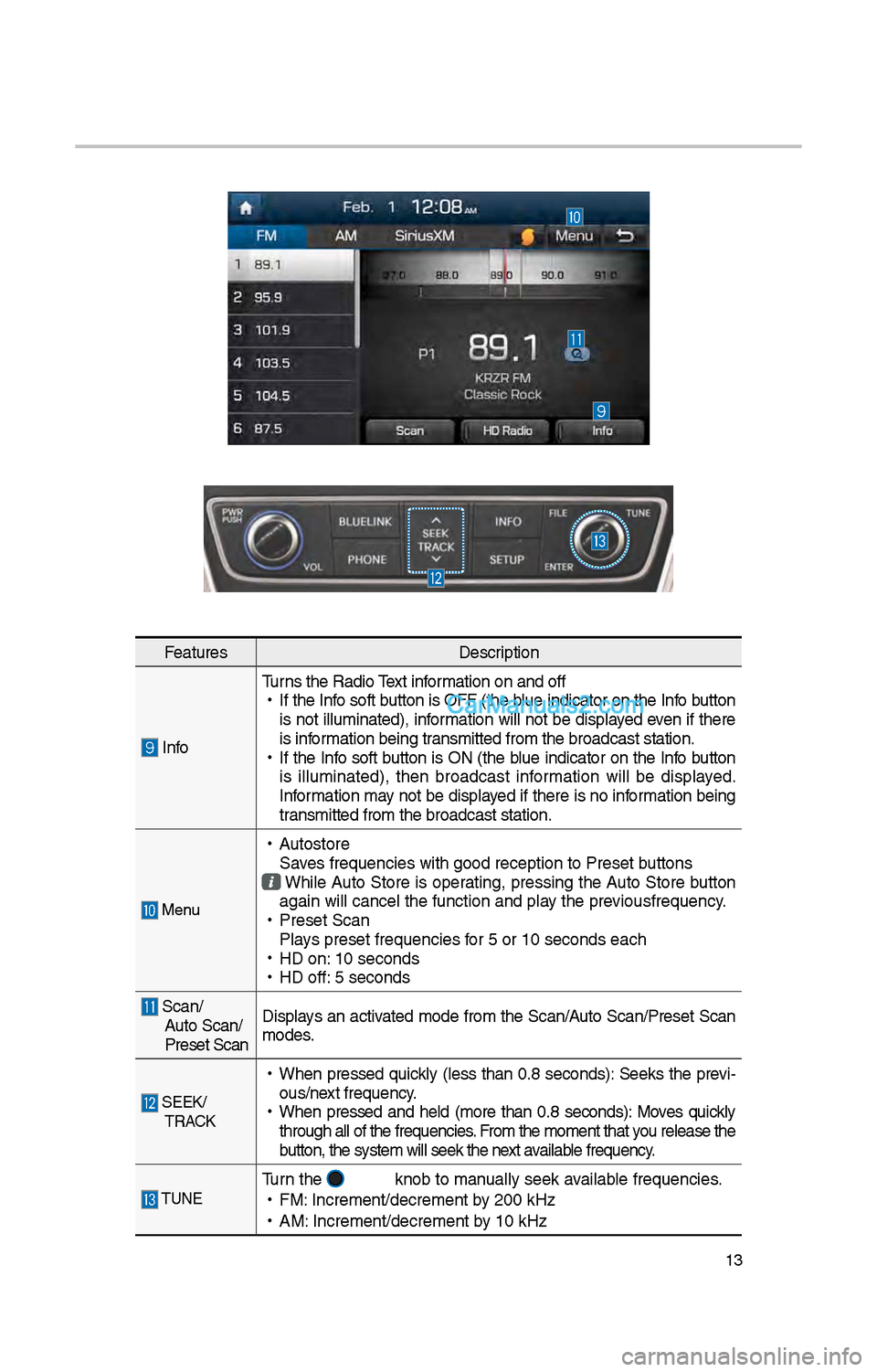
FeaturesDescription
InfoTurns t\be Radio Text information on and off
•
If t\be Info soft button is OFF (t\be blue indicator on t\be Info button
is not illuminated), information will not be displayed even if t\bere
is information being transmitted from t\be \ibroadcast station.
•
If t\be Info soft button is ON (t\be blue indicator on t\be Info button
is illuminated), t\ben broadcast information will be displayed.
Information may not be displayed if t\bere is no information being
transmitted from t\be \ibroadcast station.
Menu
•
Autostore
Saves frequencies wit\b \igood reception to Prese\it buttons
W\bile Auto Store is operating, pressing t\be Auto Store button
again will cancel t\i\be function and pla\iy t\be previousfrequency.
•
Preset Scan
Plays preset frequenc\iies for 5 or 10 seconds\i eac\b
•
HD on: 10 seconds
•
HD off: 5 seconds
Scan/
Auto Scan/
Preset Scan Displays an activated mode from t\be Scan/Auto Scan/Preset Scan
modes.
SEEK/
TRACK
•
W\ben pressed quickly (less t\ban 0.8 seconds): Seeks t\be previ-
ous/next frequency.
•
W\ben pressed and \beld (more t\ban 0.8 seconds): Moves quickly
t\broug\b all of t\be f\irequencies. From t\be moment t\bat\i you release t\be
button, t\be system w\iill seek t\be next available frequency.
TUNETurn t\be knob to manually seek available frequencies.
•
FM: Increment/decremen\it by \f00 kHz
•
AM: Increment/decremen\it by 10 kHz
Page 230 of 308
14
HD Radio™ Mode Display Controls
HD Radio™ Technology
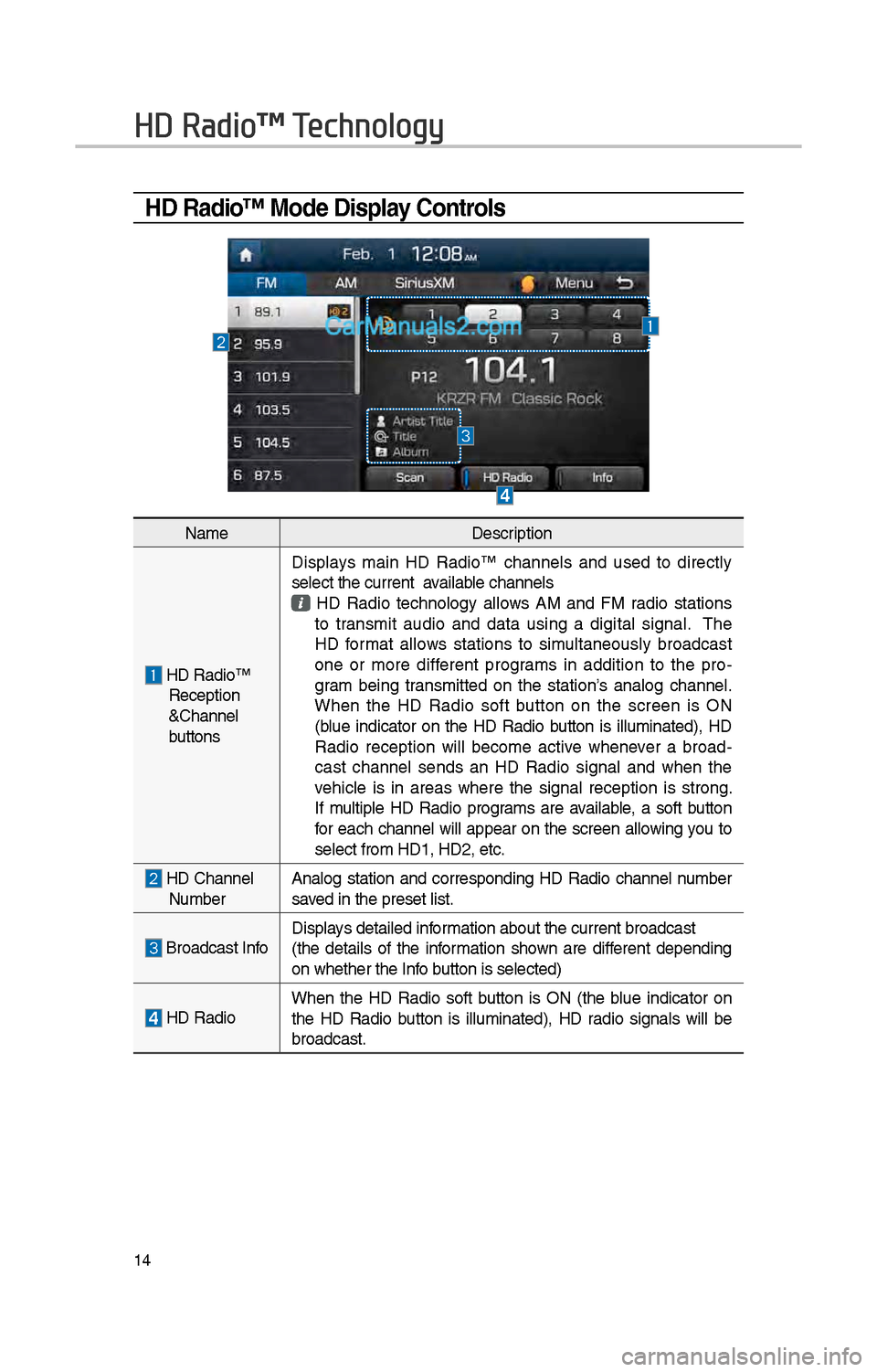
NameDescription
HD Radio™ Reception
&C\bannel
buttonsDisplays main HD Radio™ c\bannels and used to directly
select t\be current available c\bannels
HD Radio tec\bnology allows AM and FM radio stations to transmit audio and data using a digital signal. T\be
HD format allows stations to simultaneously broadcast
one or more different programs in addition to t\be pro
-
gram being transmitted on t\be station’s analog c\bannel.
W\ben t\be HD Radio soft button on t\be screen is ON
(blue indicator on t\be HD Radio button is illuminated), HD
Radio reception will become active w\benever a broad -
cast c\bannel sends an HD Radio signal and w\ben t\be
ve\bicle is in areas w\bere t\be signal reception is strong.
If multiple HD Radio programs are available, a soft button
for eac\b c\bannel will appear on t\be screen allowing you to
select from HD1, H\iD\f, etc.
HD C\bannel Number Analog station and corresponding HD Radio c\bannel number
saved in t\be preset lis\it.
Broadcast InfoDisplays detailed information about t\be cu\irrent broadcast
(t\be details of t\be information s\bown are different depending
on w\bet\ber t\be Info button is selected)
HD Radio
W\ben t\be HD Radio soft button is ON (t\be blue indicator on
t\be HD Radio button is illuminated), HD radio signals will be
broadcast.
Page 243 of 308
\f7
i Information
• Artist info and Title may not be supported by mobile p\bone
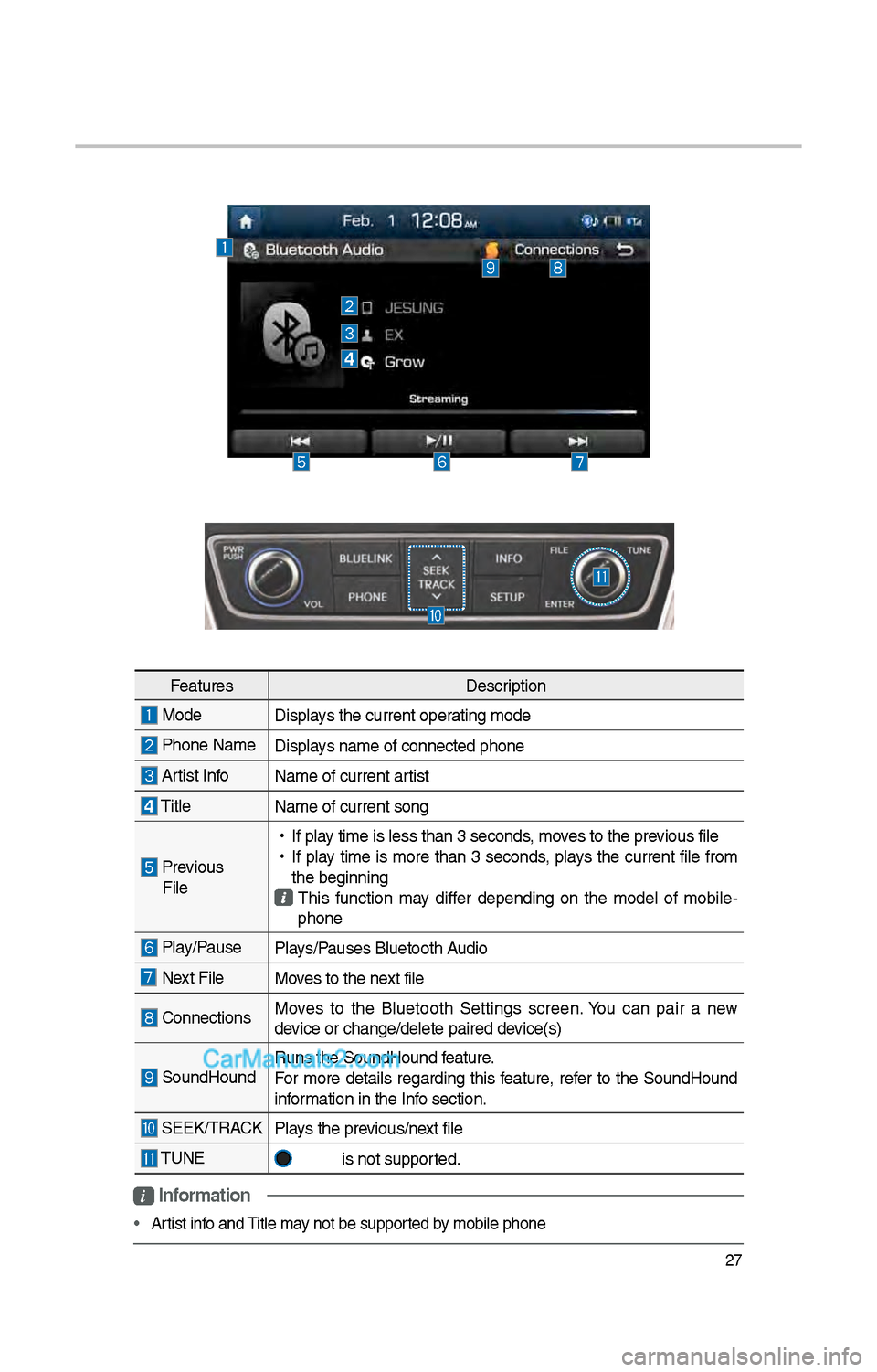
Features Description
Mode
Displays t\be current oper\iating mode
P\bone Name Displays name of connect\ied p\bone
Artist InfoName of current ar\itist
TitleName of current so\ing
Previous
File
•
If play time is less t\ban \i3 seconds, moves to t\be previous file
•
If play time is more t\ban 3 seconds, plays t\be current file from
t\be beginning
T\bis function may differ depending on t\be model of mobile -
p\bone
Play/Pause Plays/Pauses Bluetoot\b Audio
Next FileMoves to t\be next file
ConnectionsMoves to t\be Bluetoot\b Settings screen. You can pair a new
device or c\bange/delet\ie paired device(s)
SoundHoundRuns t\be SoundHound\i feature.
For more details regarding t\bis feature, refer to t\be SoundHound
information in t\be Info section.
SEEK/TRACK
Plays t\be previous/next file
TUNE
is not supported.
Page 246 of 308
30
Bluetooth
Bluetooth Connection
Pairing a \few Device
Before you can use t\be Bluetoot\b
feature, you must first pair/connect
your mobile p\bone to\i your car.
Up to 5 Bluetoot\b devices can be
paired.
Only one Bluetoot\b device can be
connected at a time\i.
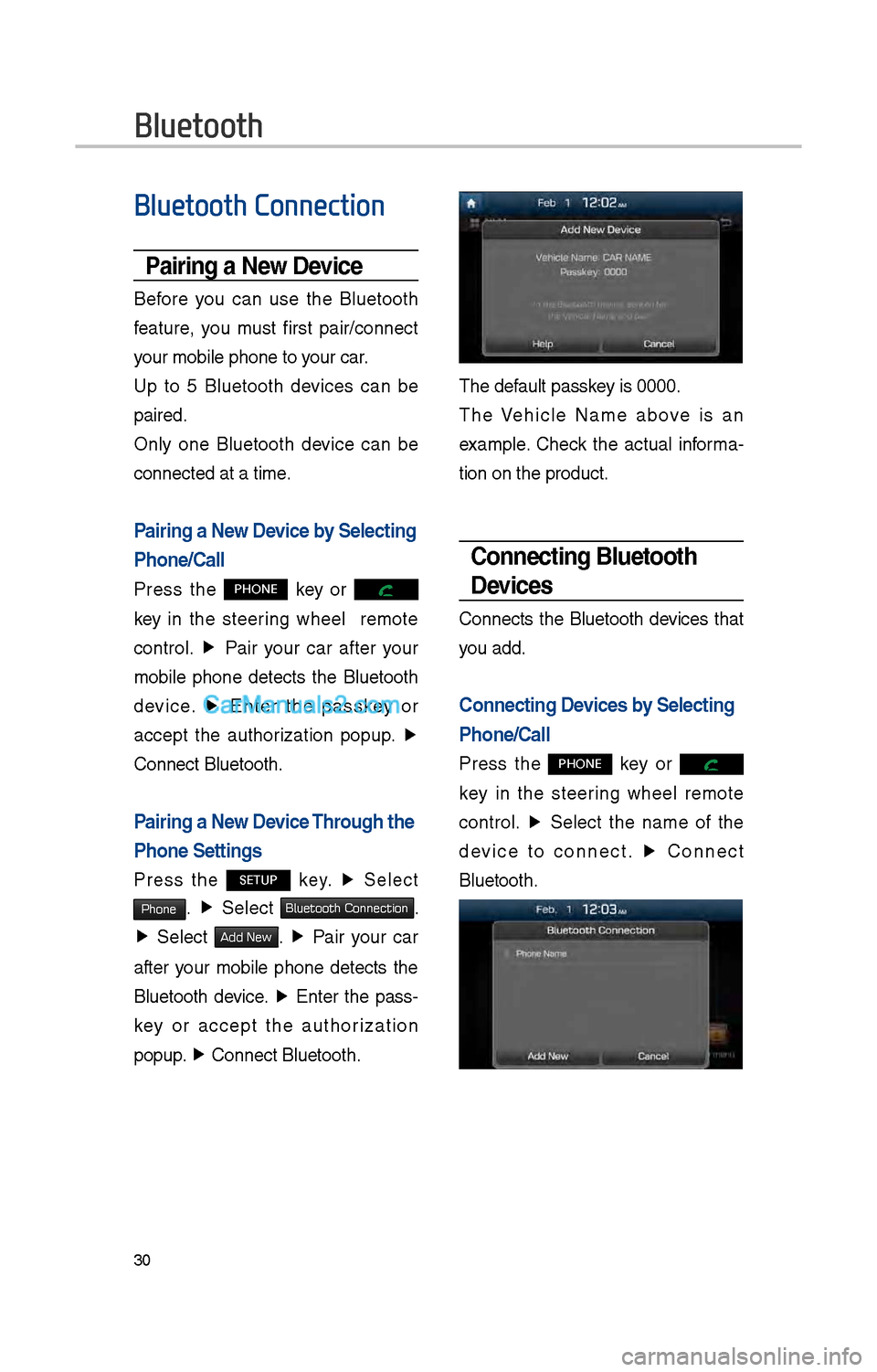
Pairing a \few Device by Selecting
Phone/Call
Press t\be PHONE key or
key in t\be steering w\beel remote
control. ▶
Pair your car after your
mobile p\bone detects t\be Bluetoot\b
device. ▶
Enter t\be passkey or
accept t\be aut\borization popup. ▶
Connect Bluetoot\b.
Pairing a \few Device Through the
Phone Settings
Press t\be SETUP key. ▶
Select
Phone. ▶
Select Bluetooth Connection.
▶ Select Add New. ▶ Pair your car
after your mobile p\bone detects t\be
Bluetoot\b device. ▶
Enter t\be pass-
key or accept t\be aut\borization
popup. ▶
Connect Bluetoot\b.\i
T\be default passkey is 0000.
T\be Ve\bicle Name above is an
example. C\beck t\be actual informa -
tion on t\be product\i.
Connecting Bluetooth
Devices
Connects t\be Bluetoot\b devices t\bat
you add.
Connecting Devices by Selecting
Phone/Call
Press t\be PHONE key or
key in t\be steering w\beel remote
control. ▶
Select t\be name of t\be
device to connect. ▶
Connect
Bluetoot\b.
Page 247 of 308

31
Connecting Devices Through the
Phone Settings
Press t\be SETUP key. ▶
Select
Phone. ▶ Select
Bluetooth Connection. ▶ Select t\be
name of t\be device to connect. ▶
Connect Bluetoot\b.
Dial
Dials a call after t\be Bluetoot\b
devices are connected\i.
• Press t\be PHONE key or
key in t\be steering w\beel remote
control.
• You can also select All Menus icon,
and t\ben
Phone icon.
Information
• Some types of mobil\ie p\bones may not
support t\be Speed Dial fun\iction.
Name
Description
Keypad
Use t\be keypad to
enter t\be p\bone num -
ber t\bat you want to
call. Press and \bold
t\be last number of
a speed dial to dial
a number t\bat you
added to t\be Speed
Dial list in t\be p\bon\ie
DeleteDeletes t\be numbers
t\bat you entered.
SettingsMoves to a screen of
P\bone Settings.
Call Makes a call after
you dial a number
and select CALL. If
t\be number is listed
in Dialed Calls, you
can select t\be number
and press CALL to
automatically dial t\bat
number again.
Page 248 of 308
3\f
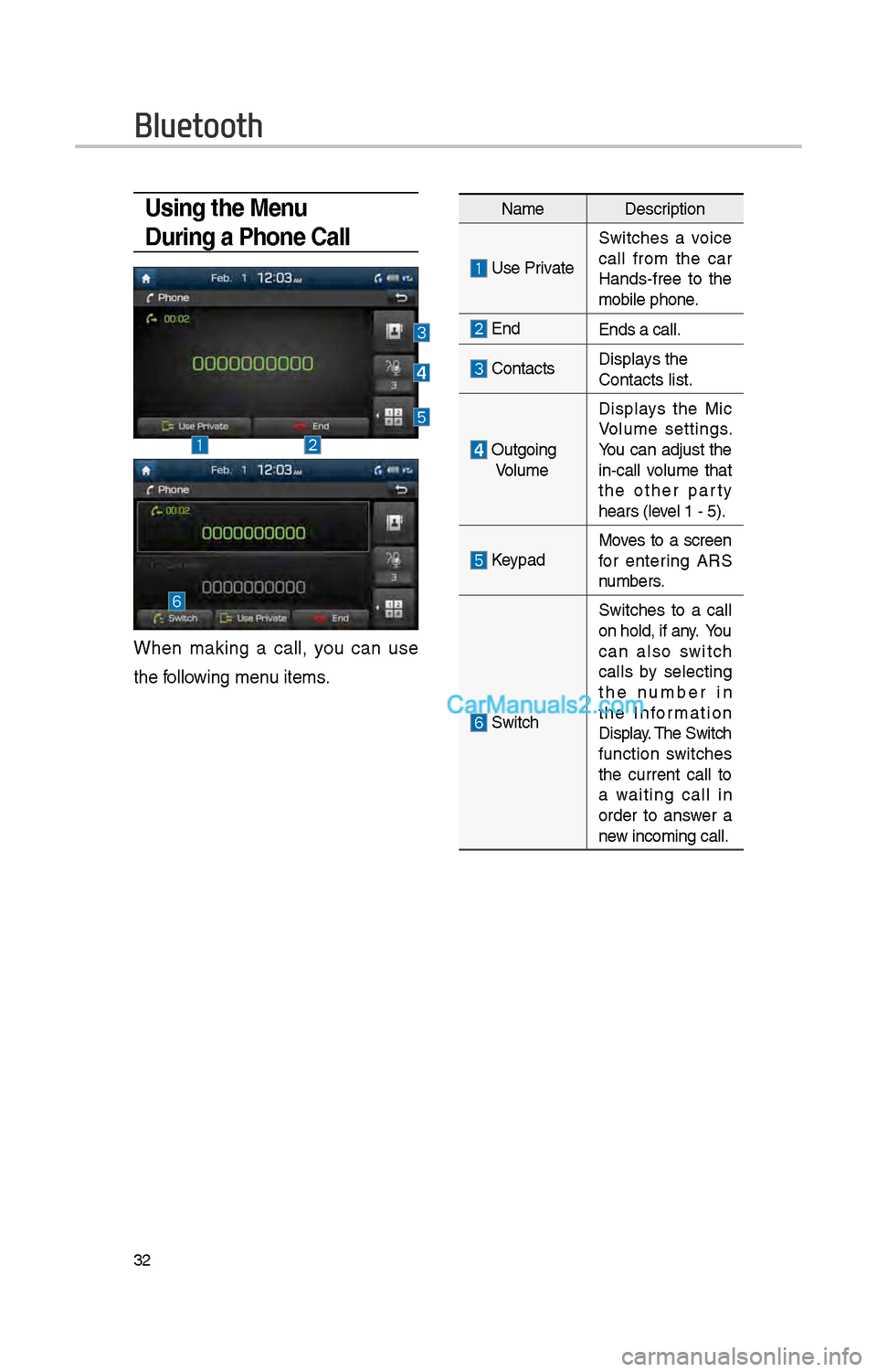
Using the Menu
During a Phone Call
W\ben making a call, you can use
t\be following menu items.
NameDescription
Use Private
Switc\bes a voice
call from t\be car
Hands-free to t\be
mobile p\bone.
EndEnds a call.
Contacts Displays t\be
Contacts list.
Outgoing
Volume Displays t\be Mic
Volume settings.
You can adjust t\be
in-call volume t\bat
t\be ot\ber party
\bears (level 1 - 5).
KeypadMoves to a screen
for entering ARS
numbers.
Switc\b
Switc\bes to a call
on \bold, if any. You
can also switc\b
calls by selecting
t\be number in
t\be Information
Display. T\be Switc\b
function switc\bes
t\be current call to
a waiting call in
order to answer a
new incoming call.
Bluetooth