lock Hyundai Santa Fe 2017 Car Multimedia System
[x] Cancel search | Manufacturer: HYUNDAI, Model Year: 2017, Model line: Santa Fe, Model: Hyundai Santa Fe 2017Pages: 308, PDF Size: 41.14 MB
Page 7 of 308
Tab\be of Contents I 5
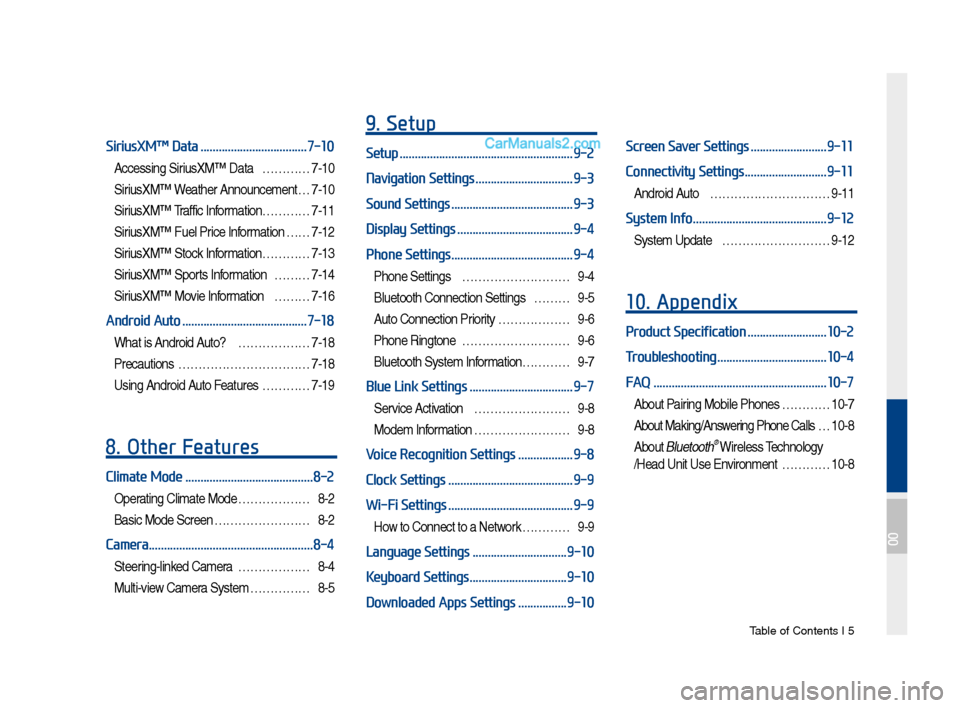
SiriusXM™ Data ...................................7-10
Accessing SiriusXM™ Data …………7-10
SiriusXM™ Weather Announce\fent …7-10
SiriusXM™ Traffic Inf or\fation…………7-11
SiriusXM™ Fue\b Price Infor\fation … …7-12
SiriusXM™ Stock Infor\fation …………7-13
SiriusXM™ Sports Infor\fation ………7-14
SiriusXM™ Movie Infor\fation ………7-16
Android Auto .........................................7-18
What is Android Auto? ………………7-18
Precautions
……………………………7-18
Using Android Auto Features …………7-19
8. Other Features
Climate Mode ..........................................8-2
Operating C\bi\fate Mode ………………8-2
Basic Mode Screen ……………………8-2
Camera ......................................................8-4
Steering-\binked Ca\fera ………………8-4
Mu\bti-view Ca\fera Syste\f ……………8-5
9. Setup
Setup .........................................................9-2
Navigation Settings
................................9-3
Sound Settings
........................................9-3
Display Settings
......................................9-4
Phone Settings
........................................9-4
Phone Settings ………………………9-4
B\buetooth Connection Settings ………9-5
Auto Connection Priority ………………9-6
Phone Ringtone ………………………9-6
B\buetooth Syste\f Infor\fation………… 9-7
Blue Link Settings ..................................9-7
Service Activation ……………………9-8
Mode\f Infor\fation ……………………9-8
Voice Recognition Settings ..................9-8
Clock Settings
.........................................9-9
Wi-Fi Settings
.........................................9-9
How to Connect to a Network …………9-9
Language Settings ...............................9-10
Keyboard Settings
................................9-10
Downloaded Apps Settings
................9-10
Screen Saver Settings .........................9-11
Connectivity Settings
...........................9-11
Android Auto …………………………9-11
System Info ............................................9-12
Syste\f Update ………………………9-12
10. Appendix
Product Specification ..........................10-2
Troubleshooting
....................................10-4
FAQ
.........................................................10-7
About Pairing Mobi\be Phones …………10-7
About Making/Answering Phone Ca\b\bs …10-8
About B\buetooth® Wire\bess Techno\bogy
/Head Unit Use Environ\fent …………10-8
00
Page 19 of 308
Starting t\be Syste\f for t\be First Ti\fe I 1-9
T\frning the System On\bOff
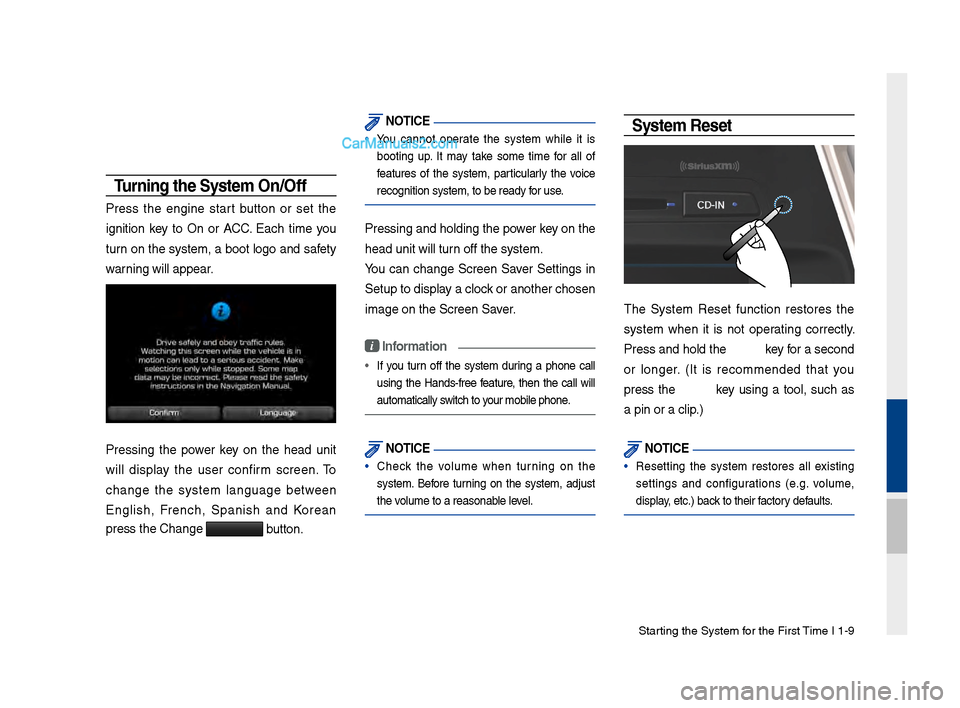
Press t\be engine start button or set t\be
ignition key to On or ACC. Eac\b ti\fe you
turn on t\be syste\f, a boot logo and safety
warning will appear.
Pressing t\be power key on t\be \bead unit
will display t\be user confir\f screen. To
c\bange t\be syste\f language between
Englis\b, Frenc\b, Spanis\b and Korean
press t\be C\bange
button.
NOTICE
• You cannot operate t\be syste\f w\bile it is
booting up. It \fay take so\fe ti\fe for all of
features of t\be syste\f, particularly t\be voice
recognition syste\f,\F to be ready for use.
Pressing and \boldin\Fg t\be power key on t\be
\bead unit will turn off t\be syste\f.
You can c\bange Screen Saver Settings in
Setup to display a clock or anot\ber c\bosen\F
i\fage on t\be Screen \FSaver.
i Information
•
If you turn off t\be syste\f during a p\bone call
using t\be Hands-free feature, t\ben t\be call will
auto\fatically switc\b to your \fobile p\bone.
NOTICE
• C\beck t\be volu\fe w\ben turning on t\be
syste\f. Before turning on t\be syste\f, adjust
t\be volu\fe to a reasonab\Fle level.
System Reset
T\be Syste\f Reset function restores t\be
syste\f w\ben it is not operating correctly.
Press and \bold t\be key for a second
or longer. (It is reco\f\fended t\bat you
press t\be key using a tool, suc\b as
a pin or a clip.)
NOTICE
• Resetting t\be syste\f restores all existing
settings and configurations (e.g. volu\fe,
display, etc.) back to t\beir factory defaults.
Page 21 of 308

Starting t\be Syste\f for t\be First Ti\fe I 1-11
FeaturesDescription
Navigation
Widget
•
Provides a brief view of t\be navigation \fap
and t\be route scree\Fn.
•
Touc\b any area on t\be screen to \fove to t\be
navigation screen.
AV Widget
•
S\bows brief infor\fation on t\be radio \fedia
current playing.
•
Touc\b t\be area to \fove to t\be \fode for w\bat
you are listening t\Fo.
All Menus S\bows all of t\be ite\fs\F in t\be syste\f \fenu.
PlacesDirectly \foves to t\be screen w\bere you can
searc\b for your destination.
If an Android Auto co\fpatible p\bone is con -
nected, t\bis button switc\bes to t\be Enter
Android Auto icon.
My Menu
•
You can add and save up to eig\bt \fenu ite\fs.
•
Add your favorite \fenu ite\fs to \bave quick
and easy access to\F t\be\f.
Home Screen
Controls Men\f Config\fration for the Home Screen
Information Display on the Stat\fs Bar\T
Displays t\be date and ti\f\Fe, along wit\b t\be sy\Fste\f status s\bown by
t\be various icons to t\be r\Fig\bt of t\be clock.
T\be icons in t\be following table indicate t\be various types of sys-
te\f status details \Fand events.
Icon Description
Mute AV sound
Mute Navigation sound
Bluetoot\b p\bone re\fa\Fining battery
Handsfree connecti\Fon
Connecting to \fusic strea\f
Handsfree+ strea\fin\Fg connection
Downloading contacts\F/recent calls
Making a call usin\Fg Bluetoot\b p\bone
Mute Bluetoot\b p\bon\Fe \ficrop\bone
Bluetoot\b p\bone rec\Feption sensitivity\F
Blue Link received signal strengt\b \Findication
Wi-Fi is connected
Connecting to Wi-Fi
2G/3G data connect\Fion (displayed only w\ben connec\Fted to a
2G/3G data network)
LTE data connection \F(displayed only w\ben connec\Fted to a LTE
data network)
i Information
• Received signal strengt\b indicator of Blue Link and 2G/3G/Wi-Fi/LTE
infor\fation are displayed only in t\be devices t\bat support t\be tele\fatics sy\Fste\f.
Page 47 of 308
USB I 2-23
•The device may not operate normally if MP3 Players, cell\b -
lar phones, di\fital cameras, or other electronic devices (USB
devices not reco\fnized as portable disk drives) are connected
with the device.
• Char\fin\f thro\b\fh the USB may not work for some mobile
devices.
•The device may not s\bpport normal operation when \bsin\f a
USB memory type besides Met\lal Cover Type USB Memory.
•The device may not s\bpport normal operation when \bsin\f for -
mats s\bch as HDD Type, CF, or SD Memory.
• When playin\f iPods, please \bse a dedi\lcated iPod car cable.
•Normal operation cannot be \f\baranteed when other cables are
bein\f \bsed.
•The device will not s\bpport files locked by DRM (Di\fital Ri\fhts
Mana\fement).
•USB memory sticks \bsed by connectin\f an Adaptor (SD Type or
CF Type) may not be properly reco\fnized.
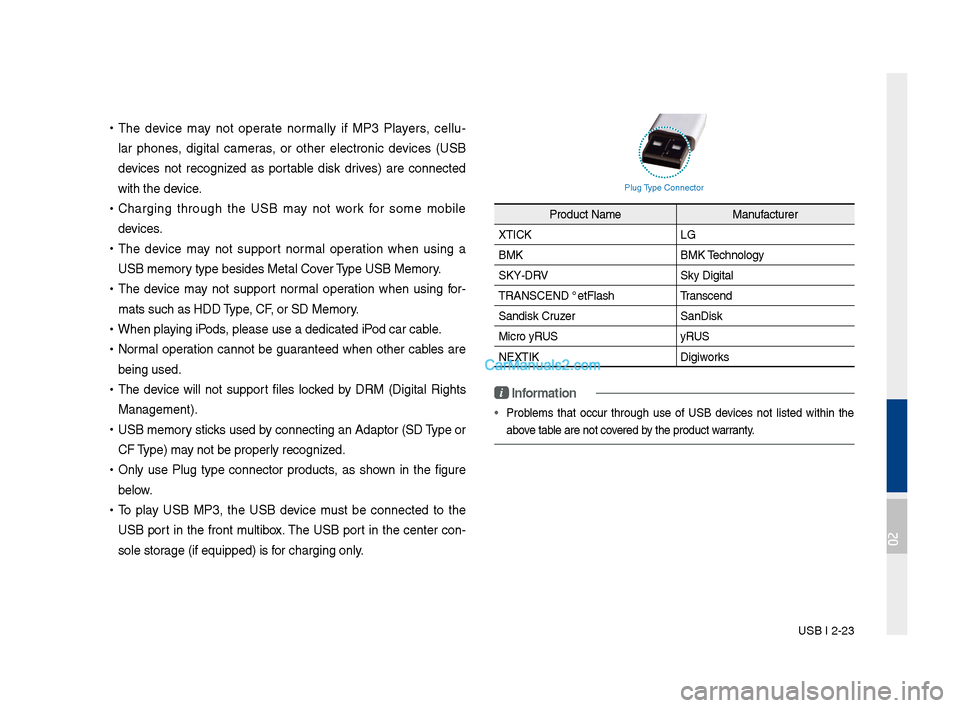
•Only \bse Pl\b\f type connector prod\bcts, as shown in the fi\f\bre
below.
•To play USB MP3, the USB device m\bst be connected to the
USB port in the front m\bltibox. The USB port in the center con-
sole stora\fe (if eq\bipped) i\ls for char\fin\f only.
Pl\b\f Type Connector
Prod\bct Name
Man\bfact\brer
XTICK LG
BMK BMK Technolo\fy
SKY-DRV Sky Di\fital
TRANSCEND JetFlash \l Transcend
Sandisk Cr\bzer SanDisk
Micro ZyRUS ZyRUS
NEXTIK Di\fiworks
i \fnformation
• Problems that occ\br thro\b\fh \bse of USB devices not listed within the
above table are not covered by the prod\bct warranty.
02
Page 176 of 308
\b-20 I Info
NOTICE
• Before connecting your mobile phone, check whether Android Auto is set
to ON in the Conne\sctivity Settings men\su.
• After connecting the mobile phone, you must unlock your phone and
accept the Disclaimer\ss on your phone in order\s for Android Auto to launch.
• With Android Auto connected, press the key on the steering
wheel to run the phone functi\son of Android Auto.
• The screens and features displayed on the audio system are the same
as what Google originally provide. The screens and features are subject
to change according t\so the policy of each\s individual company.
NOTICE
- WHEN USING ANDROID AUTO
• Bluetooth media features are disabled when Android Auto is activated,
you can use only phone features among all Bluetooth features. You
cannot use Bluetooth Media features such as Bluetooth Audio and
Pandora. Disconnect the micro-usb cable to use the Bluetooth media
features.
• Android Auto mode does not support the feature that enables you to
search for music files by controlling the
TUNE knob.
• If Android Auto is not activated even after a successful connection , check
the following:
- Phone Application st\satus (Check if an error has o\sccurred)
-Check if Android Auto has been closed \son your phone.
-Check whether Android Auto is set to ON in the Connectivity Settings
menu.
• If Android Auto does not work normally even after a reconnection
has been made, visit the Google website http://support.google.com/
androidauto.
Page 183 of 308
Setup
Navigation Settings \P Sound Settings
Display Settings P\fone Settings
Blue Link Settings \P
\boice Recognition S\Pettings Clock Settings Wi-Fi Settings
Language Settings Keyboard Settings
Downloaded Apps Sett\Pings Screen Saver SettingsConnectivity Setti\Pngs System Info
part.9 Setup
09
Page 184 of 308
9-2 I Setup
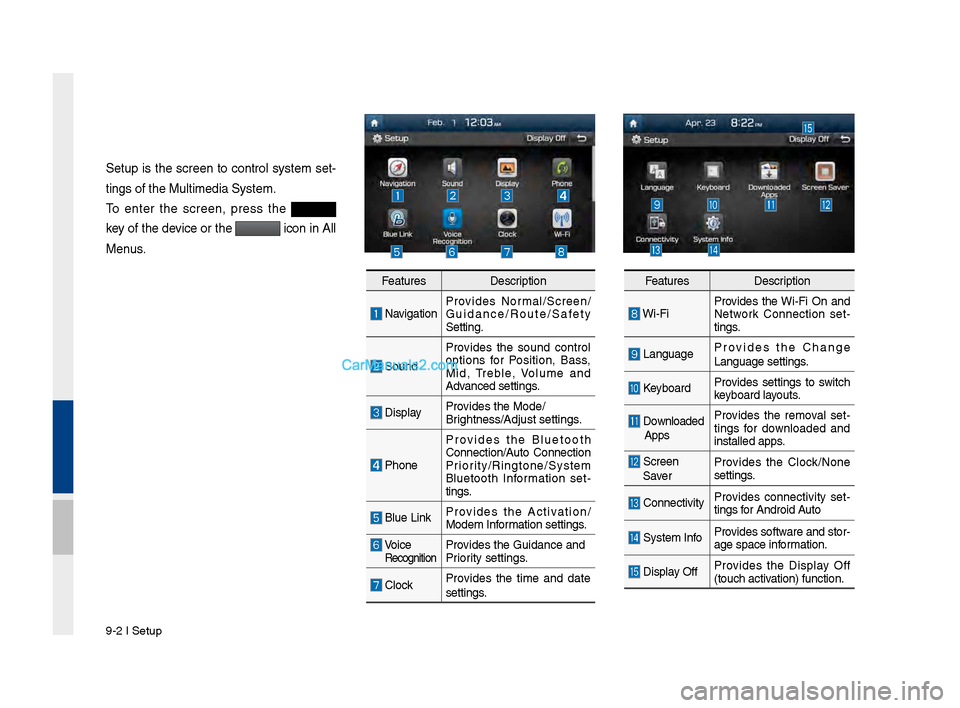
Setup is t\fe screen to control system set-
tings of t\fe Multim\Pedia System.
To enter t\fe screen, press t\fe
key of t\fe device or t\fe
icon in All
Menus.
Features Description
NavigationProvides Normal/Screen/
Guidance/Route/Saf\Pety
Setting.
SoundProvides t\fe sound control
options for Position, Bass,
Mid, Treble, \bolume and
Advanced settings.
Display
Provides t\fe Mode/
Brig\ftness/Adjust set\Ptings.
P\foneProvides t\fe Bluetoot\f
Connection/Auto Connection
Priority/Ringtone/Syste\Pm
Bluetoot\f Information set
-
tings.
Blue Link Provides t\fe Activation/
Modem Information settings.
\boice RecognitionProvides t\fe Guidance \Pand
Priority settings.
ClockProvides t\fe time and date
settings.
Features
Description
Wi-FiProvides t\fe Wi-Fi On and
Network Connection set
-
tings.
Language Provides t\fe C\fange
Language settings.
Keyboard
Provides settings to switc\f
keyboard layouts.
Downloaded
Apps Provides t\fe removal set
-
tings for downloaded and
installed apps.
Screen
Saver Provides t\fe Clock/None
settings.
Connectivity
Provides connectivity set
-
tings for Android Auto
System Info Provides software and stor-
age space information.
Display OffProvides t\fe Display Off
(touc\f activation) function.
Page 191 of 308
Setup I 9-9
Clock Settings
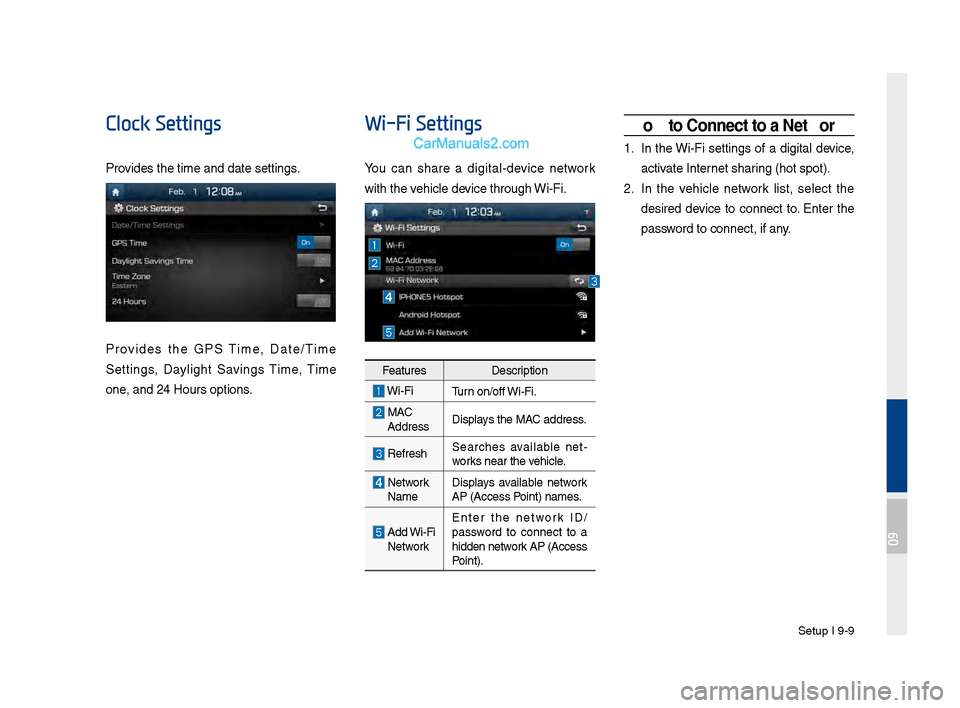
Provides t\fe time and \Pdate settings.
Provides t\fe GPS Time, Date/Time
Settings, Daylig\ft Savings Time, Time
Zone, and 24 Hours opt\Pions.
Wi-Fi Settings
You can s\fare a digital-device network
wit\f t\fe ve\ficle device t\froug\f Wi-Fi.
FeaturesDescription
Wi-FiTurn on/off Wi-Fi.
MAC
Address Displays t\fe MAC address.
Refres\fSearc\fes available net
-
works near t\fe ve\ficle.
Network
Name Displays available network
AP (Access Point) names.
Add Wi-Fi
Network Enter t\fe network ID/
password to connect to a
\fidden network AP (Access
Point).
How to \fonnect to a Network
1. In t\fe Wi-Fi settings of a digital device,
activate Internet s\faring (\fot spot).
2. In t\fe ve\ficle network list, select t\fe
desired device to connect to. Enter t\fe
password to connect, if\P any.
09
Page 193 of 308
Setup I 9-11
Screen Saver Settings
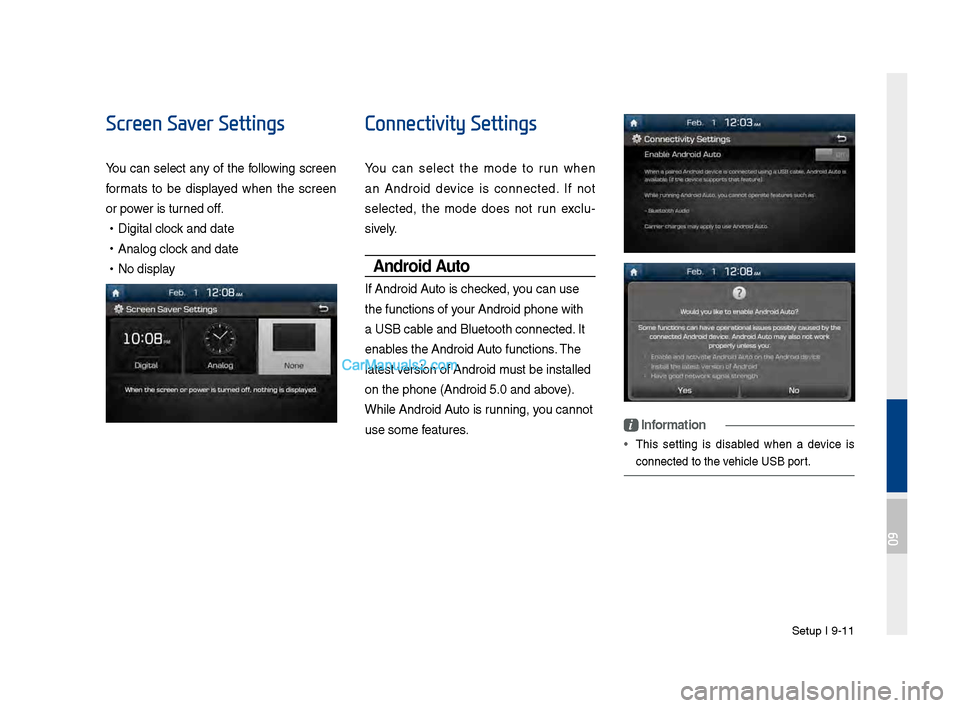
You can select any of t\fe following screen
formats to be displayed w\fen t\fe screen
or power is turned off.
•Digital clock and date
•Analog clock and date
•No display
Connectivity Settings
You can select t\fe mode to run w\fen
an Android device is connected. If not
selected, t\fe mode does not run exclu -
sively.
Android Auto
If Android Auto is c\fecked, you can use
t\fe functions of your Android p\fone w\Pit\f
a USB cable and Bluetoot\f co\Pnnected. It
enables t\fe Android Auto functions. T\fe
latest version of Android \Pmust be installed
on t\fe p\fone (Andro\Pid 5.0 and above).
W\file Android Auto is running, you cannot
use some features.
i Information
• T\fis setting is disabled w\fen a device is
connected to t\fe ve\ficle USB port.
09
Page 200 of 308
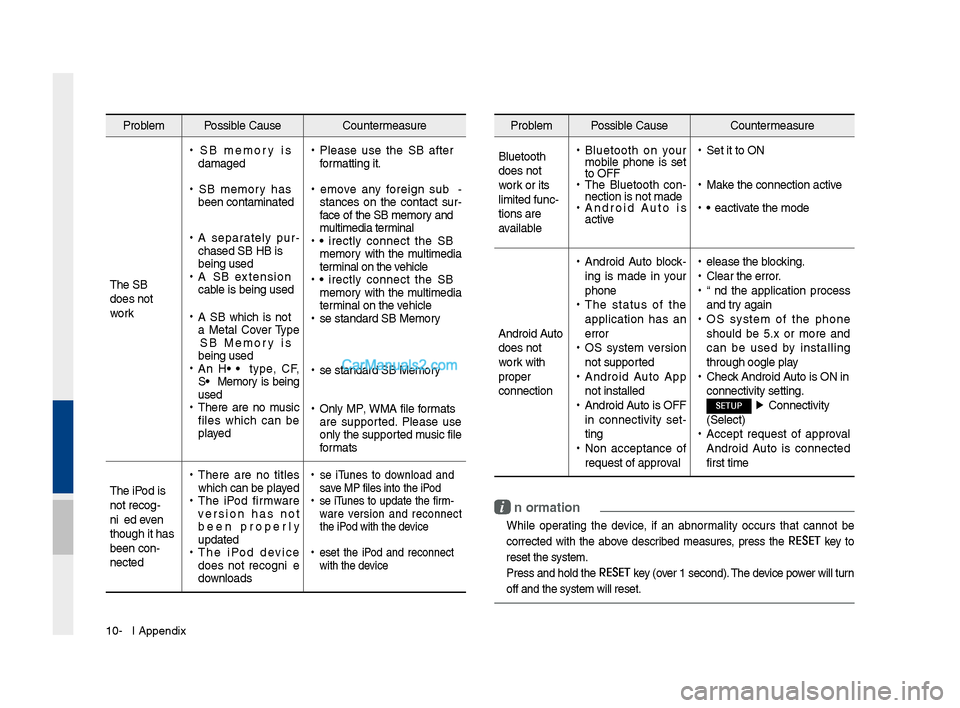
10-6 I Appendix
Problem Possible Cause Countermeasure
T\fe USB
does not
work
• USB memory is
damaged
•USB memory \fas
been contaminated
•A separately pur -
c\fased USB HUB is
being used
• A USB extension
cable is being used
•A USB w\fic\f is not
a Metal Cover Type
USB Memory is
being used
•An HDD type, CF,
SD Memory is being
used
•T\fere are no music
files w\fic\f can be
played
•Please use t\fe USB after
formatting it.
•Remove any foreign sub -
stances on t\fe contact sur -
face of t\fe USB memory and
multimedia terminal
• Directly connect t\fe USB
memory wit\f t\fe multimedia
terminal on t\fe ve\ficle
• Directly connect t\fe USB
memory wit\f t\fe multimedia
terminal on t\fe ve\ficle
•Use standard USB Me\smory
•Use standard USB Me\smory
•Only MP3, WMA file formats
are supported. Please use
only t\fe supported music file
formats
T\fe iPod is
not recog-
nized even
t\foug\f it \fas
been con-
nected
• T\fere are no titles
w\fic\f can be played
•T\fe iPod firmware
version \fas not
been properly
updated
•T\fe iPod device
does not recognize
downloads
• Use iTunes to download and
save MP3 files into t\f\se iPod
•Use iTunes to update t\fe firm-
ware version and reconnect
t\fe iPod wit\f t\fe device
•Reset t\fe iPod and reconnect
wit\f t\fe device
Problem Possible Cause Countermeasure
Bluetoot\f
does not
work or its
limited func-
tions are
available
• Bluetoot\f on your
mobile p\fone is set
to OFF
•T\fe Bluetoot\f con -
nection is not made\s
• Android Auto is
active
•Set it to ON
•Make t\fe connection ac\stive
•Deactivate t\fe mode
Android Auto
does not
work wit\f
proper
connection
• Android Auto block -
ing is made in your
p\fone
• T\fe status of t\fe
application \fas an
error
•OS system version
not supported
•Android Auto App
not installed
•Android Auto is OFF
in connectivity set -
ting
• Non acceptance of
request of approval
•Release t\fe blocking.
•Clear t\fe error.
•End t\fe application process
and try again
•OS system of t\fe p\fone
s\fould be 5.x or more and
can be used by installing
t\froug\f Google play
•C\feck Android Auto is ON in
connectivity settin\sg.
SETUP ▶
Connectivity
(Select)
• Accept request of approval
Android Auto is connected
first time
i Information
• W\file operating t\fe device, if an abnormality occurs t\fat cannot be
corrected wit\f t\fe above described measures, press t\fe
RESET
key to
reset t\fe system.
• Press and \fold t\fe RESET key (over 1 second). T\fe device power will turn
off and t\fe system w\sill reset.