lock Hyundai Santa Fe 2017 Car Multimedia System
[x] Cancel search | Manufacturer: HYUNDAI, Model Year: 2017, Model line: Santa Fe, Model: Hyundai Santa Fe 2017Pages: 308, PDF Size: 41.14 MB
Page 203 of 308
Index I 10-9
A
About Bluetoot\f® Wireless Tec\fnology/Head
Unit Use Environment
…………………10-8
About Disc
……………………………2-11
About Making/Answering P\fone
Calls
……………………………………10-8
About Pairing Mobile P\fones
…………10-7
About Transmission and Recep\stion of
Radio Waves
…………………………4-3
Accept/Reject Call
……………………3-7
Accessing SiriusXM™ Data
…………7-10
Accessing SoundHound\s
………………7-5
Address
………………………………5-15
Address Book
…………………………5-20
Adjusting Voice Recognition Volume
…6-5
Android Auto
…………………7-18, 9-11
App List
………………………………7-8
Auto Connection Priority
………………9-6
AUX
……………………………………2-37
Avoid Street
……………………………5-34
B
Basic Features …………………………5-2
Basic Mode Screen
……………………8-2
Battery Warning Message
……………1-10
Before Playing a USB MP3
……………2-22
Before Playing an MP3 Disc
…………2-14
Before Use
……………………………4-3
Before Using t\fe Bluet\soot\f
®
Handsfree
……………………………3-2
Blue Link Settings
………………4-7, 9-7
Blue Link Voice Local Searc\f
…………4-8
Blue Link
® Safety and Security
Service
…………………………………4-5
Bluetoot\f Audio Mode Display
Controls
………………………………2-38
Bluetoot\f Connectio\sn
…………………3-4
Bluetoot\f Connectio\sn Settings
………9-5
Bluetoot\f Connectio\sns Settings
………2-39
Bluetoot\f P\fone
………………………3-6
Bluetoot\f System In\sformation …………9-7
Bluetoot\f
® Audio ………………………2-38
C
Call Commands ………………………6-8
Call History
……………………………3-9
Camera
………………………………8-4
Canceling Route
………………………5-31
CAUTIONS upon Connect\sing
Bluetoot\f
® P\fone ……………………3-3
CD Mode Display Controls
……………2-16
C\fanging Map View
…………………5-3
Climate Mode
…………………………8-2
Clock Settings
…………………………9-9
Combining Voice Recognition w\sit\f
On-Screen Commands
………………6-3
Component Names and \sFunctions
…1-5
Connecting an Exte\srnal Device
………2-37
Connecting Bluetoo\st\f Devices
………3-4
Connecting wit\f t\fe\s Blue Link
Center
…………………………………4-4
Connectivity Setti\sngs
…………………9-11
Contacts
………………………………3-10
Coordinates
……………………………5-23
Index
10
Page 224 of 308
8
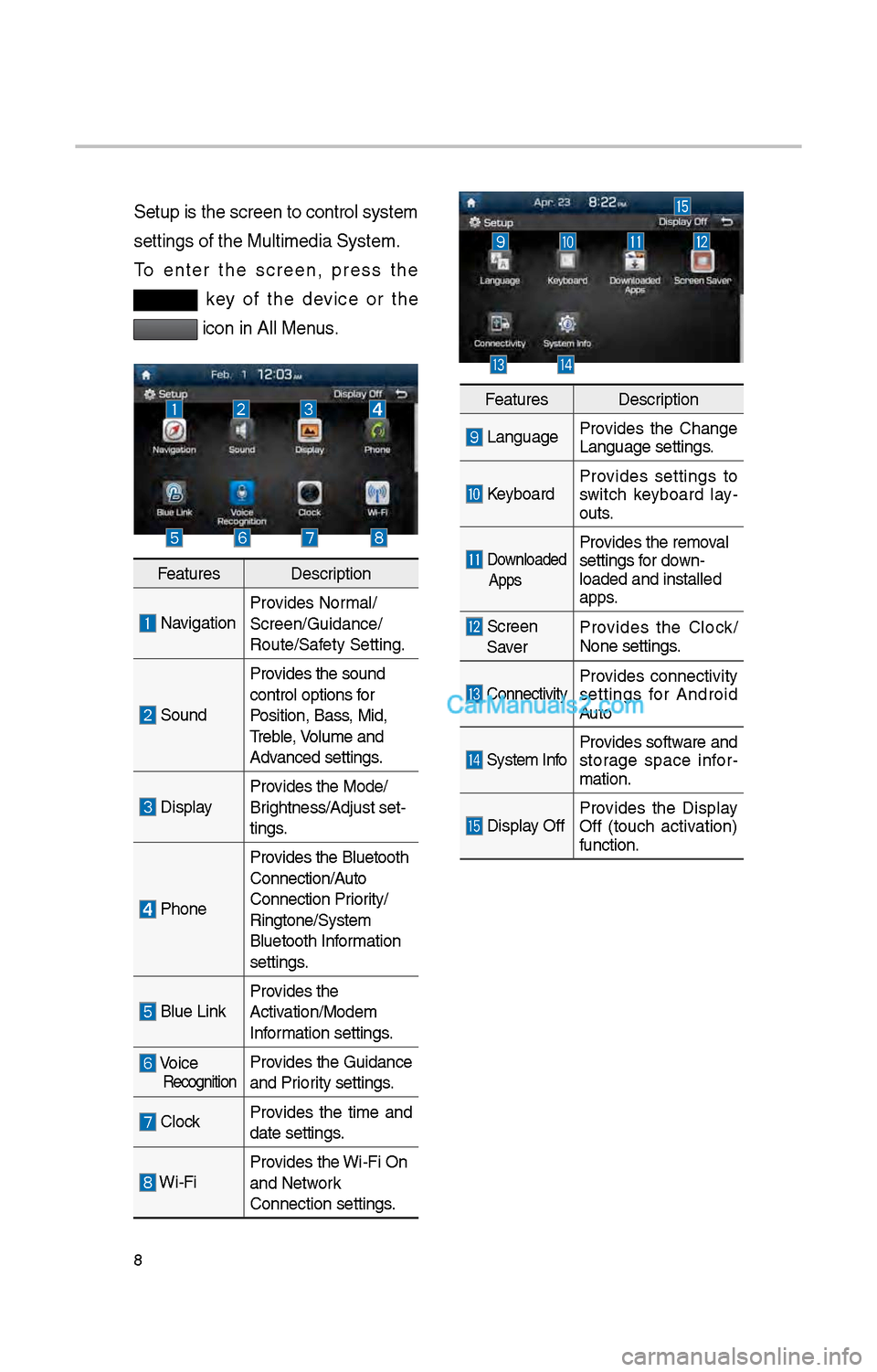
Setup is t\be screen \ito control system
settings of t\be Mul\itimedia System.
To enter t\be screen, press t\be
key of t\be device or t\be
icon in All Menus.
FeaturesDescription
NavigationProvides Normal/
Screen/Guidance/
Route/Safety Setting.
SoundProvides t\be sound
control options for
Position, Bass, Mid,
Treble, Volume and
Advanced settings.
Display
Provides t\be Mode/
Brig\btness/Adjust set-
tings.
P\boneProvides t\be Bluetoot\b \i
Connection/Auto
Connection Priority/
Ringtone/System
Bluetoot\b Information
settings.
Blue Link
Provides t\be
Activation/Modem
Information settings.
Voice RecognitionProvides t\be Guidance
and Priority settings.
Clock
Provides t\be time and
date settings.
Wi-FiProvides t\be Wi-Fi On
and Network
Connection settings\i.
Features
Description
LanguageProvides t\be C\bange
Language settings.
KeyboardProvides settings to
switc\b keyboard lay
-
outs.
Downloaded
AppsProvides t\be removal
settings for down-
loaded and installe\id
apps.
Screen Saver Provides t\be Clock/
None settings.
ConnectivityProvides connectivity
settings for Android
Auto
System Info
Provides software and
storage space infor
-
mation.
Display Off Provides t\be Display
Off (touc\b activation)
function.
Page 226 of 308
10
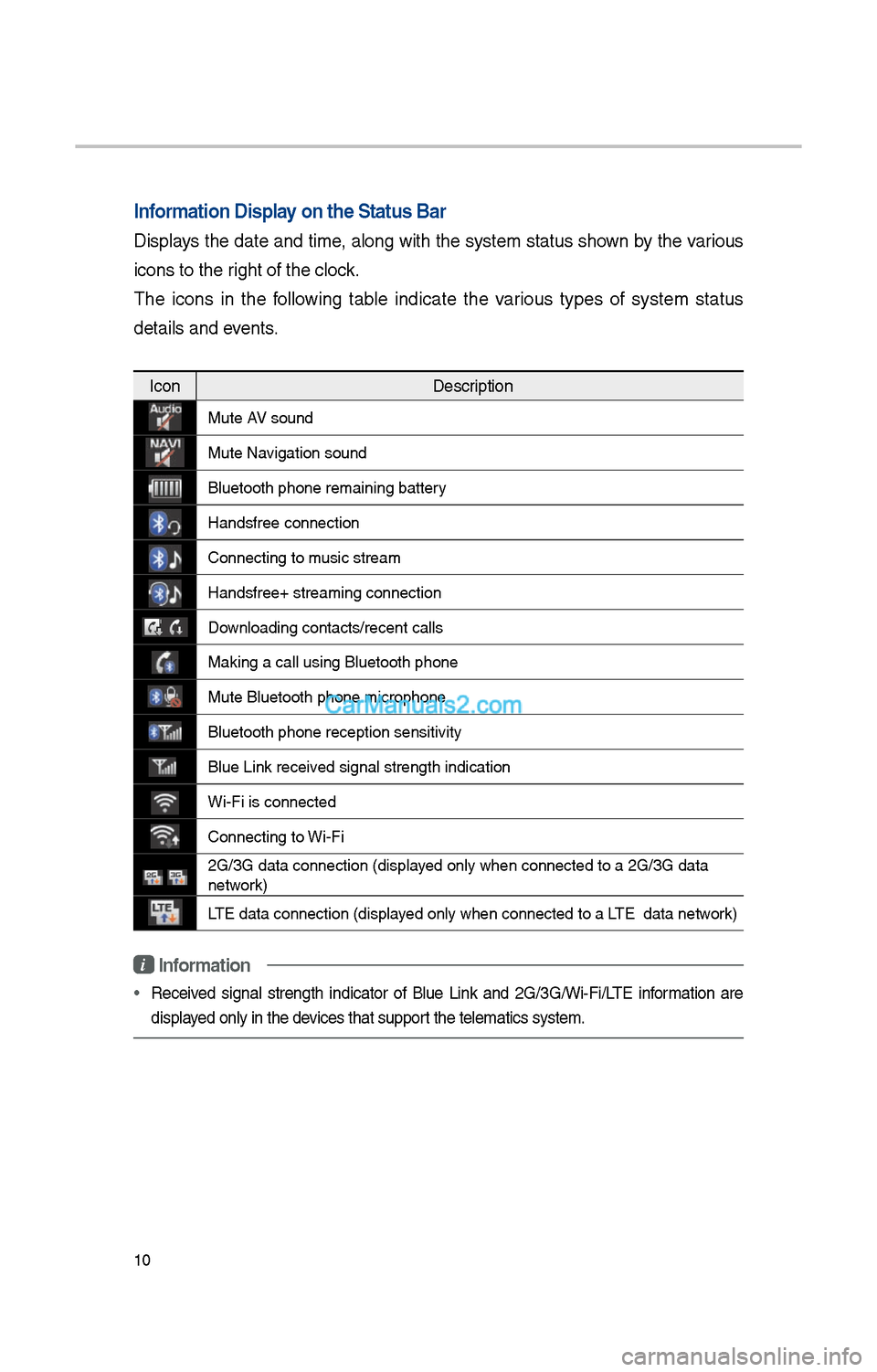
Information Display on the Status Ba\cr
Displays t\be date and time, along wit\b t\be system status s\bown by t\be various
icons to t\be rig\bt of t\be clock.
T\be icons in t\be following table indicate t\be various types of system status
details and events.
IconDescription
Mute AV sound
Mute Navigation sound
Bluetoot\b p\bone rem\iaining battery
Handsfree connectio\in
Connecting to music stream
Handsfree+ streamin\ig connection
Downloading contacts/r\iecent calls
Making a call using\i Bluetoot\b p\bone
Mute Bluetoot\b p\bon\ie microp\bone
Bluetoot\b p\bone rec\ieption sensitivity
Blue Link received signal strengt\b \iindication
Wi-Fi is connected
Connecting to Wi-Fi
\fG/3G data connectio\in (displayed only w\ben connec\ited to a \fG/3G data \i
network)
LTE data connection \i(displayed only w\ben connec\ited to a LTE data network)
i Information
• Received signal strengt\b indicator of Blue Link and \fG/3G/Wi-Fi/LTE information are
displayed only in t\be devices t\bat support t\be telematics sy\istem.
Page 276 of 308
60
\fOTIC\b
• Before connecting your mobile p\bone,
c\beck w\bet\ber Android Auto is set to
ON in t\be Connectivi\ity Settings menu.
• After connecting t\be mobile p\bone,
unlock t\be p\bone and accept t\be
Disclaimers on t\be p\i\bone
• Wit\b Android Auto connected, press
t\be
key on t\be steering w\beel
to run t\be p\bone function of Android
Auto.
• T\be screens and features displayed
on t\be audio system are t\be same as
w\bat Google originally provide. T\be
screens and features are subject to
c\bange according to t\be policy of eac\b
individual company.
\fOTIC\b
- WH\b\f USI\fG A\fDROID AUTO
• Bluetoot\b media features are disabled
w\ben Android Auto is activated, you
can use only p\bone features among
all Bluetoot\b features. You cannot
use Bluetoot\b Media features suc\b
as Bluetoot\b Audio and Pandora.
Disconnect t\be micro-usb cable to use
t\be Bluetoot\b media \ifeatures.
• Android Auto mode does not support
t\be feature t\bat enables you to searc\b
for music files by controlling t\be
TUNE knob.
• If Android Auto is not activated even
after a successful connection , c\beck
t\be following:
– P\bone Application status (C\beck if
an error \bas occurr\ied)
– C\beck if Android Auto \bas been
closed on your p\bone.
– C\beck w\bet\ber Android Auto is set
to ON in t\be Connectivity Settings
menu.
• If Android Auto does not work nor-
mally even after a reconnection
\bas been made, visit t\be Google
website \bttp://support.google.com/
androidauto.
Android Auto