audio Hyundai Sonata 2014 Workshop Manual
[x] Cancel search | Manufacturer: HYUNDAI, Model Year: 2014, Model line: Sonata, Model: Hyundai Sonata 2014Pages: 665, PDF Size: 17.43 MB
Page 339 of 665
4-81
(Continued)
• If you do not want to automatically
connect yourBluetooth®Wireless
Te c h n o l o g y p h o n e , t r y t h e f o l l o w i n g .
1. Turn off the Bluetooth®Wireless
Te c h n o l o g y f e a t u r e i n y o u r m o b i l e
phone.
- For more information on
Bluetooth®Wireless Technology fea-
tures within your mobile, refer to
your mobile phone user’s manual.
2. Turn off the Bluetooth®Wireless
Te c h n o l o g y f e a t u r e i n y o u r c a r
audio system.
- To turn off the Bluetooth®Wireless
Te c h n o l o g y f e a t u r e i n y o u r c a r
audio system, go to
[Phone] and [turn off] the
Bluetooth®Wireless Technology
feature.
•Park the vehicle when connecting the
car audio system with your mobile
phone.
(Continued)
(Continued)
•Bluetooth®Wireless Technology con-
nection may become intermittently
disconnected in some mobile phones.
Follow these steps to try again.
1. Turn the Bluetooth®Wireless
Te c h n o l o g y f u n c t i o n w i t h i n t h e
mobile phone off/on and try
again.
2. Turn the mobile phone power
Off/On and try again.
3 Completely remove the mobile
phone battery, reboot, and then
again.
4. Reboot the audio system and try
again.
5. Delete all paired devices, pair and
try again.
•The Handsfree call volume and
quality may differ depending on the
mobile phone.
(Continued)
(Continued)
•Bluetooth®Wireless Technology fea-
tures supported within the vehicle
are as follows. Some features may
not be supported depending on your
Bluetooth®Wireless Technologydevice.
- Answering and placing Bluetooth®
Wireless Technology Handsfree
calls
- Menu operation during call
(Switch to Private, Switch to call
waiting, Outgoing volume)
- Download Call History
- Download Mobile Phone book
- Phone book/Call History Auto
Download
-Bluetooth®Wireless Technology
device auto connection -
Bluetooth®Wireless Technology
Audio
•It is possible to pair up to five
Bluetooth®Wireless Technology
devices to the car system.
(Continued)
SETUP
Multimedia System
4
Page 340 of 665
(Continued)
•Only one Bluetooth®Wireless
Technology device can be connected
at a time.
•Other devices cannot be paired
while a Bluetooth®Wireless
Te c h n o l o g y d e v i c e i s a l r e a d y c o n -
nected.
• When a Bluetooth®Wireless
Te c h n o l o g y d e v i c e i s b e i n g c o n n e c t e d ,
the connection process cannot be can-
celed.
•Only Bluetooth®Wireless Technology
Handsfree and Bluetooth®Wireless
Te c h n o l o g y a u d i o r e l a t e d f e a t u r e s
will operate within this system.
• Normal operation is possible only
for devices that support Handsfree
or audio features, such as a
Bluetooth®Wireless Technology
mobile phone or a Bluetooth®
Wireless Technology audio device.
(Continued)
(Continued)
•Only one function can be used at a
time between the Bluetooth®Wireless
Te c h n o l o g y H a n d s f r e e a n d Bluetooth®
Wireless Technology audio. (While
playing Bluetooth®Wireless
Te c h n o l o g y a u d i o , s t r e a m i n g w i l l e n d
upon entering the Bluetooth®
Wireless Technology phone screen.)
• If a connected Bluetooth®Wireless
Technology device becomes discon-
nected for various reasons, such as
being out of range, turning the
device OFF, or a Bluetooth®
Wireless Technology communica-
tion error, Bluetooth®Wireless
Te c h n o l o g y d e v i c e s a r e a u t o m a t i c a l -
ly searched and connected.
(Continued)
(Continued)
• Placing the audio system within an
electromagnetic environment may
result in noise interference.
4-82
Multimedia System
Page 341 of 665
Pairing a Bluetooth®Wireless
Technology wireless technolo-
gy Device
What is Bluetooth®Wireless
Technology Pairing?
Pair ing refers to the process of syn-
chronizing your Bluetooth®Wireless
Technology phone or device with the
car audio system for connection.
Pair ing is necessar y to connect and
use the Bluetooth®Wireless
Technology feature.
Pairing Key / Key
on the Steering Remote
Controller
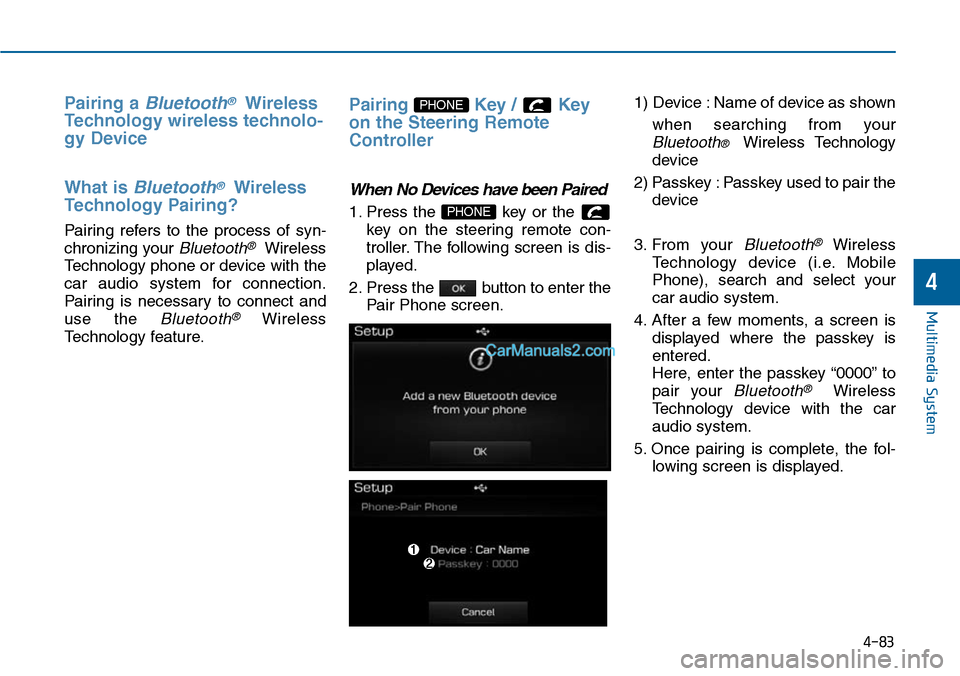
When No Devices have been Paired
1. Press the key or the
key on the steering remote con-
troller. The following screen is dis-
played.
2. Press the button to enter the
Pair Phone screen.
1) Device : Name of device as shown
when searching from your
Bluetooth® Wireless Technology
device
2) Passkey : Passkey used to pair the
device
3. From your Bluetooth®Wireless
Te c h n o l o g y d e v i c e ( i . e . M o b i l e
Phone), search and select your
car audio system.
4. After a few moments, a screen is
displayed where the passkey is
entered.
Here, enter the passkey “0000” to
pair your Bluetooth®Wireless
Technology device with the car
audio system.
5. Once pairing is complete, the fol-
lowing screen is displayed.
PHONE
PHONE
4-83
Multimedia System
4
Page 343 of 665
![Hyundai Sonata 2014 Workshop Manual Connecting a Device
Press the key Select
[Phone] Select [Paired Phone List]
1) Connected Phone : Device that is
currently connected
2) Paired Phone : Device that is
paired but not connected](/img/35/16805/w960_16805-342.png "Hyundai Sonata 2014 Workshop Manual Connecting a Device
Press the key Select
[Phone] Select [Paired Phone List]
1) Connected Phone : Device that is
currently connected
2) Paired Phone : Device that is
paired but not connected")
Connecting a Device
Press the key Select
[Phone] Select [Paired Phone List]
1) Connected Phone : Device that is
currently connected
2) Paired Phone : Device that is
paired but not connected
From the paired phone list, select the
device you want to connect and
press the button.
Changing Priority
What is Priority?
It is possible to pair up to five
Bluetooth®Wireless Technology
devices with the car audio system.
As a result, the “Change Priority’ fea-
ture is used to set the connection pri-
ority of paired phones. However, the
most recently connected phone will
always be set as the highest priority.
Press the key Select
[Phone] Select [Paired Phone List]
SETUP
SETUP
4-85
Multimedia System
4
Page 346 of 665
![Hyundai Sonata 2014 Workshop Manual Calling by Dialing a Number
Press the key Select [Dial
Number]
1) Dial Pad : Used to enter phone
number
2) Call : If a number has been
entered, calls the number If no
number has been](/img/35/16805/w960_16805-345.png "Hyundai Sonata 2014 Workshop Manual Calling by Dialing a Number
Press the key Select [Dial
Number]
1) Dial Pad : Used to enter phone
number
2) Call : If a number has been
entered, calls the number If no
number has been")
Calling by Dialing a Number
Press the key Select [Dial
Number]
1) Dial Pad : Used to enter phone
number
2) Call : If a number has been
entered, calls the number If no
number has been entered, switch-
es to call history screen
3) End : Deletes the entered phone
number
4) Delete : Deletes entered numbers
one digit at a time
Answering Calls
Answering a Call
Answering a call with a Bluetooth®
Wireless Technology device connect-
ed will display the following screen.
1) Caller : Displays the other part’s
name when the incoming caller is
saved within your phone book
2) Incoming Number : Displays the
incoming number
3) Accept : Accept the incoming call
4) Reject : Reject the incoming call
Information
• When the incoming call pop-up is
displayed, most Audio and SETUP
mode features will not operate. Only
the call volume can be operated.
• The telephone number may not be
properly displayed in some mobile
phones.
• When a call is answered with the
mobile phone, the call mode will
automatically convert to Private
mode.
i
PHONE
4-88
Multimedia System
Page 349 of 665
Bluetooth® Wireless Technology
(for Bluetooth®Wireless
Te ch n o l o g yequipped model)
Pairing a Bluetooth®Wireless
Technology wireless technolo-
gy Device
What is Bluetooth®Wireless
Technology Pairing?
Pair ing refers to the process of syn-
chronizing your Bluetooth®Wireless
Technology phone or device with the
car audio system for connection.
Pair ing is necessar y to connect and
use the Bluetooth®Wireless
Technology feature.
Pairing Key / Key on
the Steering Remote Controller
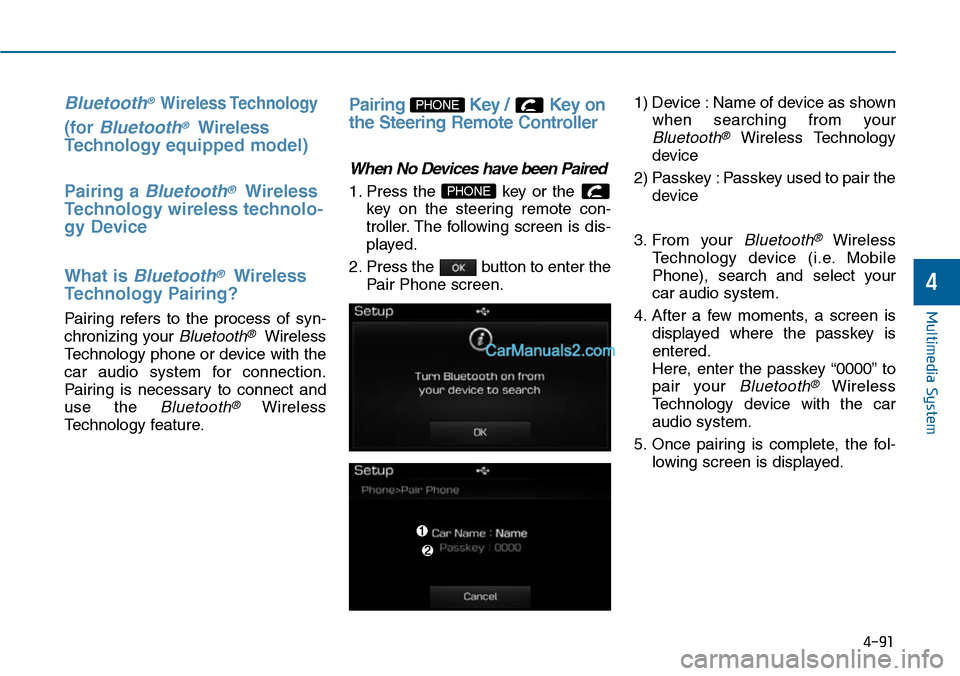
When No Devices have been Paired
1. Press the key or the
key on the steering remote con-
troller. The following screen is dis-
played.
2. Press the button to enter the
Pair Phone screen.
1) Device : Name of device as shown
when searching from your
Bluetooth®Wireless Technology
device
2) Passkey : Passkey used to pair the
device
3. From your Bluetooth®Wireless
Te c h n o l o g y d e v i c e ( i . e . M o b i l e
Phone), search and select your
car audio system.
4. After a few moments, a screen is
displayed where the passkey is
entered.
Here, enter the passkey “0000” to
pair your Bluetooth®Wireless
Technology device with the car
audio system.
5. Once pairing is complete, the fol-
lowing screen is displayed.
PHONE
PHONE
4-91
Multimedia System
4
Page 351 of 665
![Hyundai Sonata 2014 Workshop Manual Connecting a Device
Press the key Select
[Phone] Select [Paired Phone List]
1) Connected Phone : Device that is
currently connected
2) Paired Phone : Device that is
paired but not connected](/img/35/16805/w960_16805-350.png "Hyundai Sonata 2014 Workshop Manual Connecting a Device
Press the key Select
[Phone] Select [Paired Phone List]
1) Connected Phone : Device that is
currently connected
2) Paired Phone : Device that is
paired but not connected")
Connecting a Device
Press the key Select
[Phone] Select [Paired Phone List]
1) Connected Phone : Device that is
currently connected
2) Paired Phone : Device that is
paired but not connected
From the paired phone list, select the
device you want to connect and
press the button.
Changing Priority
What is Priority?
It is possible to pair up to five
Bluetooth®Wireless Technology
devices with the car audio system.
As a result, the “Change Priority’ fea-
ture is used to set the connection pri-
ority of paired phones. However, the
most recently connected phone will
always be set as the highest priority.
Press the key Select
[Phone] Select [Paired Phone List]
SETUP
ConnectSETUP
4-93
Multimedia System
4
Page 354 of 665
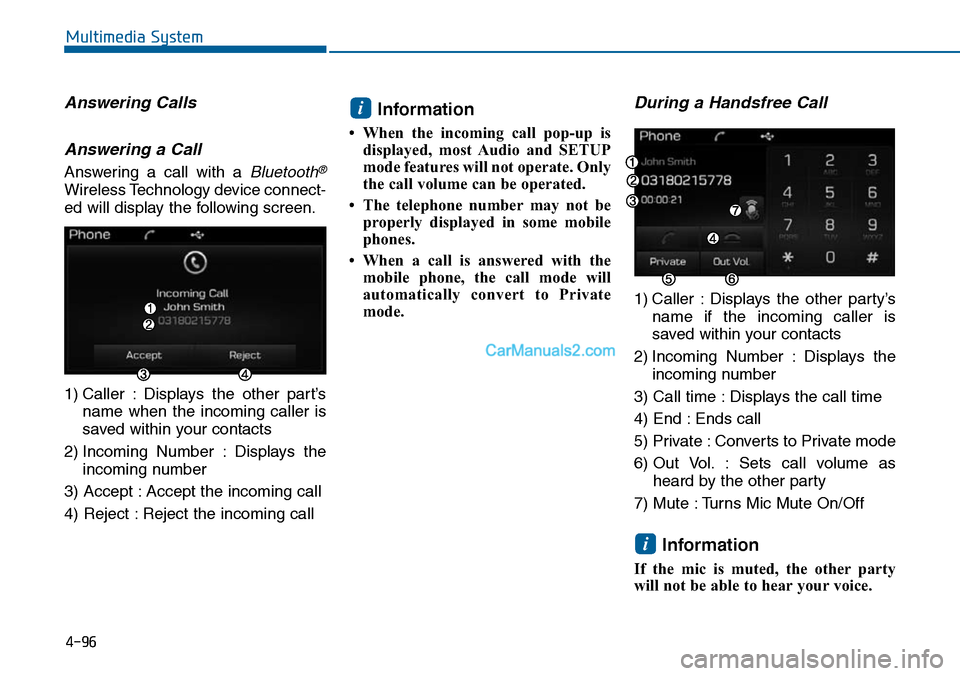
Answering Calls
Answering a Call
Answering a call with a Bluetooth®
Wireless Technology device connect-
ed will display the following screen.
1) Caller : Displays the other part’s
name when the incoming caller is
saved within your contacts
2) Incoming Number : Displays the
incoming number
3) Accept : Accept the incoming call
4) Reject : Reject the incoming call
Information
• When the incoming call pop-up is
displayed, most Audio and SETUP
mode features will not operate. Only
the call volume can be operated.
• The telephone number may not be
properly displayed in some mobile
phones.
• When a call is answered with the
mobile phone, the call mode will
automatically convert to Private
mode.
During a Handsfree Call
1) Caller : Displays the other party’s
name if the incoming caller is
saved within your contacts
2) Incoming Number : Displays the
incoming number
3) Call time : Displays the call time
4) End : Ends call
5) Private : Converts to Private mode
6) Out Vol. : Sets call volume as
heard by the other party
7) Mute : Turns Mic Mute On/Off
Information
If the mic is muted, the other party
will not be able to hear your voice.
i
i
4-96
Multimedia System
Page 356 of 665
4-98
Information
- Using the Voice Recognition
• When using the voice recognition
feature, only commands listed with-
in the user's manual are supported.
• Be aware that during the operation
of the voice recognition system,
pressing any key other than the
key or touching the screen will ter-
minate voice recognition mode.
• For superior voice recognition per-
formance, position the microphone
used for voice recognition above the
head of the driver’s seat and main-
tain a proper position when saying
commands.
(Continued)
(Continued)
•Within the following situations,
voice recognition may not function
properly due to external sound.
- When the windows and sunroof
are open
- When the wind of the cooling /
heating device is strong
-When entering and passing
through tunnels
-When driving on rugged and
uneven roads
- During severe rain (heavy rains,
windstorms)
• Phone related voice commands can
be used only when a Bluetooth®
Wireless Technology device is con-
nected.
•When making calls by stating a
name, the corresponding contact
must be downloaded and stored
within the audio system.
(Continued)
(Continued)
• After downloading the Bluetooth®
Wireless Technology phone book, it
takes some times to convert the
phone book data into voice informa-
tion. During this time, voice recogni-
tion may not properly operate.
• Pronounce the voice commands nat-
urally and clearly as if in a normal
conversation.
i
Multimedia System
Page 359 of 665
4-101
Multimedia System
4
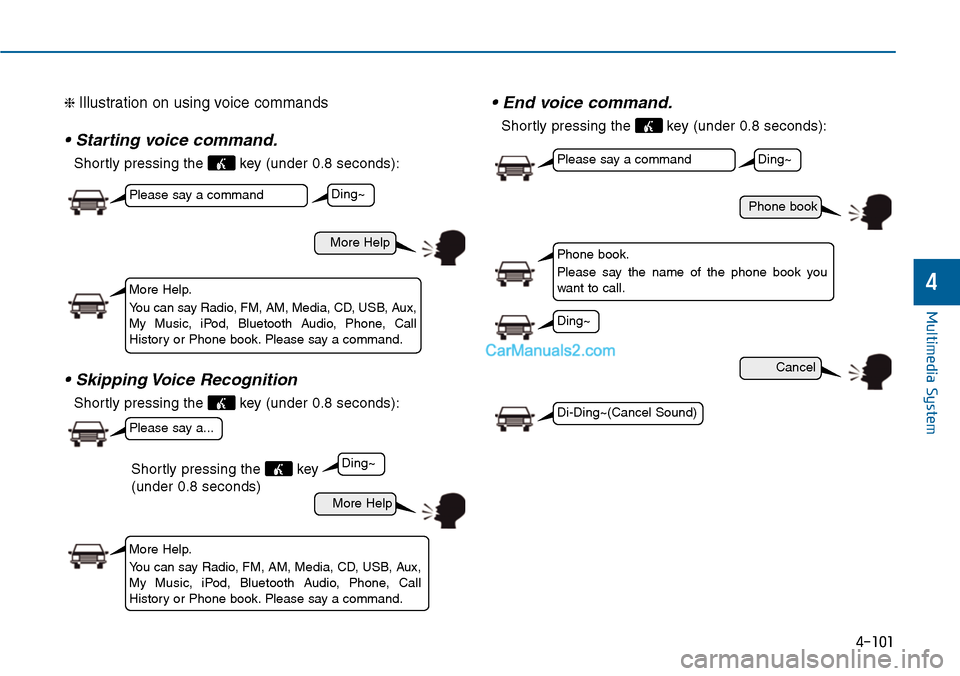
❈ Illustration on using voice commands
• Starting voice command.
Shortly pressing the key (under 0.8 seconds):
• Skipping Voice Recognition
Shortly pressing the key (under 0.8 seconds):
• End voice command.
Shortly pressing the key (under 0.8 seconds):
More Help
Phone book
Cancel
More Help
Please say a command
Please say a command
Please say a...
More Help.
Yo u c a n s a y R a d i o , F M , A M , M e d i a , C D , U S B , A u x ,My Music, iPod, Bluetooth Audio, Phone, CallHistory or Phone book. Please say a command.
Phone book.
Please say the name of the phone book youwant to call.
More Help.
Yo u c a n s a y R a d i o , F M , A M , M e d i a , C D , U S B , A u x ,My Music, iPod, Bluetooth Audio, Phone, CallHistory or Phone book. Please say a command.
Ding~
Ding~
Ding~
Di-Ding~(Cancel Sound)
Ding~
Shortly pressing the key
(under 0.8 seconds)