audio Hyundai Sonata 2014 Repair Manual
[x] Cancel search | Manufacturer: HYUNDAI, Model Year: 2014, Model line: Sonata, Model: Hyundai Sonata 2014Pages: 665, PDF Size: 17.43 MB
Page 361 of 665
4-103
Multimedia System
4
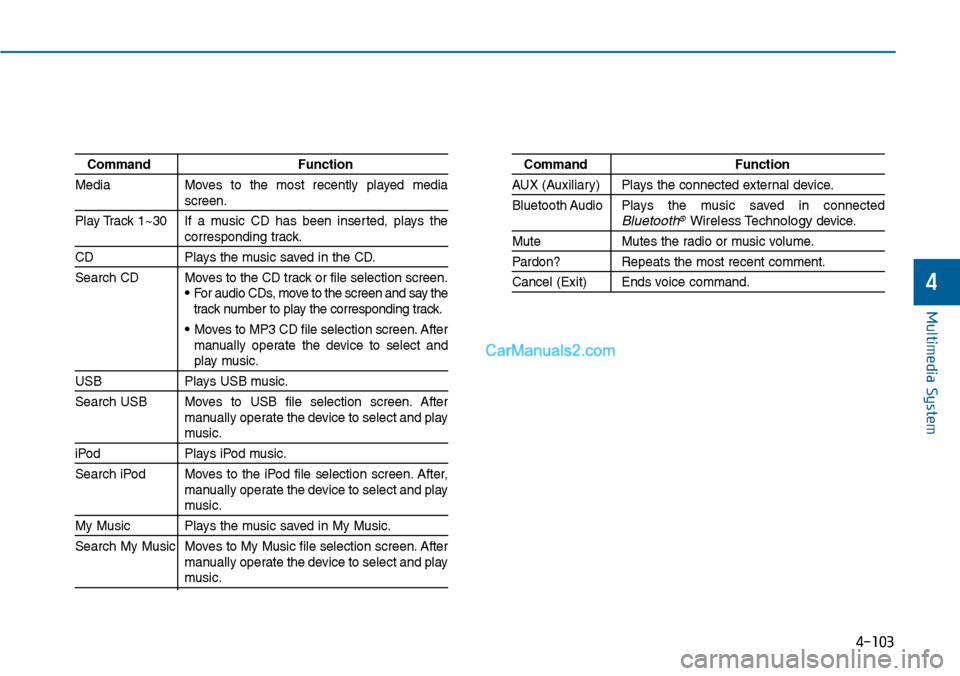
Command Function
Media Moves to the most recently played mediascreen.
Play Track 1~30 If a music CD has been inserted, plays thecorresponding track.
CD Plays the music saved in the CD.
Search CD Moves to the CD track or file selection screen.•For audio CDs, move to the screen and say thetrack number to play the corresponding track.
• Moves to MP3 CD file selection screen. Aftermanually operate the device to select andplay music.
USB Plays USB music.
Search USB Moves to USB file selection screen. Aftermanually operate the device to select and playmusic.
iPod Plays iPod music.
Search iPod Moves to the iPod file selection screen. After,manually operate the device to select and playmusic.
My Music Plays the music saved in My Music.
Search My Music Moves to My Music file selection screen. Aftermanually operate the device to select and playmusic.
Command Function
AUX (Auxiliar y) Plays the connected exter nal device.
Bluetooth Audio Plays the music saved in connectedBluetooth®Wireless Technologydevice.
Mute Mutes the radio or music volume.
Pardon? Repeats the most recent comment.
Cancel (Exit) Ends voice command.
Page 362 of 665
4-104
Multimedia System
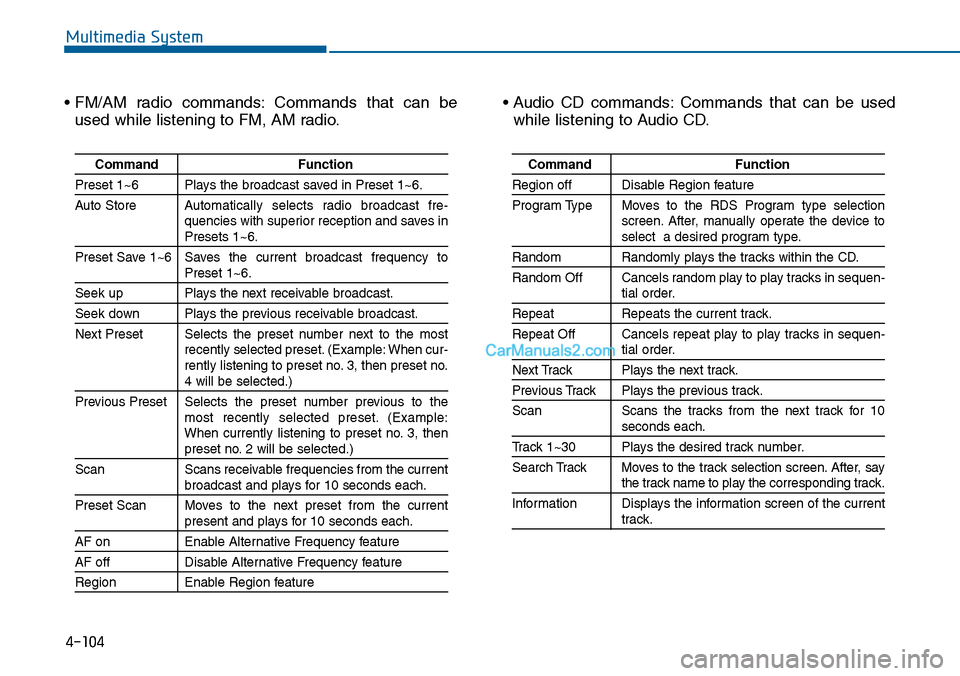
• FM/AM radio commands: Commands that can be
used while listening to FM, AM radio.
• Audio CD commands: Commands that can be used
while listening to Audio CD.
Command Function
Preset 1~6 Plays the broadcast saved in Preset 1~6.
Auto StoreAutomatically selects radio broadcast fre-quencies with superior reception and saves inPresets 1~6.
Preset Save 1~6 Saves the current broadcast frequency toPreset 1~6.
Seek up Plays the next receivable broadcast.
Seek down Plays the previous receivable broadcast.
Next Preset Selects the preset number next to the mostrecently selected preset. (Example: When cur-rently listening to preset no. 3, then preset no.4 will be selected.)
Previous Preset Selects the preset number previous to themost recently selected preset. (Example:When currently listening to preset no. 3, thenpreset no. 2 will be selected.)
Scan Scans receivable frequencies from the currentbroadcast and plays for 10 seconds each.
Preset Scan Moves to the next preset from the currentpresent and plays for 10 seconds each.
AF on Enable Alternative Frequency feature
AF off Disable Alternative Frequency feature
Region Enable Region feature
Command Function
Region off Disable Region feature
Program Type Moves to the RDS Program type selectionscreen. After, manually operate the device toselect a desired program type.
Random Randomly plays the tracks within the CD.
Random Off Cancels random play to play tracks in sequen-tial order.
Repeat Repeats the current track.
Repeat Off Cancels repeat play to play tracks in sequen-tial order.
Next Track Plays the next track.
Previous Track Plays the previous track.
Scan Scans the tracks from the next track for 10seconds each.
Track 1~30 Plays the desired track number.
Search Track Moves to the track selection screen. After, saythe track name to play the corresponding track.
Information Displays the information screen of the currenttrack.
Page 364 of 665
4-106
Multimedia System
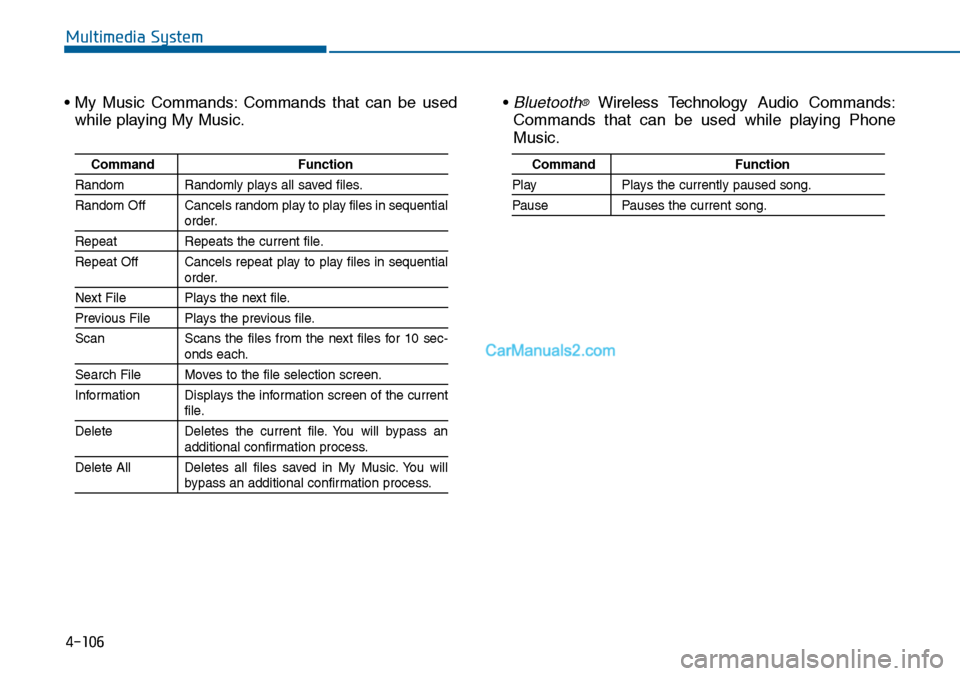
• My Music Commands: Commands that can be used
while playing My Music.
• Bluetooth®Wireless Technology Audio Commands:
Commands that can be used while playing Phone
Music.
Command Function
Random Randomly plays all saved files.
Random Off Cancels random play to play files in sequentialorder.
Repeat Repeats the current file.
Repeat Off Cancels repeat play to play files in sequentialorder.
Next File Plays the next file.
Previous File Plays the previous file.
Scan Scans the files from the next files for 10 sec-onds each.
Search File Moves to the file selection screen.
Information Displays the information screen of the currentfile.
Delete Deletes the current file. You will bypass anadditional confirmation process.
Delete All Deletes all files saved in My Music. You willbypass an additional confirmation process.
Command Function
Play Plays the currently paused song.
Pause Pauses the current song.
Page 366 of 665
![Hyundai Sonata 2014 Repair Manual 4-108
Multimedia System
Scroll Text
Press the key Select
[Display] Select [Scroll text]
This feature is used to scroll text dis-
played on the screen when it is too
long to be displayed at on](/img/35/16805/w960_16805-365.png "Hyundai Sonata 2014 Repair Manual 4-108
Multimedia System
Scroll Text
Press the key Select
[Display] Select [Scroll text]
This feature is used to scroll text dis-
played on the screen when it is too
long to be displayed at on")
4-108
Multimedia System
Scroll Text
Press the key Select
[Display] Select [Scroll text]
This feature is used to scroll text dis-
played on the screen when it is too
long to be displayed at once.
When turned on, the text is repeat-
edly scrolled. When turned off, the
text is scrolled just once.
MP3 Information Display
Press the key Select
[Display] Select [Song Info]
This feature is used to change the
information displayed within USB
and MP3 CD modes.
1) Folder File : Displays file name
and folder name
2) Album Ar tist Song : Displays
album name/artist name/song
Sound Settings
Audio Settings
Press the key Select
[Sound] Select [Audio Setting]
Use the , , , buttons to
adjust the Fader/Balance settings.
Use the , buttons to adjust the
Bass/Middle/Treble settings.
Press the button to reset.Default
SETUP
SETUP SETUP
Page 367 of 665
![Hyundai Sonata 2014 Repair Manual 4-109
Multimedia System
4
SDVC (Speed Dependent Volume
Control)
Press the key Select
[Sound] Select [Speed Dependent
Vo l . ]
The volume level is controlled auto-
matically according to th](/img/35/16805/w960_16805-366.png "Hyundai Sonata 2014 Repair Manual 4-109
Multimedia System
4
SDVC (Speed Dependent Volume
Control)
Press the key Select
[Sound] Select [Speed Dependent
Vo l . ]
The volume level is controlled auto-
matically according to th")
4-109
Multimedia System
4
SDVC (Speed Dependent Volume
Control)
Press the key Select
[Sound] Select [Speed Dependent
Vo l . ]
The volume level is controlled auto-
matically according to the vehicle
speed. SDVC can be set by selecting
from On / Off.
Touch Screen Beep
Press the key Select
[Sound] Select [Touch Screen
Beep]
This feature is used to turn the touch
screen beep on/off.
Bluetooth®Wireless Technology
Setting
Pairing a New Device
Press the key Select
[Phone] Select [Pair Phone]
Bluetooth®Wireless Technology
devices can be paired with the audio
system.
For more infor mation, refer to the
“Pairing through Phone Setup” sec-
tion within Bluetooth®Wireless
Technology.
SETUP
SETUP
SETUP
Page 368 of 665
![Hyundai Sonata 2014 Repair Manual 4-110
Multimedia System
Viewing Paired Phone List
Press the key Select
[Phone] Select [Paired Phone List]
This feature is used to view mobile
phones that have been paired with
the audio](/img/35/16805/w960_16805-367.png "Hyundai Sonata 2014 Repair Manual 4-110
Multimedia System
Viewing Paired Phone List
Press the key Select
[Phone] Select [Paired Phone List]
This feature is used to view mobile
phones that have been paired with
the audio")
4-110
Multimedia System
Viewing Paired Phone List
Press the key Select
[Phone] Select [Paired Phone List]
This feature is used to view mobile
phones that have been paired with
the audio system. Upon selecting a
paired phone, the setup menu is dis-
played.
For more infor mation, refer to the
“Setting Bluetooth®Wireless
Te c h n o l o g y C o n n e c t i o n ” s e c t i o n w i t h -
in Bluetooth®Wireless Technology.
1) : Moves to the previous
screen
2) : Connect/disconnects cur-
rently selected phone
3) : Deletes the currently
selected phone
4) : Sets currently selected
phone to highest connec-
tion priority
Information
- BEFORE DOWNLOADING
PHONE BOOKS
• Only phone books within connected
phones can be downloaded. Also
check to see that your mobile phone
supports the download feature.
• To learn more about whether your
mobile phone supports phone book
downloads, refer to your mobile
phone user’s manual.
• The Phone book for only the con-
nected phone can be downloaded.
Before downloading, check to see
whether your phone supports the
download feature.
iSETUP
Page 369 of 665
![Hyundai Sonata 2014 Repair Manual 4-111
Multimedia System
4
Downloading Phone books
Press the key Select
[Phone] Select [Phone book
Download]
The Phone book is downloaded from
the mobile phone and the download
progress is dis](/img/35/16805/w960_16805-368.png "Hyundai Sonata 2014 Repair Manual 4-111
Multimedia System
4
Downloading Phone books
Press the key Select
[Phone] Select [Phone book
Download]
The Phone book is downloaded from
the mobile phone and the download
progress is dis")
4-111
Multimedia System
4
Downloading Phone books
Press the key Select
[Phone] Select [Phone book
Download]
The Phone book is downloaded from
the mobile phone and the download
progress is displayed.
Information
• Up to 1,000 phone book entries can
be copied into car phone book.
• Up to 1,000 phone book entries can
be saved for each paired device.
•Upon downloading phone book
data, previously saved phone book
data will be deleted. However,
Phone book entries saved to other
paired phones are not deleted.
Auto Download (Phone Book)
Press the key Select
[Phone] Select [Auto Download]
This feature is used to automatically
download mobile phone book entries
once a Bluetooth®Wireless Technology
phone is connected.
Information
•The Auto Download feature will
download mobile phone book
entries every time the phone is con-
nected. The download time may dif-
fer depending on the number of
saved phone book entries and the
communication state.
• When downloading a phone book,
first check to see that your mobile
phone supports the phone book
download feature.
Audio Streaming
Press the key Select
[Phone] Select [Audio Streaming]
When Audio Streaming is turned on,
you can play music files saved in
your Bluetooth®Wireless Technology
device from the car.
SETUP
i
SETUP
i
SETUP
Page 370 of 665
![Hyundai Sonata 2014 Repair Manual 4-112
Multimedia System
Outgoing Volume
Press the key Select
[Phone] Select [Outgoing Volume]
Use the , buttons to adjust
the outgoing volume level.
Turning Bluetooth System Off
Press the key](/img/35/16805/w960_16805-369.png "Hyundai Sonata 2014 Repair Manual 4-112
Multimedia System
Outgoing Volume
Press the key Select
[Phone] Select [Outgoing Volume]
Use the , buttons to adjust
the outgoing volume level.
Turning Bluetooth System Off
Press the key")
4-112
Multimedia System
Outgoing Volume
Press the key Select
[Phone] Select [Outgoing Volume]
Use the , buttons to adjust
the outgoing volume level.
Turning Bluetooth System Off
Press the key Select
[Phone] Select [Bluetooth System
Off]
Once Bluetooth®Wireless Technology
is turned off, Bluetooth®Wireless
Te c h n o l o g y r e l a t e d f e a t u r e s w i l l n o t b e
supported within the audio system.
Information
To t u r n Bluetooth®Wireless Technology
back on, go to [Phone] and
press “Yes”.
SETUP
i
SETUP SETUP
Page 375 of 665
![Hyundai Sonata 2014 Repair Manual 4-117
Multimedia System
4
Bluetooth®Wireless
Technology Setting
Pairing a New Device
Press the key Select
[Phone] Select [Pair Phone]
Bluetooth®Wireless Technology
devices can be paired with t](/img/35/16805/w960_16805-374.png "Hyundai Sonata 2014 Repair Manual 4-117
Multimedia System
4
Bluetooth®Wireless
Technology Setting
Pairing a New Device
Press the key Select
[Phone] Select [Pair Phone]
Bluetooth®Wireless Technology
devices can be paired with t")
4-117
Multimedia System
4
Bluetooth®Wireless
Technology Setting
Pairing a New Device
Press the key Select
[Phone] Select [Pair Phone]
Bluetooth®Wireless Technology
devices can be paired with the audio
system.
For more infor mation, refer to the
“Pairing through Phone Setup” sec-
tion within Bluetooth®Wireless
Technology.
Viewing Paired Phone List
Press the key Select
[Phone] Select [Paired Phone List]
This feature is used to view mobile
phones that have been paired with
the audio system. Upon selecting a
paired phone, the setup menu is dis-
played.
For more information, refer to the
“Setting Bluetooth®Wireless
Te c h n o l o g y C o n n e c t i o n ” s e c t i o n w i t h -
in Bluetooth®Wireless Technology.
1) : Moves to the previous
screen
2) Connect/Disconnect Phone :
Connect/disconnects currently
selected phone
3) Delete : Deletes the currently
selected phone
4) Change Priority : Sets currently
selected phone to highest connec-
tion priority
Information
- BEFORE DOWNLOADING
Contacts
• Only contacts within connected
phones can be downloaded. Also
check to see that your mobile phone
supports the download feature.
• To learn more about whether your
mobile phone supports contacts
downloads, refer to your mobile
phone user’s manual.
• The contacts for only the connected
phone can be downloaded. Before
downloading, check to see whether
your phone supports the download
feature.
i
SETUP
SETUP
Page 376 of 665
![Hyundai Sonata 2014 Repair Manual 4-118
Multimedia System
Downloading Contacts
Press the key Select
[Phone] Select [Contacts Download]
The contacts is downloaded from the
mobile phone and the download
progress is displayed.
Info](/img/35/16805/w960_16805-375.png "Hyundai Sonata 2014 Repair Manual 4-118
Multimedia System
Downloading Contacts
Press the key Select
[Phone] Select [Contacts Download]
The contacts is downloaded from the
mobile phone and the download
progress is displayed.
Info")
4-118
Multimedia System
Downloading Contacts
Press the key Select
[Phone] Select [Contacts Download]
The contacts is downloaded from the
mobile phone and the download
progress is displayed.
Information
• Up to 1,000 contacts entries can be
copied into car contacts.
• Up to 1,000 contacts entries can be
saved for each paired device.
•Upon downloading contacts data,
previously saved contacts data will
be deleted. However, contacts
entries saved to other paired phones
are not deleted.
Auto Download (Contacts)
Press the key Select
[Phone] Select [Auto Download]
This feature is used to automatically
download mobile contacts entries
once a Bluetooth®Wireless
Technology phone is connected.
Information
•The Auto Download feature will
download mobile contacts entries
every time the phone is connected.
The download time may differ
depending on the number of saved
contacts entries and the communi-
cation state.
• When downloading a contacts, first
check to see that your mobile phone
supports the contacts download fea-
ture.
Streaming Audio
Press the key Select
[Phone] Select [Streaming Audio]
When Streaming Audio is turned on,
you can play music files saved in
your Bluetooth®Wireless Technology
device from the car.
SETUP
i
SETUP
i
SETUP