User settings Hyundai Sonata 2015 User Guide
[x] Cancel search | Manufacturer: HYUNDAI, Model Year: 2015, Model line: Sonata, Model: Hyundai Sonata 2015Pages: 603, PDF Size: 14.7 MB
Page 205 of 603
3-110
Convenient features of your vehicle
Turn signals and lane changesignals
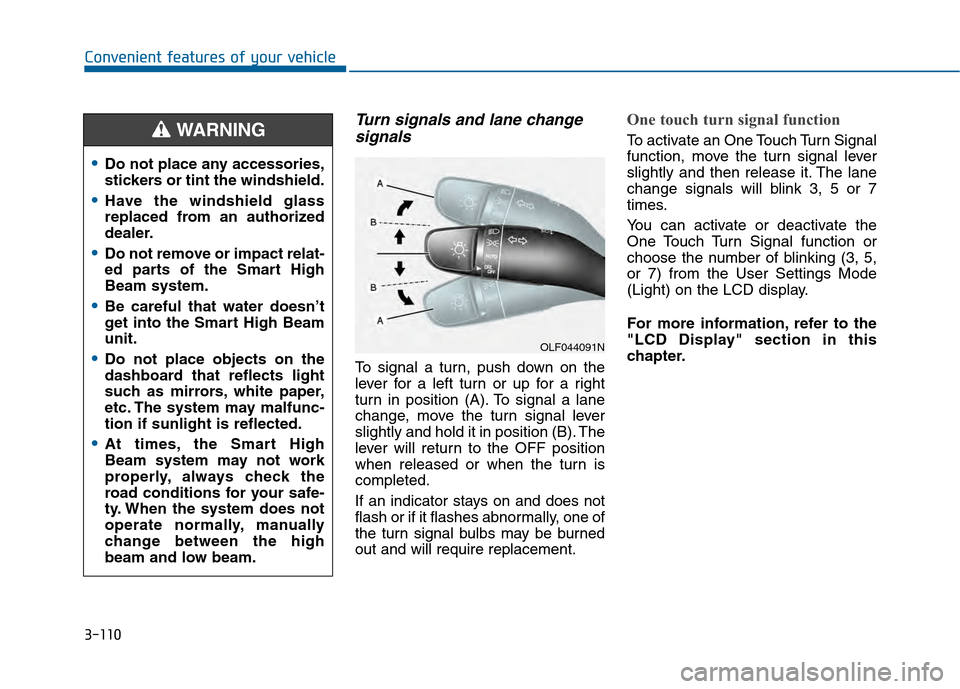
To signal a turn, push down on the
lever for a left turn or up for a right
turn in position (A). To signal a lane
change, move the turn signal lever
slightly and hold it in position (B). The
lever will return to the OFF position
when released or when the turn is
completed.
If an indicator stays on and does not
flash or if it flashes abnormally, one of
the turn signal bulbs may be burned
out and will require replacement.
One touch turn signal function
To activate an One Touch Turn Signal
function, move the turn signal lever
slightly and then release it. The lane
change signals will blink 3, 5 or 7
times.
You can activate or deactivate the
One Touch Turn Signal function or
choose the number of blinking (3, 5,
or 7) from the User Settings Mode
(Light) on the LCD display.
For more information, refer to the
"LCD Display" section in this
chapter.
OLF044091N
•Do not place any accessories,
stickers or tint the windshield.
Have the windshield glass
replaced from an authorized
dealer.
Do not remove or impact relat-
ed parts of the Smart High
Beam system.
Be careful that water doesn’t
get into the Smart High Beam
unit.
Do not place objects on the
dashboard that reflects light
such as mirrors, white paper,
etc. The system may malfunc-
tion if sunlight is reflected.
At times, the Smart High
Beam system may not work
properly, always check the
road conditions for your safe-
ty. When the system does not
operate normally, manually
change between the high
beam and low beam.
WARNING
Page 206 of 603
3-111
Convenient features of your vehicle
3
Battery saver function
The purpose of this feature is to pre-
vent the battery from being dis-
charged. The system automatically
turns off the parking lamp when the
key is removed (remote key) or when
the driver turns the engine off (smart
key) and opens the driver-side door.
With this feature, the parking lamps
will turn off automatically if the driver
parks on the side of road at night.
If necessary, to keep the lamps on
when the engine is turned off, perform
the following:
1) Open the driver-side door.
2) Turn the parking lamps OFF andON again using the light switch on
the steering column.
Headlamp delay function (if equipped)
If the key is removed from the ignition
switch or placed in the ACC position or
the LOCK/OFF position with the head-
lamps ON, the headlamps (and/or
parking lamps) remain on for about 5
minutes. However, if the driver's door
is opened and closed, the headlights
are turned off after 15 seconds.
However, with the engine off if the dri-
ver’s door is opened and closed, the
headlamps (and/or parking lamps) are
turned off after 15 seconds.
The headlamps (and/or parking lamps)
can be turned off by pressing the lock
button on the remote key or smart key
twice or turning the light switch to the
OFF or AUTO position. However, if you
turn the light switch to the AUTO posi-
tion when it is dark outside, the head-
lamps will not be turned off.
You can activate or deactivate the
Headlamp Delay function from the
User Settings Mode (Light) on the
LCD display.
For more information, refer to the
"LCD Display" section in this
chapter. If the driver gets out of the vehicle
through other doors (except dri-
ver's door), the battery saver func-
tion does not operate and the
headlamp delay function does not
turn off automatically. Therefore, It
causes the battery to be dis-
charged. In this case, make sure
to turn off the lamp before getting
out of the vehicle.
NOTICE
Page 208 of 603
3-113
Convenient features of your vehicle
3
Welcome System (if equipped)
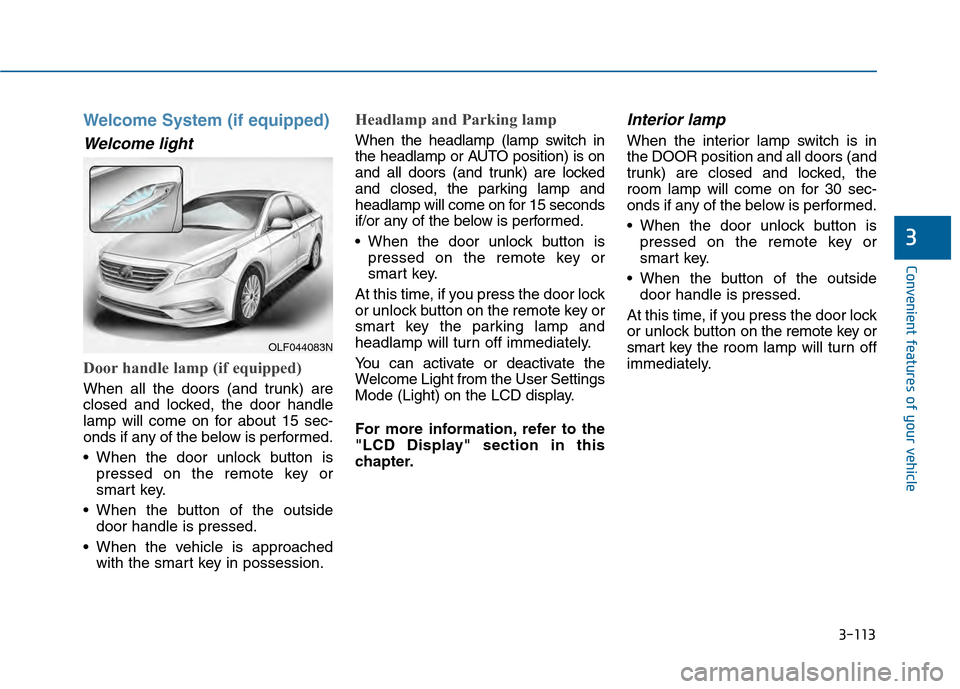
Welcome light
Door handle lamp (if equipped)
When all the doors (and trunk) are
closed and locked, the door handle
lamp will come on for about 15 sec-
onds if any of the below is performed.
When the door unlock button ispressed on the remote key or
smart key.
When the button of the outside door handle is pressed.
When the vehicle is approached with the smart key in possession.
Headlamp and Parking lamp
When the headlamp (lamp switch in
the headlamp or AUTO position) is on
and all doors (and trunk) are locked
and closed, the parking lamp and
headlamp will come on for 15 seconds
if/or any of the below is performed.
When the door unlock button ispressed on the remote key or
smart key.
At this time, if you press the door lock
or unlock button on the remote key or
smart key the parking lamp and
headlamp will turn off immediately.
You can activate or deactivate the
Welcome Light from the User Settings
Mode (Light) on the LCD display.
For more information, refer to the
"LCD Display" section in this
chapter.
Interior lamp
When the interior lamp switch is in
the DOOR position and all doors (and
trunk) are closed and locked, the
room lamp will come on for 30 sec-
onds if any of the below is performed.
When the door unlock button is pressed on the remote key or
smart key.
When the button of the outside door handle is pressed.
At this time, if you press the door lock
or unlock button on the remote key or
smart key the room lamp will turn off
immediately.
OLF044083N
Page 236 of 603
3-141
Convenient features of your vehicle
3
Adjusting the driver and passen-
ger side temperature individually
Press the "SYNC" button again to
operate the driver and passenger
side temperature individually. The
button indicator will turn off.
Temperature conversion
If the battery has been discharged or
disconnected, the temperature mode
display will reset to Fahrenheit.
To change the temperature unit from
°F to °C or °C to °F:
- On the instrument cluster, go toUser Settings Mode ➝ Other
Features ➝Temperature Unit.
- Press the AUTO button for 3 sec- onds while pressing the OFF button.
(Automatic climate control system)
Both the temperature unit on the
cluster LCD display and climate con-
trol screen will change.
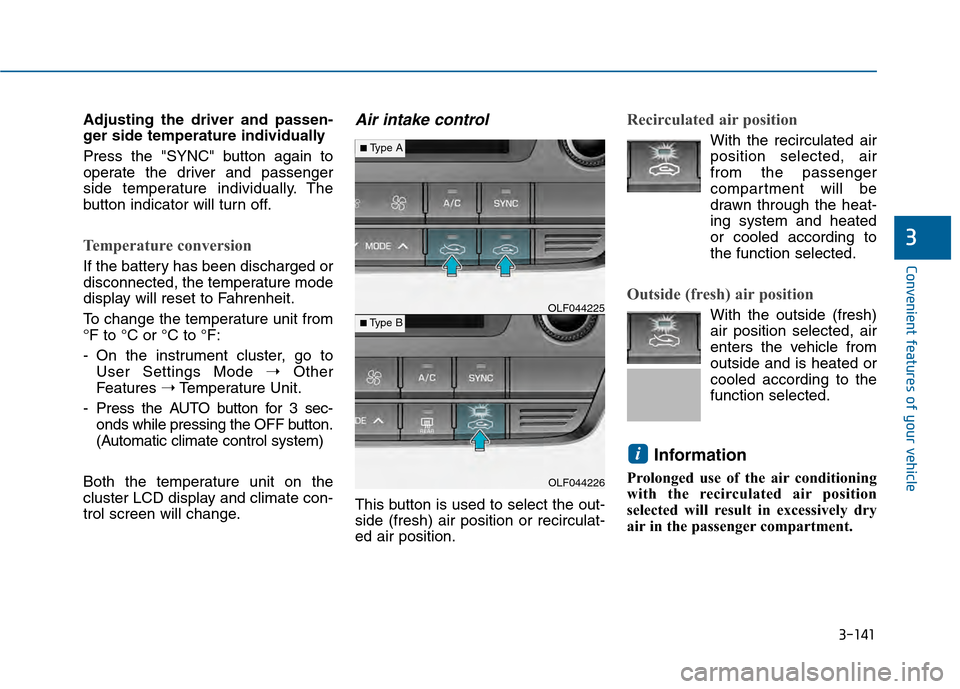
Air intake control
This button is used to select the out-
side (fresh) air position or recirculat-
ed air position.
Recirculated air position
With the recirculated air position selected, air
from the passenger
compartment will be
drawn through the heat-
ing system and heated
or cooled according to
the function selected.
Outside (fresh) air position
With the outside (fresh)
air position selected, air
enters the vehicle from
outside and is heated or
cooled according to the
function selected.
Information
Prolonged use of the air conditioning
with the recirculated air position
selected will result in excessively dry
air in the passenger compartment.
i
OLF044226
■Type B OLF044225
■Type A
Page 274 of 603
![Hyundai Sonata 2015 User Guide 4-21
Multimedia System
4
System Settings
Press the key Select [System]
through tune knob or key
Memory Information
Displays currently used memory and
total system memory.
Select [Memory Information]](/img/35/16796/w960_16796-273.png "Hyundai Sonata 2015 User Guide 4-21
Multimedia System
4
System Settings
Press the key Select [System]
through tune knob or key
Memory Information
Displays currently used memory and
total system memory.
Select [Memory Information]")
4-21
Multimedia System
4
System Settings
Press the key Select [System]
through tune knob or key
Memory Information
Displays currently used memory and
total system memory.
Select [Memory Information] OK
The currently used memory is dis-
played on the left side while the total
system memory is displayed on the
right side.
Prompt Feedback
This feature is used to change voice
command feedback between Normal
and Expert modes.
Select [Prompt Feedback] Set
through
TUNEknob
Normal(On) : This mode is for beginner users and provides
detailed instructions during voice
command operation.
Expert(Off) : This mode is for expert
users and omits some information
during voice command operation.
(When using Expert mode, guid-
ance instructions can be heard
through the [Help] or [Menu] com-
mands. Language
This menu is used to set the display
and voice recognition language.
Select [Language] Set through TUNE
knob
❈
The system will reboot after the
language is changed.
❈ Language support by region
-
4
SETUP
Page 295 of 603
4-42
Multimedia System
Phone Menu Screen
Phone Menus
With a Bluetooth®Wireless Technology
device connected, press the
key to display the Phone menu screen.
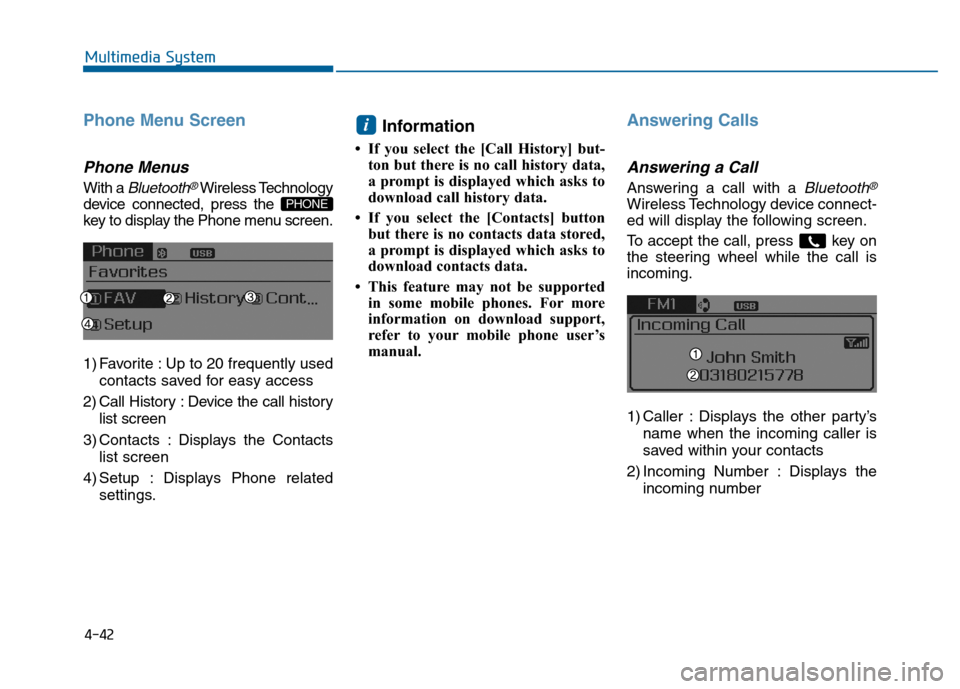
1) Favorite : Up to 20 frequently used
contacts saved for easy access
2) Call History : Device the call history list screen
3) Contacts : Displays the Contacts list screen
4) Setup : Displays Phone related settings.
Information
• If you select the [Call History] but-ton but there is no call history data,
a prompt is displayed which asks to
download call history data.
• If you select the [Contacts] button but there is no contacts data stored,
a prompt is displayed which asks to
download contacts data.
• This feature may not be supported in some mobile phones. For more
information on download support,
refer to your mobile phone user’s
manual.
Answering Calls
Answering a Call
Answering a call with a Bluetooth®
Wireless Technology device connect-
ed will display the following screen.
To accept the call, press key on
the steering wheel while the call is
incoming.
1) Caller : Displays the other party’s
name when the incoming caller is
saved within your contacts
2) Incoming Number : Displays the incoming number
i
PHONE
Page 297 of 603
![Hyundai Sonata 2015 User Guide 4-44
Multimedia System
Contacts
Press the key Select
[Contacts]
The list of saved phone book entries
is displayed.
NOTE:
Find a contact in an alphabetical
order, press the key.
Information
• Up t](/img/35/16796/w960_16796-296.png "Hyundai Sonata 2015 User Guide 4-44
Multimedia System
Contacts
Press the key Select
[Contacts]
The list of saved phone book entries
is displayed.
NOTE:
Find a contact in an alphabetical
order, press the key.
Information
• Up t")
4-44
Multimedia System
Contacts
Press the key Select
[Contacts]
The list of saved phone book entries
is displayed.
NOTE:
Find a contact in an alphabetical
order, press the key.
Information
• Up to 1,000 contacts saved in yourBluetooth®Wireless Technology
phone can be downloaded into the
car contacts. Contacts that have been
downloaded to the car cannot be edit-
ed or deleted on the phone.
• Mobile phone contacts are managed separately for each paired Bluetooth
®
Wireless Technology device (max 5
devices x 1,000 contacts each).
Previously downloaded data is main-
tained even if the Bluetooth
®Wireless
Technology device has been discon-
nected.
(However, the contacts and call histo-
ry saved to the phone will be deleted
if a paired phone is deleted.)
• It is possible to download contacts during Bluetooth streaming audio.
• When downloading contacts, the icon will be displayed within the status
bar. • It is not possible to begin download-
ing a contact list when the contact
download feature has been turned off
within the Bluetooth
®Wireless
Technology device. In addition, some
devices may require device authori-
zation upon attempting to download
contacts. If downloading does not
normally occur, check the Bluetooth
®
Wireless Technology device settings
or the screen state.
• The contacts download feature may not be supported in some mobile
phones. For more information of sup-
ported Bluetooth
®devices and func-
tion support, refer to your phone’s
user manual.
i
MENU
PHONE
Page 336 of 603
![Hyundai Sonata 2015 User Guide 4-83
Multimedia System
4
4) Contacts : Displays the Contactslist screen
5) Setup : Displays Phone related settings
Information
• If you press the [Call History] but-ton but there is no call history](/img/35/16796/w960_16796-335.png "Hyundai Sonata 2015 User Guide 4-83
Multimedia System
4
4) Contacts : Displays the Contactslist screen
5) Setup : Displays Phone related settings
Information
• If you press the [Call History] but-ton but there is no call history")
4-83
Multimedia System
4
4) Contacts : Displays the Contactslist screen
5) Setup : Displays Phone related settings
Information
• If you press the [Call History] but-ton but there is no call history data,
a prompt is displayed which asks to
download call history data.
• If you press the [Contacts] button but there is no contacts data stored,
a prompt is displayed which asks to
download contacts data.
• This feature may not be supported in some mobile phones. For more
information on download support,
refer to your mobile phone user’s
manual.
Favorites
Press the key Select
[Favorites]
1) Saved favorite contact : Connects
call upon selection
2) To add favorite : Downloaded con- tacts be saved as favorite.
3) Delete All : Delete all stored favorite contactsInformation
• To save Favorite, contacts should bedownloaded.
• Contact saved in Favorites will not be automatically updated if the contact
has been updated in the phone. To
update Favorites, delete the Favorite
and create a new Favorite.
iPHONE
i
Page 339 of 603
![Hyundai Sonata 2015 User Guide 4-86
Multimedia System
Contacts
Press the key Select
[Contacts]
The list of saved phone book entries
is displayed. Press the but-
ton to download the call history.
1) Contacts List :- Displays downl](/img/35/16796/w960_16796-338.png "Hyundai Sonata 2015 User Guide 4-86
Multimedia System
Contacts
Press the key Select
[Contacts]
The list of saved phone book entries
is displayed. Press the but-
ton to download the call history.
1) Contacts List :- Displays downl")
4-86
Multimedia System
Contacts
Press the key Select
[Contacts]
The list of saved phone book entries
is displayed. Press the but-
ton to download the call history.
1) Contacts List :- Displays downloaded contactsentries
- Connects call upon selection
2) Sort by : Find a contact in an alphabetical order.
3) Download : Download contacts entries
Information
• Up to 1,000 contacts saved in yourBluetooth®Wireless Technology
phone can be downloaded into the
car contacts. Contacts that have
been downloaded to the car cannot
be edited or deleted on the phone.
• Mobile phone contacts are managed separately for each paired Bluetooth
®
Wireless Technology device (max 5
devices x 1,000 contacts each).
Previously downloaded data is main-
tained even if the Bluetooth
®Wireless
Technology device has been discon-
nected.
(However, the contacts and call histo-
ry saved to the phone will be deleted
if a paired phone is deleted.)
• It is possible to download contacts during Bluetooth streaming audio.
• When downloading contacts, the icon will be displayed within the sta-
tus bar.
(Continued)(Continued)
• It is not possible to begin download-
ing a contact list when the contact
download feature has been turned
off within the Bluetooth
®Wireless
Technology device. In addition,
some devices may require device
authorization upon attempting to
download contacts. If downloading
does not normally occur, check the
Bluetooth
®Wireless Technology
device settings or the screen state.
• The contacts download feature may not be supported in some mobile
phones. For more information of
supported Bluetooth
®devices and
function support, refer to your
phone’s user manual.
i
Download
PHONE
Page 413 of 603
5-55
Driving your vehicle
5
To Adjust the Sensitivity of
Smart Cruise Control
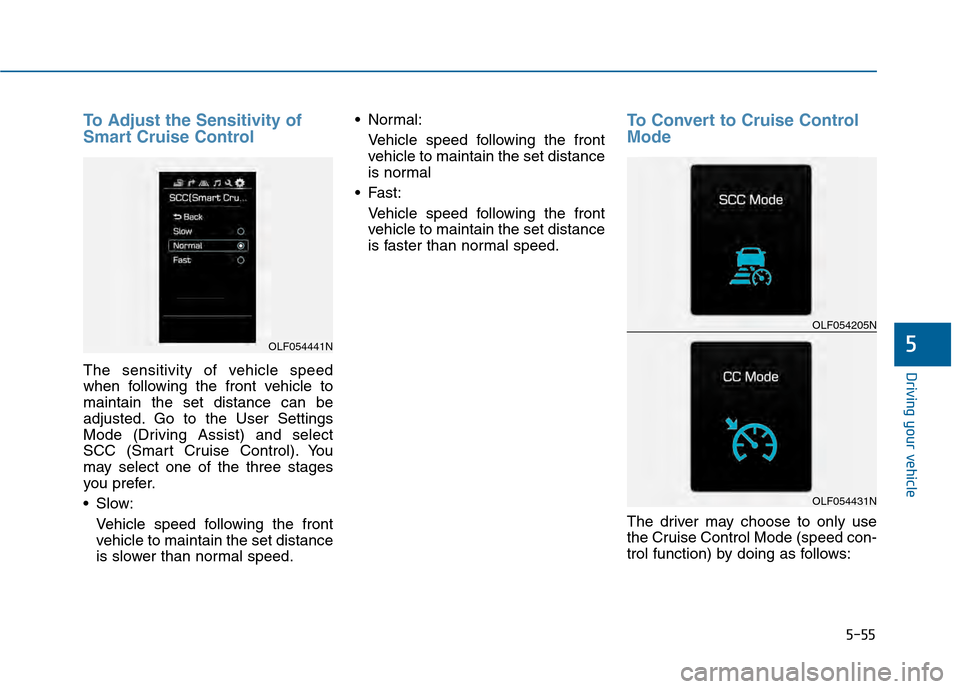
The sensitivity of vehicle speed
when following the front vehicle to
maintain the set distance can be
adjusted. Go to the User Settings
Mode (Driving Assist) and select
SCC (Smart Cruise Control). You
may select one of the three stages
you prefer.
Slow:Vehicle speed following the front
vehicle to maintain the set distance
is slower than normal speed. Normal:
Vehicle speed following the front
vehicle to maintain the set distance
is normal
Fast: Vehicle speed following the front
vehicle to maintain the set distance
is faster than normal speed.
To Convert to Cruise Control
Mode
The driver may choose to only use
the Cruise Control Mode (speed con-
trol function) by doing as follows:
OLF054441N
OLF054205N
OLF054431N