phone Hyundai Sonata 2015 Workshop Manual
[x] Cancel search | Manufacturer: HYUNDAI, Model Year: 2015, Model line: Sonata, Model: Hyundai Sonata 2015Pages: 603, PDF Size: 14.7 MB
Page 339 of 603
![Hyundai Sonata 2015 Workshop Manual 4-86
Multimedia System
Contacts
Press the key Select
[Contacts]
The list of saved phone book entries
is displayed. Press the but-
ton to download the call history.
1) Contacts List :- Displays downl](/img/35/16796/w960_16796-338.png "Hyundai Sonata 2015 Workshop Manual 4-86
Multimedia System
Contacts
Press the key Select
[Contacts]
The list of saved phone book entries
is displayed. Press the but-
ton to download the call history.
1) Contacts List :- Displays downl")
4-86
Multimedia System
Contacts
Press the key Select
[Contacts]
The list of saved phone book entries
is displayed. Press the but-
ton to download the call history.
1) Contacts List :- Displays downloaded contactsentries
- Connects call upon selection
2) Sort by : Find a contact in an alphabetical order.
3) Download : Download contacts entries
Information
• Up to 1,000 contacts saved in yourBluetooth®Wireless Technology
phone can be downloaded into the
car contacts. Contacts that have
been downloaded to the car cannot
be edited or deleted on the phone.
• Mobile phone contacts are managed separately for each paired Bluetooth
®
Wireless Technology device (max 5
devices x 1,000 contacts each).
Previously downloaded data is main-
tained even if the Bluetooth
®Wireless
Technology device has been discon-
nected.
(However, the contacts and call histo-
ry saved to the phone will be deleted
if a paired phone is deleted.)
• It is possible to download contacts during Bluetooth streaming audio.
• When downloading contacts, the icon will be displayed within the sta-
tus bar.
(Continued)(Continued)
• It is not possible to begin download-
ing a contact list when the contact
download feature has been turned
off within the Bluetooth
®Wireless
Technology device. In addition,
some devices may require device
authorization upon attempting to
download contacts. If downloading
does not normally occur, check the
Bluetooth
®Wireless Technology
device settings or the screen state.
• The contacts download feature may not be supported in some mobile
phones. For more information of
supported Bluetooth
®devices and
function support, refer to your
phone’s user manual.
i
Download
PHONE
Page 340 of 603
![Hyundai Sonata 2015 Workshop Manual 4-87
Multimedia System
4
Bluetooth®Wireless
Technology Setting
Pairing a New Device
Press the key Select
[Phone] Select [Pair Phone]
(❈ the screen can be different by region.)
Bluetooth®Wireless](/img/35/16796/w960_16796-339.png "Hyundai Sonata 2015 Workshop Manual 4-87
Multimedia System
4
Bluetooth®Wireless
Technology Setting
Pairing a New Device
Press the key Select
[Phone] Select [Pair Phone]
(❈ the screen can be different by region.)
Bluetooth®Wireless")
4-87
Multimedia System
4
Bluetooth®Wireless
Technology Setting
Pairing a New Device
Press the key Select
[Phone] Select [Pair Phone]
(❈ the screen can be different by region.)
Bluetooth®Wireless Technology
devices can be paired with the audio
system.
For more information, refer to the
“Pairing through Phone Setup” sec-
tion within
Bluetooth®Wireless
Technology.
Viewing Paired Phone List
Press the key Select
[Phone] Select [Paired Phone List]
This feature is used to view mobile
phones that have been paired with
the audio system. Upon selecting a
paired phone, the setup menu is dis-
played.
For more information, refer to the
“Setting
Bluetooth®Wireless
Technology Connection” section with-
in
Bluetooth®Wireless Technology. 1) : Moves to the previous
screen
2) Connect/Disconnect Phone : Connect/ disconnects currently
selected phone
3) Delete : Deletes the currently selected phone
4) Change Priority : Sets currently selected phone to highest connec-
tion priority
SETUP
SETUP
Page 341 of 603
4-88
Multimedia System
Information- Before down-
loading contacts
• Only contacts within connected phones can be downloaded. Also
check to see that your mobile phone
supports the download feature.
• To learn more about whether your mobile phone supports contacts
downloads, refer to your mobile
phone user’s manual.
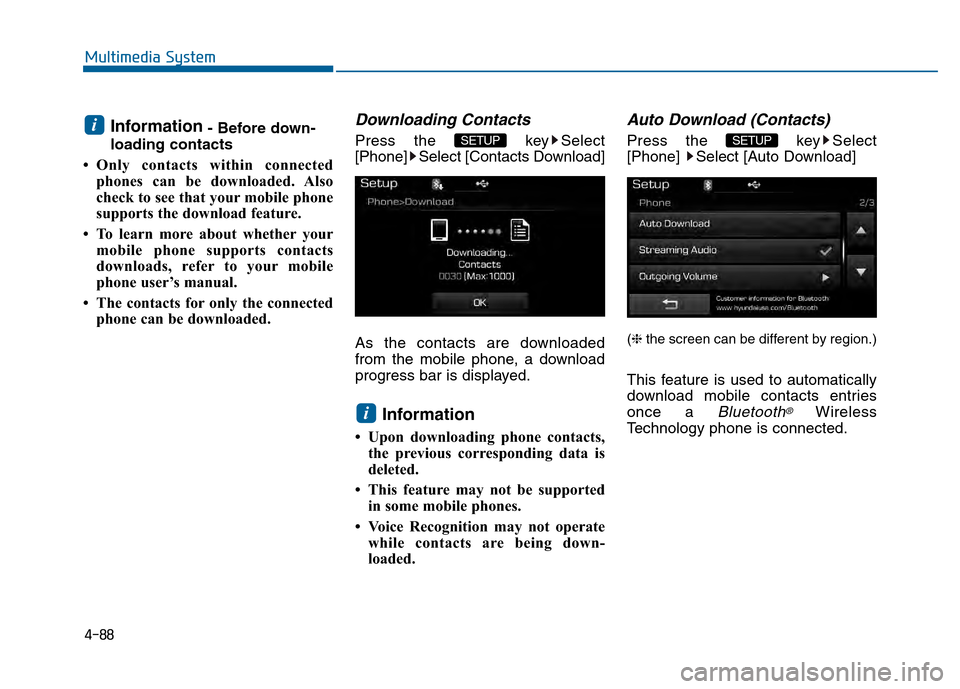
• The contacts for only the connected phone can be downloaded.Downloading Contacts
Press the key Select
[Phone] Select [Contacts Download]
As the contacts are downloaded
from the mobile phone, a download
progress bar is displayed.
Information
• Upon downloading phone contacts,the previous corresponding data is
deleted.
• This feature may not be supported in some mobile phones.
• Voice Recognition may not operate while contacts are being down-
loaded.
Auto Download (Contacts)
Press the key Select
[Phone] Select [Auto Download]
(❈ the screen can be different by region.)
This feature is used to automatically
download mobile contacts entries
once a
Bluetooth®Wireless
Technology phone is connected.
SETUP
i
SETUP i
Page 342 of 603
4-89
Multimedia System
4
Information
• The Auto Download feature will down-load mobile contacts entries every time
the phone is connected. The download
time may differ depending on the num-
ber of saved contacts entries and the
communication state.
• Before downloading contacts, first check to see that your mobile phone
supports the contacts download fea-
ture.
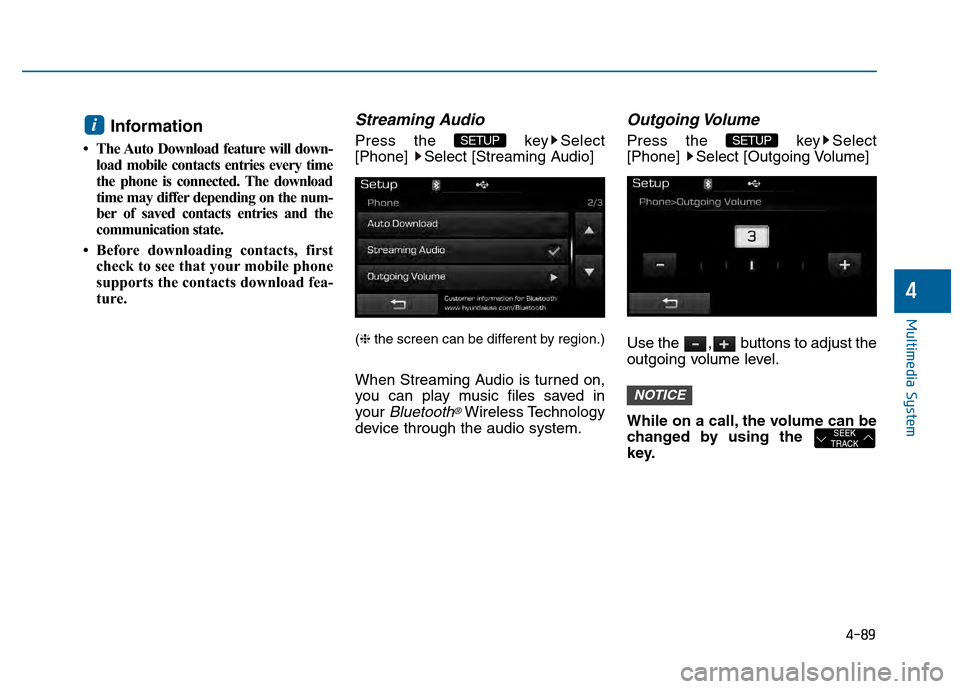
Streaming Audio
Press the key Select
[Phone] Select [Streaming Audio]
(❈ the screen can be different by region.)
When Streaming Audio is turned on,
you can play music files saved in
your
Bluetooth®Wireless Technology
device through the audio system.
Outgoing Volume
Press the key Select
[Phone] Select [Outgoing Volume]
Use the , buttons to adjust the
outgoing volume level.
While on a call, the volume can be
changed by using the
key.
SEEK
TRACK
NOTICE
SETUP SETUP i
Page 343 of 603
![Hyundai Sonata 2015 Workshop Manual 4-90
Multimedia System
Turning Bluetooth System Off
Press the key Select
[Phone] Select [Bluetooth System Off]
Once
Bluetooth®Wireless Technology
is turned off,
Bluetooth®Wireless
Technology rela](/img/35/16796/w960_16796-342.png "Hyundai Sonata 2015 Workshop Manual 4-90
Multimedia System
Turning Bluetooth System Off
Press the key Select
[Phone] Select [Bluetooth System Off]
Once
Bluetooth®Wireless Technology
is turned off,
Bluetooth®Wireless
Technology rela")
4-90
Multimedia System
Turning Bluetooth System Off
Press the key Select
[Phone] Select [Bluetooth System Off]
Once
Bluetooth®Wireless Technology
is turned off,
Bluetooth®Wireless
Technology related features will not be
supported within the audio system. To turn
Bluetooth®Wireless
Technology back on, go to [Phone] and press “YesSETUP
NOTICE
SETUP
Page 345 of 603
4-92
Multimedia System
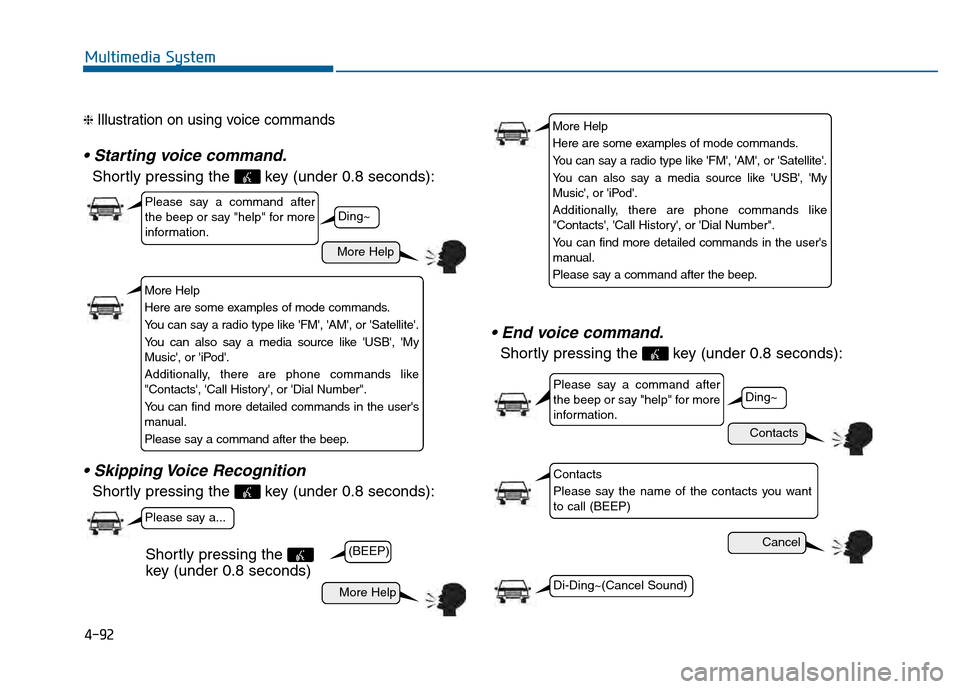
❈ Illustration on using voice commands
Shortly pressing the key (under 0.8 seconds):
Shortly pressing the key (under 0.8 seconds):
Shortly pressing the key (under 0.8 seconds):
More Help
Contacts
Cancel
More Help
Please say a command after
the beep or say "help" for more
information.
Please say a command after
the beep or say "help" for more
information.
Please say a...
Contacts
Please say the name of the contacts you want
to call (BEEP)
Ding~
(BEEP)
Ding~
Di-Ding~(Cancel Sound)
Shortly pressing the
key (under 0.8 seconds)
More Help
Here are some examples of mode commands.
You can say a radio type like 'FM', 'AM', or 'Satellite'.
You can also say a media source like 'USB', 'My
Music', or 'iPod'.
Additionally, there are phone commands like
"Contacts', 'Call History', or 'Dial Number".
You can find more detailed commands in the user's
manual.
Please say a command after the beep.
More Help
Here are some examples of mode commands.
You can say a radio type like 'FM', 'AM', or 'Satellite'.
You can also say a media source like 'USB', 'My
Music', or 'iPod'.
Additionally, there are phone commands like
"Contacts', 'Call History', or 'Dial Number".
You can find more detailed commands in the user's
manual.
Please say a command after the beep.
Page 346 of 603
4-93
Multimedia System
4
CommandFunction
More Help Provides guidance on commands that can be
used anywhere in the system.
Help Provides guidance on commands that can be
used within the current mode.
Call
Ex) Call “John Smith”
Phone Provides guidance on Phone related com- mands. After saying this command, say
“Favorites”,“Dial Number”, “Call History” or
“Contacts” execute corresponding functions.
Favorites Display the Favorite screen.
Call History Displays the Call History screen.
Contacts Displays the Contacts screen. After sayingthis command, say the name of a contact
saved in the Contacts to automatically con-
nect the call.
Dial Number Display the Dial number screen. After saying this command, you can say the number that
you want to call.
RedialConnects the most recently called number.
Tutorial Pro vide guidance on how to use voice
recognition and Bluetooth®connections.
Command Function
When listening to the radio, displays the
next radio screen. (FM1➟FM2➟AM➟XM1➟XM2➟XM3➟FM1)
Radio
When listening to a different mode, displays
the most recently played radio screen.
When currently listening to the FM radio,
maintains the current state.
When listening to a different mode, displaysthe most recently played FM screen.
FM1(FM One) Displays the FM1 screen.
FM2(FM Two) Displays the FM2 screen.
AM Displays the AM screen.
FM Preset 1~6 Plays the most recently played broadcast
saved in FM Preset 1~6.
AM Preset 1~6 Plays the broadcast saved in AM Preset 1~6.
FM 87.5~107.9 Plays the FM broadcast of the corresponding
frequency.
AM 530~1701 Plays the AM broadcast of the corresponding
frequency.
XM
™(Satellite)When currently listening to the SiriusXMTM,
maintains the current state.
When listening to a different mode, displaysthe most recently played SiriusXMTMscreen.
(Call by Name)
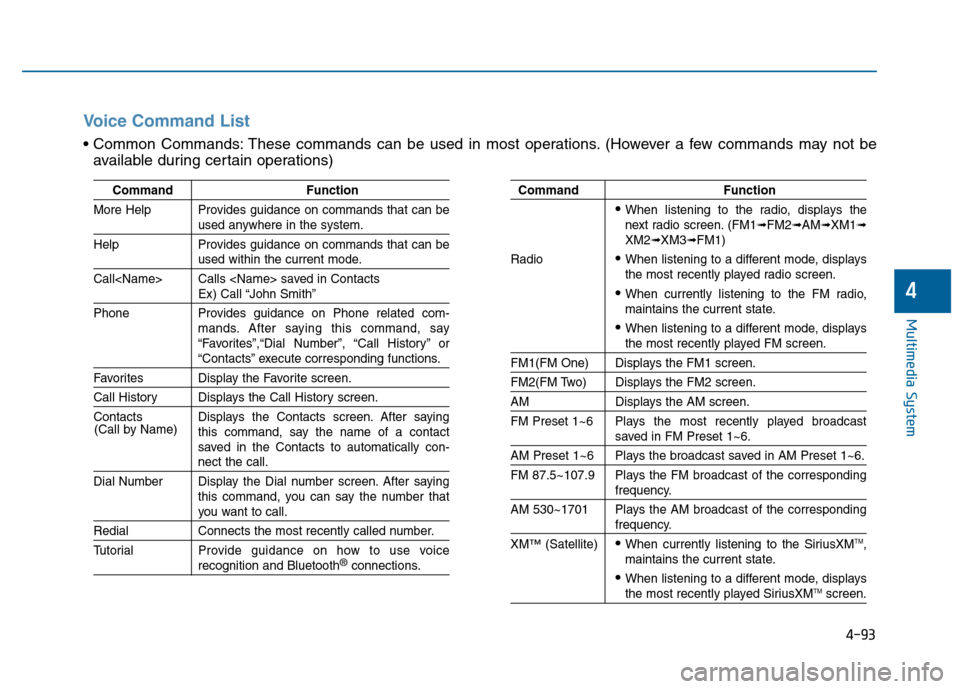
Voice Command List
These commands can be used in most operations. (However a few commands may not be
available during certain operations)
Page 349 of 603
4-96
Multimedia System
Information
SiriusXM™ service requires a sub-
scription, sold separately, after 3-
month trial included with vehicle pur-
chase. If you decide to continue your
SiriusXM™ service at the end of your
trial subscription, the plan you choose
will automatically renew and bill at
then-current rates until you call us at
1-866-635-2349 to cancel. See our
Customer Agreement for complete
terms at www.siriusxm.com. Other
fees and taxes apply. All fees and pro-
gramming are subject to change.
Sirius satellite service is available only
to those at least 18 and older in the 48
contiguous USA, D.C., and PR (with
coverage limitations). Our Internet
radio service is available throughout
our satellite service area and in AK
and HI. Certain channels are not
available on our Internet radio service
or on mobile devices. SiriusXM™
Traffic available in select markets. See
siriusxm.com/traffic for more infor-
mation. © 2013 Sirius XM™ Radio
Inc. Sirius, XM™ and all related
marks and logos are trademarks of
Sirius XM™ Radio Inc. iPod
®is a
registered trademark of Apple Inc. iPod
®mobile digital device sold sepa-
rately. The Bluetooth®word mark and
logos are registered trademarks
owned by Bluetooth SIG, Inc. and any
use of such marks by Hyundai is
under license. A Bluetooth
®enabled
cell phone is required to use
Bluetooth
®wireless technology. All
rights reserved.
i
Page 350 of 603
![Hyundai Sonata 2015 Workshop Manual 4-97
Multimedia System
4
S
SE
E T
T U
U P
P
Starting Mode
Press the key to display the
Setup screen.
You can select and control options
related to [Display], [Sound], [Phone]
and [System].
Display Se](/img/35/16796/w960_16796-349.png "Hyundai Sonata 2015 Workshop Manual 4-97
Multimedia System
4
S
SE
E T
T U
U P
P
Starting Mode
Press the key to display the
Setup screen.
You can select and control options
related to [Display], [Sound], [Phone]
and [System].
Display Se")
4-97
Multimedia System
4
S
SE
E T
T U
U P
P
Starting Mode
Press the key to display the
Setup screen.
You can select and control options
related to [Display], [Sound], [Phone]
and [System].
Display Settings
Adjusting the Brightness
Press the key Select
[Display] Select [Brightness]
Use the , buttons to adjust the
screen brightness or set the
Brightness on Automatic, Day, or
Night mode.
Press the button to reset.
1) Automatic : Adjusts the brightness
automatically
2) Day : Always maintains the bright- ness on high
3) Night : Always maintains the
brightness on low
Pop-up Mode
Press the key Select
[Display] Select [Mode Pop up]
This feature is used to display the
Pop-up Mode screen when entering
radio and media modes.
When this feature is turned on,
pressing the or key
will display the Pop-up Mode screen.
Information
The media Pop-up Mode screen can
be displayed only when two or more
media modes have been connected.
i
MEDIA RADIO
SETUP
Default
SETUP SETUP
Page 355 of 603
4-102
Multimedia System
R
RE
EA
A R
R
V
V I
IE
E W
W
C
C A
A M
M E
ER
R A
A
(
(i if
f
e
e q
q u
u i
ip
p p
pe
ed
d )
)
• The system has been equipped
with a rear view camera for user
safety by allowing a wider rear
range of vision.
The rear view camera will automat- ically operate when the ignition key
is turned ON and the shift lever is
set to R (Reverse).
The rear view camera will automat- ically stop operating when set to a
different lever.
B BL
LU
U E
E
L
L I
IN
N K
K®
®(
(I
IF
F
E
E Q
Q U
UI
IP
P P
PE
ED
D )
)
Hyundai aims to offer differentiated
customer values through a
‘Connected Car Life,’ which is to pro-
vide consumers with fast and reliable
IT technology. As consumers’ lifestyles
become more and more mobile in
thanks to remarkable advances in
smart phones, tablet PCs and overall
wireless telecommunication, new
lifestyle patterns demand seamless
connection between one’s office,
home, outdoors and automobiles.
Automobile companies are now faced
with the task of shifting their paradigm
from vehicle-centered services to cus-
tomer value-centered services, with
the ultimate goal of securing global
leadership in the field of vehicle IT and
telematics. Hyundai Motor plans to achieve this
by realizing a terminal platform flexi-
ble to changes in IT technology,
cooperating with global IT compa-
nies, creating an eco-system and
providing the latest contents & servic-
es based on an open environment.
The rear view camera has been
equipped with an optical lens to
provide a wider range of vision
and may appear different from
the actual distance. For safety,
directly check the rear and
left/right sides.
CAUTION