key Hyundai Sonata 2016 Owners Manual
[x] Cancel search | Manufacturer: HYUNDAI, Model Year: 2016, Model line: Sonata, Model: Hyundai Sonata 2016Pages: 603, PDF Size: 16.3 MB
Page 338 of 603
4-85
Multimedia System
4
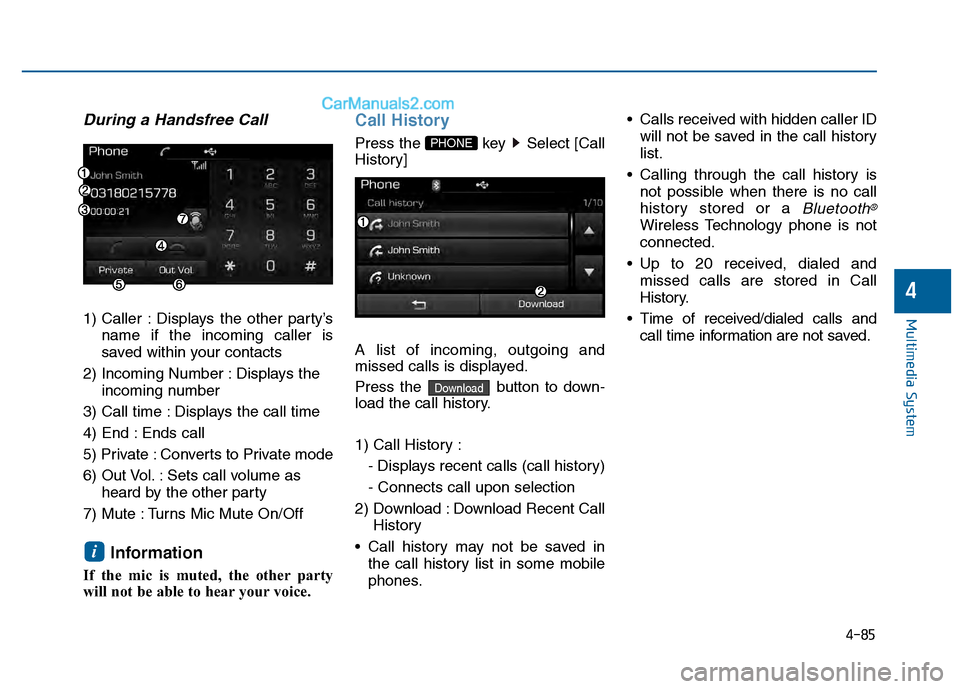
During a Handsfree Call
1) Caller : Displays the other party’sname if the incoming caller is
saved within your contacts
2) Incoming Number : Displays the incoming number
3) Call time : Displays the call time
4) End : Ends call
5) Private : Converts to Private mode
6) Out Vol. : Sets call volume as heard by the other party
7) Mute : Turns Mic Mute On/Off
Information
If the mic is muted, the other party
will not be able to hear your voice.
Call History
Press the key Select [Call
History]
A list of incoming, outgoing and
missed calls is displayed.
Press the button to down-
load the call history.
1) Call History : - Displays recent calls (call history)
- Connects call upon selection
2) Download : Download Recent Call History
Call history may not be saved in the call history list in some mobile
phones. Calls received with hidden caller ID
will not be saved in the call history
list.
Calling through the call history is not possible when there is no call
history stored or a
Bluetooth®
Wireless Technology phone is not
connected.
Up to 20 received, dialed and missed calls are stored in Call
History.
Time of received/dialed calls and call time information are not saved.
Download
PHONE
i
Page 339 of 603
![Hyundai Sonata 2016 Owners Manual 4-86
Multimedia System
Contacts
Press the key Select
[Contacts]
The list of saved phone book entries
is displayed. Press the but-
ton to download the call history.
1) Contacts List :- Displays downl](/img/35/16786/w960_16786-338.png "Hyundai Sonata 2016 Owners Manual 4-86
Multimedia System
Contacts
Press the key Select
[Contacts]
The list of saved phone book entries
is displayed. Press the but-
ton to download the call history.
1) Contacts List :- Displays downl")
4-86
Multimedia System
Contacts
Press the key Select
[Contacts]
The list of saved phone book entries
is displayed. Press the but-
ton to download the call history.
1) Contacts List :- Displays downloaded contactsentries
- Connects call upon selection
2) Sort by : Find a contact in an alphabetical order.
3) Download : Download contacts entries
Information
• Up to 1,000 contacts saved in yourBluetooth®Wireless Technology
phone can be downloaded into the
car contacts. Contacts that have
been downloaded to the car cannot
be edited or deleted on the phone.
• Mobile phone contacts are managed separately for each paired Bluetooth
®
Wireless Technology device (max 5
devices x 1,000 contacts each).
Previously downloaded data is main-
tained even if the Bluetooth
®Wireless
Technology device has been discon-
nected.
(However, the contacts and call histo-
ry saved to the phone will be deleted
if a paired phone is deleted.)
• It is possible to download contacts during Bluetooth streaming audio.
• When downloading contacts, the icon will be displayed within the sta-
tus bar.
(Continued)(Continued)
• It is not possible to begin download-
ing a contact list when the contact
download feature has been turned
off within the Bluetooth
®Wireless
Technology device. In addition,
some devices may require device
authorization upon attempting to
download contacts. If downloading
does not normally occur, check the
Bluetooth
®Wireless Technology
device settings or the screen state.
• The contacts download feature may not be supported in some mobile
phones. For more information of
supported Bluetooth
®devices and
function support, refer to your
phone’s user manual.
i
Download
PHONE
Page 340 of 603
![Hyundai Sonata 2016 Owners Manual 4-87
Multimedia System
4
Bluetooth®Wireless
Technology Setting
Pairing a New Device
Press the key Select
[Phone] Select [Pair Phone]
(❈ the screen can be different by region.)
Bluetooth®Wireless](/img/35/16786/w960_16786-339.png "Hyundai Sonata 2016 Owners Manual 4-87
Multimedia System
4
Bluetooth®Wireless
Technology Setting
Pairing a New Device
Press the key Select
[Phone] Select [Pair Phone]
(❈ the screen can be different by region.)
Bluetooth®Wireless")
4-87
Multimedia System
4
Bluetooth®Wireless
Technology Setting
Pairing a New Device
Press the key Select
[Phone] Select [Pair Phone]
(❈ the screen can be different by region.)
Bluetooth®Wireless Technology
devices can be paired with the audio
system.
For more information, refer to the
“Pairing through Phone Setup” sec-
tion within
Bluetooth®Wireless
Technology.
Viewing Paired Phone List
Press the key Select
[Phone] Select [Paired Phone List]
This feature is used to view mobile
phones that have been paired with
the audio system. Upon selecting a
paired phone, the setup menu is dis-
played.
For more information, refer to the
“Setting
Bluetooth®Wireless
Technology Connection” section with-
in
Bluetooth®Wireless Technology. 1) : Moves to the previous
screen
2) Connect/Disconnect Phone : Connect/ disconnects currently
selected phone
3) Delete : Deletes the currently selected phone
4) Change Priority : Sets currently selected phone to highest connec-
tion priority
SETUP
SETUP
Page 341 of 603
4-88
Multimedia System
Information- Before down-
loading contacts
• Only contacts within connected phones can be downloaded. Also
check to see that your mobile phone
supports the download feature.
• To learn more about whether your mobile phone supports contacts
downloads, refer to your mobile
phone user’s manual.
• The contacts for only the connected phone can be downloaded.Downloading Contacts
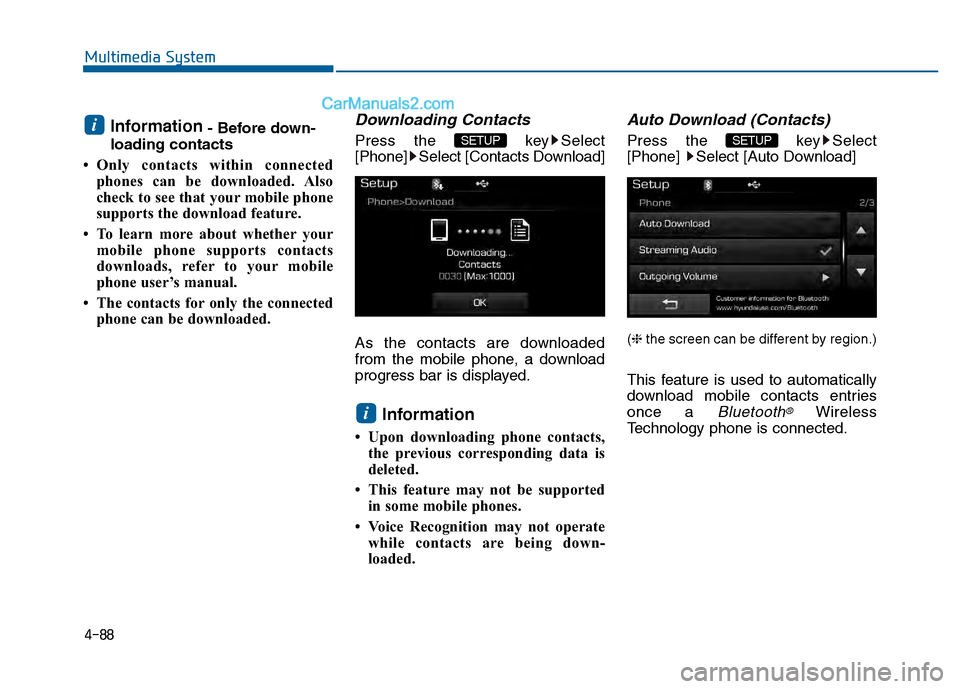
Press the key Select
[Phone] Select [Contacts Download]
As the contacts are downloaded
from the mobile phone, a download
progress bar is displayed.
Information
• Upon downloading phone contacts,the previous corresponding data is
deleted.
• This feature may not be supported in some mobile phones.
• Voice Recognition may not operate while contacts are being down-
loaded.
Auto Download (Contacts)
Press the key Select
[Phone] Select [Auto Download]
(❈ the screen can be different by region.)
This feature is used to automatically
download mobile contacts entries
once a
Bluetooth®Wireless
Technology phone is connected.
SETUP
i
SETUP i
Page 342 of 603
4-89
Multimedia System
4
Information
• The Auto Download feature will down-load mobile contacts entries every time
the phone is connected. The download
time may differ depending on the num-
ber of saved contacts entries and the
communication state.
• Before downloading contacts, first check to see that your mobile phone
supports the contacts download fea-
ture.
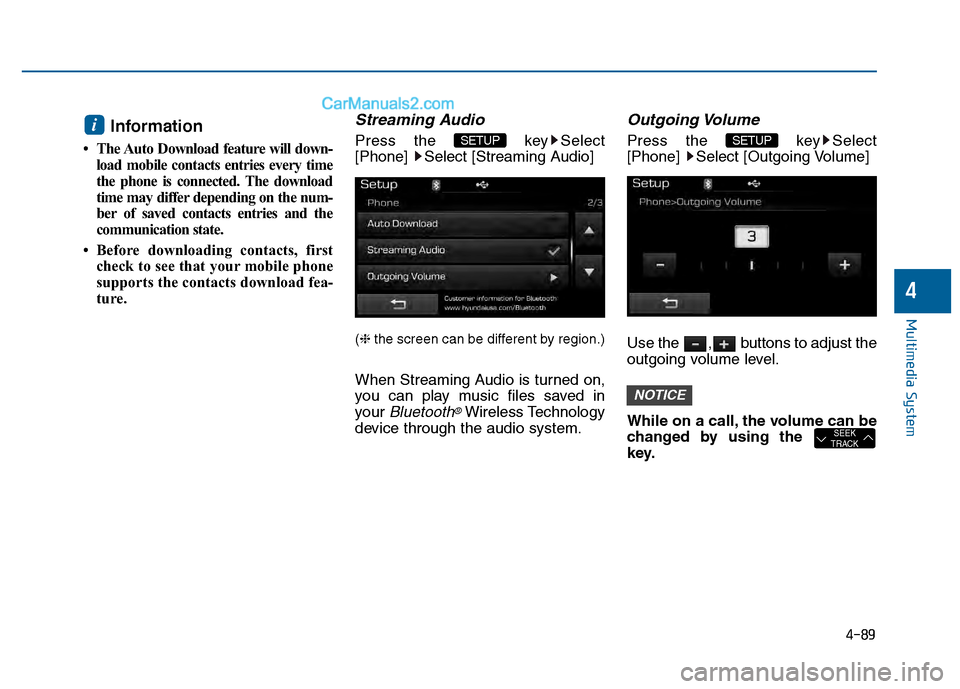
Streaming Audio
Press the key Select
[Phone] Select [Streaming Audio]
(❈ the screen can be different by region.)
When Streaming Audio is turned on,
you can play music files saved in
your
Bluetooth®Wireless Technology
device through the audio system.
Outgoing Volume
Press the key Select
[Phone] Select [Outgoing Volume]
Use the , buttons to adjust the
outgoing volume level.
While on a call, the volume can be
changed by using the
key.
SEEK
TRACK
NOTICE
SETUP SETUP i
Page 343 of 603
![Hyundai Sonata 2016 Owners Manual 4-90
Multimedia System
Turning Bluetooth System Off
Press the key Select
[Phone] Select [Bluetooth System Off]
Once
Bluetooth®Wireless Technology
is turned off,
Bluetooth®Wireless
Technology rela](/img/35/16786/w960_16786-342.png "Hyundai Sonata 2016 Owners Manual 4-90
Multimedia System
Turning Bluetooth System Off
Press the key Select
[Phone] Select [Bluetooth System Off]
Once
Bluetooth®Wireless Technology
is turned off,
Bluetooth®Wireless
Technology rela")
4-90
Multimedia System
Turning Bluetooth System Off
Press the key Select
[Phone] Select [Bluetooth System Off]
Once
Bluetooth®Wireless Technology
is turned off,
Bluetooth®Wireless
Technology related features will not be
supported within the audio system. To turn
Bluetooth®Wireless
Technology back on, go to [Phone] and press “YesSETUP
NOTICE
SETUP
Page 344 of 603
4-91
Multimedia System
4
V
VO
O I
IC
C E
E
R
R E
EC
CO
O G
GN
N I
IT
T I
IO
O N
N
Using Voice Recognition
Starting Voice Recognition
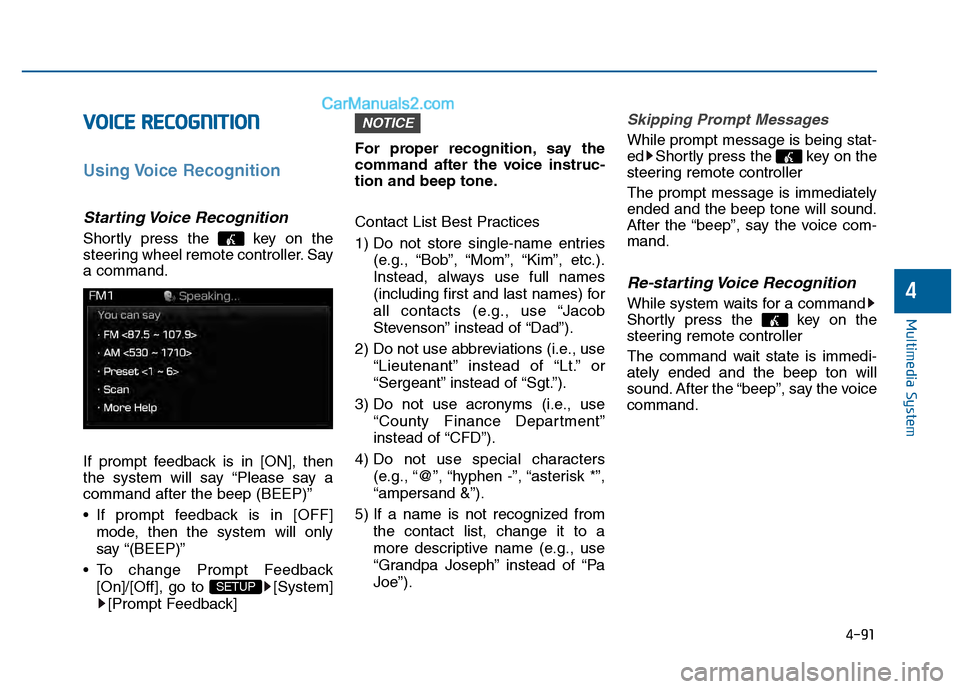
Shortly press the key on the
steering wheel remote controller. Say
a command.
If prompt feedback is in [ON], then
the system will say “Please say a
command after the beep (BEEP)”
If prompt feedback is in [OFF]
mode, then the system will only
say “(BEEP)”
To change Prompt Feedback [On]/[Off], go to [System][Prompt Feedback] For proper recognition, say the
command after the voice instruc-
tion and beep tone.
Contact List Best Practices
1) Do not store single-name entries
(e.g., “Bob”, “Mom”, “Kim”, etc.).
Instead, always use full names
(including first and last names) for
all contacts (e.g., use “Jacob
Stevenson” instead of “Dad”).
2) Do not use abbreviations (i.e., use “Lieutenant” instead of “Lt.” or
“Sergeant” instead of “Sgt.”).
3) Do not use acronyms (i.e., use “County Finance Department”
instead of “CFD”).
4) Do not use special characters (e.g., “@”, “hyphen -”, “asterisk *”,
“ampersand &”).
5) If a name is not recognized from the contact list, change it to a
more descriptive name (e.g., use
“Grandpa Joseph” instead of “Pa
Joe”).
Skipping Prompt Messages
While prompt message is being stat-
ed Shortly press the key on the
steering remote controller
The prompt message is immediately
ended and the beep tone will sound.
After the “beep”, say the voice com-
mand.
Re-starting Voice Recognition
While system waits for a command
Shortly press the key on the
steering remote controller
The command wait state is immedi-
ately ended and the beep ton will
sound. After the “beep”, say the voice
command.
NOTICE
SETUP
Page 345 of 603
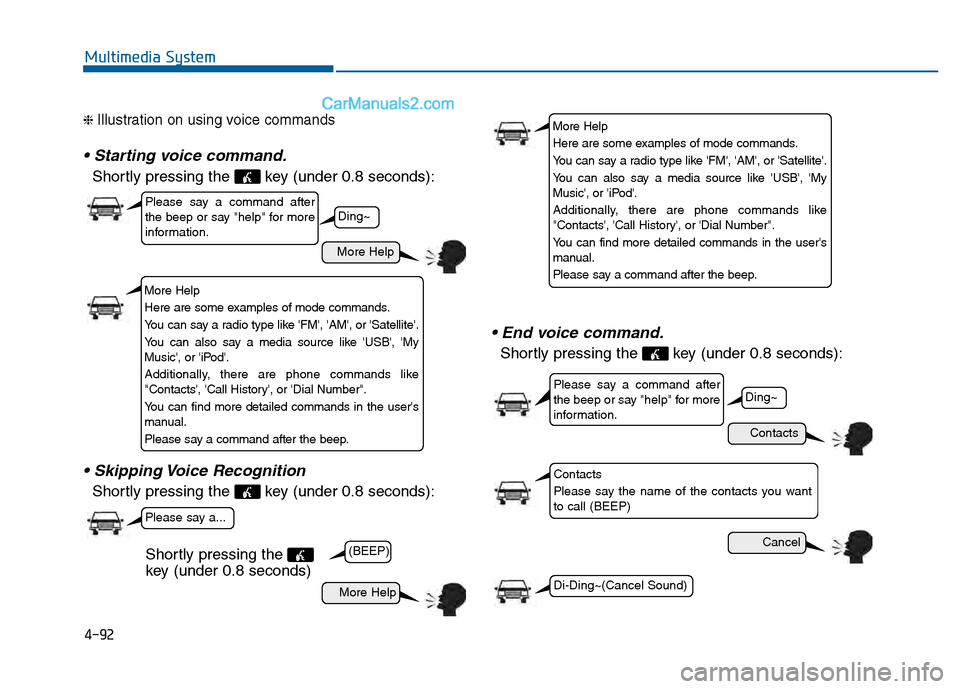
4-92
Multimedia System
❈ Illustration on using voice commands
Shortly pressing the key (under 0.8 seconds):
Shortly pressing the key (under 0.8 seconds):
Shortly pressing the key (under 0.8 seconds):
More Help
Contacts
Cancel
More Help
Please say a command after
the beep or say "help" for more
information.
Please say a command after
the beep or say "help" for more
information.
Please say a...
Contacts
Please say the name of the contacts you want
to call (BEEP)
Ding~
(BEEP)
Ding~
Di-Ding~(Cancel Sound)
Shortly pressing the
key (under 0.8 seconds)
More Help
Here are some examples of mode commands.
You can say a radio type like 'FM', 'AM', or 'Satellite'.
You can also say a media source like 'USB', 'My
Music', or 'iPod'.
Additionally, there are phone commands like
"Contacts', 'Call History', or 'Dial Number".
You can find more detailed commands in the user's
manual.
Please say a command after the beep.
More Help
Here are some examples of mode commands.
You can say a radio type like 'FM', 'AM', or 'Satellite'.
You can also say a media source like 'USB', 'My
Music', or 'iPod'.
Additionally, there are phone commands like
"Contacts', 'Call History', or 'Dial Number".
You can find more detailed commands in the user's
manual.
Please say a command after the beep.
Page 350 of 603
![Hyundai Sonata 2016 Owners Manual 4-97
Multimedia System
4
S
SE
E T
T U
U P
P
Starting Mode
Press the key to display the
Setup screen.
You can select and control options
related to [Display], [Sound], [Phone]
and [System].
Display Se](/img/35/16786/w960_16786-349.png "Hyundai Sonata 2016 Owners Manual 4-97
Multimedia System
4
S
SE
E T
T U
U P
P
Starting Mode
Press the key to display the
Setup screen.
You can select and control options
related to [Display], [Sound], [Phone]
and [System].
Display Se")
4-97
Multimedia System
4
S
SE
E T
T U
U P
P
Starting Mode
Press the key to display the
Setup screen.
You can select and control options
related to [Display], [Sound], [Phone]
and [System].
Display Settings
Adjusting the Brightness
Press the key Select
[Display] Select [Brightness]
Use the , buttons to adjust the
screen brightness or set the
Brightness on Automatic, Day, or
Night mode.
Press the button to reset.
1) Automatic : Adjusts the brightness
automatically
2) Day : Always maintains the bright- ness on high
3) Night : Always maintains the
brightness on low
Pop-up Mode
Press the key Select
[Display] Select [Mode Pop up]
This feature is used to display the
Pop-up Mode screen when entering
radio and media modes.
When this feature is turned on,
pressing the or key
will display the Pop-up Mode screen.
Information
The media Pop-up Mode screen can
be displayed only when two or more
media modes have been connected.
i
MEDIA RADIO
SETUP
Default
SETUP SETUP
Page 351 of 603
![Hyundai Sonata 2016 Owners Manual 4-98
Multimedia System
Text Scroll
Press the key Select
[Display] Select [Text Scroll]
This feature is used to scroll text dis-
played on the screen when it is too
long to be displayed at once.
When](/img/35/16786/w960_16786-350.png "Hyundai Sonata 2016 Owners Manual 4-98
Multimedia System
Text Scroll
Press the key Select
[Display] Select [Text Scroll]
This feature is used to scroll text dis-
played on the screen when it is too
long to be displayed at once.
When")
4-98
Multimedia System
Text Scroll
Press the key Select
[Display] Select [Text Scroll]
This feature is used to scroll text dis-
played on the screen when it is too
long to be displayed at once.
When turned on, the text is repeat-
edly scrolled. When turned off, the
text is scrolled just once.
MP3 Information Display
Press the key Select
[Display] Select [Media Display]
This feature is used to change the
information displayed within USB
and MP3 CD modes.
1) Folder/File : Displays file nameand folder name
2) Album/Artist/Song : Displays album name/artist name/song
Sound Settings
Sound Settings
Press the key Select
[Sound] Select [Sound Setting]SETUP
SETUP SETUP