radio Hyundai Sonata 2017 Owner's Guide
[x] Cancel search | Manufacturer: HYUNDAI, Model Year: 2017, Model line: Sonata, Model: Hyundai Sonata 2017Pages: 563, PDF Size: 17.7 MB
Page 272 of 563
4-24
Multimedia System
NOTE:
SiriusXM services require a sub-
scription sold separately, or as a
package, by Sirius XM Radio Inc. If
you decide to continue service
after your trial, the subscription
plan you choose will automatical-
ly renew thereafter and you will be
charged according to your chosen
payment method at then-current
rates. Fees and taxes apply. To
cancel you must call SiriusXM at
1-866-635-2349. See SiriusXM
Customer Agreement for com-
plete terms at www.siriusxm.com.
SiriusXM U.S. satellite and data
services are available only in the
48 contiguous USA, DC and PR
(with coverage limitations).
SiriusXM satellite service is also
available in Canada; see www.sir-
iusxm. ca. All fees and program-
ming subject to change. Sirius,
XM and all related marks and
logos are trademarks of Sirius XM
Radio Inc.
Page 273 of 563

4-25
Multimedia System
4
S
Si
ir
r i
iu
u s
sX
X M
M
R
R A
A D
DI
IO
O
Using SiriusXMSatellite Radio
Your Hyundai vehicle is equipped
with a 3-month trial subscription to
SiriusXM so you have access to over
140 channels of music, information,
and entertainment programming.
Activation
In order to extend or reactivate your
Sirius Select subscription, you will
need to contact SiriusXM Customer
Care at 1-800-643-2112. Have your
12-digit RID (Radio Identification
Number) / ESN (Electronic Serial
Number) ready. To retrieve the RID /
ESN, turn on the radio, press the
key, and tune to channel
zero.
Please note that the vehicle will need
to be turned on, in Sirius mode, and
have an unobstructed view of the sky
in order for the radio to receive the
activation signal.
SEEK
Press the key
Shortly pressing the key : select
previous or next channel.
Pressing and holding the key : con- tinuously move to previous or next
channel.
❈ If the “Category” icon is displayed,
channels are changed within the
current category.
SCAN
Press the key
Shortly pressing the key : Previews each broadcast for 10 seconds
each
❈ Press the key again to con-
tinue listening to the current fre-
quency
❈ If the “Category” icon is displayed,
channels are changed within the
current category.
SCAN
SCAN
SEEK
TRACK
RADIO
Page 274 of 563

4-26
Multimedia System
Category
Press the key Set through
the
TUNEknob
The display will indicate the cate- gory menus, highlight the category
that the current channel belongs
to.
In the Category List Mode, press the key to navigate cate-
gory list.
Press the tune knob to select the lowest channel in the highlighted
category.
❈ If channel is selected by selecting
category, then the “CATEGORY”
icon is displayed at the top of the
screen.
Preset
Press the ~ key
Shortly pressing the key (under 0.8
seconds): Plays the frequency
saved in the corresponding key.
Pressing and holding the key (over 0.8 seconds): Pressing and holding
the desired key from ~
will save the current broadcast to
the selected key and sound a
BEEP.
Information - Trobleshooting
1. Antenna Error
If this message is displayed, the anten-
na or antenna cable is broken or
unplugged. Please consult with your
Hyundai dealership.
2. No Signal
If this message is displayed, it means
that the antenna is covered and that
the SiriusXM Satellite Radio signal is
not available. Ensure the antenna is
uncovered and has a clear view of the
sky.
Menu
Select category menu through the TUNE knob Press the key
Select [ Info] through the TUNE
knob or key
Info (Information)
Displays the Artist/Song info of the
current song.
1
MENU
i
61
61
CATFOLDER
CATFOLDER
Page 296 of 563
4-48
Multimedia System
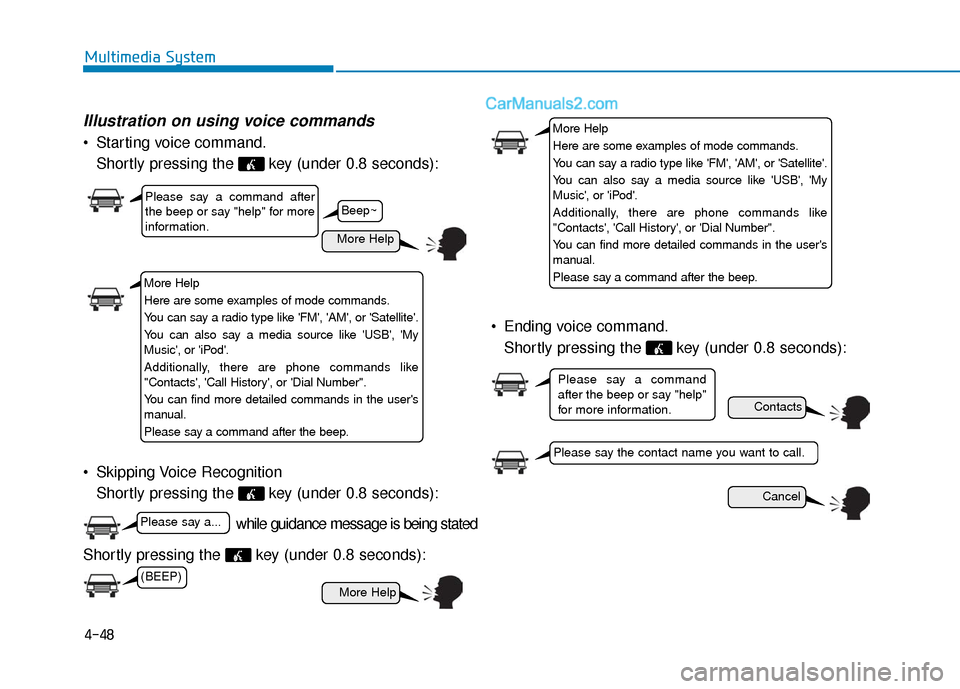
Illustration on using voice commands
Starting voice command.Shortly pressing the key (under 0.8 seconds):
Skipping Voice Recognition Shortly pressing the key (under 0.8 seconds):
Shortly pressing the key (under 0.8 seconds): Ending voice command.
Shortly pressing the key (under 0.8 seconds):
while guidance message is being stated
More Help
Contacts
Cancel
More Help
Please say a command after
the beep or say "help" for more
information.
Please say the contact name you want to call.
Please say a command
after the beep or say "help"
for more information.
Beep~
More Help
Here are some examples of mode commands.
You can say a radio type like 'FM', 'AM', or 'Satellite'.
You can also say a media source like 'USB', 'My
Music', or 'iPod'.
Additionally, there are phone commands like
"Contacts', 'Call History', or 'Dial Number".
You can find more detailed commands in the user's
manual.
Please say a command after the beep.
More Help
Here are some examples of mode commands.
You can say a radio type like 'FM', 'AM', or 'Satellite'.
You can also say a media source like 'USB', 'My
Music', or 'iPod'.
Additionally, there are phone commands like
"Contacts', 'Call History', or 'Dial Number".
You can find more detailed commands in the user's
manual.
Please say a command after the beep.
(BEEP)
Please say a...
Page 297 of 563
4-49
Multimedia System
4
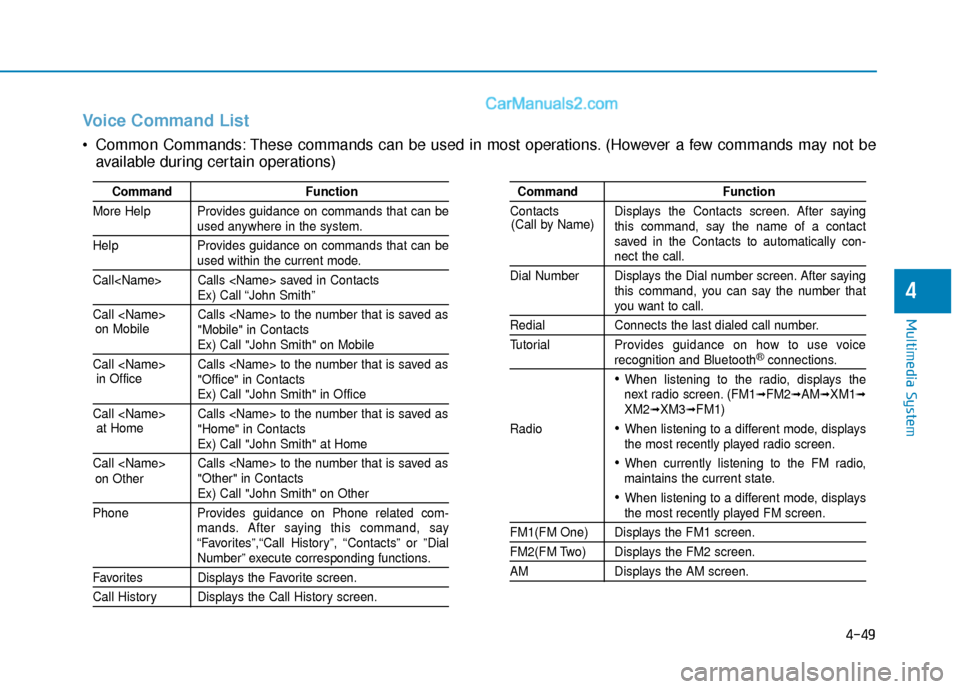
Voice Command List
Common Commands: These commands can be used in most operations. (However a few commands may not beavailable during certain operations)
Command Function
More Help Provides guidance on commands that can be
used anywhere in the system.
Help Provides guidance on commands that can be
used within the current mode.
Call
Ex) Call “John Smith”
Call
Ex) Call "John Smith" on Mobile
Call
Ex) Call "John Smith" in Office
Call
Ex) Call "John Smith" at Home
Call
Ex) Call "John Smith" on Other
Phone Provides guidance on Phone related com- mands. After saying this command, say
“Favorites”,“Call History”, “Contacts” or ”Dial
Number” execute corresponding functions.
Favorites Displays the Favorite screen.
Call History Displays the Call History screen.
Command Function
Contacts Displays the Contacts screen. After saying this command, say the name of a contact
saved in the Contacts to automatically con-
nect the call.
Dial Number Displays the Dial number screen. After saying this command, you can say the number that
you want to call.
Redial Connects the last dialed call number.
Tutorial Provides guidance on how to use voice
recognition and Bluetooth®connections.
When listening to the radio, displays the
next radio screen. (FM1➟FM2➟AM➟XM1➟XM2➟XM3➟FM1)
Radio
When listening to a different mode, displays
the most recently played radio screen.
When currently listening to the FM radio,
maintains the current state.
When listening to a different mode, displaysthe most recently played FM screen.
FM1(FM One) Displays the FM1 screen.
FM2(FM Two) Displays the FM2 screen.
AM Displays the AM screen.
(Call by Name)
on Mobile
in Officeat Home
on Other
Page 299 of 563
4-51
Multimedia System
4
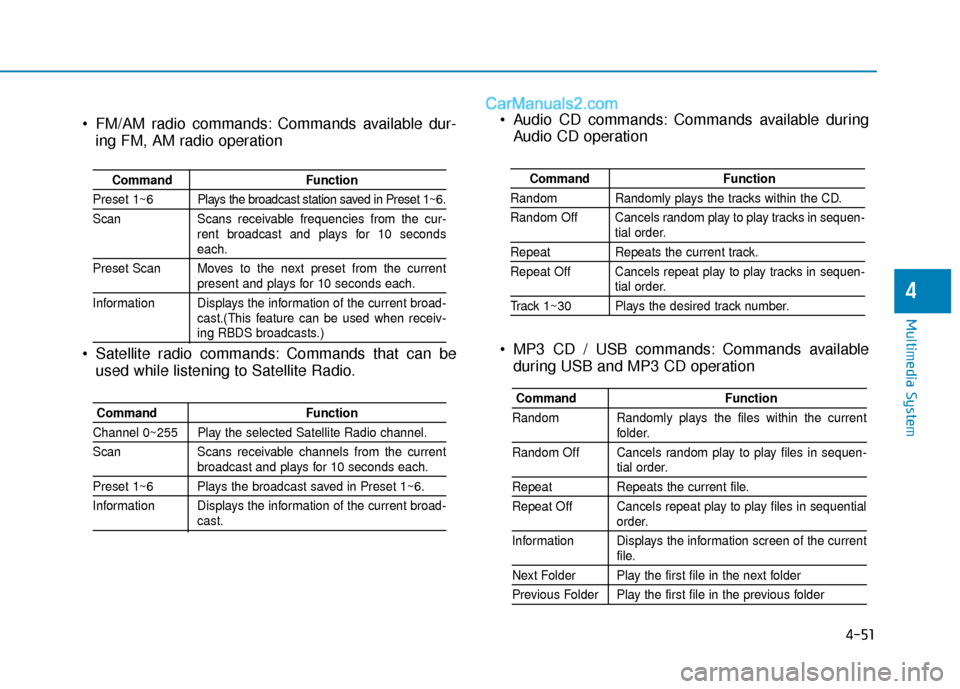
Audio CD commands: Commands available duringAudio CD operation
MP3 CD / USB commands: Commands available during USB and MP3 CD operation
Command Function
Random Randomly plays the tracks within the CD.
Random Off Cancels random play to play tracks in sequen-
tial order.
RepeatRepeats the current track.
Repeat Off Cancels repeat play to play tracks in sequen-
tial order.
Track 1~30 Plays the desired track number.
Command Function
Random Randomly plays the files within the current
folder.
Random Off Cancels random play to play files in sequen-
tial order.
Repeat Repeats the current file.
Repeat Off Cancels repeat play to play files in sequential
order.
Information Displays the information screen of the current
file.
Next Folder Play the first file in the next folder
Previous Folder Play the first file in the previous folder
FM/AM radio commands: Commands available dur- ing FM, AM radio operation
Satellite radio commands: Commands that can be used while listening to Satellite Radio.
Command Function
Preset 1~6 Plays the broadcast station saved in Preset 1~6.
Scan Scans receivable frequencies from the cur- rent broadcast and plays for 10 seconds
each.
Preset Scan Moves to the next preset from the current
present and plays for 10 seconds each.
Information Displays the information of the current broad- cast.(This feature can be used when receiv-
ing RBDS broadcasts.)
Command Function
Channel 0~255 Play the selected Satellite Radio channel.
Scan Scans receivable channels from the current
broadcast and plays for 10 seconds each.
Preset 1~6 Plays the broadcast saved in Preset 1~6.
Information Displays the information of the current broad-
cast.
Page 301 of 563
4-53
Multimedia System
4
Information
iPod®is a registered trademark of
Apple Inc. iPod®mobile digital device
sold separately. The Bluetooth®word
mark and logos are registered trade-
marks owned by Bluetooth
®SIG, Inc.
and any use of such marks by
Hyundai is under license. SiriusXM
services require a subscription sold
separately, or as a package, by Sirius
XM Radio Inc. If you decide to con-
tinue service after your trial, the sub-
scription plan you choose will auto-
matically renew thereafter and you
will be charged according to your cho-
sen payment method at thencurrent
rates. Fees and taxes apply. To cancel
you must call SiriusXM at 1-866-635-
2349. See SiriusXM Customer
Agreement for complete terms at
www.siriusxm.com. SiriusXM U.S.
satellite and data services are avail-
able only in the 48 contiguous USA,
DC and PR (with coverage limita-
tions). SiriusXM satellite service is
also available in Canada; see www.sir-
iusxm.ca. All fees and programming
subject to change.
(Continued)(Continued)
Sirius, XM and all related marks and
logos are trademarks of Sirius XM
Radio Inc. Android™ is a trademark
of Google, Inc. BlackBerry is a regis-
tered trademark of Research In
Motion Limited (RIM). All other
marks, channel names and logos are
the property of their respective own-
ers. All rights reserved.
i
Page 306 of 563
4-58
Multimedia System
Information
iPod®is a registered trademark of
Apple Inc. iPod®mobile digital device
sold separately. The Bluetooth®word
mark and logos are registered trade-
marks owned by Bluetooth
®SIG, Inc.
and any use of such marks by
Hyundai is under license. SiriusXM
services require a subscription sold
separately, or as a package, by Sirius
XM Radio Inc. If you decide to con-
tinue service after your trial, the sub-
scription plan you choose will auto-
matically renew thereafter and you
will be charged according to your cho-
sen payment method at thencurrent
rates. Fees and taxes apply. To cancel
you must call SiriusXM at 1-866-635-
2349. See SiriusXM Customer
Agreement for complete terms at
www.siriusxm.com. SiriusXM U.S.
satellite and data services are avail-
able only in the 48 contiguous USA,
DC and PR (with coverage limita-
tions). SiriusXM satellite service is
also available in Canada; see www.sir-
iusxm.ca. All fees and programming
subject to change.
(Continued)(Continued)
Sirius, XM and all related marks and
logos are trademarks of Sirius XM
Radio Inc. Android™ is a trademark
of Google, Inc. BlackBerry is a regis-
tered trademark of Research In
Motion Limited (RIM). All other
marks, channel names and logos are
the property of their respective own-
ers. All rights reserved.
i
Page 307 of 563
4-59
Multimedia System
FCC
This equipment has been tested and found to comply with the limits for a Class B digital device, pursuant to part 15
of the FCC Rules. These limits are designed to provide reasonable protection against harmful interference in a resi-
dential installation.
This equipment generates, uses and can radiate radio frequency energy and, if not installed and used in accordance
with the instructions,may cause harmful interference to radio communications. However, there is no guarantee that
interference will not occur in a particular installation. If this equipment does cause harmful interference to radio or tel-
evision reception, which can be determined by turning the equipment off and on, the user is encouraged to try to cor-
rect the interference by one ormore of the following measures:
Reorient or relocate the receiving antenna.
Increase the separation between the equipment and receiver.
Connect the equipment into an outlet on a circuit different from that to which the receiver is connected.
Consult the dealer or an experienced radio/TV technician for help.
Caution: Any changes or modifications to this device not explicitly approved by manufacturer could void your authori-
ty to operate this equipment.
D DE
EC
CL
LA
A R
RA
A T
TI
IO
O N
N
O
O F
F
C
C O
O N
NF
FO
O R
RM
M I
IT
T Y
Y
4
Page 376 of 563
5-68
Driving your vehicleThe Smart Cruise Control System
may not operate temporarily due to:
Electrical interference
Modifying the suspension
Differences of tire abrasion ortire pressure
Installing different type of tires
Information
This device complies with Part 15 of
the FCC rules.
Operation is subject to the following
three conditions:
1. This device may not cause harmful interference, and
2. This device must accept any interfer- ence received, including interference
that may cause undesired operation.
3. Changes or modifications not expressly approved by the party
responsible for compliance could
void the user’s authority to operate
the device.
Information
Radio frequency radiation exposure
information:
This equipment complies with FCC
radiation exposure limits set forth for
an uncontrolled environment.
This equipment should be installed
and operated with minimum distance
of 20 cm between the radiator (anten-
na) and your body.
This transmitter must not be co-locat-
ed or operating in conjunction with
any other antenna or transmitter.
i
i
NOTICE
When using the Smart Cruise
Control take the following pre-
cautions:
If an emergency stop is nec-
essary, you must apply the
brakes. The vehicle cannot be
stopped by using the Smart
Cruise Control System.
Keep a safe distance accord-
ing to road conditions and
vehicle speed. If the vehicle to
vehicle distance is too close
during a high-speed driving, a
serious collision may result.
Always maintain sufficient
braking distance and deceler-
ate your vehicle by applying
the brakes if necessary.
The Smart Cruise Control
System cannot recognize a
stopped vehicle, pedestrians
or an oncoming vehicle.
Always look ahead cautiously
to prevent unexpected and
sudden situations from occur-
ring.
(Continued)
WARNING (Continued)
Vehicles moving in front of you
with a frequent lane change
may cause a delay in the sys-
tem's reaction or may cause
the system to react to a vehicle
actually in an adjacent lane.
Always drive cautiously to pre-
vent unexpected and sudden
situations from occurring.
Always be aware of the select-
ed speed and vehicle to vehi-
cle distance.
The Smart Cruise Control
System may not recognize
complex driving situations so
always pay attention to driv-
ing conditions and control
your vehicle speed.