check HYUNDAI SONATA 2021 Owner's Manual
[x] Cancel search | Manufacturer: HYUNDAI, Model Year: 2021, Model line: SONATA, Model: HYUNDAI SONATA 2021Pages: 546, PDF Size: 51.21 MB
Page 134 of 546
Convenient Features
5-4
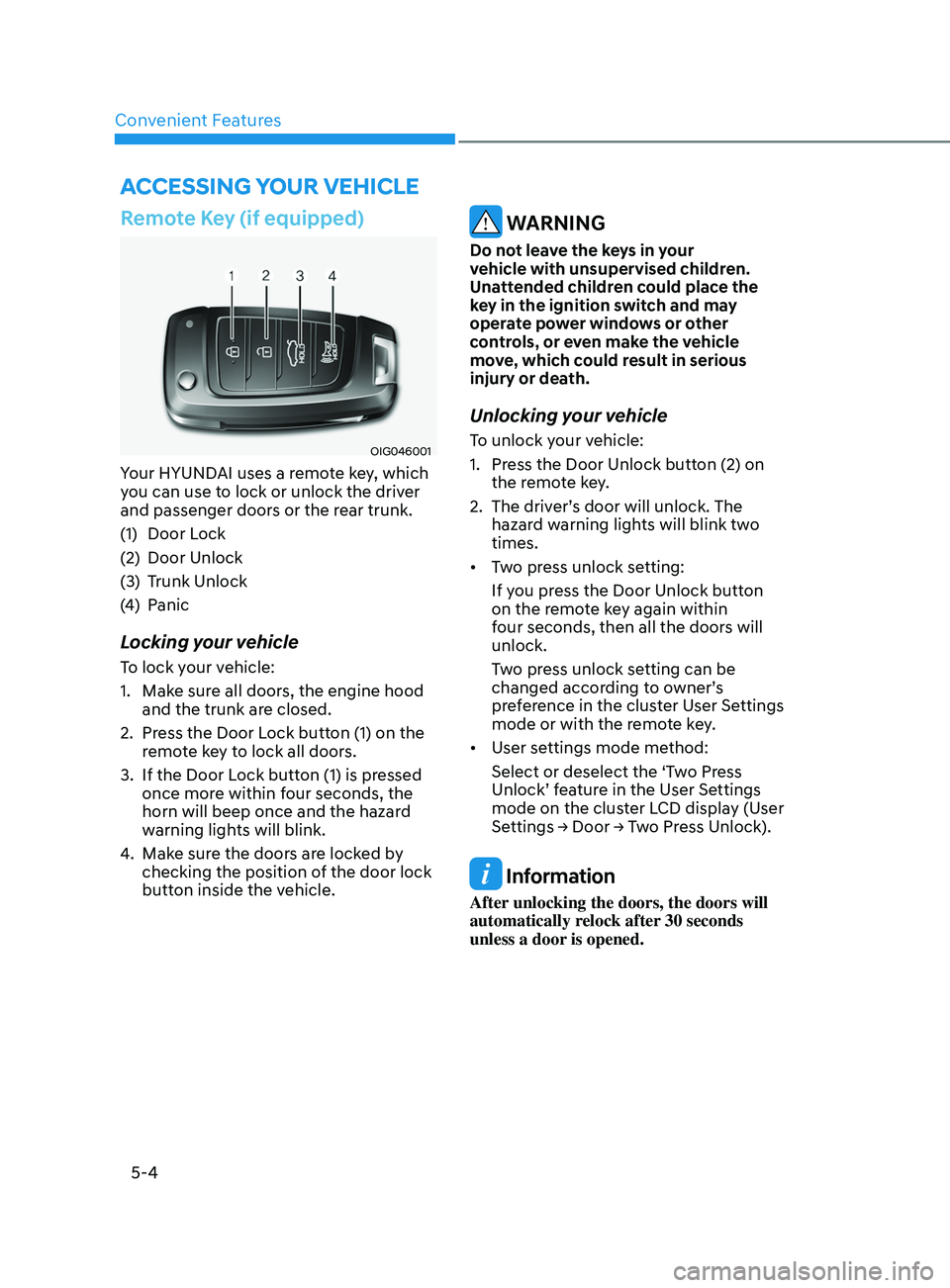
Remote Key (if equipped)
OIG046001
Your HYUNDAI uses a remote key, which
you can use to lock or unlock the driver
and passenger doors or the rear trunk.
(1)
Door L
ock
(2)
Door Unlock
(3
)
T
runk Unlock
(4)
P
anic
Locking your vehicle
To lock your vehicle:
1.
Mak
e sure all doors, the engine hood
and the trunk are closed.
2.
Pr
ess the Door Lock button (1) on the
remote key to lock all doors.
3.
If the Door L
ock button (1) is pressed
once more within four seconds, the
horn will beep once and the hazard
warning lights will blink.
4.
Mak
e sure the doors are locked by
checking the position of the door lock
button inside the vehicle.
WARNING
Do not leave the keys in your
vehicle with unsupervised children.
Unattended children could place the
key in the ignition switch and may
operate power windows or other
controls, or even make the vehicle
move, which could result in serious
injury or death.
Unlocking your vehicle
To unlock your vehicle:
1.
Pr
ess the Door Unlock button (2) on
the remote key.
2.
The driv
er’s door will unlock. The
hazard warning lights will blink two
times.
• Two press unlock setting:
If you press the Door Unlock button
on the remote key again within
four seconds, then all the doors will
unlock.
Two press unlock setting can be
changed according to owner’s
preference in the cluster User Settings
mode or with the remote key.
• User settings mode method:
Select or deselect the ‘Two Press
Unlock’ feature in the User Settings
mode on the cluster LCD display (User
Settings
→ Door → Two Press Unlock).
Information
After unlocking the doors, the doors will
automatically relock after 30 seconds
unless a door is opened.
Accessing Your Vehicle
Page 150 of 546
Convenient Features
5-20
Remote Control with Digital Key
To use the remote control function with
your android smartphone, Bluetooth
must be turned on.
Remote Control Connection with Digital
Key
1.
Open Hyundai digital k
ey application
on the smartphone. Select the
vehicle to activate the remote control
function as a main vehicle.
2.
Appr
oach with the activated
smartphone app to your vehicle
and you can check whether the
connection is available. If it enables
your smartphone to connect, connect
with your vehicle by pressing the
connect button. The remote control
function is activated after completing
the process.
Remote Control Operation with Digital
Key
You can execute the remote control
operation including door lock/unlock,
panic on/off, remote start / remote
stop and trunk opening. The icon for
each function will be highlighted and
alarm/vibration also provided when the
operation is performed.
Note that you cannot lock your vehicle
using the Hyundai digital key app if any
of the following occurs:
• The POWER button is in ACC or ON
position.
• Any doors are open.
When the smartphone and the vehicle
are connected by the Bluetooth function
but the remote control command
cannot be received over 5 minutes, the
remote control connection is cancelled
automatically. CAUTION
• If metallic window tint was applied
to your vehicle, it may cause
bad Bluetooth connection or
performance degradation of the
digital key.
• If multiple users operate the remote
control function simultaneously, the
connection between the digital key
and the vehicle might result in failed
commands. Please connect and
operate the remote control function
only the necessary user.
• When using the remote control
operation, the driver (the remote
control user) should leave the vehicle
after confirming the door lock (the
chime sounds once and the hazard
warning lights blink).
• The remote functions of the Digital
Key app enables the vehicle to be
controlled from a set distance. If
the digital key or the vehicle goes
beyond the operable distance, the
remote control function might be
disconnected or cancelled.
• If the digital key (smartphone) is
connected with the vehicle for the
remote control, the driver with the
key goes far away from the vehicle,
the function might not work.
• If the remote control operation
is executed where the mobile
connection is weak, Bluetooth
connection is poor due to several
Bluetooth devices or there is an
object such as metal or concrete, it
might be delayed or the operable
distance might decrease. You should
not cover the smartphone with your
hand or place other devices which
can cause frequency interference. It
may result in poor performance.
• If the remote control function is not
available, please use NFC function to
lock or unlock the doors.
Page 151 of 546
05
5-21
Remote Start with Digital Key
• When the shift button of your vehicle
is in P (Park) and all of the doors
including trunk and hood is locked
and the vehicle is off, press the Door
Lock button in the Hyundai Digital
Key app then press the Remote Start
button within 4 seconds.
You can confirm the engine is on if the
hazard warning lights blinks two times
and the chime sounds.
• If you want to turn off the engine,
press Remote Engine Stop. Air
Conditioner / Heating system
maintains the same status as when
you last used the vehicle.
• Unless you put the registered digital
key(smartphone) on the interior
authentication pad (wireless charger)
when the remote start function is on,
the engine will turn off.
• If you do not get on the vehicle within
10 minutes after the engine turns on,
the vehicle will turn off.
For more information, refer to the Engine
Start/Stop button in chapter 6.
Vehicle information Display
The digital key application displays
the vehicle information such as
driving or door conditions through the
communication with the vehicle.
• How to check : Select the vehicle
what you want to check and touch
the vehicle image, then vehicle
information display page will be
shown.
• Contents : accumulated odometer,
latest fuel economy, driving range,
fuel remaining, tire pressure, doors
lock/unlock status and last data
updated time.
ÃDispla
yed vehicle date could be
differed from the current vehicle
condition.
à F
or more information, please refer to
the ‘Tutorial’ on your Digital key app. Smartphone change/App deletion
If you change your smartphone or delete
the Hyundai Digital Key App, please refer
to the following to set up your Digital
Key:
Smartphone Change/ Reset
If you change or reset the smartphone,
the registered digital key in your previous
smartphone may not be used. Please
refer to following procedure to use the
digital key.
1.
Ins
tall the digital key application and
log in.
2.
If y
ou are the owner, retry the Digital
key save process.
3.
If y
ou are the sharer, need to re-share
the key from owner.
App delete & reinstall/ Delete App data
You can re-download the digital key
from server in these cases as follow
procedure.
1.
R
einstall the application and log in.
2.
Input the PIN number f
or user
verification.
3.
If PIN is corr
ect, digital key data
will be re-downloaded to your
smartphone and you can use it
without any further registration or
sharing.
Smartphone operability with Digital Key
The digital key application may not
be available to old type smartphones.
Please check the available smartphone
models with your dealer. NFC antenna
position on the smartphone can be
confirmed on each smartphone’s manual
or contact to customer service center of
the smartphone manufacture.
Page 153 of 546
05
5-23
-If you use a smart phone cover that
uses wireless communication or is
made of metal, the digital key NFC
function may not work properly.
Remove the smart phone cover
before using the digital key NFC
function.
• The vehicle may not be controlled by
the smartphone if any of the following
occurs:
- Basic and nec essary functions of
the smartphone manufacturer are
operating. (General call, urgent
call, audio or NFC payment)
- Wir
eless earphone is operating.
(General call, urgent call or audio)
- The digital k
ey app function such
as basic setting or app launching
is limited by prior policy according
to the manufacturer while using a
smartphone produced by domestic
and foreign manufactures.
à I
f you change the smartphone
number, you should modify the user
account information on the HYUNDAI
customer web site to use the digital
key app.
à I
f the vehicle owner changes
the smartphone device, the new
smartphone should be registered in
the car after deleting the registered
digital key(smartphone).
à I
f a sharer changes or reset the
smartphone, the key should be re-
shared from owner.
à Some o
f the old smartphone may
not work properly. Please check the
available smartphone models with
your dealer.
à NF
C antenna position on the
smartphone can be confirmed
on each smartphone’s manual or
contact to customer service center
of the smartphone manufacture.
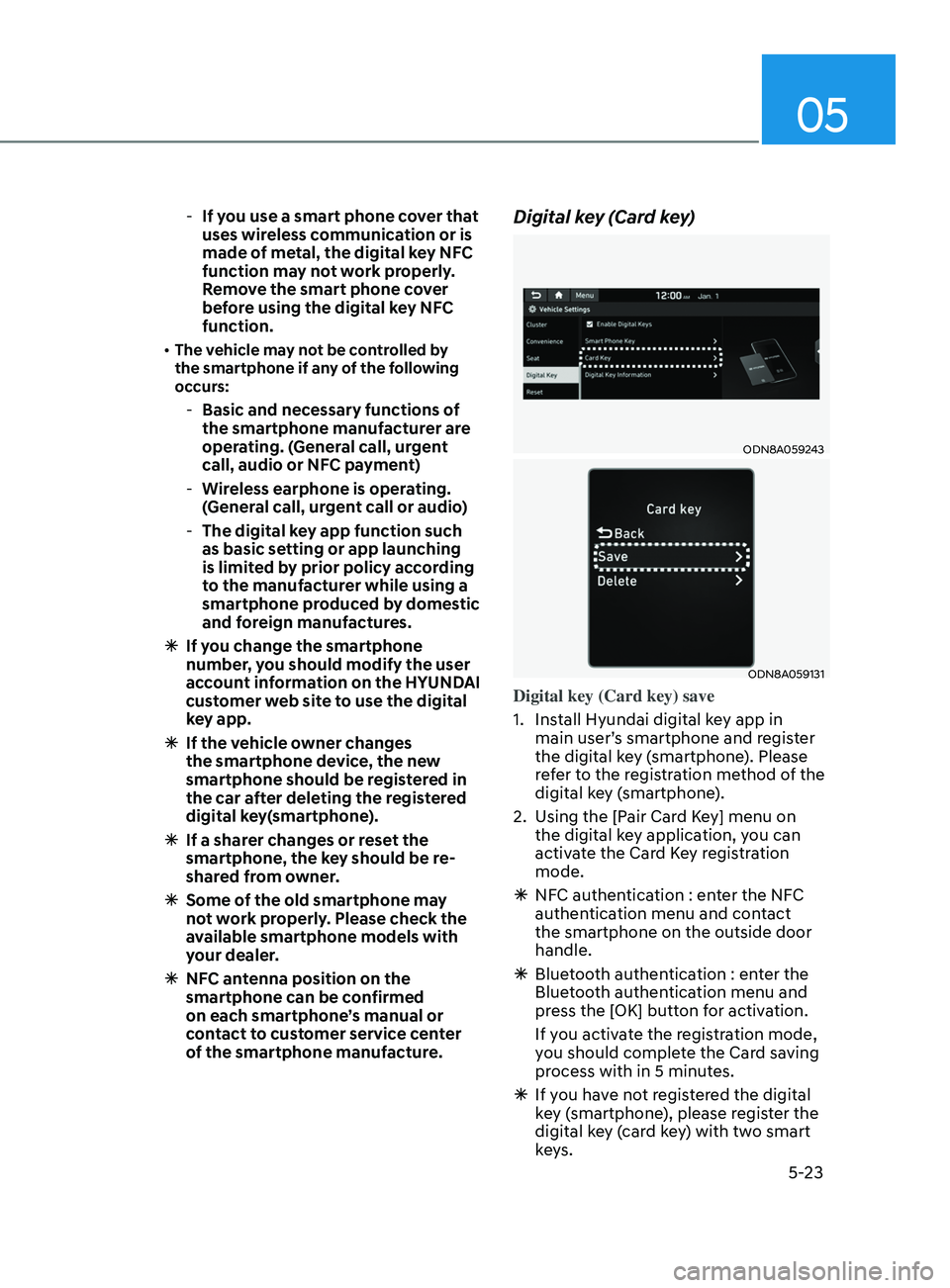
Digital key (Card key)
ODN8A059243
ODN8A059131
Digital key (Card key) save
1.
Ins
tall Hyundai digital key app in
main user’s smartphone and register
the digital key (smartphone). Please
refer to the registration method of the
digital key (smartphone).
2.
U
sing the [Pair Card Key] menu on
the digital key application, you can
activate the Card Key registration
mode.
à NF
C authentication : enter the NFC
authentication menu and contact
the smartphone on the outside door
handle.
à Blue
tooth authentication : enter the
Bluetooth authentication menu and
press the [OK] button for activation.
If you activate the registration mode,
you should complete the Card saving
process with in 5 minutes.
à If y
ou have not registered the digital
key (smartphone), please register the
digital key (card key) with two smart
keys.
Page 157 of 546
05
5-27
„„Type A
ODN8A059133
„„Type B
ODN8A059247
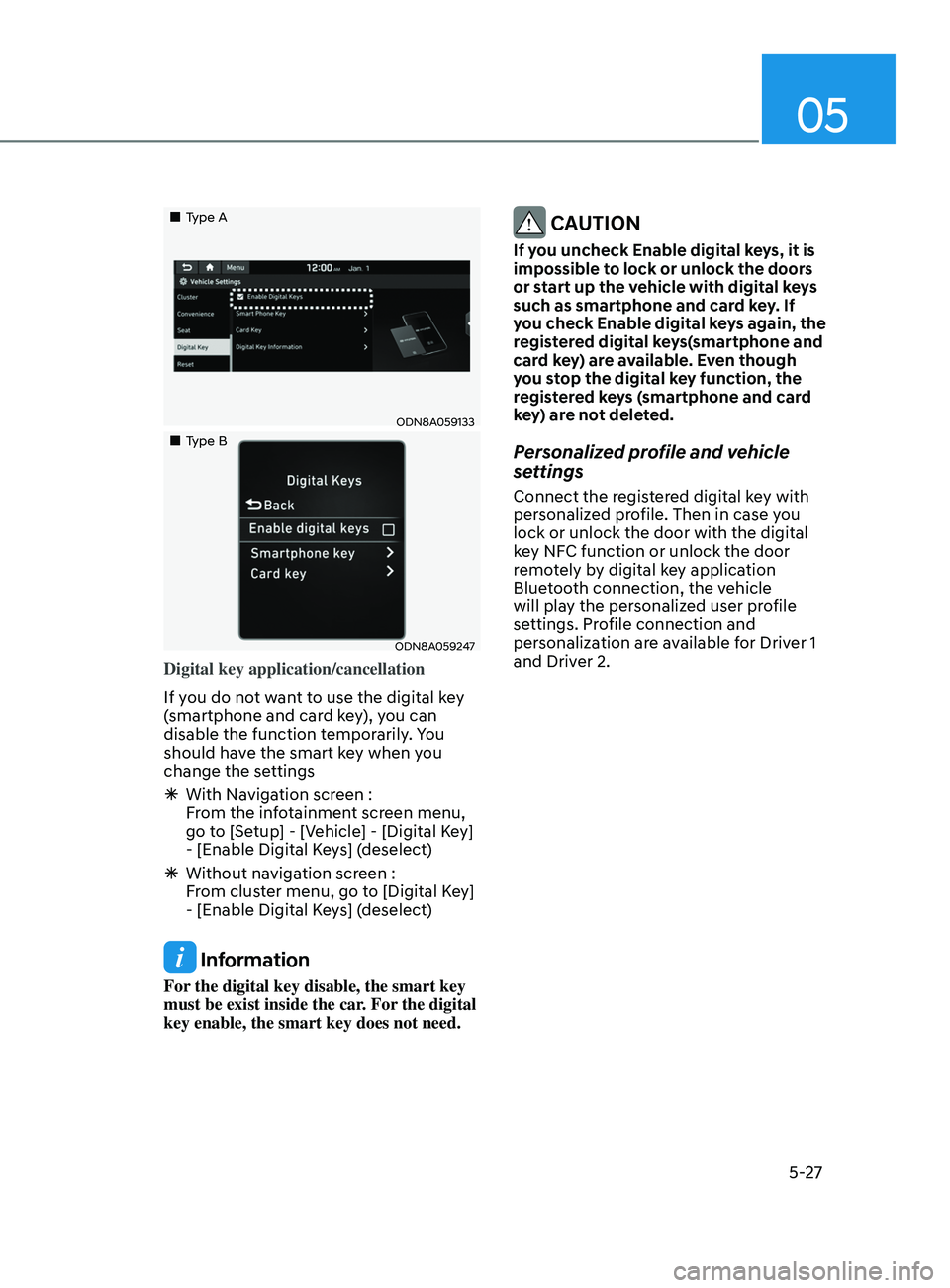
Digital key application/cancellation
If you do not want to use the digital key
(smartphone and card key), you can
disable the function temporarily. You
should have the smart key when you
change the settings
ÃWith Na
vigation screen :
From the infotainment screen menu,
go to [Setup] - [Vehicle] - [Digital Key]
- [Enable Digital Keys] (deselect)
à Without na
vigation screen :
From cluster menu, go to [Digital Key]
- [Enable Digital Keys] (deselect)
Information
For the digital key disable, the smart key
must be exist inside the car. For the digital
key enable, the smart key does not need.
CAUTION
If you uncheck Enable digital keys, it is
impossible to lock or unlock the doors
or start up the vehicle with digital keys
such as smartphone and card key. If
you check Enable digital keys again, the
registered digital keys(smartphone and
card key) are available. Even though
you stop the digital key function, the
registered keys (smartphone and card
key) are not deleted.
Personalized profile and vehicle
settings
Connect the registered digital key with
personalized profile. Then in case you
lock or unlock the door with the digital
key NFC function or unlock the door
remotely by digital key application
Bluetooth connection, the vehicle
will play the personalized user profile
settings. Profile connection and
personalization are available for Driver 1
and Driver 2.
Page 166 of 546
Convenient Features
5-36
Rear Occupant Alert (ROA)
System
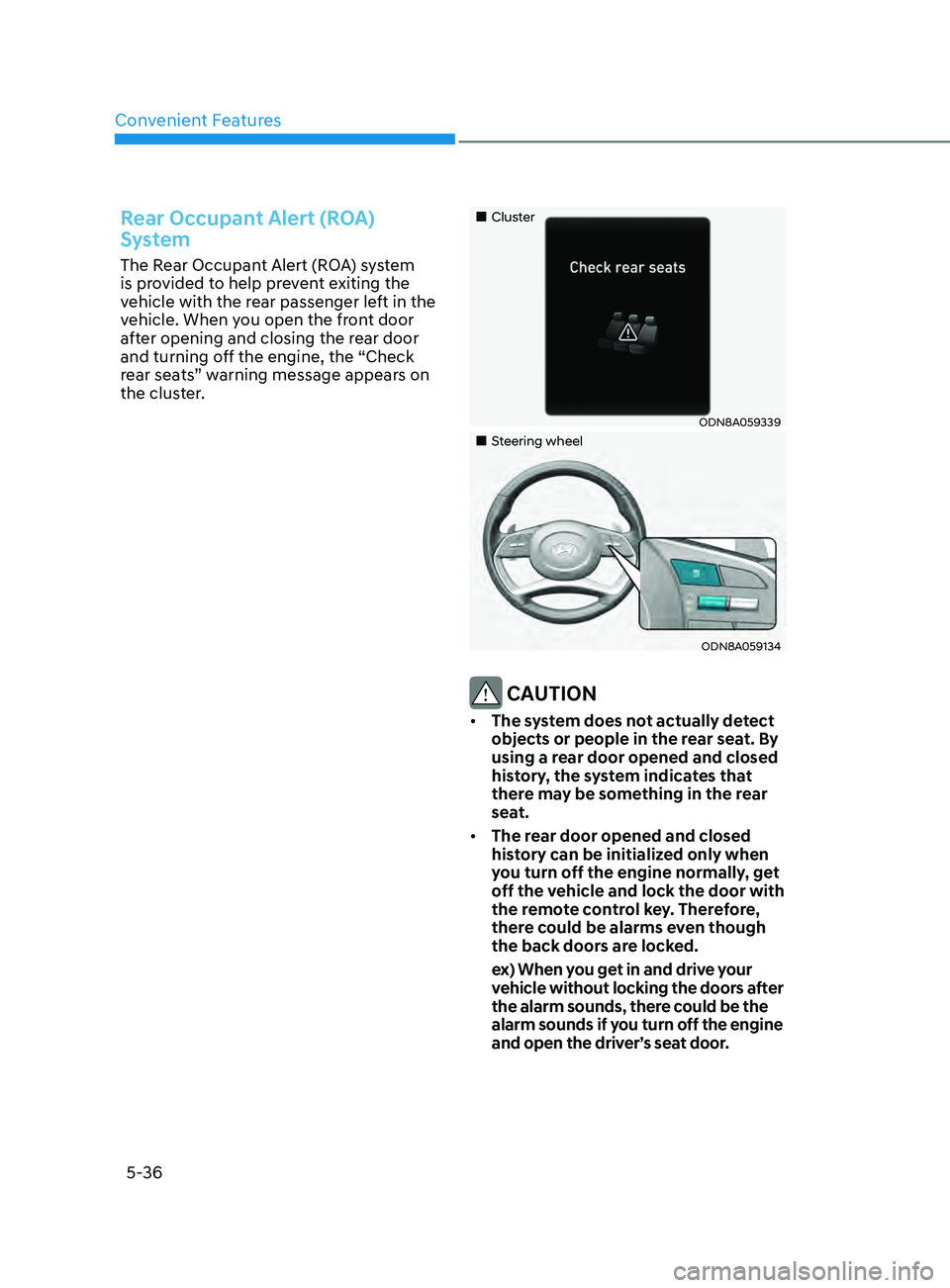
The Rear Occupant Alert (ROA) system
is provided to help prevent exiting the
vehicle with the rear passenger left in the
vehicle. When you open the front door
after opening and closing the rear door
and turning off the engine, the “Check
rear seats” warning message appears on
the cluster.
„„Cluster
ODN8A059339
„„Steering wheel
ODN8A059134
CAUTION
• The system does not actually detect
objects or people in the rear seat. By
using a rear door opened and closed
history, the system indicates that
there may be something in the rear
seat.
• The rear door opened and closed
history can be initialized only when
you turn off the engine normally, get
off the vehicle and lock the door with
the remote control key. Therefore,
there could be alarms even though
the back doors are locked.
e
x) When you get in and drive your
vehicle without locking the doors after
the alarm sounds, there could be the
alarm sounds if you turn off the engine
and open the driver’s seat door.
Page 167 of 546
05
5-37
WARNING
It does not use the actual sensors but it
provides the alarm sounds by checking
the rear door lock/unlock status as a
reminder.
Vehicle Auto-Shut Off Function
If your parked vehicle in a garage is on
for a period of time, the engine turns
off automatically to prevent carbon
monoxide poisoning.
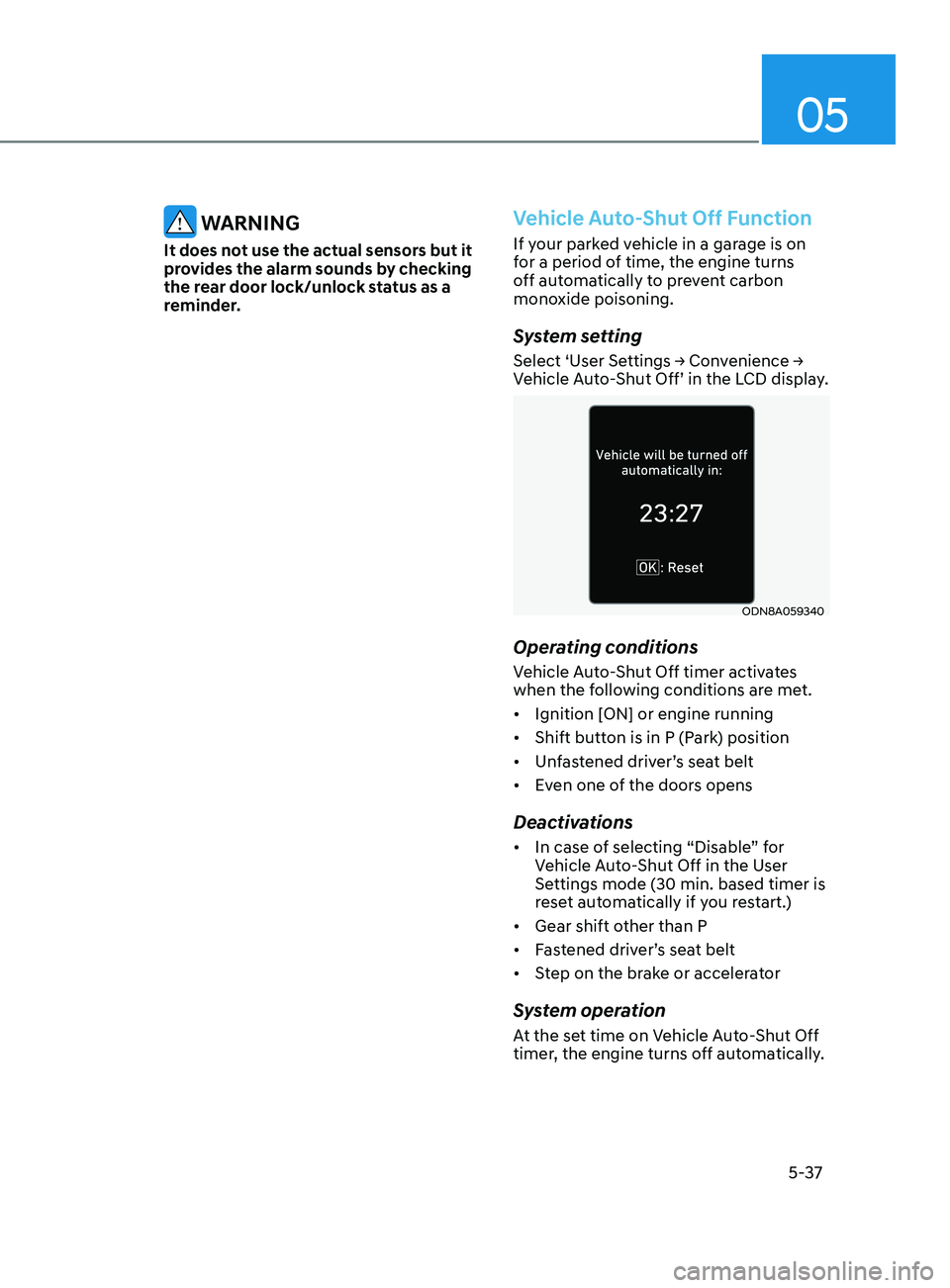
System setting
Select ‘User Settings → Convenience → Vehicle Auto-Shut Off’ in the LCD display.
ODN8A059340
Operating conditions
Vehicle Auto-Shut Off timer activates
when the following conditions are met.
• Ignition [ON] or engine running
• Shift button is in P (Park) position
• Unfastened driver’s seat belt
• Even one of the doors opens
Deactivations
• In case of selecting “Disable” for
Vehicle Auto-Shut Off in the User
Settings mode (30 min. based timer is
reset automatically if you restart.)
• Gear shift other than P
• Fastened driver’s seat belt
• Step on the brake or accelerator
System operation
At the set time on Vehicle Auto-Shut Off
timer, the engine turns off automatically.
Page 168 of 546
Convenient Features5-38
ThefT-AlArm SyS T em
This system helps to protect your vehicle
and valuables. The horn will sound and
the hazard warning lights will blink
continuously if any of the following
occur:
- A door is opened without using the
r
emote key or smart key.
- The trunk is opened without using the r
emote key or smart key.
- The engine hood is opened.
The alarm con
tinues for 30 seconds, then
the system resets. To turn off the alarm,
unlock the doors with the remote key or
smart key.
The Theft Alarm System automatically
sets 30 seconds after you lock the doors
and the trunk. For the system to activate,
you must lock the doors and the trunk
from outside the vehicle with the remote
key or smart key or by pressing the
button on the outside of the door handle
with the smart key in your possession.
The hazard warning lights will blink and
the chime will sound once to indicate the
system is armed.
Once the security system is set, opening
any door, the trunk, or the hood without
using the remote key or smart key will
cause the alarm to activate.
The Theft Alarm System will not set if the
hood, the trunk, or any door is not fully
closed. If the system will not set, check
the hood, the trunk, or the doors are fully
closed.
Do not attempt to alter this system or
add other devices to it. Information
• Do not lock the doors until all
passengers have left the vehicle. If the
remaining passenger leaves the vehicle
when the system is armed, the alarm
will be activated.
• If the vehicle is not disarmed with the
remote key or smart key, open the
doors by using the mechanical key
and place the ignition switch in the
ON position (for remote key) or start
the engine (for smart key) by directly
pressing the ignition switch with the
smart key.
• If the system is disarmed by unlocking
the vehicle, but neither a door or the
trunk is opened within 30 seconds, the
doors will relock and the system will
rearm automatically.
Page 169 of 546
05
5-39
ODN8A059019
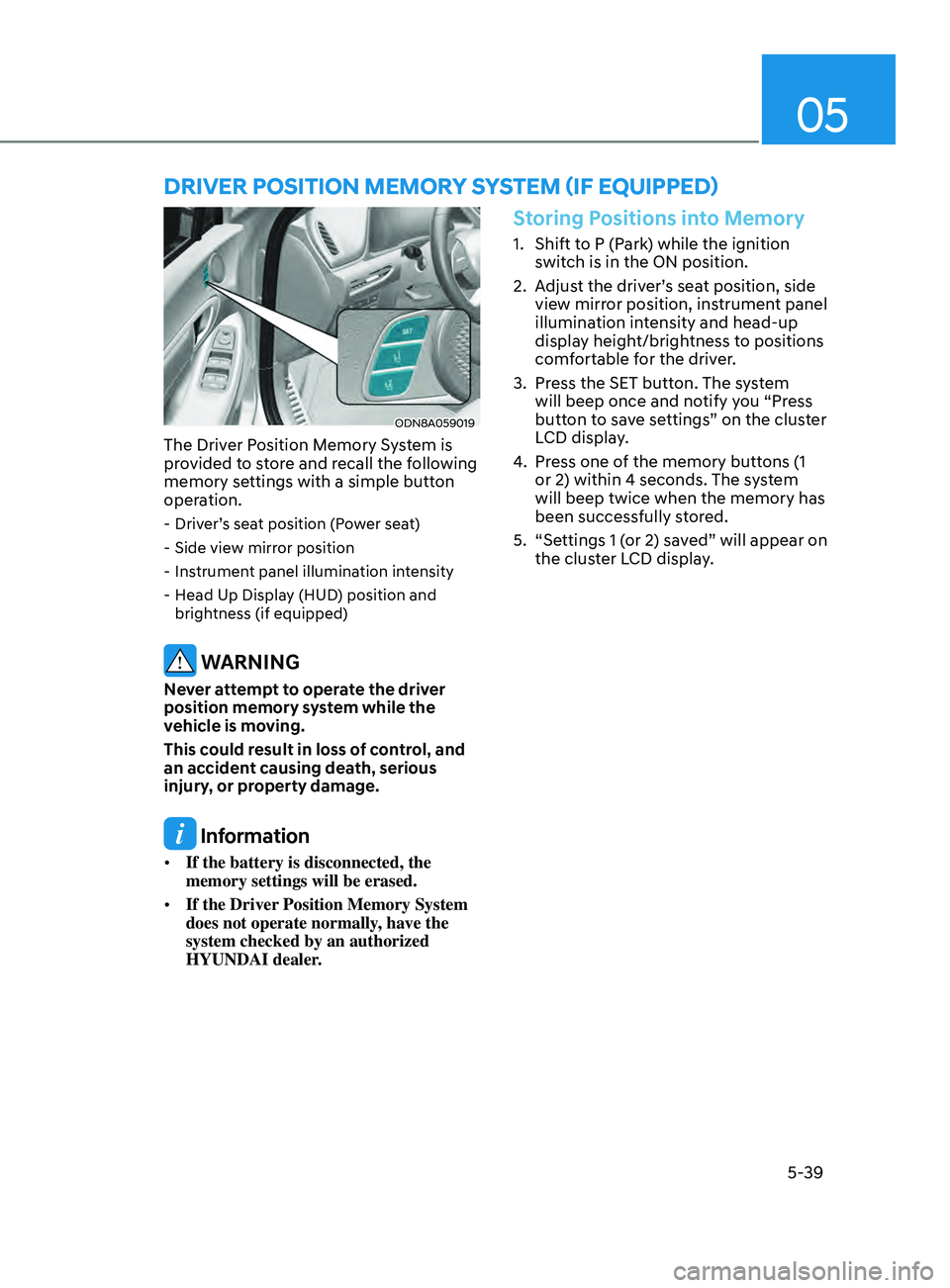
The Driver Position Memory System is
provided to store and recall the following
memory settings with a simple button
operation.
- Driver’s seat position (Power seat)
- Side vie
w mirror position
- Ins
trument panel illumination intensity
- H
ead Up Display (HUD) position and
brightness (if equipped)
WARNING
Never attempt to operate the driver
position memory system while the
vehicle is moving.
This could result in loss of control, and
an accident causing death, serious
injury, or property damage.
Information
• If the battery is disconnected, the
memory settings will be erased.
• If the Driver Position Memory System
does not operate normally, have the
system checked by an authorized
HYUNDAI dealer.
Storing Positions into Memory
1. Shift to P (Park) while the ignition
switch is in the ON position.
2.
A
djust the driver’s seat position, side
view mirror position, instrument panel
illumination intensity and head-up
display height/brightness to positions
comfortable for the driver.
3.
Pr
ess the SET button. The system
will beep once and notify you “Press
button to save settings” on the cluster
LCD display.
4.
Pr
ess one of the memory buttons (1
or 2) within 4 seconds. The system
will beep twice when the memory has
been successfully stored.
5.
“Se
ttings 1 (or 2) saved” will appear on
the cluster LCD display.
Driver poS i T ion memory SyS T em ( if eQU ippe D)
Page 172 of 546
Convenient Features5-42
steering Wheel
Electric Power Steering (EPS)
The system assists you with steering the
vehicle. If the vehicle is turned off or
if the power steering system becomes
inoperative, you may still steer the
vehicle, but it will require increased
steering effort.
Also, the steering effort becomes heavier
as the vehicle’s speed increases and
becomes lighter as the vehicle’s speed
decreases for better control of the
steering wheel.
Should you notice any change in the
effort required to steer during normal
vehicle operation, have the system
checked by an authorized HYUNDAI
dealer.
CAUTION
• If the Electric Power Steering System
does not operate normally, the
warning light (
) will illuminate
on the instrument cluster. You may
steer the vehicle, but it will require
increased steering efforts. Take your
vehicle to an authorized HYUNDAI
dealer and have the system checked
as soon as possible.
• When an abnormality is detected
in the electric power steering
system, to prevent a an accident, the
steering assist function may become
inoperative. At this time, the warning
light turns on or blinks on the cluster.
The steering wheel may become
difficult to control or operate. Have
your vehicle checked immediately,
after moving the vehicle to a safe
area.
Information
The following symptoms may occur during
normal vehicle operation:
• The steering effort may be high
immediately after placing the ignition
switch in the ON position.
This happens as the system performs
the EPS system diagnostics. When the
diagnostics are completed, the steering
wheel effort will return to its normal
condition.
• When the battery voltage is low, you
might have to put more steering effort.
However, it is a temporary condition so
that it will return to normal condition
after charging the battery.
• A click noise may be heard from the
EPS relay after the ignition switch is in
the ON or LOCK/OFF position.
• Motor noise may be heard when the
vehicle is at a stop or at a low driving
speed.
• When you operate the steering wheel
in low temperatures, abnormal noise
may occur. If the temperature rises, the
noise will disappear. This is a normal
condition.
• When an error is detected from the
EPS, the steering effort assist function
may become inoperative in order to
prevent fatal accidents. Instrument
cluster warning lights may be on or the
steering effort may be high. If these
symptoms occur, drive the vehicle to
a safe area as soon as it is safe to do
so. Have the system checked by an
authorized HYUNDAI dealer as soon
as possible.