infotainment HYUNDAI SONATA 2023 User Guide
[x] Cancel search | Manufacturer: HYUNDAI, Model Year: 2023, Model line: SONATA, Model: HYUNDAI SONATA 2023Pages: 555, PDF Size: 42.72 MB
Page 199 of 555
05
5-53
Inside the vehicle
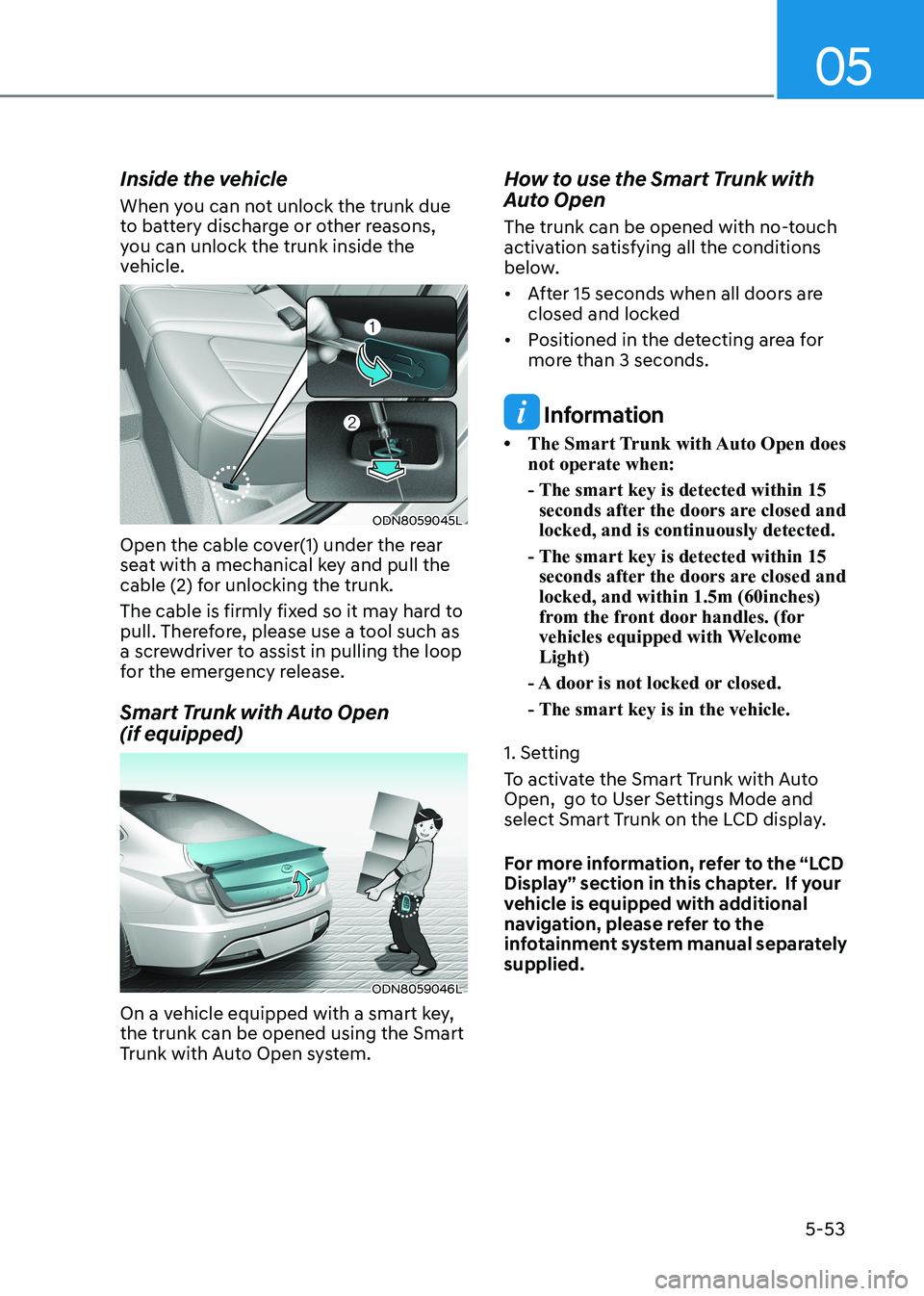
When you can not unlock the trunk due
to battery discharge or other reasons,
you can unlock the trunk inside the
vehicle.
ODN8059045L
Open the cable cover(1) under the rear
seat with a mechanical key and pull the
cable (2) for unlocking the trunk.
The cable is firmly fixed so it may hard to
pull. Therefore, please use a tool such as
a screwdriver to assist in pulling the loop
for the emergency release.
Smart Trunk with Auto Open (if equipped)
ODN8059046L
On a vehicle equipped with a smart key, the trunk can be opened using the Smart
Trunk with Auto Open system. How to use the Smart Trunk with
Auto Open
The trunk can be opened with no-touch
activation satisfying all the conditions
below.
• After 15 seconds when all doors are
closed and locked
• Positioned in the detecting area for more than 3 seconds.
Information
• The Smart Trunk with Auto Open does not operate when:
- The smart key is detected within 15 seconds after the doors are closed and locked, and is continuously detected.
- The smart key is detected within 15 seconds after the doors are closed and locked, and within 1.5m (60inches)
from the front door handles. (for
vehicles equipped with Welcome Light)
- A door is not locked or closed.
- The smart key is in the vehicle.
1. Setting
To activate the Smart Trunk with Auto
Open, go to User Settings Mode and
select Smart Trunk on the LCD display.
For more information, refer to the “LCD
Display” section in this chapter. If your
vehicle is equipped with additional
navigation, please refer to the
infotainment system manual separately supplied.
Page 205 of 555
05
5-59
heAD Up DiSplAy (hUD) (if eQUippeD)
ODN8A059054C
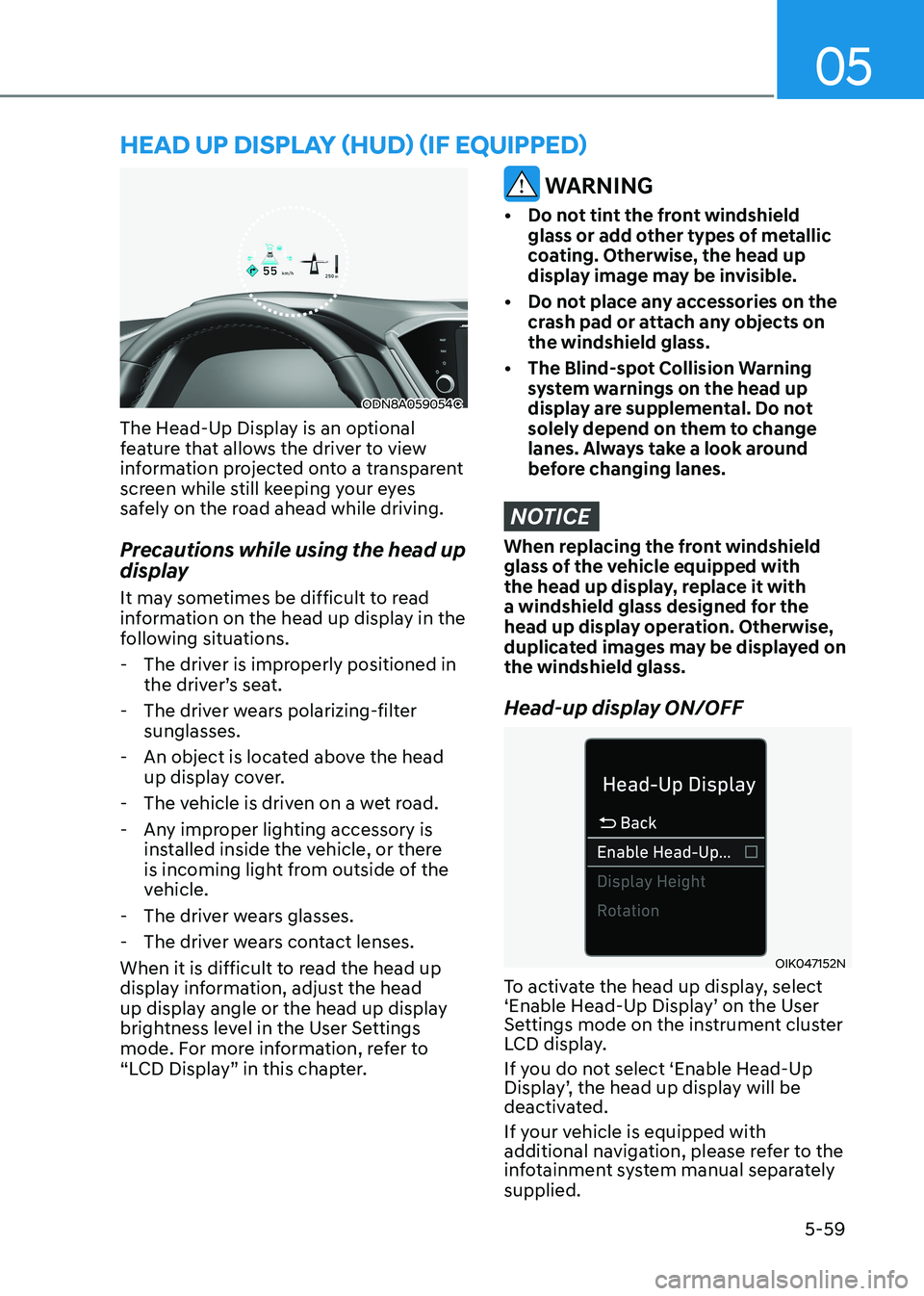
The Head-Up Display is an optional
feature that allows the driver to view
information projected onto a transparent
screen while still keeping your eyes
safely on the road ahead while driving.
Precautions while using the head up
display
It may sometimes be difficult to read
information on the head up display in the
following situations.
- The driver is improperly positioned in the driver’s seat.
- The driver wears polarizing-filter sunglasses.
- An object is located above the head up display cover.
- The vehicle is driven on a wet road.
- Any improper lighting accessory is installed inside the vehicle, or there
is incoming light from outside of the
vehicle.
- The driver wears glasses.
- The driver wears contact lenses.
When it is difficult to read the head up
display information, adjust the head
up display angle or the head up display
brightness level in the User Settings
mode. For more information, refer to
“LCD Display” in this chapter.
WARNING
• Do not tint the front windshield glass or add other types of metallic
coating. Otherwise, the head up
display image may be invisible.
• Do not place any accessories on the crash pad or attach any objects on the windshield glass.
• The Blind-spot Collision Warning system warnings on the head up
display are supplemental. Do not
solely depend on them to change
lanes. Always take a look around
before changing lanes.
NOTICE
When replacing the front windshield
glass of the vehicle equipped with
the head up display, replace it with
a windshield glass designed for the
head up display operation. Otherwise,
duplicated images may be displayed on the windshield glass.
Head-up display ON/OFF
OIK047152N
To activate the head up display, select
‘Enable Head-Up Display’ on the User
Settings mode on the instrument cluster
LCD display.
If you do not select ‘Enable Head-Up
Display’, the head up display will be
deactivated.
If your vehicle is equipped with
additional navigation, please refer to the
infotainment system manual separately supplied.
Page 206 of 555
Convenience Features
5-60
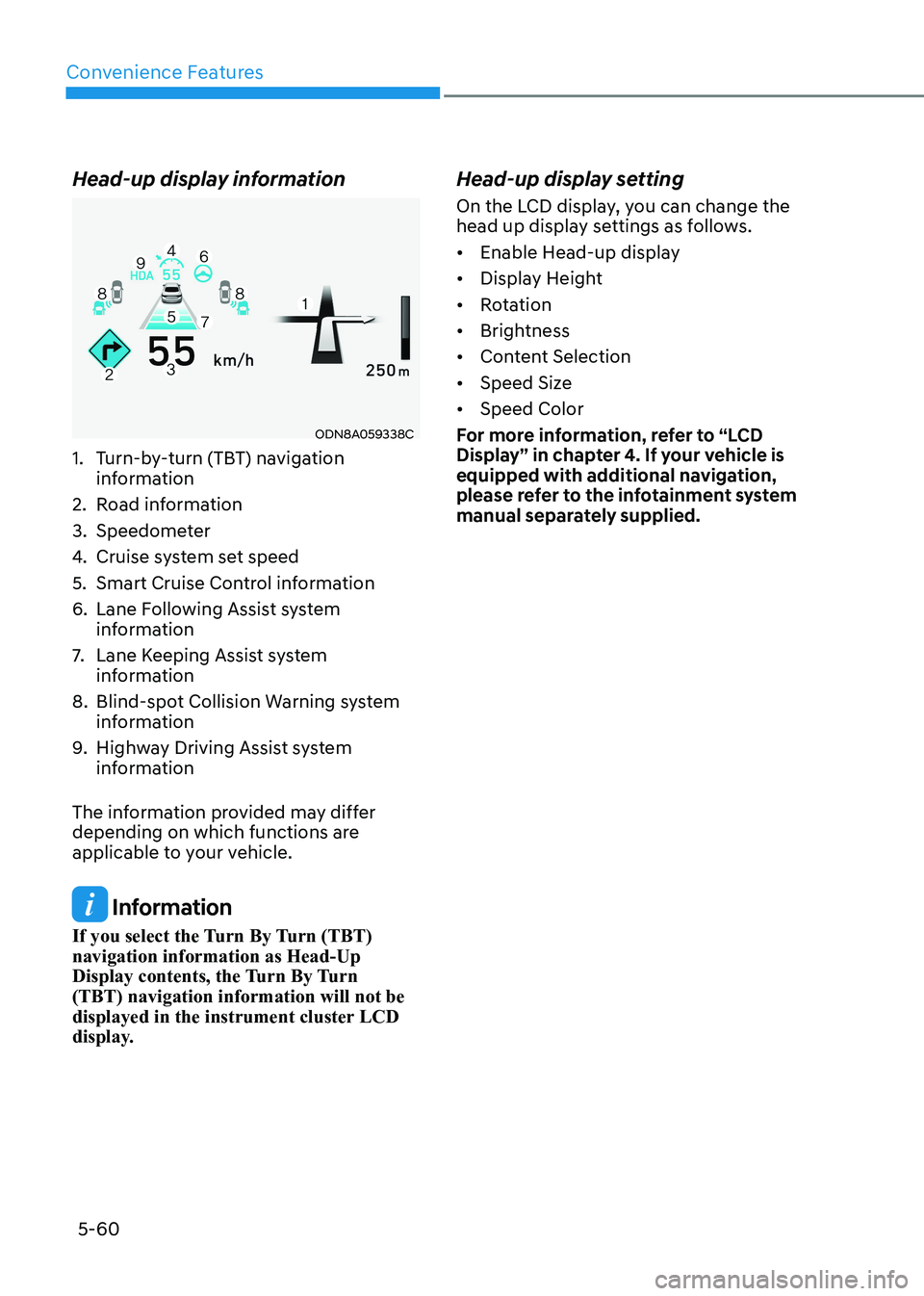
Head-up display information
ODN8A059338C
1. Turn-by-turn (TBT) navigation information
2. Road information
3. Speedometer
4. Cruise system set speed
5. Smart Cruise Control information
6. Lane Following Assist system information
7. Lane Keeping Assist system
information
8. Blind-spot Collision Warning system information
9. Highway Driving Assist system
information
The information provided may differ
depending on which functions are
applicable to your vehicle.
Information
If you select the Turn By Turn (TBT) navigation information as Head-Up
Display contents, the Turn By Turn (TBT) navigation information will not be
displayed in the instrument cluster LCD
display. Head-up display setting
On the LCD display, you can change the
head up display settings as follows.
• Enable Head-up display
• Display Height
• Rotation
• Brightness
• Content Selection
• Speed Size
• Speed Color
For more information, refer to “LCD
Display” in chapter 4. If your vehicle is
equipped with additional navigation,
please refer to the infotainment system
manual separately supplied.
Page 216 of 555
Convenience Features
5-70
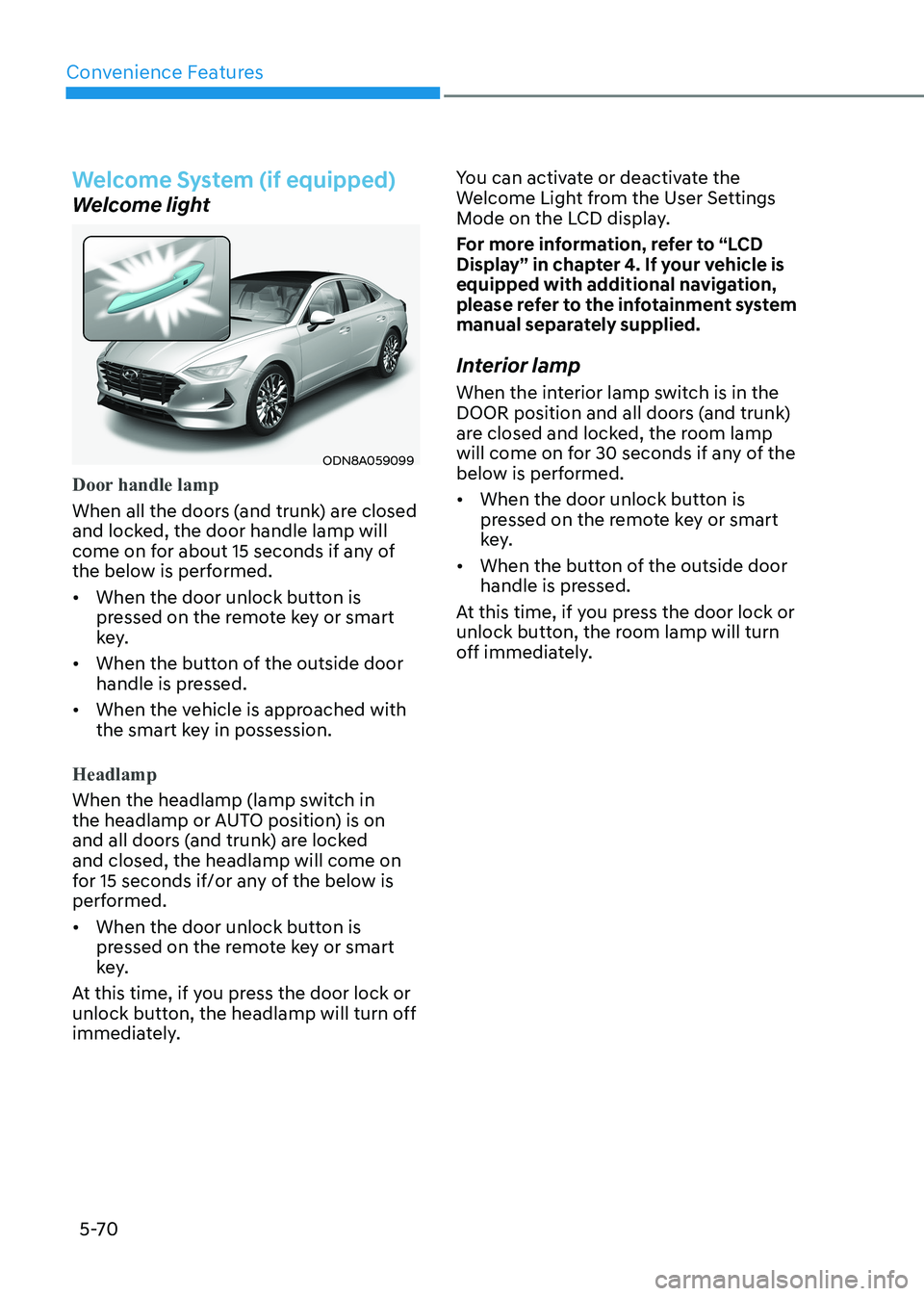
Welcome System (if equipped)
Welcome light
ODN8A059099
Door handle lamp
When all the doors (and trunk) are closed
and locked, the door handle lamp will
come on for about 15 seconds if any of
the below is performed.
• When the door unlock button is pressed on the remote key or smart
key.
• When the button of the outside door handle is pressed.
• When the vehicle is approached with the smart key in possession.
Headlamp
When the headlamp (lamp switch in
the headlamp or AUTO position) is on
and all doors (and trunk) are locked and closed, the headlamp will come on
for 15 seconds if/or any of the below is
performed.
• When the door unlock button is pressed on the remote key or smart
key.
At this time, if you press the door lock or
unlock button, the headlamp will turn off
immediately. You can activate or deactivate the
Welcome Light from the User Settings
Mode on the LCD display.
For more information, refer to “LCD
Display” in chapter 4. If your vehicle is
equipped with additional navigation,
please refer to the infotainment system
manual separately supplied.
Interior lamp
When the interior lamp switch is in the
DOOR position and all doors (and trunk)
are closed and locked, the room lamp
will come on for 30 seconds if any of the
below is performed.
• When the door unlock button is pressed on the remote key or smart
key.
• When the button of the outside door handle is pressed.
At this time, if you press the door lock or
unlock button, the room lamp will turn
off immediately.
Page 219 of 555
05
5-73
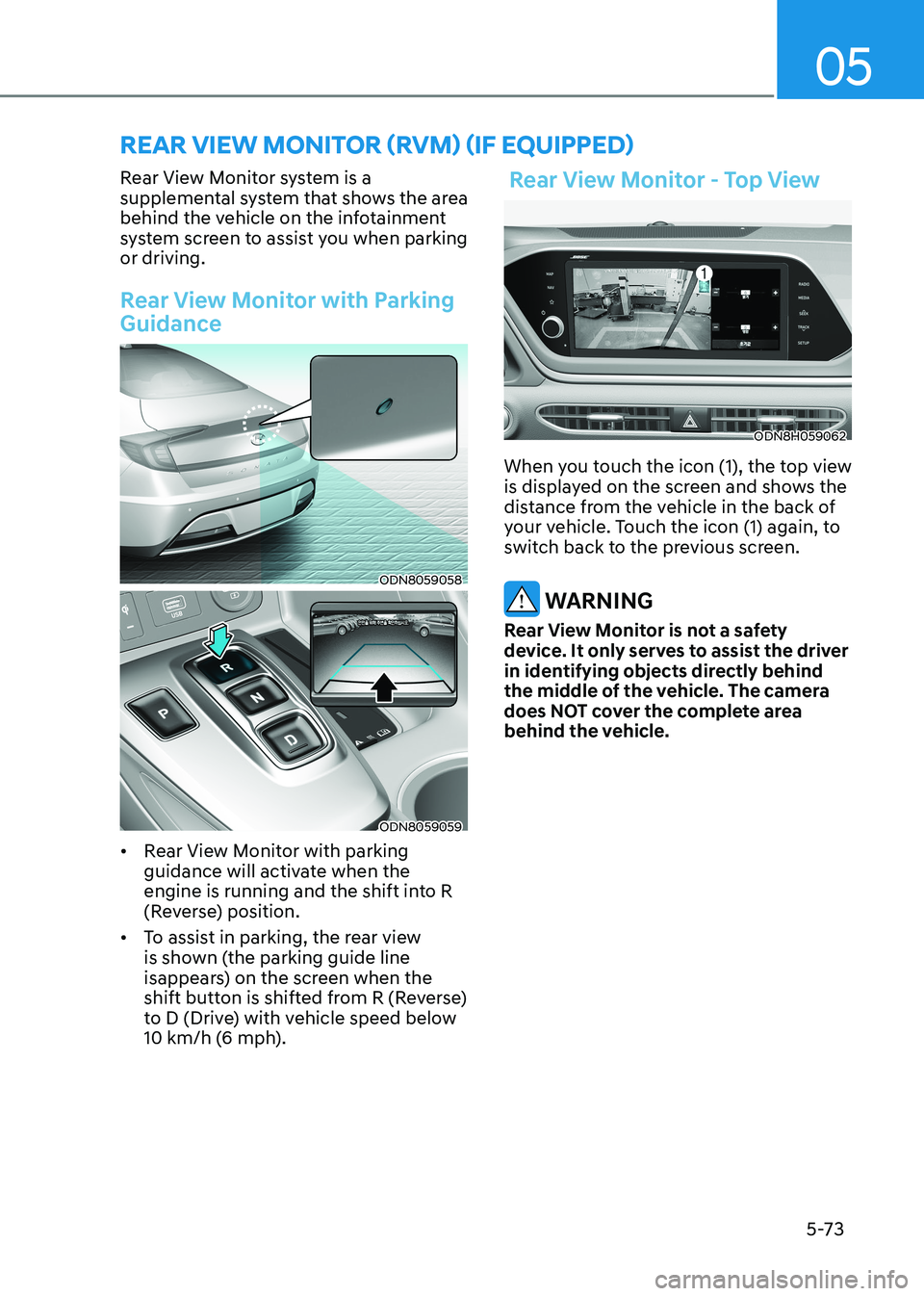
reAr view moniTor (rvm) (if eQUippeD)
Rear View Monitor system is a
supplemental system that shows the area
behind the vehicle on the infotainment
system screen to assist you when parking or driving.
Rear View Monitor with Parking
Guidance
ODN8059058
ODN8059059
• Rear View Monitor with parking
guidance will activate when the
engine is running and the shift into R
(Reverse) position.
• To assist in parking, the rear view
is shown (the parking guide line
isappears) on the screen when the
shift button is shifted from R (Reverse)
to D (Drive) with vehicle speed below
10 km/h (6 mph).
Rear View Monitor - Top View
ODN8H059062
When you touch the icon (1), the top view
is displayed on the screen and shows the
distance from the vehicle in the back of
your vehicle. Touch the icon (1) again, to
switch back to the previous screen.
WARNING
Rear View Monitor is not a safety
device. It only serves to assist the driver
in identifying objects directly behind
the middle of the vehicle. The camera
does NOT cover the complete area
behind the vehicle.
Page 222 of 555
Convenience Features
5 -76
reverSe pArKinG colliSion-AvoiDAnce ASSiST
(if eQUippeD)
Reverse Parking Collision-Avoidance
Assist (PCA) is a supplemental system
that can warn the driver or apply braking
force to reduce the possibility of collision
with pedestrians when the vehicle is
reversing.
WARNING
• Always look around your vehicle to make sure there are no objects or
pedestrian before moving the vehicle
in any direction to prevent a collision.
• Do not solely rely on Reverse Parking Collision-Avoidance Assist system.
The system might not assist the
driver leading to pedestrian injury or
vehicle damage.
• Be aware that some objects may not be visible on the screen or be
detected by the rear ultrasonic
sensors, due to the objects’ distance,
size or material, all of which can limit
the effectiveness of the sensors.
System Setting and Operation
System setting
Parking Collision-Avoidance Assist-
Reverse (PCA-R) can be activated from
the Settings menu in the LCD display or
infotainment system display by following
the procedure below.
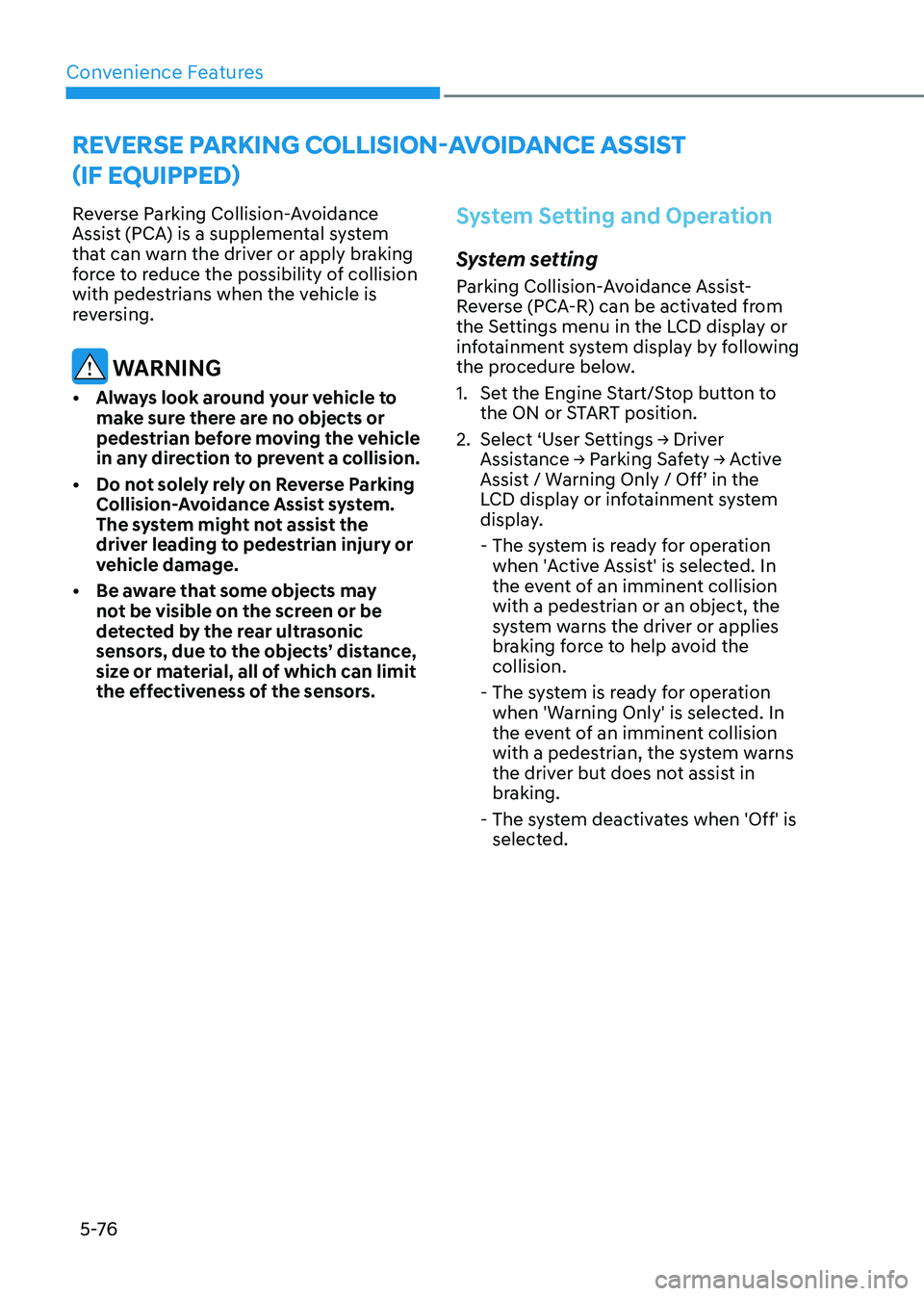
1. Set the Engine Start/Stop button to
the ON or START position.
2. Select ‘User Settings → Driver Assistance → Parking Safety → Active
Assist / Warning Only / Off’ in the
LCD display or infotainment system
display.
- The system is ready for operation when 'Active Assist' is selected. In
the event of an imminent collision
with a pedestrian or an object, the
system warns the driver or applies
braking force to help avoid the collision.
- The system is ready for operation when 'Warning Only' is selected. In
the event of an imminent collision
with a pedestrian, the system warns
the driver but does not assist in
braking.
- The system deactivates when 'Off' is selected.
Page 223 of 555
05
5-77
Operating conditions
Reverse Parking Collision-Avoidance
Assist system enters the ready status,
when 'Active Assist' or 'Warning Only' is
selected in the AVN system screen and
the following conditions are satisfied:
• The trunk is closed
• The shift lever is in R (Reverse)
• Vehicle speed is below 10 km/h (6 mph)
• System components such as the rear
view camera and the rear ultrasonic
sensors are in normal conditions
The driver needs to select 'Active Assist'
on the LCD display or infotainment
system display for collision-avoidance
assist.
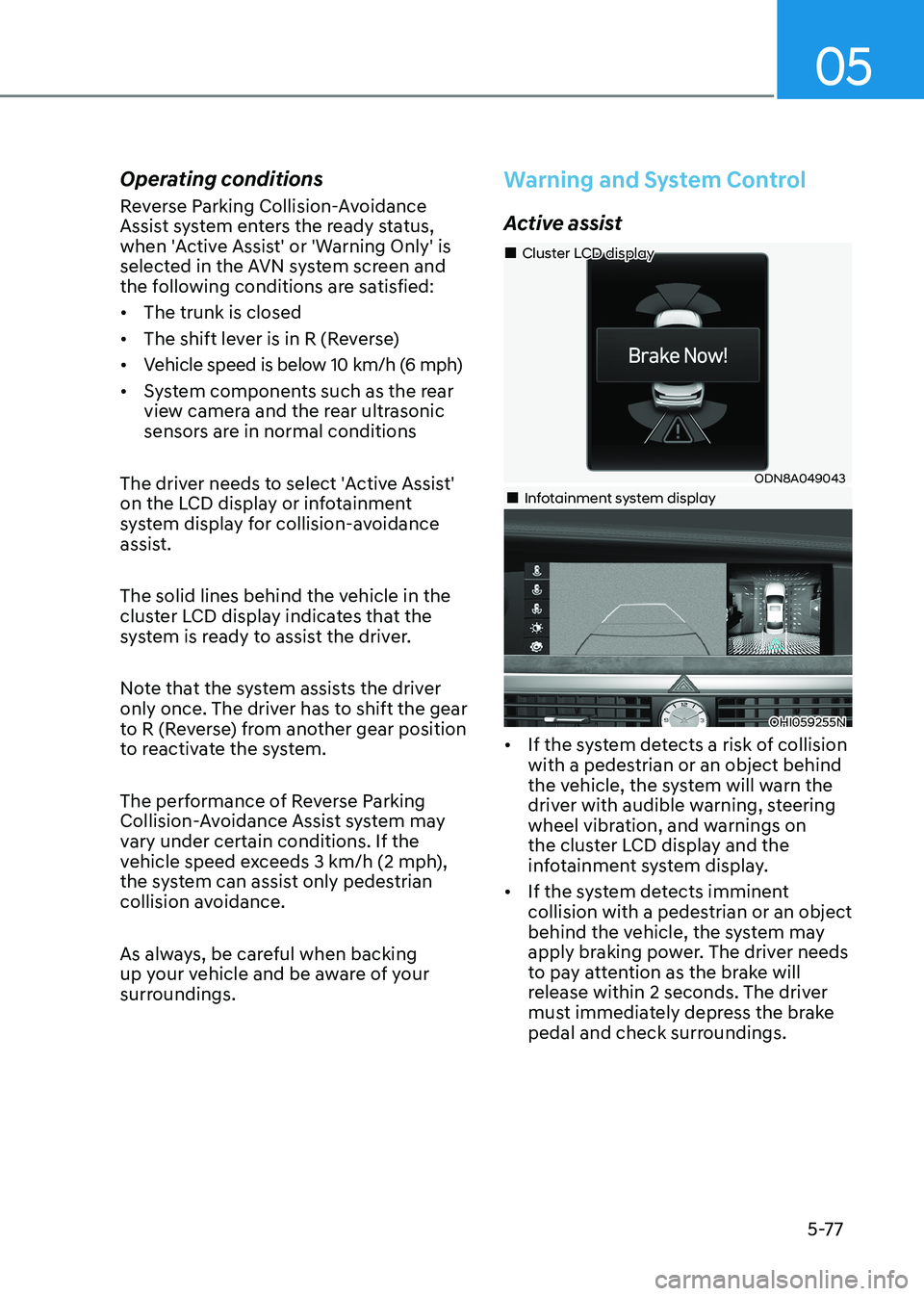
The solid lines behind the vehicle in the
cluster LCD display indicates that the
system is ready to assist the driver.
Note that the system assists the driver
only once. The driver has to shift the gear
to R (Reverse) from another gear position
to reactivate the system.
The performance of Reverse Parking
Collision-Avoidance Assist system may
vary under certain conditions. If the
vehicle speed exceeds 3 km/h (2 mph),
the system can assist only pedestrian
collision avoidance.
As always, be careful when backing
up your vehicle and be aware of your
surroundings.
Warning and System Control
Active assist
ODN8A049043
„
„Cluster LCD display
„„Infotainment system display
OHI059255N
• If the system detects a risk of collision with a pedestrian or an object behind
the vehicle, the system will warn the
driver with audible warning, steering
wheel vibration, and warnings on
the cluster LCD display and the
infotainment system display.
• If the system detects imminent collision with a pedestrian or an object
behind the vehicle, the system may
apply braking power. The driver needs
to pay attention as the brake will
release within 2 seconds. The driver
must immediately depress the brake
pedal and check surroundings.
Page 224 of 555
Convenience Features
5-78
The brake assist will turn off when:
- The driver shifts the gear to P (Park) or
D (Drive)
- The driver depresses the brake pedal with sufficient power
- The braking has been assisted for approximately 2 seconds
The warning will turn off when:
- The driver shifts the gear to P (Park), N (Neutral), or D (Drive)
The brake control may not operate
properly depending on the status of the
ESC (Electronic Stability Control). There
will only be a warning when:
- The ESC (Electronic Stability Control) warning light is on
- The ESC (Electronic Stability Control) is engaged in a different function
Warning only
• If the system detects a risk of collision with a pedestrian or an object, the
system will warn the driver with
audible warning and warnings on the
cluster LCD display or infotainment
system display.
• If ‘Warning Only’ is selected, braking will not be assisted.
The warning will turn off when:
- The driver shifts the gear to P (Park), N (Neutral), or D (Drive)
WARNING
• Reverse Parking Collision- Avoidance Assist system may
not operate properly or may
operate unnecessarily in some
circumstances.
• Always pay extreme caution while driving. The driver is responsible for
controlling the brake appropriately.
CAUTION
• Always pay attention to road and traffic conditions while driving, whether or not there is a warning.
• Playing the vehicle audio system at high volume may prevent occupants from hearing Reverse Parking Collision-Avoidance Assist system warning sounds.
• If any other warning sound, such as seat belt warning chime, is already generated, Reverse Parking Collision-Avoidance Assist system warning may not sound.
Information
The system can detect a pedestrian or an object when:
- A pedestrian is standing behind the vehicle.
- A large obstacle, such as a vehicle, is parked in the rear center of the vehicle.
Page 233 of 555
05
5-87
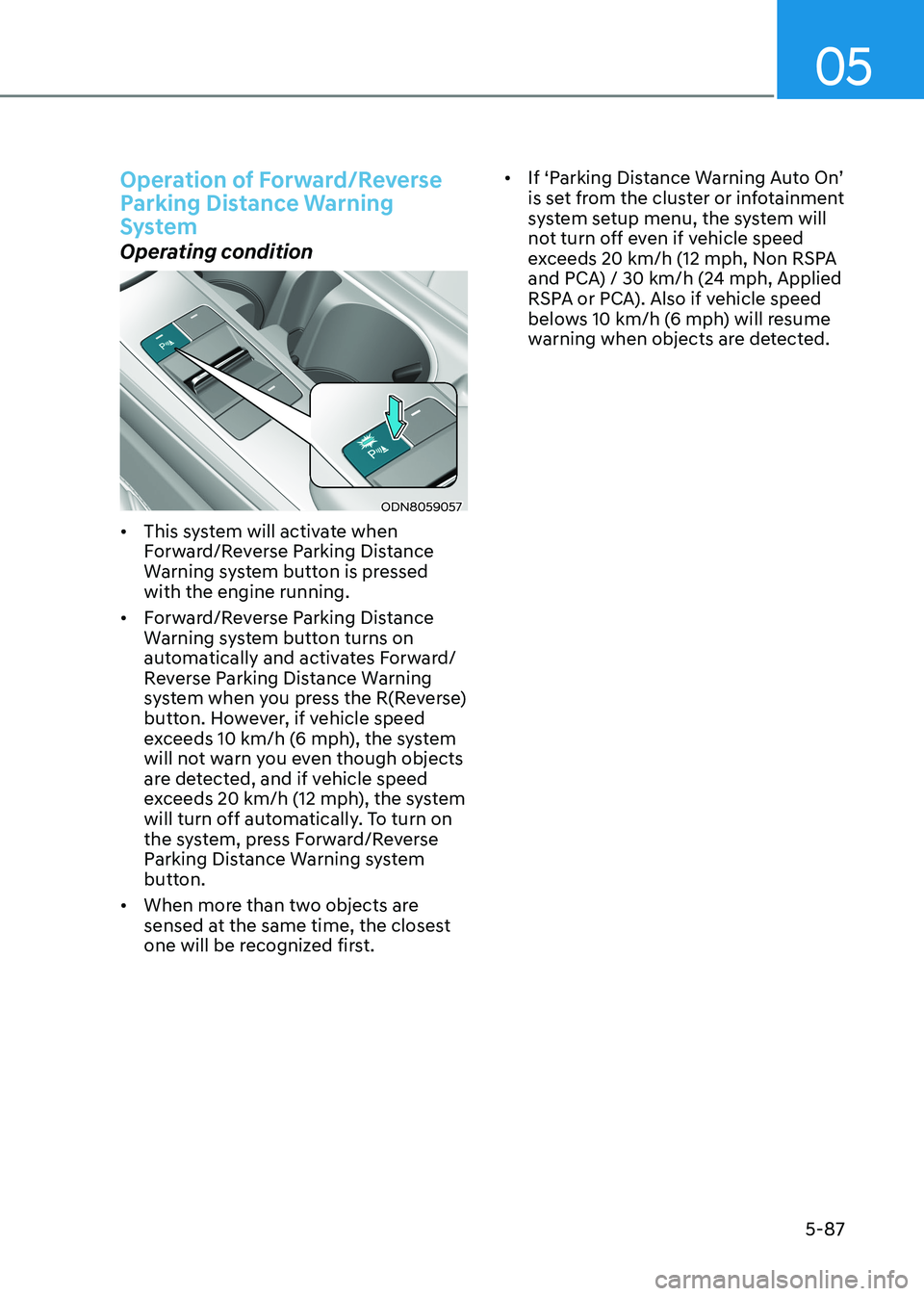
Operation of Forward/Reverse
Parking Distance Warning
System
Operating condition
ODN8059057
• This system will activate when
Forward/Reverse Parking Distance
Warning system button is pressed with the engine running.
• Forward/Reverse Parking Distance
Warning system button turns on
automatically and activates Forward/
Reverse Parking Distance Warning
system when you press the R(Reverse)
button. However, if vehicle speed
exceeds 10 km/h (6 mph), the system
will not warn you even though objects
are detected, and if vehicle speed
exceeds 20 km/h (12 mph), the system
will turn off automatically. To turn on
the system, press Forward/Reverse
Parking Distance Warning system
button.
• When more than two objects are
sensed at the same time, the closest
one will be recognized first. •
If ‘Parking Distance Warning Auto On’
is set from the cluster or infotainment
system setup menu, the system will
not turn off even if vehicle speed
exceeds 20 km/h (12 mph, Non RSPA
and PCA) / 30 km/h (24 mph, Applied
RSPA or PCA). Also if vehicle speed
belows 10 km/h (6 mph) will resume
warning when objects are detected.
Page 285 of 555
05
5-139
infoTAinmenT SySTem
NOTICE
• If you install an aftermarket HID
head lamp, your vehicle’s audio and
electronic devices may not function
properly.
• Prevent chemicals such as perfume,
cosmetic oil, sunscreen, hand
cleaner, and air freshener from
contacting the interior parts
because they may cause damage or
discoloration.
USB and iPod® Port
ODN8059229
You can use an AUX or USB cable to
connect audio devices to the vehicle AUX or USB port.
Information
When using a portable audio device
connected to the power outlet, noise may
occur during playback. If this happens,
use the portable audio device’s power
source.
à iPod® is a trademark of Apple Inc.
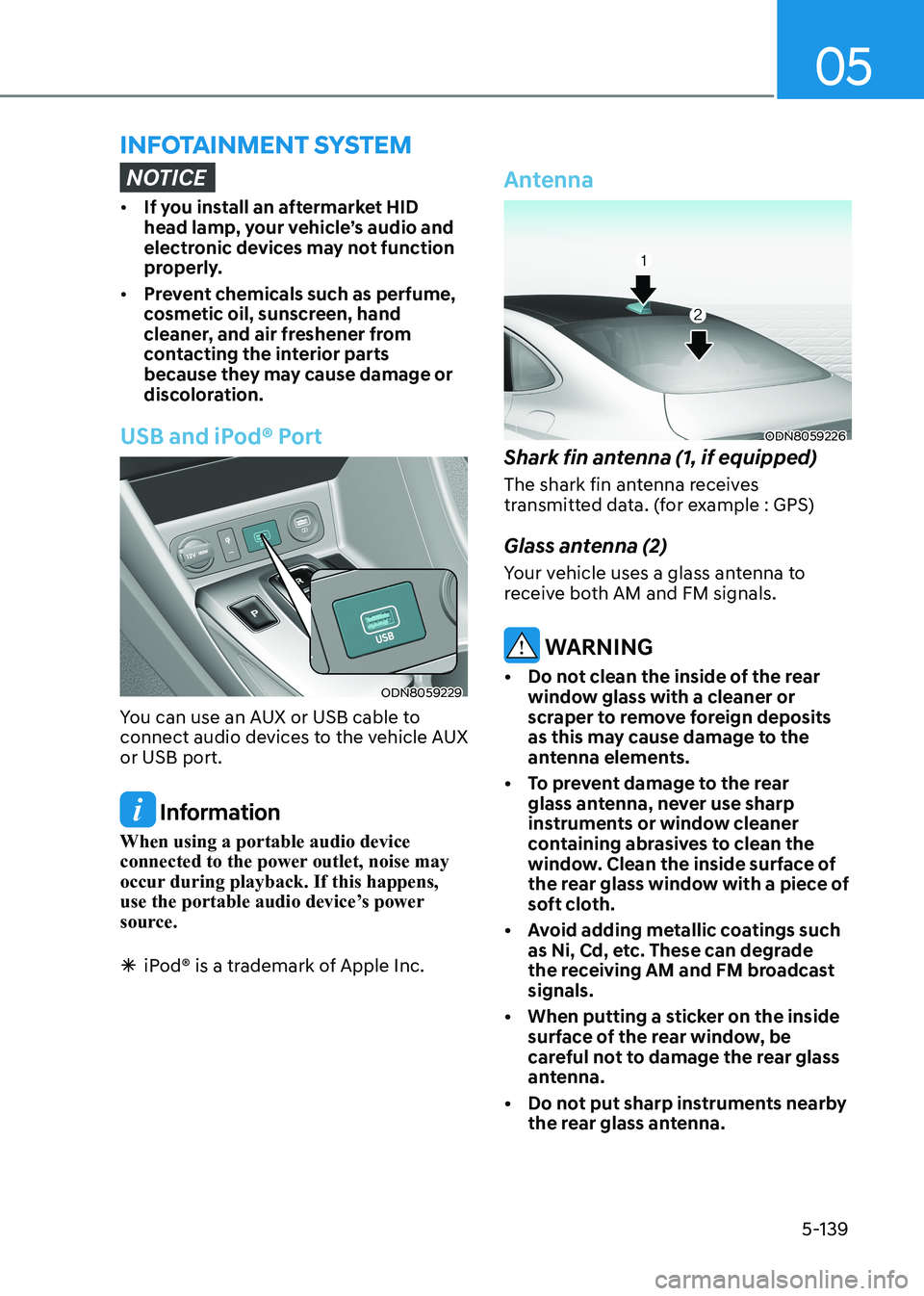
Antenna
ODN8059226
Shark fin antenna (1, if equipped)
The shark fin antenna receives
transmitted data. (for example : GPS)
Glass antenna (2)
Your vehicle uses a glass antenna to
receive both AM and FM signals.
WARNING
• Do not clean the inside of the rear window glass with a cleaner or
scraper to remove foreign deposits
as this may cause damage to the
antenna elements.
• To prevent damage to the rear glass antenna, never use sharp
instruments or window cleaner
containing abrasives to clean the
window. Clean the inside surface of
the rear glass window with a piece of
soft cloth.
• Avoid adding metallic coatings such as Ni, Cd, etc. These can degrade
the receiving AM and FM broadcast signals.
• When putting a sticker on the inside surface of the rear window, be
careful not to damage the rear glass
antenna.
• Do not put sharp instruments nearby the rear glass antenna.