audio HYUNDAI SONATA LIMITED 2016 Workshop Manual
[x] Cancel search | Manufacturer: HYUNDAI, Model Year: 2016, Model line: SONATA LIMITED, Model: HYUNDAI SONATA LIMITED 2016Pages: 708, PDF Size: 25.96 MB
Page 333 of 708
![HYUNDAI SONATA LIMITED 2016 Workshop Manual 4-85
Multimedia System
4
Connecting a Device
Press the key Select
[Phone] Select [Paired Phone List]
1) Connected Phone : Device that iscurrently connected
2) Paired Phone : Device that is paired b](/img/35/56186/w960_56186-332.png "HYUNDAI SONATA LIMITED 2016 Workshop Manual 4-85
Multimedia System
4
Connecting a Device
Press the key Select
[Phone] Select [Paired Phone List]
1) Connected Phone : Device that iscurrently connected
2) Paired Phone : Device that is paired b")
4-85
Multimedia System
4
Connecting a Device
Press the key Select
[Phone] Select [Paired Phone List]
1) Connected Phone : Device that iscurrently connected
2) Paired Phone : Device that is paired but not connected From the paired phone list, select the
device you want to connect and
press the button.
Changing Priority
What is Priority?
It is possible to pair up to five
Bluetooth®Wireless Technology
devices with the car audio system.
The "Change Priority" feature is used
to set the connection priority of
paired phones.
Press the key Select
[Phone] Select [Paired Phone List]
SETUP
ConnectSETUP
Page 338 of 708
4-90
Multimedia System
1) Contacts List :- Displays downloaded contactsentries
- Connects call upon selection
2) Sort by : Find a contact in an alphabetical order.
3) Download : Download contacts entries
Information
• Up to 1,000 contacts saved in yourBluetooth®Wireless Technology
phone can be downloaded into the
car contacts. Contacts that have
been downloaded to the car cannot
be edited or deleted on the phone.
• Mobile phone contacts are managed separately for each paired Bluetooth
®
Wireless Technology device (max 5
devices x 1,000 contacts each).
Previously downloaded data is main-
tained even if the Bluetooth
®Wireless
Technology device has been discon-
nected.
(However, the contacts and call histo-
ry saved to the phone will be deleted
if a paired phone is deleted.)
(Continued)(Continued)
• It is possible to download contacts
during Bluetooth streaming audio.
• When downloading contacts, the icon will be displayed within the sta-
tus bar.
• It is not possible to begin download- ing a contact list when the contact
download feature has been turned
off within the Bluetooth
®Wireless
Technology device. In addition,
some devices may require device
authorization upon attempting to
download contacts. If downloading
does not normally occur, check the
Bluetooth
®Wireless Technology
device settings or the screen state.
• The contacts download feature may not be supported in some mobile
phones. For more information of
supported Bluetooth
®devices and
function support, refer to your
phone’s user manual.
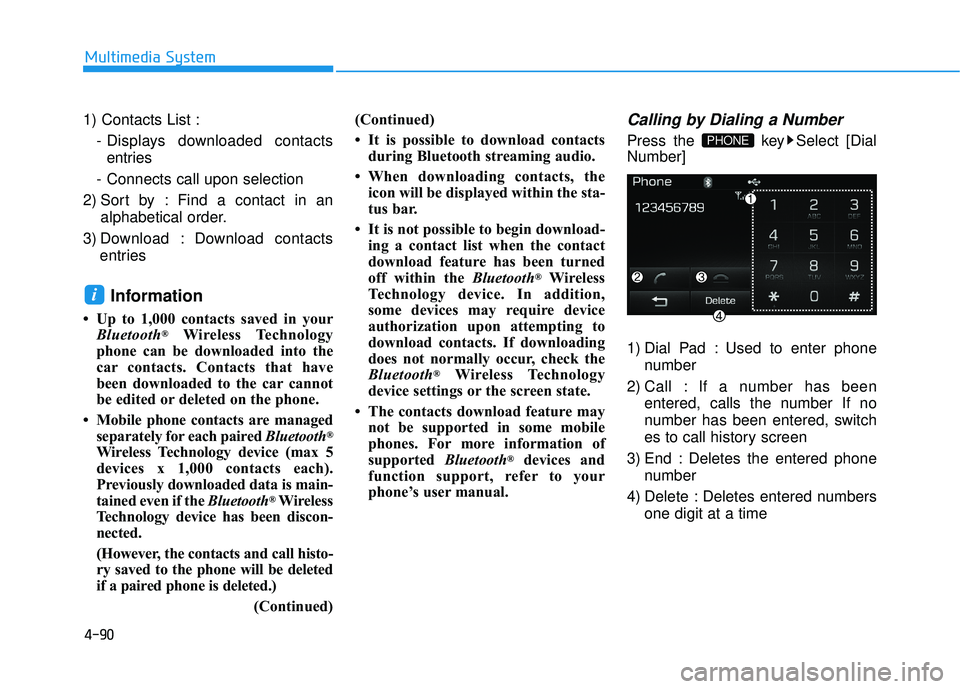
Calling by Dialing a Number
Press the key Select [Dial
Number]
1) Dial Pad : Used to enter phone
number
2) Call : If a number has been entered, calls the number If no
number has been entered, switch
es to call history screen
3) End : Deletes the entered phone number
4) Delete : Deletes entered numbers one digit at a timePHONE
i
Page 339 of 708
4-91
Multimedia System
4
Answering Calls
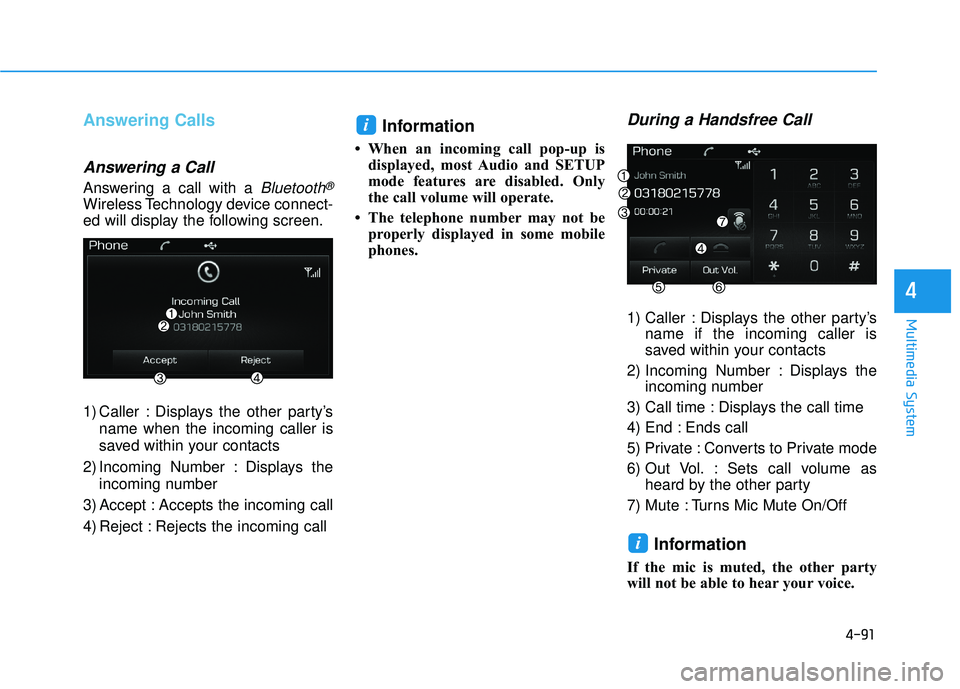
Answering a Call
Answering a call with a Bluetooth®
Wireless Technology device connect-
ed will display the following screen.
1) Caller : Displays the other party’sname when the incoming caller is
saved within your contacts
2) Incoming Number : Displays the incoming number
3) Accept : Accepts the incoming call
4) Reject : Rejects the incoming call
Information
• When an incoming call pop-up is displayed, most Audio and SETUP
mode features are disabled. Only
the call volume will operate.
• The telephone number may not be properly displayed in some mobile
phones.
During a Handsfree Call
1) Caller : Displays the other party’s name if the incoming caller is
saved within your contacts
2) Incoming Number : Displays the incoming number
3) Call time : Displays the call time
4) End : Ends call
5) Private : Converts to Private mode
6) Out Vol. : Sets call volume as heard by the other party
7) Mute : Turns Mic Mute On/Off
Information
If the mic is muted, the other party
will not be able to hear your voice.
i
i
Page 340 of 708
![HYUNDAI SONATA LIMITED 2016 Workshop Manual 4-92
Multimedia System
Bluetooth®Wireless
Technology Setting
Pairing a New Device
Press the key Select
[Phone] Select [Pair Phone]
(For USA)
(Except USA)
(❈ the screen can be different by region.)](/img/35/56186/w960_56186-339.png "HYUNDAI SONATA LIMITED 2016 Workshop Manual 4-92
Multimedia System
Bluetooth®Wireless
Technology Setting
Pairing a New Device
Press the key Select
[Phone] Select [Pair Phone]
(For USA)
(Except USA)
(❈ the screen can be different by region.)")
4-92
Multimedia System
Bluetooth®Wireless
Technology Setting
Pairing a New Device
Press the key Select
[Phone] Select [Pair Phone]
(For USA)
(Except USA)
(❈ the screen can be different by region.)
Bluetooth®Wireless Technology
devices can be paired with the audio
system.
For more information, refer to the
“Pairing through Phone Setup” sec-
tion within
Bluetooth®Wireless
Technology.
Viewing Paired Phone List
Press the key Select
[Phone] Select [Paired Phone List]
This feature is used to view mobile
phones that have been paired with
the audio system. Upon selecting a
paired phone, the setup menu is dis-
played. For more information, refer to the
“Setting
Bluetooth®Wireless
Technology Connection” section with-
in
Bluetooth®Wireless Technology.
1) : Moves to the previous screen
2) Connect/Disconnect Phone : Connect/ disconnects currently
selected phone
3) Delete : Deletes the currently selected phone
4) Change Priority : Sets currently selected phone to highest connec-
tion priority
SETUP
SETUP
Page 342 of 708
![HYUNDAI SONATA LIMITED 2016 Workshop Manual 4-94
Multimedia System
Turning Bluetooth System Off
Press the key Select
[Phone] Select [Bluetooth System Off]
Once
Bluetooth®Wireless Technology
is turned off,
Bluetooth®Wireless
Technology rela](/img/35/56186/w960_56186-341.png "HYUNDAI SONATA LIMITED 2016 Workshop Manual 4-94
Multimedia System
Turning Bluetooth System Off
Press the key Select
[Phone] Select [Bluetooth System Off]
Once
Bluetooth®Wireless Technology
is turned off,
Bluetooth®Wireless
Technology rela")
4-94
Multimedia System
Turning Bluetooth System Off
Press the key Select
[Phone] Select [Bluetooth System Off]
Once
Bluetooth®Wireless Technology
is turned off,
Bluetooth®Wireless
Technology related features will not be
supported within the audio system.
(For USA)
(Except USA)
To turn Bluetooth®Wireless
Technology back on, go to [Phone] and press “YesSETUP
NOTICE
SETUP
Page 346 of 708
4-98
Multimedia System
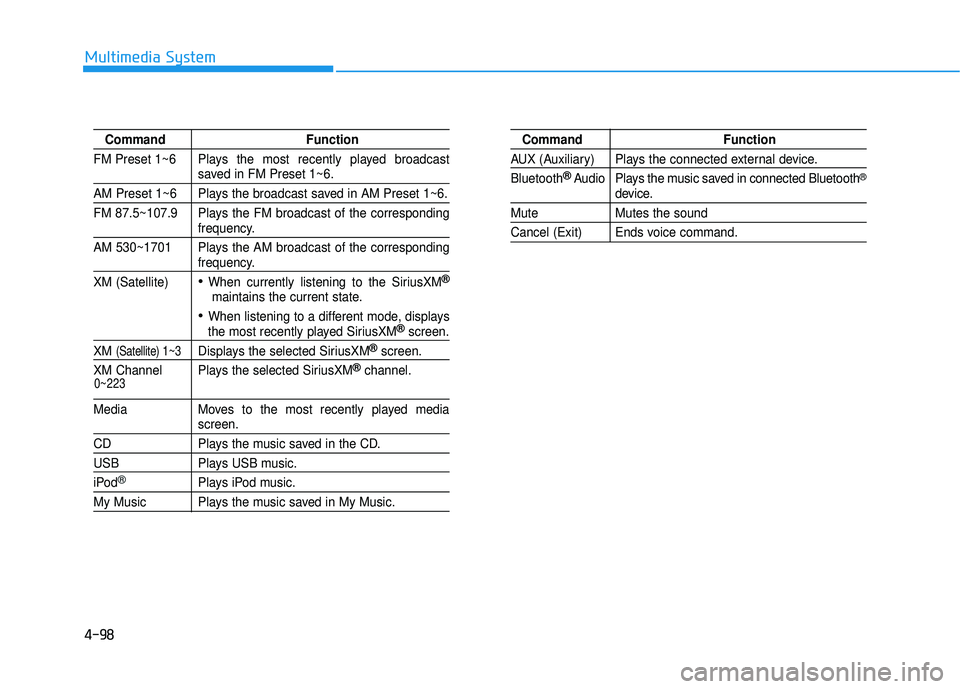
CommandFunction
FM Preset 1~6 Plays the most recently played broadcast
saved in FM Preset 1~6.
AM Preset 1~6 Plays the broadcast saved in AM Preset 1~6.
FM 87.5~107.9 Plays the FM broadcast of the corresponding
frequency.
AM 530~1701 Plays the AM broadcast of the corresponding
frequency.
XM (Satellite)
When currently listening to the SiriusXM®
maintains the current state.
When listening to a different mode, displaysthe most recently played SiriusXM®screen.
XM (Satellite) 1~3Displays the selected SiriusXM®screen.
XM Channel Plays the selected SiriusXM
®channel.
Media Moves to the most recently played mediascreen.
CD Plays the music saved in the CD.
USBPlays USB music.
iPod®Plays iPod music.
My Music Plays the music saved in My Music.
Command Function
AUX (Auxiliary) Plays the connected external device.
Bluetooth
®Audio Plays the music saved in connected Bluetooth®
device.
Mute Mutes the sound
Cancel (Exit) Ends voice command.
0~223
Page 347 of 708
4-99
Multimedia System
4
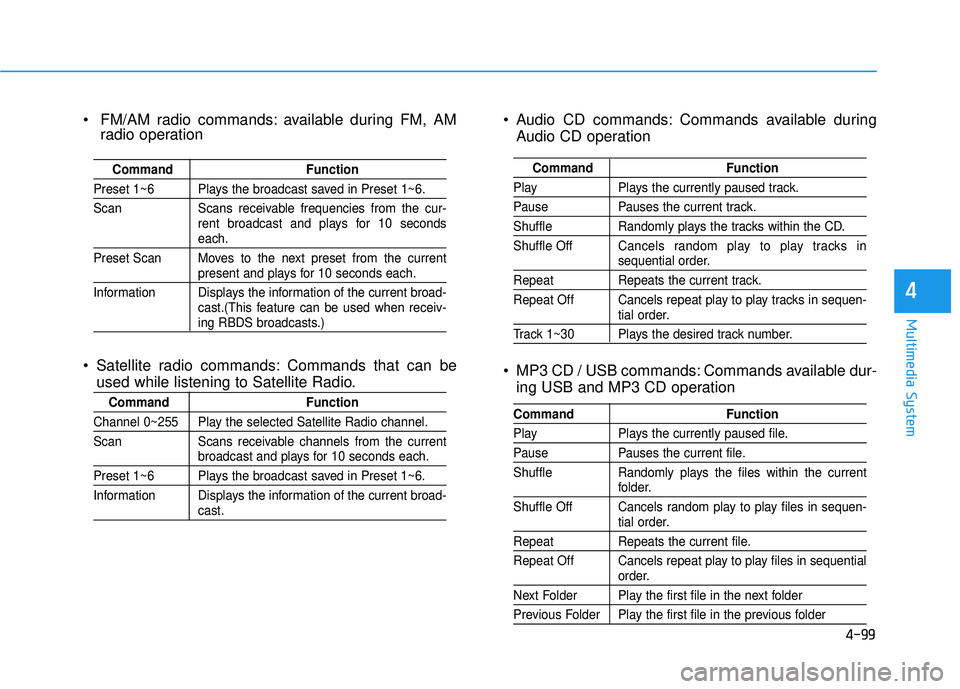
Audio CD commands: Commands available duringAudio CD operation
MP3 CD / USB commands: Commands available dur- ing USB and MP3 CD operation
Command Function
PlayPlays the currently paused track.
PausePauses the current track.
ShuffleRandomly plays the tracks within the CD.
Shuffle Off Cancels random play to play tracks in
sequential order.
Repeat Repeats the current track.
Repeat Off Cancels repeat play to play tracks in sequen-
tial order.
Track 1~30 Plays the desired track number.
Command Function
PlayPlays the currently paused file.
PausePauses the current file.
Shuffle Randomly plays the files within the current
folder.
Shuffle Off Cancels random play to play files in sequen-
tial order.
Repeat Repeats the current file.
Repeat Off Cancels repeat play to play files in sequential
order.
Next Folder Play the first file in the next folder
Previous Folder Play the first file in the previous folder
FM/AM radio commands: available during FM, AM radio operation
Satellite radio commands: Commands that can be used while listening to Satellite Radio.
Command Function
Preset 1~6 Plays the broadcast saved in Preset 1~6.
Scan Scans receivable frequencies from the cur-
rent broadcast and plays for 10 seconds
each.
Preset Scan Moves to the next preset from the current
present and plays for 10 seconds each.
Information Displays the information of the current broad- cast.(This feature can be used when receiv-
ing RBDS broadcasts.)
Command Function
Channel 0~255 Play the selected Satellite Radio channel.
Scan Scans receivable channels from the current
broadcast and plays for 10 seconds each.
Preset 1~6 Plays the broadcast saved in Preset 1~6.
Information Displays the information of the current broad-
cast.
Page 351 of 708
![HYUNDAI SONATA LIMITED 2016 Workshop Manual 4-103
Multimedia System
4
Variable EQ
This is a premium sound system fea-
ture in which the acoustical mode
can be selected according to musical
preferences.
Select [Variable EQ] Set menu
through TUN](/img/35/56186/w960_56186-350.png "HYUNDAI SONATA LIMITED 2016 Workshop Manual 4-103
Multimedia System
4
Variable EQ
This is a premium sound system fea-
ture in which the acoustical mode
can be selected according to musical
preferences.
Select [Variable EQ] Set menu
through TUN")
4-103
Multimedia System
4
Variable EQ
This is a premium sound system fea-
ture in which the acoustical mode
can be selected according to musical
preferences.
Select [Variable EQ] Set menu
through TUNE knob
Natural sound,sound optimized for driver.
Powerful sound emphasizing bass, stereo sound.
Sound similar to a concert or live hall
❈ May differ depending on the
selected audio.
SDVC (Speed Dependent Volume Control)
Press the key Select [Sound]
Select [Speed Dependent Vol.]
The volume level is controlled auto-
matically according to the vehicle
speed. SDVC can be set by selecting
from On / Off.
Voice Recognition Volume
Press the key Select [Sound] Select [Voice Recognition Vol.]
Turn the TUNE knob to adjust the
Voice Recognition volume.SETUP
SETUP
Page 352 of 708
![HYUNDAI SONATA LIMITED 2016 Workshop Manual 4-104
Multimedia System
Touch Screen Beep
Press the key Select [Sound]Select [Touch Screen Beep]
This feature is used to turn the touch
screen beep on/off.
Blue Link Voice Volume
Press the key Sele](/img/35/56186/w960_56186-351.png "HYUNDAI SONATA LIMITED 2016 Workshop Manual 4-104
Multimedia System
Touch Screen Beep
Press the key Select [Sound]Select [Touch Screen Beep]
This feature is used to turn the touch
screen beep on/off.
Blue Link Voice Volume
Press the key Sele")
4-104
Multimedia System
Touch Screen Beep
Press the key Select [Sound]Select [Touch Screen Beep]
This feature is used to turn the touch
screen beep on/off.
Blue Link Voice Volume
Press the key Select [Sound] Select [Blue Link Voice Vol.]
Turn the TUNE knob to adjust the
Blue Link Voice Volume.
❈ Blue Link
®may differ depending
on the selected audio.
System Setting
Memory Information
Press the key Select
[System] Select [Memory Information]
This feature displays information
related to system memory.
1) Using : Displays capacity currently in use
2) Capacity : Displays total capacity
SETUP
SETUP SETUP
Page 359 of 708
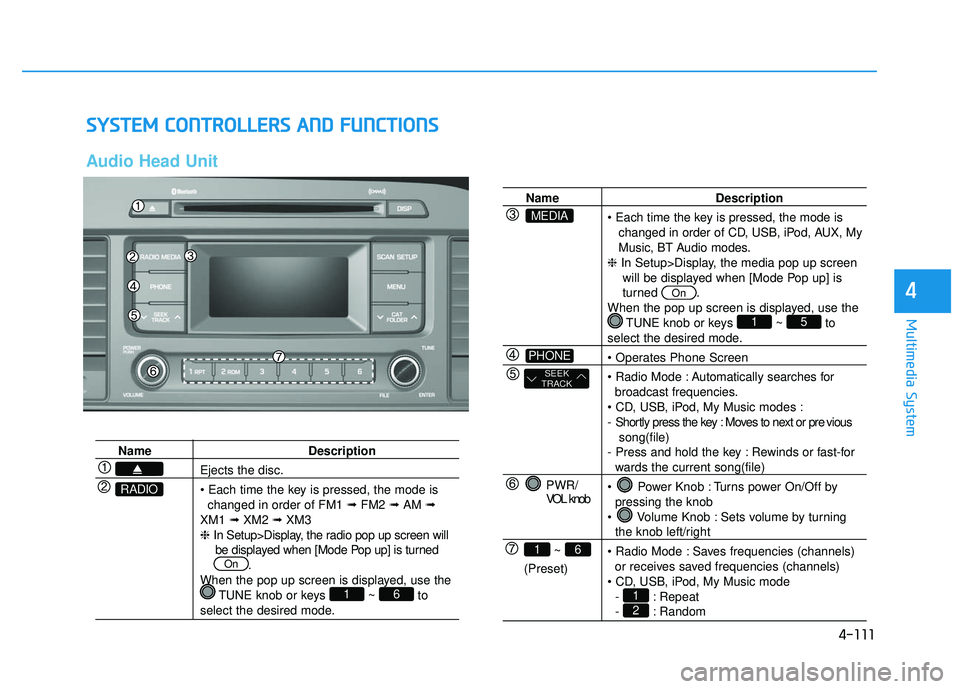
4-111
Multimedia System
4
S
SY
Y S
ST
T E
EM
M
C
C O
O N
NT
TR
R O
O L
LL
LE
E R
R S
S
A
A N
N D
D
F
F U
U N
NC
CT
T I
IO
O N
NS
S
Audio Head Unit
Name Description
Ejects the disc.
• Each time the key is pressed, the mode is
changed in order of FM1 ➟FM2 ➟AM ➟
XM1 ➟XM2 ➟XM3
❈ In Setup>Display, the radio pop up screen will
be displayed when [Mode Pop up] is turned .
When the pop up screen is displayed, use the TUNE knob or keys ~ to
select the desired mode.
61
On
RADIO
Name Description
changed in order of CD, USB, iPod, AUX, My
Music, BT Audio modes.
❈ In Setup>Display, the media pop up screen
will be displayed when [Mode Pop up] is
turned .
When the pop up screen is displayed, use the TUNE knob or keys ~ to
select the desired mode.
Automatically searches for broadcast frequencies.
- Shortly press the key : Moves to next or pre vious song(file)
- Press and hold the key : Rewinds or fast-for
wards the current song(file)
Power Knob : Turns power On/Off by pressing the knob
Volume Knob : Sets volume by turning
the knob left/right
Saves frequencies (channels) or receives saved frequencies (channels)
- : Repeat
- : Random21
51
On
PWR/
VOL knob
~
(Preset)
61
SEEK
TRACK
PHONE
MEDIA